Assim que um formulário é publicado, qualquer pessoa com a sua ligação pode preenchê-lo. Este guia leva-o de um rascunho a um formulário ativo, com a sua ligação na área de transferência, um código QR para impressão e, se desejar, o formulário exibido no seu próprio website.
Publique o seu formulário
- Open the form in the builder. A new form shows a Draft badge in the top bar.
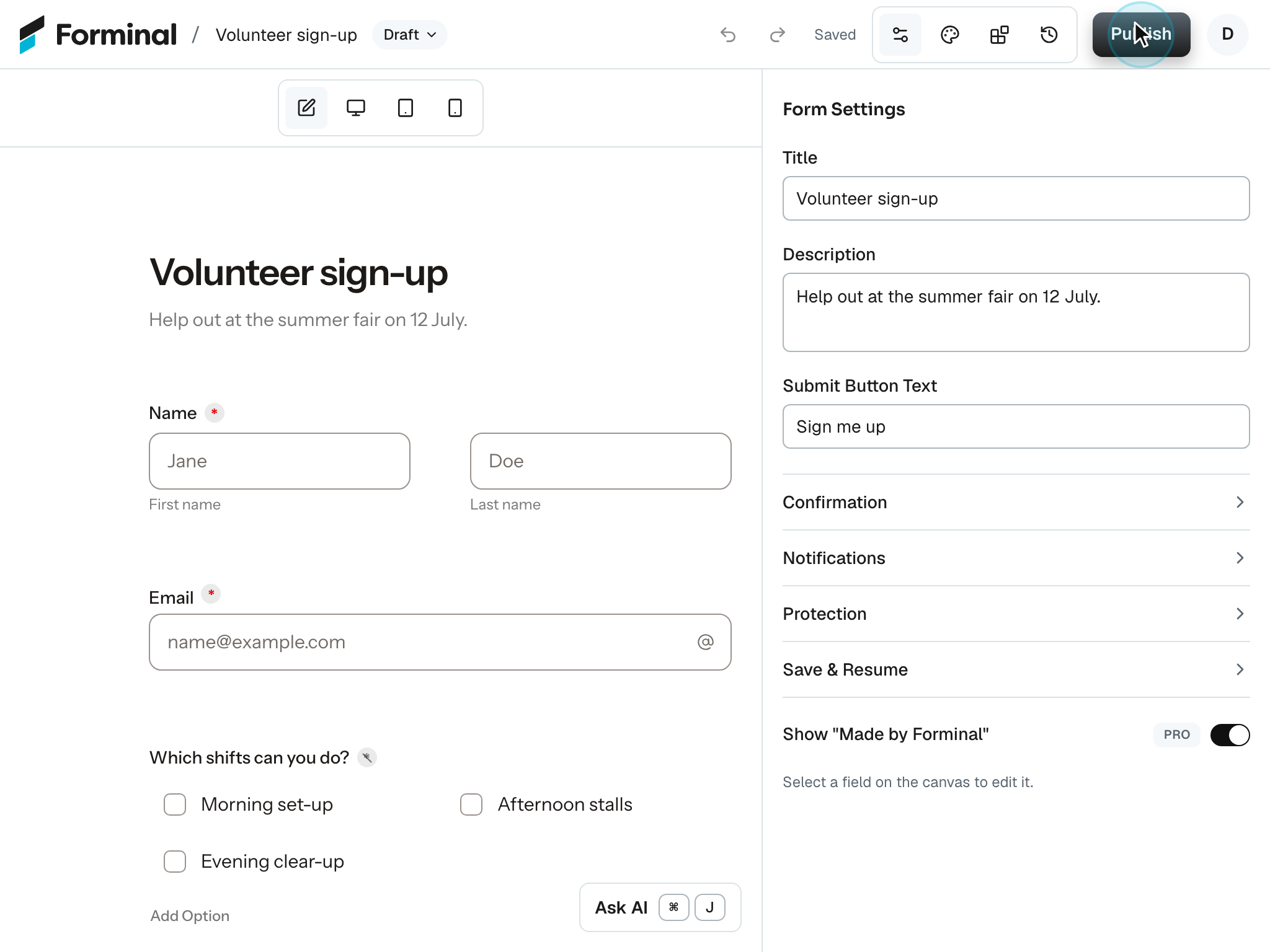
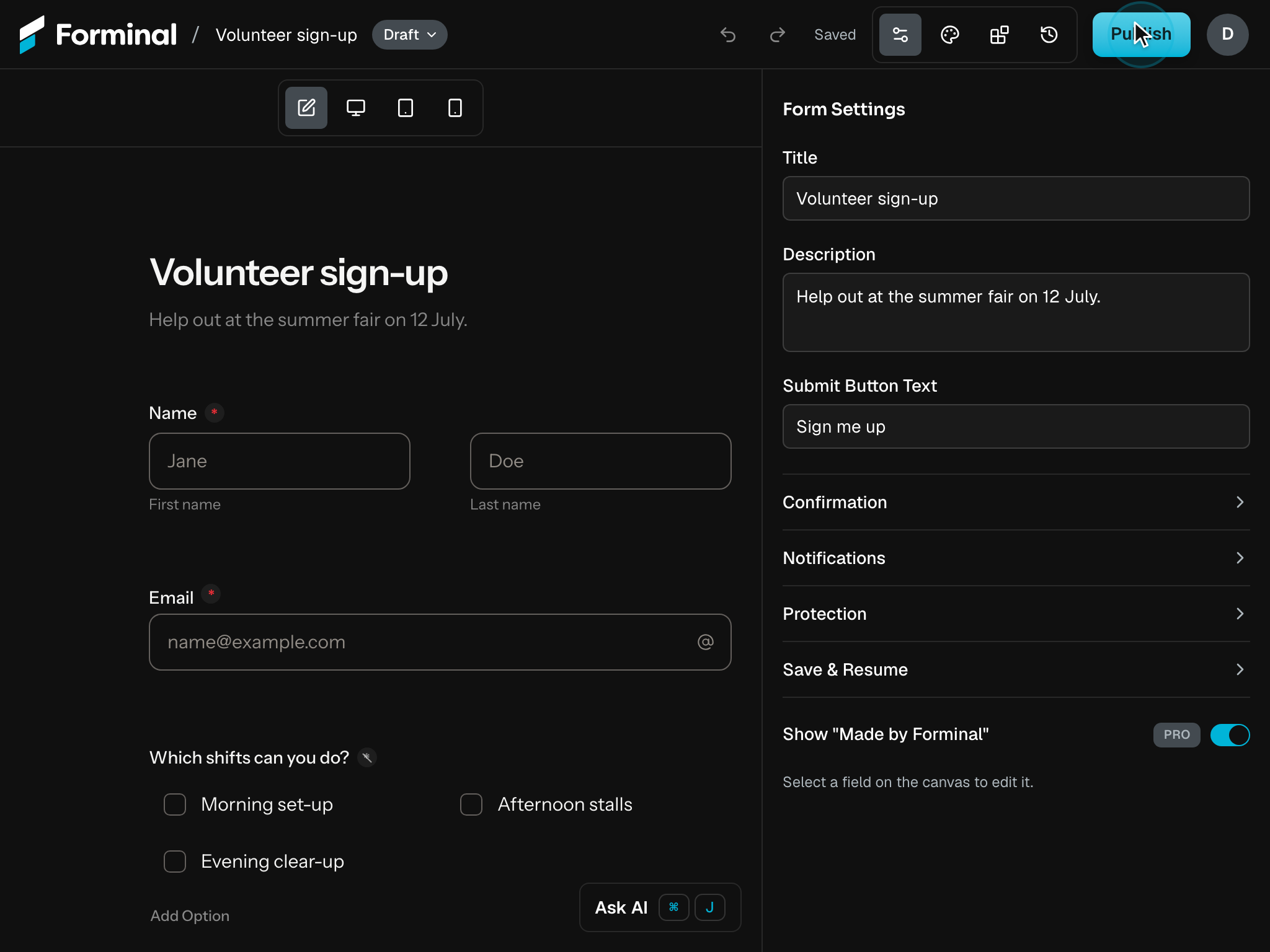
- Select Publish at the top right. If you built the form without an account, you’re asked to sign in first, and the form comes with you.
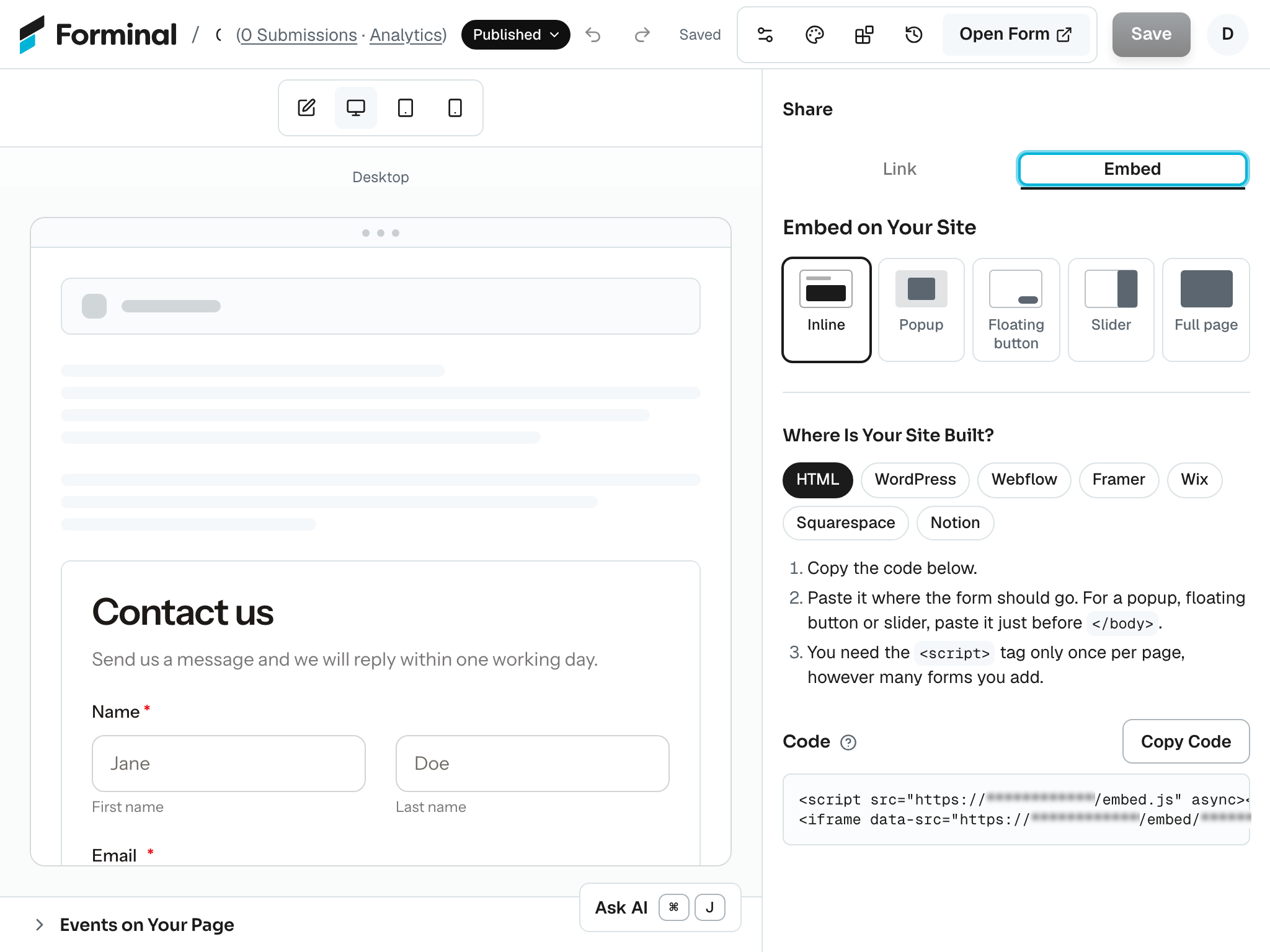
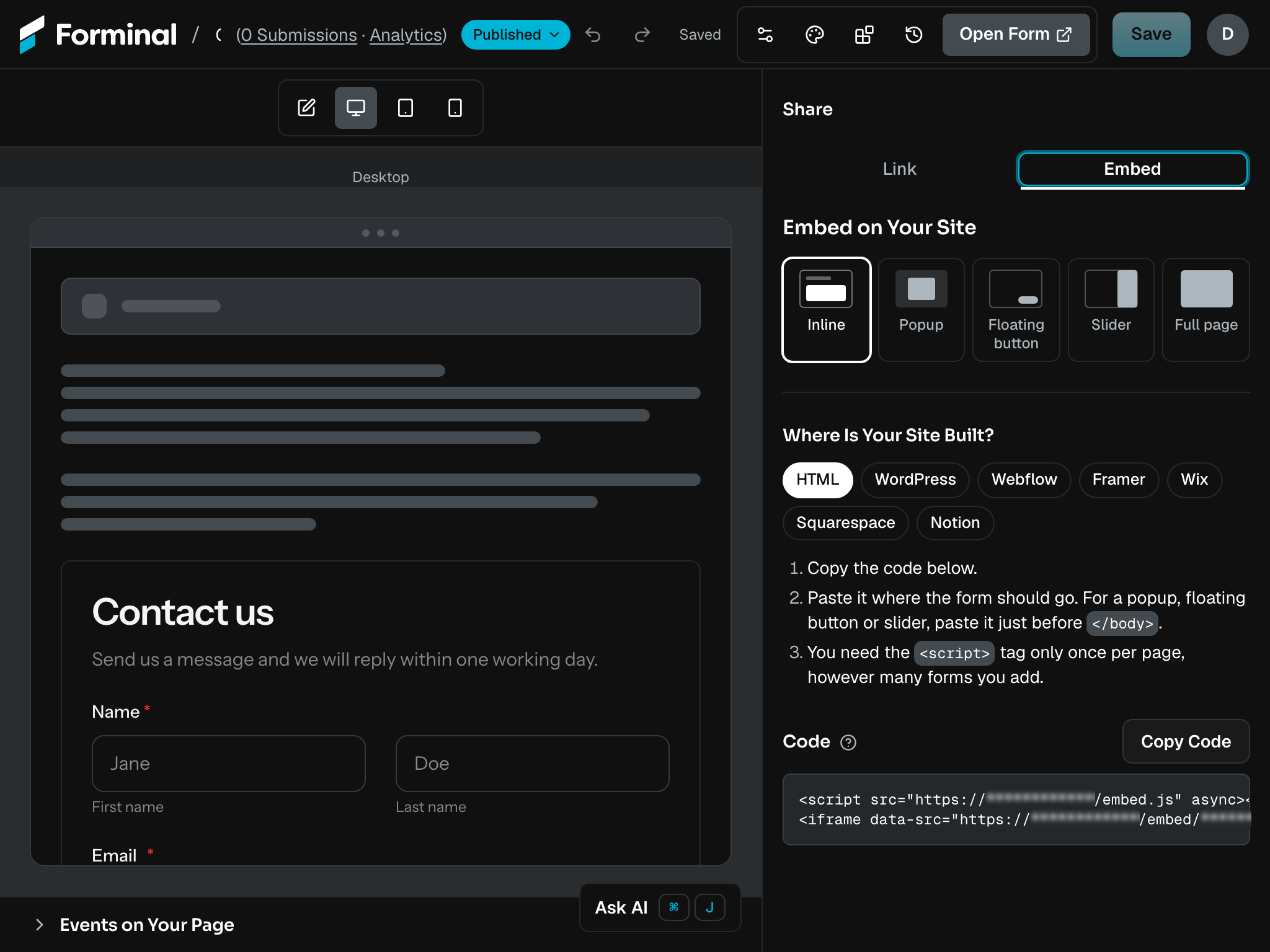
- The badge changes to Published and the Share panel opens. A Save button takes the place of Publish. Select Open Form in the top bar to see the live form in a new tab.
If something stops the form from going live, the builder says what it is. A form needs at least one field, and a form with a Payment field also needs an Email field and a working amount and payment methods. Publishing saves a version in History, so you can go back to it later.
Copie a ligação de partilha
- In the Share panel, select the Link tab, then under Share a Link select Copy Link next to Form Link. The arrow icon next to it opens the form in a new tab.
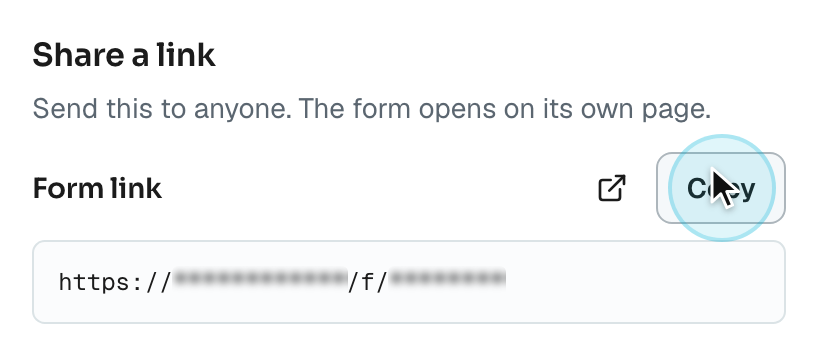
- Cole a ligação num email, numa mensagem de chat, numa publicação social ou em qualquer outro local onde as pessoas a encontrem.
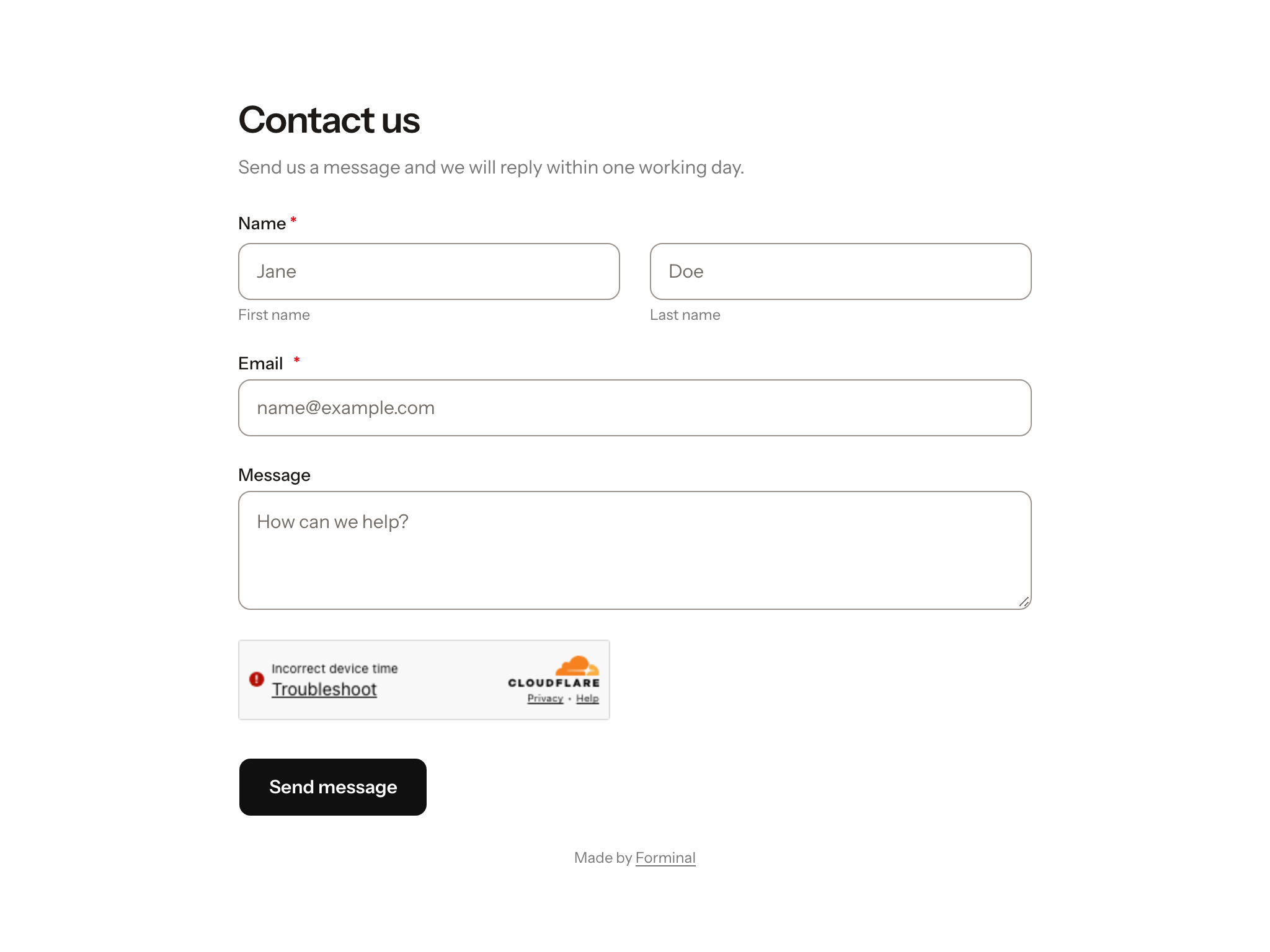
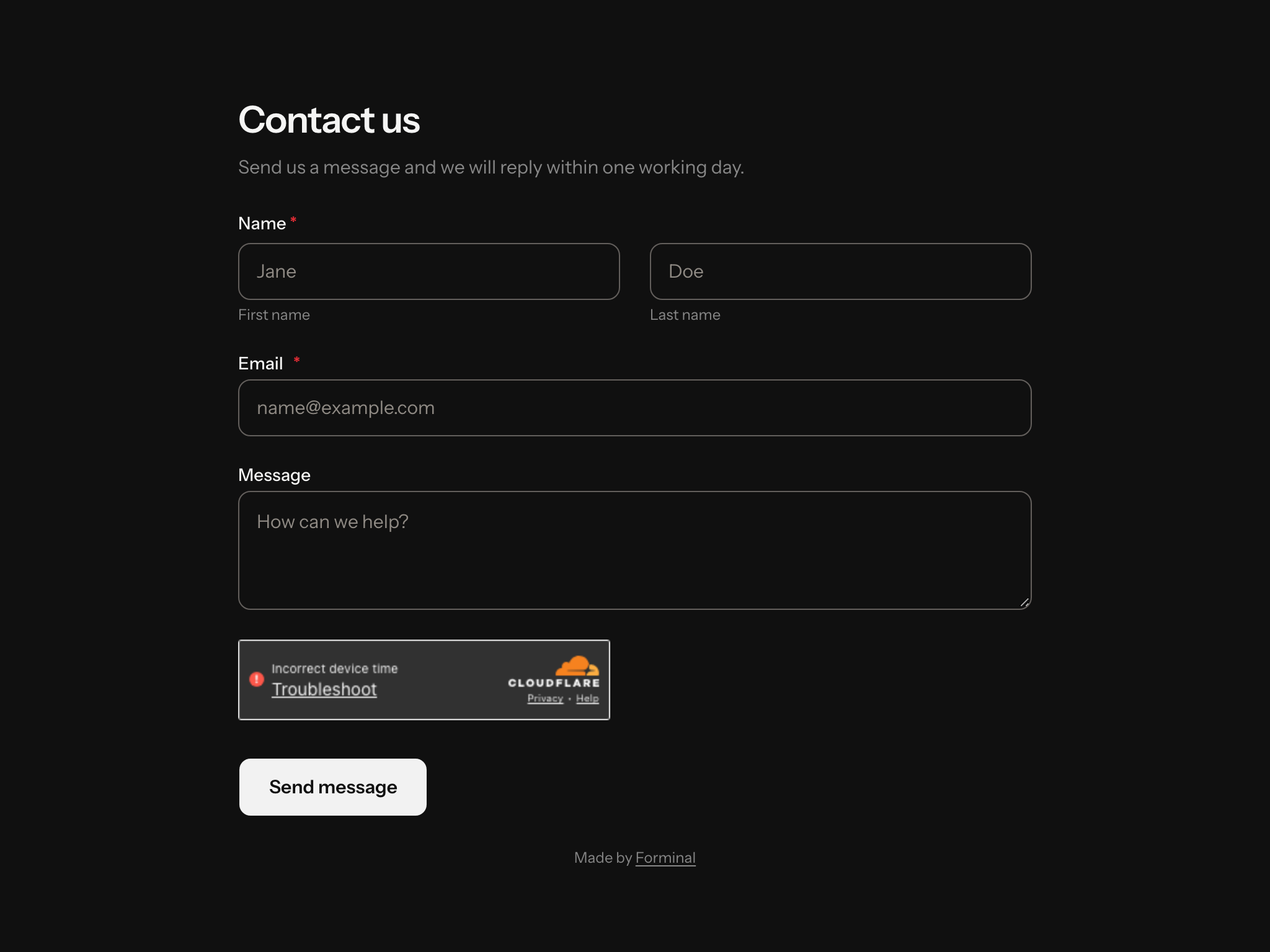
To get back to the panel later, select Share in the builder’s top bar. On your dashboard, the Copy link button on a form’s row copies the same link. If you serve the form from your own domain, Form Link shows that address and Default Link shows the usual one. To give the link a short ending, such as /f/coffee-tasting, and choose what chat apps show when it is pasted, see Customize a form link.
Descarregue um código QR
Every published form has a QR code on the Link tab, under QR Code. Put it on a flyer, a poster, a table card or the last slide of a talk, and people open the form by pointing their phone camera at it.
- In the Share panel, select the Link tab.
- Under QR Code, select PNG for an image 1024 pixels square, or SVG for a file that stays sharp at any size, which suits print.
O ficheiro é nomeado com base no final da ligação do formulário enquanto este tiver um, como qr-coffee-tasting.png, e com base no ID do formulário caso contrário. O código é desenhado no seu navegador.
O código abre sempre o formulário pelo seu ID, em app.forminal.ai/f/FORM_ID, ou em seu-dominio/FORM_ID quando o formulário tem um endereço num dos seus domínios personalizados. Não utiliza o final da ligação, pelo que pode alterar ou remover o final após a impressão e o código continua a funcionar. O nosso logótipo fica no meio do código num quadrado branco, e o código utiliza o nível mais alto de correção de erros, para que os telemóveis ainda o leiam. Quando a marca do formulário é removida com Remover Marca, o seu código também não tem logótipo. Todos os planos têm códigos QR.
Coloque-o no seu website
The panel opens on its Embed tab, which builds the code for your site. Pick how the form shows under Embed on Your Site:
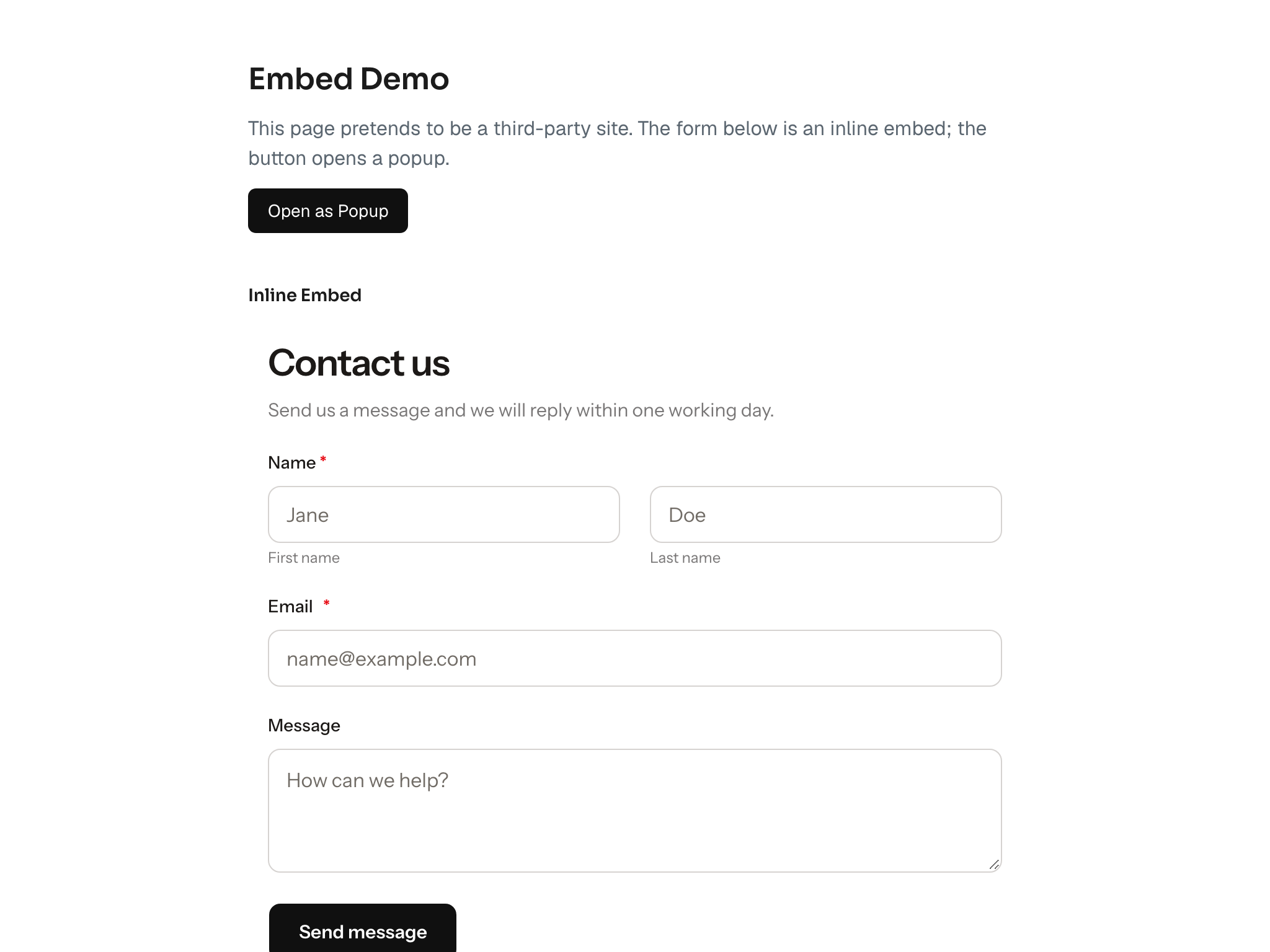
- Inline shows the form inside a page, where you paste it. See Embed a form on a page.
- Popup opens the form over your page when someone clicks a button, or on its own after a delay, on scroll or when the visitor is about to leave. See Open a form in a popup.
- Full page makes the form the whole page, for a blank page on your site. See Make the form the whole page.
- Floating button keeps a button in a bottom corner of the page that opens the form. See Add a floating button.
- Slider puts a tab on the edge of the page that opens the form as a full-height panel. See Add a slider.
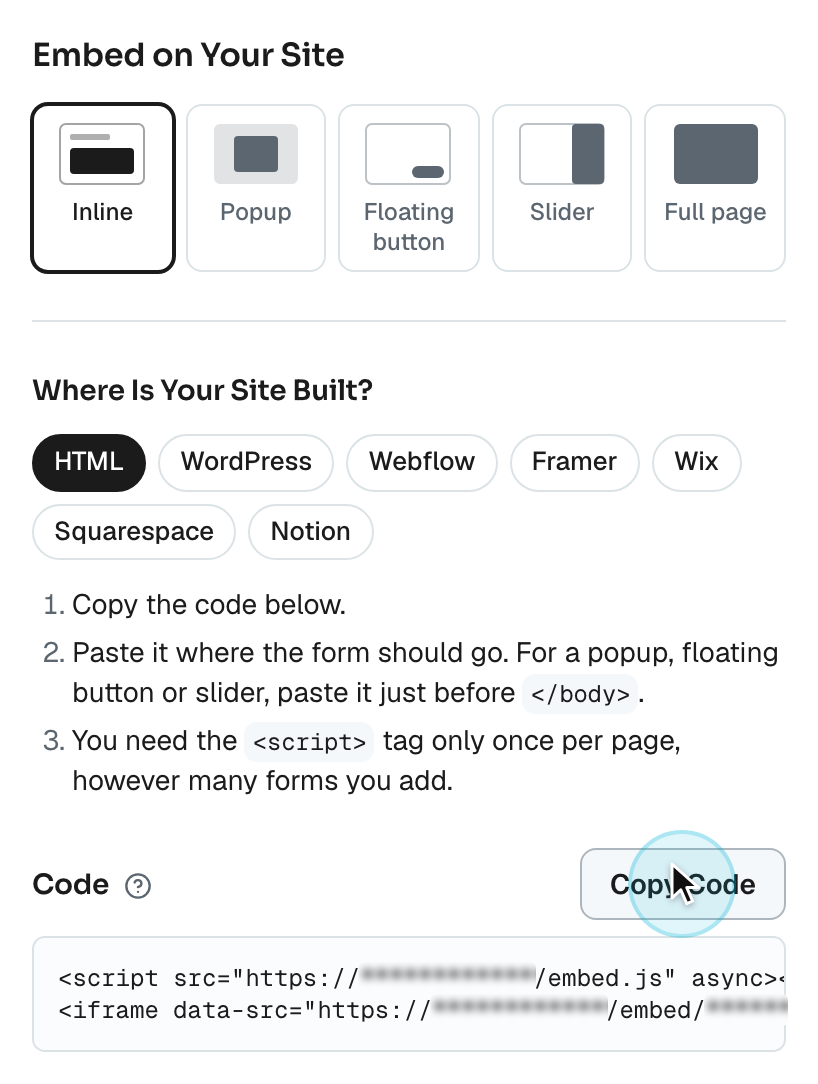
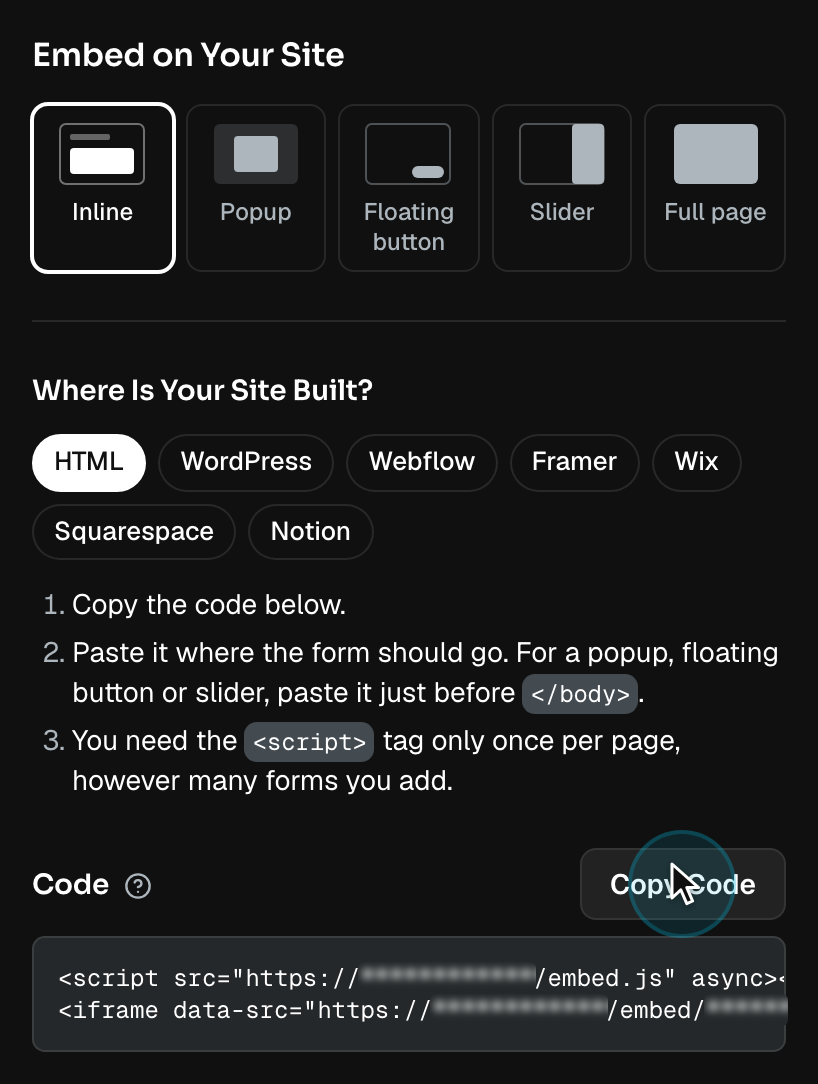
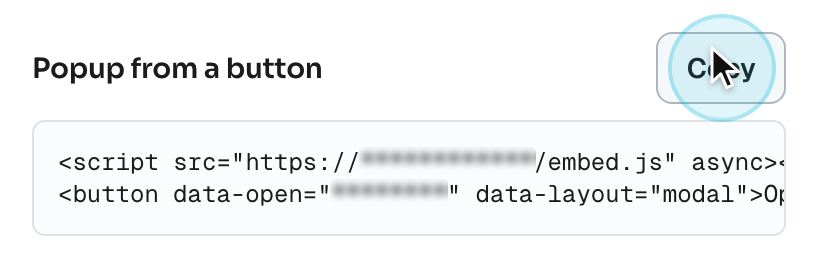
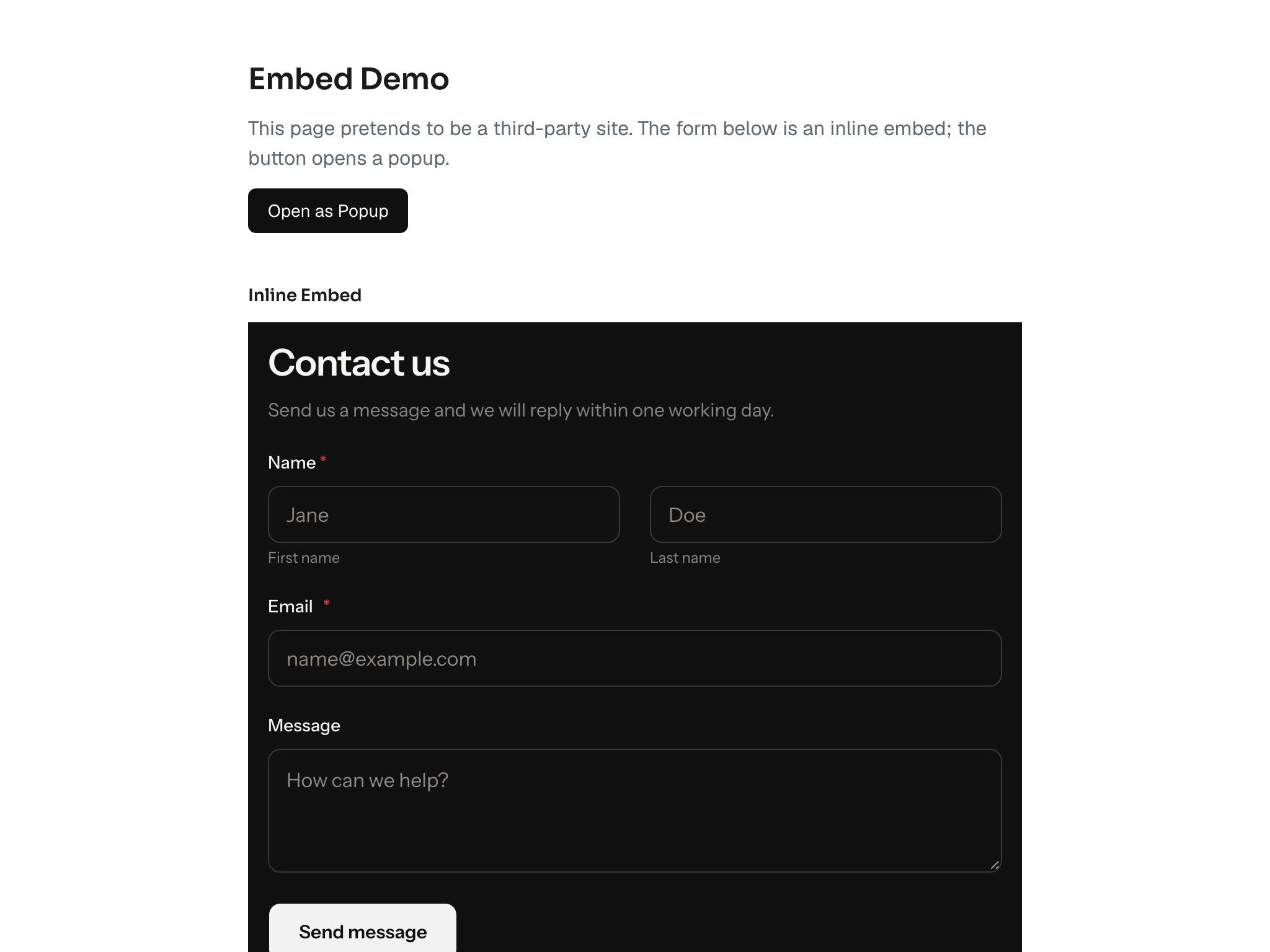
Under Where Is Your Site Built?, pick your site builder to see where the code goes. The Embed Forms page compares the types. Then select Copy Code and paste it into your page’s HTML, or into the HTML or custom code block of your site builder. Every type uses the same script tag, and a page needs it only once. Your choices on the Embed tab are saved with the form, so if you change them later, copy the code again. While the panel is open, the builder shows the type you picked on a sample page, so you can try it before you touch your site.
Bom saber
- The link stays the same after you publish. Edits to a published form wait in the builder until you select Save in the top bar or press Cmd+S (Ctrl+S elsewhere), and only then reach people. Draft and Publish explains what happens if you leave with unsaved edits.
- Enquanto um formulário é um rascunho, qualquer outra pessoa que abra o seu link ou escaneie o seu código QR recebe uma página não encontrada. Você e as pessoas com acesso veem uma pré-visualização do rascunho, mas ele não aceita submissões.
- To take a form offline, select the Published badge next to its title and choose Draft. Its link and every embed stop working, and its submissions stay where they are.
- When you’re signed in and open the link yourself, Edit Form and Submissions links show under the title, after a Light and Dark toggle that previews the form in either look. Visitors don’t see them. More on the link itself is on the Share Link page.
Perguntas frequentes
Porque não consigo publicar o meu formulário?
O construtor diz-lhe o que o está a impedir. Um formulário precisa de pelo menos um campo, e um formulário com um campo de Pagamento também precisa de um campo de Email e um valor e métodos de pagamento a funcionar.
As alterações a um formulário publicado entram em vigor imediatamente?
No. They wait in the builder, and the top bar reads Unsaved changes until you select Save. The link stays the same, and if a change goes wrong, restore an earlier version from History.
Posso partilhar um formulário sem um site?
Um formulário publicado tem a sua própria página, por isso pode enviar o link por email, chat ou uma publicação social. Os embutidos só são necessários para mostrar o formulário numa página sua.
Posso usar o meu próprio domínio para o link do formulário?
Yes, with Custom Domains on Pro or Business. The Share panel then shows your address as Form Link and the usual one as Default Link. See Use your own domain.
Posso manter um formulário privado para certas pessoas?
Set a password in Form Settings » Protection, and visitors see only a password box until they type it. Password-Protected Forms work on every plan.
Despublicar um formulário apaga as suas submissões?
No. The submissions stay where they are. To unpublish, select the Published badge in the builder and choose Draft.
O meu código QR impresso vai falhar se eu alterar o final do link?
Não. O código abre o formulário pelo seu ID, que nunca muda, pelo que pode alterar ou remover o final a qualquer momento.
Qual ficheiro de código QR devo descarregar para impressão?
O SVG mantém a nitidez em qualquer tamanho, pelo que é adequado para posters e cartões impressos. O PNG tem 1024 píxeis quadrados, o que é suficiente para diapositivos, e-mails e a maioria dos ecrãs.