Sobald ein Formular veröffentlicht ist, kann es jeder mit seinem Link ausfüllen. Diese Anleitung führt Sie von einem Entwurf zu einem Live-Formular, mit seinem Link in Ihrer Zwischenablage, einem QR-Code für den Druck und, wenn Sie möchten, dem Formular, das auf Ihrer eigenen Website angezeigt wird.
Veröffentlichen Sie Ihr Formular
- Open the form in the builder. A new form shows a Draft badge in the top bar.
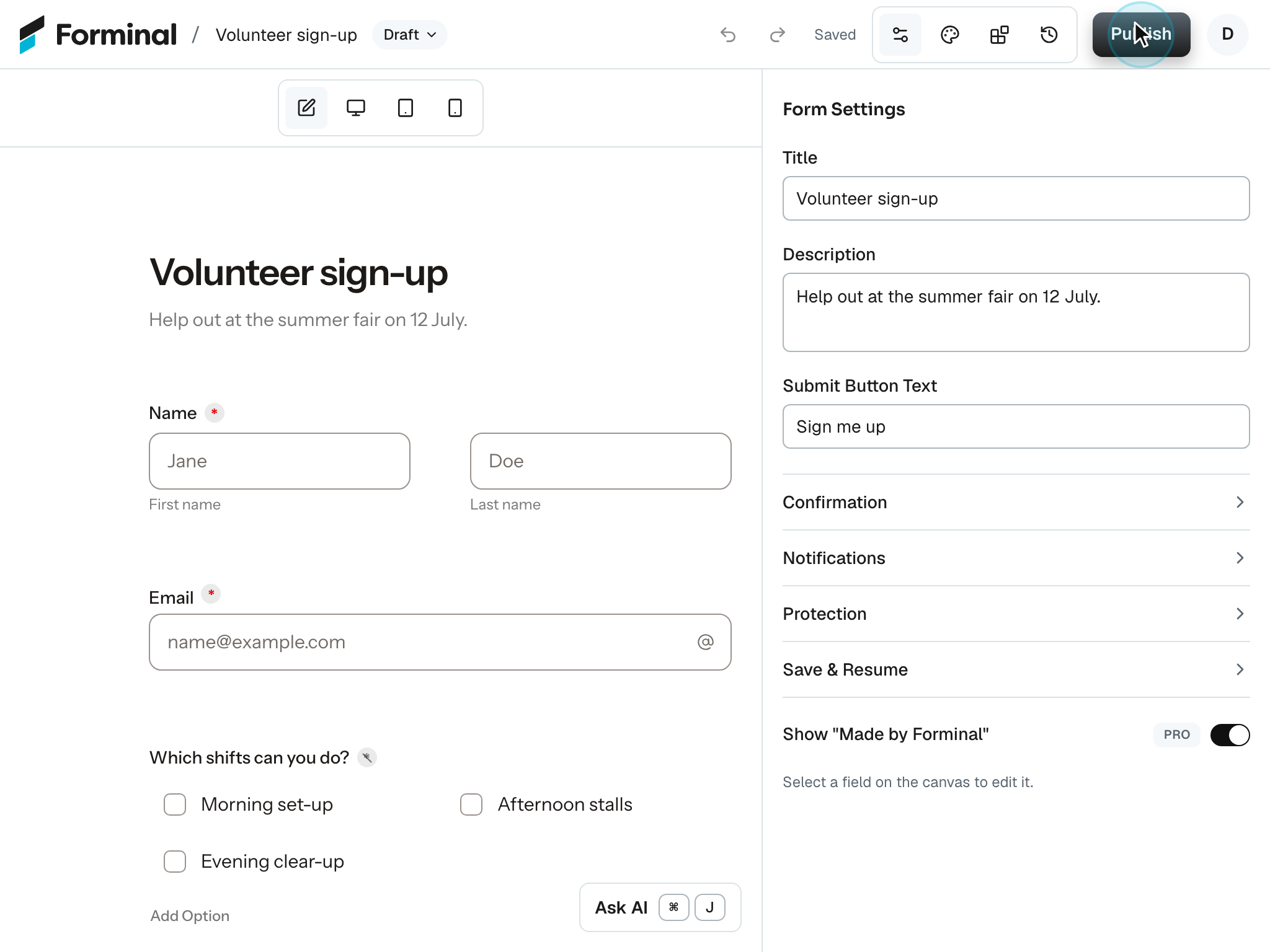
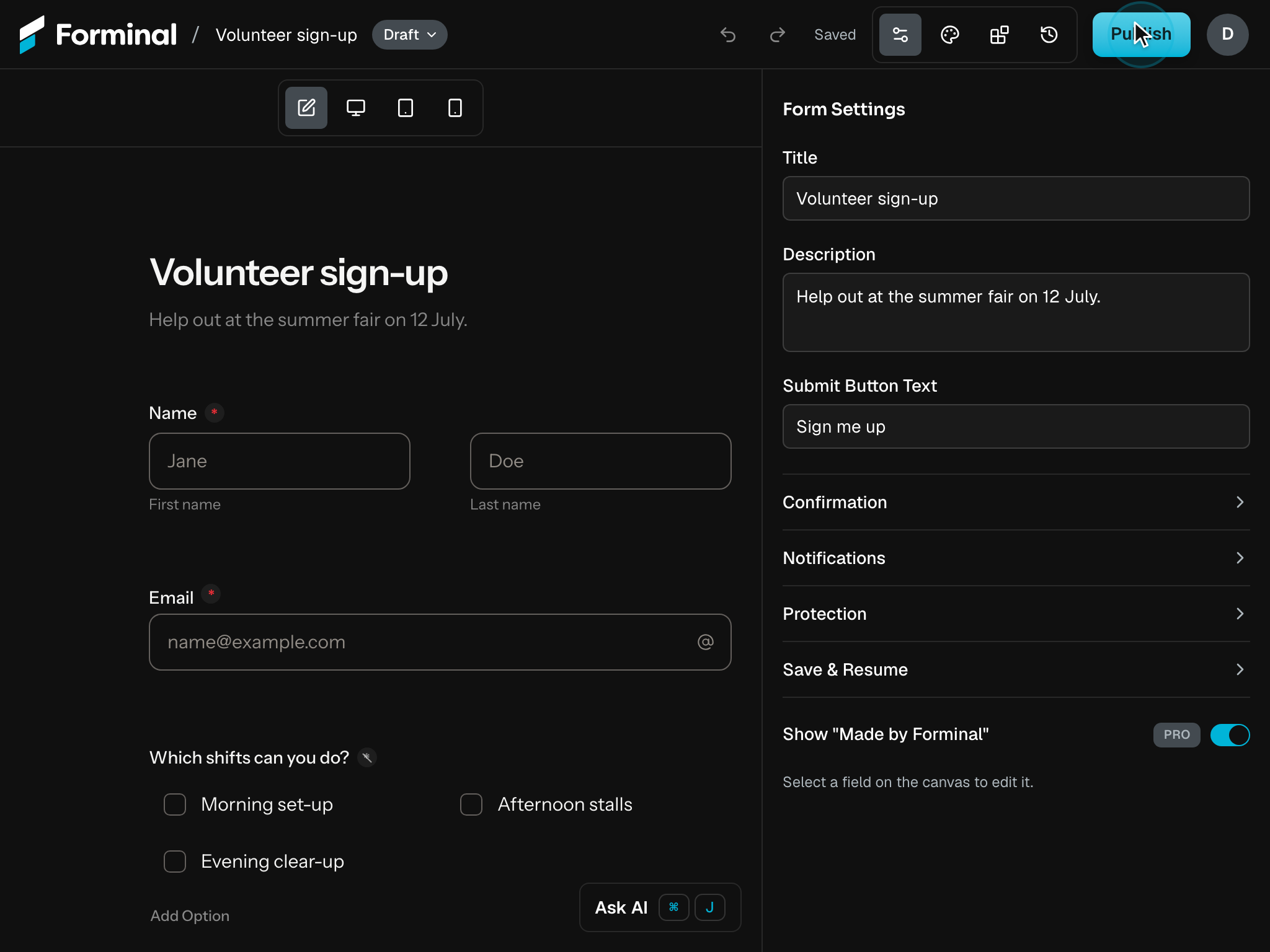
- Select Publish at the top right. If you built the form without an account, you’re asked to sign in first, and the form comes with you.
- The badge changes to Published and the Share panel opens. A Save button takes the place of Publish. Select Open Form in the top bar to see the live form in a new tab.
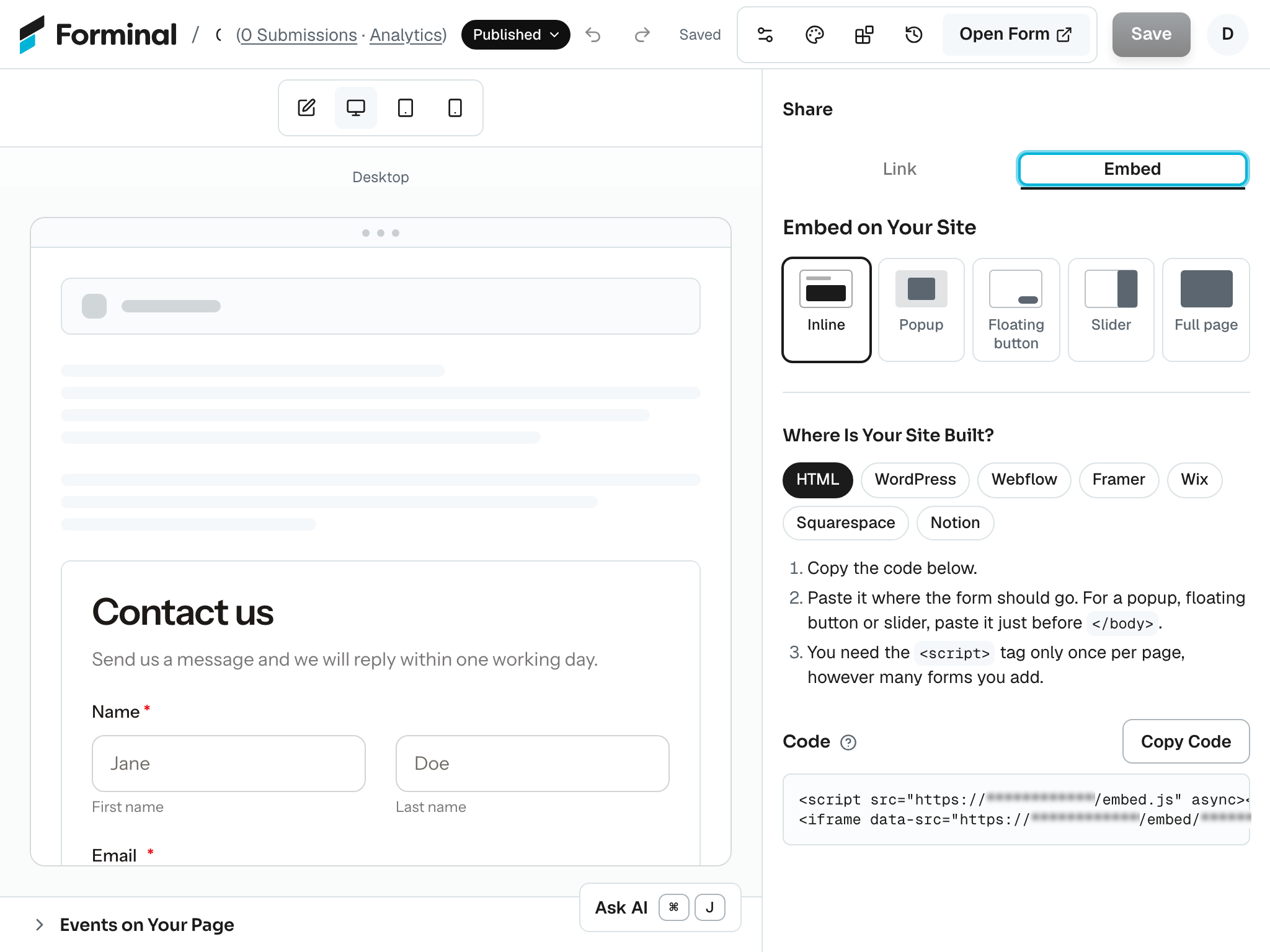
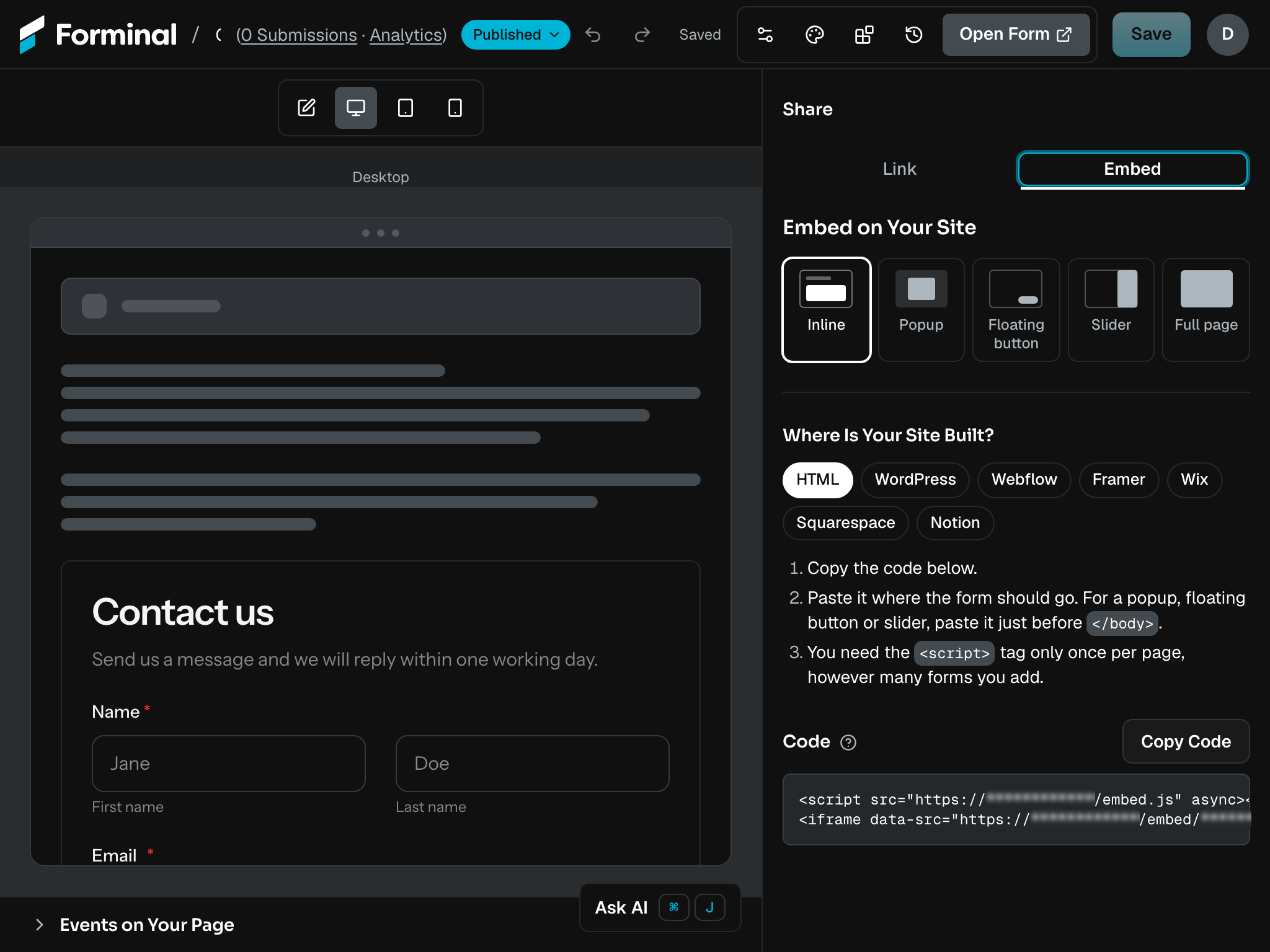
If something stops the form from going live, the builder says what it is. A form needs at least one field, and a form with a Payment field also needs an Email field and a working amount and payment methods. Publishing saves a version in History, so you can go back to it later.
Kopieren Sie den Freigabelink
- In the Share panel, select the Link tab, then under Share a Link select Copy Link next to Form Link. The arrow icon next to it opens the form in a new tab.
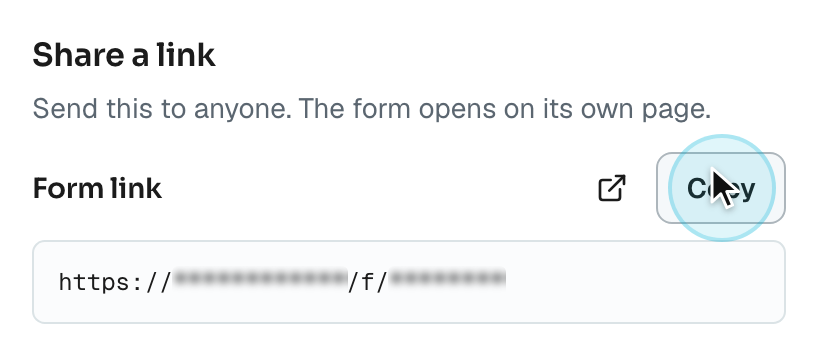
- Fügen Sie den Link in eine E-Mail, eine Chat-Nachricht, einen Social-Media-Post oder überall dort ein, wo ihn die Leute finden können.
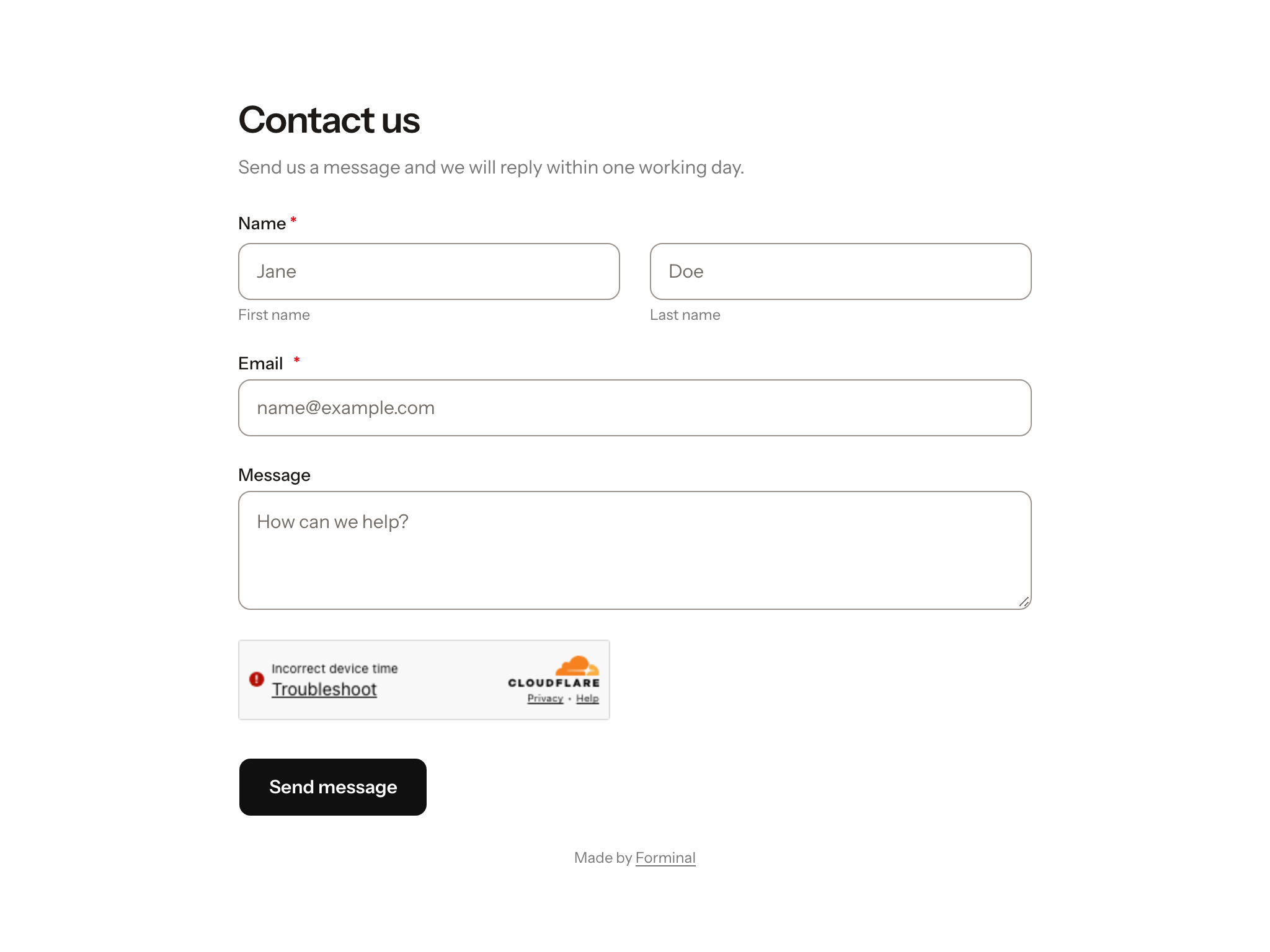
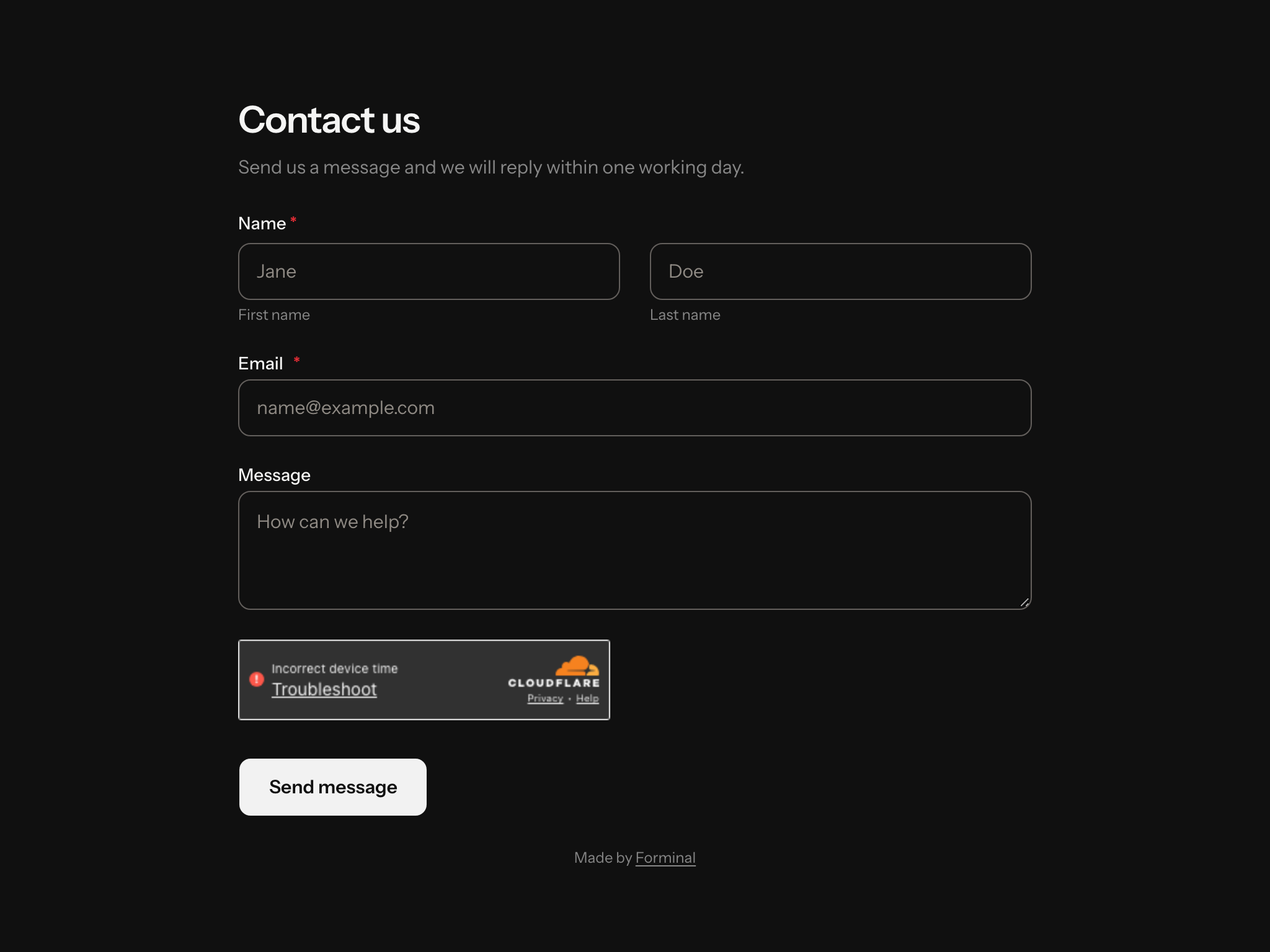
To get back to the panel later, select Share in the builder’s top bar. On your dashboard, the Copy link button on a form’s row copies the same link. If you serve the form from your own domain, Form Link shows that address and Default Link shows the usual one. To give the link a short ending, such as /f/coffee-tasting, and choose what chat apps show when it is pasted, see Customize a form link.
QR-Code herunterladen
Every published form has a QR code on the Link tab, under QR Code. Put it on a flyer, a poster, a table card or the last slide of a talk, and people open the form by pointing their phone camera at it.
- In the Share panel, select the Link tab.
- Under QR Code, select PNG for an image 1024 pixels square, or SVG for a file that stays sharp at any size, which suits print.
Die Datei wird nach dem Link-Ende des Formulars benannt, solange das Formular eines hat, z. B. qr-coffee-tasting.png, und andernfalls nach der ID des Formulars. Der Code wird in Ihrem Browser gezeichnet.
Der Code öffnet das Formular immer über seine ID, unter app.forminal.ai/f/FORM_ID, oder unter your-domain/FORM_ID, wenn das Formular eine Adresse auf einer Ihrer benutzerdefinierten Domains hat. Er verwendet nicht das Link-Ende, sodass Sie das Ende nach dem Drucken ändern oder entfernen können und der Code weiterhin funktioniert. Unser Logo befindet sich in der Mitte des Codes auf einem weißen Quadrat, und der Code verwendet die höchste Stufe der Fehlerkorrektur, sodass Telefone ihn immer noch lesen können. Wenn das Branding eines Formulars mit Branding entfernen entfernt wird, hat sein Code auch kein Logo. Jeder Plan hat QR-Codes.
Auf Ihrer Website einbinden
The panel opens on its Embed tab, which builds the code for your site. Pick how the form shows under Embed on Your Site:
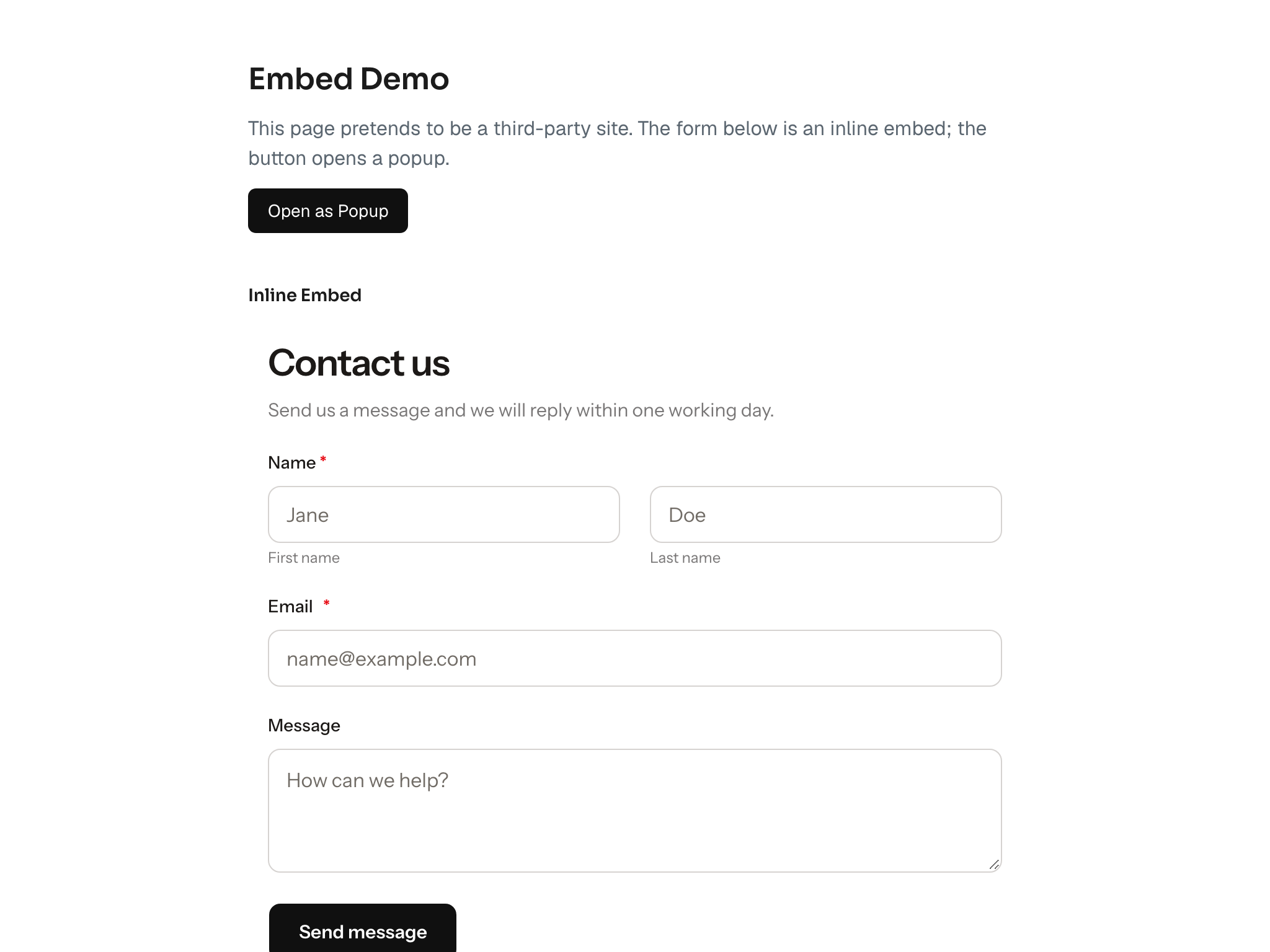
- Inline shows the form inside a page, where you paste it. See Embed a form on a page.
- Popup opens the form over your page when someone clicks a button, or on its own after a delay, on scroll or when the visitor is about to leave. See Open a form in a popup.
- Full page makes the form the whole page, for a blank page on your site. See Make the form the whole page.
- Floating button keeps a button in a bottom corner of the page that opens the form. See Add a floating button.
- Slider puts a tab on the edge of the page that opens the form as a full-height panel. See Add a slider.
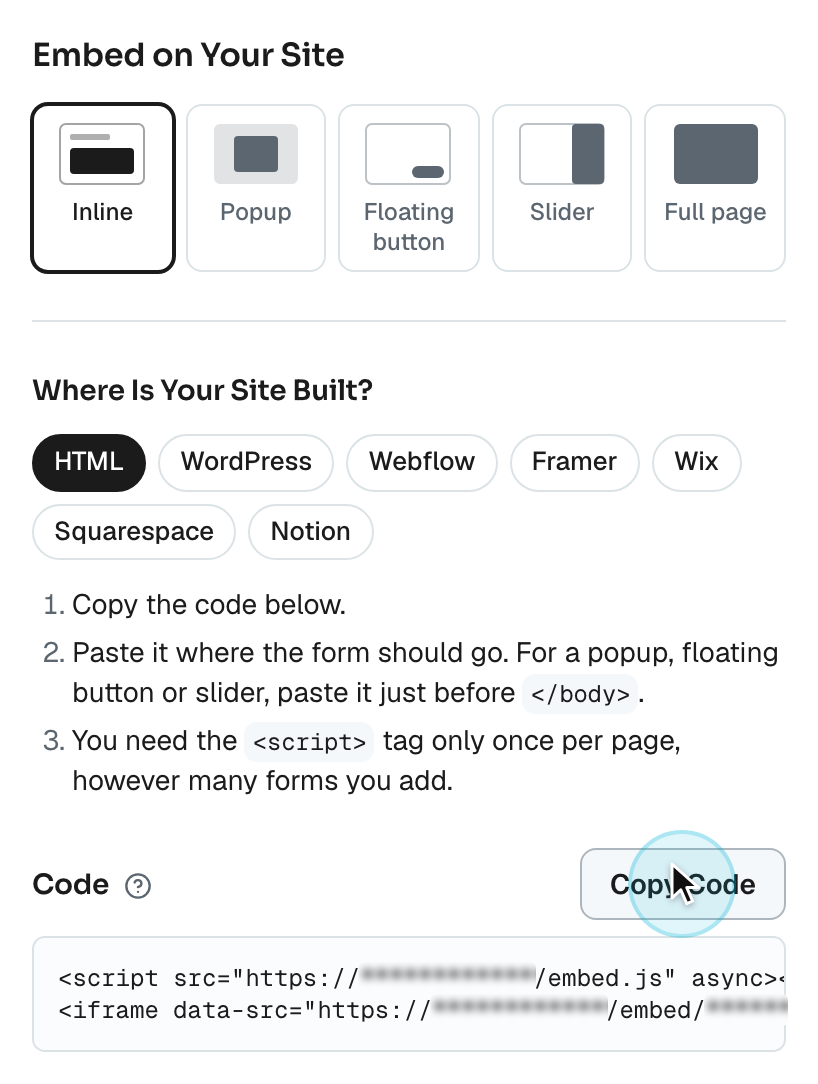
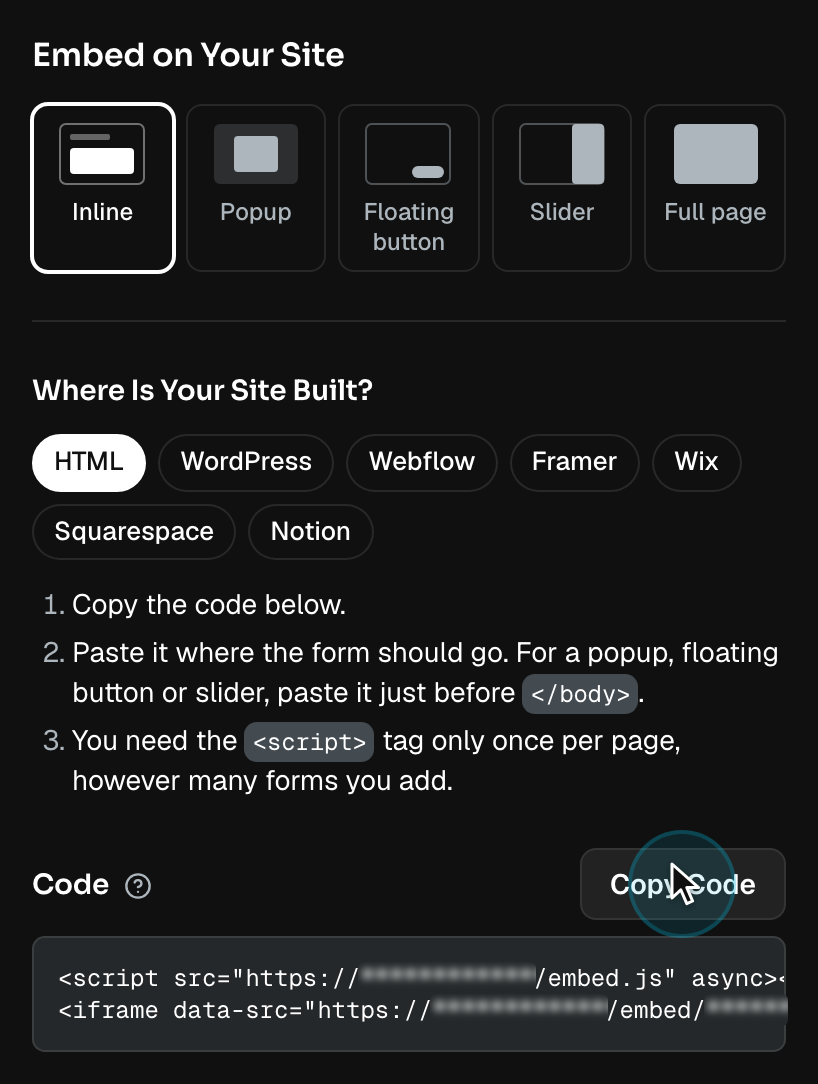
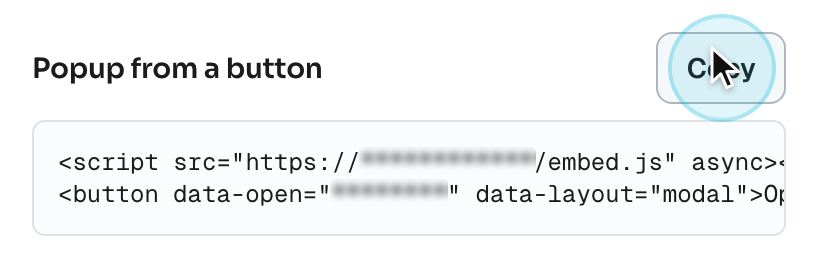
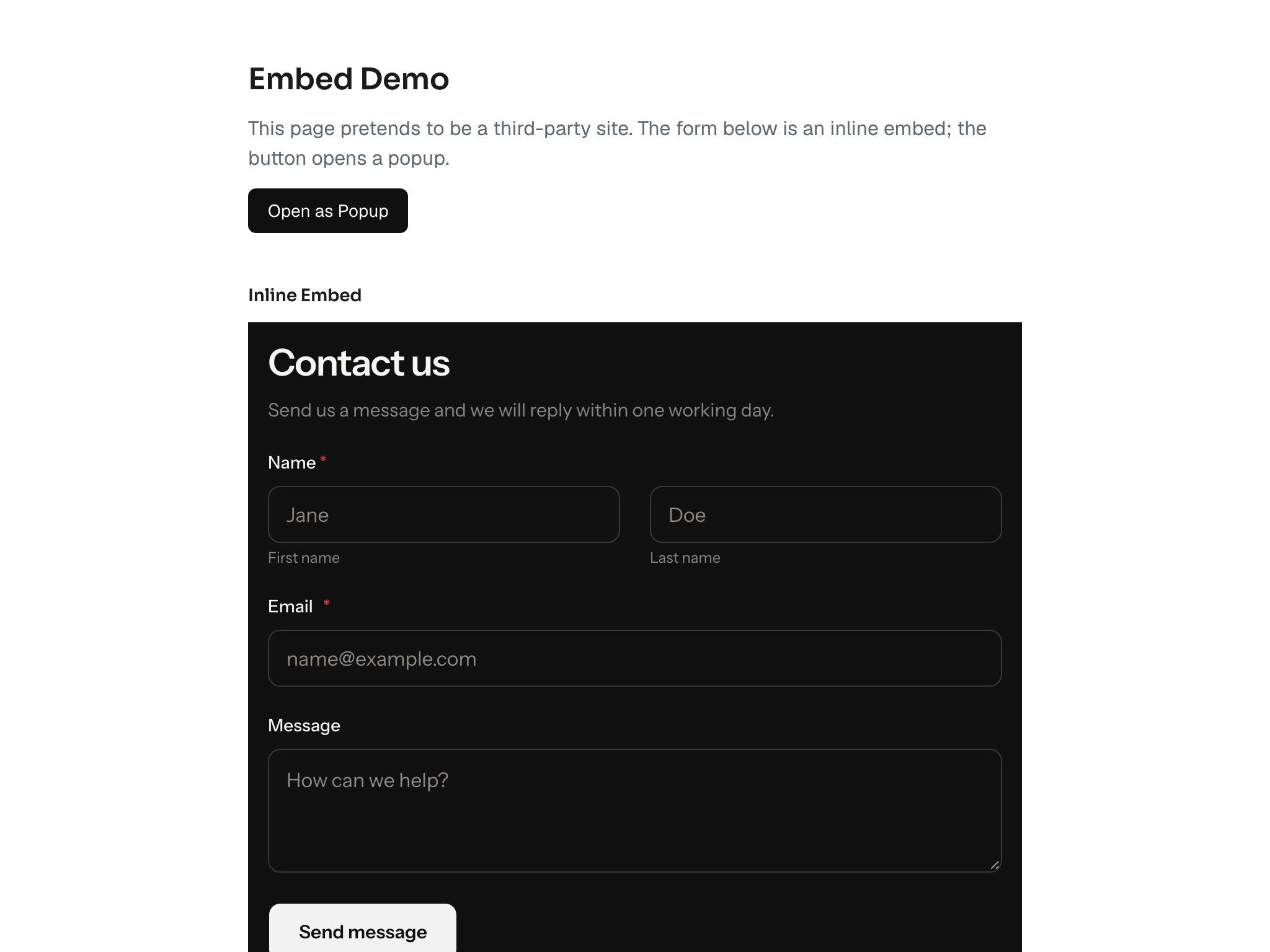
Under Where Is Your Site Built?, pick your site builder to see where the code goes. The Embed Forms page compares the types. Then select Copy Code and paste it into your page’s HTML, or into the HTML or custom code block of your site builder. Every type uses the same script tag, and a page needs it only once. Your choices on the Embed tab are saved with the form, so if you change them later, copy the code again. While the panel is open, the builder shows the type you picked on a sample page, so you can try it before you touch your site.
Gut zu wissen
- The link stays the same after you publish. Edits to a published form wait in the builder until you select Save in the top bar or press Cmd+S (Ctrl+S elsewhere), and only then reach people. Draft and Publish explains what happens if you leave with unsaved edits.
- Solange ein Formular ein Entwurf ist, erhalten alle anderen, die seinen Link öffnen oder seinen QR-Code scannen, eine Seite nicht gefunden-Meldung. Sie und Personen mit Zugriff sehen eine Entwurfs-Vorschau, aber sie akzeptiert keine Einreichungen.
- To take a form offline, select the Published badge next to its title and choose Draft. Its link and every embed stop working, and its submissions stay where they are.
- When you’re signed in and open the link yourself, Edit Form and Submissions links show under the title, after a Light and Dark toggle that previews the form in either look. Visitors don’t see them. More on the link itself is on the Share Link page.
Häufig gestellte Fragen
Warum kann ich mein Formular nicht veröffentlichen?
Der Builder teilt Ihnen mit, was ihn aufhält. Ein Formular benötigt mindestens ein Feld, und ein Formular mit einem Zahlungsfeld benötigt auch ein E-Mail-Feld und einen funktionierenden Betrag sowie Zahlungsmethoden.
Werden Änderungen an einem veröffentlichten Formular sofort übernommen?
No. They wait in the builder, and the top bar reads Unsaved changes until you select Save. The link stays the same, and if a change goes wrong, restore an earlier version from History.
Kann ich ein Formular ohne Website teilen?
Ein veröffentlichtes Formular hat seine eigene Seite, sodass Sie den Link per E-Mail, Chat oder Social-Media-Post versenden können. Einbettungen sind nur erforderlich, um das Formular auf einer eigenen Seite anzuzeigen.
Kann ich meine eigene Domain für den Formularlink verwenden?
Yes, with Custom Domains on Pro or Business. The Share panel then shows your address as Form Link and the usual one as Default Link. See Use your own domain.
Kann ich ein Formular für bestimmte Personen privat halten?
Set a password in Form Settings » Protection, and visitors see only a password box until they type it. Password-Protected Forms work on every plan.
Löscht das Offline-Schalten eines Formulars seine Einreichungen?
No. The submissions stay where they are. To unpublish, select the Published badge in the builder and choose Draft.
Wird mein gedruckter QR-Code ungültig, wenn ich das Link-Ende ändere?
Nein. Der Code öffnet das Formular über seine ID, die sich nie ändert, sodass Sie das Ende jederzeit ändern oder entfernen können.
Welche QR-Code-Datei sollte ich für den Druck herunterladen?
SVG bleibt bei jeder Größe scharf und eignet sich daher für Poster und Druckkarten. PNG ist 1024 Pixel quadratisch, was für Folien, E-Mails und die meisten Bildschirme ausreicht.