Once a form is published, anyone with its link can fill it in. This guide takes you from a draft to a live form, with its link in your clipboard, a QR code for print and, if you want, the form showing on your own website.
Publish your form
- Open the form in the builder. A new form shows a Draft badge in the top bar.
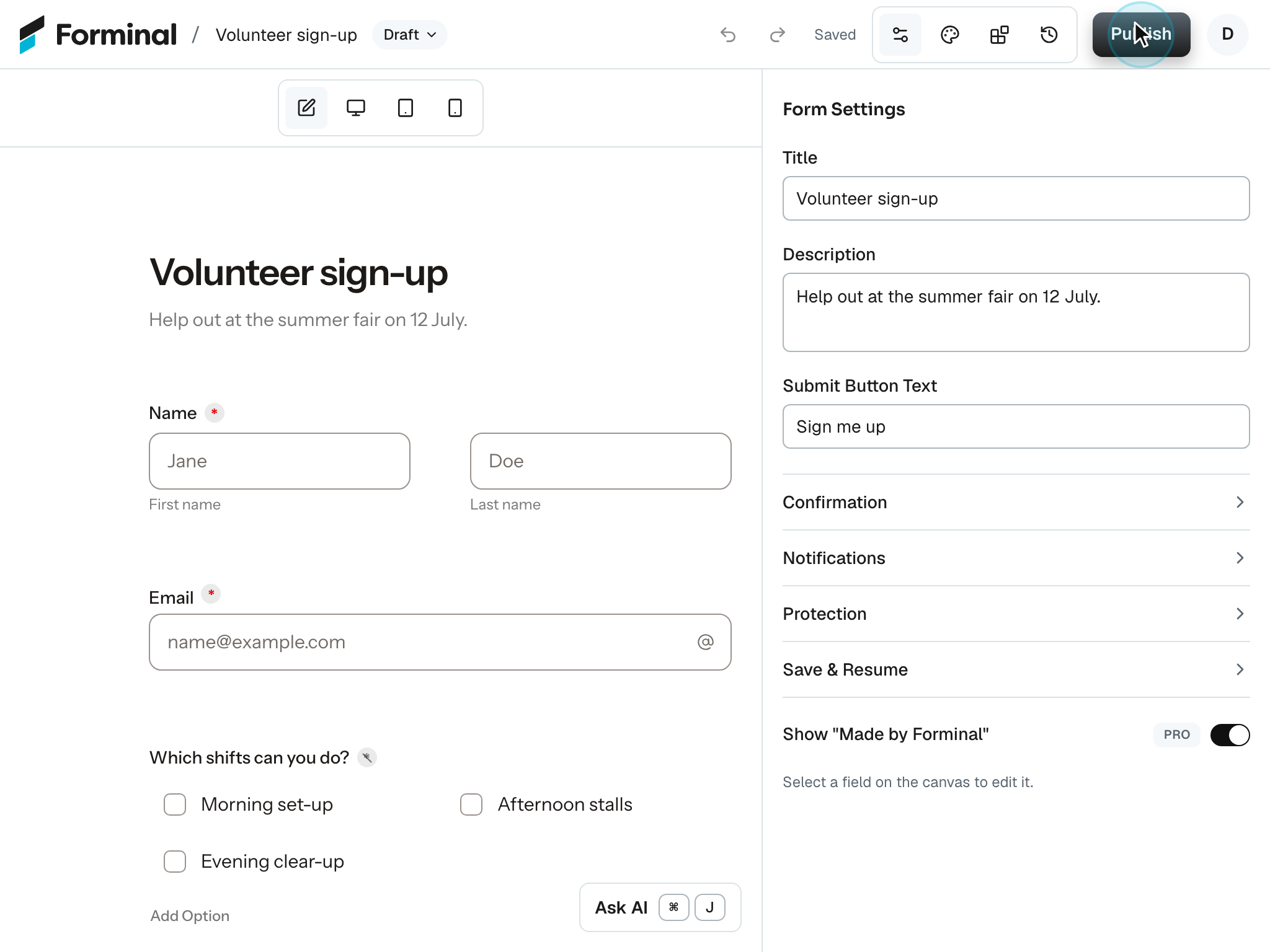
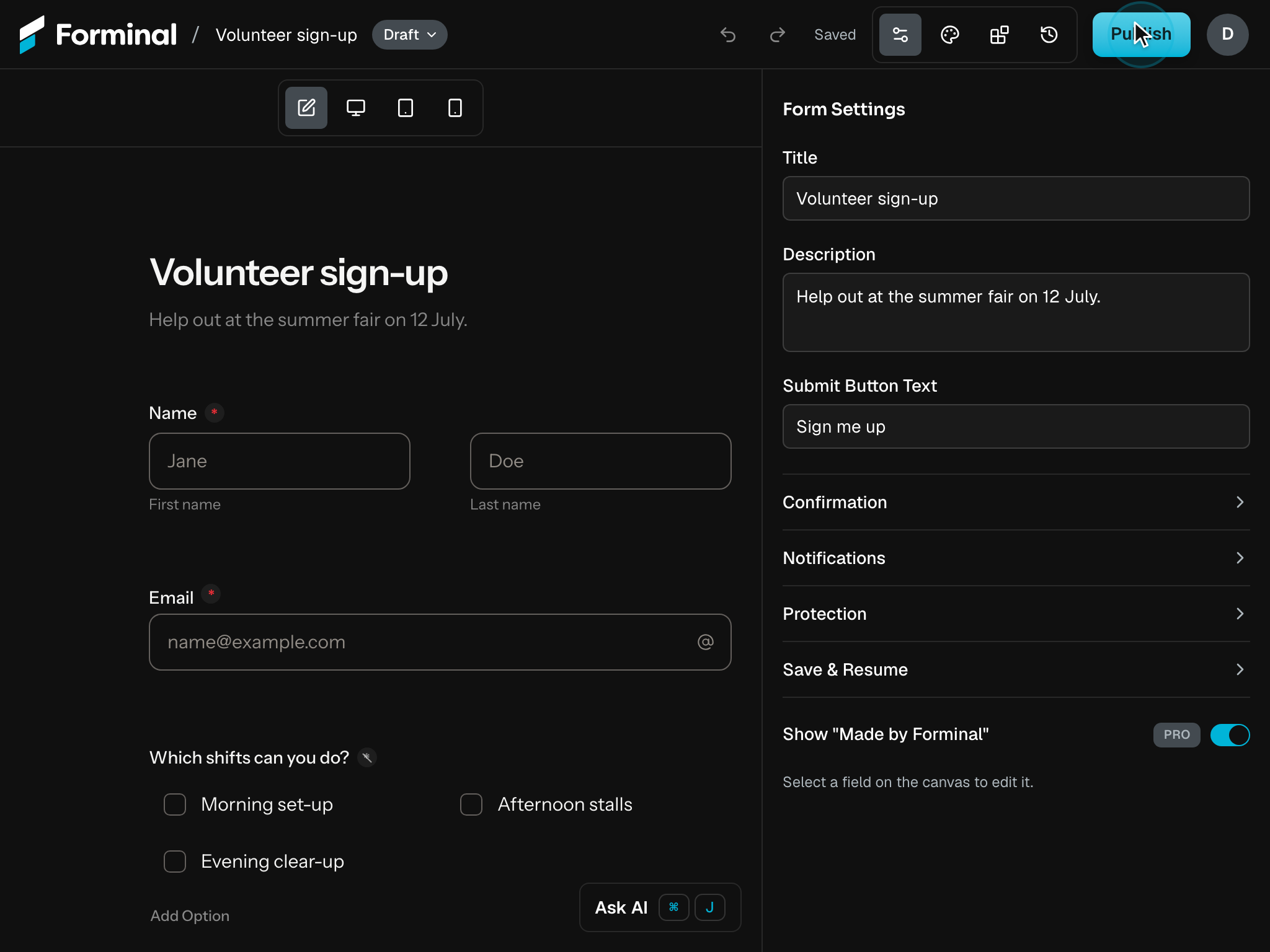
- Select Publish at the top right. If you built the form without an account, you’re asked to sign in first, and the form comes with you.
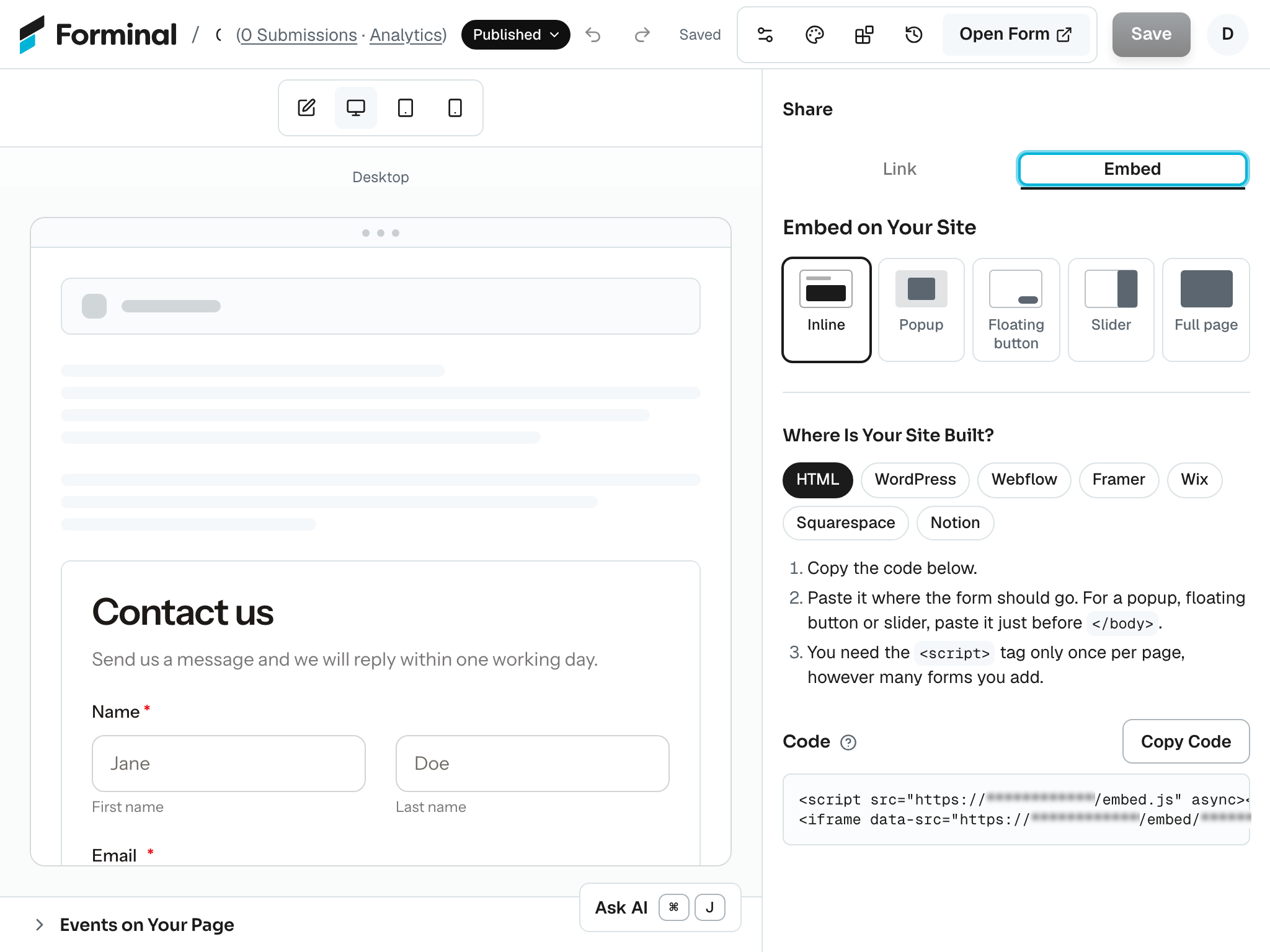
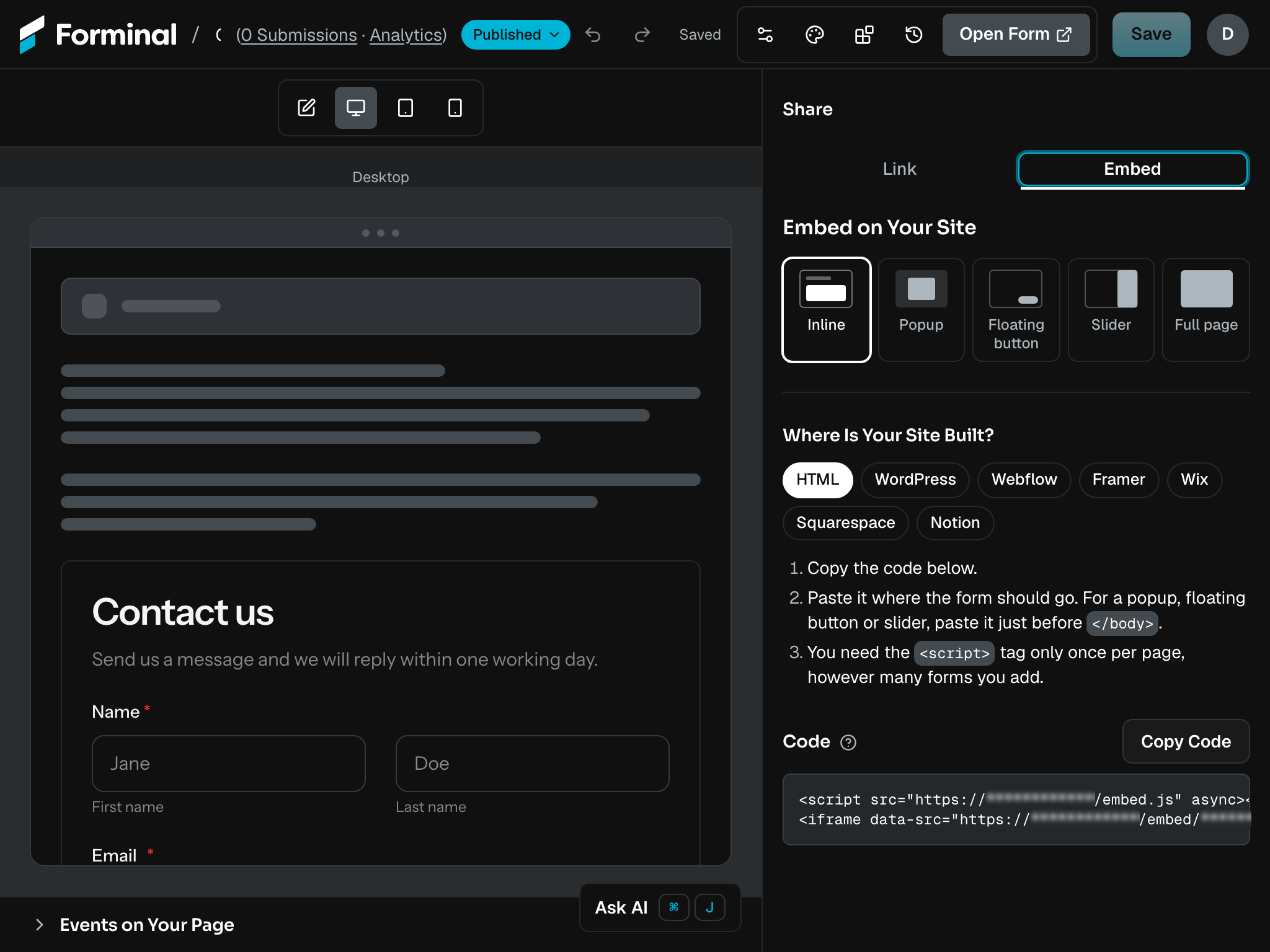
- The badge changes to Published and the Share panel opens. A Save button takes the place of Publish. Select Open Form in the top bar to see the live form in a new tab.
If something stops the form from going live, the builder says what it is. A form needs at least one field, and a form with a Payment field also needs an Email field and a working amount and payment methods. Publishing saves a version in History, so you can go back to it later.
Copy the share link
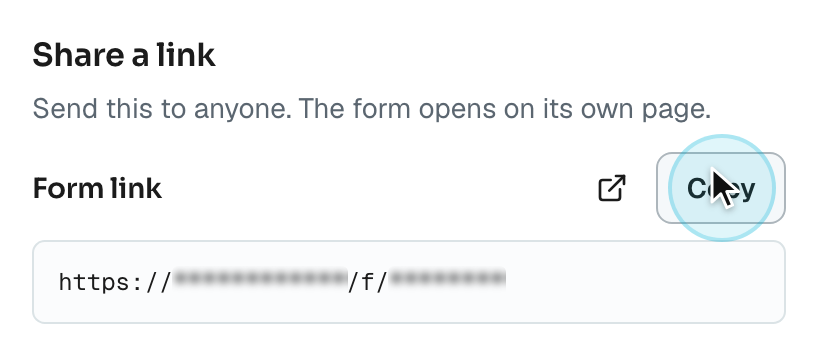
- In the Share panel, select the Link tab, then under Share a Link select Copy Link next to Form Link. The arrow icon next to it opens the form in a new tab.
- Paste the link into an email, a chat message, a social post or anywhere else people will find it.
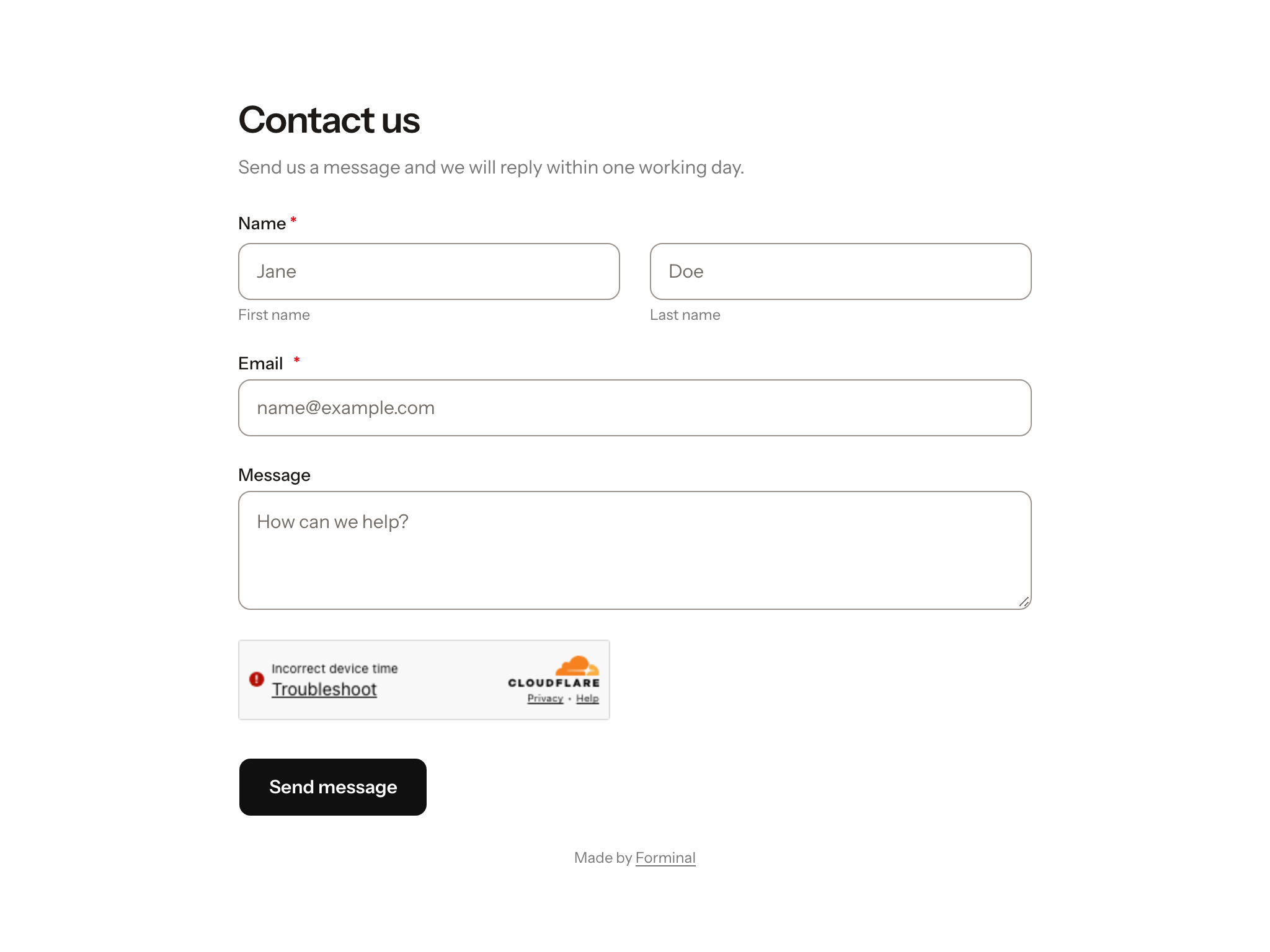
To get back to the panel later, select Share in the builder’s top bar. On your dashboard, the Copy link button on a form’s row copies the same link. If you serve the form from your own domain, Form Link shows that address and Default Link shows the usual one. To give the link a short ending, such as /f/coffee-tasting, and choose what chat apps show when it is pasted, see Customize a form link.
Download a QR code
Every published form has a QR code on the Link tab, under QR Code. Put it on a flyer, a poster, a table card or the last slide of a talk, and people open the form by pointing their phone camera at it.
- In the Share panel, select the Link tab.
- Under QR Code, select PNG for an image 1024 pixels square, or SVG for a file that stays sharp at any size, which suits print.
The file is named after the form’s link ending while the form has one, such as qr-coffee-tasting.png, and after the form’s ID otherwise. The code is drawn in your browser.
The code always opens the form by its ID, at app.forminal.ai/f/FORM_ID, or at your-domain/FORM_ID when the form has an address on one of your custom domains. It doesn’t use the link ending, so you can change or remove the ending after printing and the code keeps working. Our logo sits in the middle of the code on a white square, and the code uses the highest level of error correction, so phones still read it. When a form’s branding is removed with Remove Branding, its code has no logo either. Every plan has QR codes.
Put it on your website
The panel opens on its Embed tab, which builds the code for your site. Pick how the form shows under Embed on Your Site:
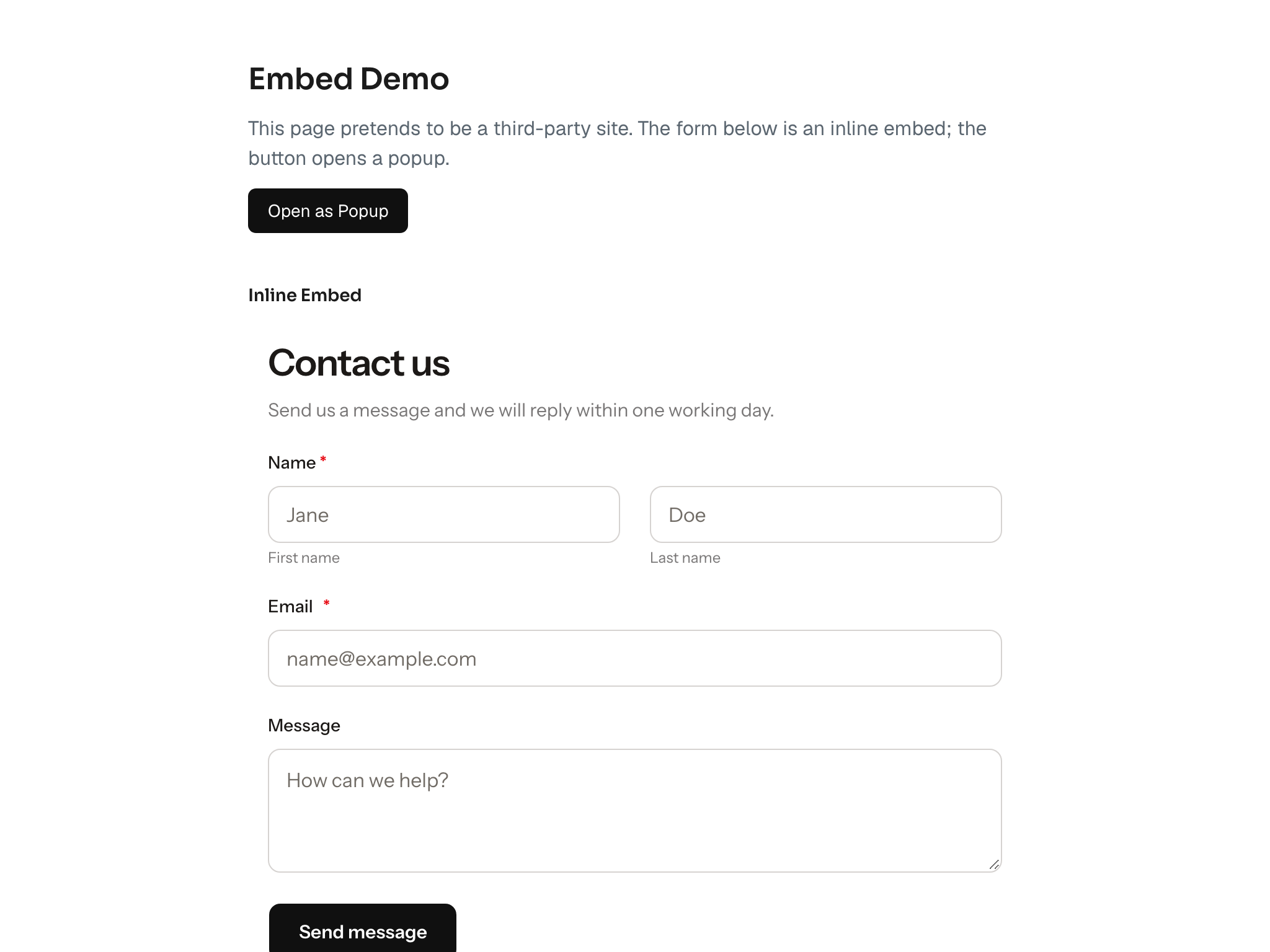
- Inline shows the form inside a page, where you paste it. See Embed a form on a page.
- Popup opens the form over your page when someone clicks a button, or on its own after a delay, on scroll or when the visitor is about to leave. See Open a form in a popup.
- Full page makes the form the whole page, for a blank page on your site. See Make the form the whole page.
- Floating button keeps a button in a bottom corner of the page that opens the form. See Add a floating button.
- Slider puts a tab on the edge of the page that opens the form as a full-height panel. See Add a slider.
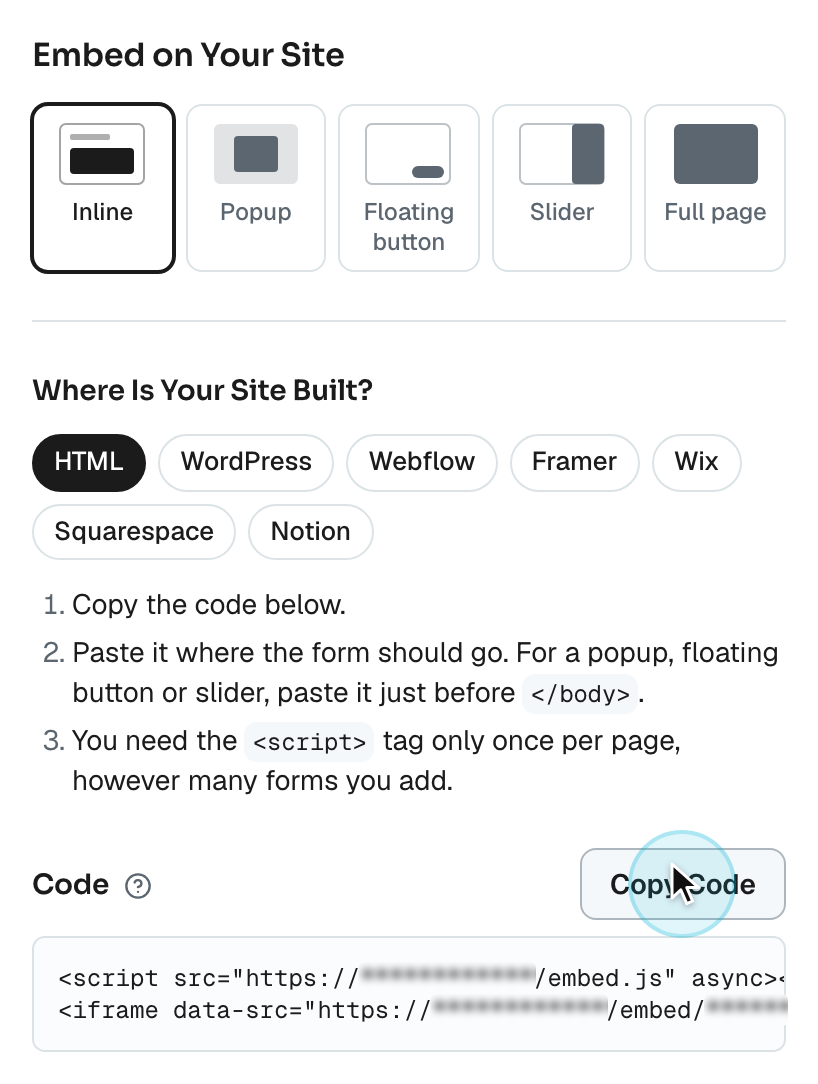
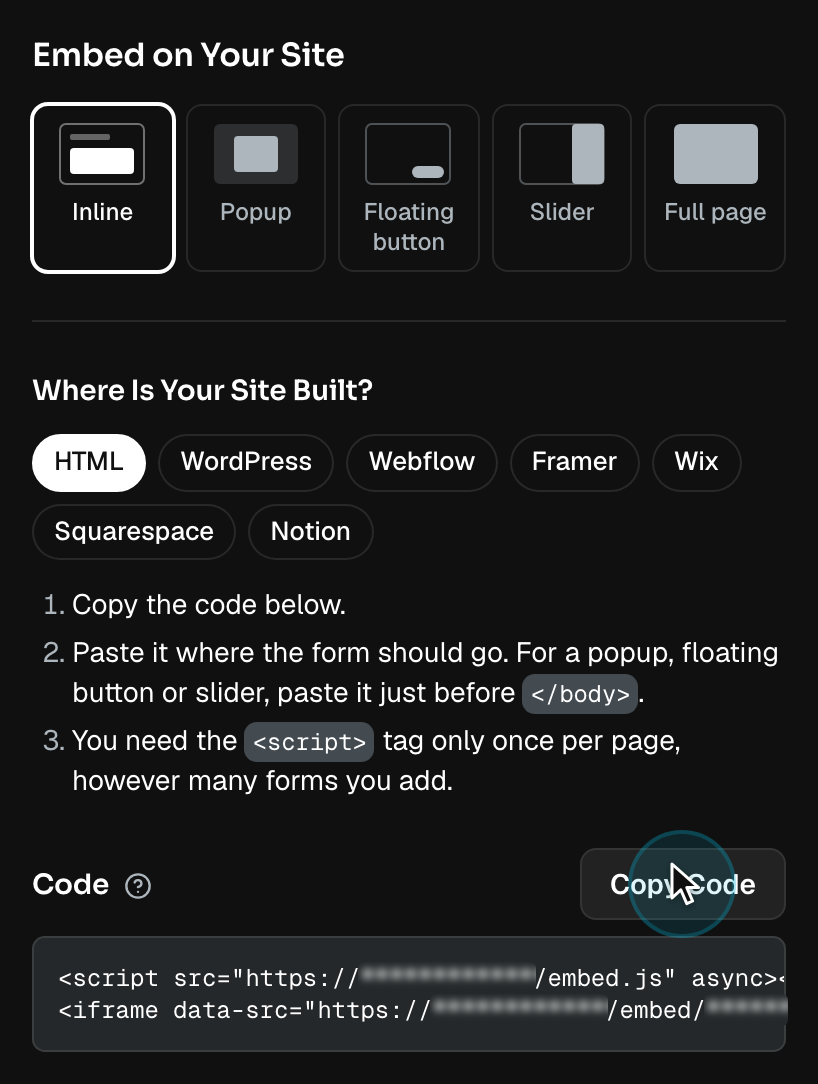
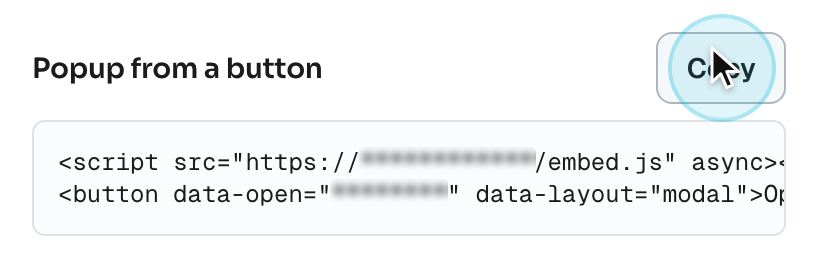
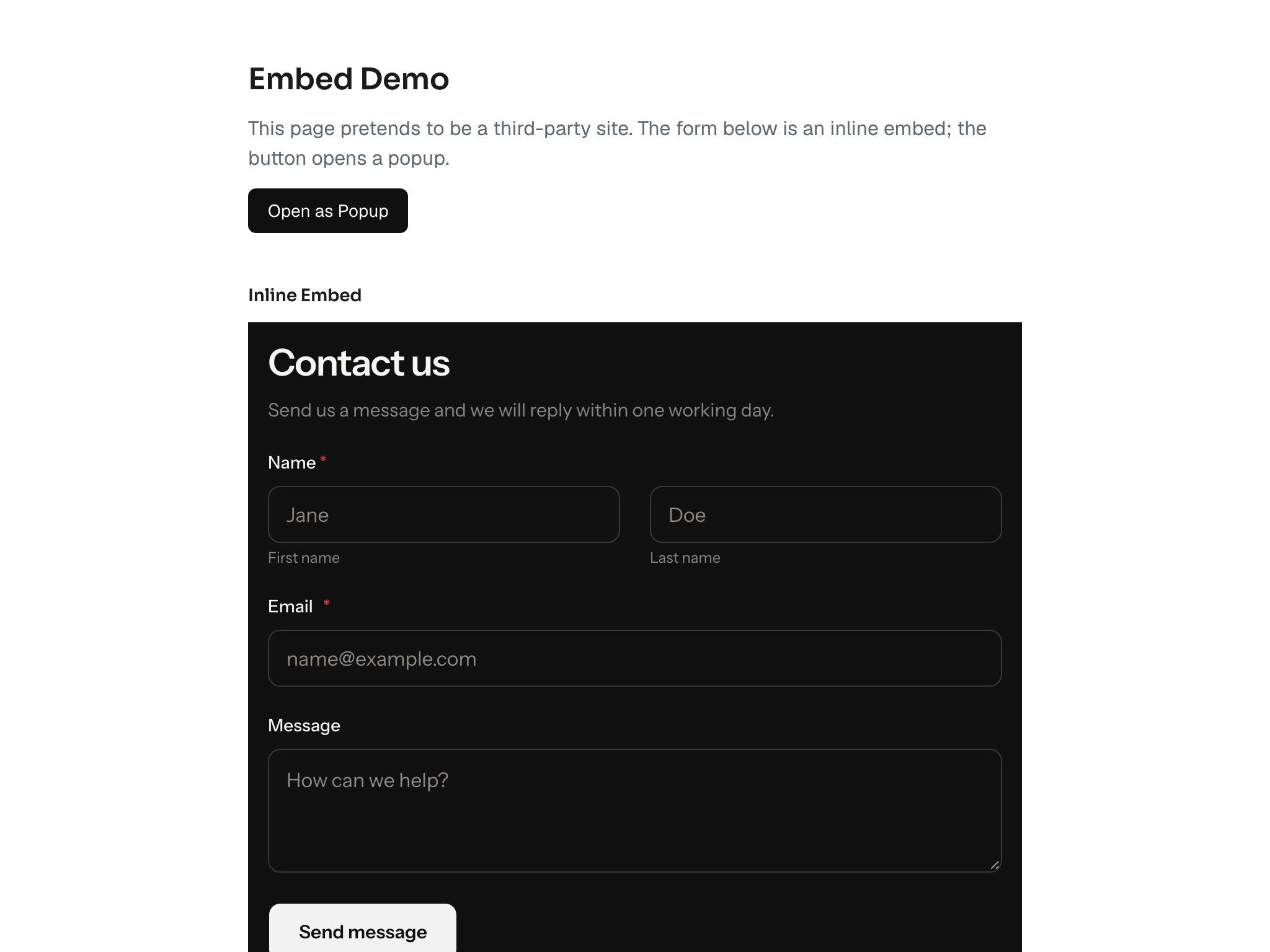
Under Where Is Your Site Built?, pick your site builder to see where the code goes. The Embed Forms page compares the types. Then select Copy Code and paste it into your page’s HTML, or into the HTML or custom code block of your site builder. Every type uses the same script tag, and a page needs it only once. Your choices on the Embed tab are saved with the form, so if you change them later, copy the code again. While the panel is open, the builder shows the type you picked on a sample page, so you can try it before you touch your site.
Good to know
- The link stays the same after you publish. Edits to a published form wait in the builder until you select Save in the top bar or press Cmd+S (Ctrl+S elsewhere), and only then reach people. Draft and Publish explains what happens if you leave with unsaved edits.
- While a form is a draft, anyone else who opens its link or scans its QR code gets a page-not-found. You and people with access see a draft preview, but it accepts no submissions.
- To take a form offline, select the Published badge next to its title and choose Draft. Its link and every embed stop working, and its submissions stay where they are.
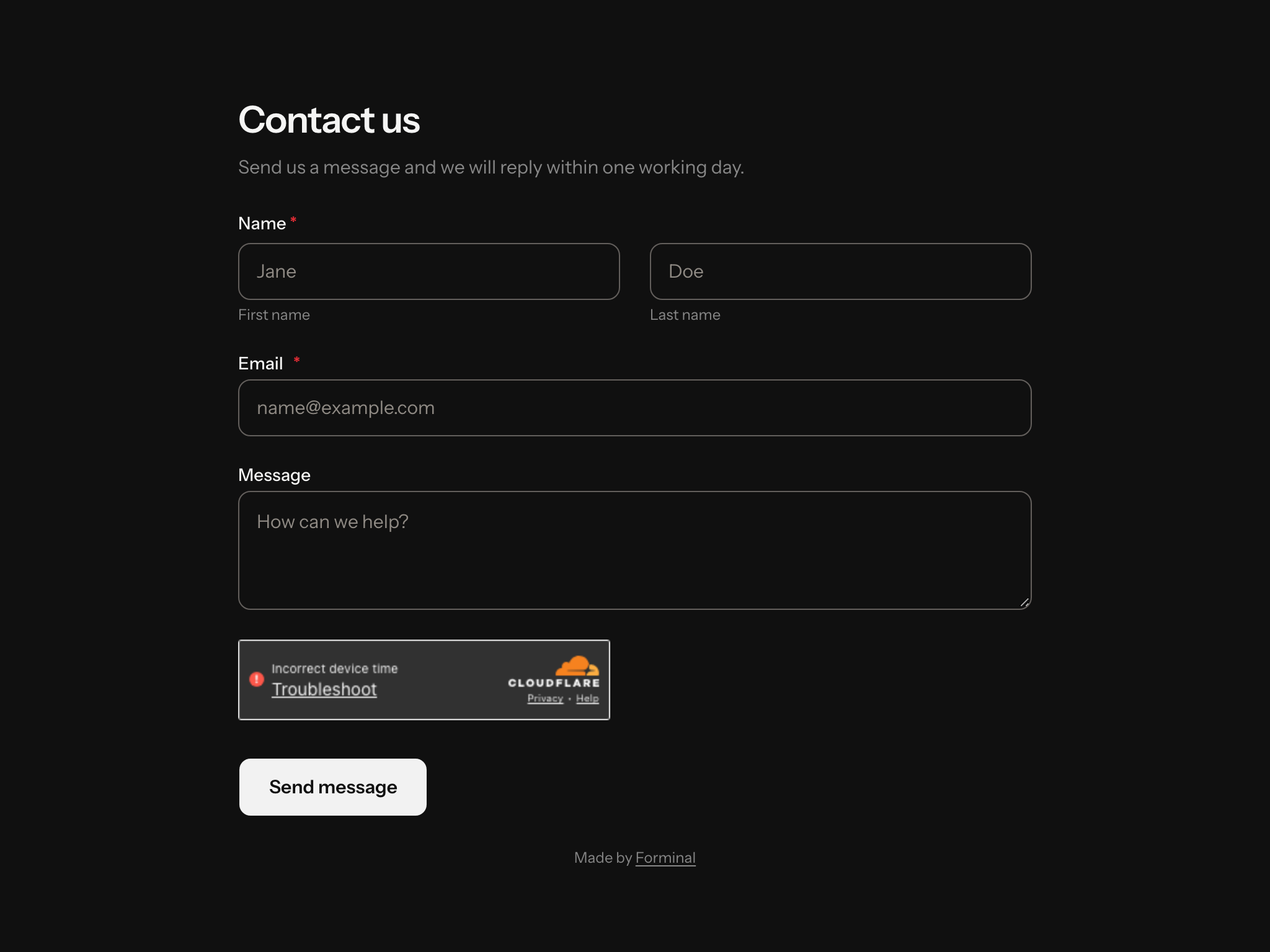
- When you’re signed in and open the link yourself, Edit Form and Submissions links show under the title, after a Light and Dark toggle that previews the form in either look. Visitors don’t see them. More on the link itself is on the Share Link page.
Frequently asked questions
Why can’t I publish my form?
The builder tells you what’s stopping it. A form needs at least one field, and a form with a Payment field also needs an Email field and a working amount and payment methods.
Do changes to a published form go live right away?
No. They wait in the builder, and the top bar reads Unsaved changes until you select Save. The link stays the same, and if a change goes wrong, restore an earlier version from History.
Can I share a form without a website?
A published form has its own page, so you can send the link by email, chat or a social post. Embeds are only needed to show the form on a page of your own.
Can I use my own domain for the form link?
Yes, with Custom Domains on Pro or Business. The Share panel then shows your address as Form Link and the usual one as Default Link. See Use your own domain.
Can I keep a form private to certain people?
Set a password in Form Settings » Protection, and visitors see only a password box until they type it. Password-Protected Forms work on every plan.
Does unpublishing a form delete its submissions?
No. The submissions stay where they are. To unpublish, select the Published badge in the builder and choose Draft.
Will my printed QR code break if I change the link ending?
No. The code opens the form by its ID, which never changes, so you can change or remove the ending at any time.
Which QR code file should I download for print?
SVG stays sharp at any size, so it suits posters and printed cards. PNG is 1024 pixels square, which is enough for slides, emails and most screens.