Una volta pubblicato un modulo, chiunque abbia il suo link può compilarlo. Questa guida ti accompagna da una bozza a un modulo attivo, con il suo link negli appunti, un codice QR per la stampa e, se lo desideri, il modulo visualizzato sul tuo sito web.
Pubblica il tuo modulo
- Open the form in the builder. A new form shows a Draft badge in the top bar.
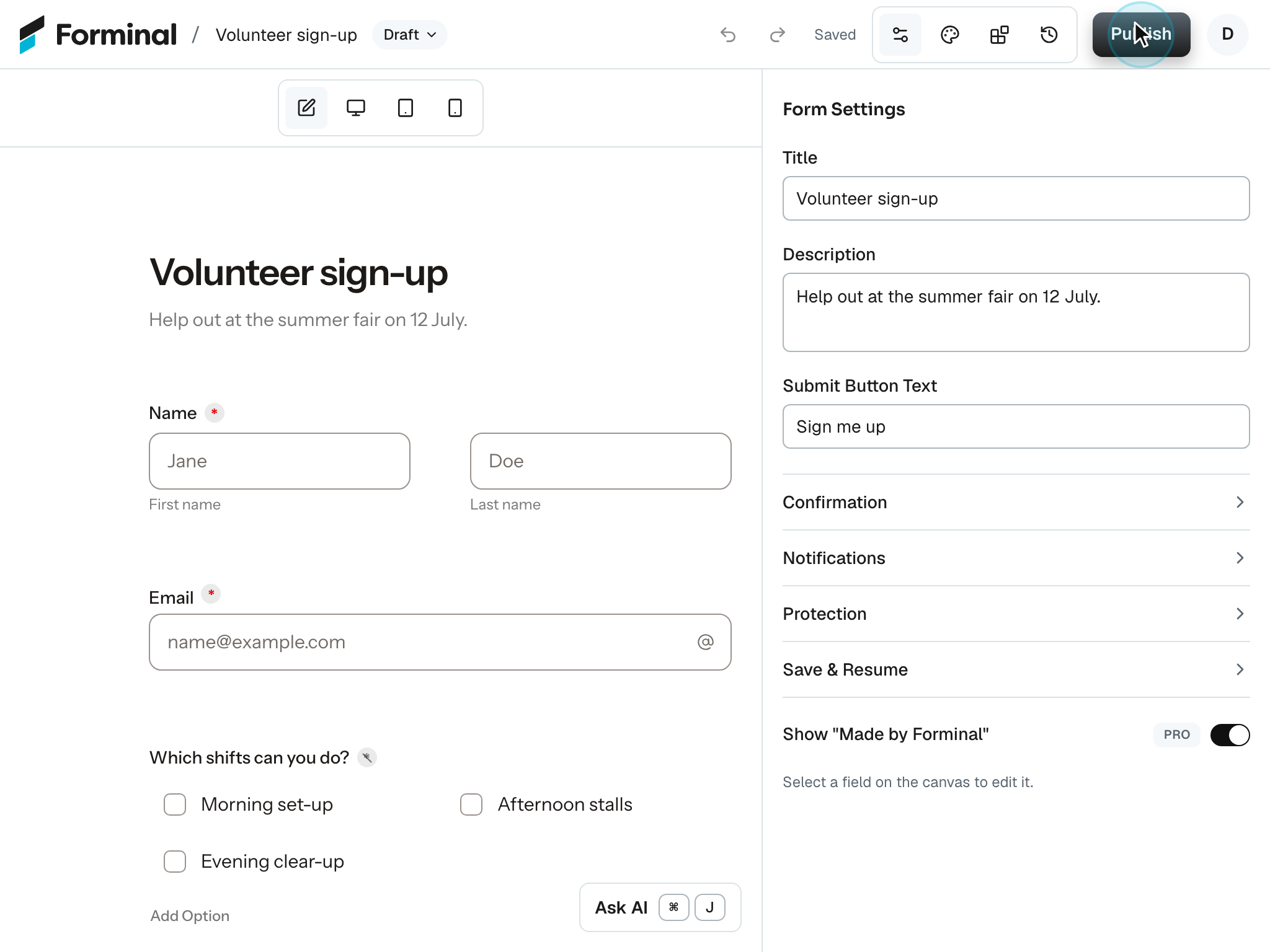
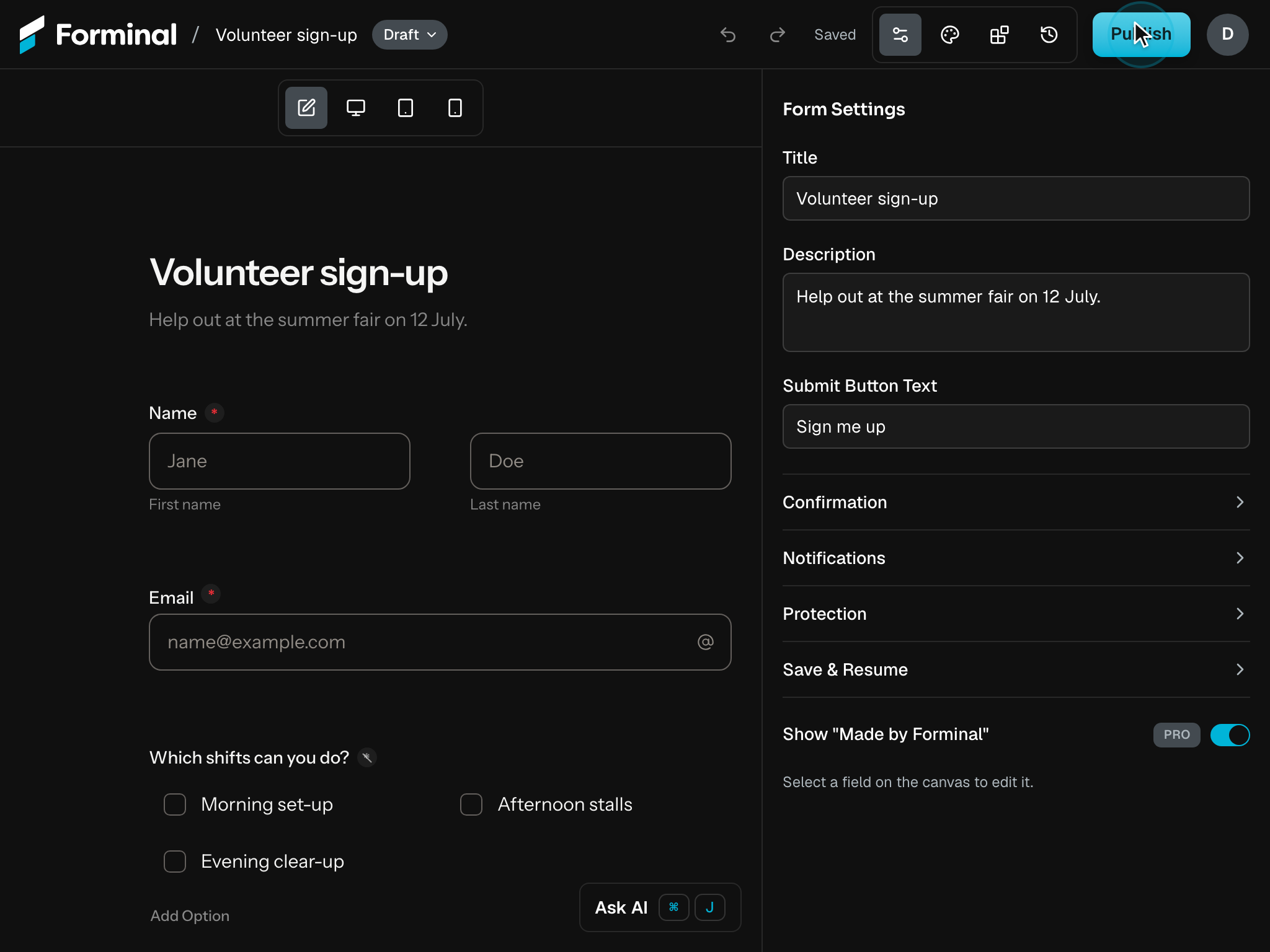
- Select Publish at the top right. If you built the form without an account, you’re asked to sign in first, and the form comes with you.
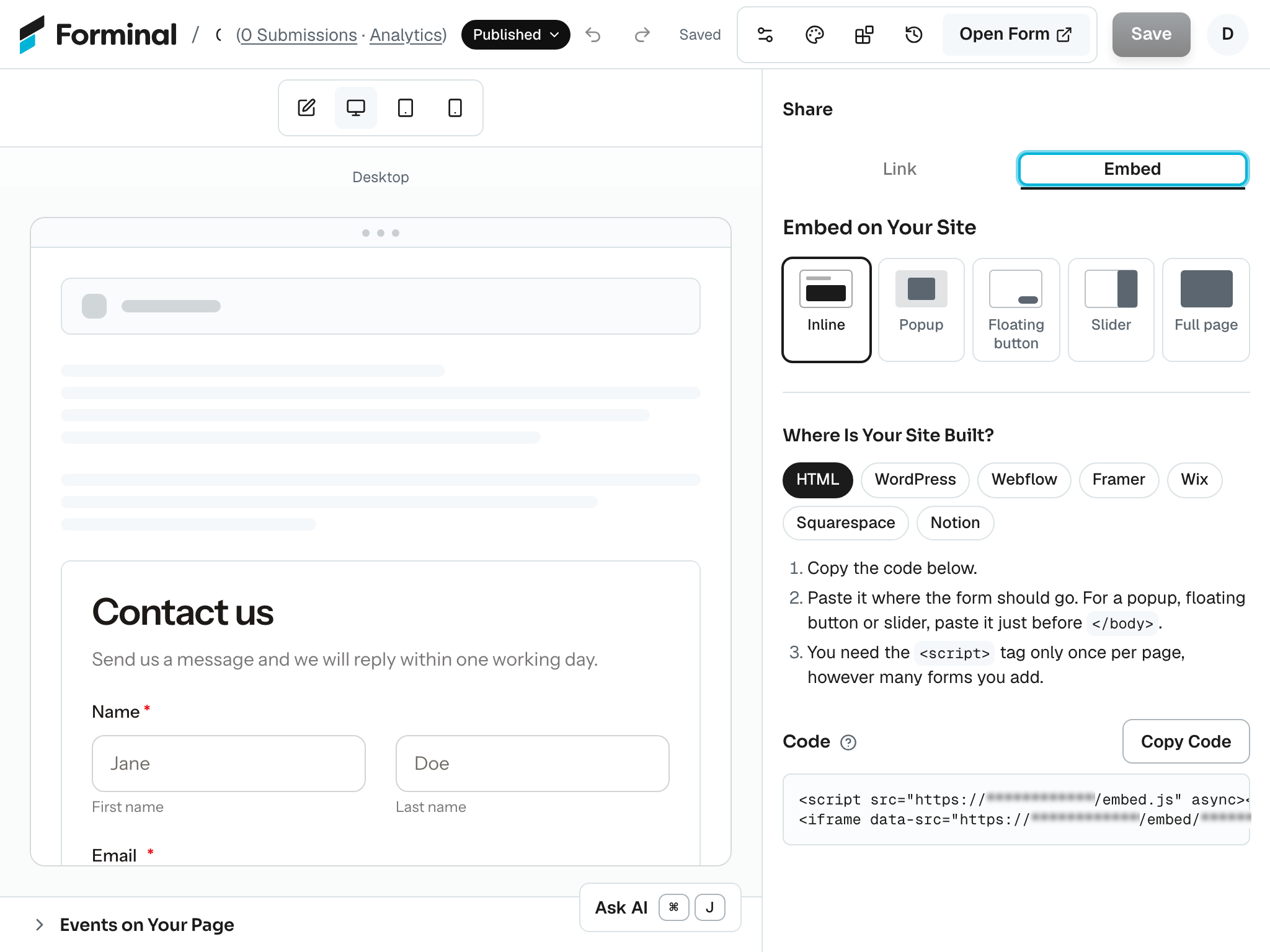
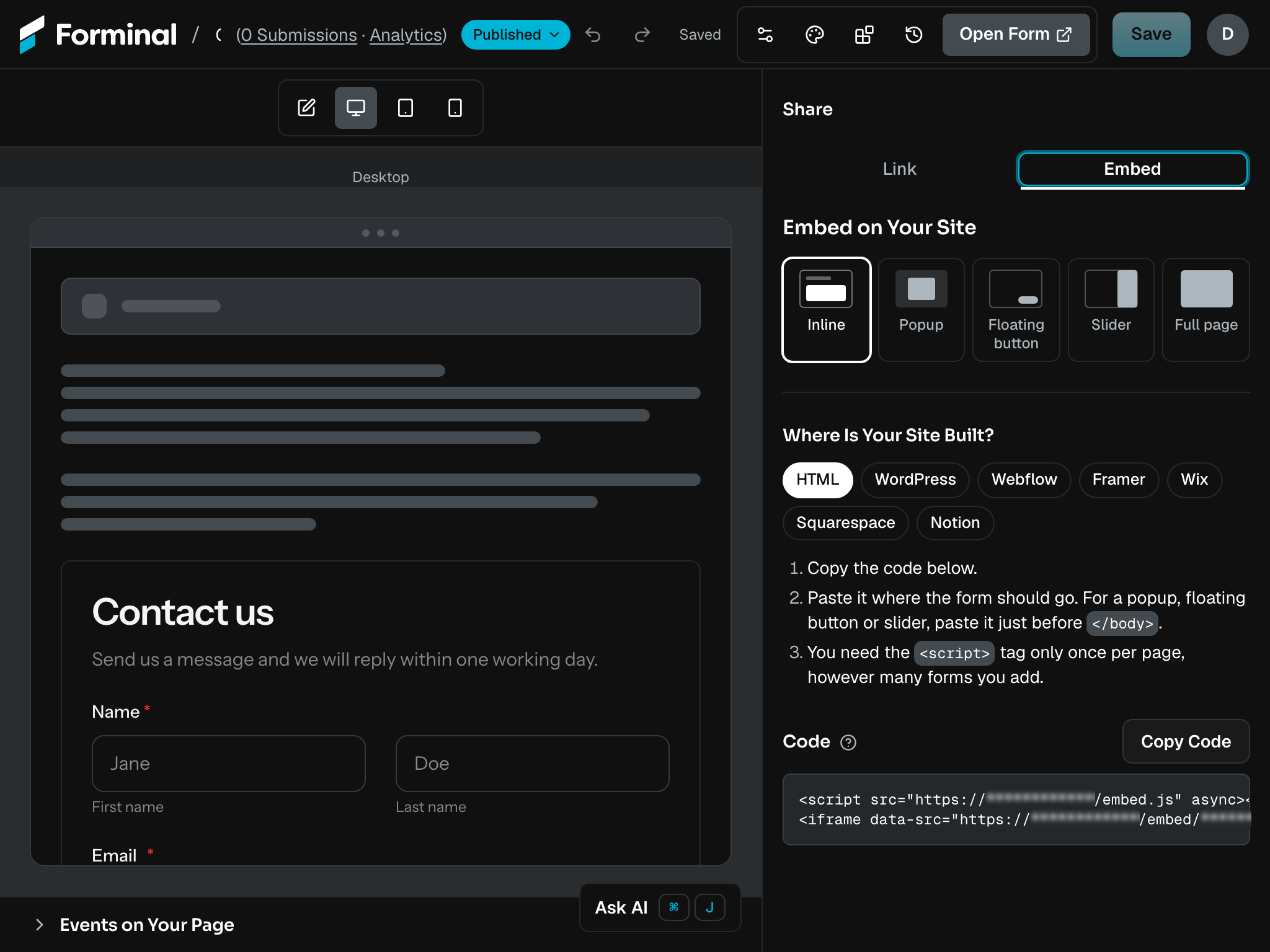
- The badge changes to Published and the Share panel opens. A Save button takes the place of Publish. Select Open Form in the top bar to see the live form in a new tab.
If something stops the form from going live, the builder says what it is. A form needs at least one field, and a form with a Payment field also needs an Email field and a working amount and payment methods. Publishing saves a version in History, so you can go back to it later.
Copia il link di condivisione
- In the Share panel, select the Link tab, then under Share a Link select Copy Link next to Form Link. The arrow icon next to it opens the form in a new tab.
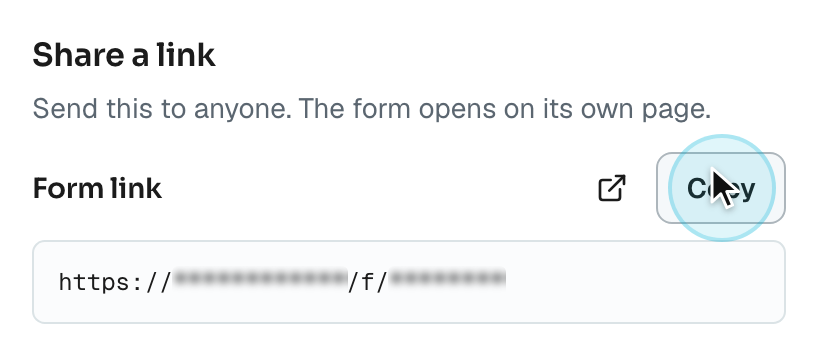
- Incolla il link in un'email, un messaggio di chat, un post sui social o ovunque altro le persone lo troveranno.
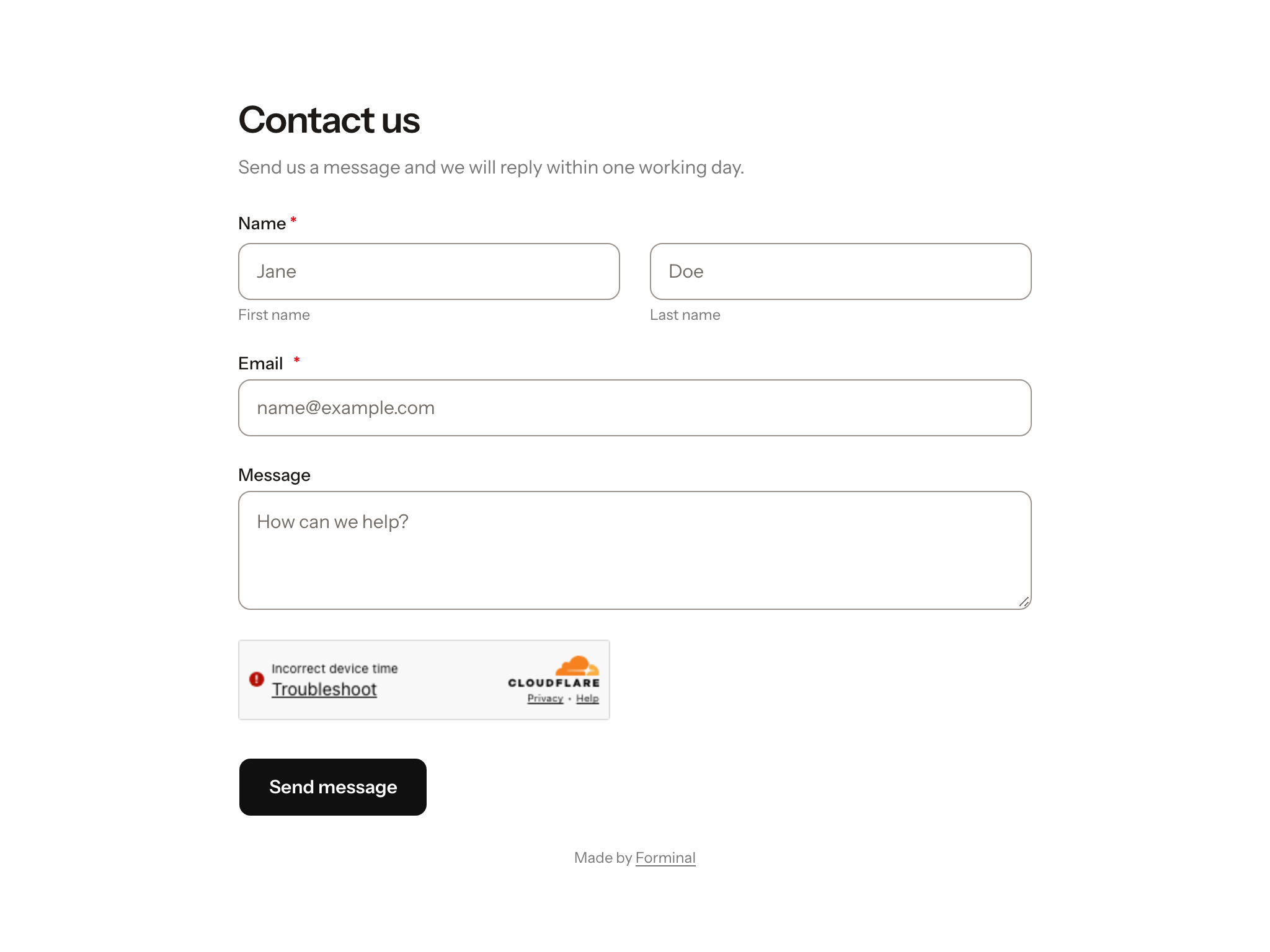
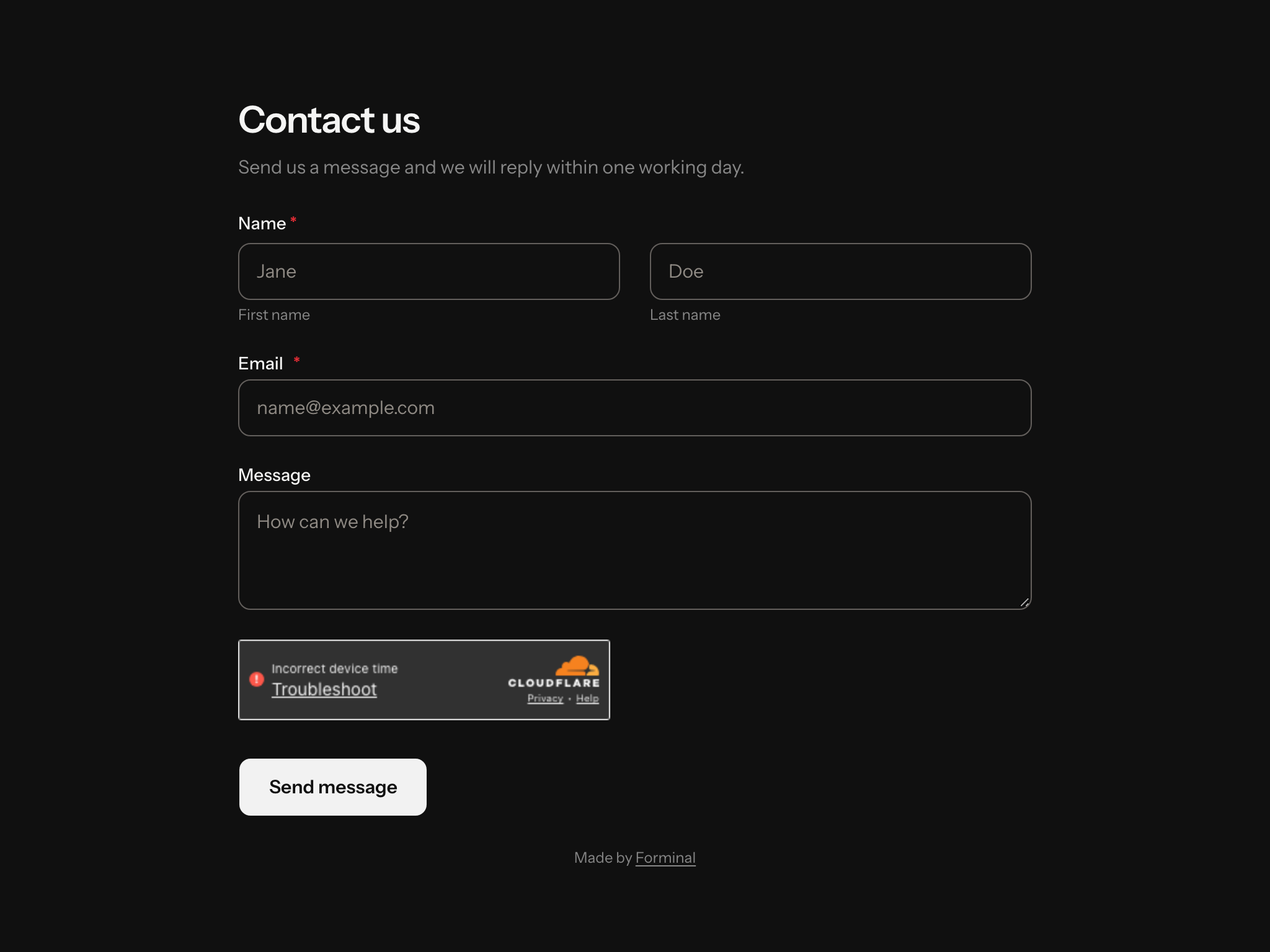
To get back to the panel later, select Share in the builder’s top bar. On your dashboard, the Copy link button on a form’s row copies the same link. If you serve the form from your own domain, Form Link shows that address and Default Link shows the usual one. To give the link a short ending, such as /f/coffee-tasting, and choose what chat apps show when it is pasted, see Customize a form link.
Scarica un codice QR
Every published form has a QR code on the Link tab, under QR Code. Put it on a flyer, a poster, a table card or the last slide of a talk, and people open the form by pointing their phone camera at it.
- In the Share panel, select the Link tab.
- Under QR Code, select PNG for an image 1024 pixels square, or SVG for a file that stays sharp at any size, which suits print.
Il file viene nominato in base alla terminazione del link del modulo quando ne ha una, come qr-coffee-tasting.png, e in base all'ID del modulo altrimenti. Il codice viene disegnato nel tuo browser.
Il codice apre sempre il modulo tramite il suo ID, a app.forminal.ai/f/FORM_ID, o a tuo-dominio/FORM_ID quando il modulo ha un indirizzo su uno dei tuoi domini personalizzati. Non utilizza la terminazione del link, quindi puoi cambiare o rimuovere la terminazione dopo la stampa e il codice continua a funzionare. Il nostro logo si trova al centro del codice su un quadrato bianco, e il codice utilizza il più alto livello di correzione degli errori, quindi i telefoni lo leggono ancora. Quando il branding di un modulo viene rimosso con Rimuovi Branding, anche il suo codice non ha logo. Ogni piano ha codici QR.
Mettilo sul tuo sito web
The panel opens on its Embed tab, which builds the code for your site. Pick how the form shows under Embed on Your Site:
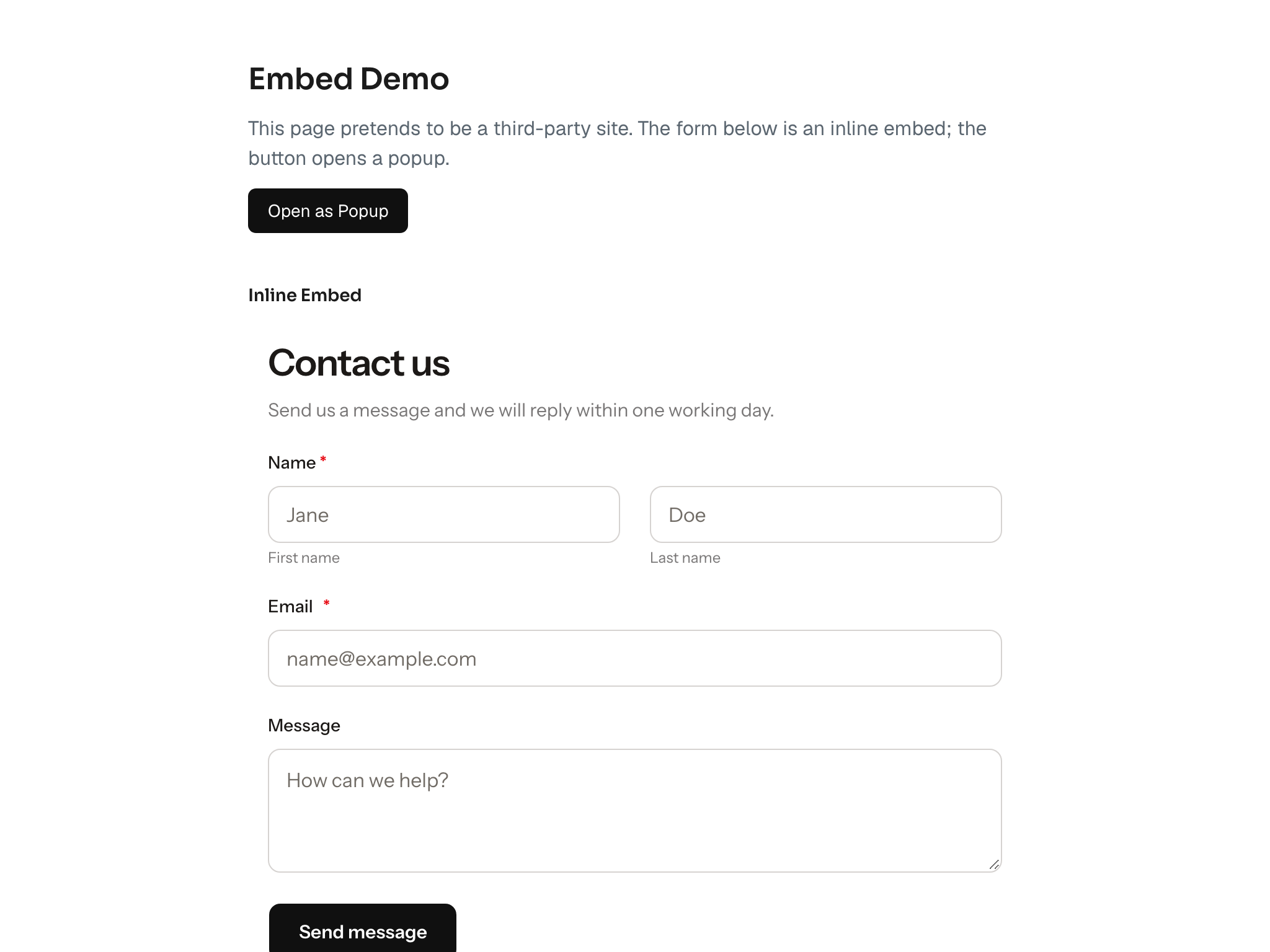
- Inline shows the form inside a page, where you paste it. See Embed a form on a page.
- Popup opens the form over your page when someone clicks a button, or on its own after a delay, on scroll or when the visitor is about to leave. See Open a form in a popup.
- Full page makes the form the whole page, for a blank page on your site. See Make the form the whole page.
- Floating button keeps a button in a bottom corner of the page that opens the form. See Add a floating button.
- Slider puts a tab on the edge of the page that opens the form as a full-height panel. See Add a slider.
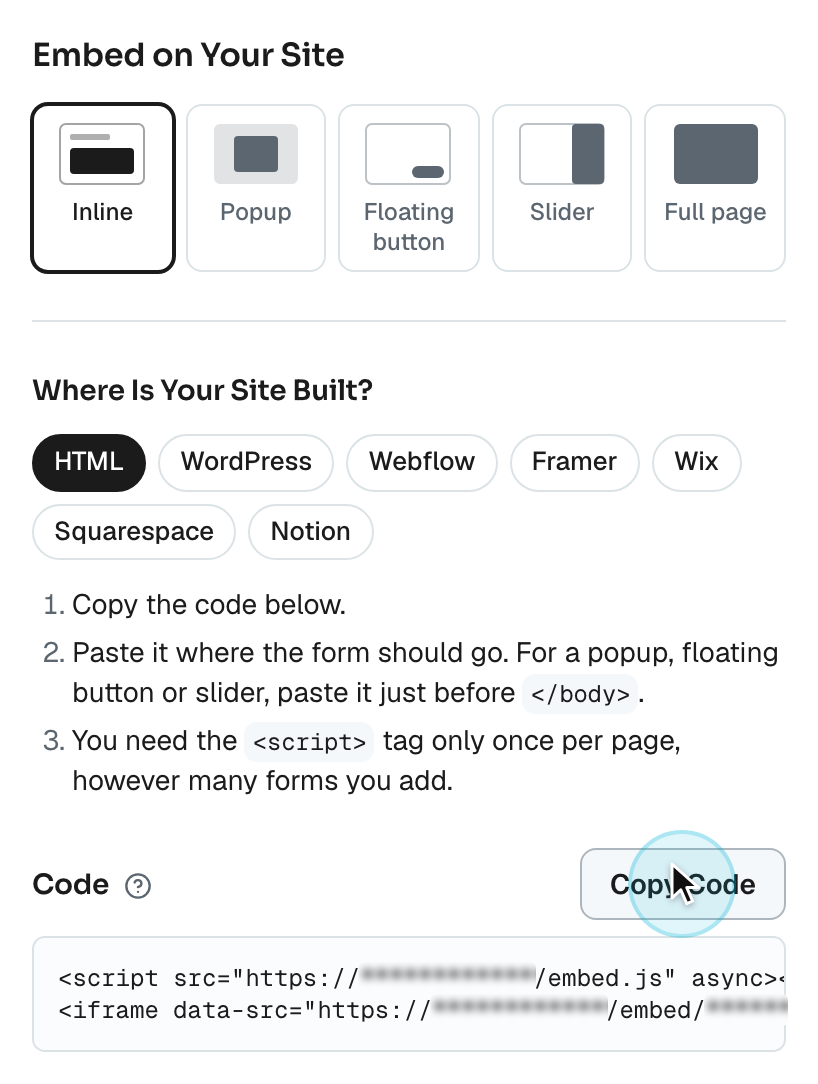
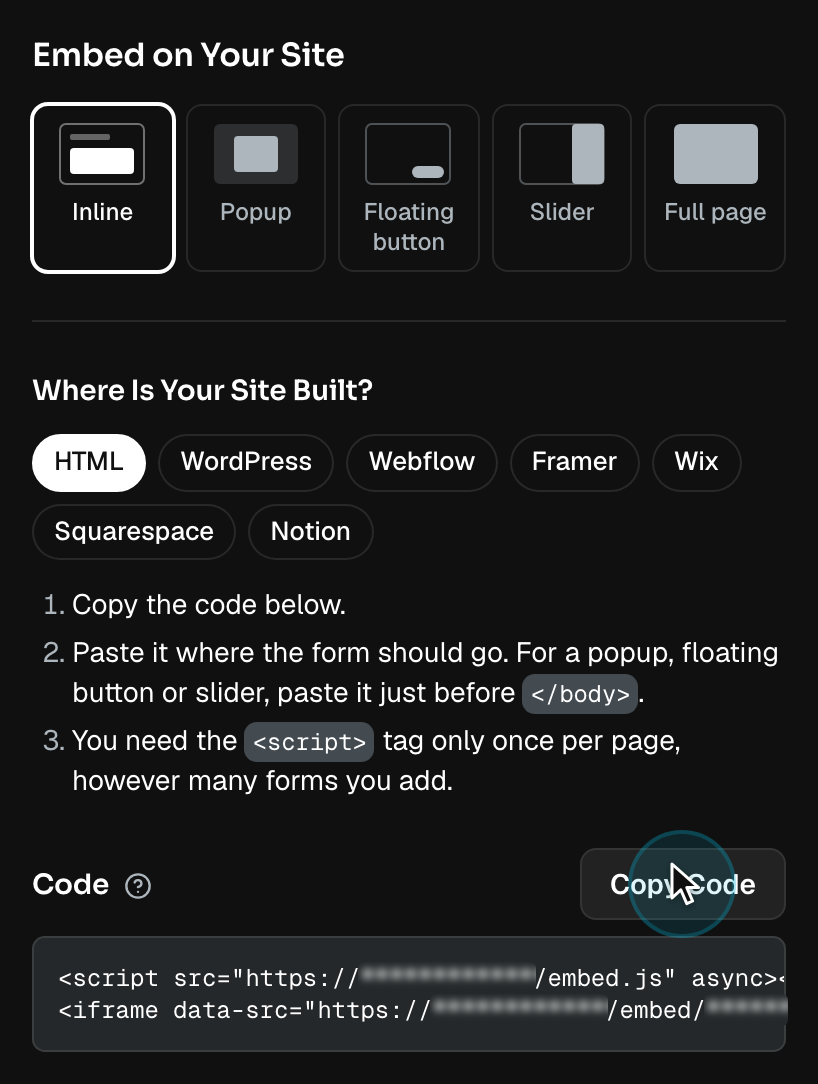
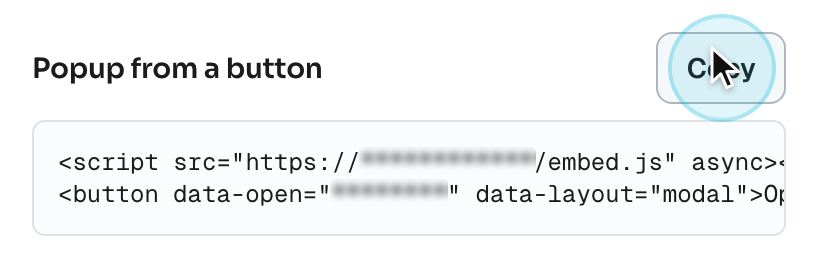
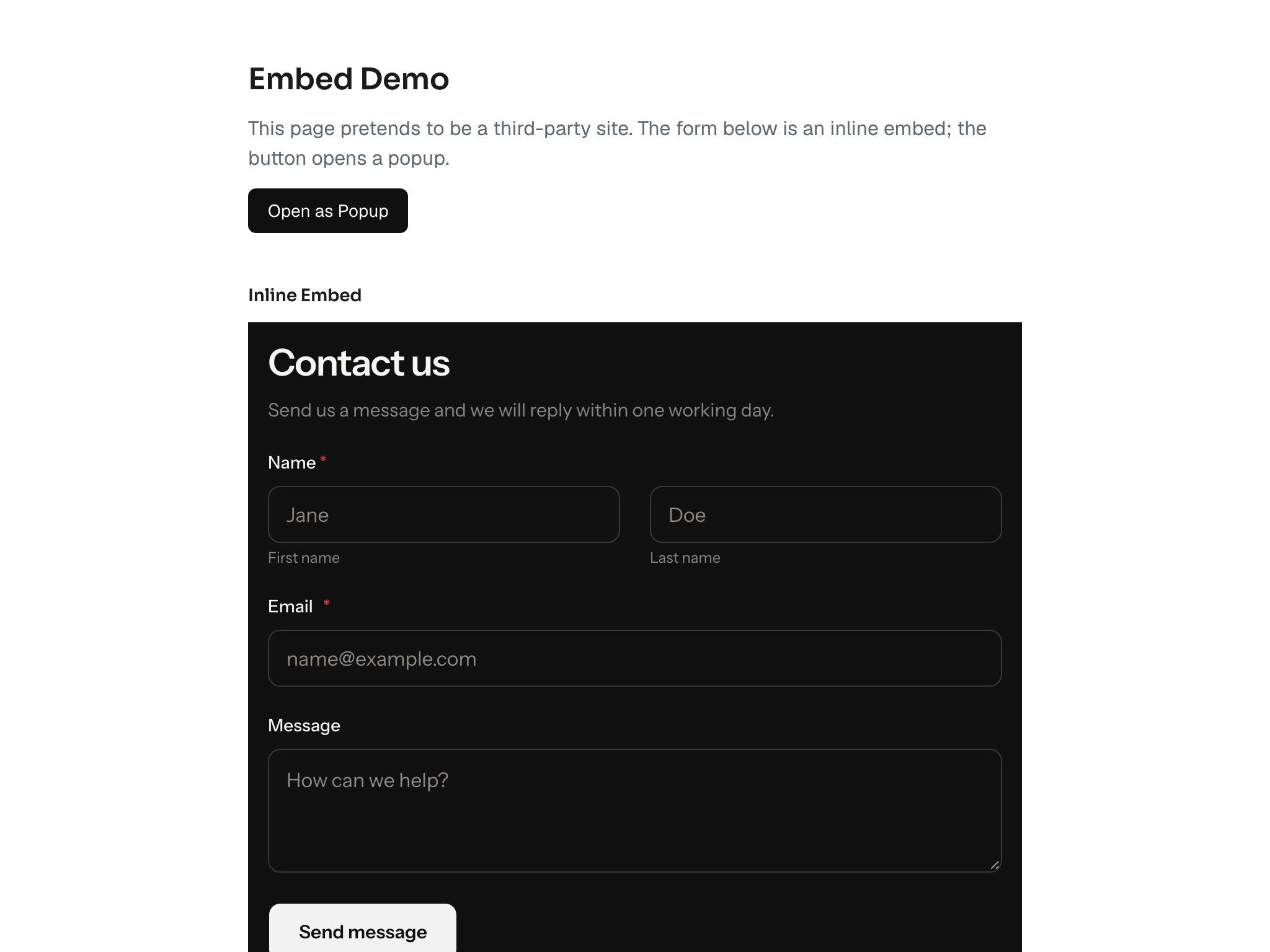
Under Where Is Your Site Built?, pick your site builder to see where the code goes. The Embed Forms page compares the types. Then select Copy Code and paste it into your page’s HTML, or into the HTML or custom code block of your site builder. Every type uses the same script tag, and a page needs it only once. Your choices on the Embed tab are saved with the form, so if you change them later, copy the code again. While the panel is open, the builder shows the type you picked on a sample page, so you can try it before you touch your site.
Buono a sapersi
- The link stays the same after you publish. Edits to a published form wait in the builder until you select Save in the top bar or press Cmd+S (Ctrl+S elsewhere), and only then reach people. Draft and Publish explains what happens if you leave with unsaved edits.
- Mentre un modulo è una bozza, chiunque altro apra il suo link o scansiona il suo codice QR ottiene una pagina non trovata. Tu e le persone con accesso vedete un'anteprima della bozza, ma non accetta invii.
- To take a form offline, select the Published badge next to its title and choose Draft. Its link and every embed stop working, and its submissions stay where they are.
- When you’re signed in and open the link yourself, Edit Form and Submissions links show under the title, after a Light and Dark toggle that previews the form in either look. Visitors don’t see them. More on the link itself is on the Share Link page.
Domande frequenti
Perché non posso pubblicare il mio modulo?
Il builder ti dice cosa lo sta impedendo. Un modulo necessita di almeno un campo, e un modulo con un campo Pagamento necessita anche di un campo Email e di un importo funzionante e metodi di pagamento.
Le modifiche a un modulo pubblicato vanno online subito?
No. They wait in the builder, and the top bar reads Unsaved changes until you select Save. The link stays the same, and if a change goes wrong, restore an earlier version from History.
Posso condividere un modulo senza un sito web?
Un modulo pubblicato ha la sua pagina, quindi puoi inviare il link via email, chat o un post sui social. Gli incorporamenti sono necessari solo per mostrare il modulo su una pagina di tua proprietà.
Posso usare il mio dominio per il link del modulo?
Yes, with Custom Domains on Pro or Business. The Share panel then shows your address as Form Link and the usual one as Default Link. See Use your own domain.
Posso mantenere un modulo privato per determinate persone?
Set a password in Form Settings » Protection, and visitors see only a password box until they type it. Password-Protected Forms work on every plan.
La rimozione dalla pubblicazione di un modulo elimina le sue submission?
No. The submissions stay where they are. To unpublish, select the Published badge in the builder and choose Draft.
Il mio codice QR stampato si romperà se cambio il suffisso del link?
No. Il codice apre il modulo tramite il suo ID, che non cambia mai, quindi puoi modificare o rimuovere il finale in qualsiasi momento.
Quale file di codice QR dovrei scaricare per la stampa?
SVG rimane nitido a qualsiasi dimensione, quindi è adatto per poster e biglietti stampati. PNG è di 1024 pixel quadrati, sufficienti per diapositive, email e la maggior parte degli schermi.