Un popup incorporato tiene il modulo a portata di mano finché non serve. Il modulo si apre in una finestra sopra la pagina quando qualcuno fa clic su un pulsante o un link sul tuo sito, o da solo: al caricamento della pagina, dopo alcuni secondi, una volta che un visitatore scorre parte della pagina, o quando si sposta per uscire. Alla fine di questa guida il tuo sito avrà un popup che aprirà il tuo modulo.
Copia lo snippet del popup
- Publish the form. The Share panel opens on its Embed tab. To open it later, select Share in the builder’s top bar.
- Under Embed on Your Site, pick Popup.
- Under Where Is Your Site Built?, pick your site builder to see where the code goes, then select Copy Code.
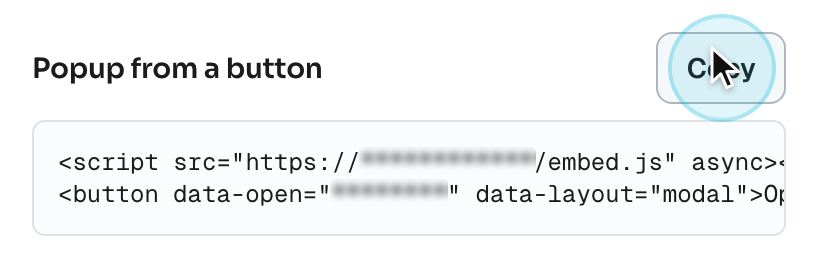
Il codice copiato ha già l'indirizzo dell'app e l'ID del tuo modulo precompilati. Eccolo con APP_ADDRESS e FORM_ID al loro posto:
<script src="APP_ADDRESS/embed.js" async></script>
<button data-open="FORM_ID" data-layout="modal">Open form</button>
The script is the same one the inline embed uses, and a page needs it only once. The settings you pick on the Embed tab, described below, write their attributes into this code for you. Your choices are saved with the form, so if you change them later, copy the code again.
Aprilo da un pulsante
- Leave When under Open the Popup on On click, the default.
- Type what the button says into Button Text, such as “Request a quote”, up to 60 characters. It can run over several lines: press Enter to start a new one.
- Copia il codice e incollalo nell'HTML della tua pagina dove dovrebbe andare il pulsante. In un site builder, usa il suo blocco HTML o di codice personalizzato. Ci sono guide passo passo per WordPress, Webflow, Shopify, Squarespace e Wix.
- Salva la pagina e fai clic sul pulsante per provarlo.
Ciò che apre il popup è l'attributo data-open, quindi puoi spostarlo su un link o qualsiasi altro elemento e stilizzare quell'elemento come preferisci. Puoi mettere diversi pulsanti su una pagina, ognuno con il proprio data-open. Solo un popup è aperto alla volta.
Aprilo da solo
Under Open the Popup, pick another When, fill in the setting that appears for it, and pick a How Often. A popup that opens on its own has no button, so the code can go anywhere on the page, such as just before the closing body tag.
- On load opens it as soon as the page has loaded (
data-trigger="load"). - Delay opens it after a number of seconds, 0 to 120. After sets the number, 3 seconds unless you change it (
data-trigger="delay" data-delay="10"). - Scroll opens it once the visitor has scrolled part of the way down the page. After Scrolling takes 5 to 100% of the page, 40% unless you change it (
data-trigger="scroll" data-scroll="60"). A page too short to scroll never opens it. - Exit opens it when the pointer leaves the top of the window, heading for the tabs or the address bar (
data-trigger="exit"). On phones and tablets, which have no pointer, it opens when the visitor scrolls back up quickly after reading some way down the page.
Il codice scrive solo le impostazioni che hai modificato. Un popup che si apre 5 secondi dopo il caricamento della pagina, una volta per visitatore, appare così:
<script src="APP_ADDRESS/embed.js" async></script>
<div data-open="FORM_ID" data-layout="modal" data-trigger="delay" data-delay="5" data-show="once" hidden></div>
While the Share panel is open, the sample page next to it acts the way your site will. A line above it shows what the trigger is doing, such as “Opens in 3s”, and Replay runs it again. Once the sample visitor has seen the popup, Forget this Visitor lets you start over. The sample page keeps nothing in your browser.
Quanto spesso un visitatore lo vede
- Every visit opens it on every page view. This is what you get when you leave
data-showout. - Once opens it the first time only (
data-show="once"). - Until answered keeps opening it on each visit until the visitor submits the form (
data-show="until-submit").
To remember who saw or answered the popup, the script keeps a small note in the visitor’s browser, on your site. The note records only that this browser saw or answered the form. It holds no answers, never reaches our servers and is kept for at most 12 months. How Often limits only the popups that open on their own: a visitor who clicks a button always gets the form, so On click has no How Often setting. With Once, opening the form from a button counts too, so the popup does not open on its own after that.
When Disable User Cookies is on for the form (a setting of the GDPR Agreement field), nothing may be stored in the visitor’s browser. Once and Until answered are then unavailable, and the copied code opens the popup on every visit. If you turn the setting on after visitors were remembered, their notes are removed the next time they visit your site, usually within five minutes of the change. Your code keeps working as it is, and the popup then opens on every visit.
Cambia come appare e si chiude
Under Look on the Embed tab:
- Position: Center opens the form in the middle of the screen over a dimmed page (
data-layout="modal", also what you get when you leave it out). Corner opens it as a card in the bottom right corner, with no dimming (data-layout="default"). - Dim the Page Behind is on for a centered popup unless you turn it off. Off, the page stays bright and people can still use it while the popup is open (
data-overlay="off"). - Width takes 320 to 800 pixels, 560 unless you change it (
data-width="720"). On a smaller screen the popup never gets wider than the screen. - After Sending decides what happens once someone submits. Close closes the popup after the number of seconds in Close After, from 0 to 30, 2 unless you change it (
data-auto-close="5"). Stay open keeps the confirmation message up until the visitor closes it (data-auto-close="off").
The popup also follows Show Title in Customize: turning it off hides the title and description on the form’s own page and in every embed, and keeps the logo and cover. To hide the title, description, logo and cover in this popup only, add data-hide-title="1" to the button, for when the button already says what the form is. Transparent Background doesn’t apply to the popup, which always fills with the form’s Page Background.
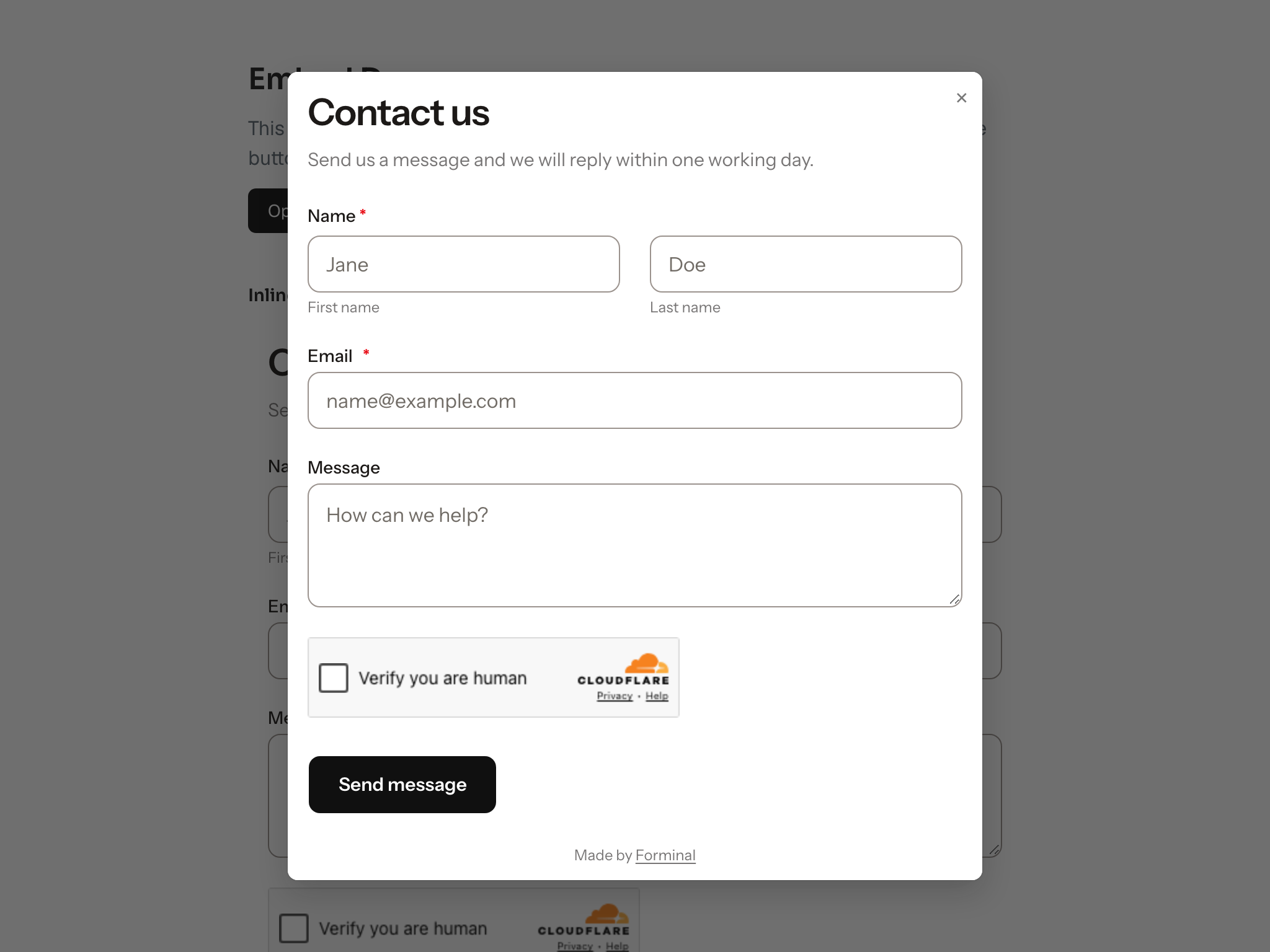
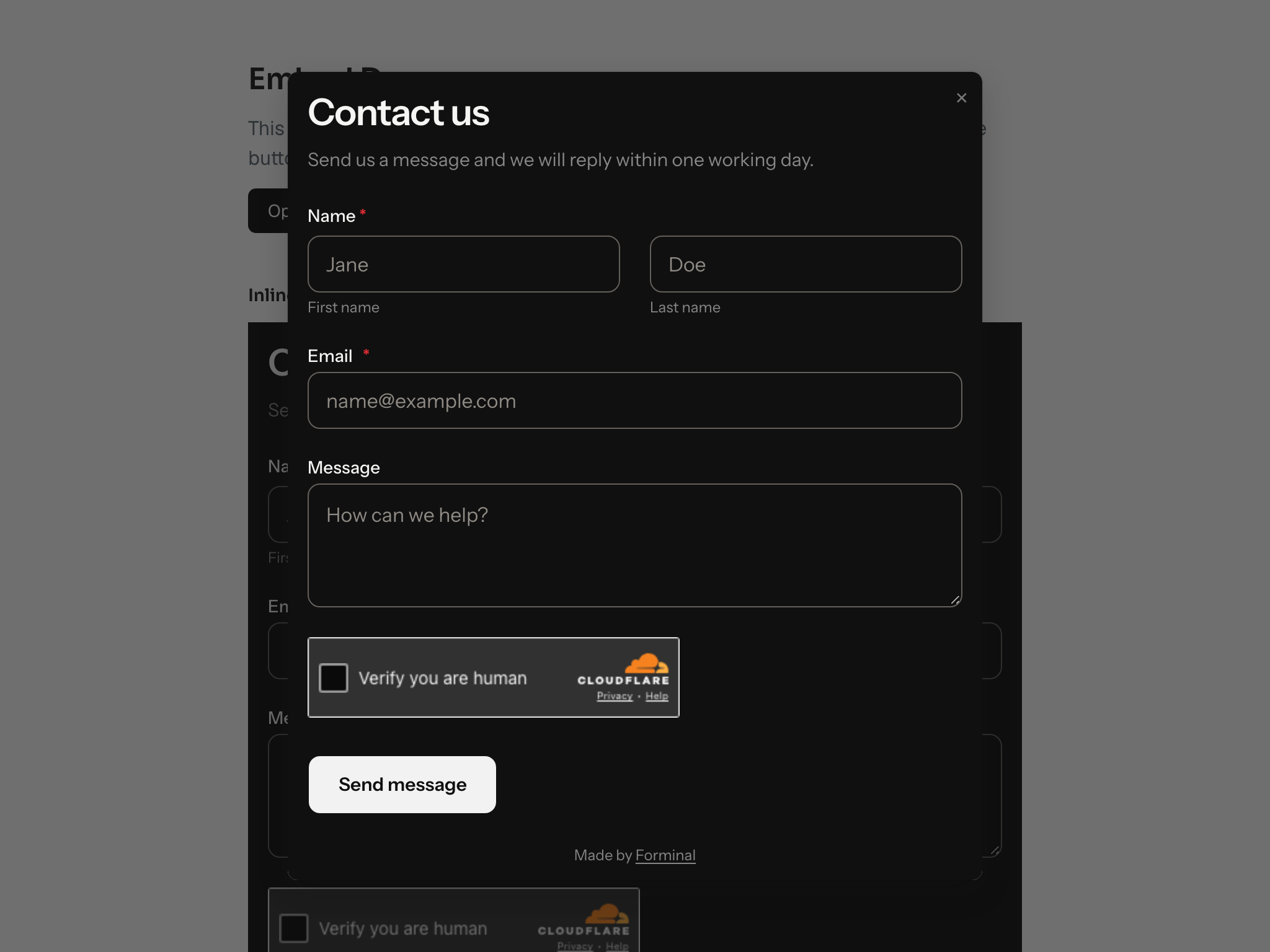
The popup grows to fit the form up to 85% of the screen’s height, then scrolls inside. People close it with the × that sits over its top corner, or with the Escape key. In the centered layout, clicking the dimmed page around it closes it too. To try a popup before you paste anything, look at the builder while the Share panel is open and select Open form on the sample page it shows.
Aprilo dal tuo codice
Gli sviluppatori possono aprire e chiudere il popup dal proprio script. openPopup accetta le stesse opzioni degli attributi. Il suo autoClose è il numero di secondi prima che il popup si chiuda dopo un invio, e false lo mantiene aperto.
window.FormsEmbed.openPopup('FORM_ID', { layout: 'modal', width: 720, hideTitle: true, autoClose: false })
window.FormsEmbed.closePopup()
Lo script attiva form:opened e form:closed su window quando il popup si apre e si chiude, e form:submitted quando il modulo viene inviato. Ascolta gli eventi di incorporamento elenca ogni evento e cosa trasporta.
Buono a sapersi
- Solo i moduli pubblicati si aprono per i visitatori.
- After someone submits, the popup shows your thank-you message and closes itself 2 seconds later, unless you changed After Sending, so keep the message short. If the confirmation redirects, the whole page goes to the redirect address.
- Il modulo viene caricato fresco ogni volta che il popup si apre, quindi chiuderlo prima di inviare cancella ciò che è stato digitato.
- Un popup che si apre da solo non si apre mai mentre un altro popup, un modulo con pulsante fluttuante o uno slider sono già aperti, così nessuno perde ciò che stava digitando. Si apre al massimo una volta per visualizzazione di pagina, e per niente una volta che il visitatore ha aperto quel modulo da un pulsante.
- Cancellare i dati del sito del browser, o una finestra privata, ricomincia da capo per il visitatore, così vedono di nuovo un popup Una volta.
- Il codice aggiuntivo per i trigger viene caricato solo nelle pagine che ne utilizzano uno, quindi una pagina con un semplice embed inline o un pulsante popup non carica altro.
- Un campo Pagamento in un popup accetta solo pagamenti con carta.
- Per mostrare il modulo all'interno della pagina invece, vedi Incorpora un modulo in una pagina. Per un pulsante che rimane in un angolo di ogni pagina, vedi Aggiungi un pulsante fluttuante.
Domande frequenti
Posso mantenere aperto il popup dopo che qualcuno ha inviato?
Sì. Imposta Dopo l'invio su Rimani aperto nelle impostazioni del popup nella scheda Incorpora, o aggiungi data-auto-close=”off” al pulsante.
Cosa succede con un modulo lungo in un popup?
Il popup si espande per adattarsi al modulo fino all'ottantacinque percento dell'altezza dello schermo, quindi scorre al suo interno.
Posso mettere diversi pulsanti popup su una pagina?
Sì. Carica lo script una volta e dai a ogni pulsante il suo data-open. Solo un popup è aperto alla volta.
I campi nascosti funzionano in un popup?
Sì. Il popup ottiene la stringa di query della tua pagina, quindi una visita con ?ref=newsletter riempie un campo nascosto chiamato ref.
Il popup si aprirà di nuovo dopo che un visitatore lo ha chiuso?
Non nella stessa visualizzazione di pagina. Con Ogni visita si apre di nuovo alla visita successiva. Con Una volta non si apre mai più da solo in quel browser, e con Finché non risposto continua ad aprirsi finché il visitatore non invia il modulo.
L'intento di uscita funziona sui telefoni?
Sì. Un telefono o tablet non ha un puntatore per uscire dalla finestra, quindi il popup si apre quando il visitatore scorre rapidamente verso l'alto dopo aver letto una parte della pagina. Uno scorrimento lento verso l'alto non viene conteggiato.
Posso usare Once su un modulo con Disabilita cookie utente attivo?
No. Quella impostazione significa che nulla può essere memorizzato nel browser del visitatore, quindi Once e Until answered non sono disponibili e il popup si apre ad ogni visita.