Ogni nuovo modulo inizia come bozza. Solo tu e le persone con cui lavori potete aprirlo, così potete crearlo e testarlo al vostro ritmo. Una volta pubblicato, chiunque abbia il link può compilarlo.
Esempi
- Preparazione di un modulo per un evento una settimana prima dell'apertura delle registrazioni.
- Revisione di un modulo con un collega prima che venga pubblicato.
Mentre è una bozza
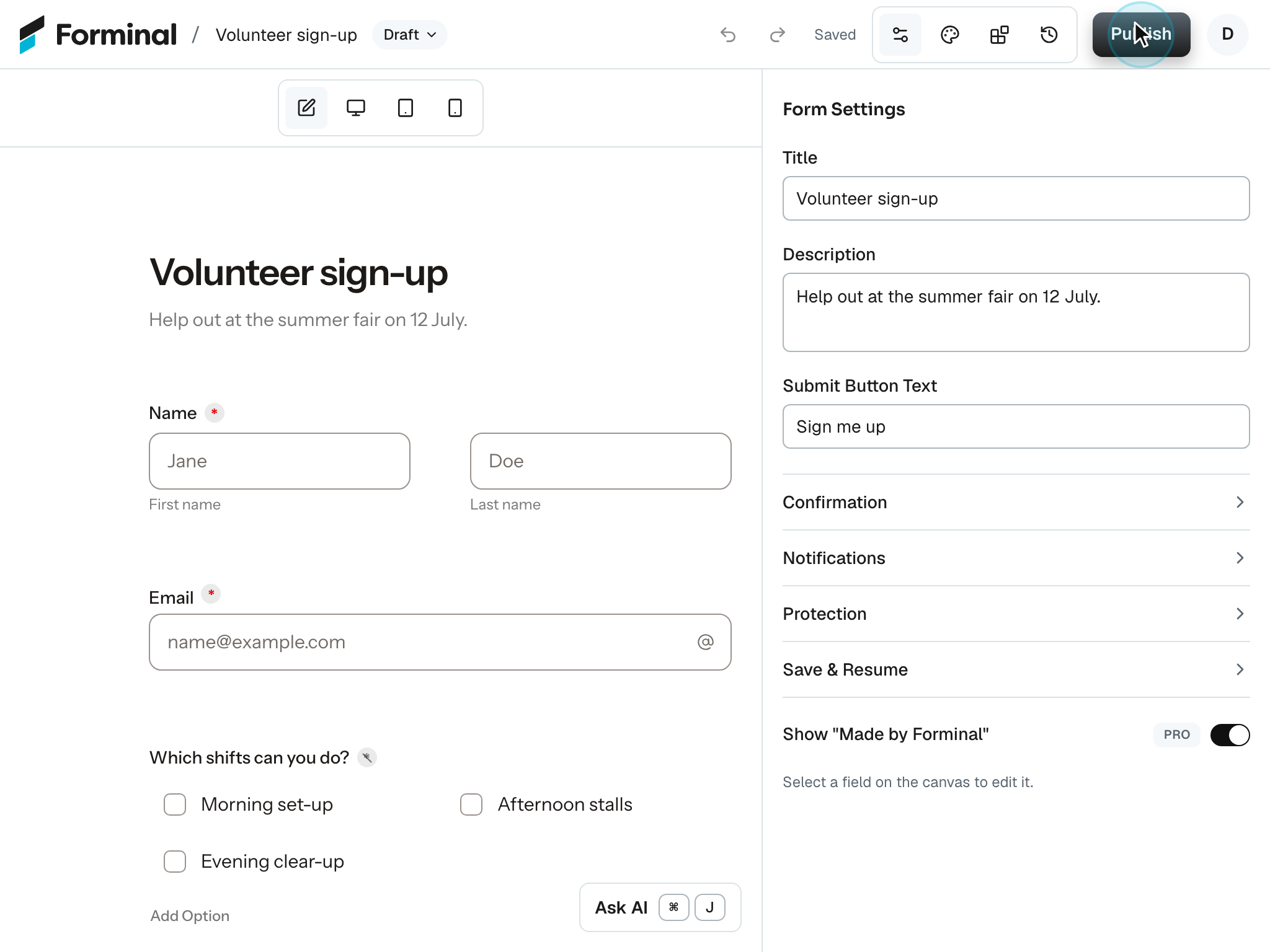
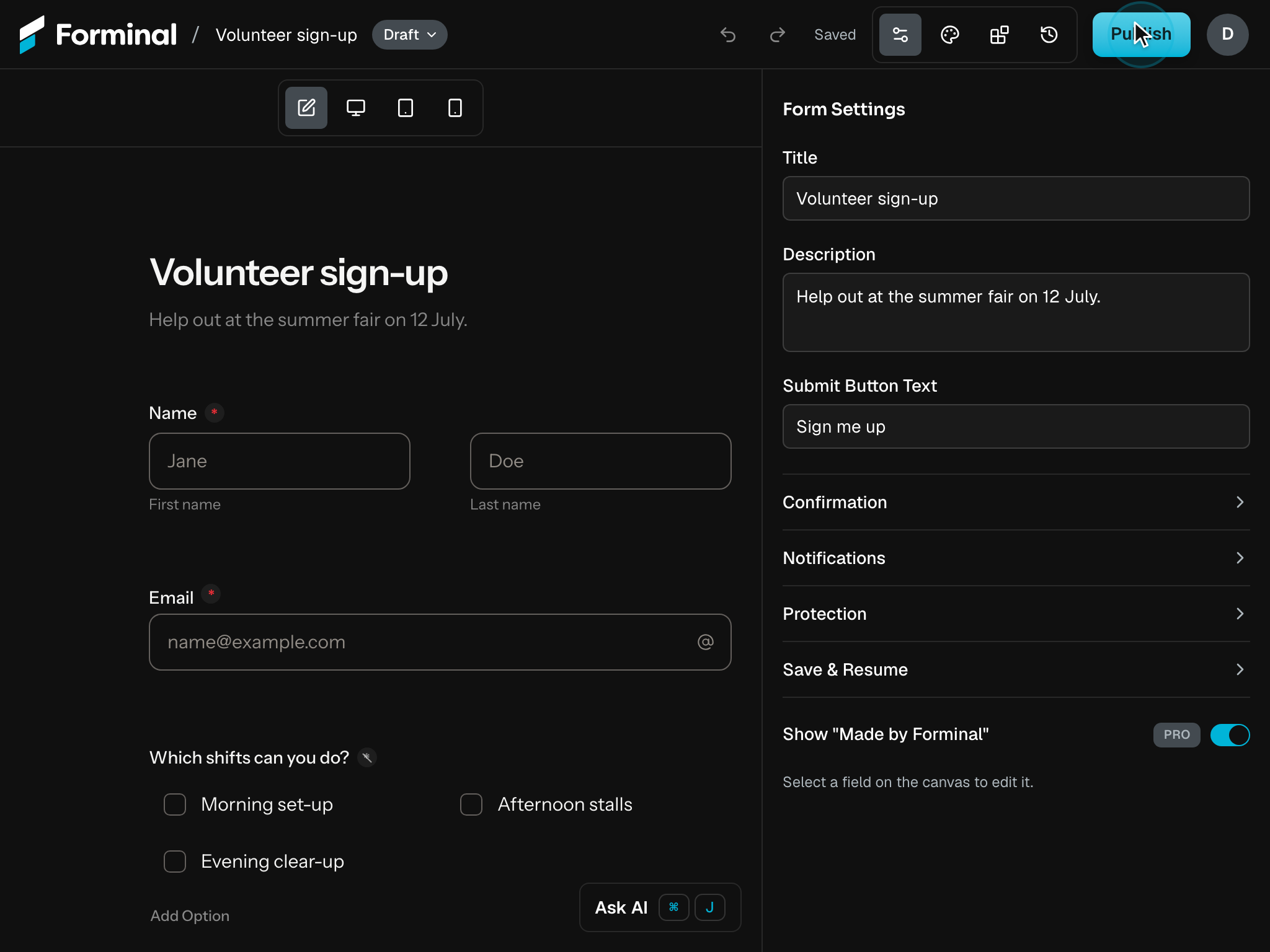
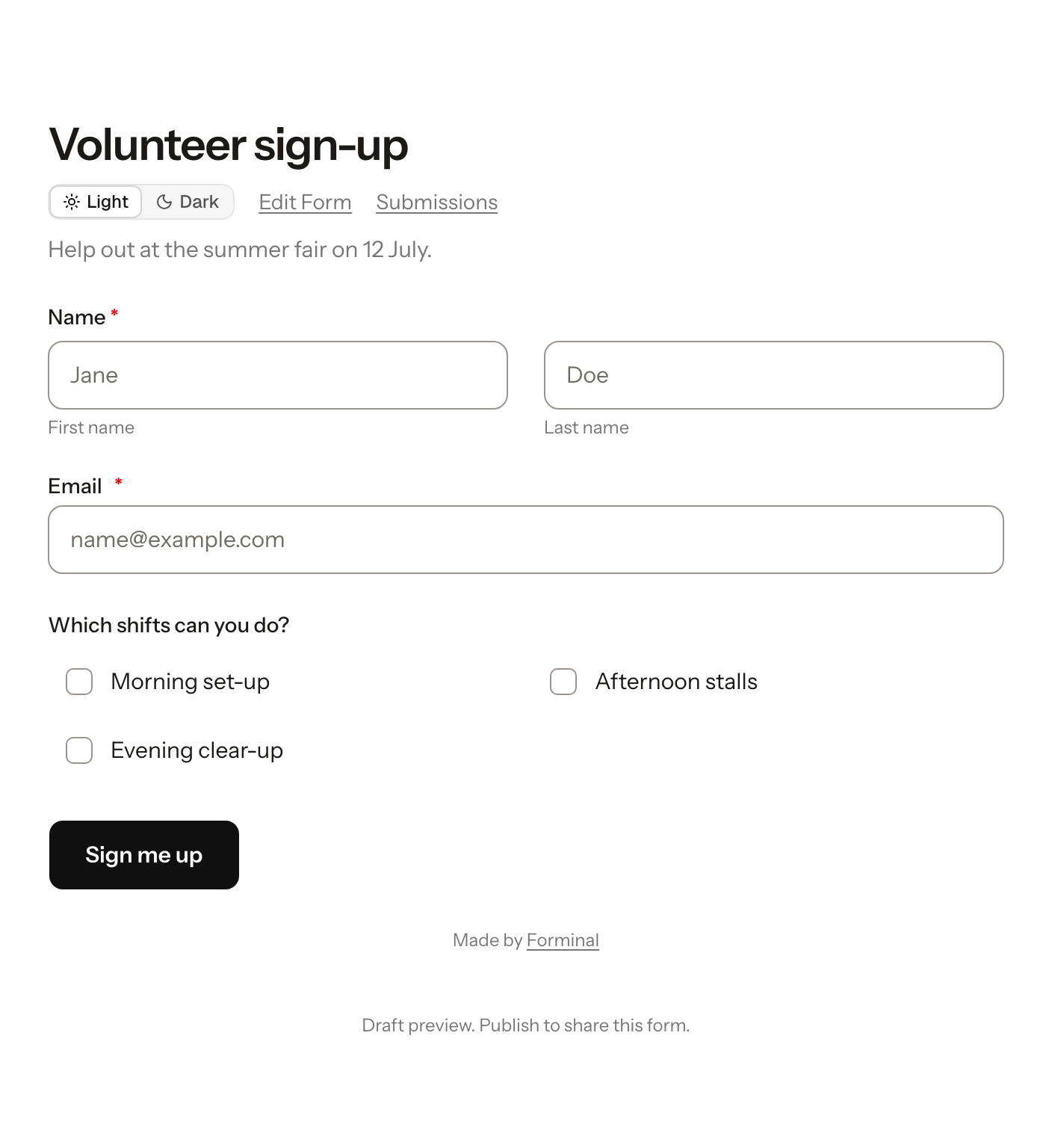
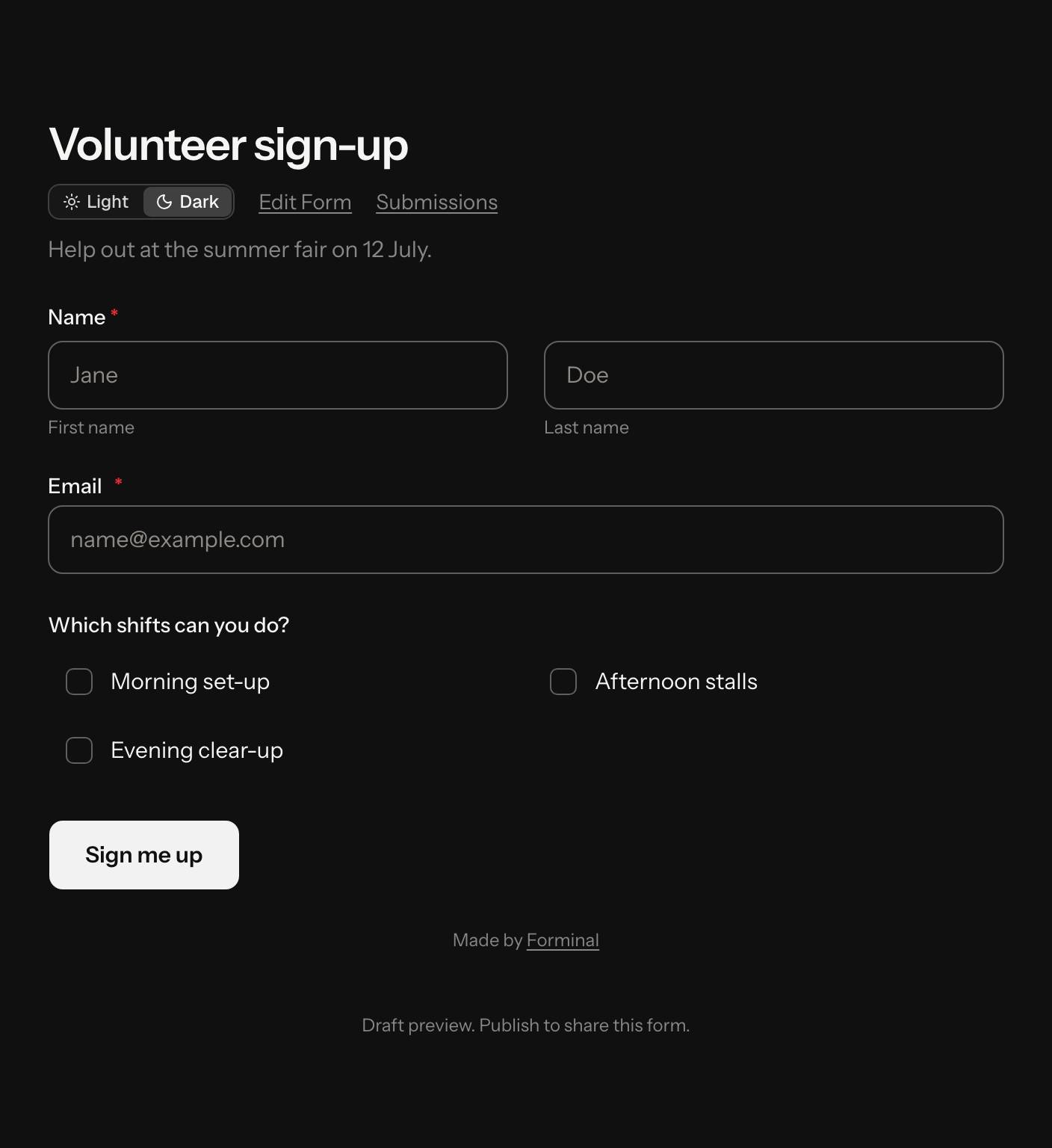
The builder’s top bar shows a Draft badge, and the builder saves every change as you go. You’ll see Saving and then Saved next to the undo buttons. Anyone else who opens the form’s link, or a page that embeds it, gets a page that says it can’t be found. You and people with access to the form can open the link and see the form with “Draft preview. Publish to share this form.” under it, but a draft doesn’t accept submissions. To test the whole flow, switch the builder to Desktop, Tablet or Mobile and submit there; preview saves nothing and sends no email.
Pubblica un modulo
- Select Publish at the top right of the builder. If you built the form without an account, you’re asked to sign in first.
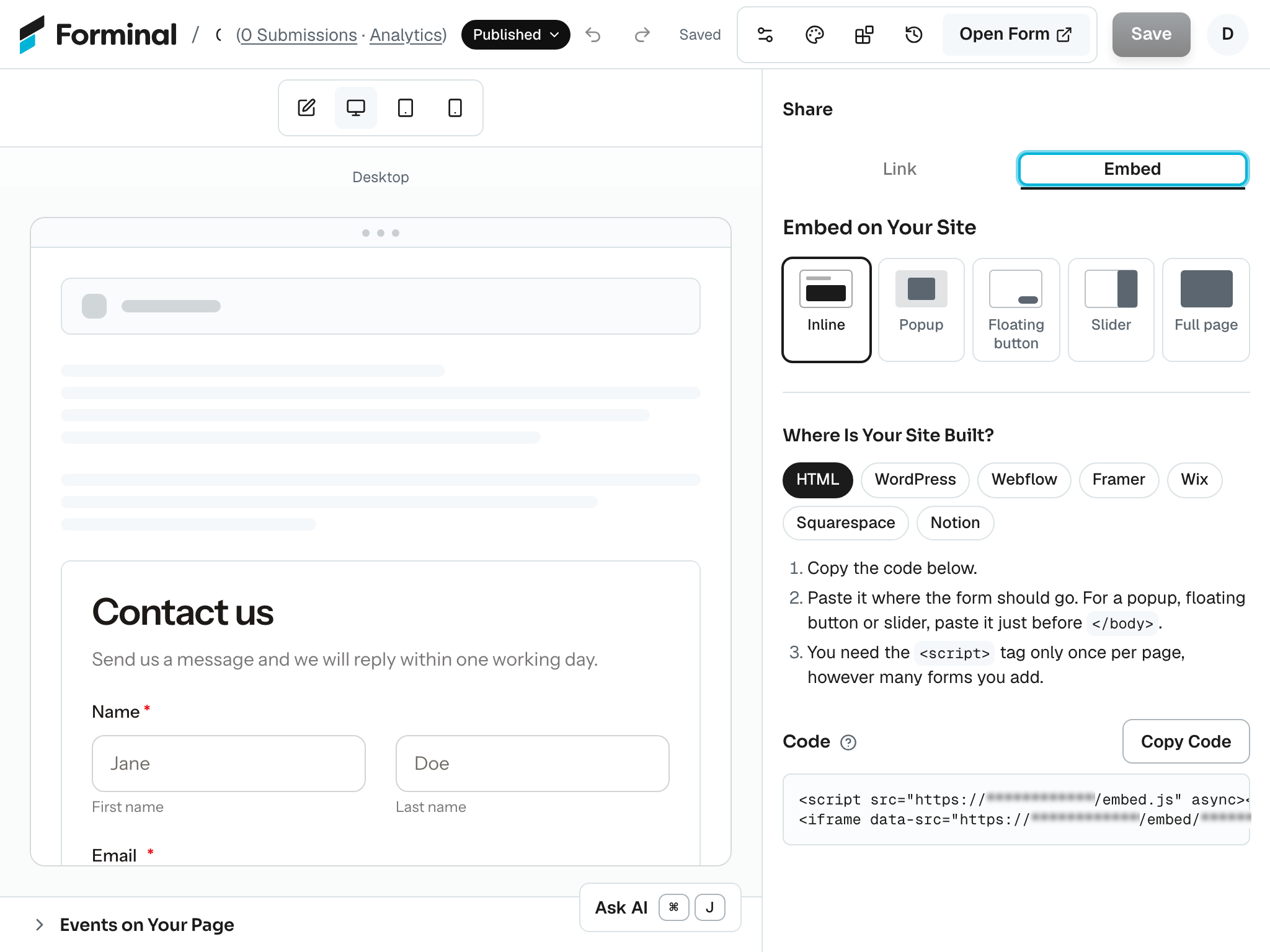
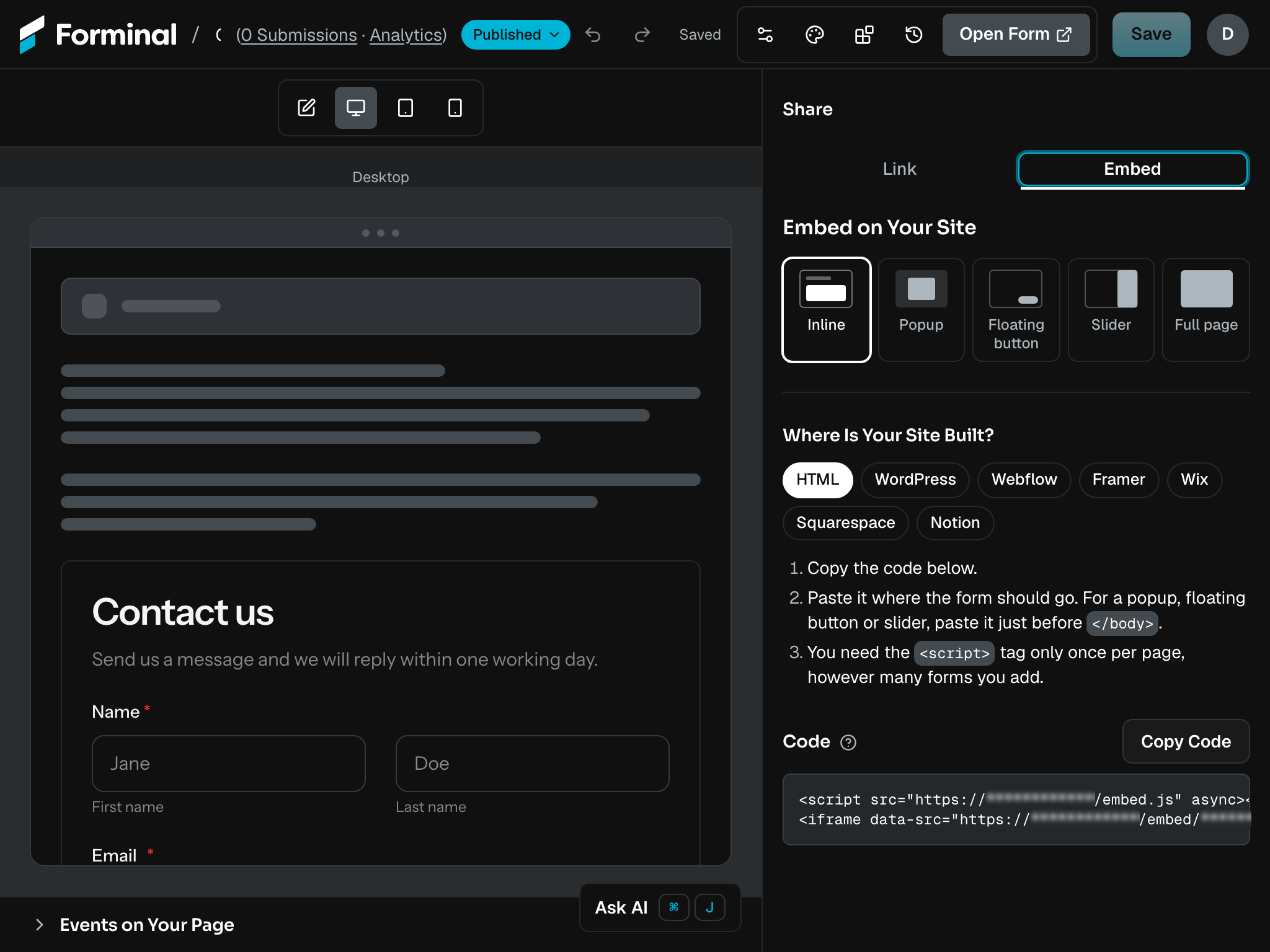
- The badge changes to Published and the Share panel opens, with the form’s embed code on one tab and its link on the other. A Save button takes the place of Publish.
Alcuni moduli non possono ancora essere pubblicati e vedrai perché. Un modulo necessita di almeno un campo. Un modulo con un campo di pagamento necessita anche di un campo Email, di una fonte di importo con un prezzo e di metodi di pagamento compatibili con la sua valuta. Se il modulo utilizza funzionalità non incluse nel tuo piano, viene comunque pubblicato e una notifica elenca ciò che non verrà visualizzato sul modulo live.
Modifica un modulo pubblicato
Once a form is published, the builder stops saving as you go, so nobody filling it in sees a half-made change. Your edits wait in the builder, and the top bar reads Unsaved changes. To put them live, select Save in the top bar, or press Cmd+S on a Mac or Ctrl+S elsewhere. Save checks the form by the same rules as Publish: if something would stop it from publishing, the builder says what to fix and the live form stays as it was. The link stays the same.
Each Save keeps the version it replaces in Version History, so you can go back to it later. Publishing saves a version too. A version you restore on a published form also waits as unsaved edits until you select Save. The top bar links to the form’s submissions and analytics, and Share opens the Share panel again.
The assistant in the builder works the same way on a published form: its changes go in as unsaved edits and reach people only when you select Save. For a big change, you can also ask the assistant on your Forms page to duplicate the form and work on the copy.
Uscire con modifiche non salvate
If you select a link that leaves the builder before you save, a window titled Save Your Changes? asks what to do. Save Changes puts your edits live and then leaves, Discard Changes drops them and leaves, and Cancel keeps you in the builder. If you close or reload the tab instead, your browser shows its own warning, which has no Save option.
Sposta un modulo in bozza
- In the builder, select the Published badge next to the form title.
- Choose Draft.
- In the Move to Draft? window, select Move to Draft.
The window warns: “Your form will go offline. Its link and every embed stop working until you publish it again.” Within 10 minutes of publishing there’s no window, and the form moves straight to draft, because it has had little time to be shared. Unsaved edits are saved into the draft, so you don’t lose them and none of them go live. Submissions stay where they are. To put the form back online, select Publish; the link is the same as before.
Buono a sapersi
Visualizzazioni e altre analisi vengono conteggiate solo su un modulo pubblicato.
Puoi anche chiedere all'assistente nella tua pagina Moduli di pubblicare o rimuovere la pubblicazione di un modulo.
Domande frequenti
Ho bisogno di un account per pubblicare un modulo?
Sì. Puoi creare un modulo senza un account, ma selezionando Pubblica ti verrà chiesto di accedere o di crearne uno prima, e il modulo verrà spostato nel tuo account così com'è.
Un modulo in bozza può raccogliere risposte?
Una bozza non accetta risposte e chiunque non stia lavorando al modulo riceve una pagina che dice che non può essere trovato. L'anteprima nell'editor ti permette di testare il flusso, ma non salva nulla e non invia alcuna email.
Come si ritira un modulo dalla pubblicazione?
Select the Published badge next to the form title in the builder, choose Draft and confirm with Move to Draft. The form goes back to being a draft, its link and every embed stop working, and its submissions stay where they are.
Posso modificare un modulo pubblicato senza che le persone vedano le modifiche subito?
Yes. On a published form your edits wait in the builder until you select Save or press Cmd+S (Ctrl+S elsewhere), so people keep seeing the live version until then.
Cosa succede alle modifiche non salvate se esco dall'editor?
Una finestra chiede se salvarle, scartarle o rimanere nell'editor. Chiudere o ricaricare la scheda mostra invece l'avviso del tuo browser.
Perché non posso pubblicare il mio modulo?
Un modulo necessita di almeno un campo. Un modulo con un campo di pagamento necessita anche di un campo Email, di una fonte di importo con un prezzo e di metodi di pagamento che funzionino con la sua valuta. L'editor ti dice quale di questi manca.
Posso pubblicare un modulo che utilizza funzionalità non incluse nel mio piano?
Si pubblica comunque e un avviso elenca ciò che non verrà mostrato sul modulo live finché non effettui l'aggiornamento.