Alla fine di questa guida avrai un modulo funzionante con le tue domande, pubblicato e pronto per raccogliere le risposte. Puoi iniziare senza un account: il builder si apre subito e ti registri solo quando pubblichi.
Inizia da un modello o da un modulo vuoto
If you sign up before you’ve built anything, Forminal opens a blank draft called “Untitled form” in the builder for you, so you can skip to Add your questions. The steps below start from the template gallery instead, and the video starts from an empty form opened with New Form. Either way, the blank draft stays on Forms Overview, where you can delete it.
- Open the template gallery, or select Templates at the top of the app. To begin with an empty form instead, select New Form on your dashboard, or at the top right of the app if you haven’t signed in. It skips the gallery.
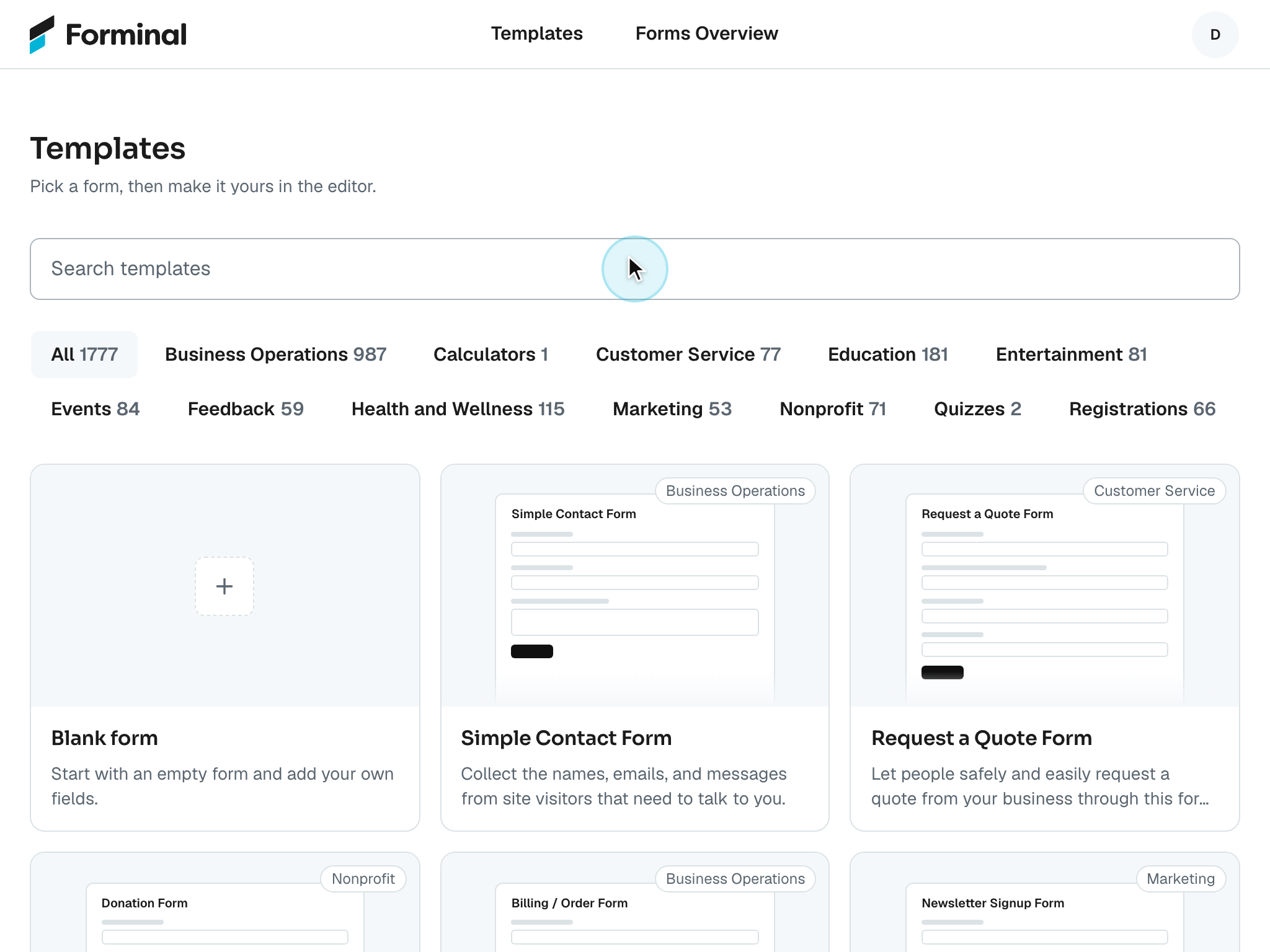
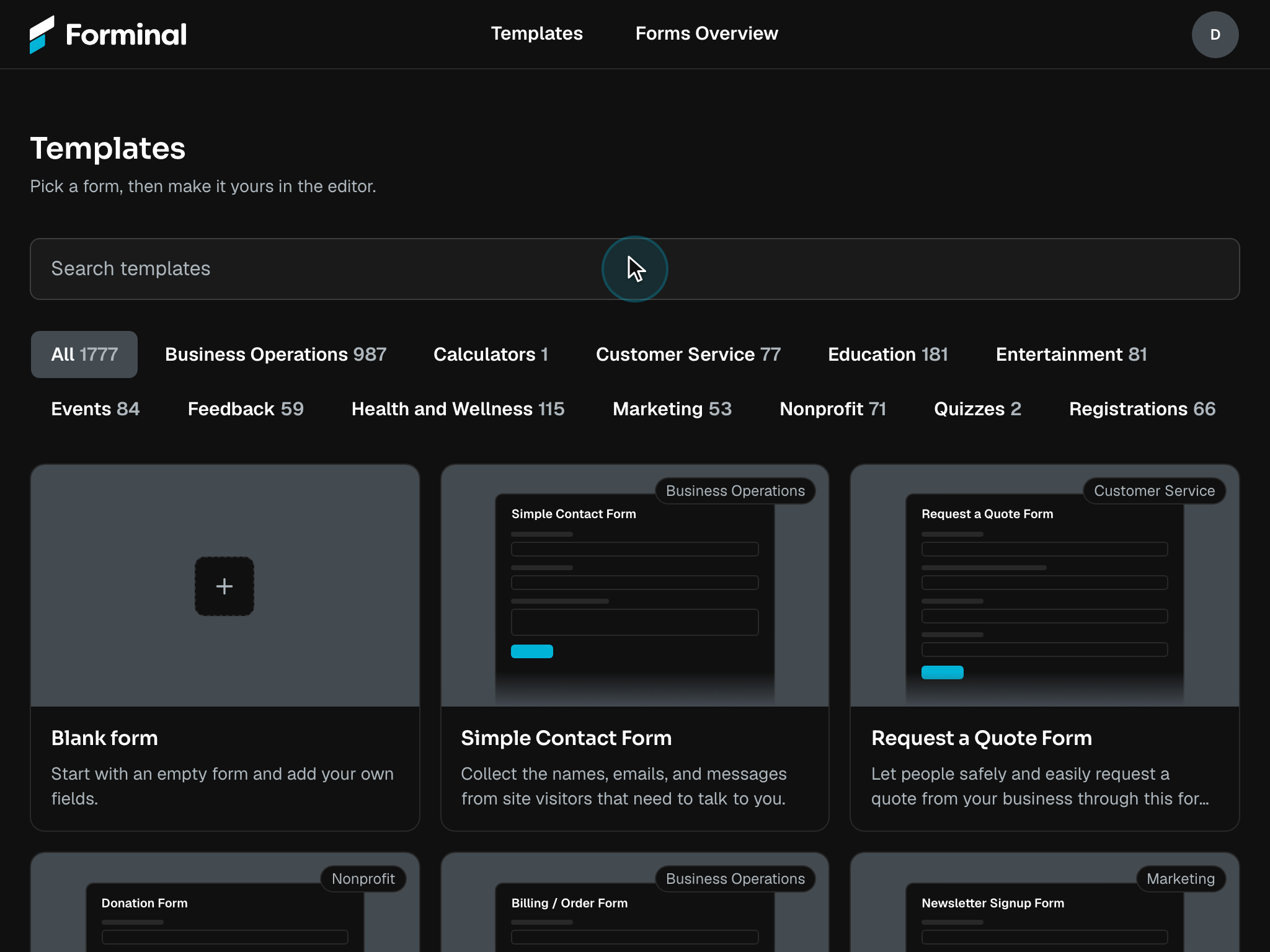
- Search the templates or pick a category to narrow the list. Select See Demo on a card to see the form before you use it.
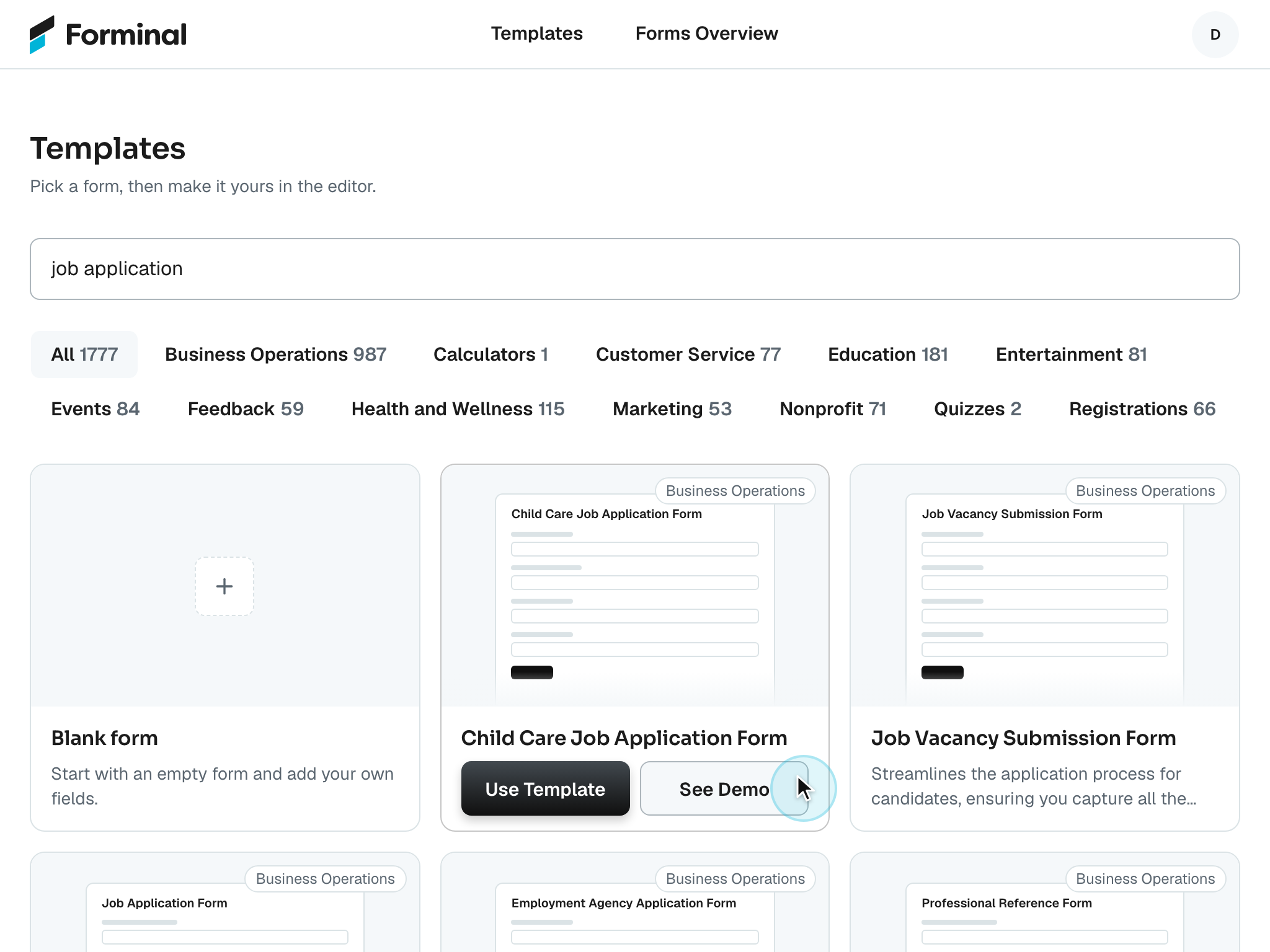
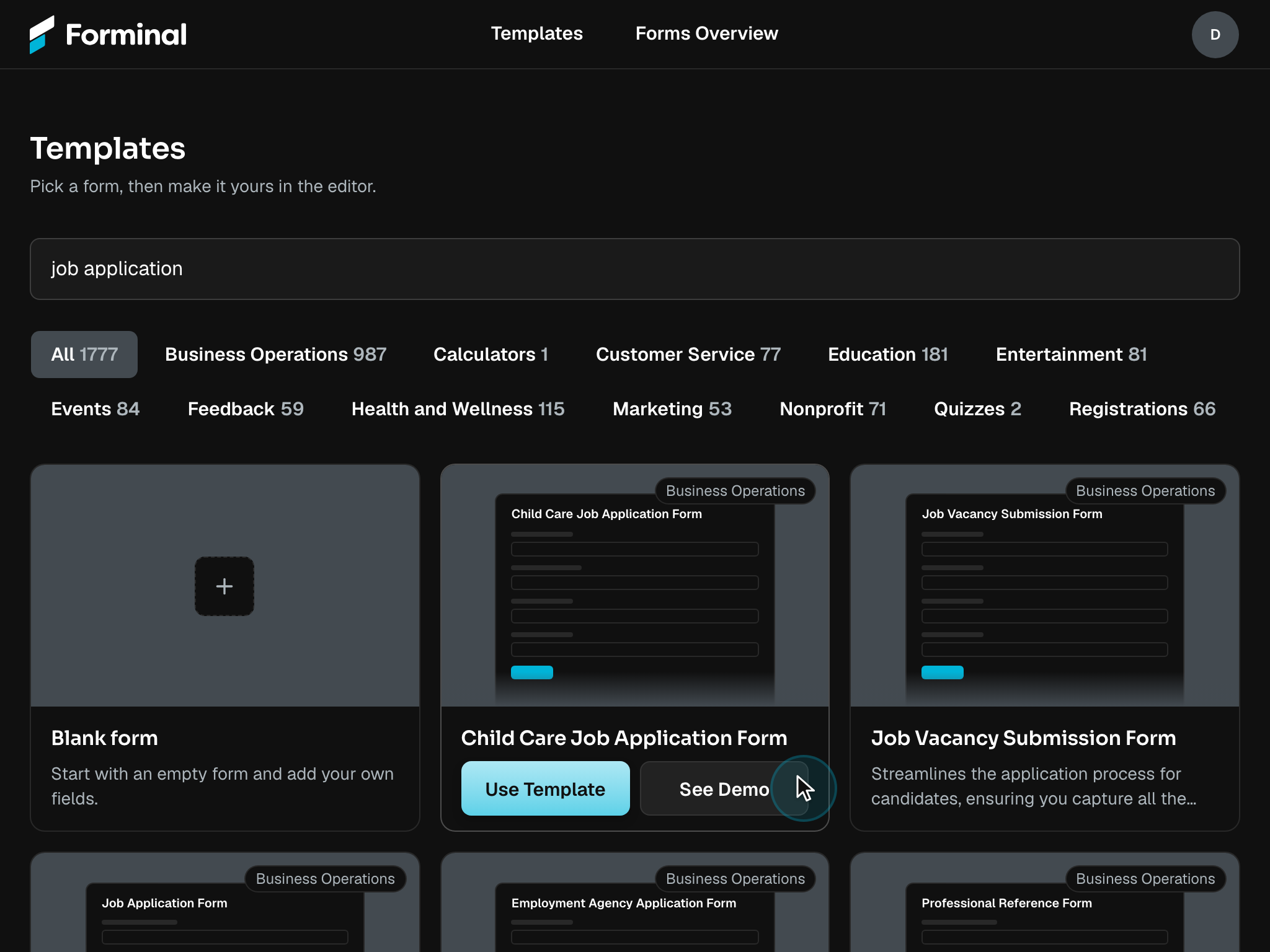
- Select Use Template to open a copy of it in the builder, or select Start from Scratch on the Blank form card to begin with an empty form.
The new form opens in the builder as a draft. Everything you change saves as you go, and you’ll see Saving and then Saved in the top bar. Undo and Redo sit next to it.
Aggiungi le tue domande
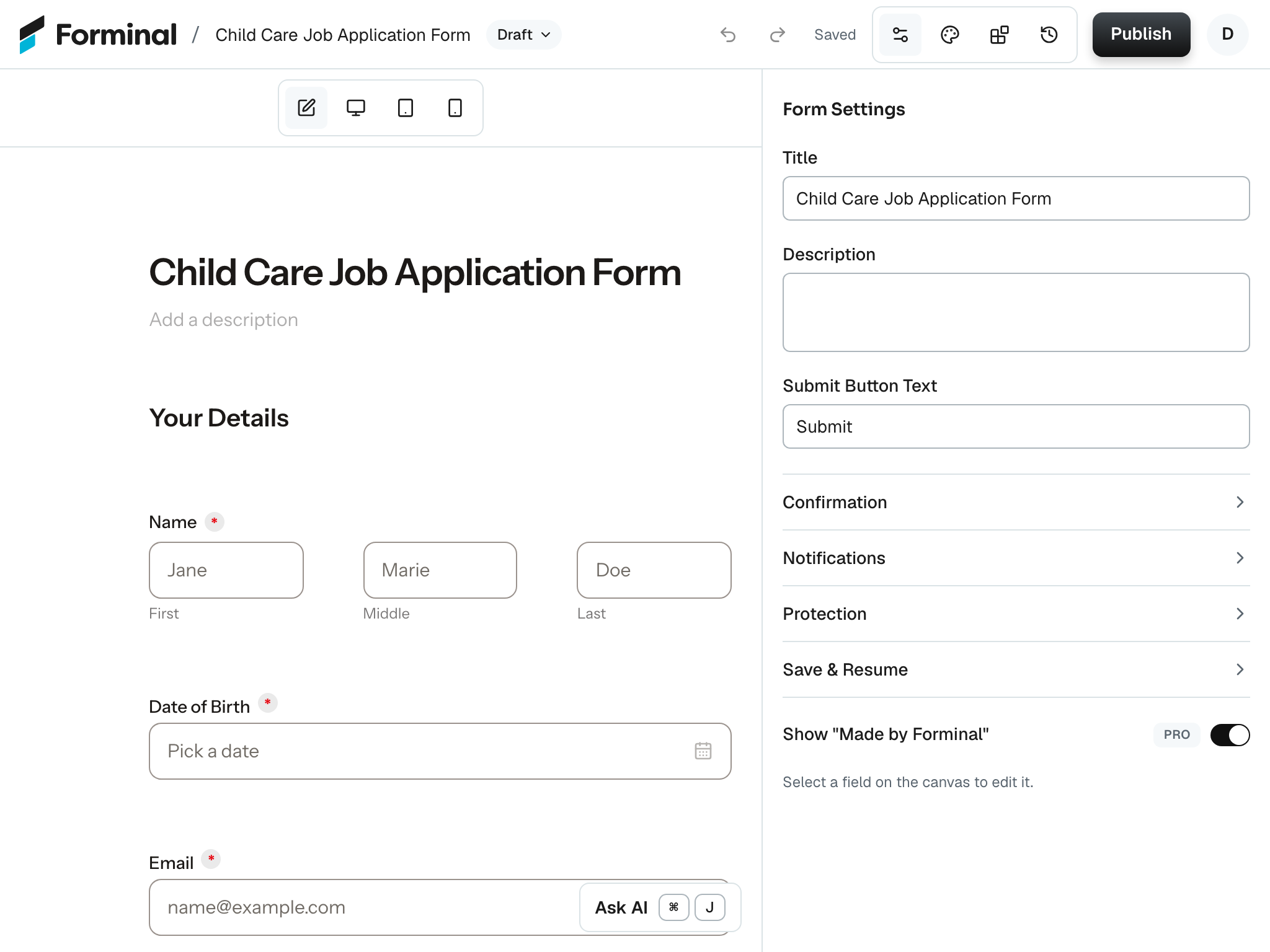
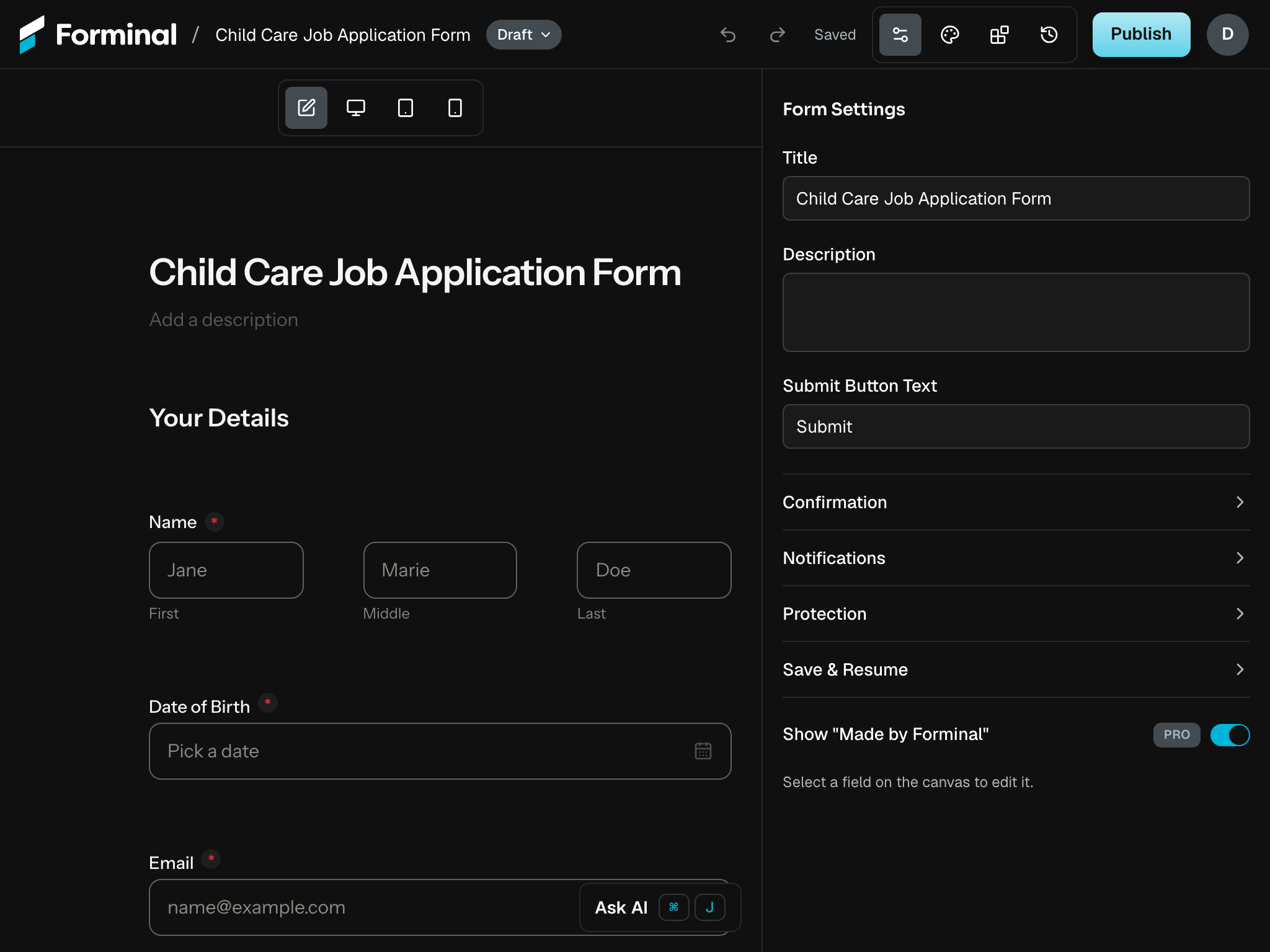
- Fai clic sul titolo del modulo sulla tela e digita il tuo. Fai lo stesso per la descrizione sottostante.
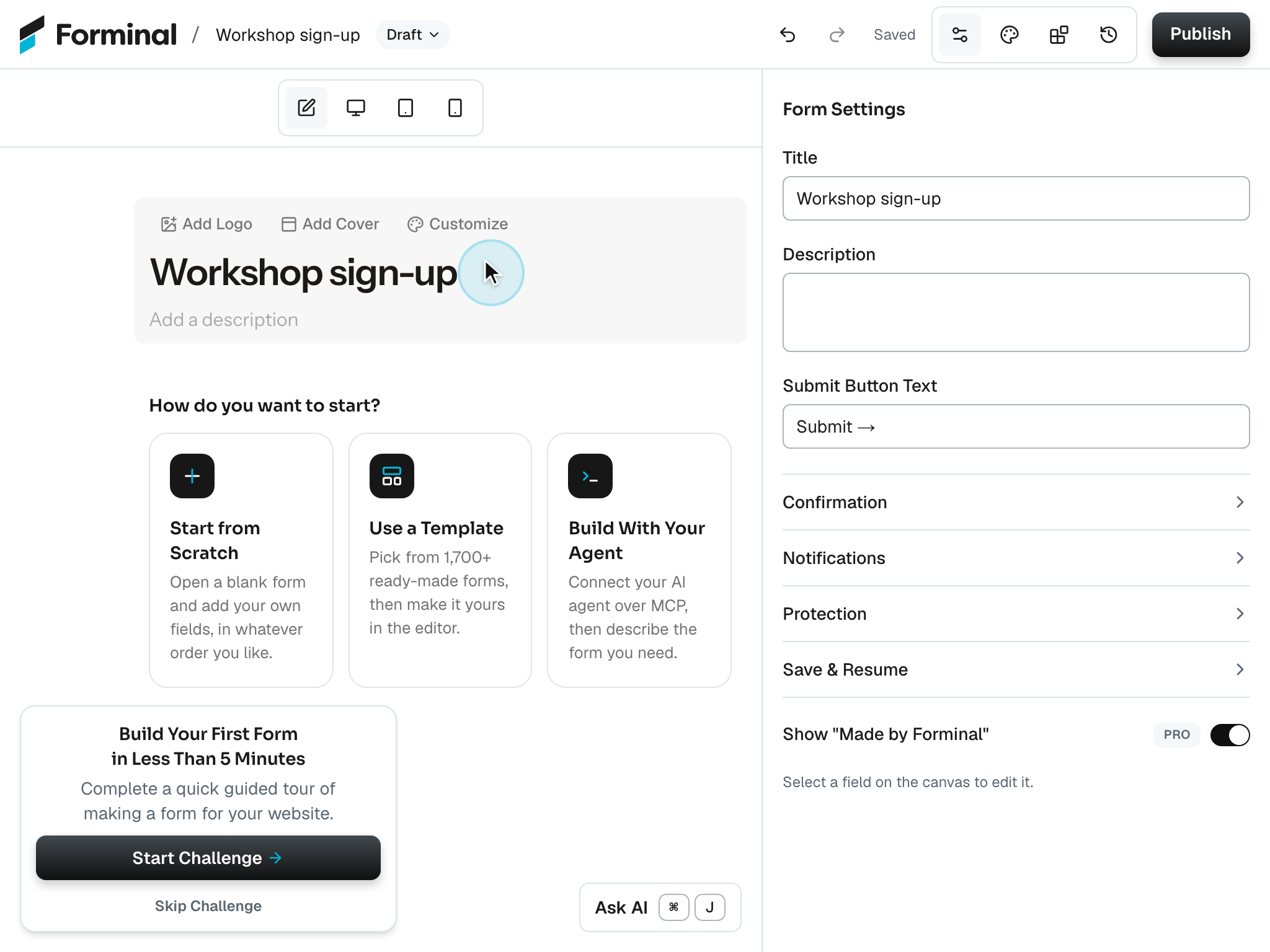
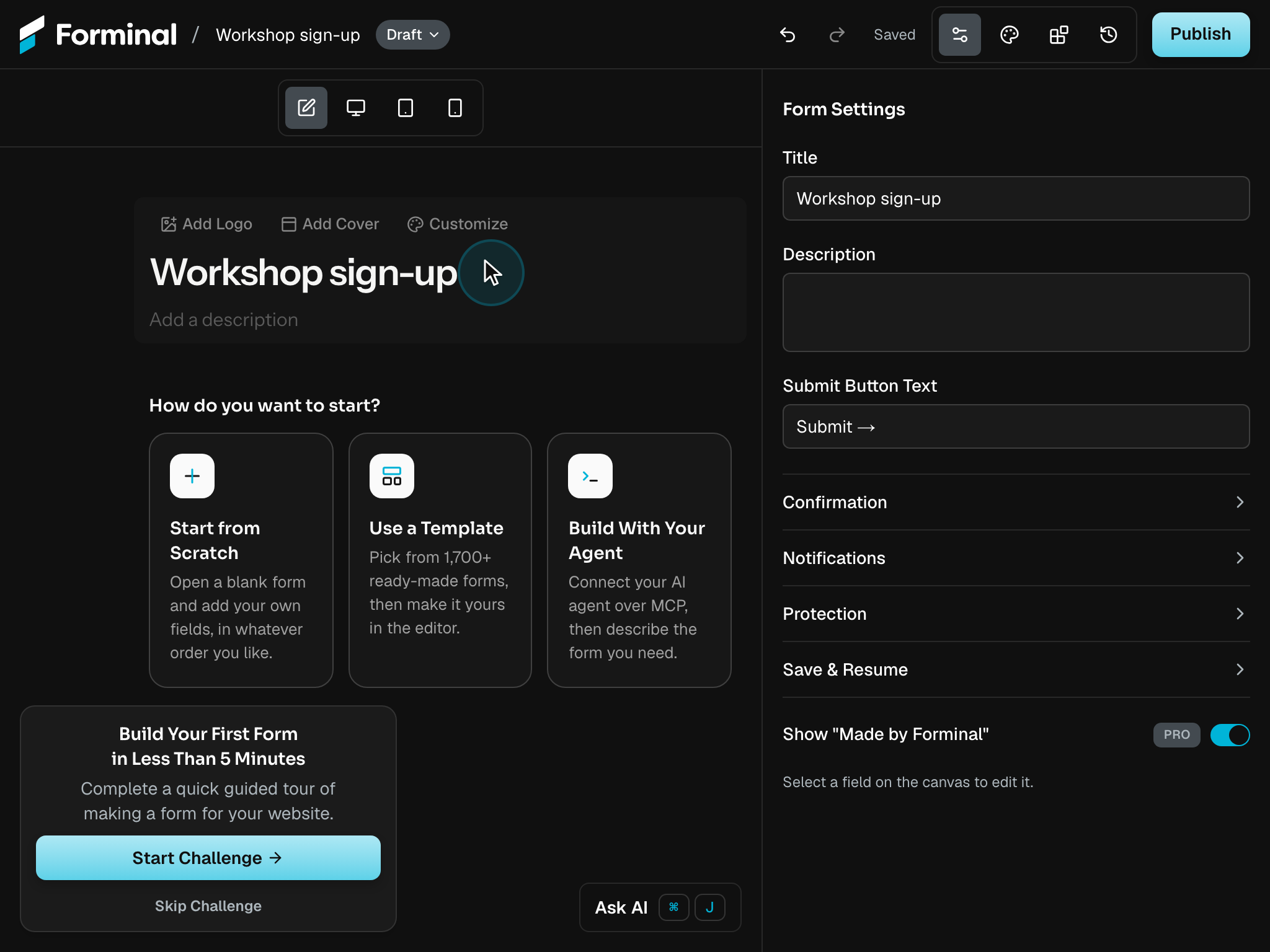
- On an empty form, select Start from Scratch, the first card under “How do you want to start?”. Once the form has fields, hover above or below one and select Add Field. Either way, a menu opens with every field type, grouped into Text and Numbers, Contact Info, Choices, Date and Time, Rating and Ranking, Files and Signature, Payment, Layout and Other.
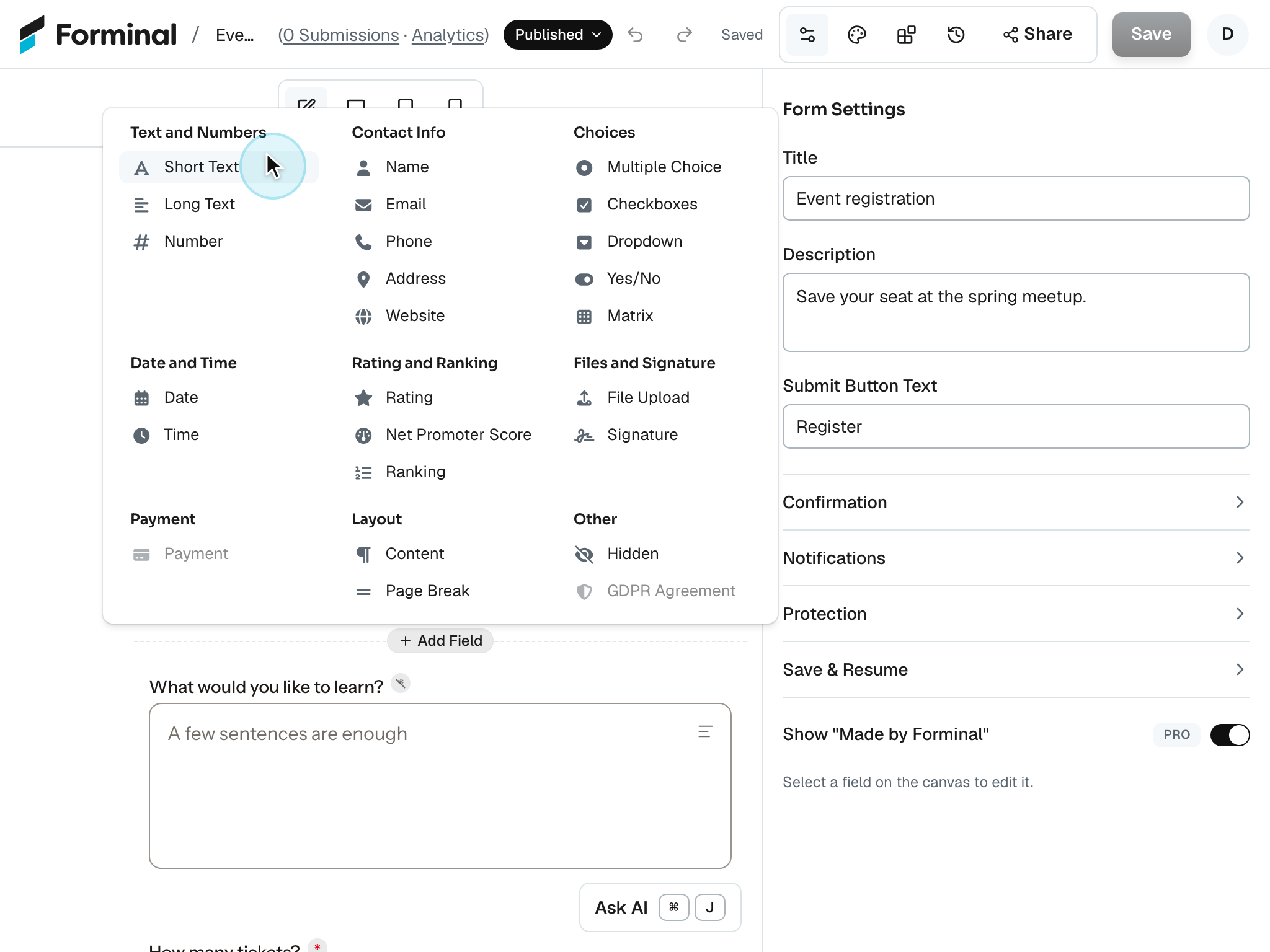
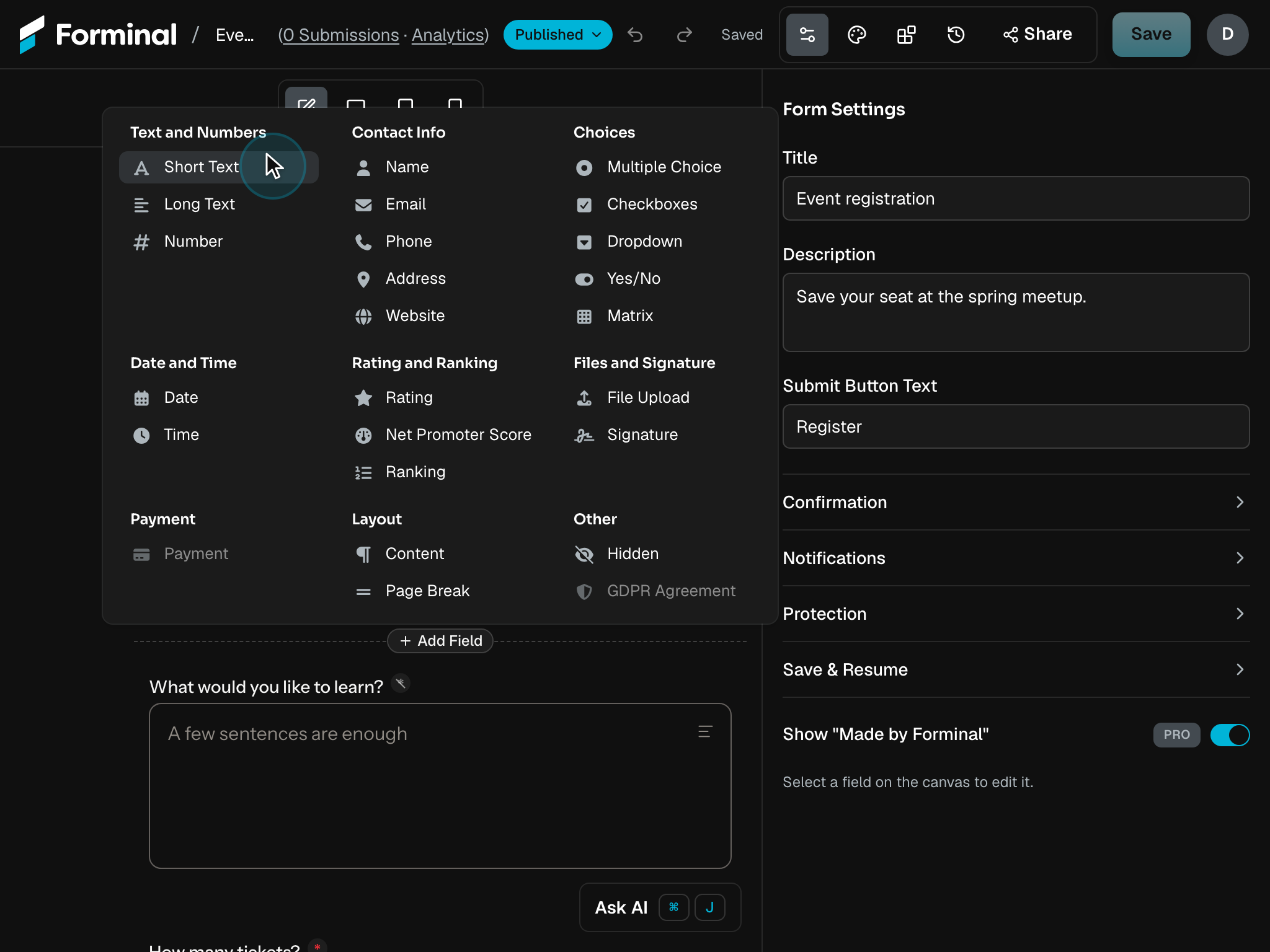
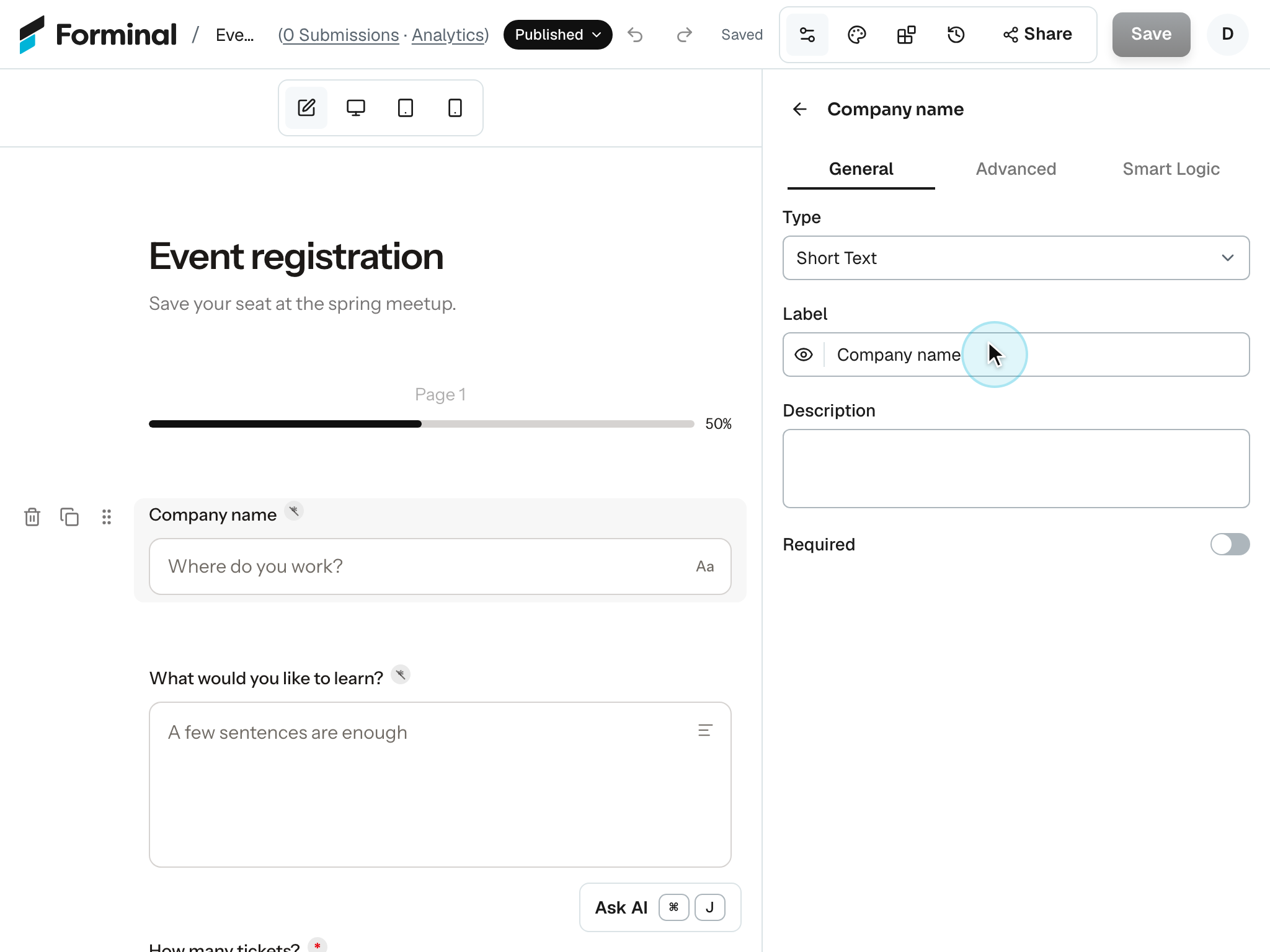
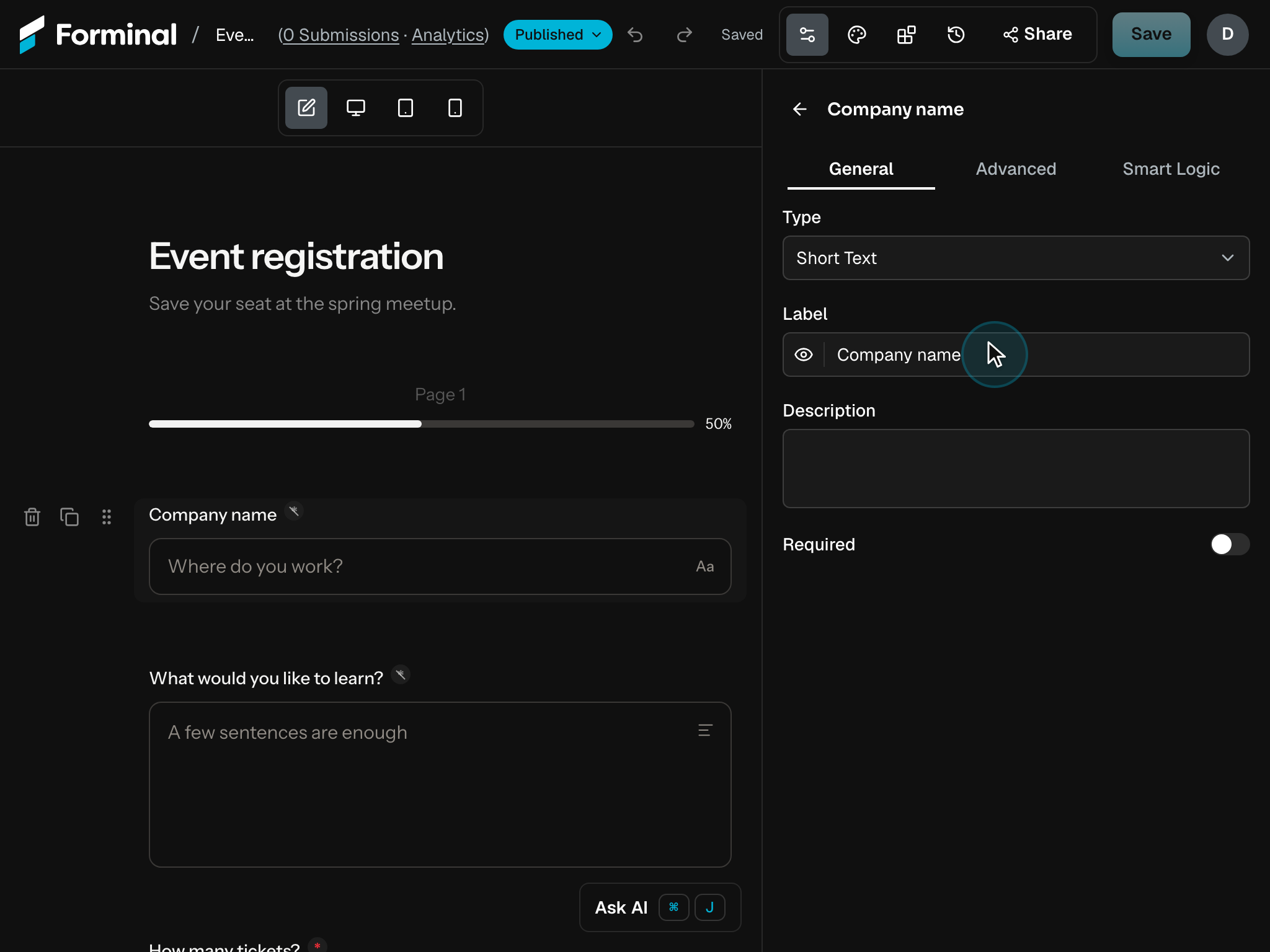
- Scegli un tipo. Il campo viene inserito dove hai aperto il menu ed è selezionato, quindi le sue impostazioni vengono visualizzate nel pannello laterale.
- Fai clic sull'etichetta del campo sulla tela e digita la tua domanda. I campi di scelta elencano le loro opzioni sotto l'etichetta e tu digiti sopra ciascuna di esse.
An empty form has two other cards. Use a Template fills it from one of five popular templates. Build With Your Agent gives you a prompt to paste into an AI agent, which then builds the form over the MCP server. It needs an account, so without one it opens the sign-in page over the builder; once you’re signed in, select it again. The submit button and the thank-you message appear on the canvas once the form has its first field.
To change how the form looks, select Customize in the top bar. Form Settings holds the submit button text, the thank-you message, email notifications and Save & Resume. Switch the canvas from Edit to Desktop, Tablet or Mobile to try the form the way people will see it. A preview saves nothing and sends no email. For everything you can do with fields, see Add and arrange fields.
Pubblica
- Select Publish at the top right of the builder.
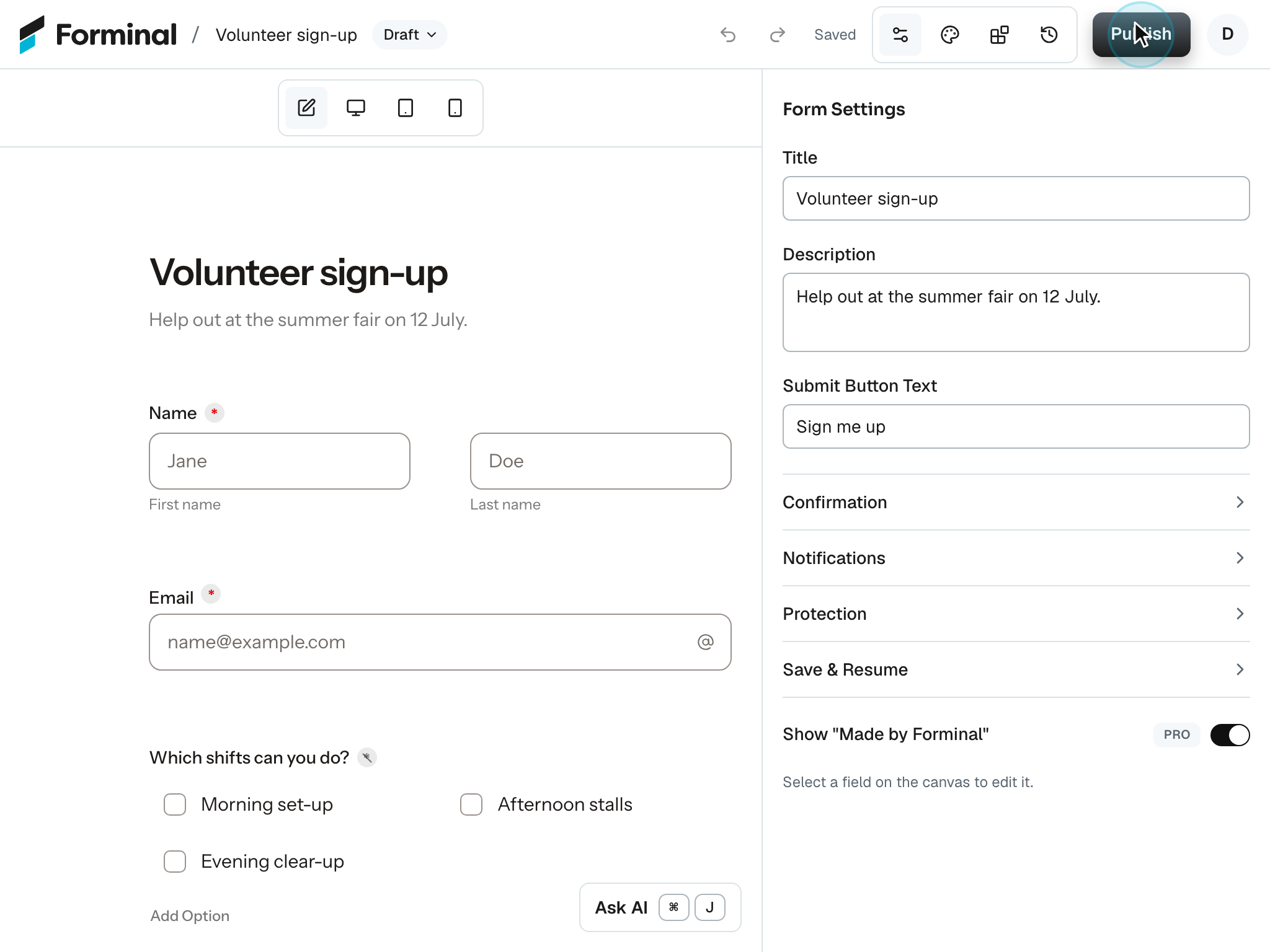
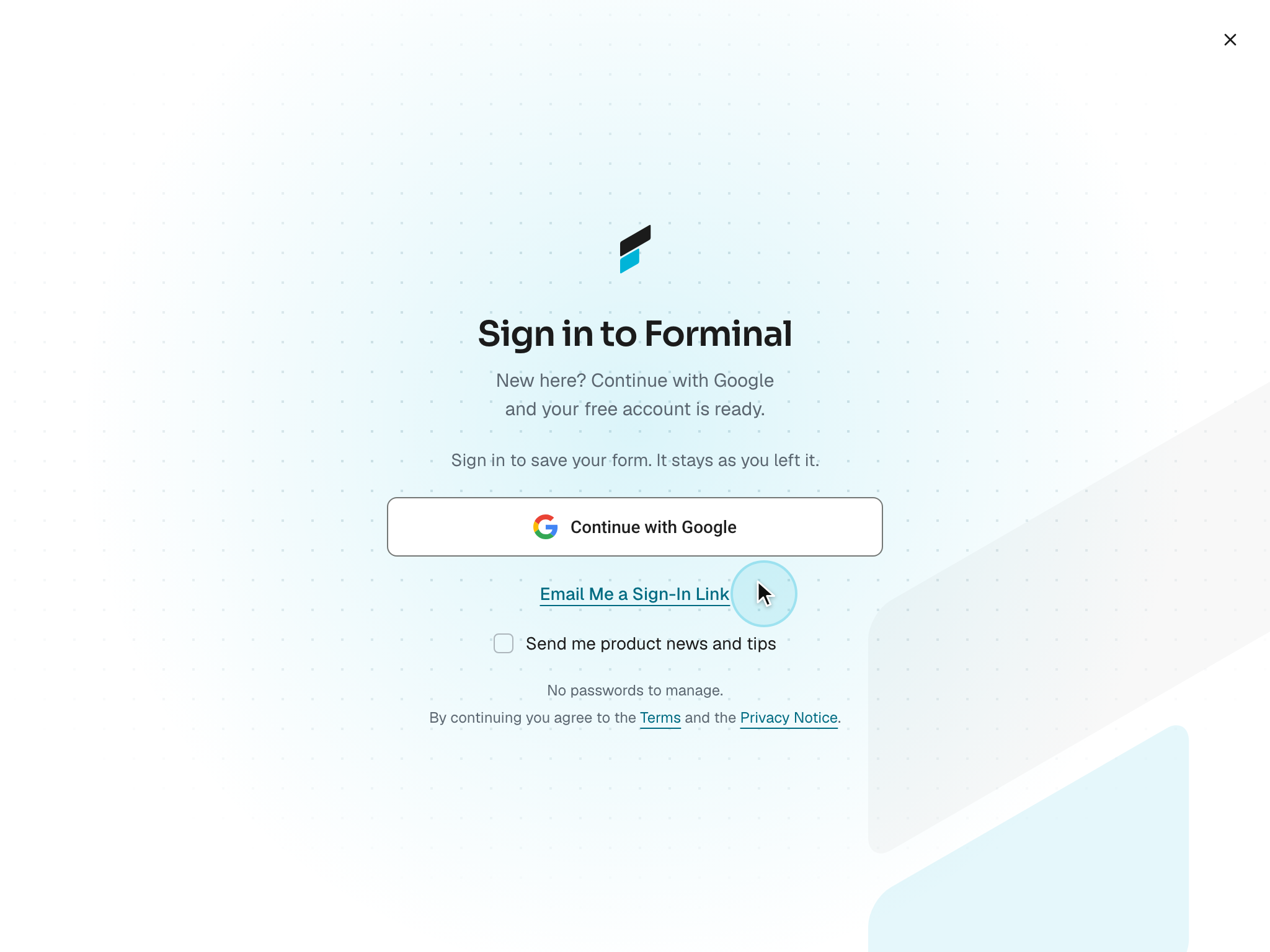
- Se hai iniziato senza un account, la pagina di accesso si apre sopra il builder. Accedi con Google o un link email, e il modulo verrà spostato nel tuo account esattamente com'è.
- The badge in the top bar changes from Draft to Published, and the Share panel opens with the form’s link and embed codes.
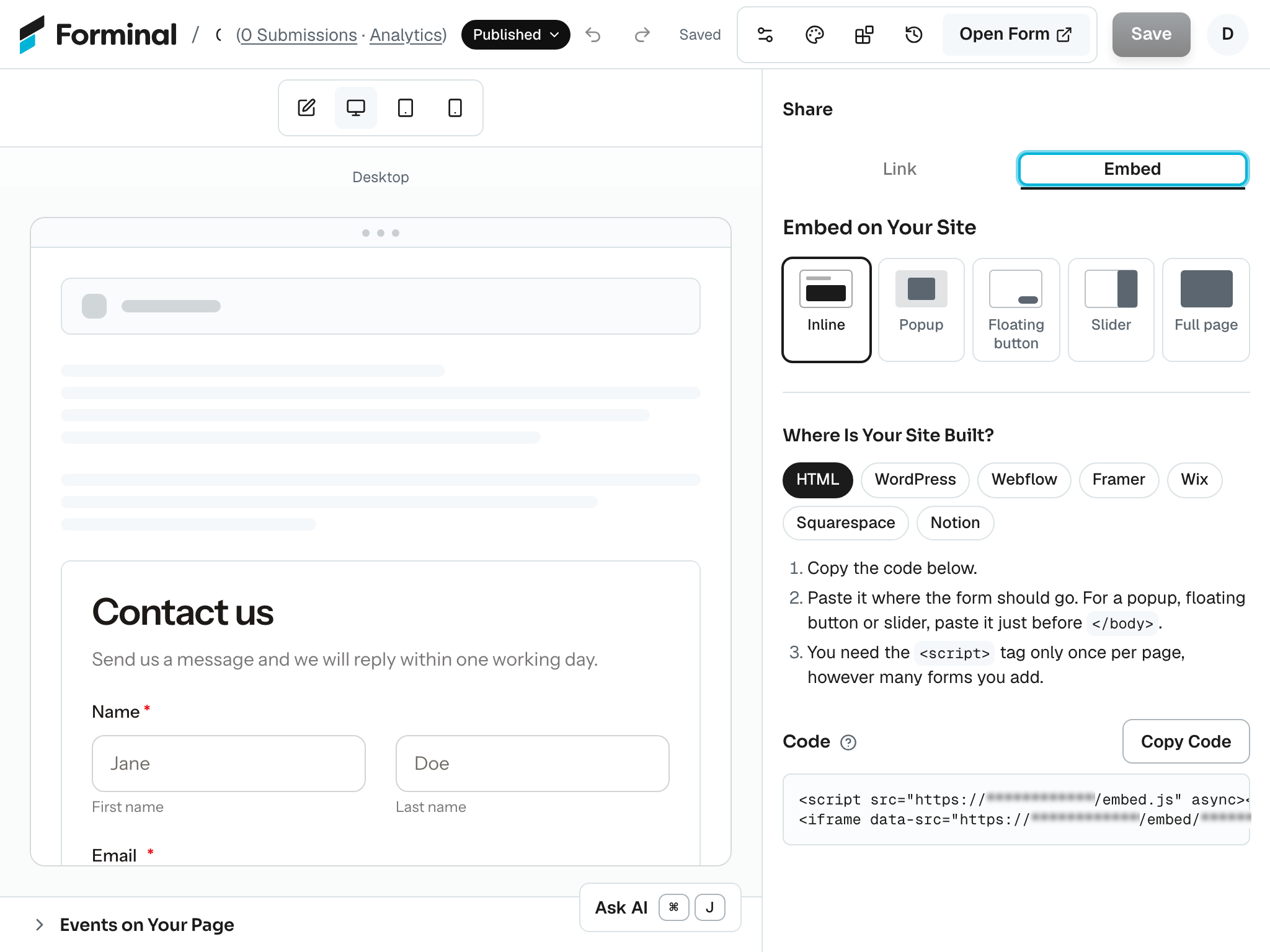
Successivamente, condividi il modulo e poi leggi i risultati.
Buono a sapersi
- Un modulo necessita di almeno un campo prima di poter essere pubblicato e può contenere fino a 50 campi.
- Finché non accedi, un modulo che crei appartiene al browser in cui l'hai creato. Accedi prima di passare a un altro dispositivo, altrimenti non potrai riaprirlo lì.
- Ogni modello e tipo di campo funziona su ogni piano. La pagina dei prezzi mostra cosa aggiungono i piani a pagamento.
- Maggiori informazioni sull'avvio senza registrazione sono disponibili nella pagina Crea senza account.
Domande frequenti
Ho bisogno di un account per creare un modulo?
No. Puoi creare, stilizzare e visualizzare in anteprima un modulo senza uno. Hai bisogno di un account per pubblicarlo, condividerlo, connettere integrazioni o utilizzare l'assistente AI. Vedi Crea senza account.
Posso creare un modulo descrivendolo?
L'Assistente AI nel tuo account crea o modifica un modulo da una descrizione. Devi essere connesso e il tuo piano determina quanti messaggi puoi inviargli al giorno: 10 su Lite, 30 su Pro e 100 su Business.
Cosa succede alla mia bozza se cancello i cookie del mio browser?
Prima di accedere, un modulo appartiene al browser in cui l'hai creato, quindi cancellare i cookie o chiudere una finestra privata che hai utilizzato lo rende irraggiungibile. Accedi prima e il modulo verrà spostato nel tuo account.
Posso tornare a una versione precedente del mio modulo?
Select History in the builder’s top bar, preview an earlier version and select Restore. How far back it goes depends on your plan.
I modelli hanno un costo aggiuntivo?
No. Ogni modello e tipo di campo funziona su ogni piano, e ogni modello che utilizzi diventa un modulo separato che puoi modificare.
Un agente AI può creare il modulo per me?
Sì. Su un modulo vuoto, seleziona Crea con il tuo agente, copia il prompt di configurazione e incollalo in un agente come Claude Code o Cursor. Si connette tramite il server MCP, ti chiede di accedere e i campi che aggiunge compaiono nel builder.