Pubblica un modulo e otterrà una propria pagina. Incolla il link in un'email, un post sui social o un messaggio di chat, e le persone potranno compilare il modulo anche se non hai un sito web.
Esempi
- Un rapido sondaggio condiviso in una chat di team.
- Un link di iscrizione nella biografia dei social media.
Ottieni il link
- In the builder, select Publish. The Share panel opens once the form is live. On a form that is already published, select Share in the top bar.
- Select the Link tab. Under Share a Link, select Copy Link next to Form Link, or the arrow icon (Open the form in a new tab) to open the form in a new tab.
- Incolla il link ovunque tu voglia che le persone trovino il modulo.
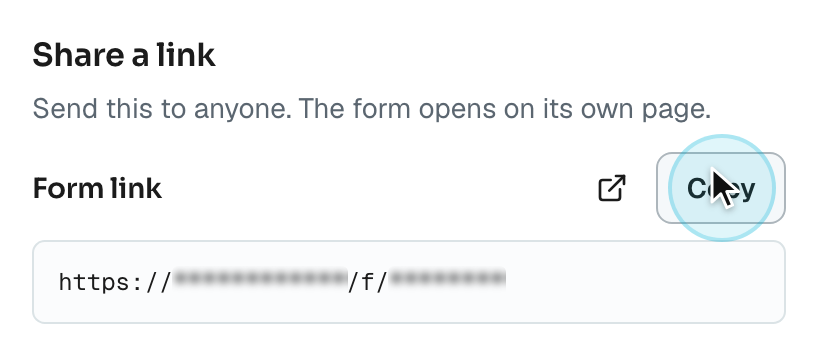
You can open the Share panel any time with Share in the top bar. While the Link tab is open, the builder shows how the link looks when it’s pasted into a chat app. Select Edit in the bar above that preview to go back to editing. While the panel is open, Open Form takes the place of Share and opens the live form in a new tab. The link looks like this, with your form’s id in place of FORM_ID. On Pro and Business, you can also give it a short link ending, and the same tab has a QR code to download. To put the form on your own site instead, see Embed Forms.
https://app.aw.co.ua/f/FORM_IDCosa vedono le persone
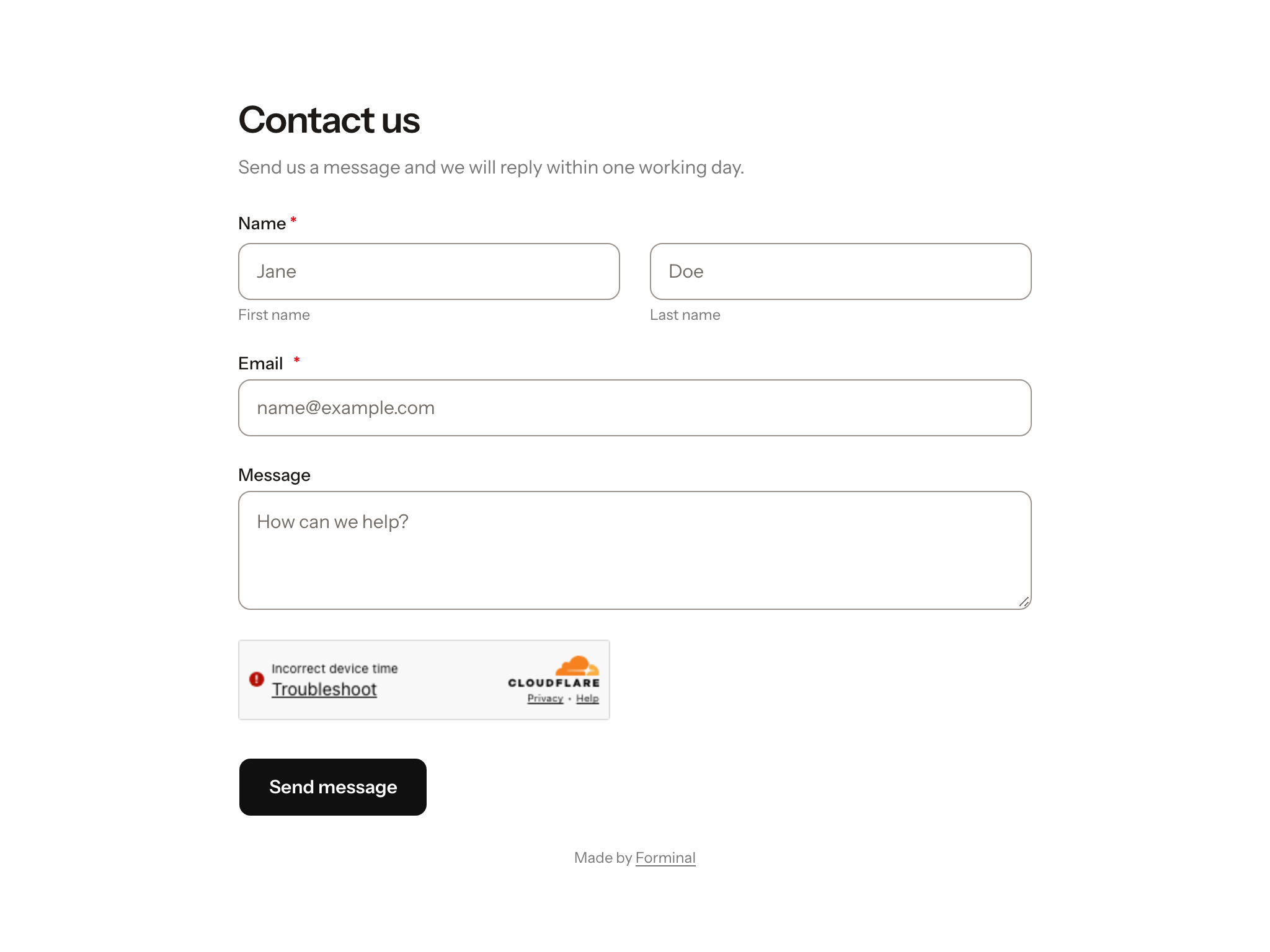
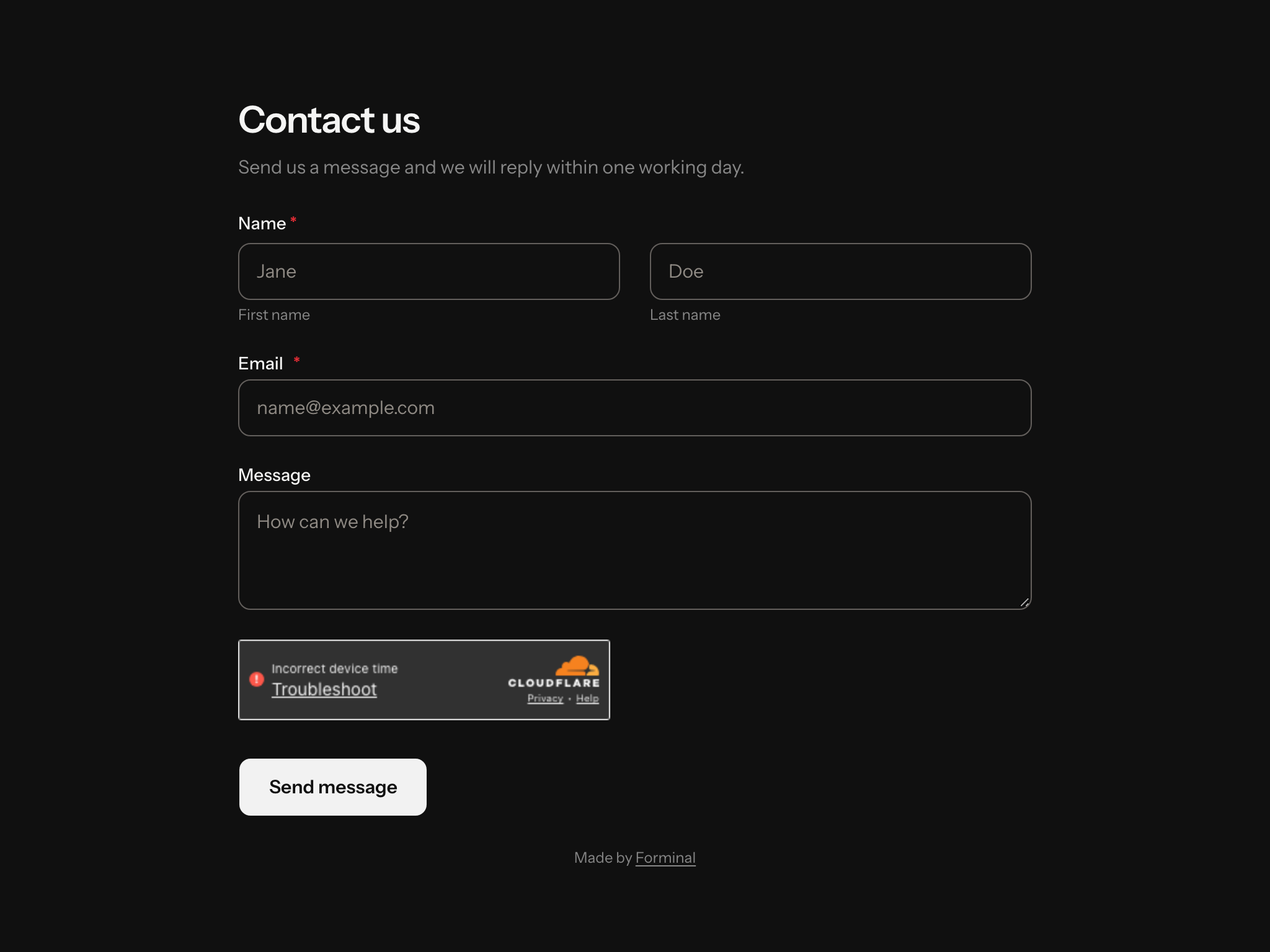
Il modulo si apre su una propria pagina, con l'aspetto che hai impostato in Personalizza. Quando qualcuno invia, vede il tuo messaggio di conferma, o va al tuo indirizzo di reindirizzamento se ne hai impostato uno. Se il modulo ha un indirizzo su uno dei tuoi Domini personalizzati, Link modulo mostra quell'indirizzo e Link predefinito mostra quello sopra. Quando il modulo ha campi nascosti, il pannello mostra anche la query da aggiungere al link per compilarli, con un pulsante copia. Quando sei connesso e apri tu stesso il link, i link Modifica modulo e Invii vengono visualizzati sotto il titolo, dopo un interruttore Chiaro e Scuro che mostra un'anteprima del modulo in entrambi gli aspetti. I visitatori non li vedono.
Buono a sapersi
Only published forms can be opened from the link. While a form is a draft, the Share panel says “This form is a draft. Publish it to get a link and embed code.”, and anyone else who opens the link gets a page-not-found. You and people with access to the form still see it, marked “Draft preview. Publish to share this form.” The link stays the same after you publish, and later edits show on it once you select Save. To publish, you need to be signed in and the form needs at least one field.
Domande frequenti
Ho bisogno di un sito web per condividere un modulo?
No. Un modulo pubblicato ha una propria pagina, quindi puoi incollare il suo link in un'email, una chat o un post sui social e le persone lo compileranno lì.
Perché le persone ricevono un errore di pagina non trovata dal mio link?
Il modulo è ancora una bozza. Solo i moduli pubblicati si aprono dal link, quindi seleziona Pubblica nell'editor. Tu e le persone con accesso al modulo vedete ancora la bozza come anteprima.
Il link cambia quando modifico il modulo?
No. The link stays the same after you publish. Later edits show on it once you select Save in the builder’s top bar.
Il link può usare il mio dominio?
Con un dominio personalizzato, il Link modulo nel pannello Condividi mostra l'indirizzo sul tuo dominio, e Link predefinito mostra quello solito.
Come posso rendere offline un modulo condiviso?
In the builder, select the Published badge next to the form title, choose Draft and confirm with Move to Draft. The link stops working for everyone else, and the submissions stay where they are.
Posso compilare i campi dal link?
Aggiungi Campi nascosti al modulo. Il pannello Condividi mostrerà quindi la query da aggiungere al link, con un pulsante Copia.