By the end of this guide you’ll have a working form with your own questions, published and ready to collect submissions. You can start without an account: the builder opens straight away, and you only sign up when you publish.
Start from a template or a blank form
If you sign up before you’ve built anything, Forminal opens a blank draft called “Untitled form” in the builder for you, so you can skip to Add your questions. The steps below start from the template gallery instead, and the video starts from an empty form opened with New Form. Either way, the blank draft stays on Forms Overview, where you can delete it.
- Open the template gallery, or select Templates at the top of the app. To begin with an empty form instead, select New Form on your dashboard, or at the top right of the app if you haven’t signed in. It skips the gallery.
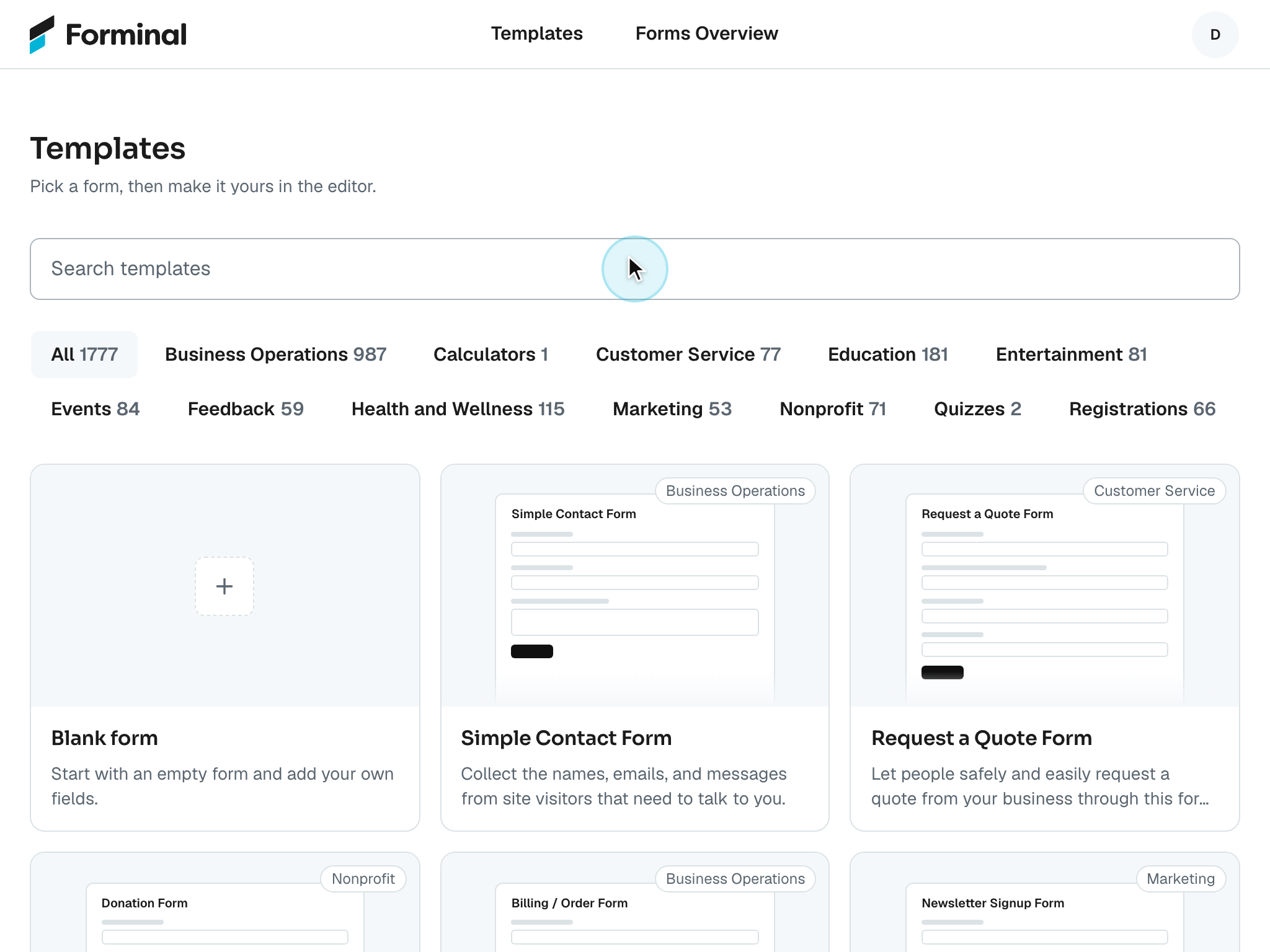
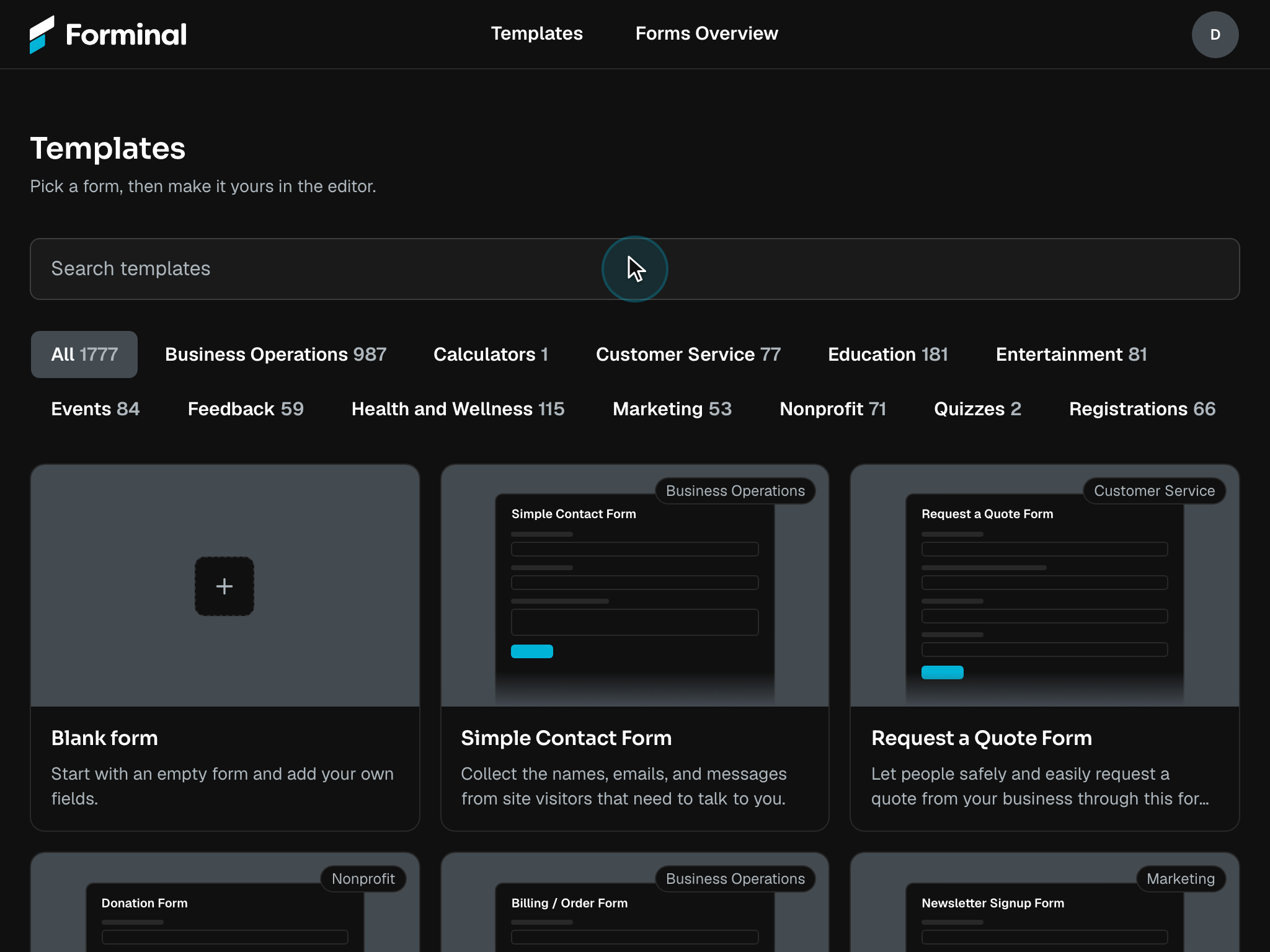
- Search the templates or pick a category to narrow the list. Select See Demo on a card to see the form before you use it.
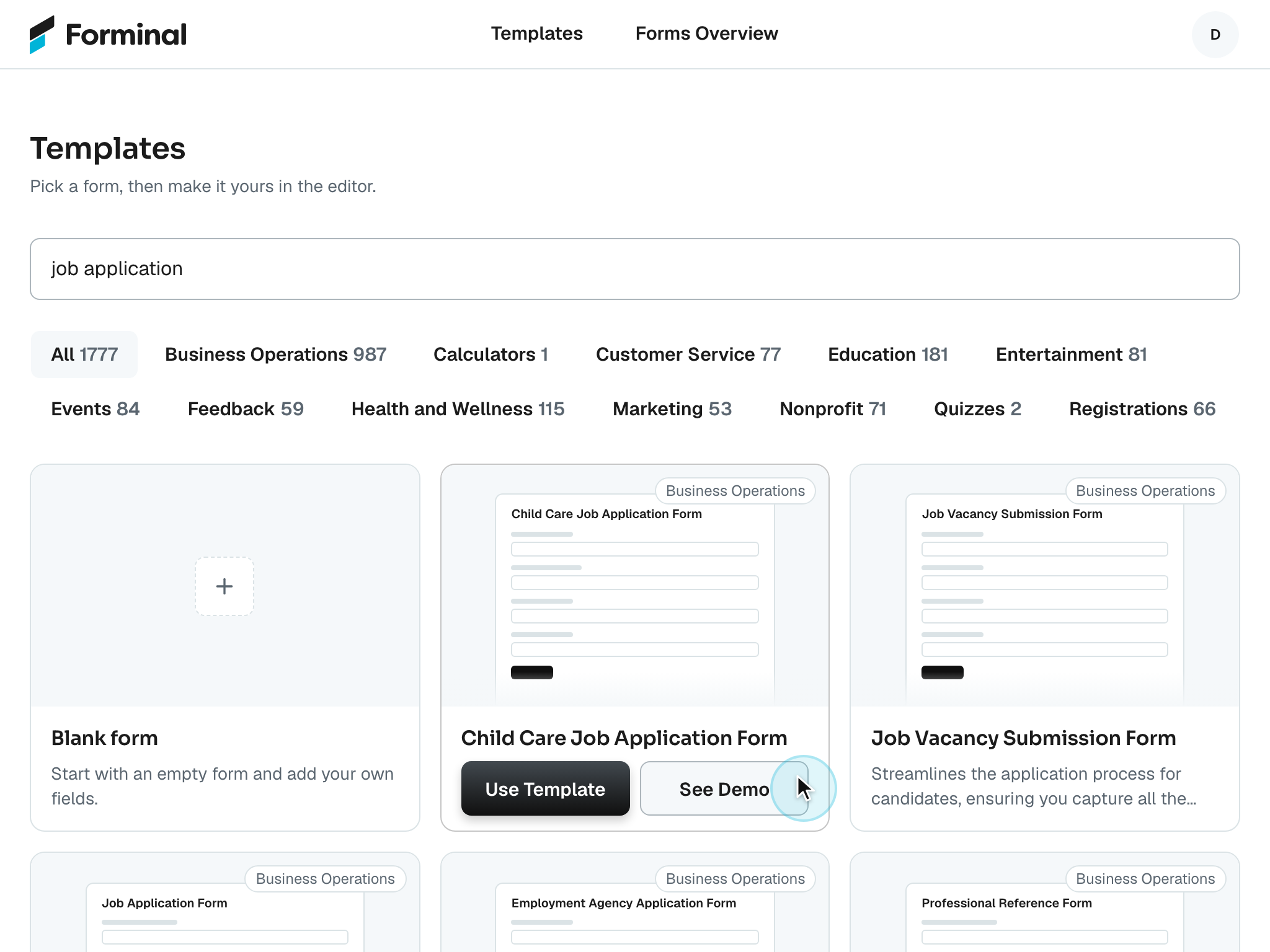
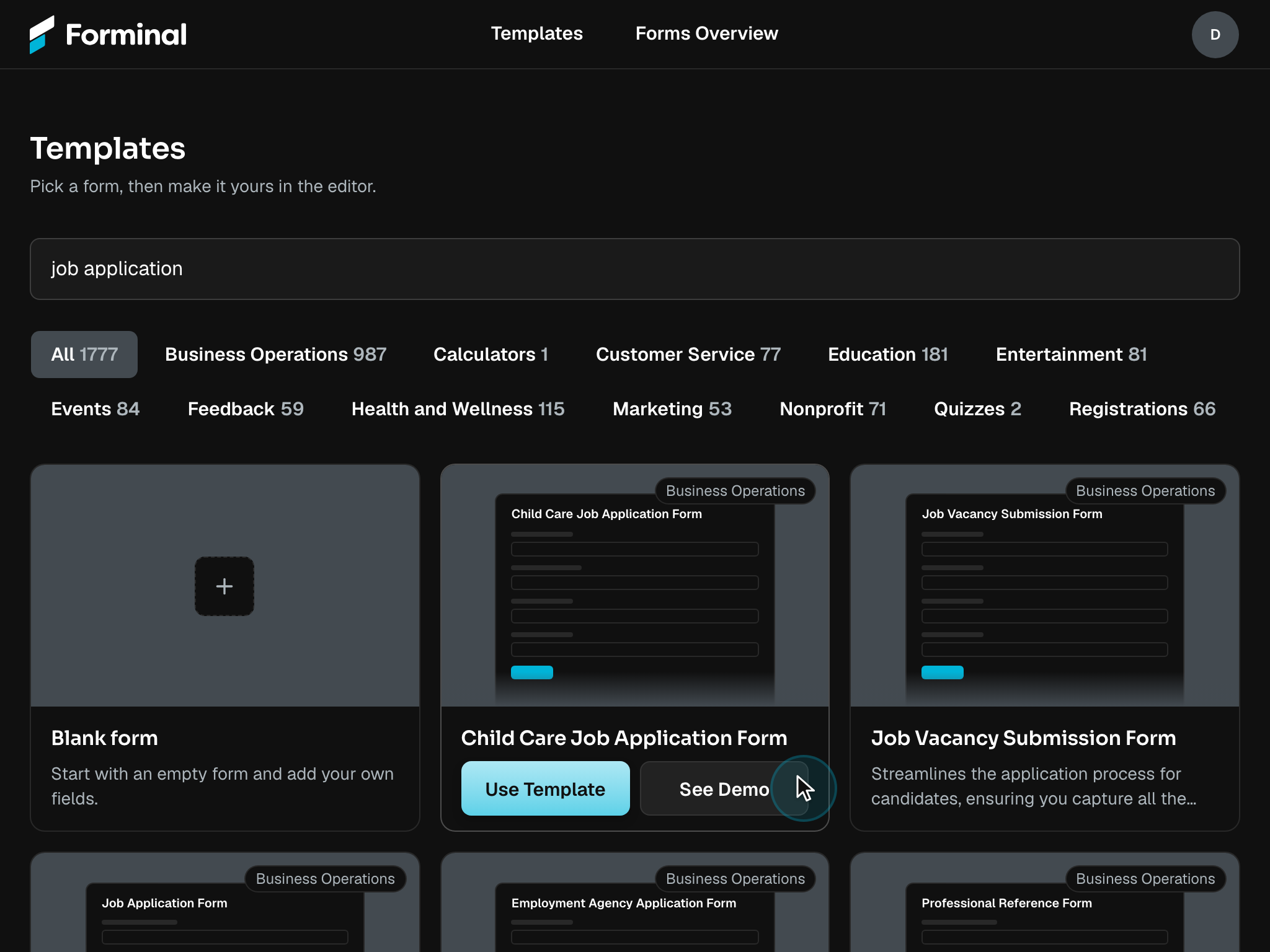
- Select Use Template to open a copy of it in the builder, or select Start from Scratch on the Blank form card to begin with an empty form.
The new form opens in the builder as a draft. Everything you change saves as you go, and you’ll see Saving and then Saved in the top bar. Undo and Redo sit next to it.
Add your questions
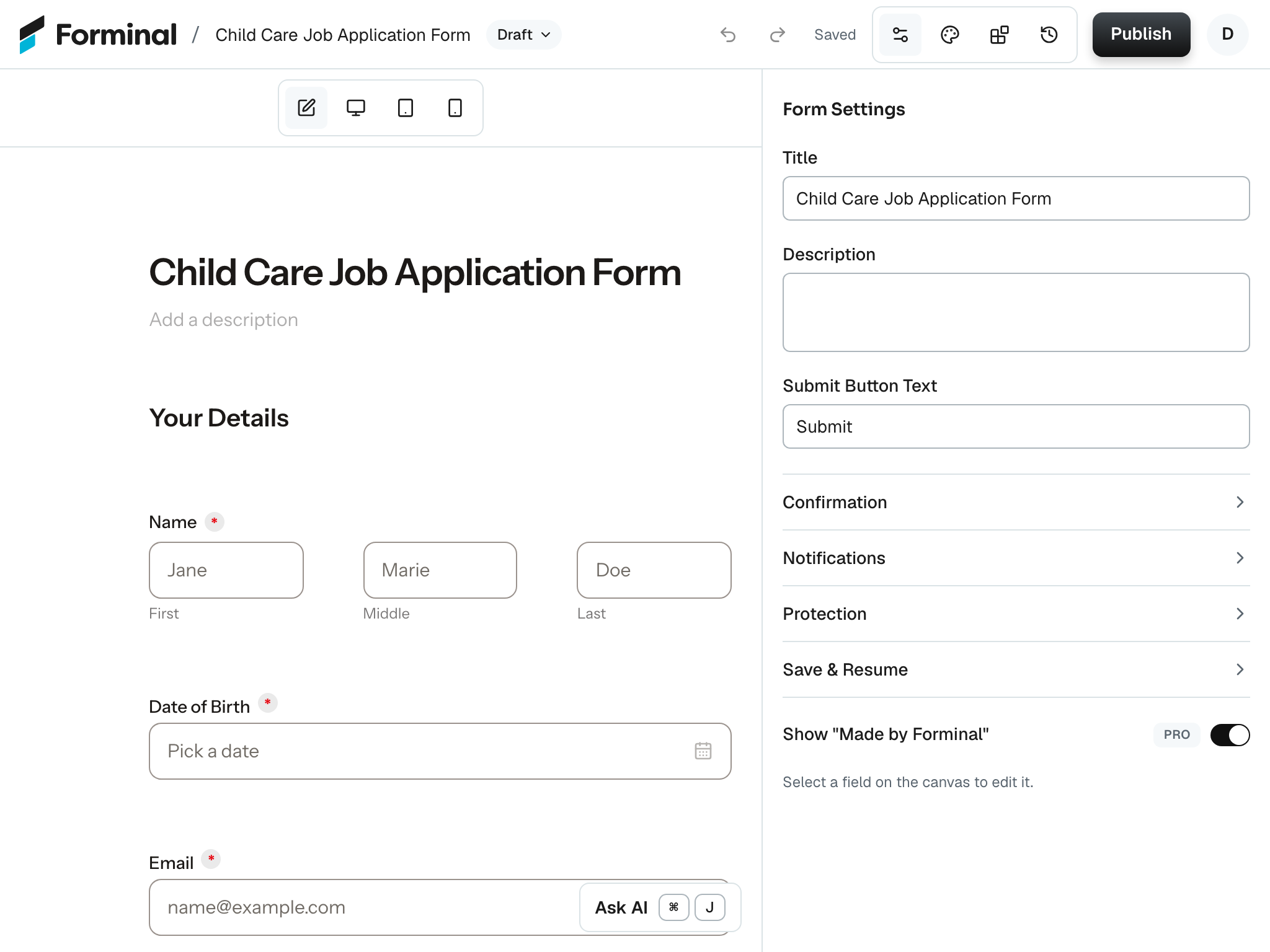
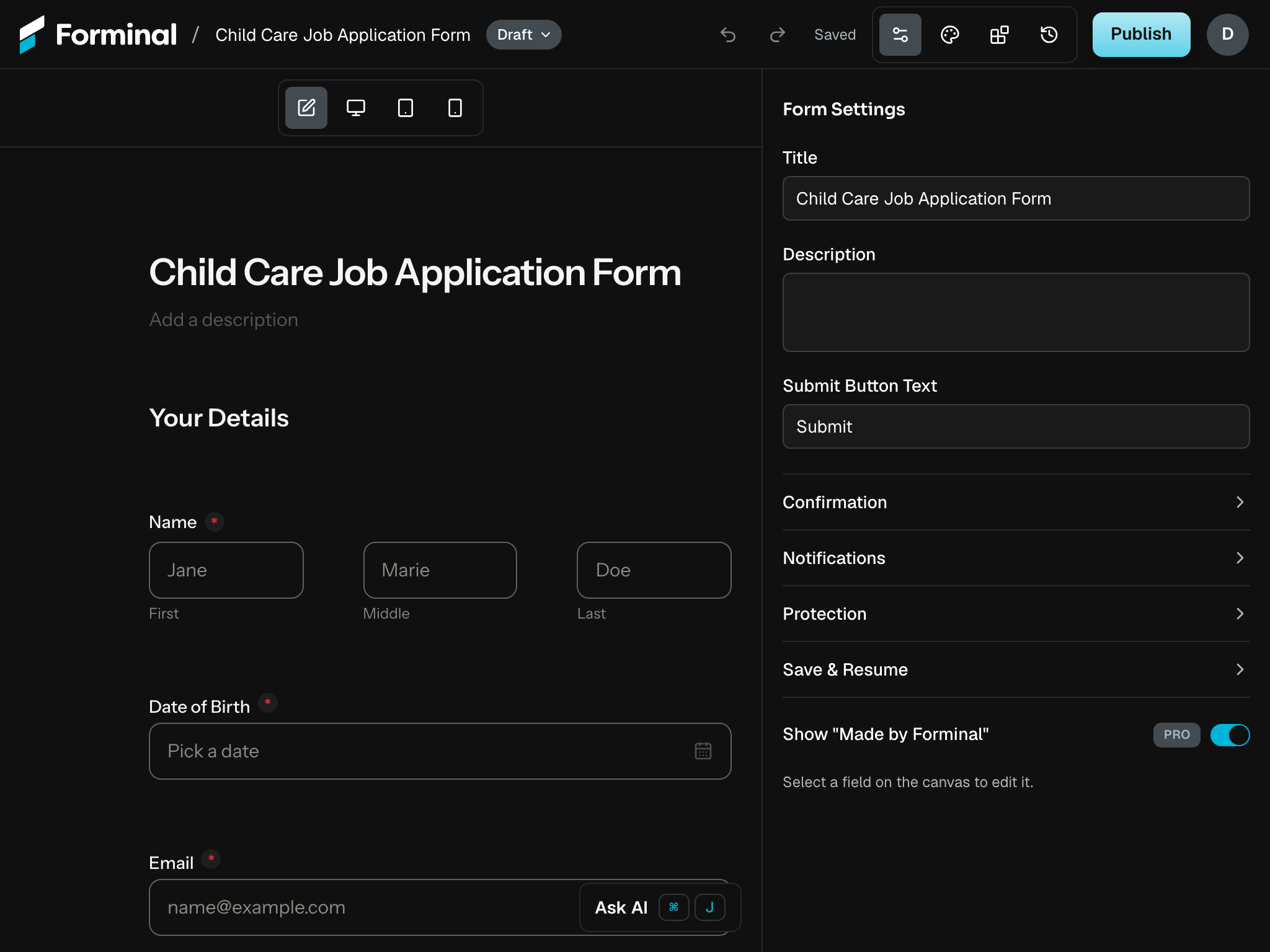
- Click the form’s title on the canvas and type your own. Do the same for the description under it.
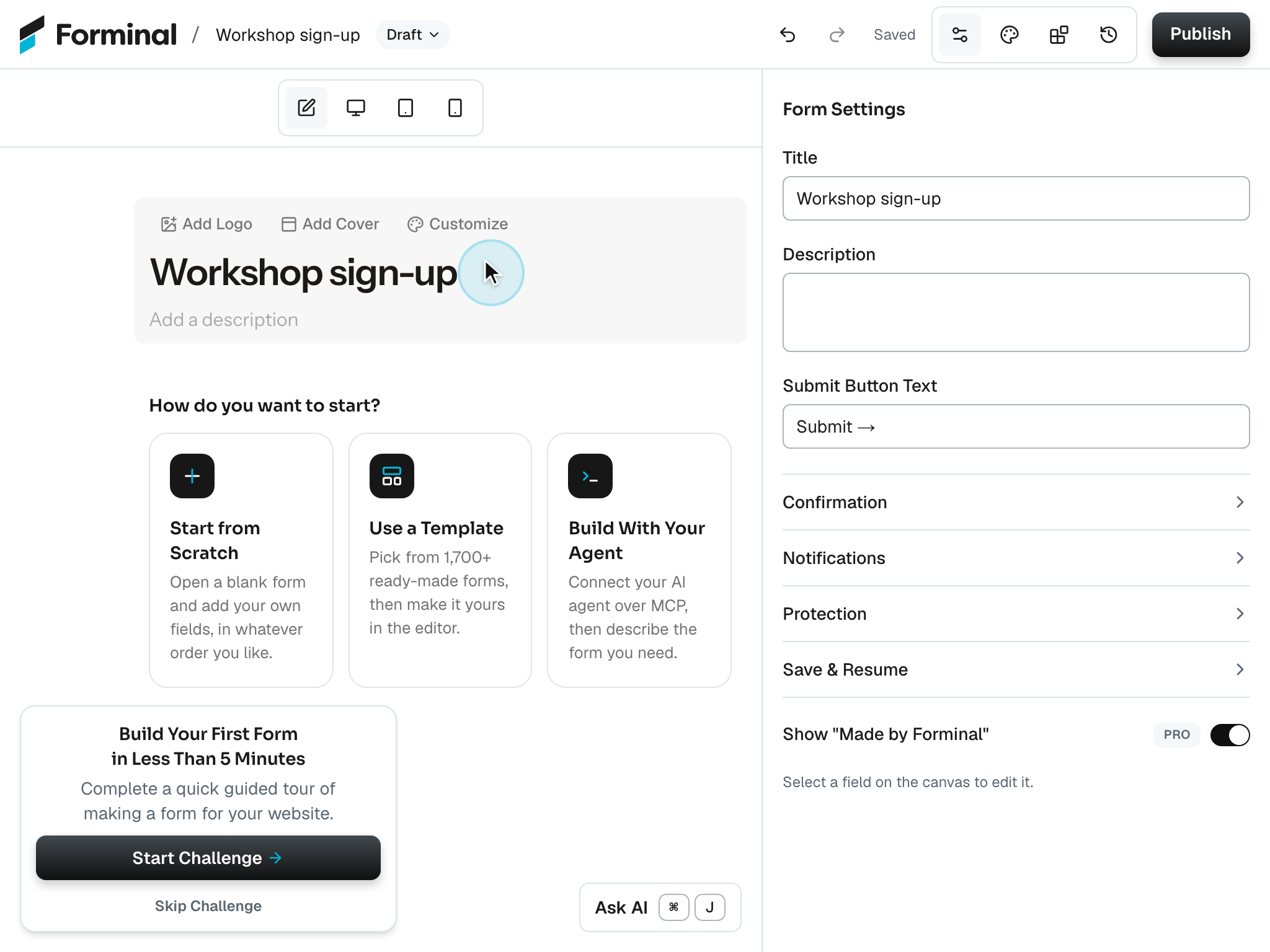
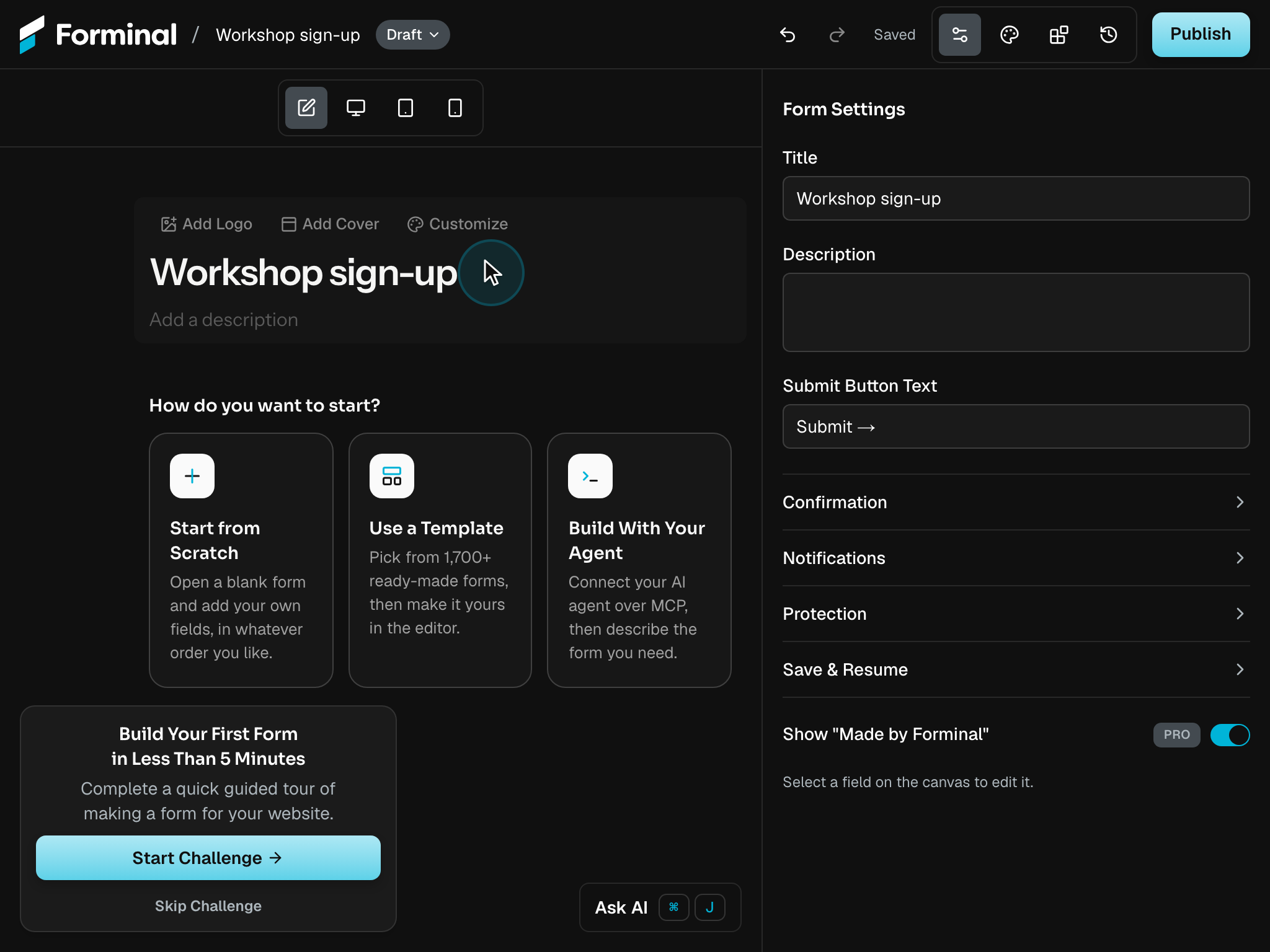
- On an empty form, select Start from Scratch, the first card under “How do you want to start?”. Once the form has fields, hover above or below one and select Add Field. Either way, a menu opens with every field type, grouped into Text and Numbers, Contact Info, Choices, Date and Time, Rating and Ranking, Files and Signature, Payment, Layout and Other.
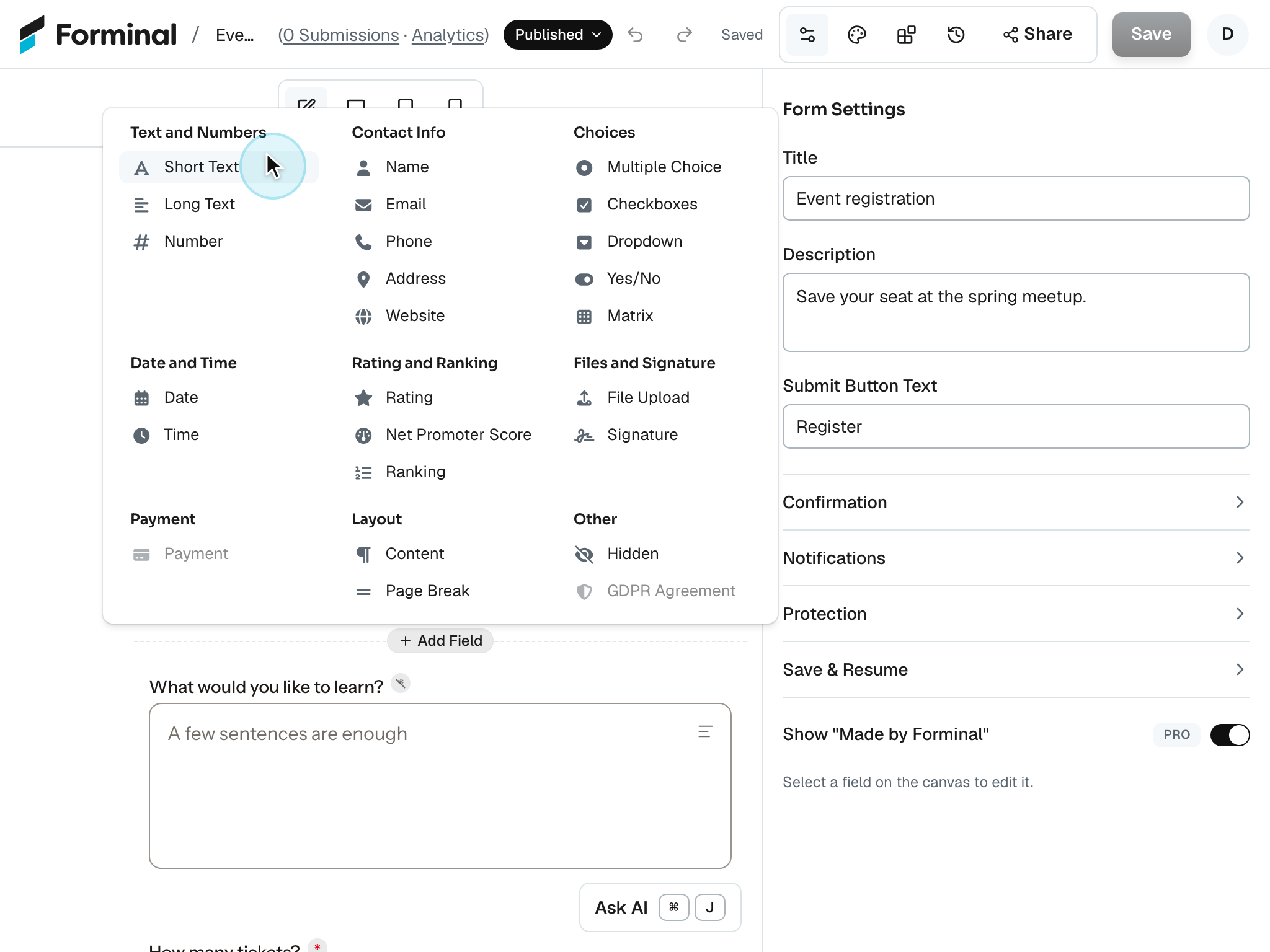
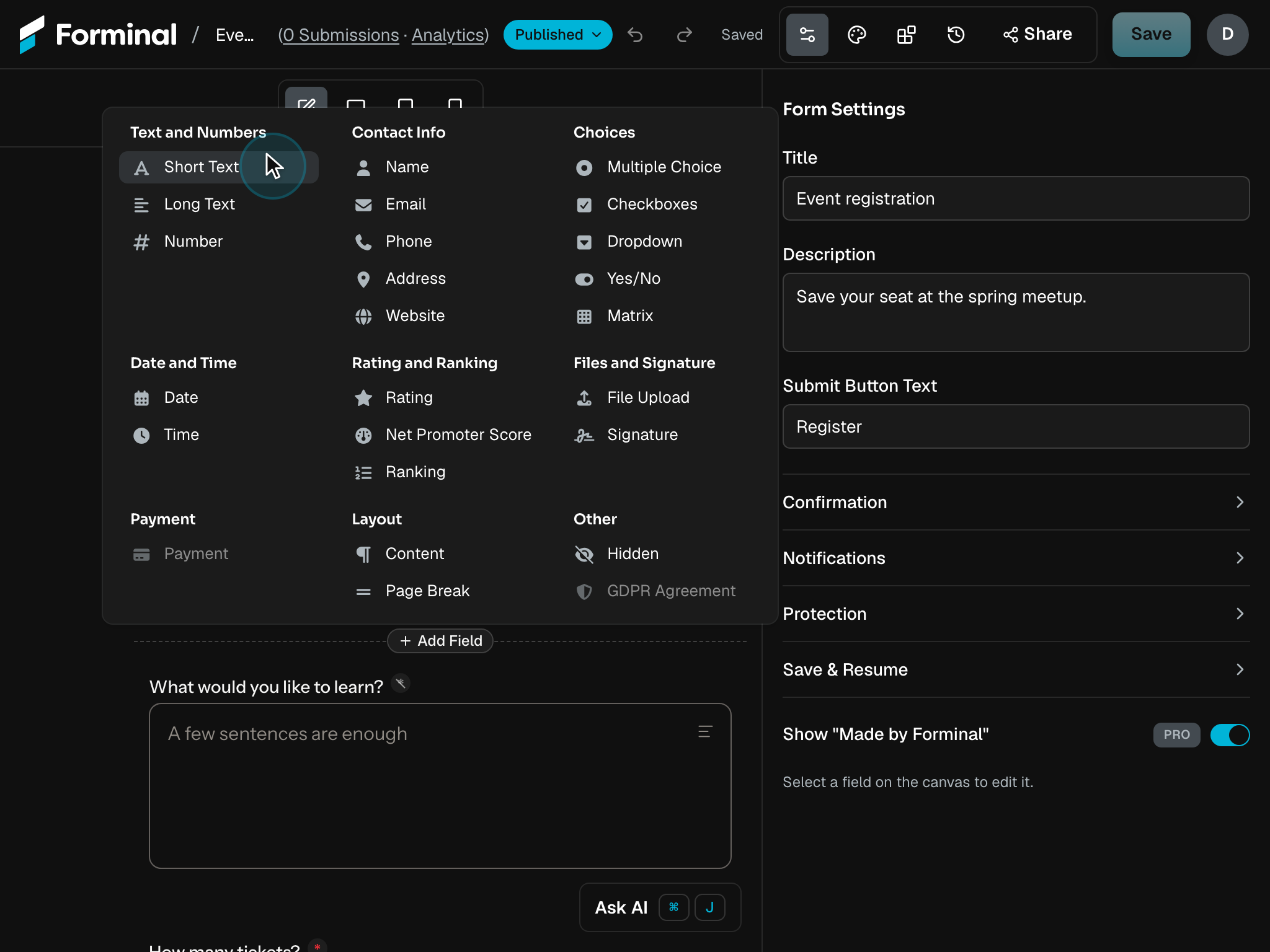
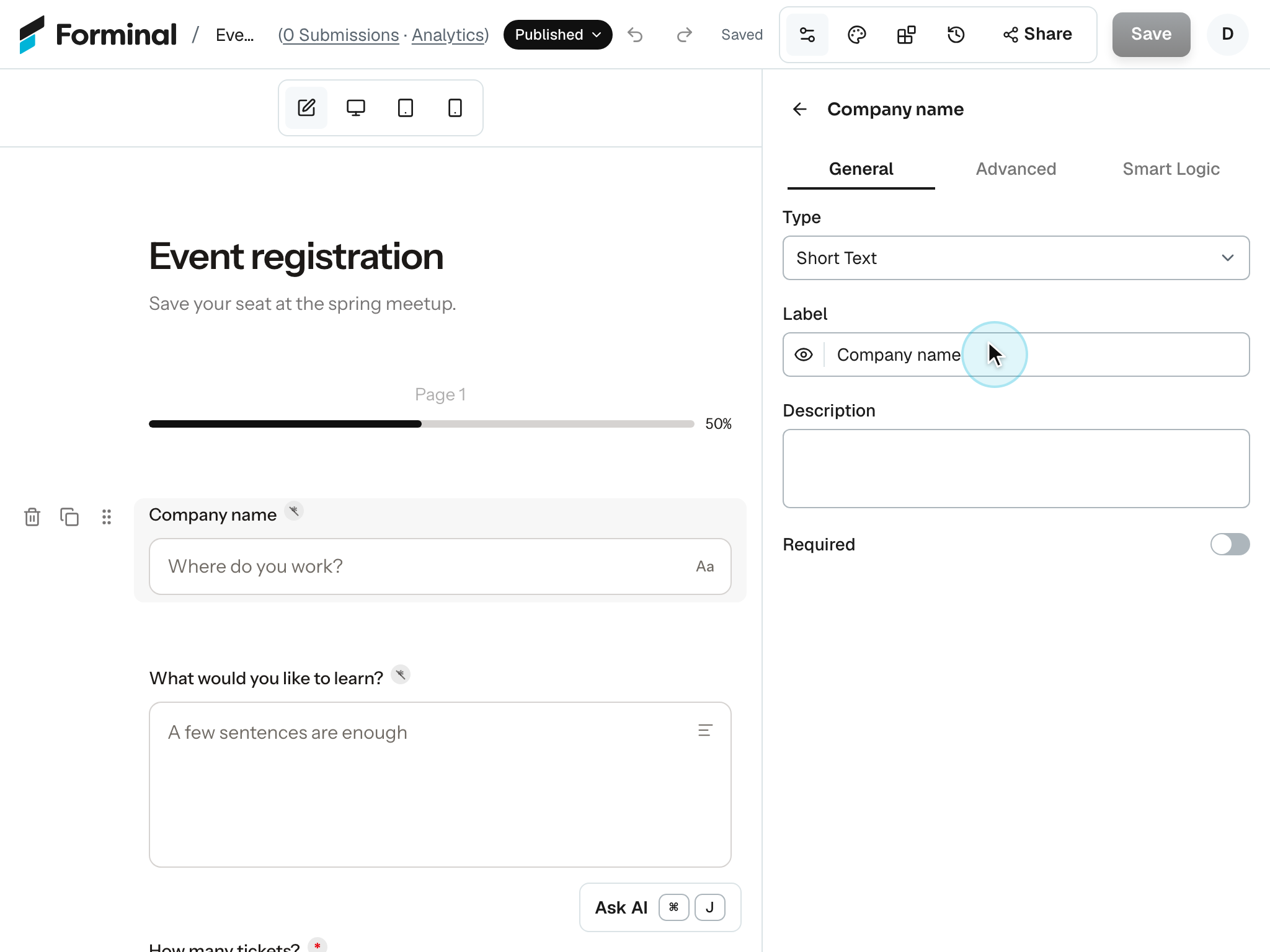
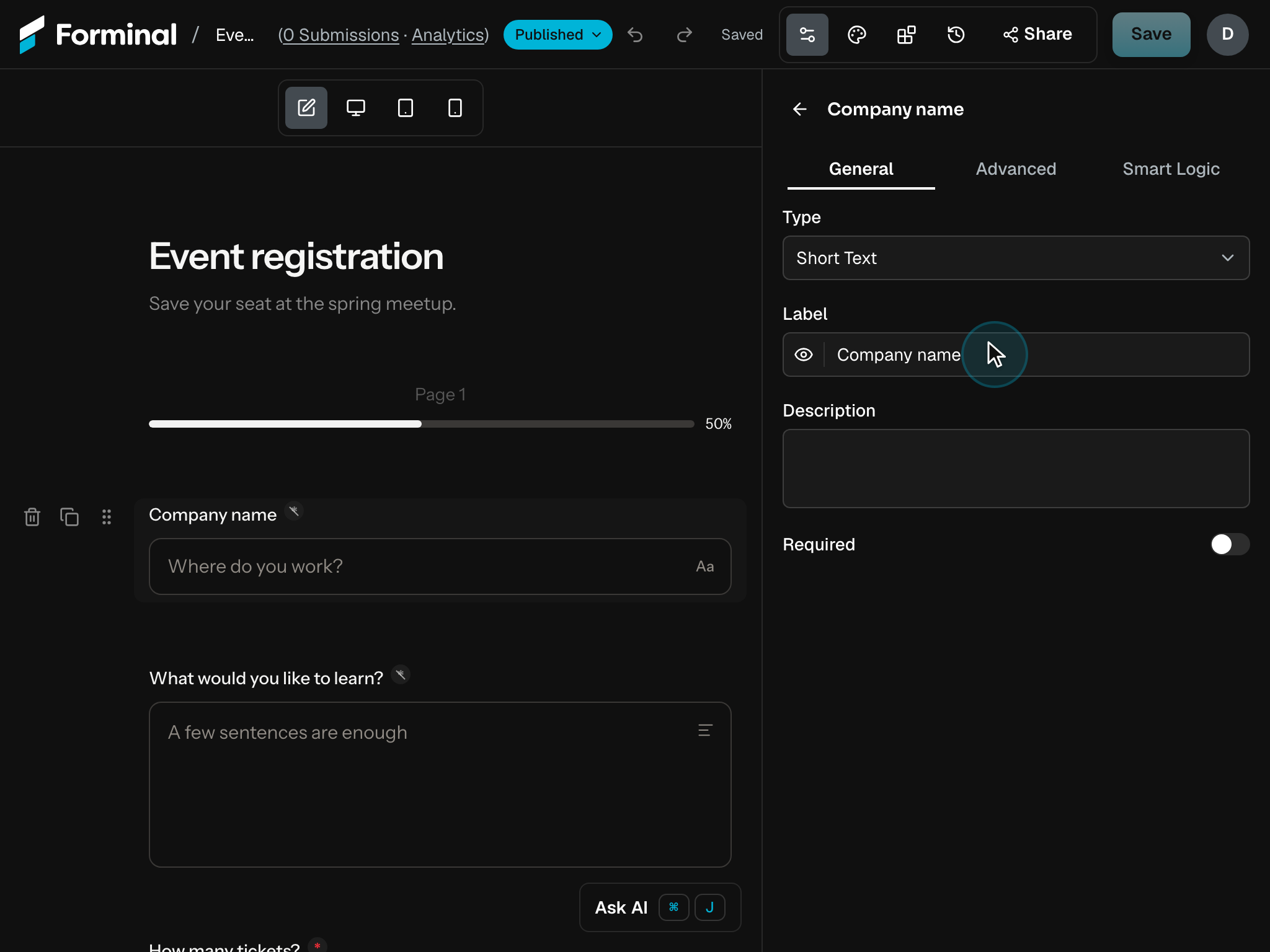
- Pick a type. The field lands where you opened the menu and is selected, so its settings show in the panel at the side.
- Click the field’s label on the canvas and type your question. Choice fields list their options under the label, and you type over each one.
An empty form has two other cards. Use a Template fills it from one of five popular templates. Build With Your Agent gives you a prompt to paste into an AI agent, which then builds the form over the MCP server. It needs an account, so without one it opens the sign-in page over the builder; once you’re signed in, select it again. The submit button and the thank-you message appear on the canvas once the form has its first field.
To change how the form looks, select Customize in the top bar. Form Settings holds the submit button text, the thank-you message, email notifications and Save & Resume. Switch the canvas from Edit to Desktop, Tablet or Mobile to try the form the way people will see it. A preview saves nothing and sends no email. For everything you can do with fields, see Add and arrange fields.
Publish
- Select Publish at the top right of the builder.
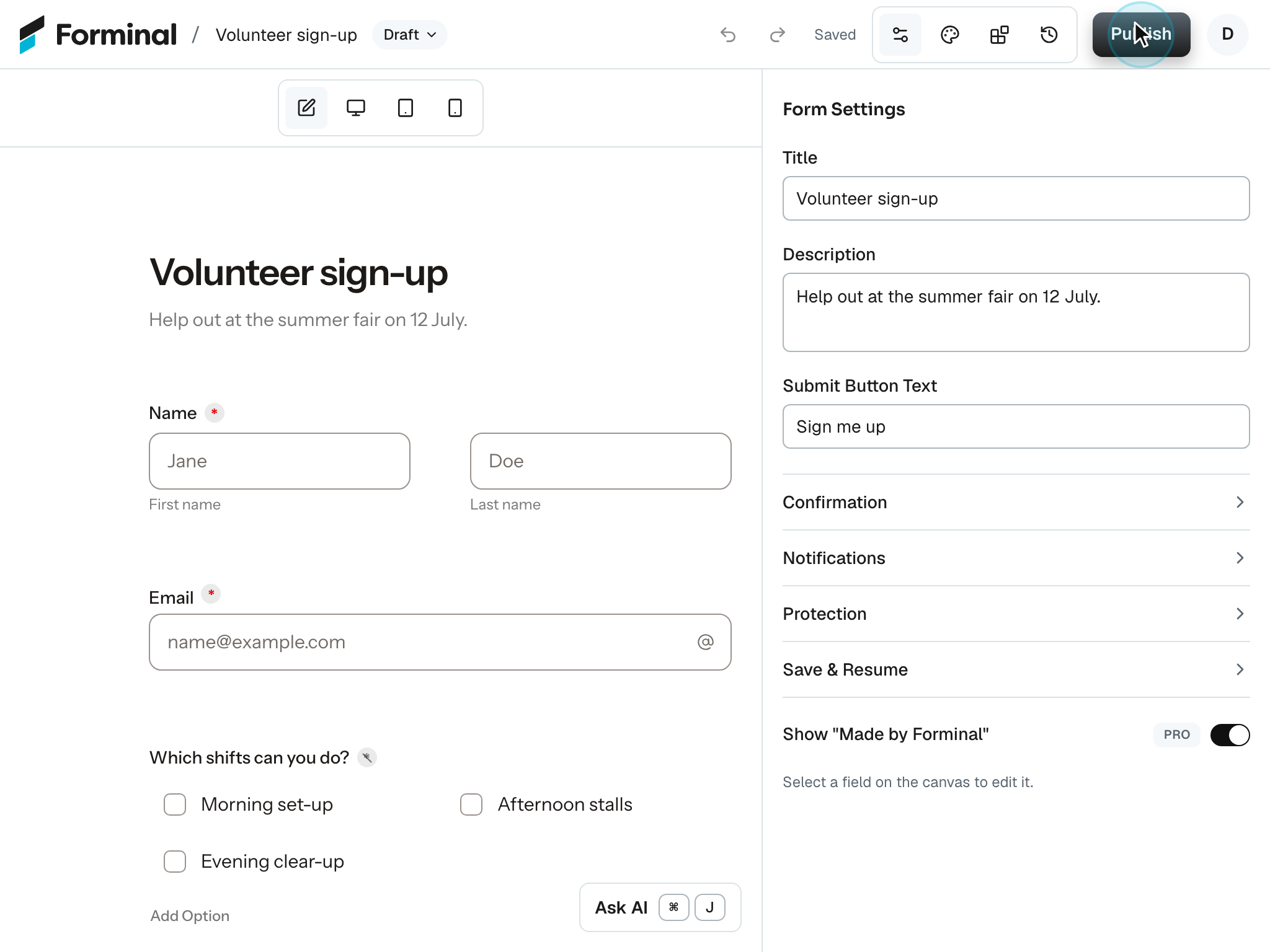
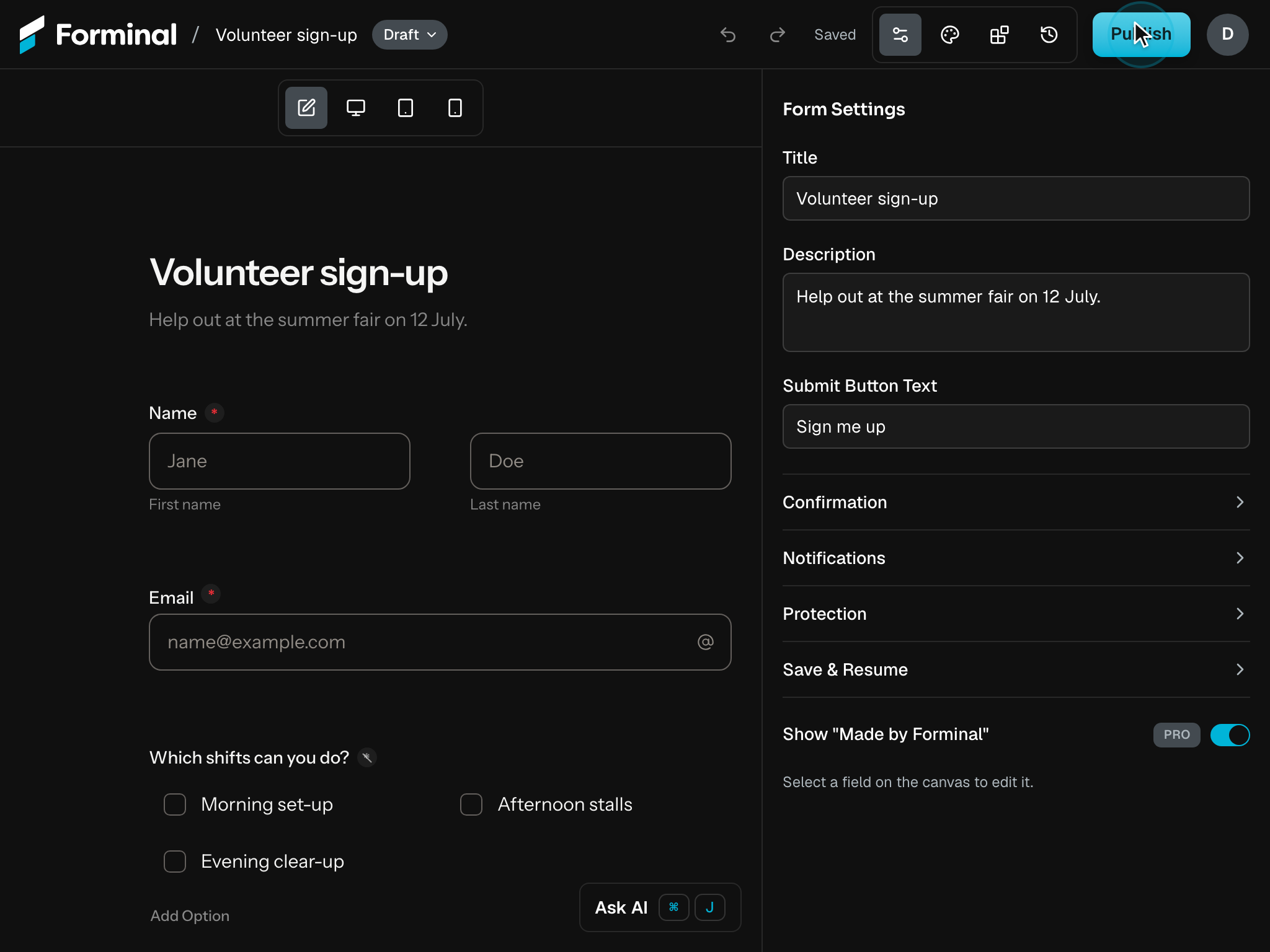
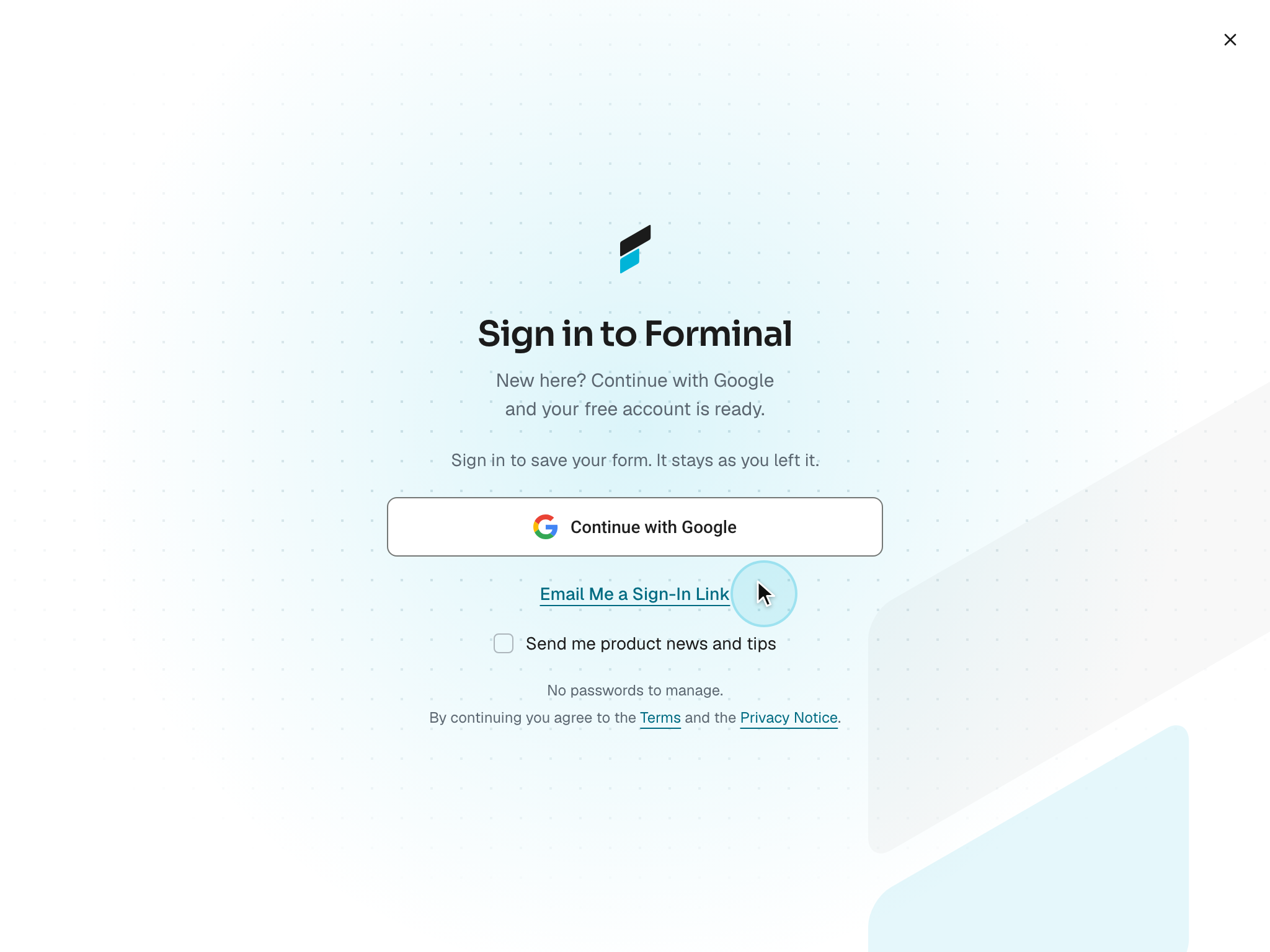
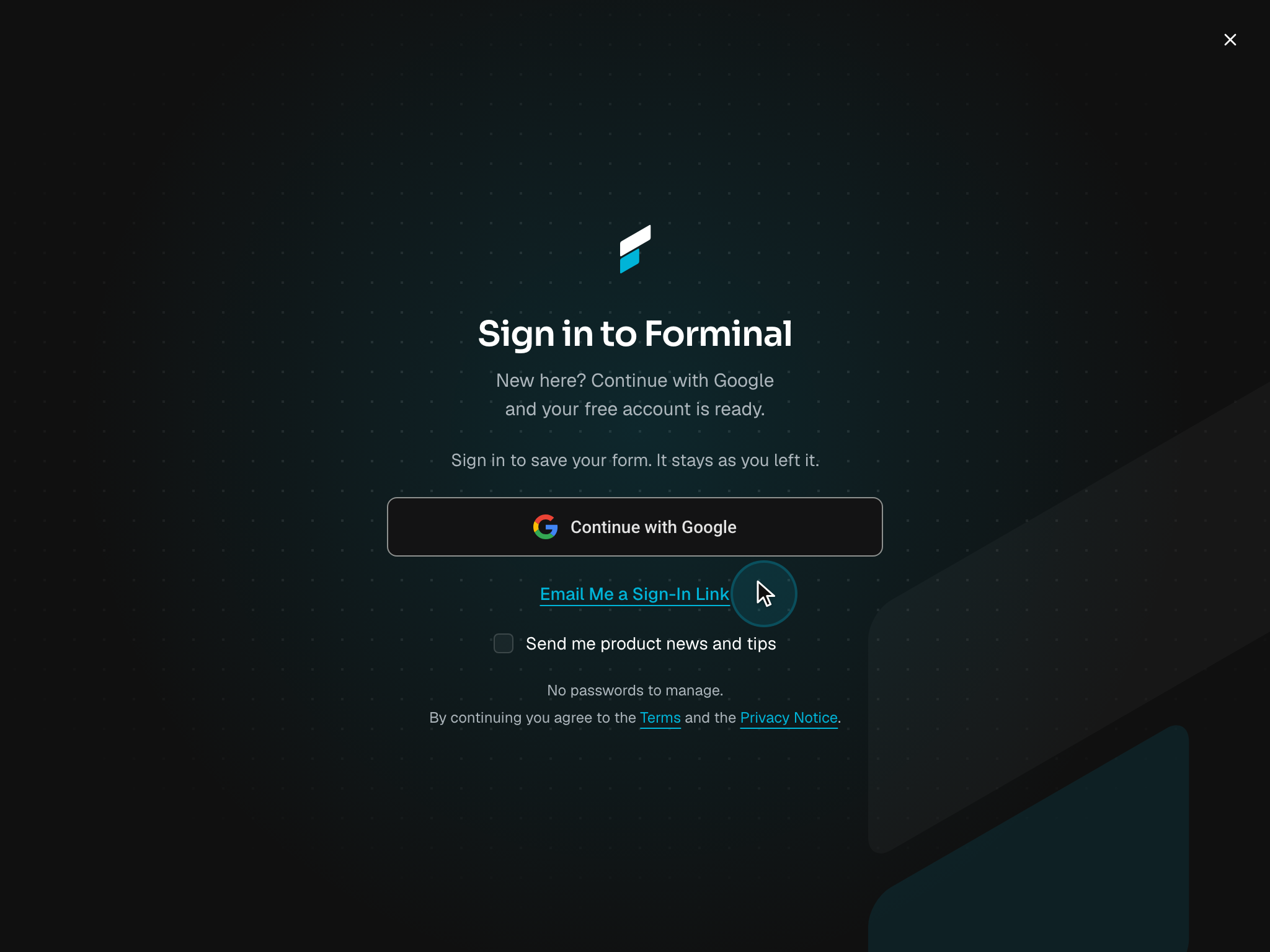
- If you started without an account, the sign-in page opens over the builder. Sign in with Google or an email link, and the form moves into your account exactly as it is.
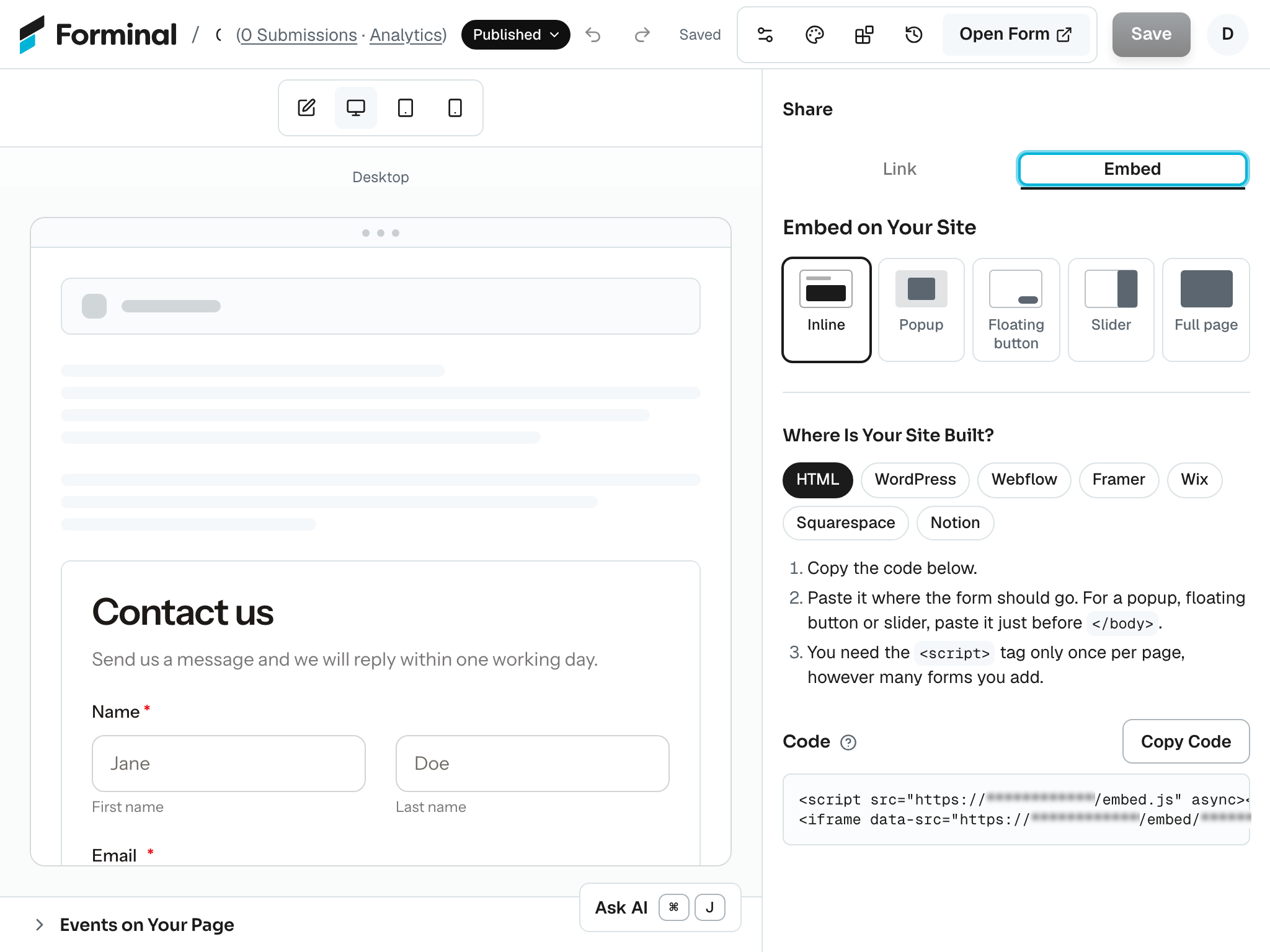
- The badge in the top bar changes from Draft to Published, and the Share panel opens with the form’s link and embed codes.
Next, share the form and then read the results.
Good to know
- A form needs at least one field before it can be published, and it can hold up to 50 fields.
- Until you sign in, a form you build belongs to the browser you made it in. Sign in before you switch to another device, or you won’t be able to reopen it there.
- Every template and field type works on every plan. The pricing page shows what the paid plans add.
- More on starting without signing up is on the Build Without an Account page.
Frequently asked questions
Do I need an account to build a form?
No. You can build, style and preview a form without one. You need an account to publish it, share it, connect integrations or use the AI assistant. See Build Without an Account.
Can I build a form by describing it?
The AI Assistant in your account builds or changes a form from a description. You need to be signed in, and your plan sets how many messages you can send it a day: 10 on Lite, 30 on Pro and 100 on Business.
What happens to my draft if I clear my browser’s cookies?
Before you sign in, a form belongs to the browser you made it in, so clearing cookies or closing a private window you used puts it out of reach. Sign in first and the form moves into your account.
Can I go back to an earlier version of my form?
Select History in the builder’s top bar, preview an earlier version and select Restore. How far back it goes depends on your plan.
Do templates cost extra?
No. Every template and field type works on every plan, and each template you use becomes a separate form that you can change.
Can an AI agent build the form for me?
Yes. On an empty form, select Build With Your Agent, copy the setup prompt and paste it into an agent such as Claude Code or Cursor. It connects over the MCP server, asks you to sign in, and the fields it adds show up in the builder.