Every form’s look is set in one place, the Customize panel in the builder. By the end of this guide your form will use a theme, colors and a font that match your site, with your own CSS for anything the settings don’t reach.
Pick a theme
- Open the form in the builder and select Customize in the top bar.
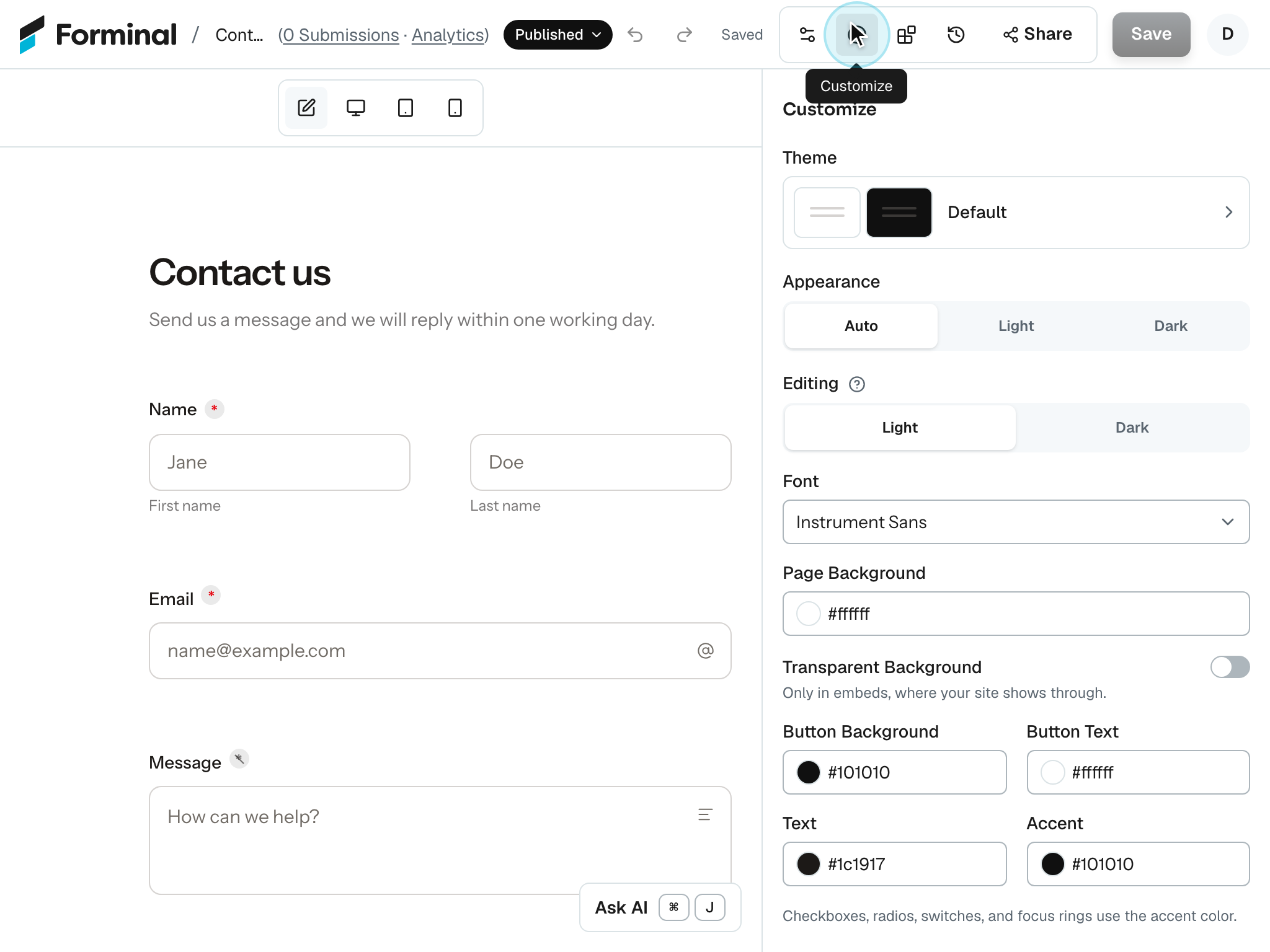
- Under Theme, select the row with your current theme. The sidebar widens over the canvas and lists every theme under Themes, in five groups.
- Select a tile, such as Studio. Each tile shows the theme’s light look beside its dark one. The canvas changes right away, and the list stays open so you can compare. A Use Theme button appears over the tile you picked.
- Select Use Theme, or the back arrow next to Themes, to keep the theme and go back to the Customize panel. To close the list without changing anything, select Cancel at the right end of the same row instead. The form gets back the look it had when you opened the list.
You can’t select Cancel while the AI assistant is working.
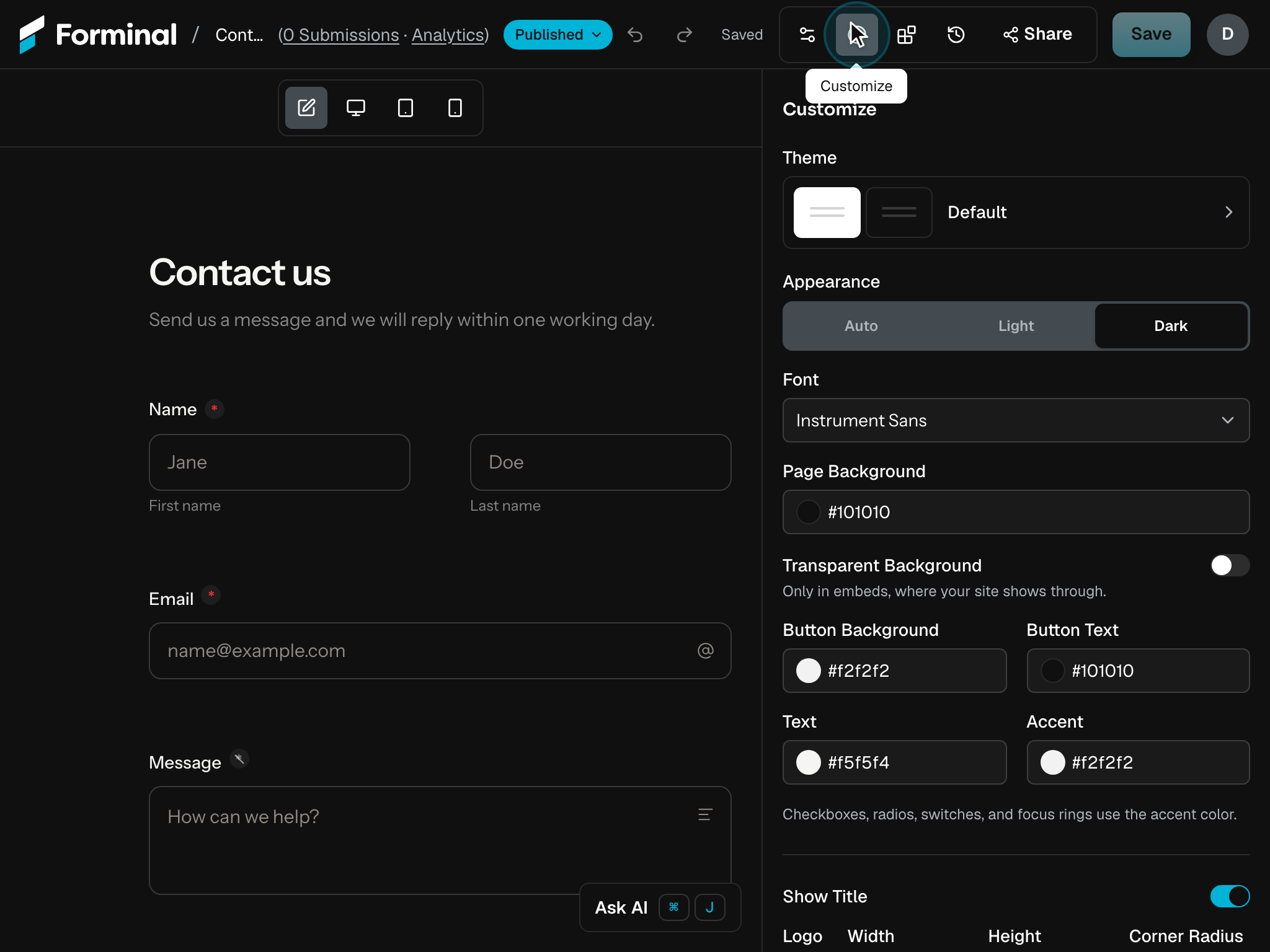
- Under the theme row, set Appearance. Auto shows the light look and switches to the dark one on a device set to dark mode. Light always shows the light look, and Dark always shows the dark one.
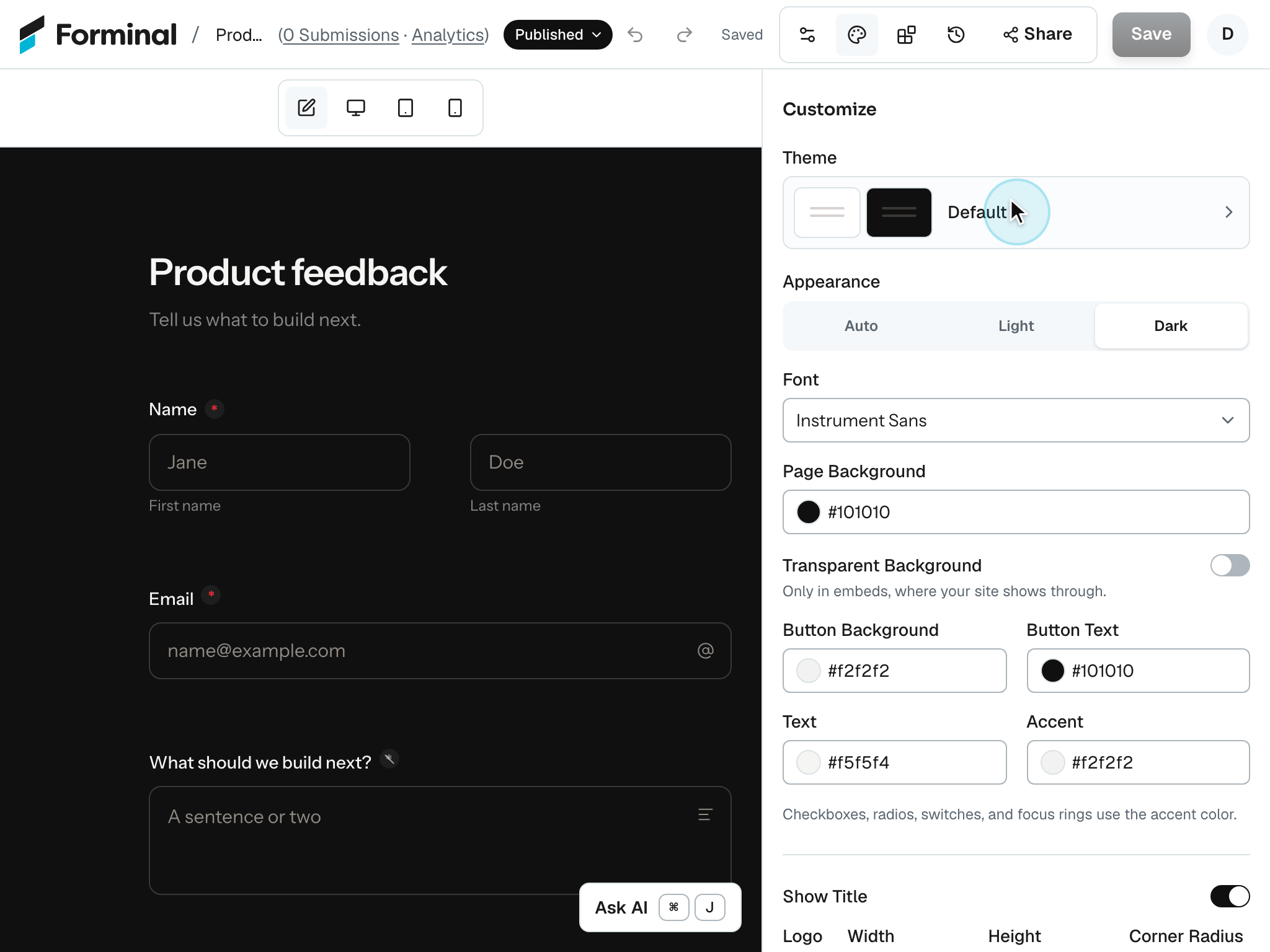
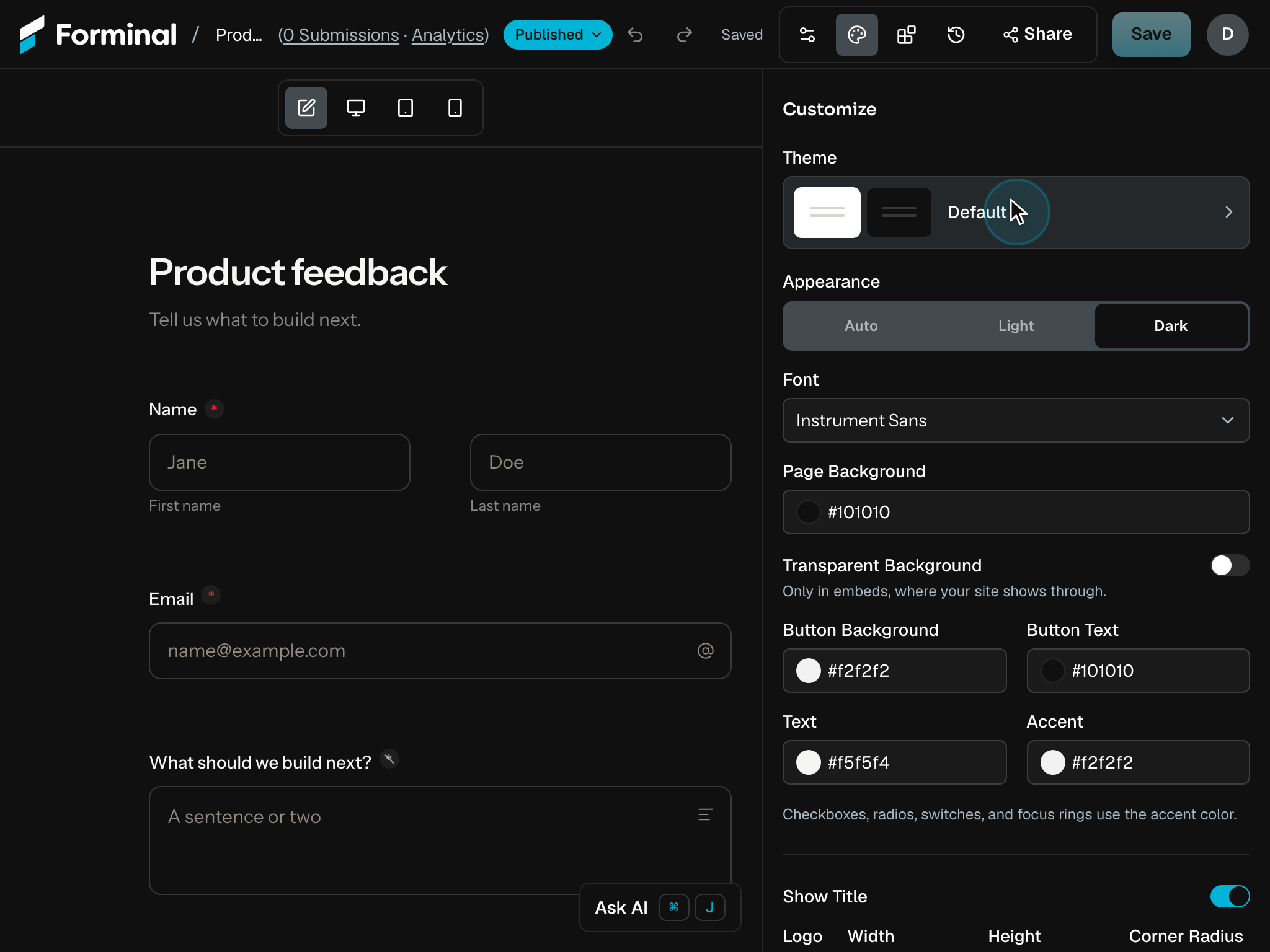
There are 26 themes, each with a light and a dark look. Default is the look of a new form: Instrument Sans, a white page, near-black text and button, 46 px inputs and a 48 px button. A theme sets the font, the colors, the input and button sizes, the text size, the card and where labels and choices sit, so pick it first and adjust from there. If you don’t like the result after you’ve closed the list, select Undo once to get the previous look back.
On Auto, an Editing switch appears under Appearance. Set it to Dark to see the dark look on the canvas and change its colors and images. Sizes and spacing are shared by both looks.
You can also ask the AI assistant for a theme by name.
Default, High Contrast and Appearance work the same on every plan. High Contrast is Default with stronger field borders, for a form whose fields need clearer edges. The other 24 themes carry a PRO badge when your plan doesn’t include Advanced Styles. You can still pick one, and the published form then uses Default’s layout and sizes with the theme’s colors, font and card. See Themes for the full list.
Change colors and fonts
- In Customize, select the round swatch next to a color to open the color picker, or type a hex code such as #7957ff into the box.
- Set Page Background, Text, Button Background, Button Text and Accent. Accent colors checked boxes, the focus ring and the progress bar.
- Open the Font list and pick a font. Each name is shown in its own font. There are 27: System, which uses the visitor’s device font, and 26 web fonts such as Instrument Sans, Inter, DM Sans, Merriweather and JetBrains Mono.
- For sizes and spacing, scroll to Advanced. Layout sets Page Width and Base Font Size, and the Inputs and Button groups set their size, corners and spacing. Inputs also holds the input Background, Placeholder, Text and Border colors, and Button holds the button’s Border and Border Width.
To put the form on a panel with its own color or photo, turn on Card under the logo and cover settings. Its Background Image box opens 52 photos to pick from, and Upload Your Own lets you use an image of yours. See Form Card for every card setting.
Type an eight-digit hex code to make a color see-through, for example #ffffff00 for a transparent background on an embedded form. More on each setting is on the Colors, Fonts and Advanced Styles pages.
Add custom CSS
- Scroll to the end of the Advanced section and find the Custom CSS box.
- Type or paste your rules. The canvas updates as you type.
Every rule applies inside the form only, and & on its own targets the whole form area:
& {
	line-height: 1.6;
}
button[type="submit"] {
	letter-spacing: 0.05em;
}
The box refuses anything that loads a file (@import, url(), image(), image-set(), cross-fade() and src()), as well as expression(), closing tags and backslashes. When something breaks a rule, the box turns red and shows why, and your last valid CSS stays on the form. See Custom CSS for the parts of the form that are easy to target.
Good to know
- Switching themes replaces the font, every color, the button border, the input Height, border Width, Radius, Horizontal Padding and Margin Bottom, the button Width, Alignment, Height, Font Size, Radius and Horizontal Padding, the Base Font Size and the card. It keeps Appearance, Page Width, the logo, the cover, custom CSS, the input Width and the button Vertical Margin. The Themes page has the full list.
- Only Auto follows the visitor’s device. A form set to Dark stays dark for everyone, and one set to Light stays light.
- Reset Styles at the bottom of the Customize panel puts the whole form back to Default, with Appearance on Auto, and clears custom CSS.
- Custom CSS can be up to 10,000 characters, and can’t load images or font files.
- Advanced Styles and Custom CSS need a plan that includes them. You can try them on the canvas either way, but the published form uses the defaults until you upgrade. That covers the layout and sizes of the themes with a PRO badge too. Default, High Contrast, Appearance, colors, fonts, the logo and cover, and the card work on every plan. See the pricing page.
Frequently asked questions
Can a form switch between light and dark with the visitor’s device?
Yes, when Appearance is set to Auto, the default for a new form. A form set to Light or Dark shows that look to everyone.
Can I use my own font on a form?
Not a font file of your own. The Font list offers 27 fonts, from System, which uses each visitor’s device font, to web fonts such as Instrument Sans, Inter and Playfair Display. Custom CSS can’t load font files.
Which style settings need a paid plan?
Advanced Styles and Custom CSS need a plan that includes them, such as Pro. You can try both on the canvas, but the published form uses the defaults until you upgrade.
Can I make an embedded form’s background transparent?
Type an eight-digit hex code with 00 at the end, such as #ffffff00, as the Page Background color.
Does switching themes undo my custom CSS?
No. A theme replaces your font, colors, the input and button sizes and shapes, the Base Font Size and the card. It keeps custom CSS, Appearance, Page Width, the logo and cover, and the input Width. Reset Styles at the bottom of Customize is the one that clears everything, custom CSS included.
Why did my Custom CSS box turn red?
Something in it breaks a rule. The box shows the reason, for example @import, url(), image-set() or a backslash, and the form keeps your last valid CSS until you fix it. The box takes up to 10,000 characters.