Smart Logic shows or hides a question depending on earlier answers, so people only see what applies to them. By the end of this guide you’ll have a question that appears only for the right people, and you’ll know how to make a whole page drop out of a multi-page form.
Show a question based on an answer
- Select the field you want to show or hide, and open the Smart Logic tab in its settings.
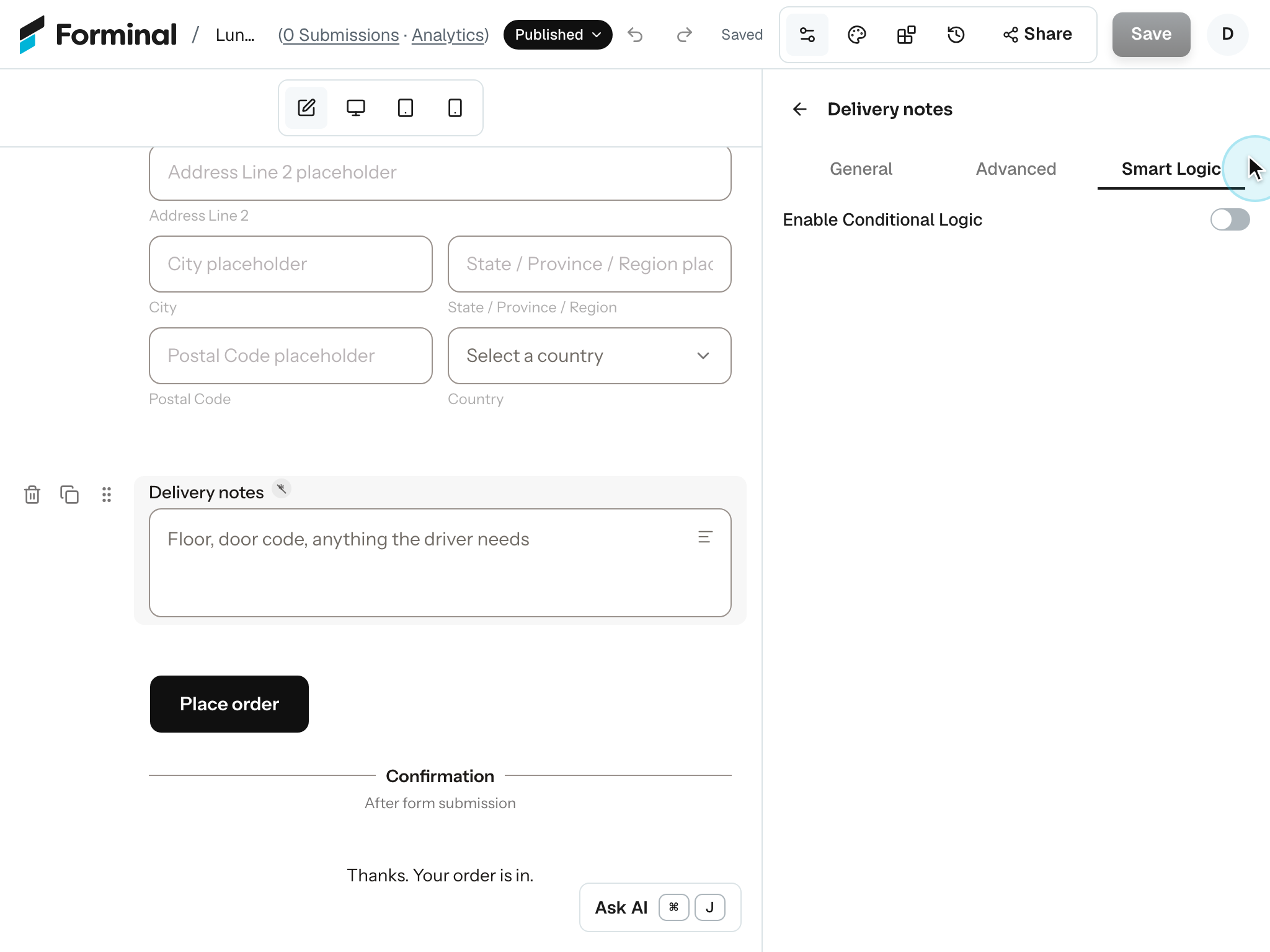
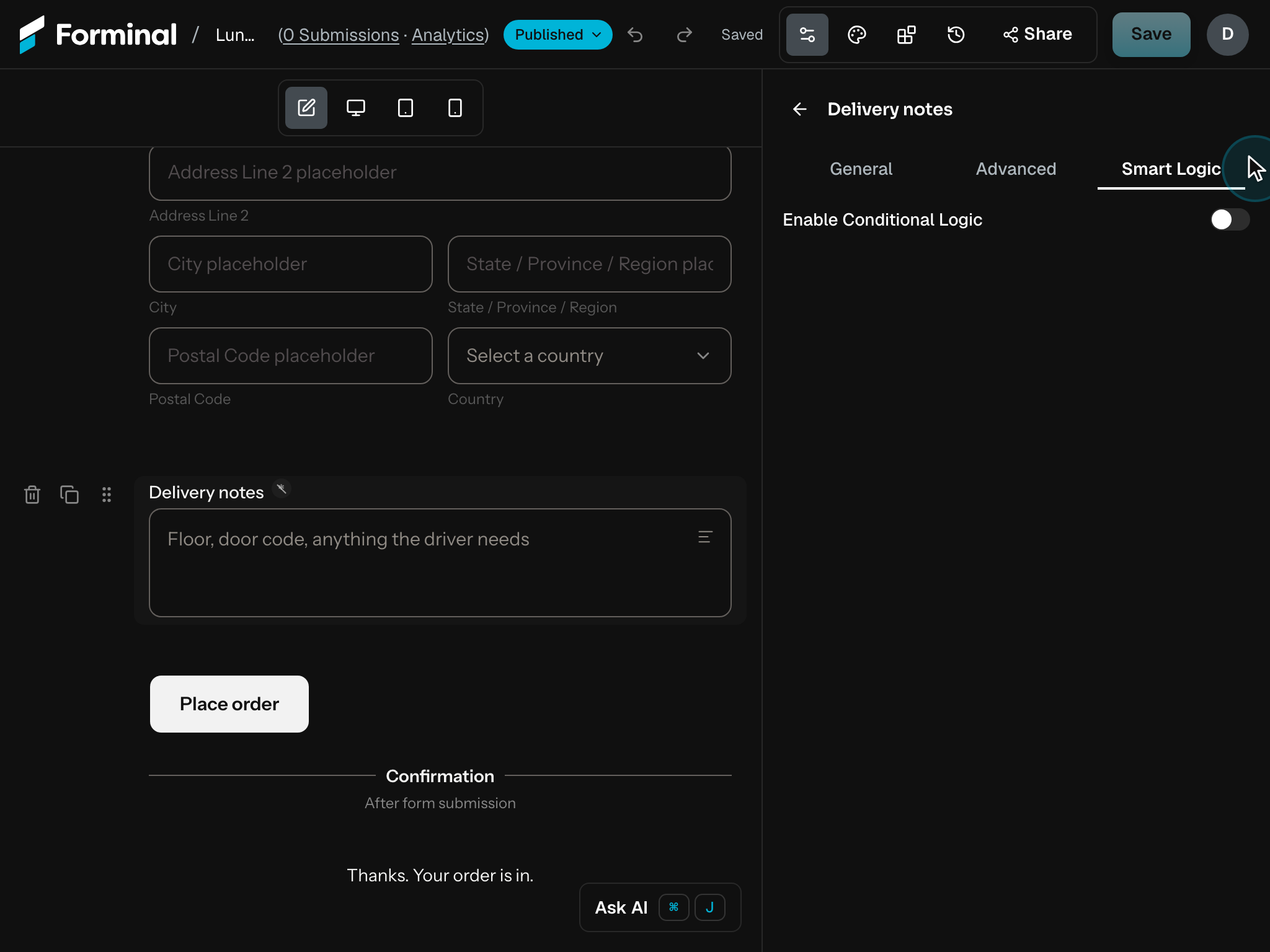
- Turn on Enable Conditional Logic.
- Choose Show or Hide in the “this field if” line.
- In the first rule, pick a field under Select a field, then a rule such as “is” or “contains”, then the value to compare with.
- Select And to add another rule that must also be true, or Add New Group to add another set of rules joined by “or”.
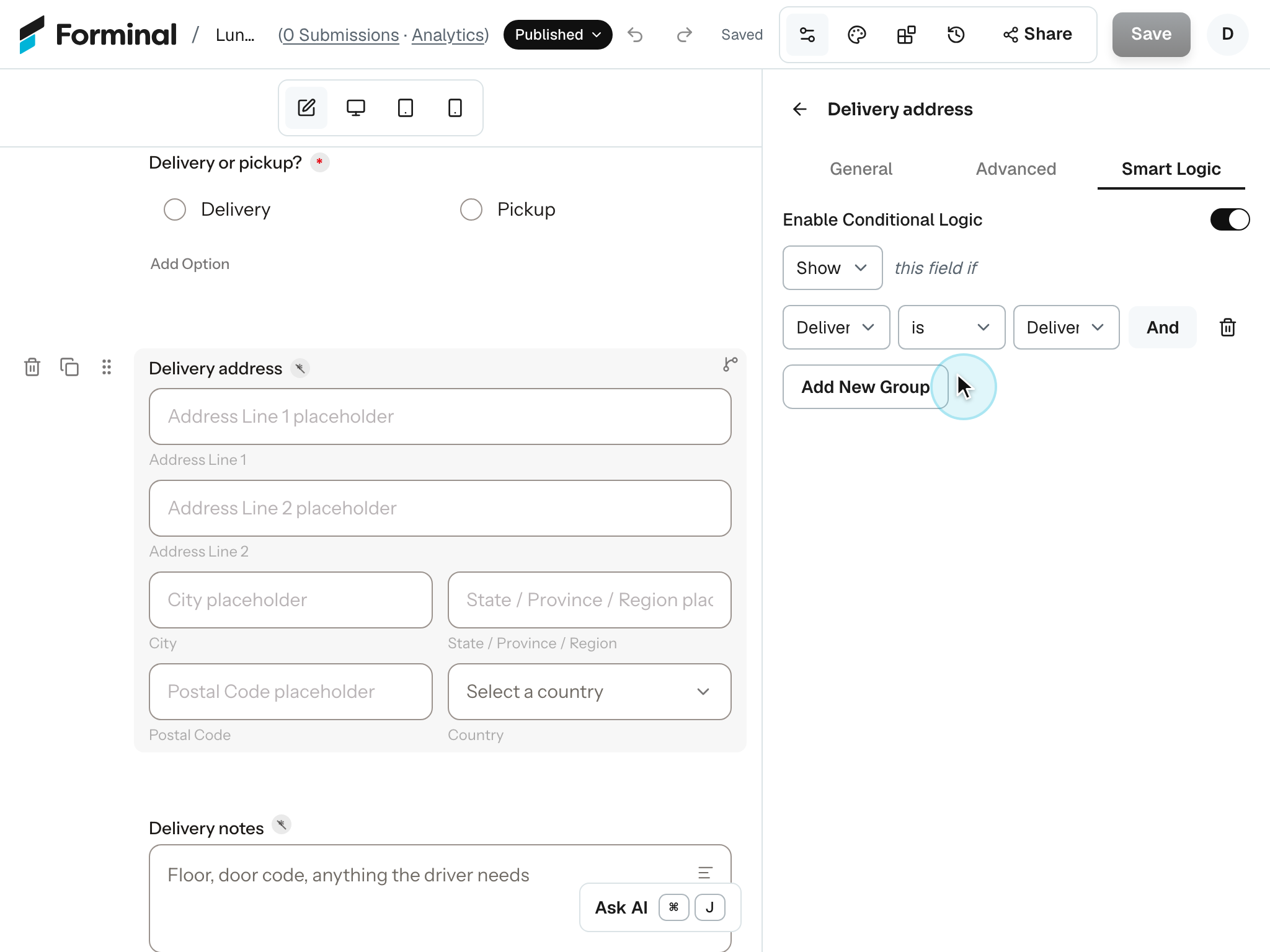
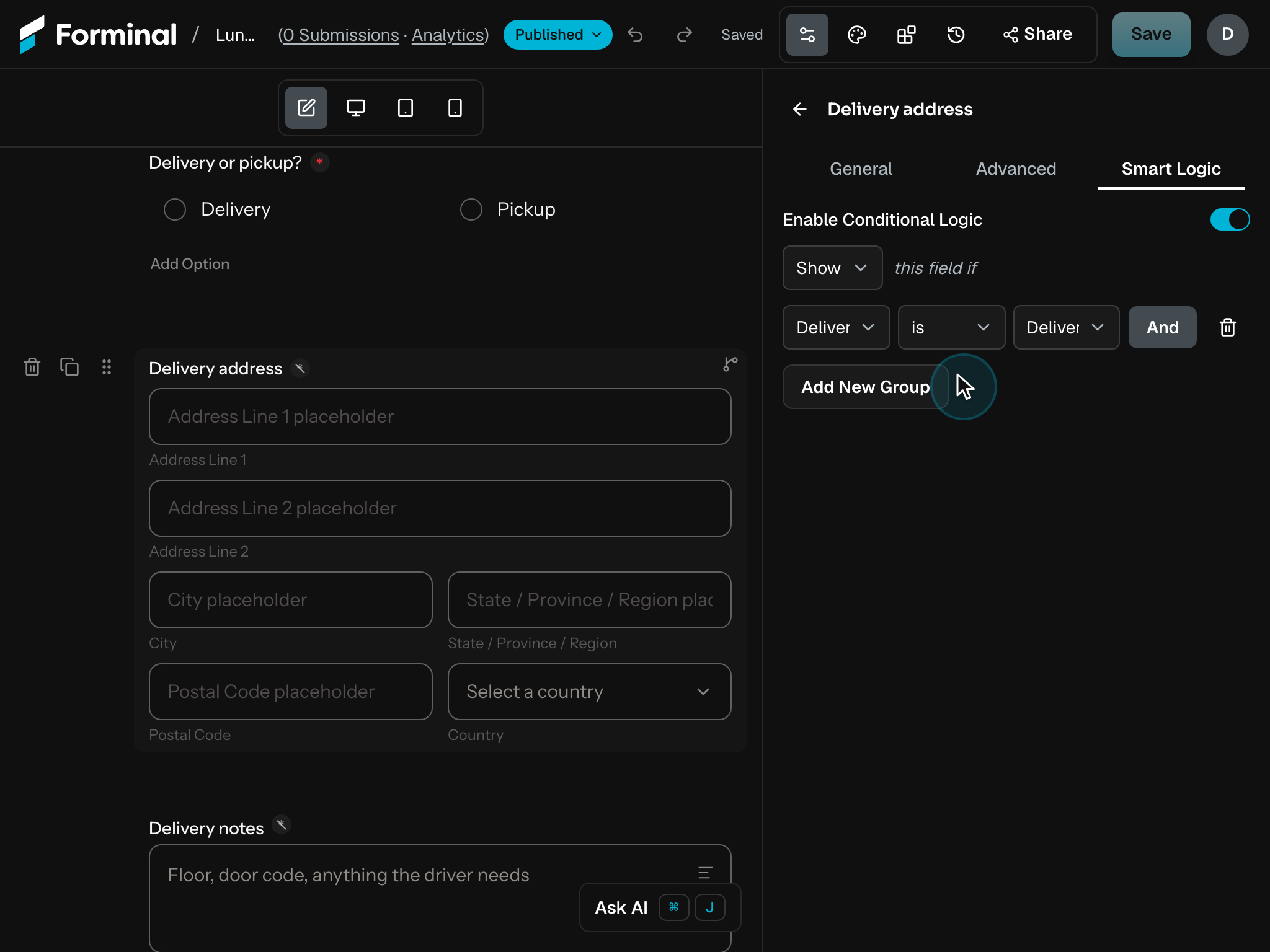
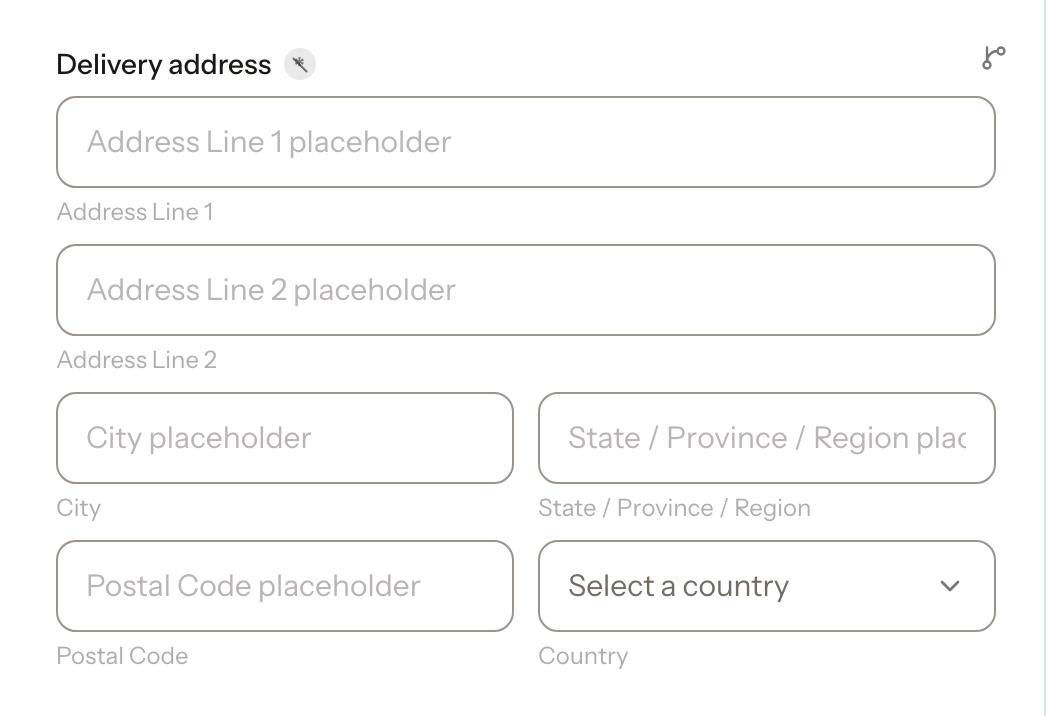
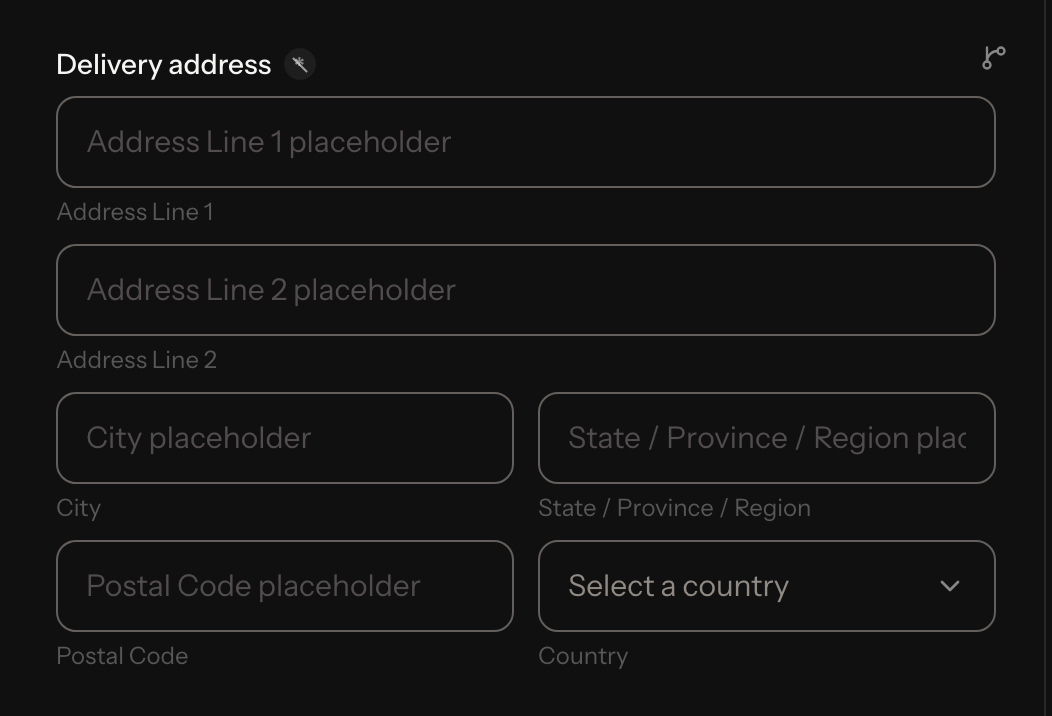
For example, show “Company” only if “Role” is “Business”. A field with logic gets a small icon on the canvas so you can spot it later. To try your rules, switch the builder from Edit to Desktop, Tablet or Mobile and fill in the preview.
Rules inside one group must all match. The field’s action happens when any one group matches. Which rules you can pick depends on the field you compare with: text fields offer “contains” and “starts with”, numbers, ratings and dates offer “greater than” and “less than”, and choice fields let you pick the option from a list.
Skip a page
Page breaks can’t have logic of their own, and there’s no rule that jumps to a page. A page is skipped instead when every field on it is hidden.
- Split the form into pages, as in Split a form into pages.
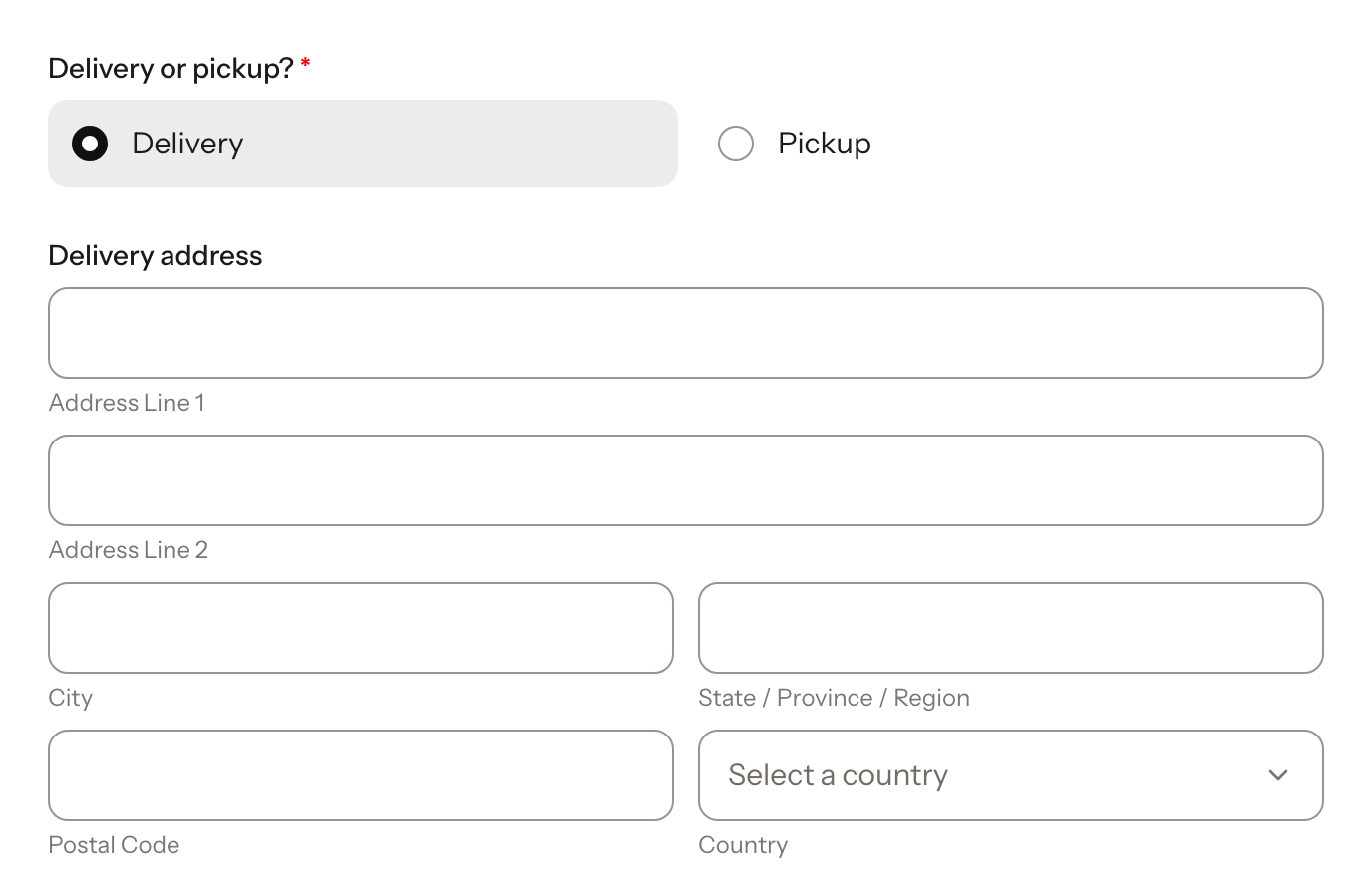
- Give each field on the page you want to skip the same Smart Logic rules, for example Hide this field if “Do you have a car?” is “No”.
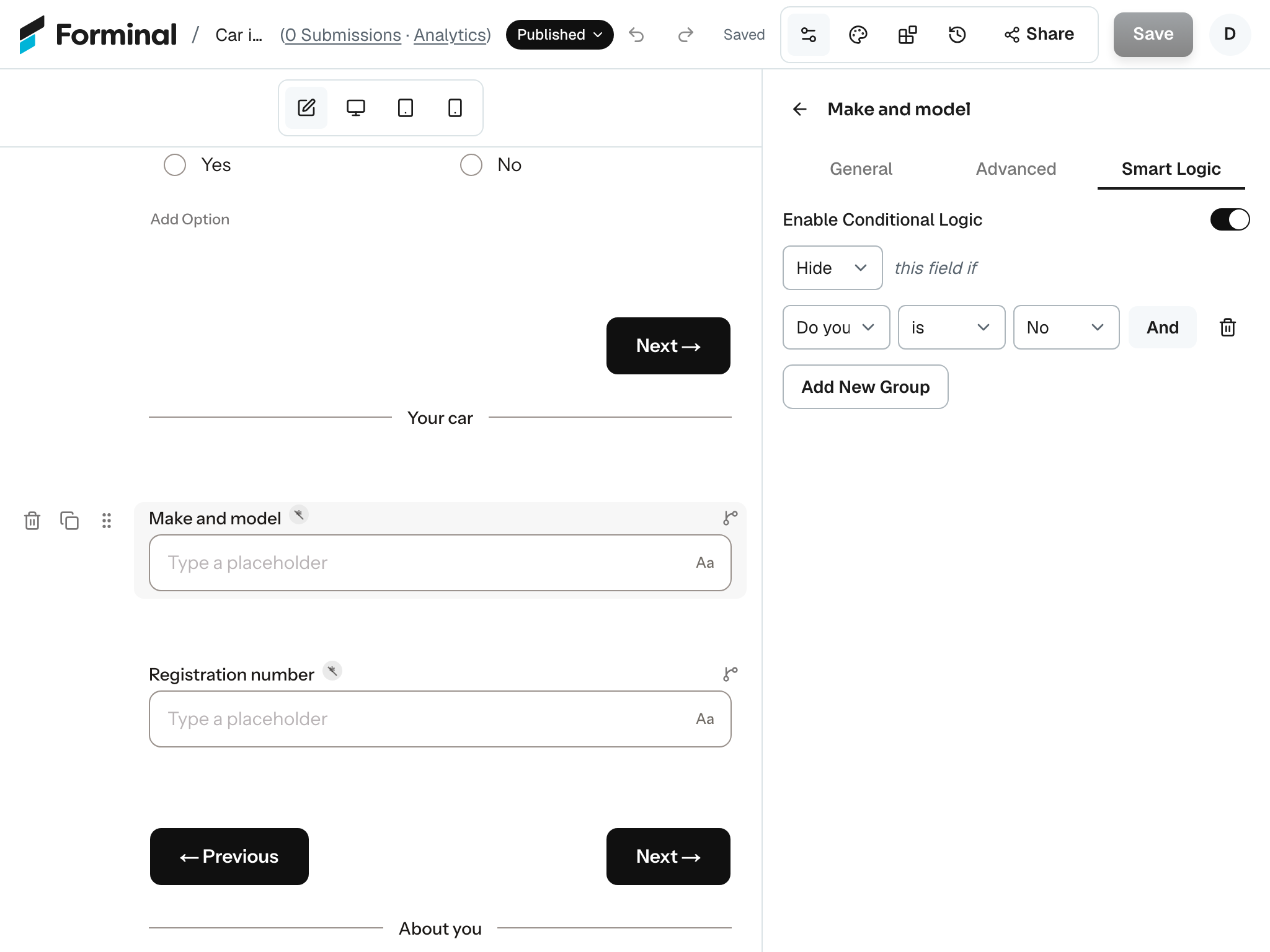
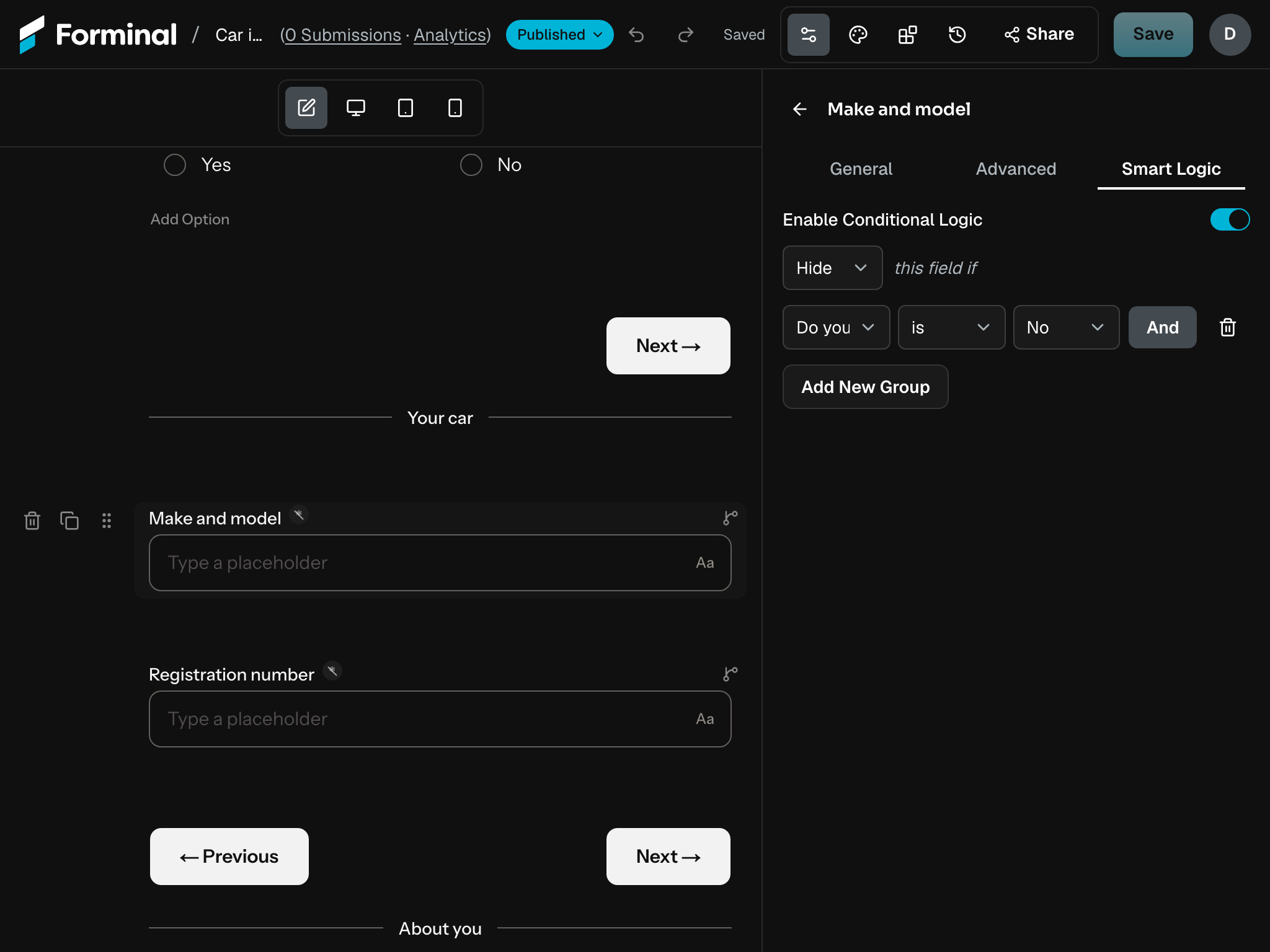
- Preview the form and give that answer. Next goes straight past the page, and the progress indicator leaves it out of the count.
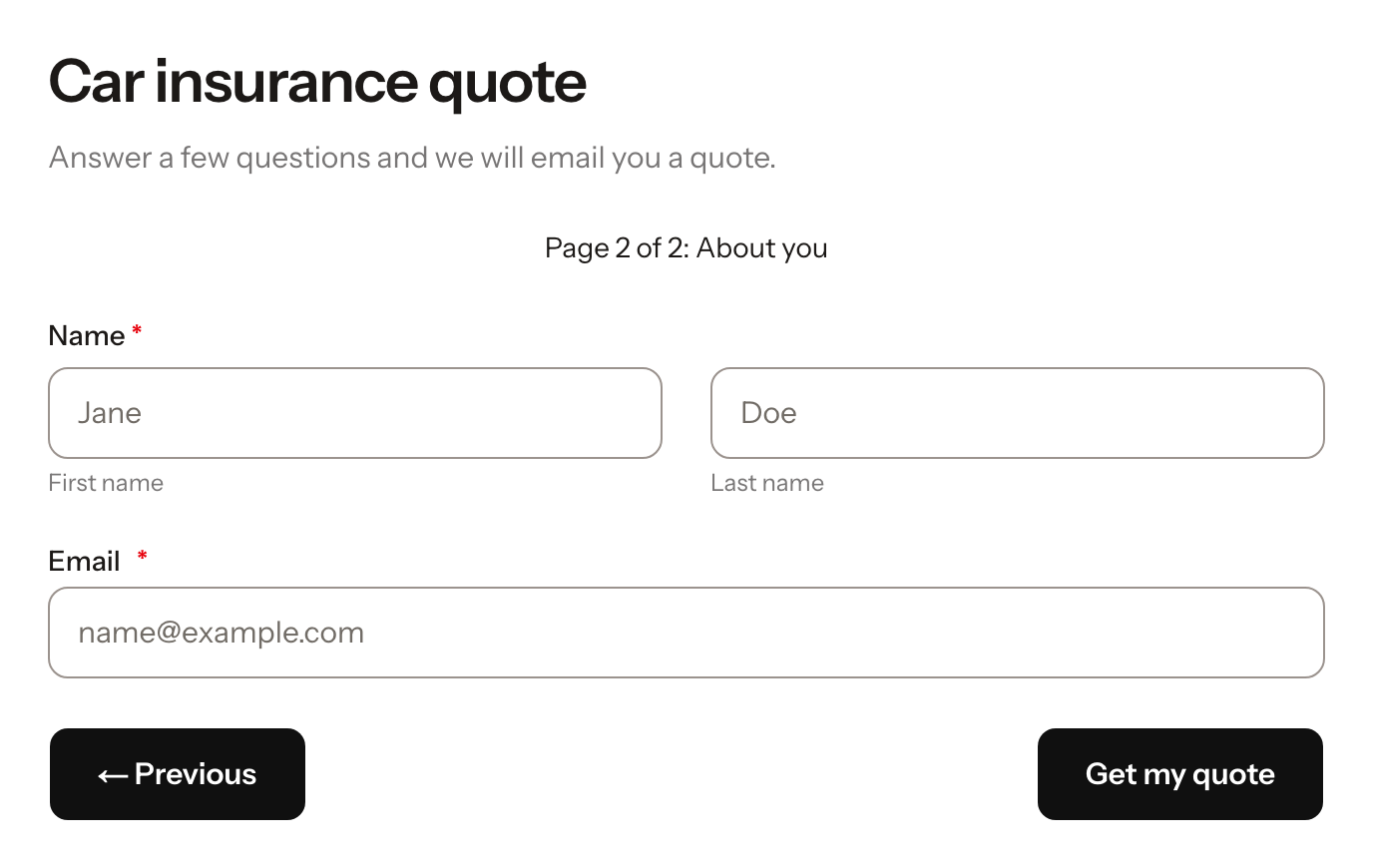
If a later answer makes a required field appear on a page someone already passed, submitting takes them back to that page.
Good to know
- A hidden field isn’t required, even when you marked it Required, and its answer is left out of the submission. The server checks the same rules when the form is sent.
- A rule that isn’t finished, with no field or no value picked, is ignored.
- A field can have up to 10 groups, each with up to 10 rules.
- Ranking, Payment and Content blocks can’t be used in a rule, and a field can’t use itself.
- Notifications and confirmations can use the same kind of rules. See Get an email for each submission.
- Smart Logic works on every plan. See the Smart Logic page for every rule each field offers.
Frequently asked questions
Is the answer to a hidden question saved?
No. When Smart Logic hides a field, its answer is left out of the submission and the field isn’t required. The server checks the same rules when the form is sent.
Can I use a value from the form’s link in a rule?
Yes. A hidden field filled from the link works like a Short Text field in Smart Logic. Its value is there from the start, so the rule applies before the visitor types anything.
Can I change the thank-you message based on someone’s answers?
Confirmations and notifications use the same kind of rules as fields, so different answers can lead to different messages or emails.
Can a rule check the result of a calculation?
Smart Logic can show or hide fields based on a calculated field, for example a discount note when the total is greater than 100. See Calculations.
Why isn’t my Smart Logic rule working?
Check that every rule has a field and a value picked, because an unfinished rule is ignored. Rules in one group must all match, while any one matching group triggers the action. Ranking, Payment and Content blocks can’t be used in a rule.
How many rules can one field have?
Up to 10 groups, each with up to 10 rules. Smart Logic works on every plan.