Add page breaks and a long form becomes a series of shorter pages. People move through them with Next and Previous buttons, and a progress indicator shows how far along they are. Use it when a form has enough questions to feel like a wall on one screen.
For a long form, Save and Resume lets people leave on one page and come back to it later.
Examples
- A loan application split into short steps: personal details, income, then documents.
- An onboarding survey with one topic per page.
- An order form where the payment sits alone on the last page, after the choices are made.
Split a form into pages
- Where you want a new page to start, select Add Field » Page Break. It is under Layout.
- Everything above the break is one page, and everything below it is the next. Add more breaks for more pages.
- On the canvas, type a title into the line where each page starts, and click a Next or Previous button to change its text.
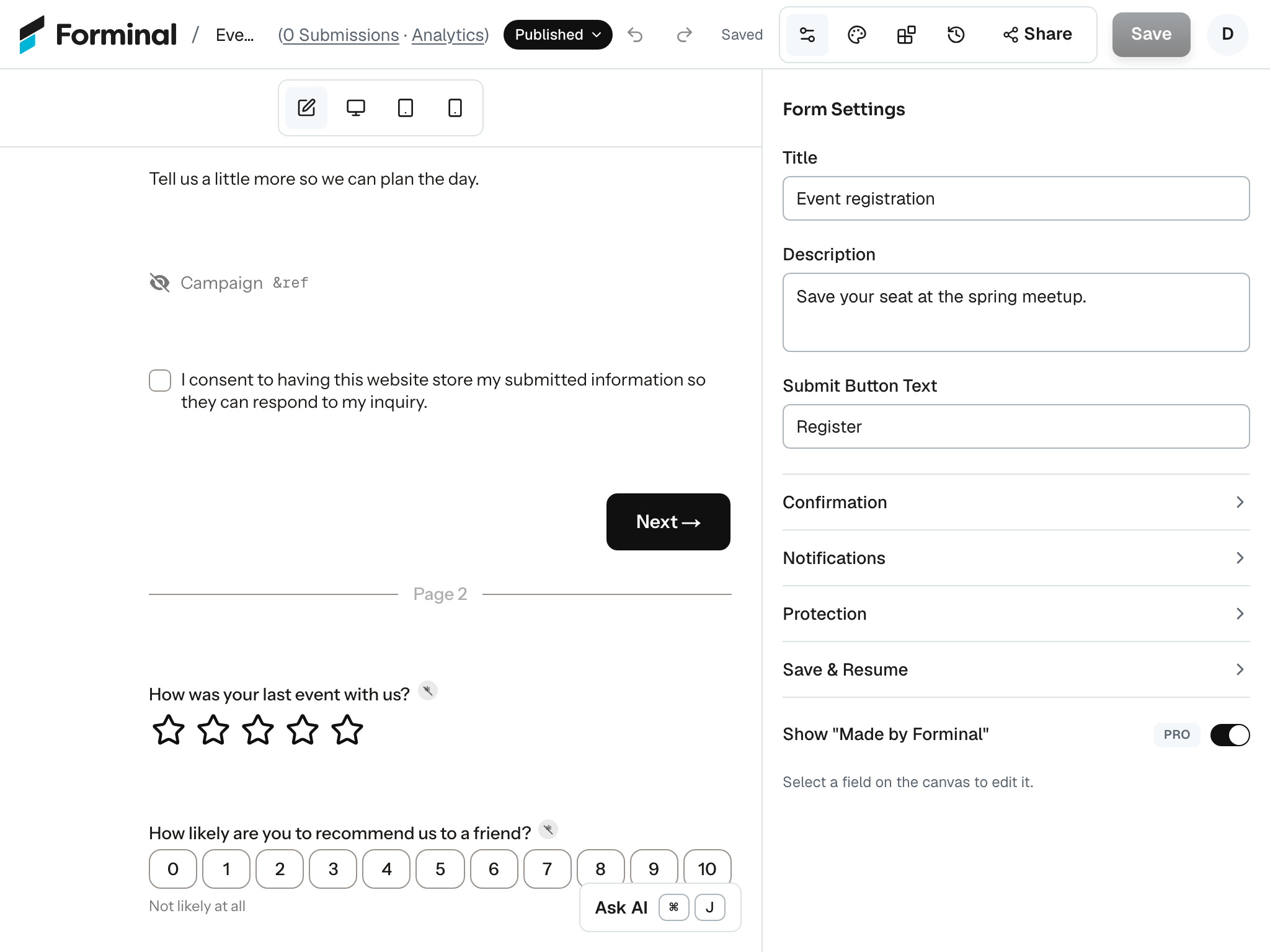
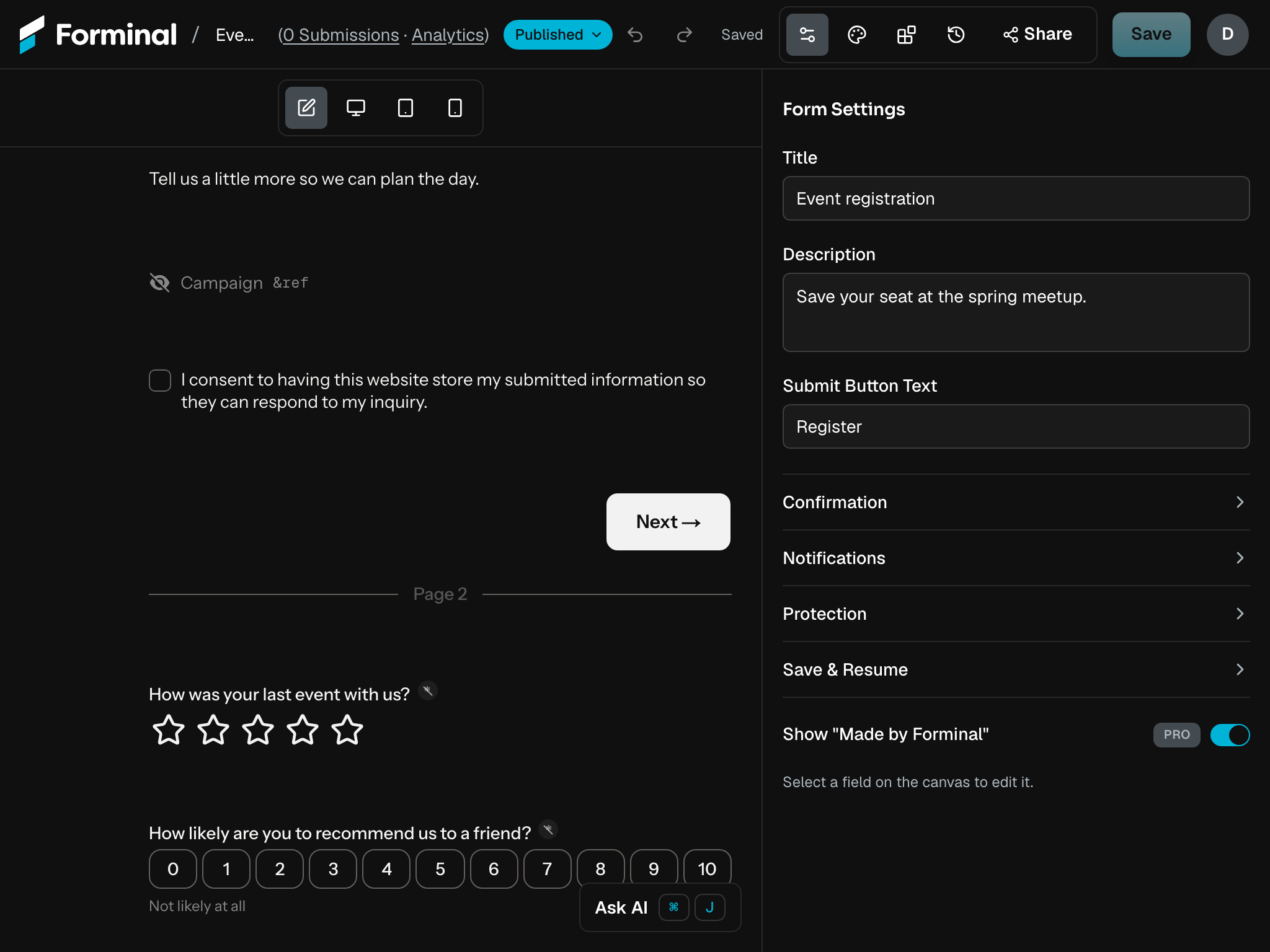
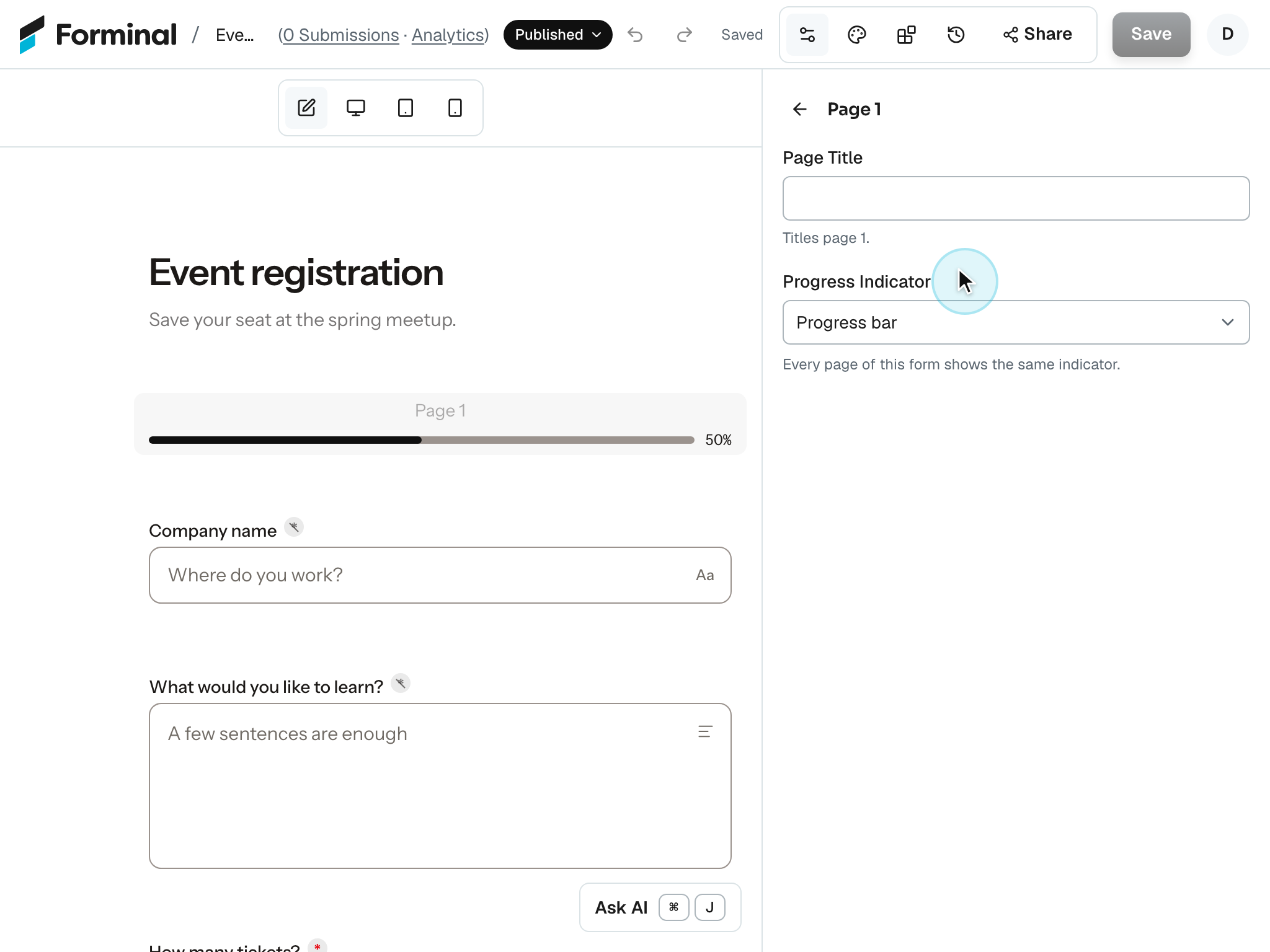
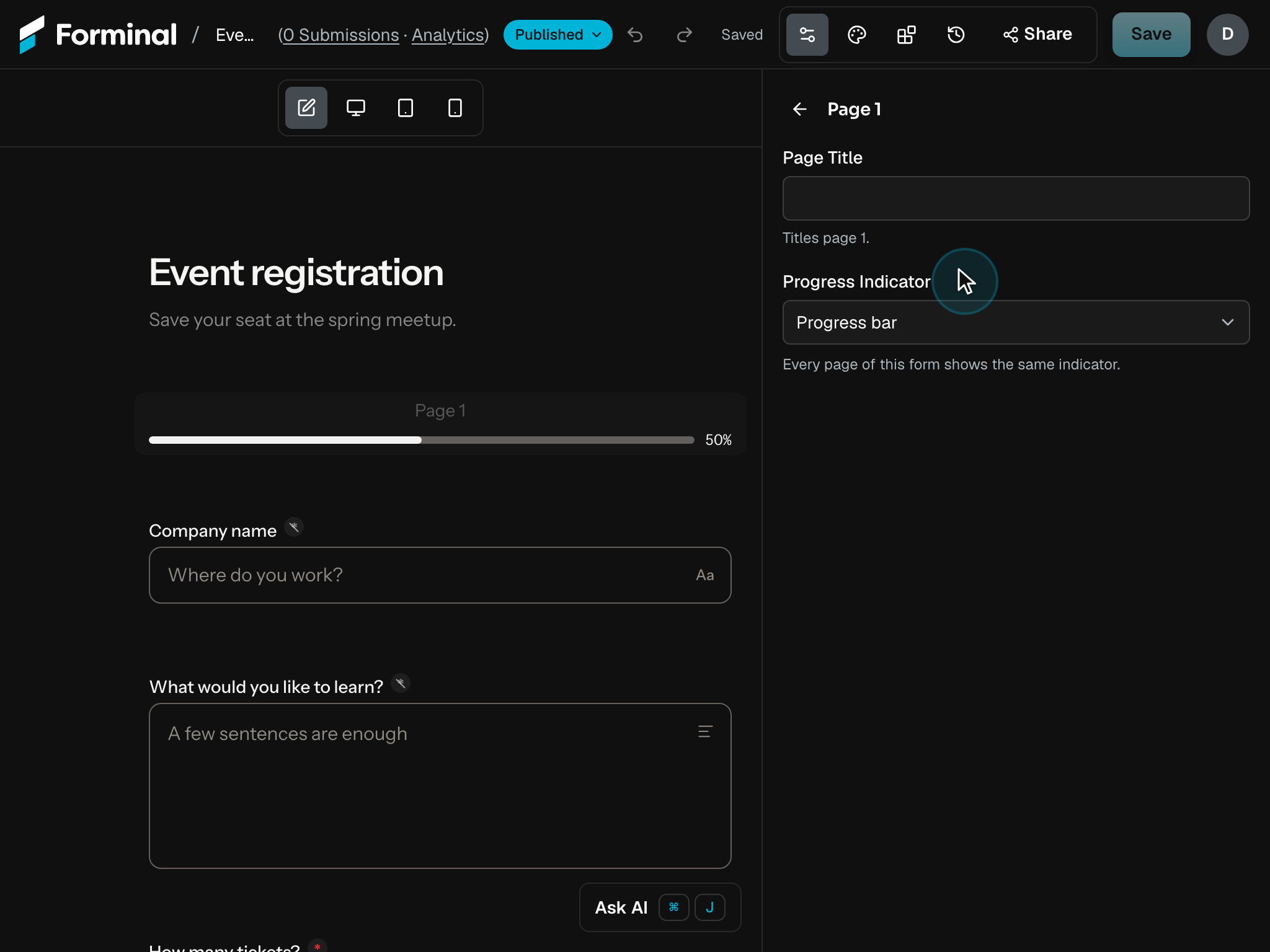
- Select a page break, or the first page’s title line, to open its settings and choose the Progress Indicator.
Settings
Page Break
- Page Title: the title of the page this break opens. You can pipe earlier answers into it, such as “Almost done, @Name”.
- Next Button Text: the button that ends the page above the break. Left empty, it reads “Next →”.
- Previous Button Text: the back button on the page above the break. Left empty, it reads “← Previous”. The first page has no back button, so its break has no Previous to set.
- Progress Indicator: the same choice as on the first page. It applies to the whole form.
First and last page
The first page has its own Page Title and the Progress Indicator. The last page ends with the submit button instead of a break. Click its Previous button, beside the submit button on the canvas, to set its Previous Button Text and the Submit Button Text.
Progress Indicator
- Progress bar, the default: the page title above a bar with a percentage. On page 1 of 4 it shows 25%.
- Pages: a line such as “Page 2 of 4: Your income”.
- None: no indicator and no page titles.
What people see
The form shows one page at a time. Next checks the answers on the current page first, so a required question left empty keeps people on that page with its error showing. Pressing Enter in a field works like Next. Previous goes back without checking anything, and answers stay filled in. After each step the form scrolls back to its top.
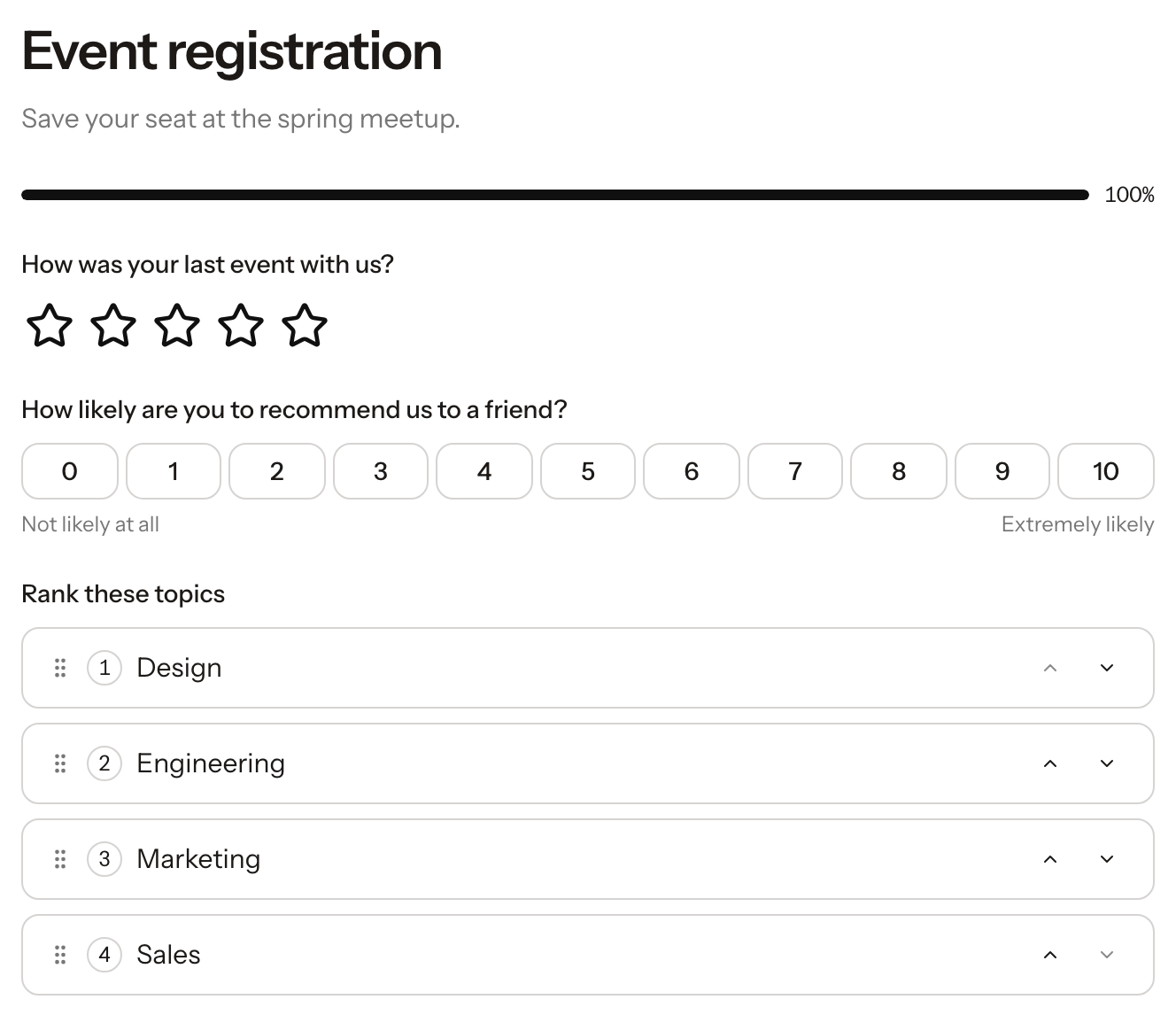
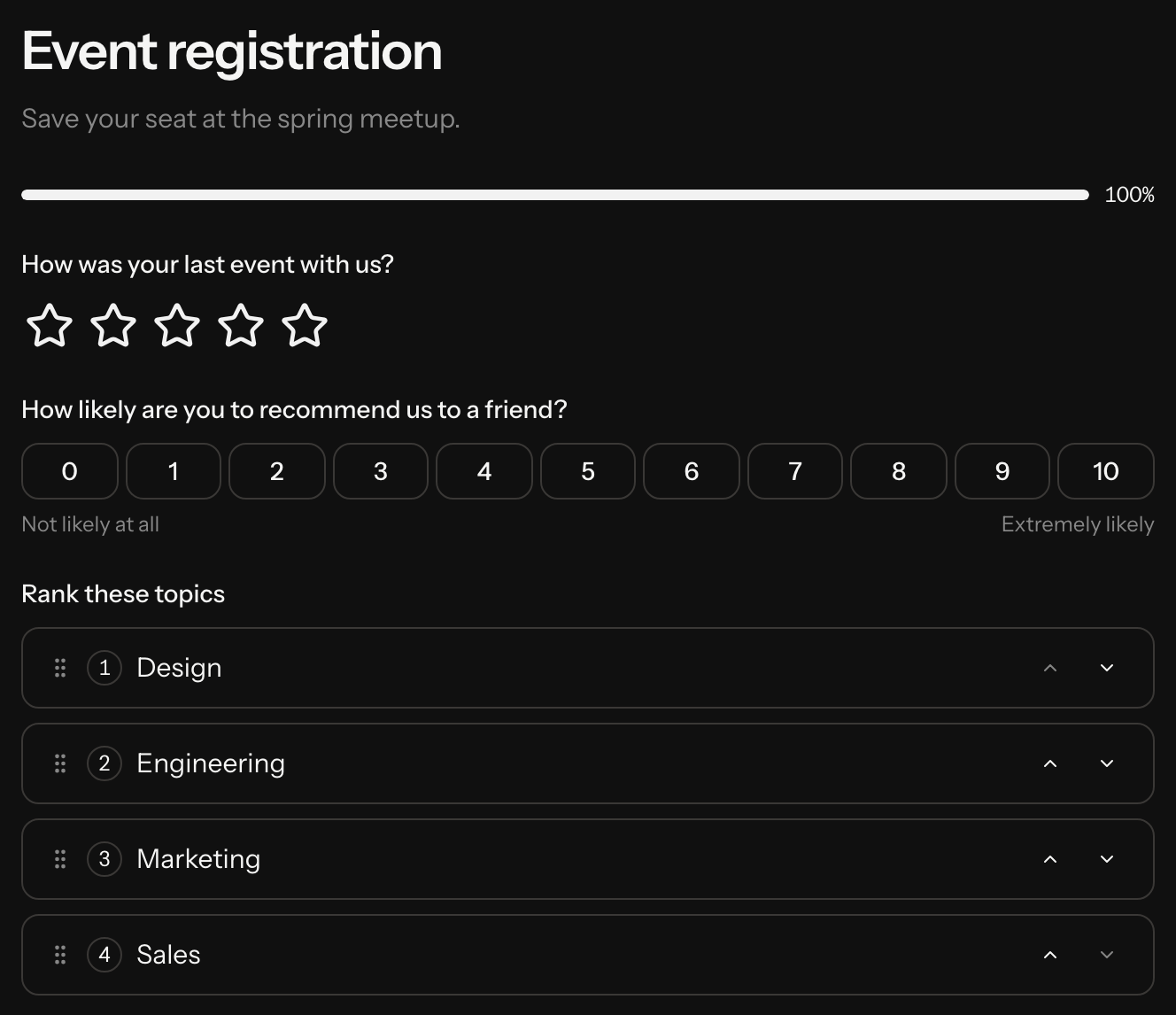
With Smart Logic, a page where every field is hidden is skipped, and the indicator counts only the pages a person can reach. If a later answer makes a required field appear on a page they already passed, submitting takes them back to that page. Answers from earlier pages can be piped into later ones.
Nothing is saved until the last page is submitted, so the submission holds every answer at once, the same as a one-page form. Page breaks don’t appear in submissions or exports.
Good to know
Page breaks count toward the 50 fields a form can hold. Button text can be up to 50 characters and a page title up to 200. A payment field has to be on the last page, so a page break can’t come after it. A CAPTCHA, when turned on, shows on the last page. If a person leaves partway through, their answers aren’t kept. The indicator is hidden when a person can reach only one page.
Frequently asked questions
Are answers saved if someone leaves partway through?
No. Nothing is saved until the last page is submitted, so a person who leaves early loses what they typed.
Is there a limit on how many pages a form can have?
Page breaks count toward the 50 fields a form can hold, so pages and questions share that limit.
Where does the CAPTCHA show on a multi-page form?
When a CAPTCHA is turned on, it shows on the last page, where people submit the form.
Can people go back without filling in a required field?
Previous goes back without checking anything. Next checks the current page first, so a required question left empty keeps people there with its error showing.
Are multi-page forms included on the free plan?
Yes. Multi-page forms are part of every plan, Lite included.