File Upload lets people attach files to their answers. They are kept in your Media Library, in a folder for the form.
You can send a form’s files to a folder in your own Google Drive instead.
Examples
- A job application that asks for a CV as a pdf or docx.
- An insurance claim form asking for up to five photos of the damage, images only.
Add it to a form
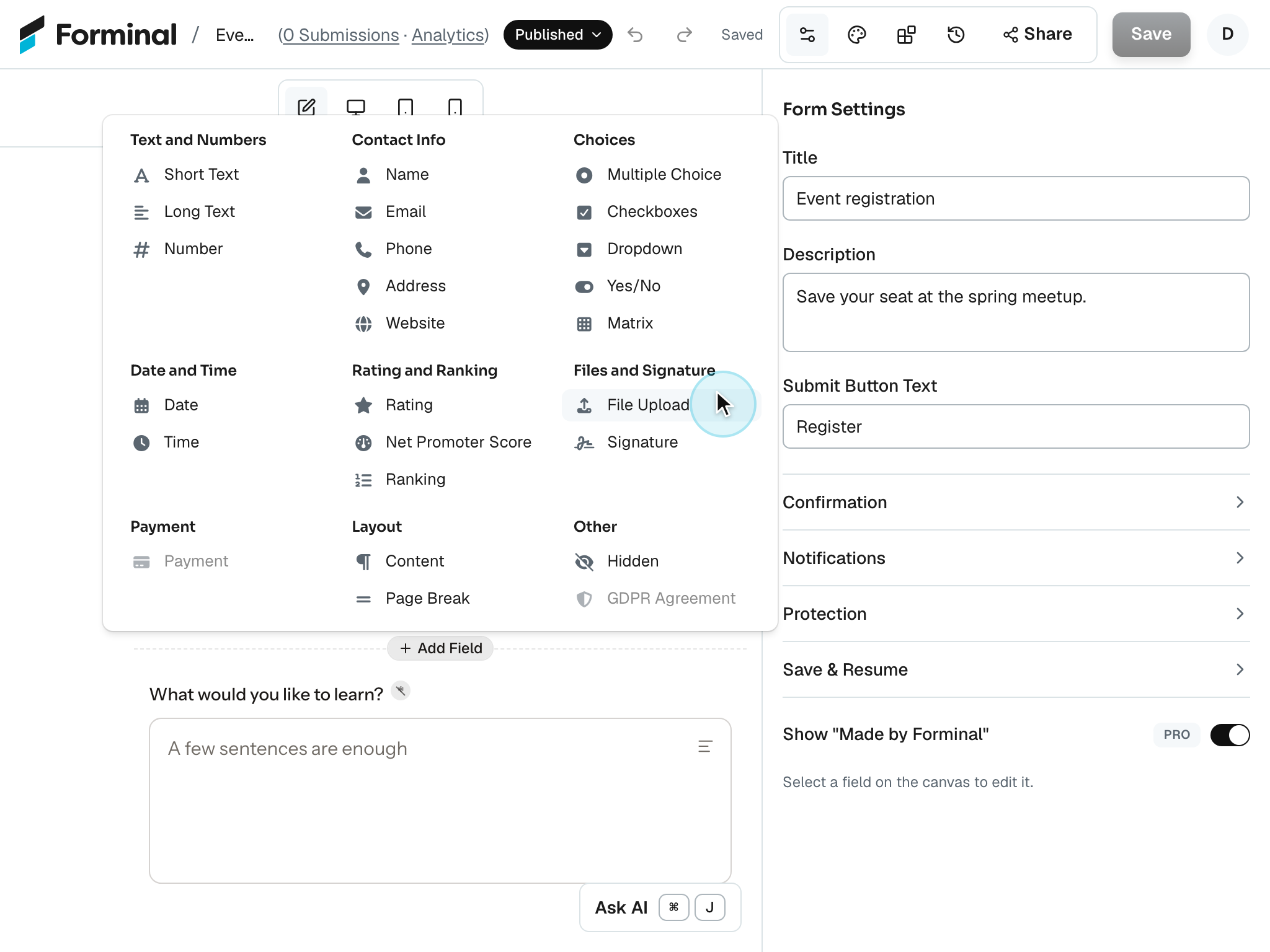
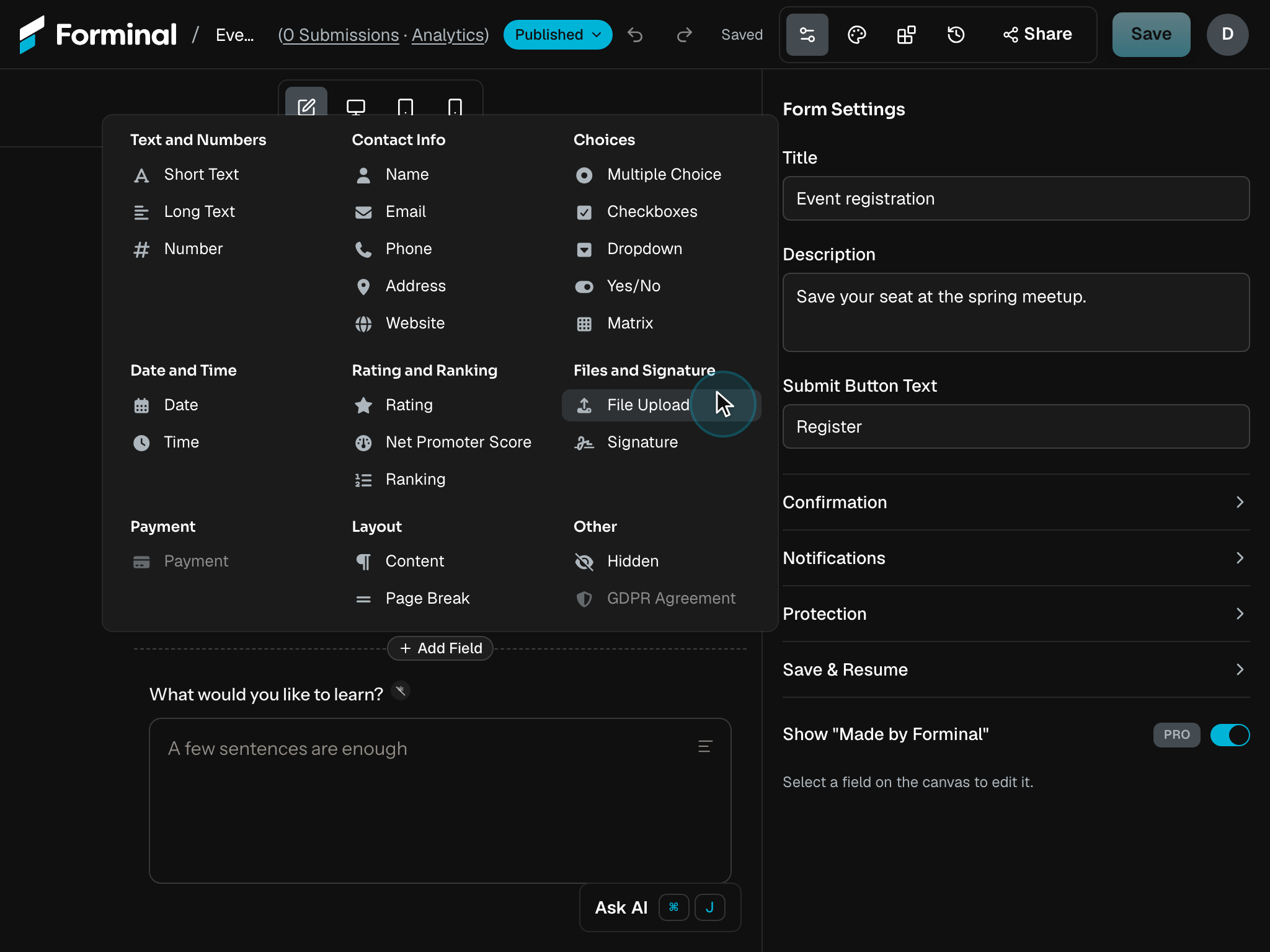
- In the builder, select Add Field and choose File Upload under Files and Signature. On an empty form, select Start from Scratch instead of Add Field. It starts with the label “Upload a file”.
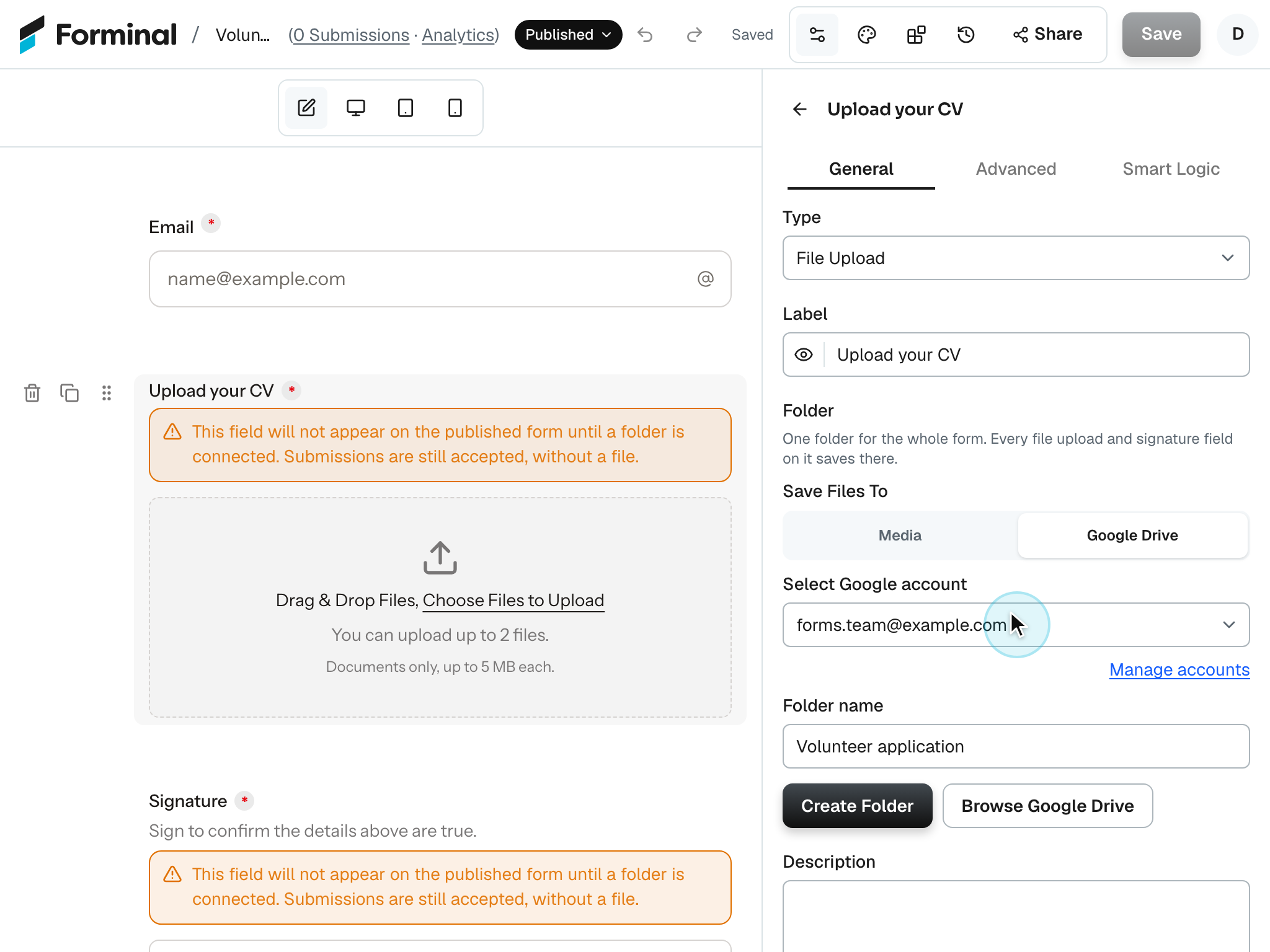
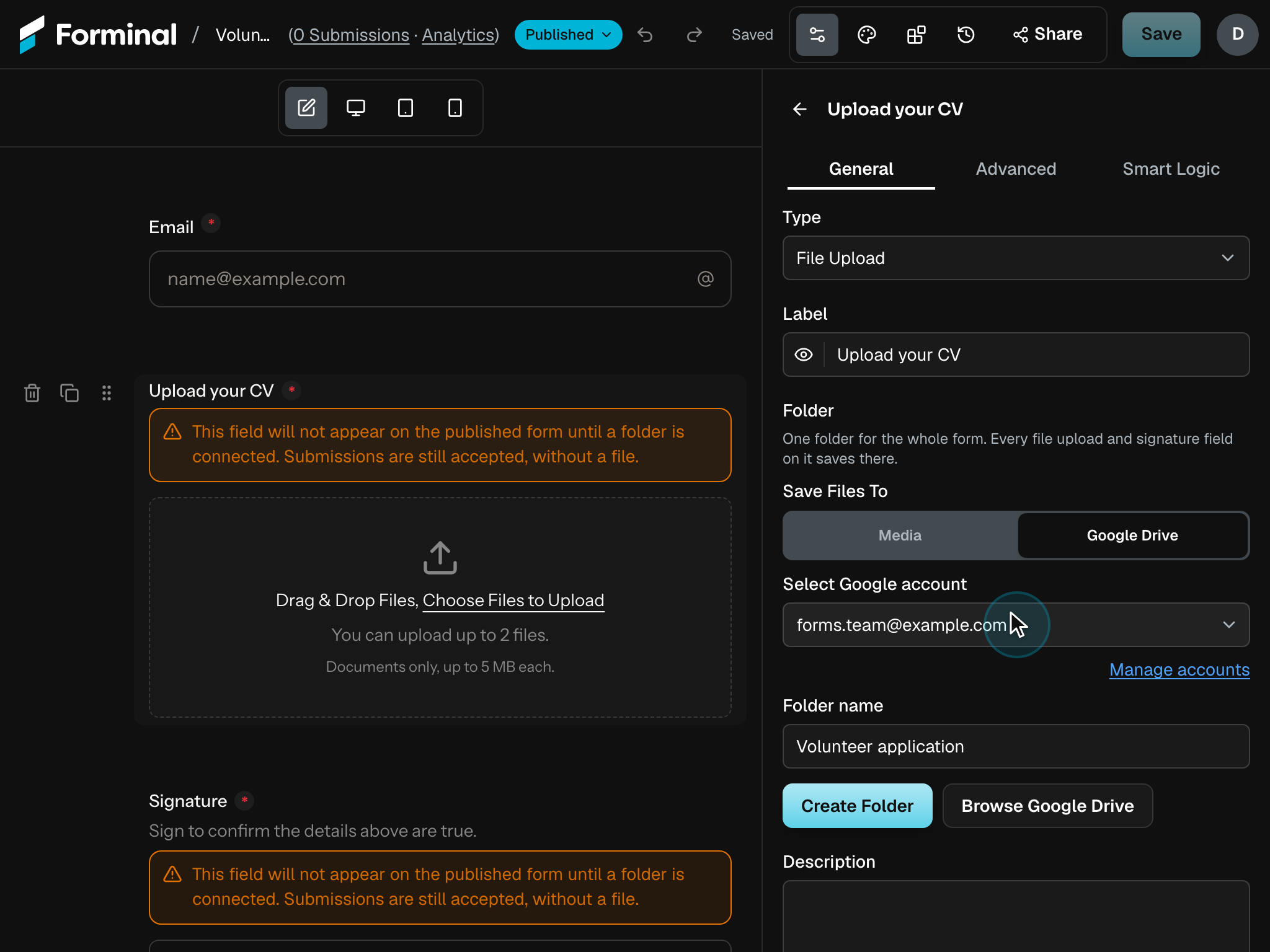
- On the General tab, find Folder. Save Files To starts on Media, which keeps the files in your media library, and the field works as soon as you publish.
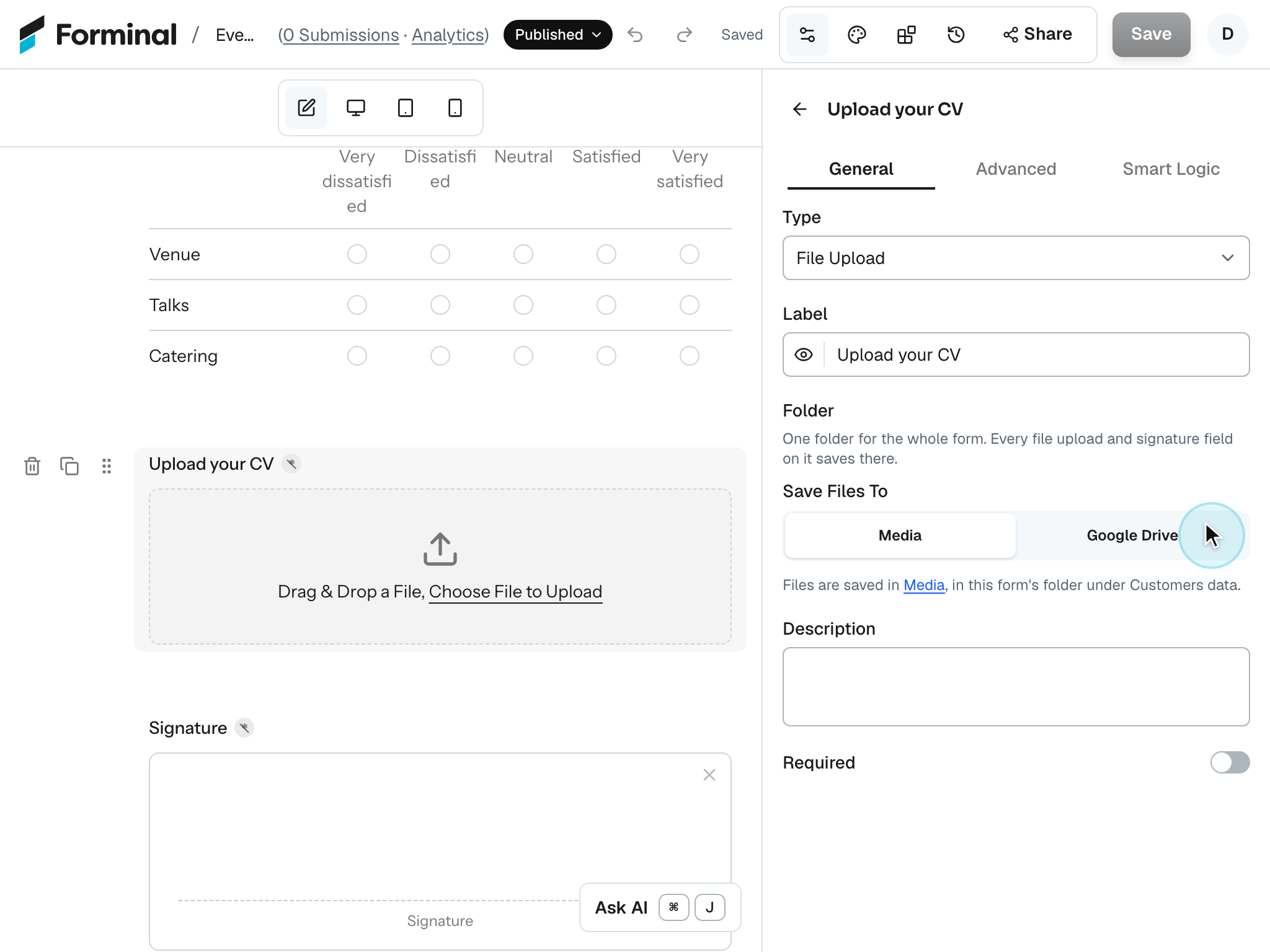
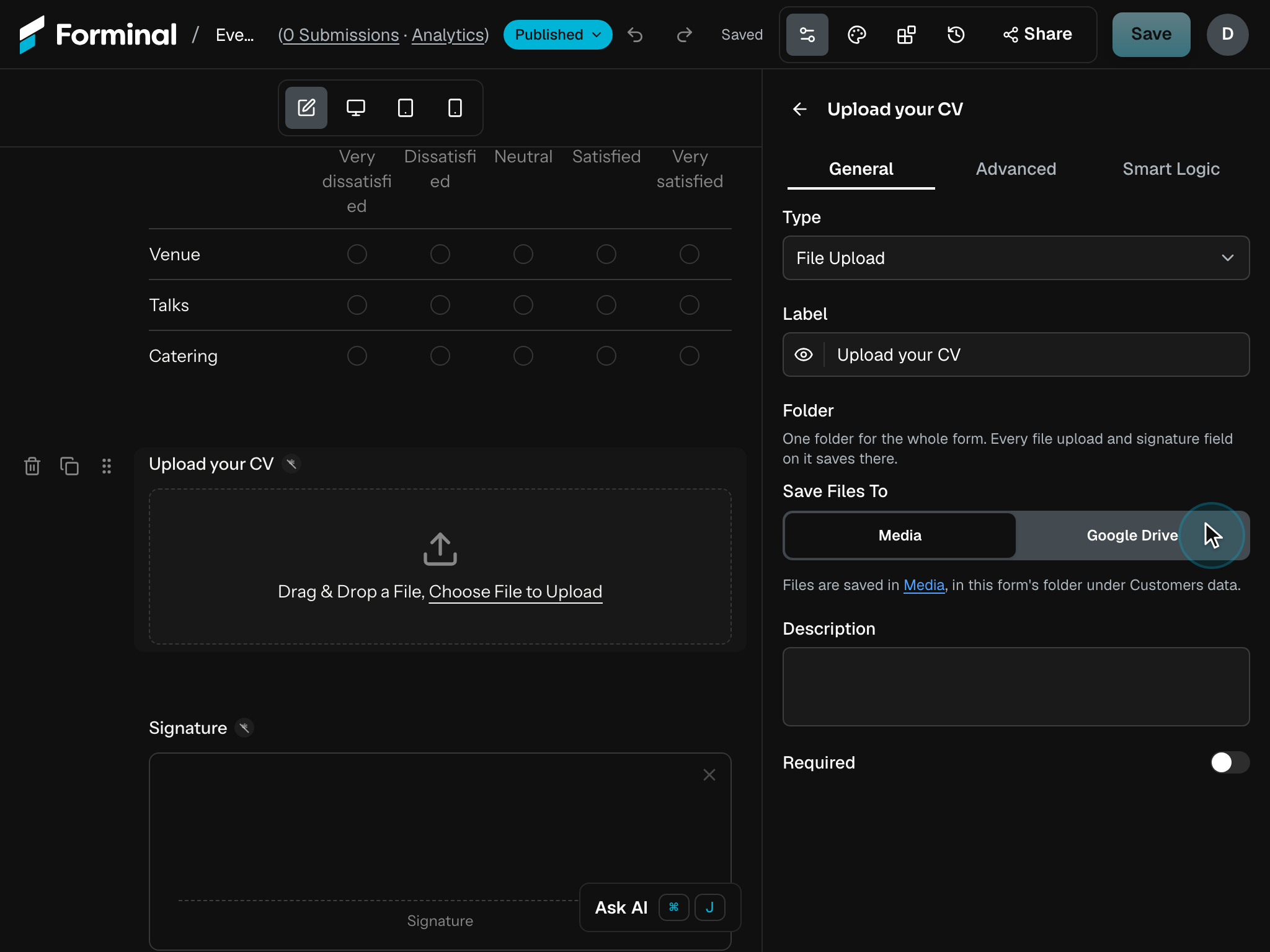
To send the files to Drive instead, select Google Drive. If no Google account is connected yet, select Manage accounts and connect one on the Integrations page. Then choose the account under Select Google account, and either type a Folder name (it starts as your form’s title) and select Create Folder, or select Browse Google Drive to use a folder you already have.
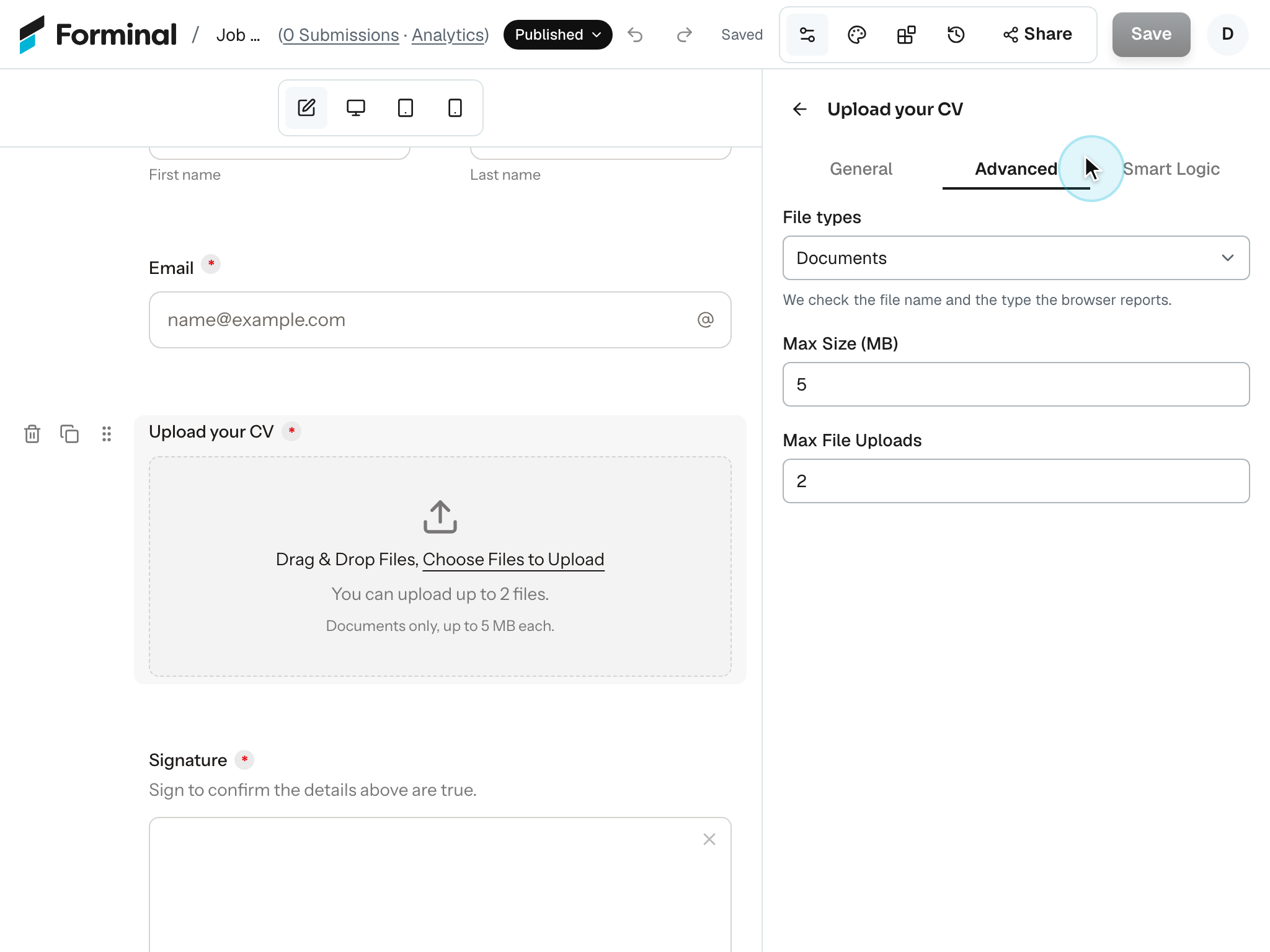
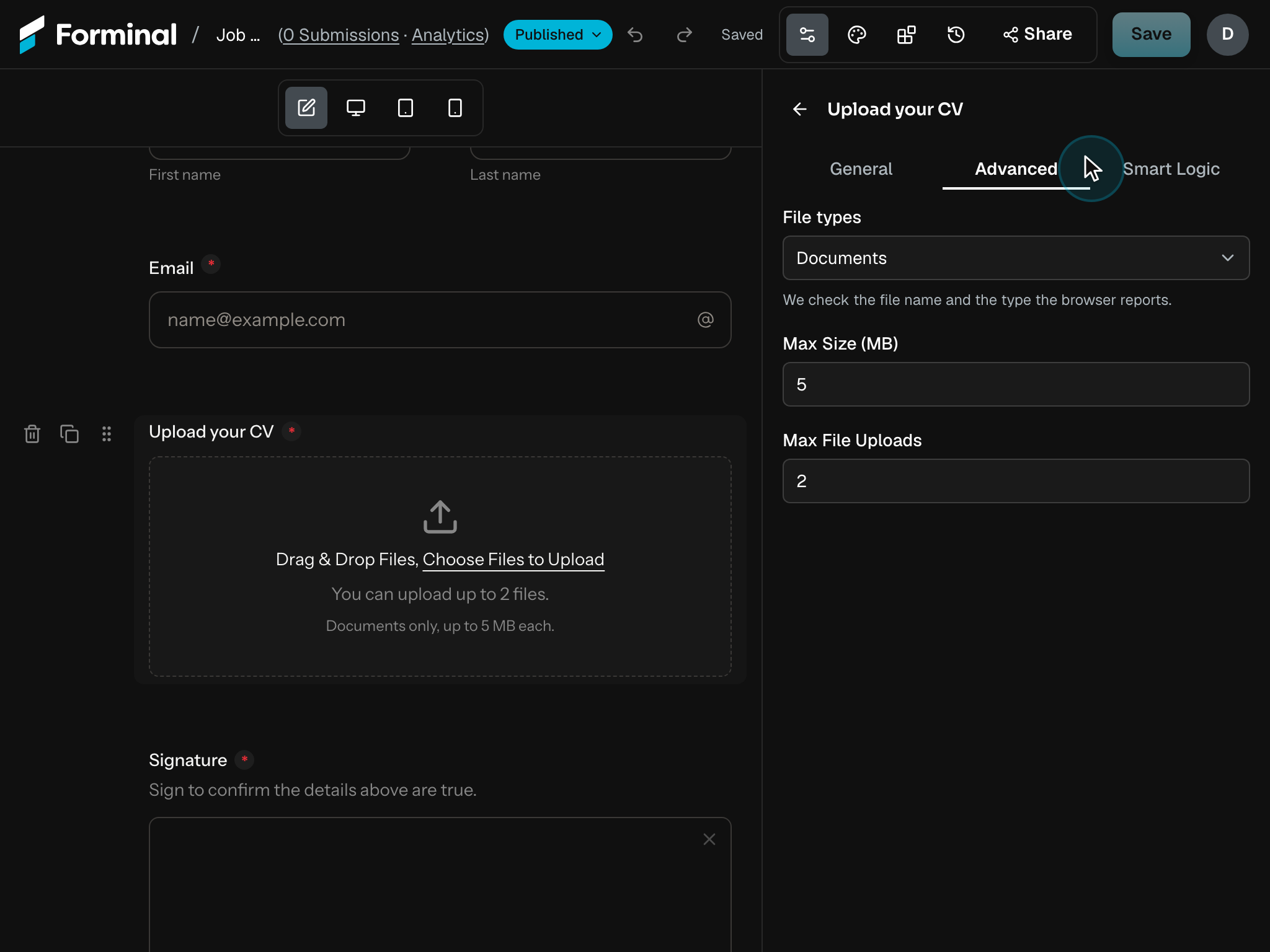
- Set the file rules on the Advanced tab, and turn on Required on the General tab if a file is a must.
With Google Drive picked, the field stays off the published form until a folder is saved, and again whenever Google access to the folder’s account runs out. The canvas shows a warning on the field until you fix it. The form still takes submissions then, just without files.
A form made without an account can’t collect files until it’s in your account.
File rules
- File types: Any file, Images (jpg, jpeg, png, gif, webp) or Documents (pdf, doc, docx, xls, xlsx, ppt, pptx, txt, csv). The check goes by the file’s extension, and by the type the browser reports when a file has no extension.
- Max Size (MB): from 1 to 10 for each file. It starts at 10.
- Max File Uploads: from 1 to 10 files in the field. Above 1, people can pick several files at once.
Where the files go
A form keeps its files in one place, the one picked under Save Files To, and every File Upload and Signature field on it saves there.
On a form where you never changed Save Files To, files go to Google Drive when a folder is saved, and to Media otherwise.
File names are cleaned up on the way: unusual characters become dashes, and two files with the same name in one submission get numbered, like “photo-2.jpg”. Files that were uploaded but never submitted are cleared after 24 hours.
In your media library
With Media picked, files stay in Forminal, encrypted on our servers. Open Media » Customers Data to find them, one folder per form, named after the form’s current title. They count toward your media library’s storage and stay until you delete the file, its submission or its form. See Media Library for the storage limits and what happens when it’s full.
In Google Drive
Inside the Drive folder, each submission gets its own folder named after the submission ID. Submissions caught as spam go into a folder called “spam” instead, and if you mark a submission as spam (or not spam) later, its folder moves with it. Files are held on our servers only until they’re copied to your Drive, then removed. To switch folders, select Change next to the folder name. Saving a folder again, even the same one, retries any upload that stopped.
Switching a form to Media keeps its Drive folder saved, so you can switch back later, and files still waiting to be copied to Drive move to your media library. If you turn the folder off on the Integrations tab, new files go to your media library until you turn it back on, and so do files still waiting. If you delete the folder or remove its Google account, the field is left off the published form until you save another folder or pick Media. On a form where you never changed Save Files To, files go to Media instead.
What people see
A dashed box reads “Drag & Drop a File, Choose File to Upload”, or “Files” when the field takes more than one. Under it are the limits you set, for example “You can upload up to 5 files.” and “Images only, up to 5 MB each.” Each file starts uploading as soon as it’s picked and shows “Uploading…” until it’s done. People can remove a file, or retry one that failed.


Files that break a rule are stopped with “File is too large”, “This file type is not allowed” or “You can add up to 5 files”. A required field left empty shows “Add a file”.
How answers show in submissions
The submissions table lists the file names. Open a submission and each name links to the file, with its size. A file in your media library opens in Forminal, and only for someone signed in with access to the form’s submissions. The CSV export and notification emails give the same links. In Smart Logic, a File Upload can be a condition with “empty” or “not empty”.
A file in Drive opens in your Drive instead, and a file still on its way there says “Uploading to Drive”.
Good to know
Only the form’s owner can change Save Files To or the folder in the field’s settings; workspace members see a note that the owner manages it. Deleting a submission deletes the files kept in your media library with it. As the form’s owner, you can also remove or add files later by editing the submission. One address can upload up to 30 files a minute to a form. The field has no default answer.
The AI assistant in the builder can switch Save Files To between Media and Google Drive too.
Files already in your Drive stay there when you delete the submission, even if you also remove the Google Drive connection.
Frequently asked questions
Where are uploaded files stored?
In your media library, on the Customers Data tab, in a folder named after the form. Save Files To, in the field’s Folder setting, starts on Media. See Media Library.
Do I need a Google account to accept file uploads?
No. Save Files To starts on Media, so files are kept in your media library and the field works as soon as the form is published. You only need a Google account to send them to a Google Drive folder instead, where each submission gets its own subfolder.
How big can uploaded files be, and how many can people add?
Each file can be up to 10 MB, and a field can take up to 10 files. You can set lower limits on the Advanced tab.
Can I accept only images or only documents?
Set File types to Images (jpg, jpeg, png, gif, webp) or Documents (pdf, doc, docx, xls, xlsx, ppt, pptx, txt, csv). The check goes by the file’s extension.
What happens to the files if I delete a submission?
Files kept in your media library are deleted with the submission, or with the whole form if you delete that.
Can teammates change the upload folder?
No. Only the form’s owner can change Save Files To or the folder in the field’s settings.