Payment takes money as part of the form. People pay when they submit, and the money goes into your own Stripe account. The amount can be fixed, or it can add up from the answers people give.
Examples
- A workshop registration where each ticket type in a dropdown has its own price.
- A monthly membership billed on a recurring schedule.
- A donation form where people type the amount they want to give into a Number field.
Set it up
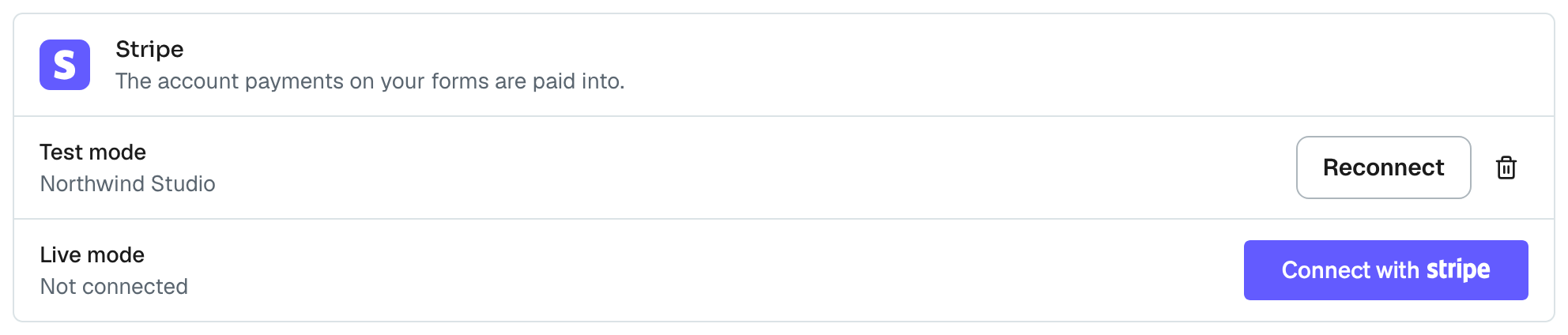
- Connect Stripe on the Integrations page of your account: open Account menu » Integrations. The Stripe section has a row for Test mode and a row for Live mode, and you select Connect with Stripe on each one you want to use. See Stripe.
- Add an Email field to the form. The payment is billed to that address, and the form can’t be published without one.
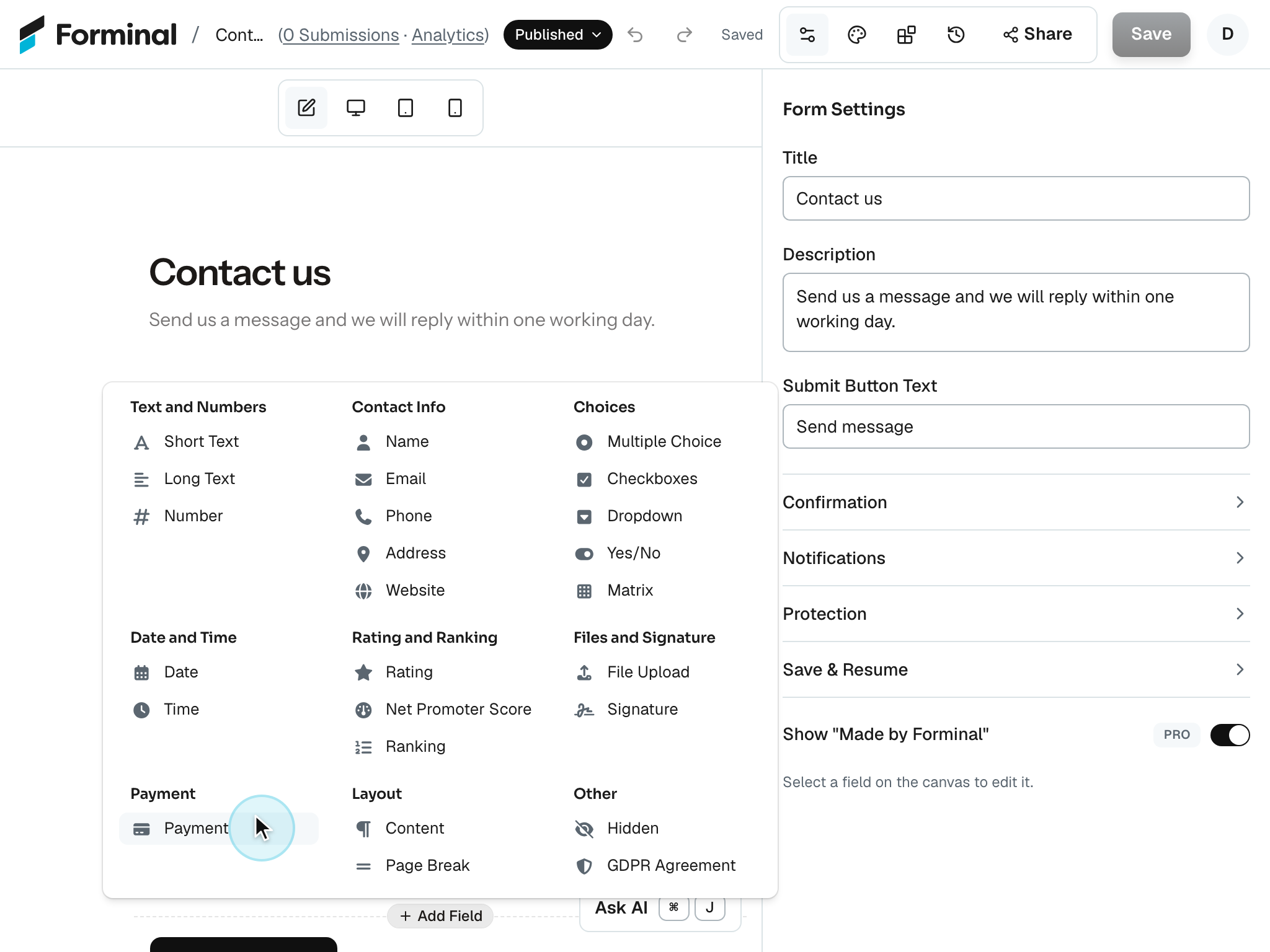
- Select Add Field and choose Payment. On an empty form, select Start from Scratch instead of Add Field. It starts in test mode, charging 10.00 USD once.
- Set the amount, currency and billing on the General tab, and the payment methods on the Advanced tab.
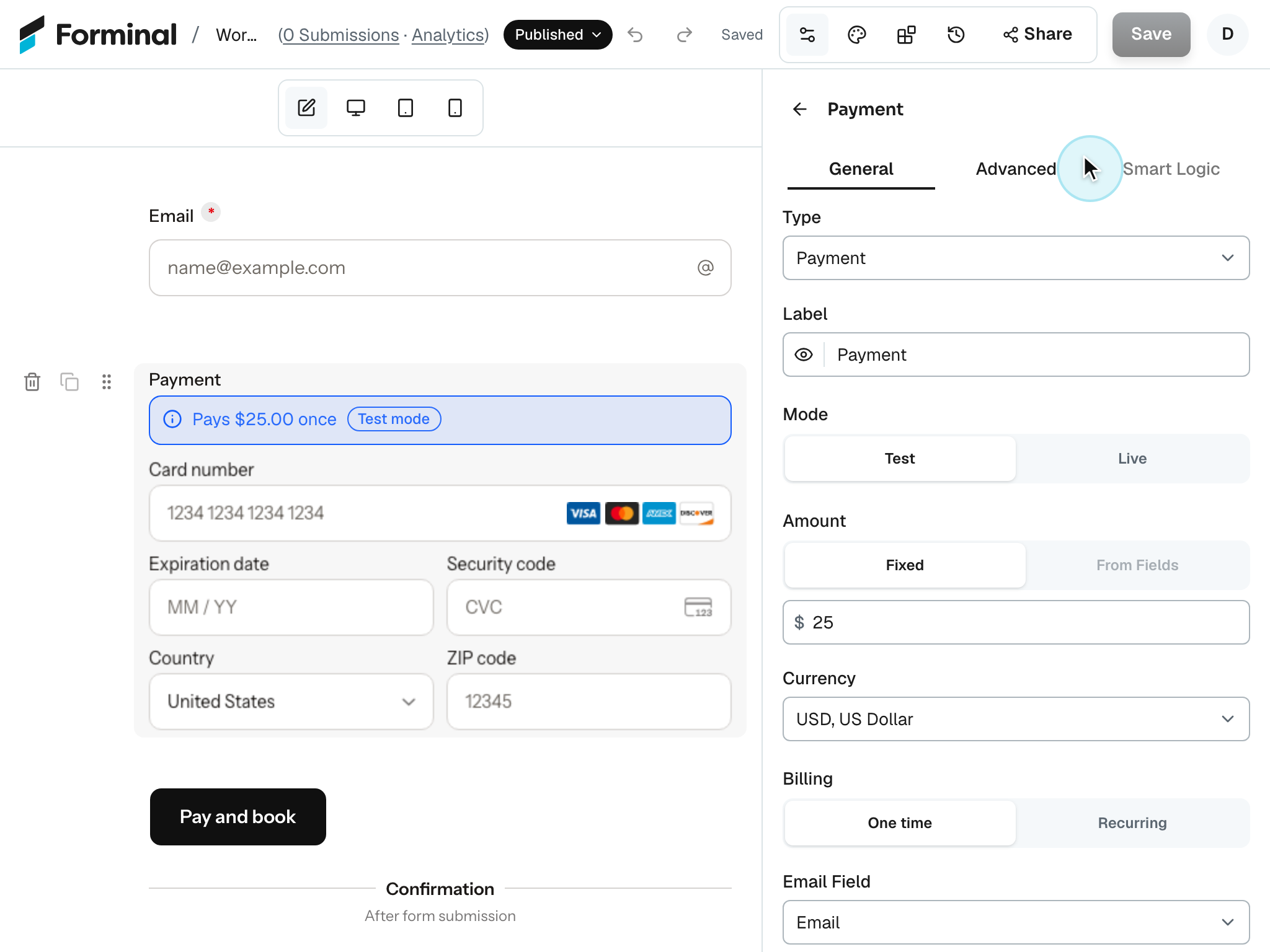
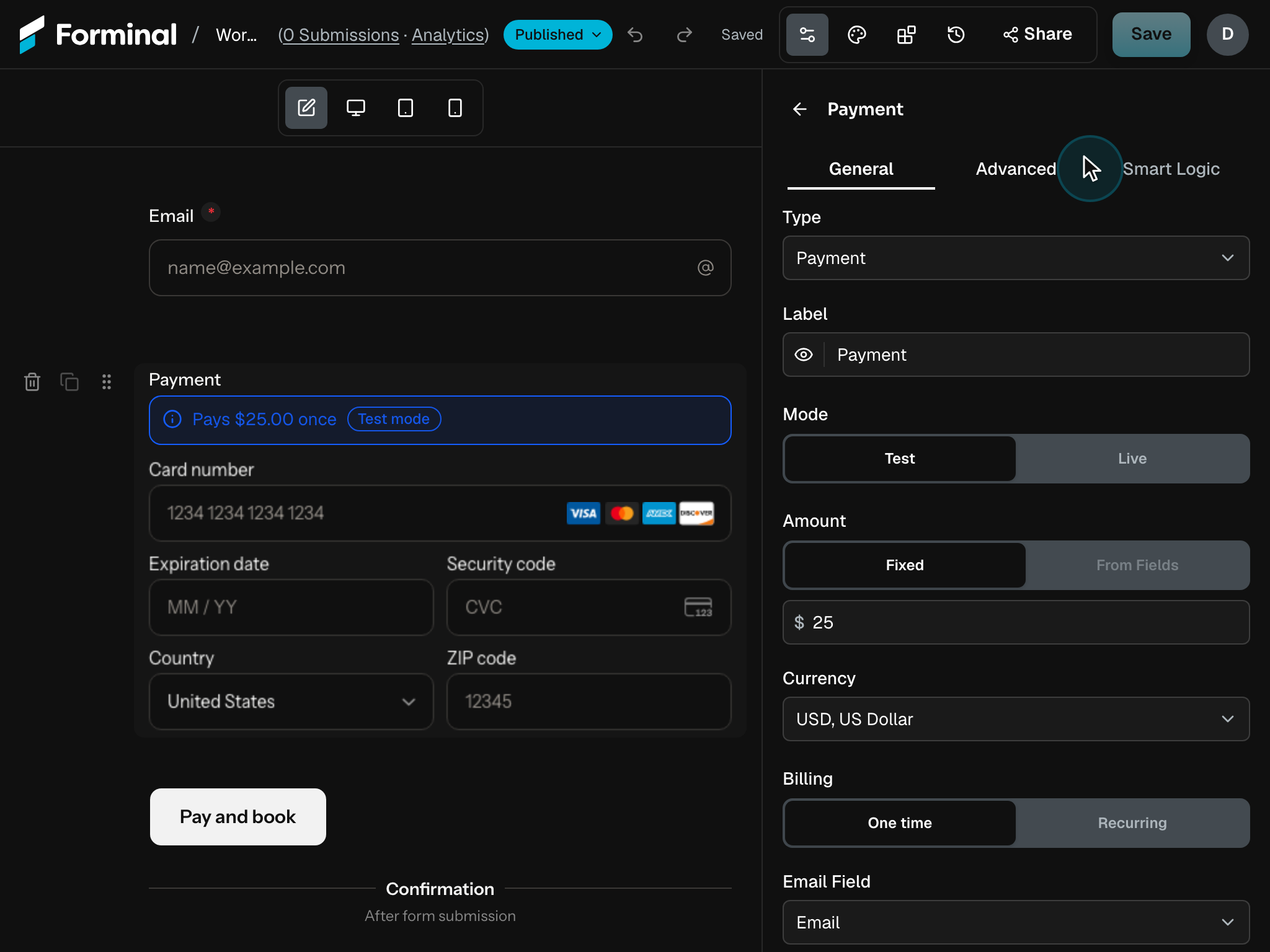
- Try the form in test mode with one of Stripe’s test cards. When it works, switch Mode to Live and publish.
Settings
General tab
- Mode: Test or Live. Each mode uses the Stripe account you connected for it. If that mode has no account yet, a Manage accounts link appears here.
- Amount: Fixed charges the same amount every time. From Fields adds up the fields you pick under Amount Fields: the number typed into a Number field and the price of each option chosen in Multiple Choice, Checkboxes or a Dropdown. You can only pick From Fields once the form has one of those fields.
- Currency: any currency Stripe supports. If you change it, the amounts on the form are rounded to fit the new currency.
- Billing: One time, or Recurring. For Recurring, set Every and Interval (day, week, month or year). The longest gap between billings is 365 days, 156 weeks, 36 months or 3 years.
- Email Field: which Email field the payment bills to when the form has more than one. Stripe sends the receipt to that address, so the payment box never asks for an email itself. That Email field is always required.
Prices on other fields
Once a form has a Payment field, Number and choice fields get Add to Payment Amount on their Advanced tab. It does the same as picking them under Amount Fields. A choice field then gets a price box next to each option, and Show Price After Item Labels prints the price after each option, like “Premium – $49.00”. For a total that multiplies or applies a discount, work it out in a Number field with Calculations and use that field as the payment amount.
Payment Methods
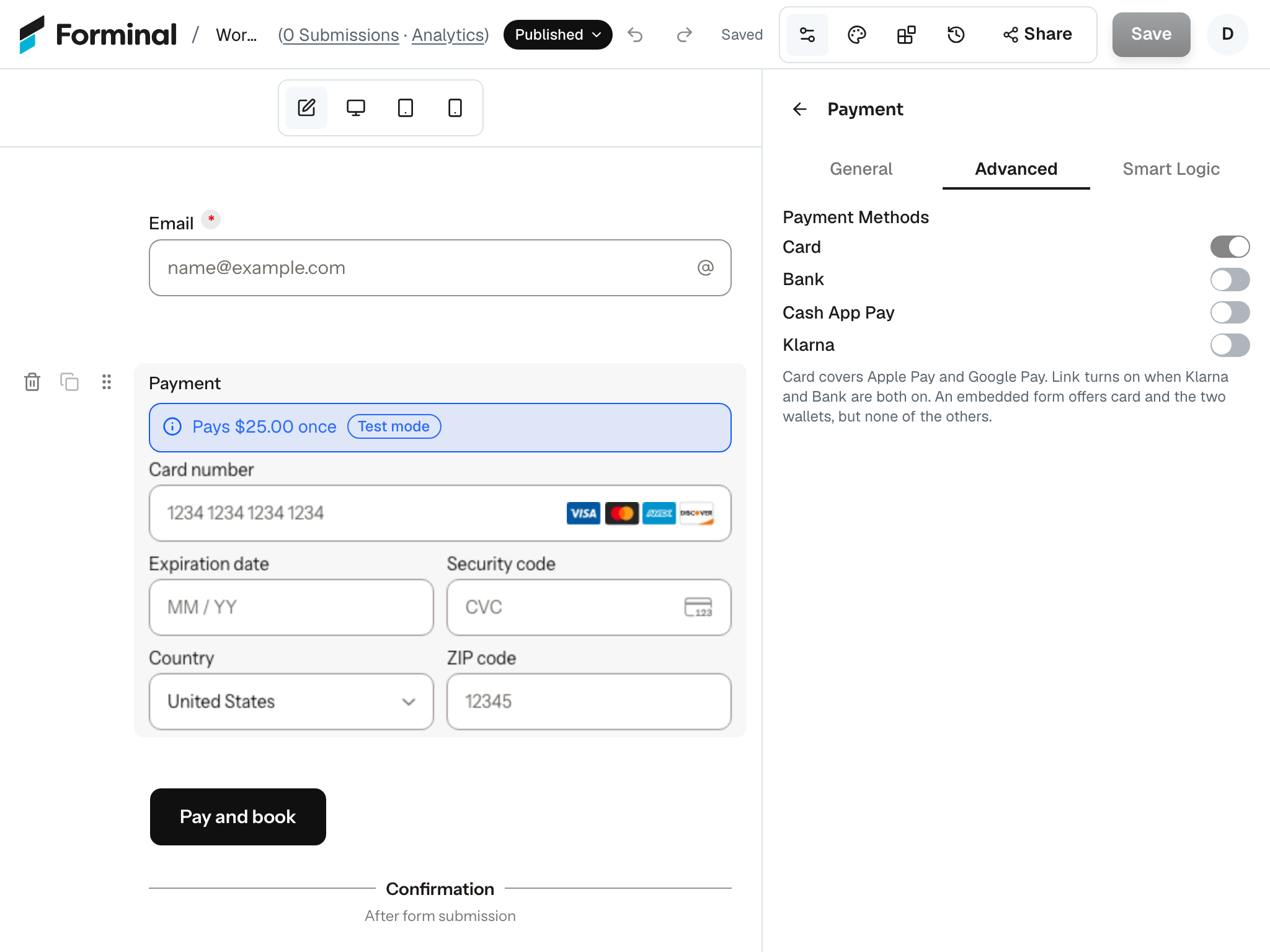
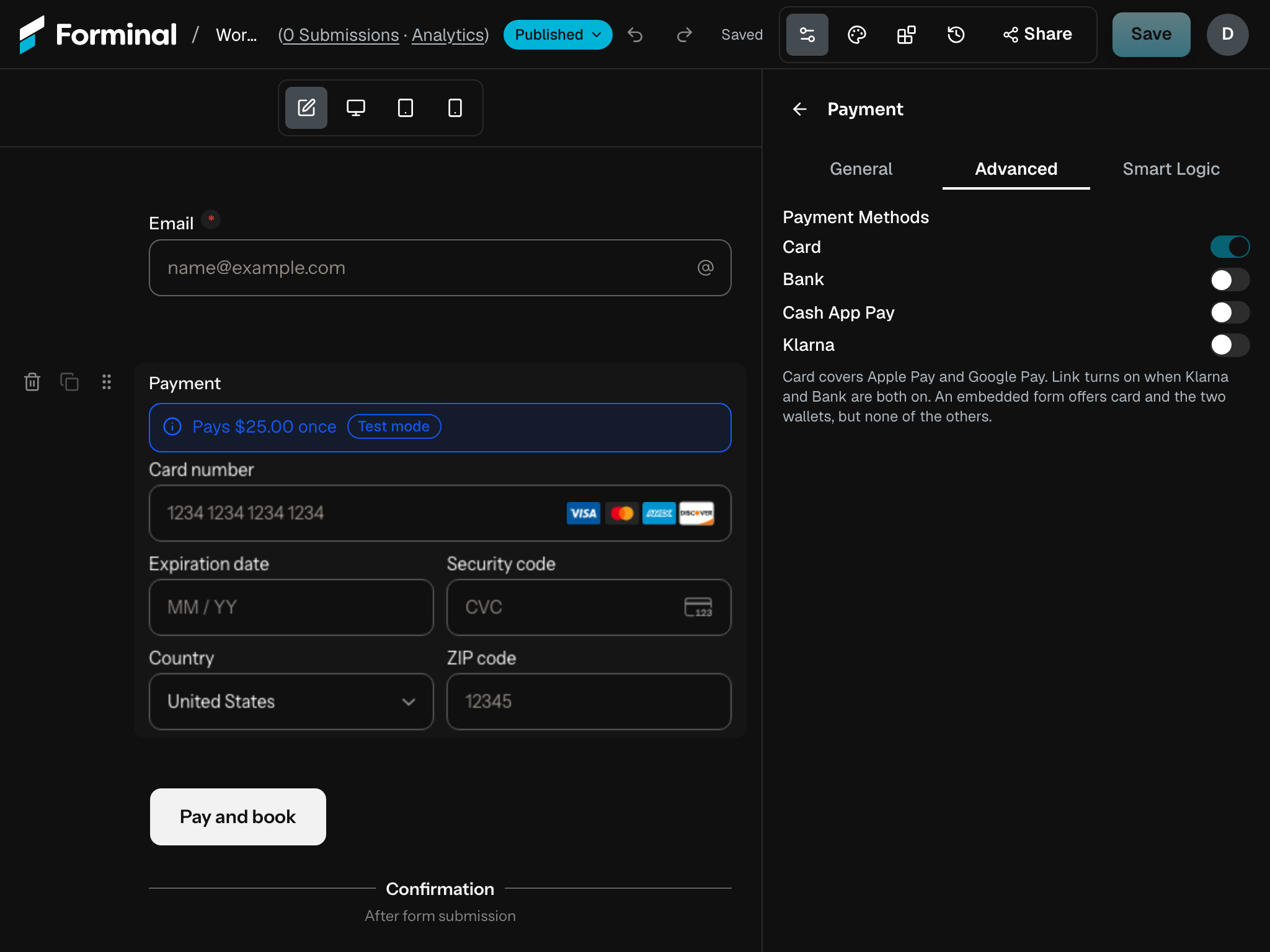
On the Advanced tab you choose what people can pay with: Card, Bank, Cash App Pay and Klarna. Card is always on, and it also covers Apple Pay and Google Pay. Link turns on by itself when both Klarna and Bank are on. Some methods have limits: Bank and Cash App Pay take USD only, Klarna takes a short list of currencies, and only Card and Bank can bill a recurring payment. If a method doesn’t fit your currency or billing, the panel tells you, and you can’t publish until you change it.
What the payer sees
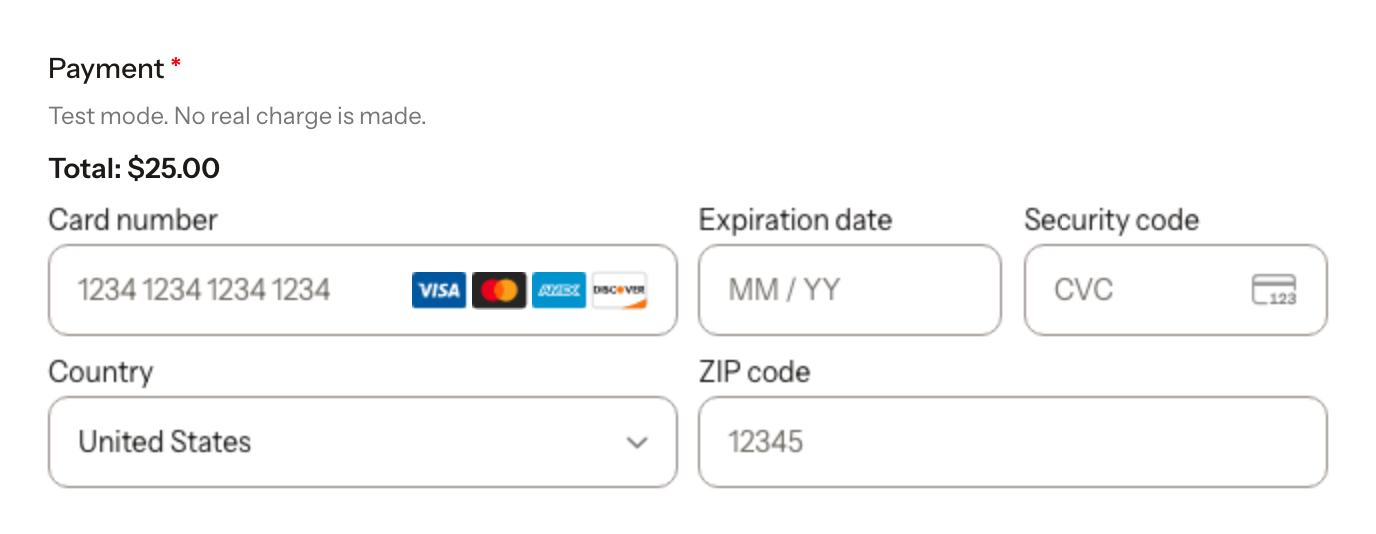
The payment box shows “Total:” and the amount, then Stripe’s own fields for the methods you turned on. With From Fields, the total updates as people answer, and until it’s above zero the box says “Enter an amount above to continue”. In test mode it also says “Test mode. No real charge is made.”
When they submit, their answers are saved and the payment runs straight after. If the card is declined, they can fix the details and try again. Methods that take people to another page, such as Klarna, bring them back to the form afterwards, and a short message tells them whether the payment went through or is still processing. If Stripe isn’t connected for the form’s mode, people see “Payments are not available for this form”.
How payments show in submissions
The submissions table gets a Payment column with the amount and a status: Paid, Processing, Pending, Failed, Canceled, or Not completed for a payment that stayed pending for over an hour. Open a submission to see a Test mode tag for test payments, any failure message, and a View in Stripe link. The CSV export has a Payment column such as “paid 25.00 USD”.
For a paying submission, notification emails and integrations wait until Stripe confirms the payment, so you aren’t told about orders that were never paid. The email then includes a Payment line with the amount. A recurring payment shows up in Stripe as a subscription, under a product named after your form.
Good to know
A form can have one Payment field, and it has to be on the last page, so you can’t add a page break after it. It’s always required. If Smart Logic hides it, the submission is saved with no charge, and submissions caught as spam are never charged. An embedded form takes card payments only, since methods like Klarna, Bank and Cash App Pay would need to leave the frame. If Stripe disconnects your account, the field tells you to reconnect it on the Integrations page.
Frequently asked questions
Do I need a paid Forminal plan to take payments?
No, payments work on every plan, including the free Lite plan. The money goes to your own Stripe account, Stripe’s own fees apply, and you handle refunds in the Stripe Dashboard.
Which payment methods can people use?
Card is always on, and it also covers Apple Pay and Google Pay. On the Advanced tab you can add Bank, Cash App Pay and Klarna. Bank and Cash App Pay take USD only, and Klarna takes a short list of currencies.
Can I charge a recurring subscription?
Set Billing to Recurring and choose how often. Only Card and Bank can bill a recurring payment, and it shows up in Stripe as a subscription.
Can I test the form before charging real money?
New payment fields start in test mode. Try the form with one of Stripe’s test cards, then switch Mode to Live and publish.
Will I get a notification for an order that was never paid?
No. For a paying submission, notification emails and integrations wait until Stripe confirms the payment.
Can people pay in an embedded form?
An embedded form takes card payments only, because methods like Klarna, Bank and Cash App Pay would need to leave the frame.