Ein Popup-Einbettungsformular hält das Formular aus dem Weg, bis es benötigt wird. Das Formular öffnet sich in einem Fenster über der Seite, wenn jemand auf eine Schaltfläche oder einen Link auf Ihrer Website klickt, oder von selbst: beim Laden der Seite, nach einigen Sekunden, sobald ein Besucher einen Teil des Weges nach unten scrollt oder wenn er die Seite verlassen möchte. Am Ende dieser Anleitung wird Ihre Website ein Popup haben, das Ihr Formular öffnet.
Kopieren Sie den Popup-Snippet
- Publish the form. The Share panel opens on its Embed tab. To open it later, select Share in the builder’s top bar.
- Under Embed on Your Site, pick Popup.
- Under Where Is Your Site Built?, pick your site builder to see where the code goes, then select Copy Code.
Der kopierte Code enthält bereits die Adresse der App und die ID Ihres Formulars. Hier ist er mit APP_ADDRESS und FORM_ID an ihrer Stelle:
<script src="APP_ADDRESS/embed.js" async></script>
<button data-open="FORM_ID" data-layout="modal">Open form</button>
The script is the same one the inline embed uses, and a page needs it only once. The settings you pick on the Embed tab, described below, write their attributes into this code for you. Your choices are saved with the form, so if you change them later, copy the code again.
Öffnen Sie es von einer Schaltfläche
- Leave When under Open the Popup on On click, the default.
- Type what the button says into Button Text, such as “Request a quote”, up to 60 characters. It can run over several lines: press Enter to start a new one.
- Kopieren Sie den Code und fügen Sie ihn in das HTML Ihrer Seite ein, wo die Schaltfläche erscheinen soll. In einem Website-Builder verwenden Sie dessen HTML- oder benutzerdefinierten Codeblock. Es gibt Schritt-für-Schritt-Anleitungen für WordPress, Webflow, Shopify, Squarespace und Wix.
- Speichern Sie die Seite und klicken Sie auf die Schaltfläche, um es auszuprobieren.
Was das Popup öffnet, ist das Attribut data-open. Sie können es also auf einen Link oder ein beliebiges anderes Element verschieben und dieses Element beliebig gestalten. Sie können mehrere Schaltflächen auf einer Seite platzieren, jede mit ihrem eigenen data-open. Es ist immer nur ein Popup gleichzeitig geöffnet.
Öffnen Sie es von selbst
Under Open the Popup, pick another When, fill in the setting that appears for it, and pick a How Often. A popup that opens on its own has no button, so the code can go anywhere on the page, such as just before the closing body tag.
- On load opens it as soon as the page has loaded (
data-trigger="load"). - Delay opens it after a number of seconds, 0 to 120. After sets the number, 3 seconds unless you change it (
data-trigger="delay" data-delay="10"). - Scroll opens it once the visitor has scrolled part of the way down the page. After Scrolling takes 5 to 100% of the page, 40% unless you change it (
data-trigger="scroll" data-scroll="60"). A page too short to scroll never opens it. - Exit opens it when the pointer leaves the top of the window, heading for the tabs or the address bar (
data-trigger="exit"). On phones and tablets, which have no pointer, it opens when the visitor scrolls back up quickly after reading some way down the page.
Der Code schreibt nur die von Ihnen geänderten Einstellungen. Ein Popup, das 5 Sekunden nach dem Laden der Seite einmal pro Besucher geöffnet wird, sieht so aus:
<script src="APP_ADDRESS/embed.js" async></script>
<div data-open="FORM_ID" data-layout="modal" data-trigger="delay" data-delay="5" data-show="once" hidden></div>
While the Share panel is open, the sample page next to it acts the way your site will. A line above it shows what the trigger is doing, such as “Opens in 3s”, and Replay runs it again. Once the sample visitor has seen the popup, Forget this Visitor lets you start over. The sample page keeps nothing in your browser.
Wie oft ein Besucher es sieht
- Every visit opens it on every page view. This is what you get when you leave
data-showout. - Once opens it the first time only (
data-show="once"). - Until answered keeps opening it on each visit until the visitor submits the form (
data-show="until-submit").
To remember who saw or answered the popup, the script keeps a small note in the visitor’s browser, on your site. The note records only that this browser saw or answered the form. It holds no answers, never reaches our servers and is kept for at most 12 months. How Often limits only the popups that open on their own: a visitor who clicks a button always gets the form, so On click has no How Often setting. With Once, opening the form from a button counts too, so the popup does not open on its own after that.
When Disable User Cookies is on for the form (a setting of the GDPR Agreement field), nothing may be stored in the visitor’s browser. Once and Until answered are then unavailable, and the copied code opens the popup on every visit. If you turn the setting on after visitors were remembered, their notes are removed the next time they visit your site, usually within five minutes of the change. Your code keeps working as it is, and the popup then opens on every visit.
Ändern Sie das Aussehen und das Schließen
Under Look on the Embed tab:
- Position: Center opens the form in the middle of the screen over a dimmed page (
data-layout="modal", also what you get when you leave it out). Corner opens it as a card in the bottom right corner, with no dimming (data-layout="default"). - Dim the Page Behind is on for a centered popup unless you turn it off. Off, the page stays bright and people can still use it while the popup is open (
data-overlay="off"). - Width takes 320 to 800 pixels, 560 unless you change it (
data-width="720"). On a smaller screen the popup never gets wider than the screen. - After Sending decides what happens once someone submits. Close closes the popup after the number of seconds in Close After, from 0 to 30, 2 unless you change it (
data-auto-close="5"). Stay open keeps the confirmation message up until the visitor closes it (data-auto-close="off").
The popup also follows Show Title in Customize: turning it off hides the title and description on the form’s own page and in every embed, and keeps the logo and cover. To hide the title, description, logo and cover in this popup only, add data-hide-title="1" to the button, for when the button already says what the form is. Transparent Background doesn’t apply to the popup, which always fills with the form’s Page Background.
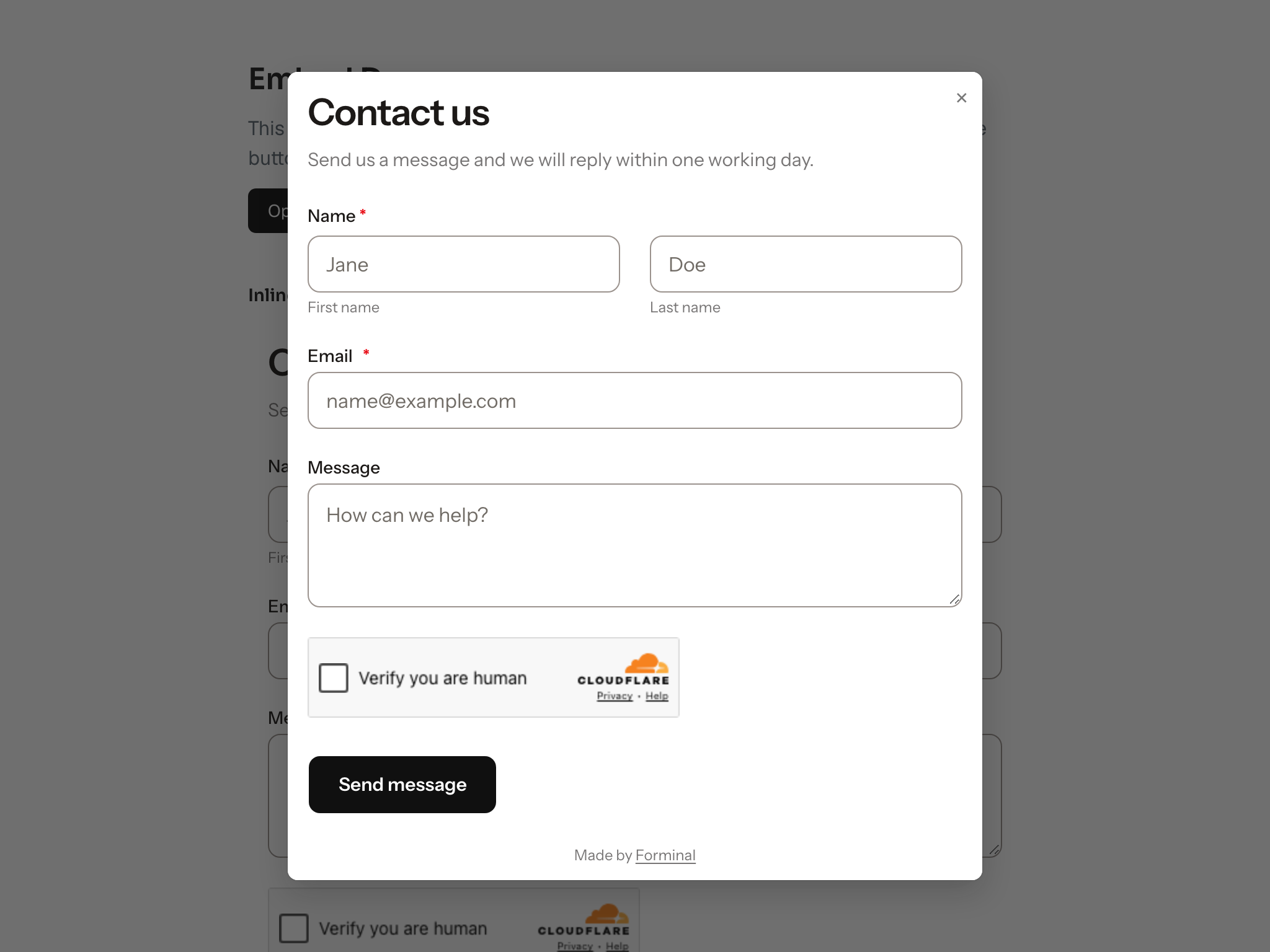
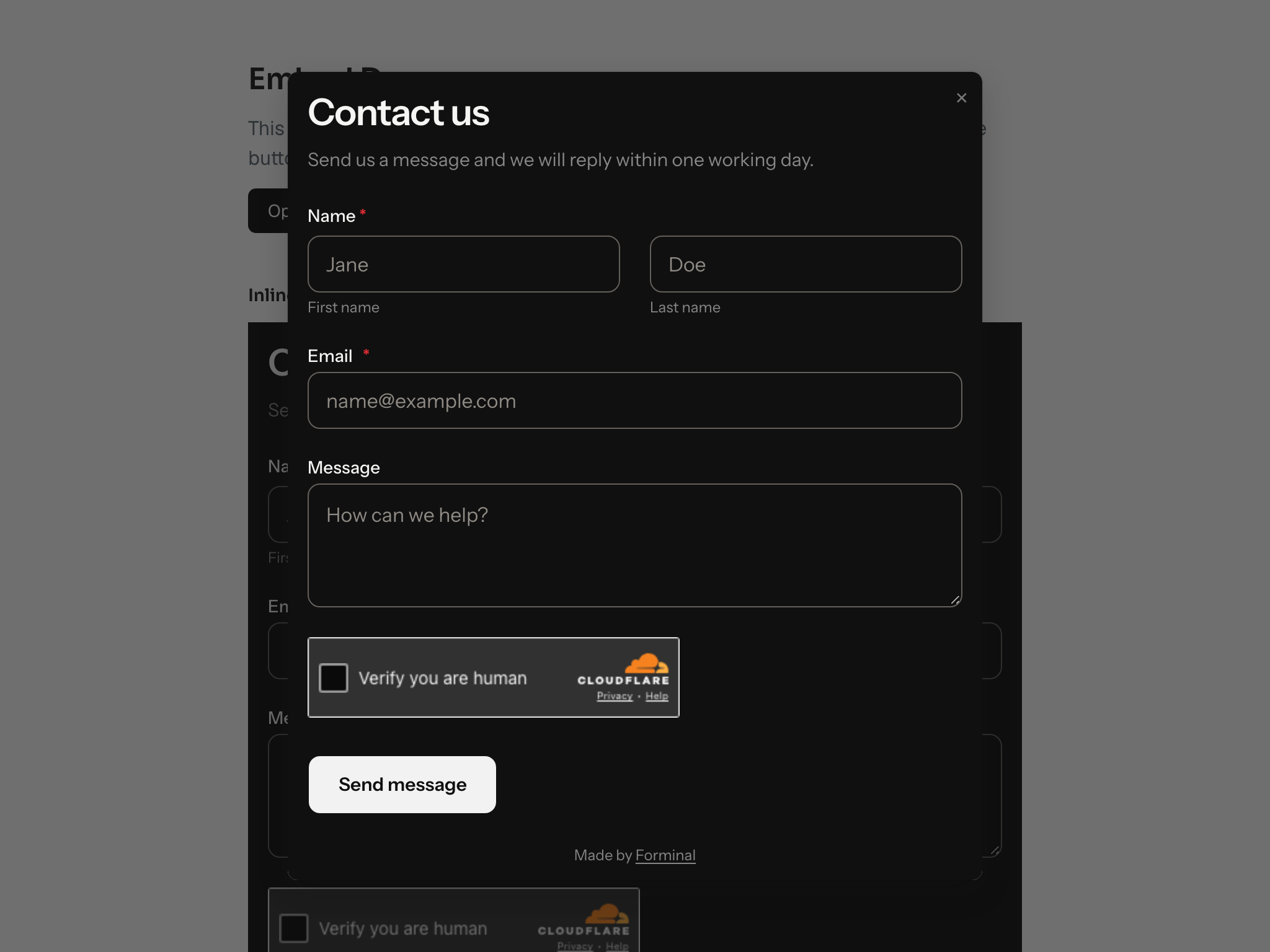
The popup grows to fit the form up to 85% of the screen’s height, then scrolls inside. People close it with the × that sits over its top corner, or with the Escape key. In the centered layout, clicking the dimmed page around it closes it too. To try a popup before you paste anything, look at the builder while the Share panel is open and select Open form on the sample page it shows.
Öffnen Sie es aus Ihrem eigenen Code
Entwickler können das Popup aus ihrem eigenen Skript öffnen und schließen. openPopup nimmt die gleichen Optionen wie die Attribute entgegen. Sein autoClose ist die Anzahl der Sekunden, bevor sich das Popup nach einer Einreichung schließt, und false hält es offen.
window.FormsEmbed.openPopup('FORM_ID', { layout: 'modal', width: 720, hideTitle: true, autoClose: false })
window.FormsEmbed.closePopup()
Das Skript löst form:opened und form:closed auf window aus, wenn sich das Popup öffnet und schließt, und form:submitted, wenn das Formular gesendet wird. Embed-Ereignisse abhören listet jedes Ereignis und seine Daten auf.
Gut zu wissen
- Nur veröffentlichte Formulare sind für Besucher geöffnet.
- After someone submits, the popup shows your thank-you message and closes itself 2 seconds later, unless you changed After Sending, so keep the message short. If the confirmation redirects, the whole page goes to the redirect address.
- Das Formular wird jedes Mal neu geladen, wenn sich das Popup öffnet. Wenn Sie es also schließen, bevor Sie es absenden, werden die eingegebenen Daten gelöscht.
- Ein Popup, das sich von selbst öffnet, öffnet sich niemals, während ein anderes Popup, ein schwebender Button-Formular oder ein Slider bereits geöffnet ist, sodass niemand verliert, was er gerade eingegeben hat. Es öffnet sich höchstens einmal pro Seitenaufruf und überhaupt nicht, sobald der Besucher dieses Formular über einen Button geöffnet hat.
- Das Löschen der Website-Daten des Browsers oder ein privates Fenster setzt den Besucher zurück, sodass er wieder ein „Nur einmal“-Popup sieht.
- Der zusätzliche Code für Trigger wird nur auf Seiten geladen, die einen verwenden. Eine Seite mit einem einfachen Inline-Embed oder Popup-Button lädt nichts weiter.
- Ein Zahlungsfeld in einem Popup akzeptiert nur Kartenzahlungen.
- Um das Formular stattdessen innerhalb der Seite anzuzeigen, siehe Formular auf einer Seite einbetten. Für einen Button, der in einer Ecke jeder Seite verbleibt, siehe Schwebenden Button hinzufügen.
Häufig gestellte Fragen
Kann ich das Popup nach dem Absenden offen halten?
Ja. Stellen Sie „Nach dem Senden“ auf „Offen bleiben“ in den Einstellungen des Popups auf der Registerkarte „Einbetten“ ein oder fügen Sie `data-auto-close="off"` zum Button hinzu.
Was passiert mit einem langen Formular in einem Popup?
Das Popup wächst, um das Formular bis zu 85 Prozent der Bildschirmhöhe auszufüllen, und scrollt dann intern.
Kann ich mehrere Popup-Buttons auf einer Seite platzieren?
Ja. Laden Sie das Skript einmal und geben Sie jedem Button sein eigenes `data-open`. Es ist immer nur ein Popup gleichzeitig geöffnet.
Funktionieren versteckte Felder in einem Popup?
Ja. Das Popup erhält die Abfragezeichenfolge Ihrer Seite. Ein Besuch mit `?ref=newsletter` füllt also ein verstecktes Feld namens `ref`.
Öffnet sich das Popup erneut, nachdem ein Besucher es geschlossen hat?
Nicht beim selben Seitenaufruf. Bei „Jeder Besuch“ öffnet es sich beim nächsten Besuch wieder. Bei „Nur einmal“ öffnet es sich in diesem Browser nie wieder von selbst, und bei „Bis beantwortet“ öffnet es sich immer wieder, bis der Besucher das Formular absendet.
Funktioniert Exit Intent auf Handys?
Ja. Ein Telefon oder Tablet hat keinen Zeiger, um das Fenster zu verlassen. Dort öffnet sich das Popup, wenn der Besucher nach dem Lesen eines Teils der Seite schnell wieder nach oben scrollt. Ein langsames Zurückscrollen zählt nicht.
Kann ich „Nur einmal“ bei einem Formular mit deaktivierten Benutzercookies verwenden?
Nein. Diese Einstellung bedeutet, dass nichts im Browser des Besuchers gespeichert werden darf. Daher sind „Nur einmal“ und „Bis beantwortet“ nicht verfügbar und das Popup öffnet sich bei jedem Besuch.