A popup embed keeps the form out of the way until it’s needed. The form opens in a window over the page when someone clicks a button or link on your site, or on its own: as the page loads, after a few seconds, once a visitor scrolls part of the way down, or when they move to leave. By the end of this guide your site will have a popup that opens your form.
Copy the popup snippet
- Publish the form. The Share panel opens on its Embed tab. To open it later, select Share in the builder’s top bar.
- Under Embed on Your Site, pick Popup.
- Under Where Is Your Site Built?, pick your site builder to see where the code goes, then select Copy Code.
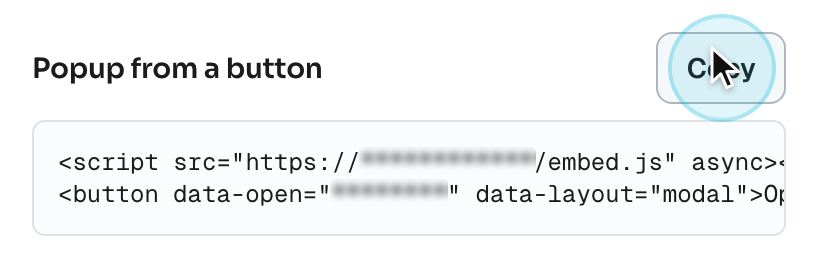
The copied code already has the app’s address and your form’s id filled in. Here it is with APP_ADDRESS and FORM_ID in their place:
<script src="APP_ADDRESS/embed.js" async></script>
<button data-open="FORM_ID" data-layout="modal">Open form</button>
The script is the same one the inline embed uses, and a page needs it only once. The settings you pick on the Embed tab, described below, write their attributes into this code for you. Your choices are saved with the form, so if you change them later, copy the code again.
Open it from a button
- Leave When under Open the Popup on On click, the default.
- Type what the button says into Button Text, such as “Request a quote”, up to 60 characters. It can run over several lines: press Enter to start a new one.
- Copy the code and paste it into your page’s HTML where the button should go. In a site builder, use its HTML or custom code block. There are step-by-step guides for WordPress, Webflow, Shopify, Squarespace and Wix.
- Save the page and click the button to try it.
What opens the popup is the data-open attribute, so you can move it onto a link or any other element and style that element however you like. You can put several buttons on one page, each with its own data-open. Only one popup is open at a time.
Open it on its own
Under Open the Popup, pick another When, fill in the setting that appears for it, and pick a How Often. A popup that opens on its own has no button, so the code can go anywhere on the page, such as just before the closing body tag.
- On load opens it as soon as the page has loaded (
data-trigger="load"). - Delay opens it after a number of seconds, 0 to 120. After sets the number, 3 seconds unless you change it (
data-trigger="delay" data-delay="10"). - Scroll opens it once the visitor has scrolled part of the way down the page. After Scrolling takes 5 to 100% of the page, 40% unless you change it (
data-trigger="scroll" data-scroll="60"). A page too short to scroll never opens it. - Exit opens it when the pointer leaves the top of the window, heading for the tabs or the address bar (
data-trigger="exit"). On phones and tablets, which have no pointer, it opens when the visitor scrolls back up quickly after reading some way down the page.
The code writes only the settings you changed. A popup that opens 5 seconds after the page loads, once per visitor, looks like this:
<script src="APP_ADDRESS/embed.js" async></script>
<div data-open="FORM_ID" data-layout="modal" data-trigger="delay" data-delay="5" data-show="once" hidden></div>
While the Share panel is open, the sample page next to it acts the way your site will. A line above it shows what the trigger is doing, such as “Opens in 3s”, and Replay runs it again. Once the sample visitor has seen the popup, Forget this Visitor lets you start over. The sample page keeps nothing in your browser.
How often one visitor sees it
- Every visit opens it on every page view. This is what you get when you leave
data-showout. - Once opens it the first time only (
data-show="once"). - Until answered keeps opening it on each visit until the visitor submits the form (
data-show="until-submit").
To remember who saw or answered the popup, the script keeps a small note in the visitor’s browser, on your site. The note records only that this browser saw or answered the form. It holds no answers, never reaches our servers and is kept for at most 12 months. How Often limits only the popups that open on their own: a visitor who clicks a button always gets the form, so On click has no How Often setting. With Once, opening the form from a button counts too, so the popup does not open on its own after that.
When Disable User Cookies is on for the form (a setting of the GDPR Agreement field), nothing may be stored in the visitor’s browser. Once and Until answered are then unavailable, and the copied code opens the popup on every visit. If you turn the setting on after visitors were remembered, their notes are removed the next time they visit your site, usually within five minutes of the change. Your code keeps working as it is, and the popup then opens on every visit.
Change how it looks and closes
Under Look on the Embed tab:
- Position: Center opens the form in the middle of the screen over a dimmed page (
data-layout="modal", also what you get when you leave it out). Corner opens it as a card in the bottom right corner, with no dimming (data-layout="default"). - Dim the Page Behind is on for a centered popup unless you turn it off. Off, the page stays bright and people can still use it while the popup is open (
data-overlay="off"). - Width takes 320 to 800 pixels, 560 unless you change it (
data-width="720"). On a smaller screen the popup never gets wider than the screen. - After Sending decides what happens once someone submits. Close closes the popup after the number of seconds in Close After, from 0 to 30, 2 unless you change it (
data-auto-close="5"). Stay open keeps the confirmation message up until the visitor closes it (data-auto-close="off").
The popup also follows Show Title in Customize: turning it off hides the title and description on the form’s own page and in every embed, and keeps the logo and cover. To hide the title, description, logo and cover in this popup only, add data-hide-title="1" to the button, for when the button already says what the form is. Transparent Background doesn’t apply to the popup, which always fills with the form’s Page Background.
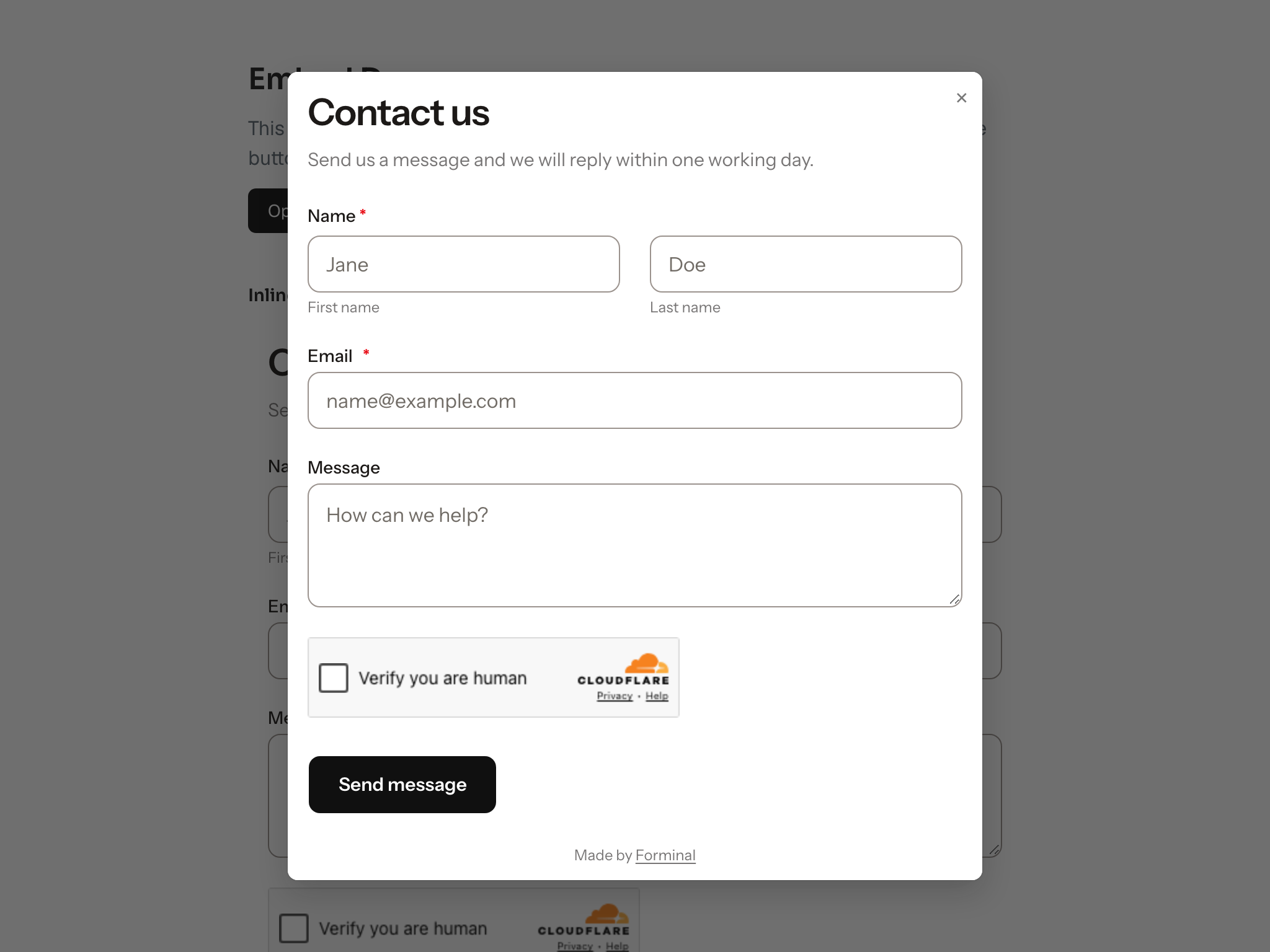
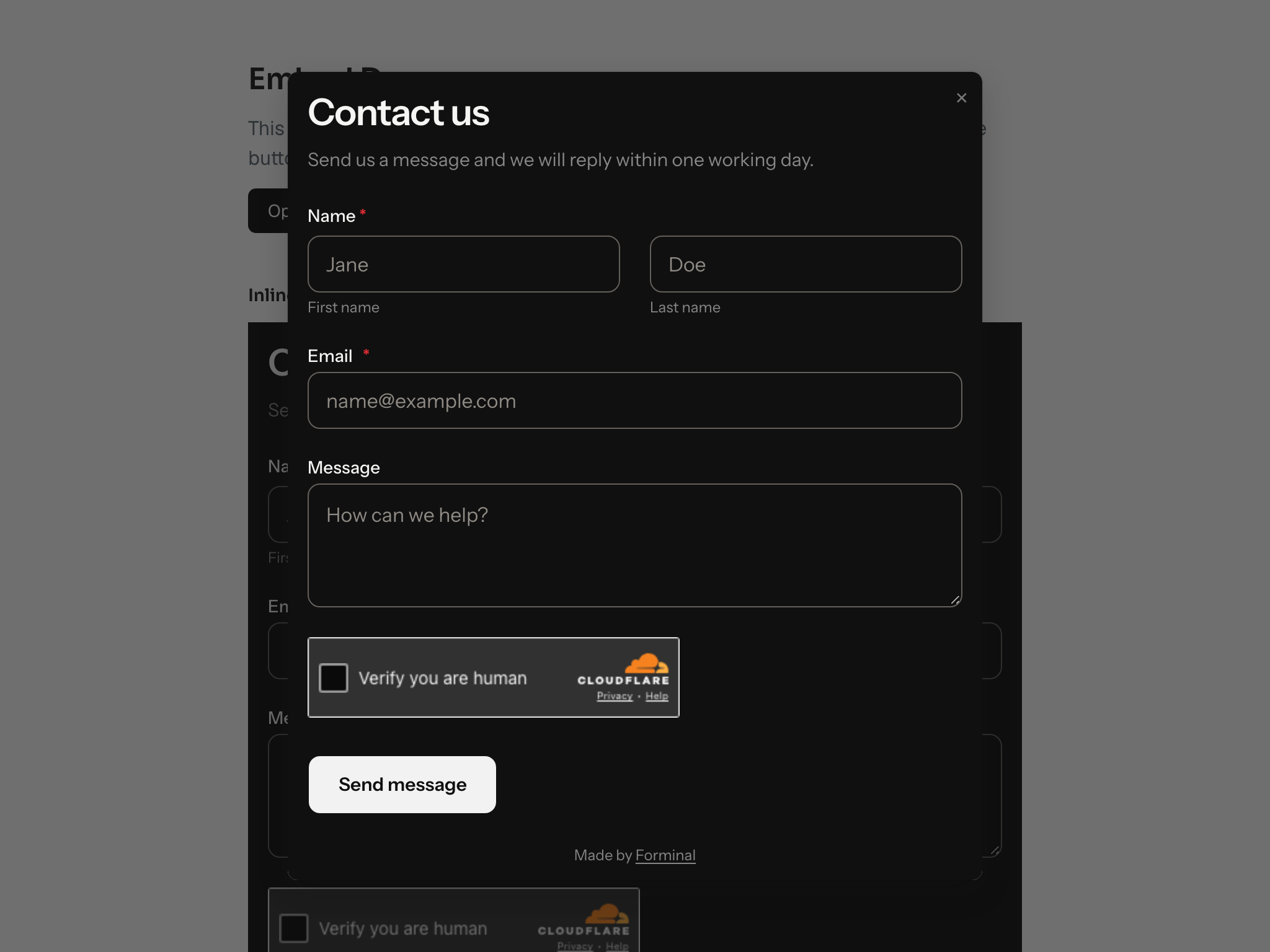
The popup grows to fit the form up to 85% of the screen’s height, then scrolls inside. People close it with the × that sits over its top corner, or with the Escape key. In the centered layout, clicking the dimmed page around it closes it too. To try a popup before you paste anything, look at the builder while the Share panel is open and select Open form on the sample page it shows.
Open it from your own code
Developers can open and close the popup from their own script. openPopup takes the same options as the attributes. Its autoClose is the number of seconds before the popup closes after a submission, and false keeps it open.
window.FormsEmbed.openPopup('FORM_ID', { layout: 'modal', width: 720, hideTitle: true, autoClose: false })
window.FormsEmbed.closePopup()
The script fires form:opened and form:closed on window as the popup opens and closes, and form:submitted when the form is sent. Listen for embed events lists every event and what it carries.
Good to know
- Only published forms open for visitors.
- After someone submits, the popup shows your thank-you message and closes itself 2 seconds later, unless you changed After Sending, so keep the message short. If the confirmation redirects, the whole page goes to the redirect address.
- The form loads fresh each time the popup opens, so closing it before submitting clears what was typed.
- A popup that opens on its own never opens while another popup, floating button form or slider is already open, so nobody loses what they were typing. It opens at most once per page view, and not at all once the visitor has opened that form from a button.
- Clearing the browser’s site data, or a private window, starts the visitor over, so they see a Once popup again.
- The extra code for triggers loads only on pages that use one, so a page with a plain inline embed or popup button loads nothing more.
- A Payment field in a popup takes card payments only.
- To show the form inside the page instead, see Embed a form on a page. For a button that stays in a corner of every page, see Add a floating button.
Frequently asked questions
Can I keep the popup open after someone submits?
Yes. Set After Sending to Stay open in the popup’s settings on the Embed tab, or add data-auto-close=”off” to the button.
What happens with a long form in a popup?
The popup grows to fit the form up to 85 percent of the screen’s height, then scrolls inside.
Can I put several popup buttons on one page?
Yes. Load the script once and give each button its own data-open. Only one popup is open at a time.
Do hidden fields work in a popup?
Yes. The popup gets your page’s query string, so a visit with ?ref=newsletter fills a hidden field named ref.
Will the popup open again after a visitor closes it?
Not on the same page view. With Every visit it opens again on the next visit. With Once it never opens on its own again in that browser, and with Until answered it keeps opening until the visitor submits the form.
Does exit intent work on phones?
Yes. A phone or tablet has no pointer to leave the window, so there the popup opens when the visitor scrolls back up quickly after reading some way down the page. A slow scroll back up doesn’t count.
Can I use Once on a form with Disable User Cookies on?
No. That setting means nothing may be stored in the visitor’s browser, so Once and Until answered are unavailable and the popup opens on every visit.