The Google Sheets integration adds a row to a spreadsheet for every new submission, so your team can read, sort and share answers without opening the submissions table. You connect a Google account once, then pick a spreadsheet for each form. By the end of this guide new submissions will land in your sheet on their own.
Connect your Google account
- Open Account menu » Integrations.
- In the Google Sheets box, select Continue with Google.


- Pick the Google account and allow the permissions Google asks for: your email address, and the Google Drive files you use with Forminal. You come back to the Integrations page with the account listed.
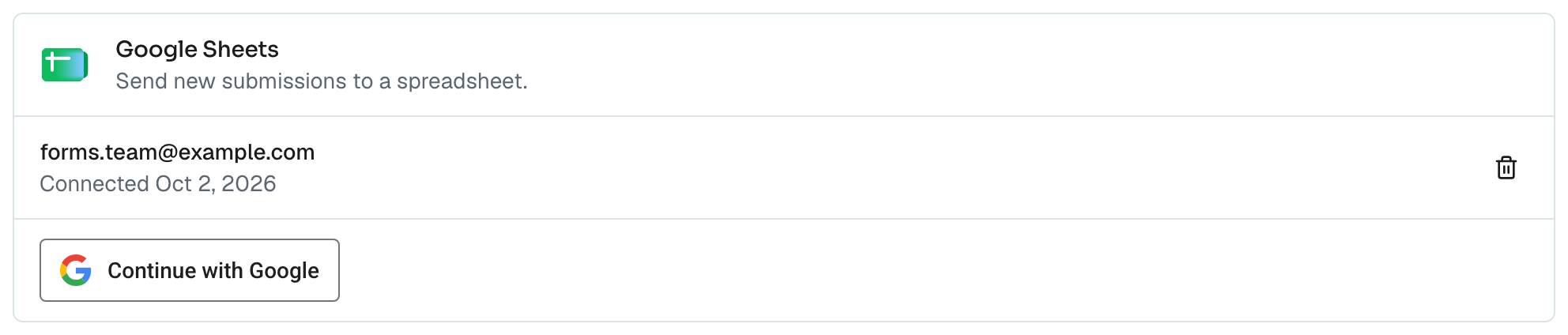
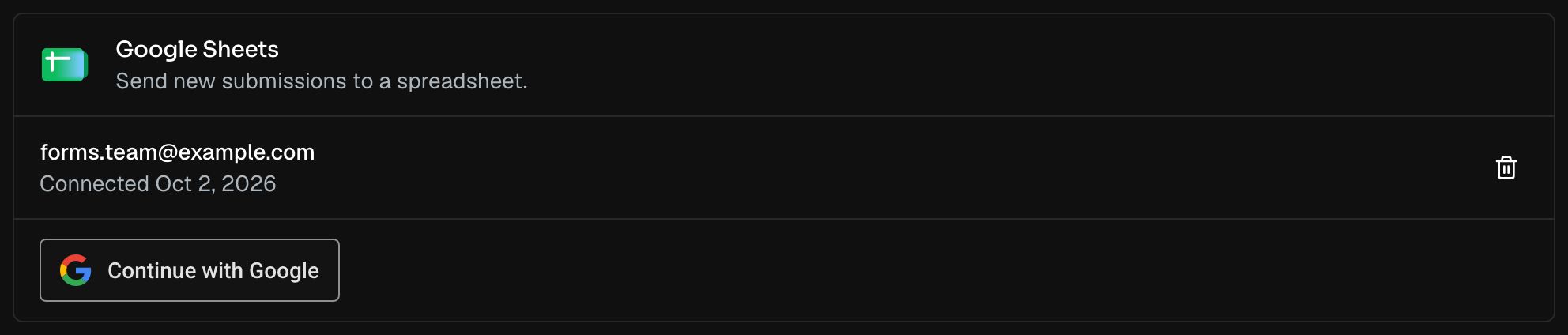
Step 3 happens on Google’s own consent screen. You can connect more than one Google account. Sheets also asks for Google’s most limited Drive permission, because Browse Google Drive lists your spreadsheets through Drive. That permission reaches only the files you pick there and the files Forminal creates. Saving uploaded files to Google Drive is a separate connection. Google permissions explains what each permission allows.
Choose a sheet
- Open the form in the builder and select Integrations in the top bar.
- Select Connect next to Google Sheets.
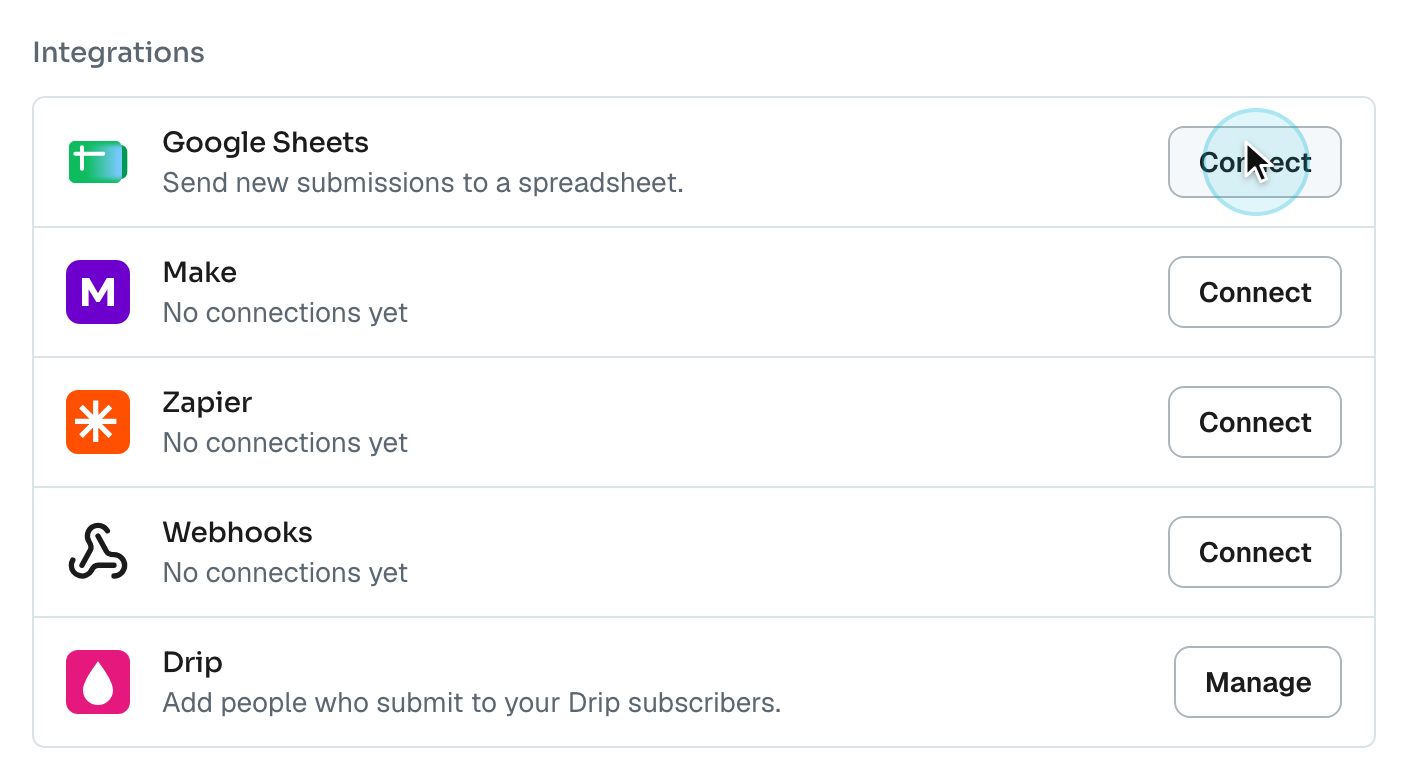
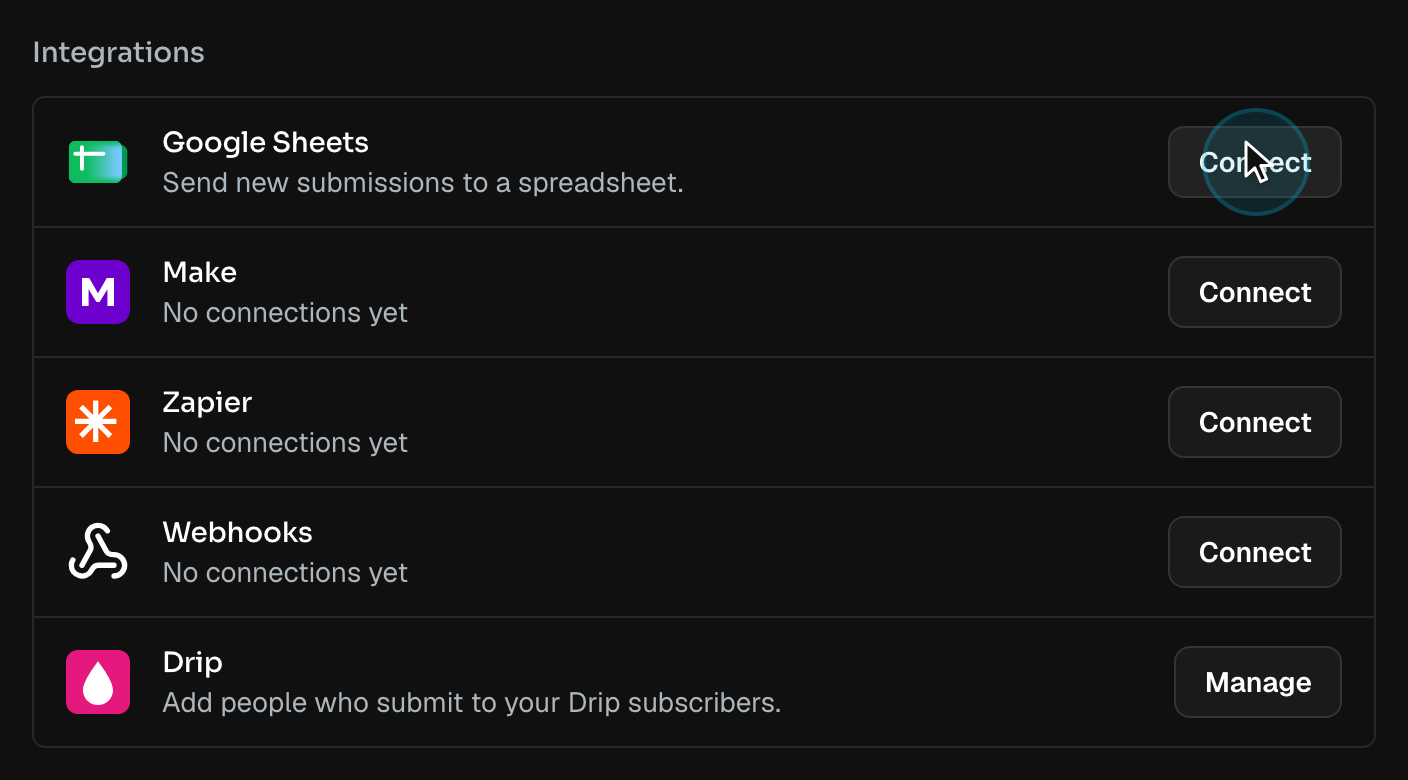
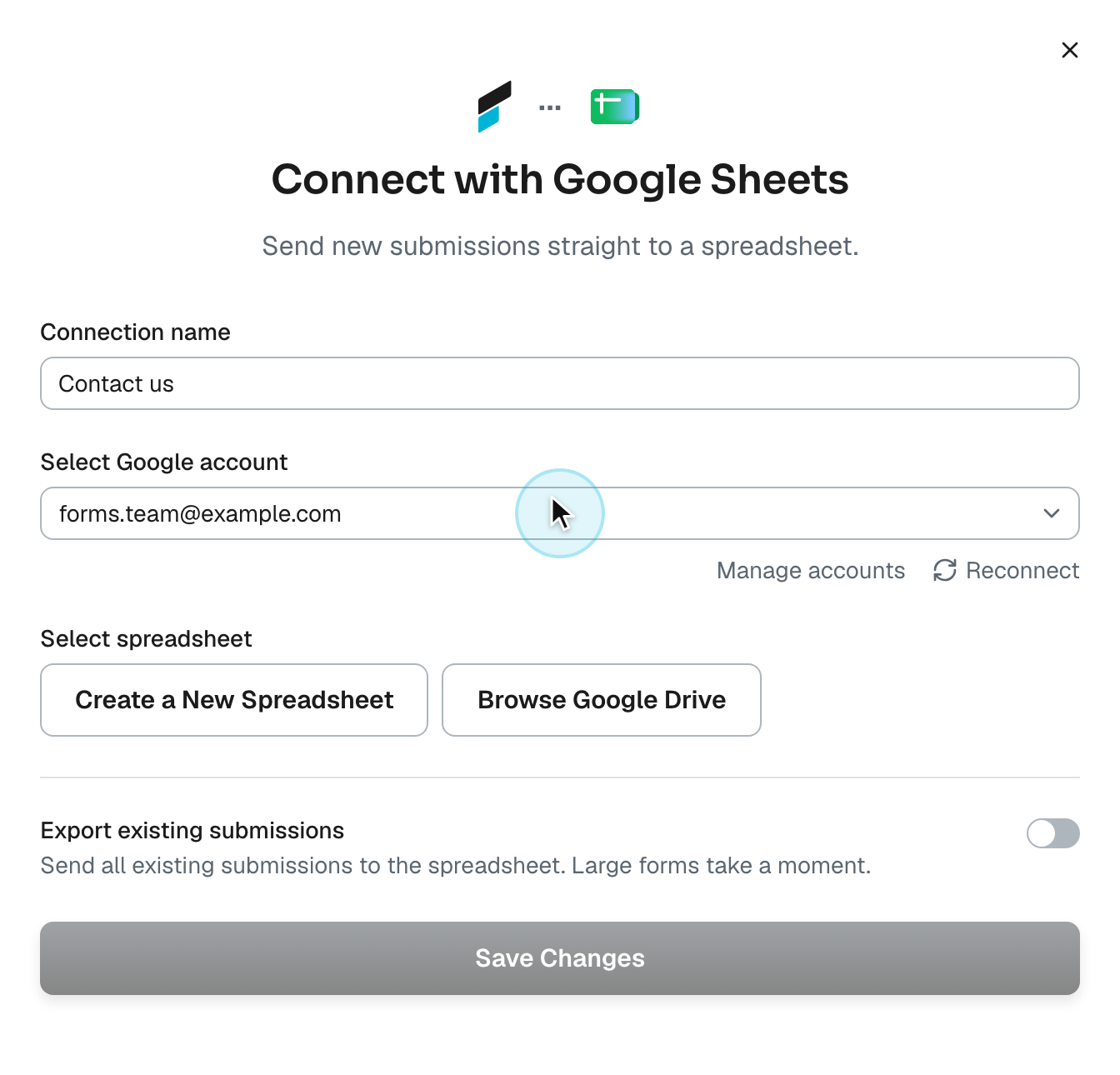
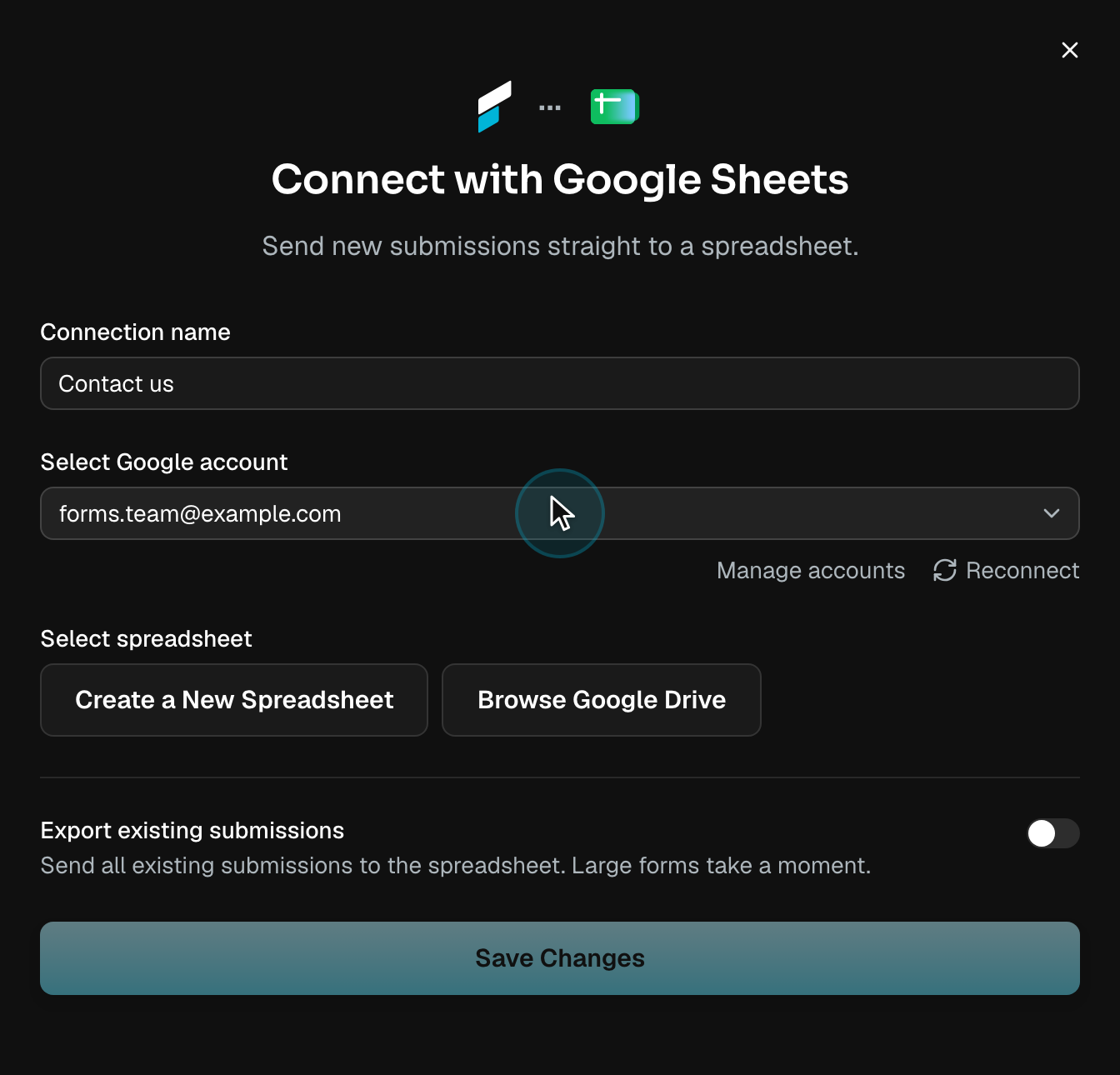
- Check the Connection Name. It starts as the form’s title, and you can change it to anything up to 100 characters.
- Under Google Account, choose the account to write with.
- Under Spreadsheet, choose Create a New Spreadsheet to make one named after the form, or Browse Google Drive to pick one you already have. You need edit access to it.
- Under Sheet, pick the tab the rows go to. A tab called Sheet1 is chosen for you when there is one.
- Under Columns, keep Full Submission to give every answer its own column, plus details such as the submission ID and time. To decide which column gets each answer, choose Map Manually instead (see below).
- Turn on Export Existing Submissions to add the submissions the form already has too. Leave it off to send only new ones.
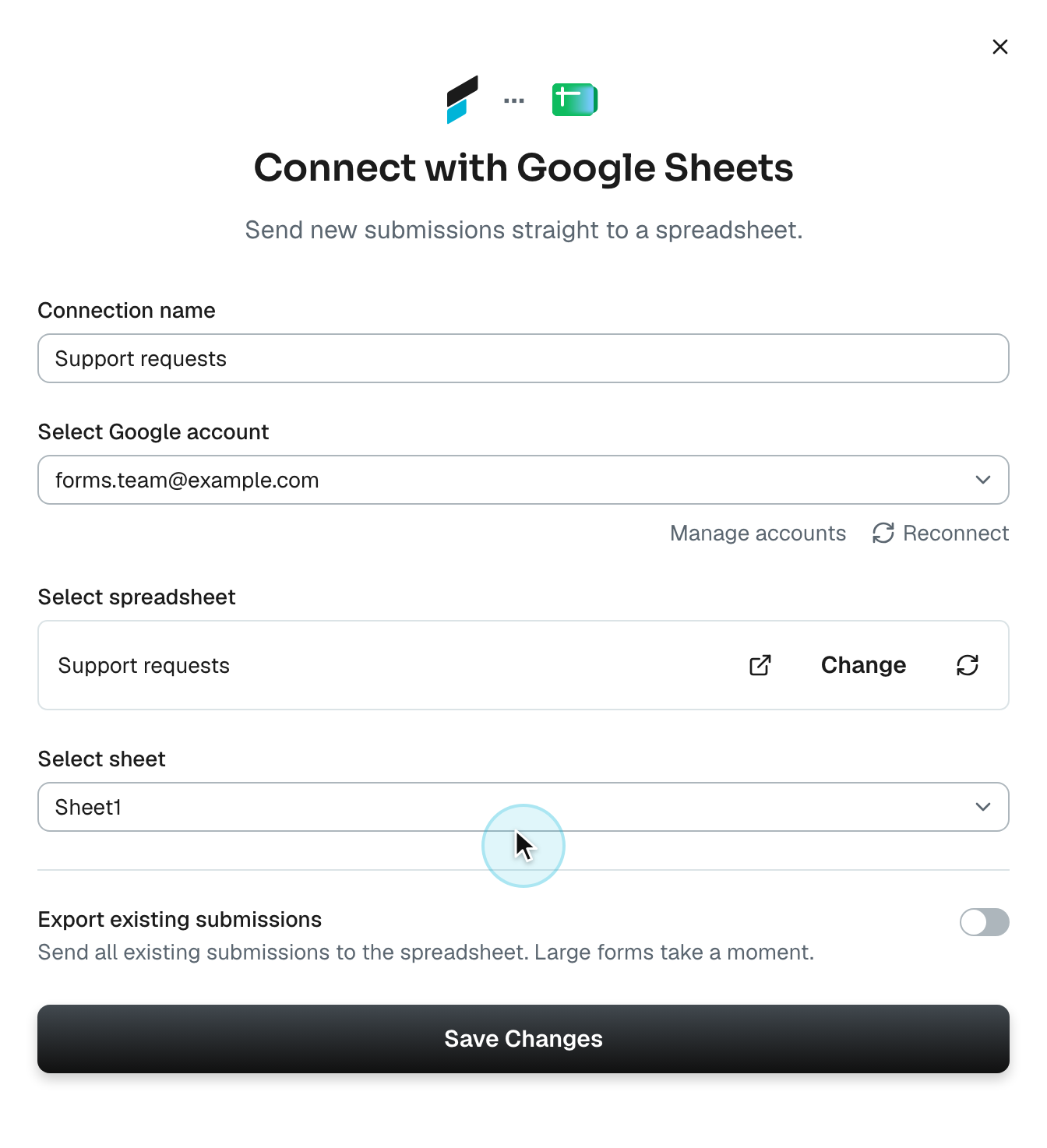
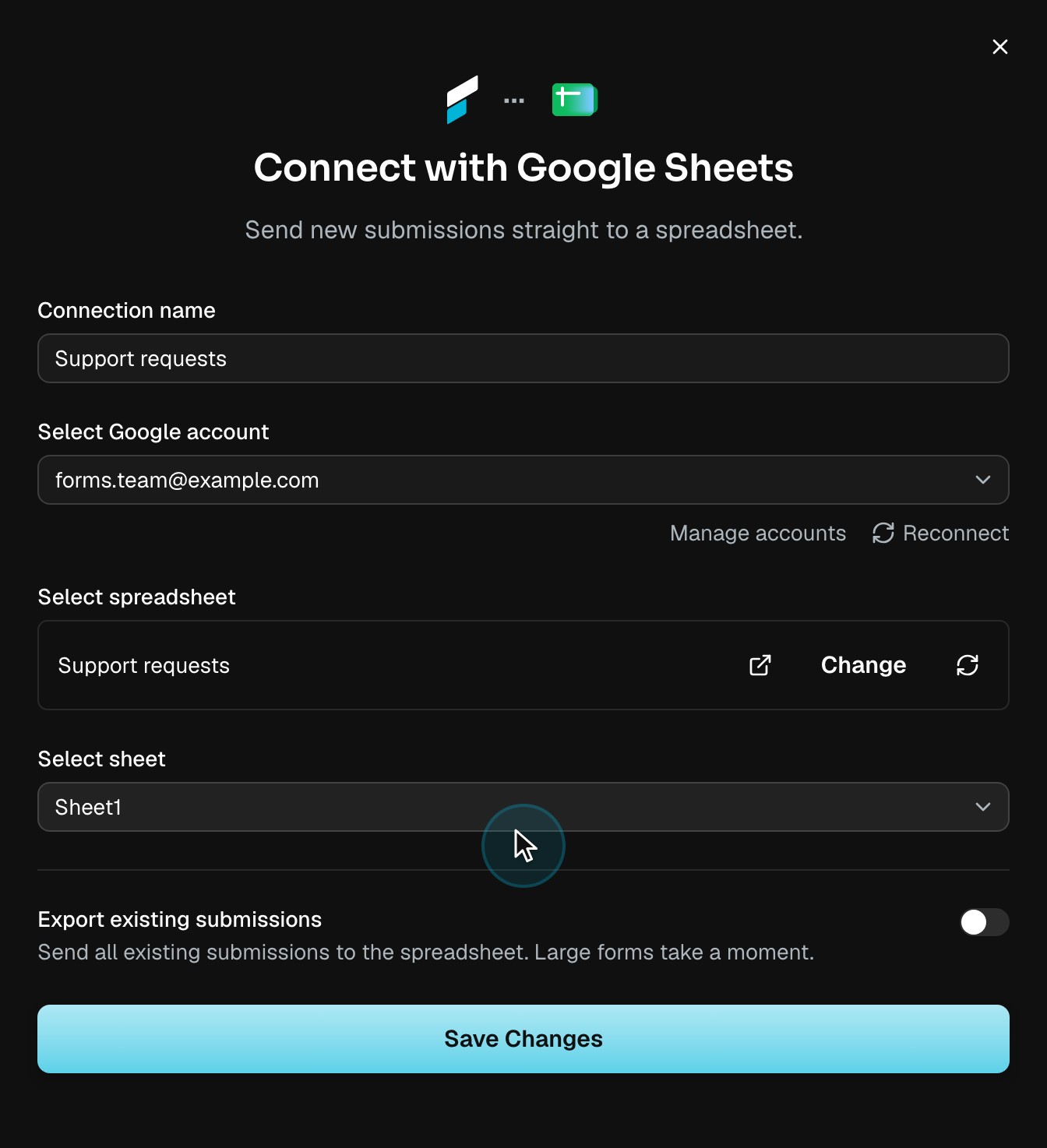
- Select Save Changes.
With Full Submission, there’s nothing to map. The app writes a header in row 1 if that row is empty, and every submission after that becomes a new row under it: Submission ID, Submitted at in UTC, Payment on a payment form, one column per question, then Tags, Origin page, Browser, Time to complete (s), Country, UTM Source, UTM Medium, UTM Campaign, UTM Term and UTM Content. The UTM columns come from UTM Tracking, and a sheet connected before they were added keeps its columns until you connect it again. File Upload and Signature cells hold links to the files, in your Google Drive or your media library.
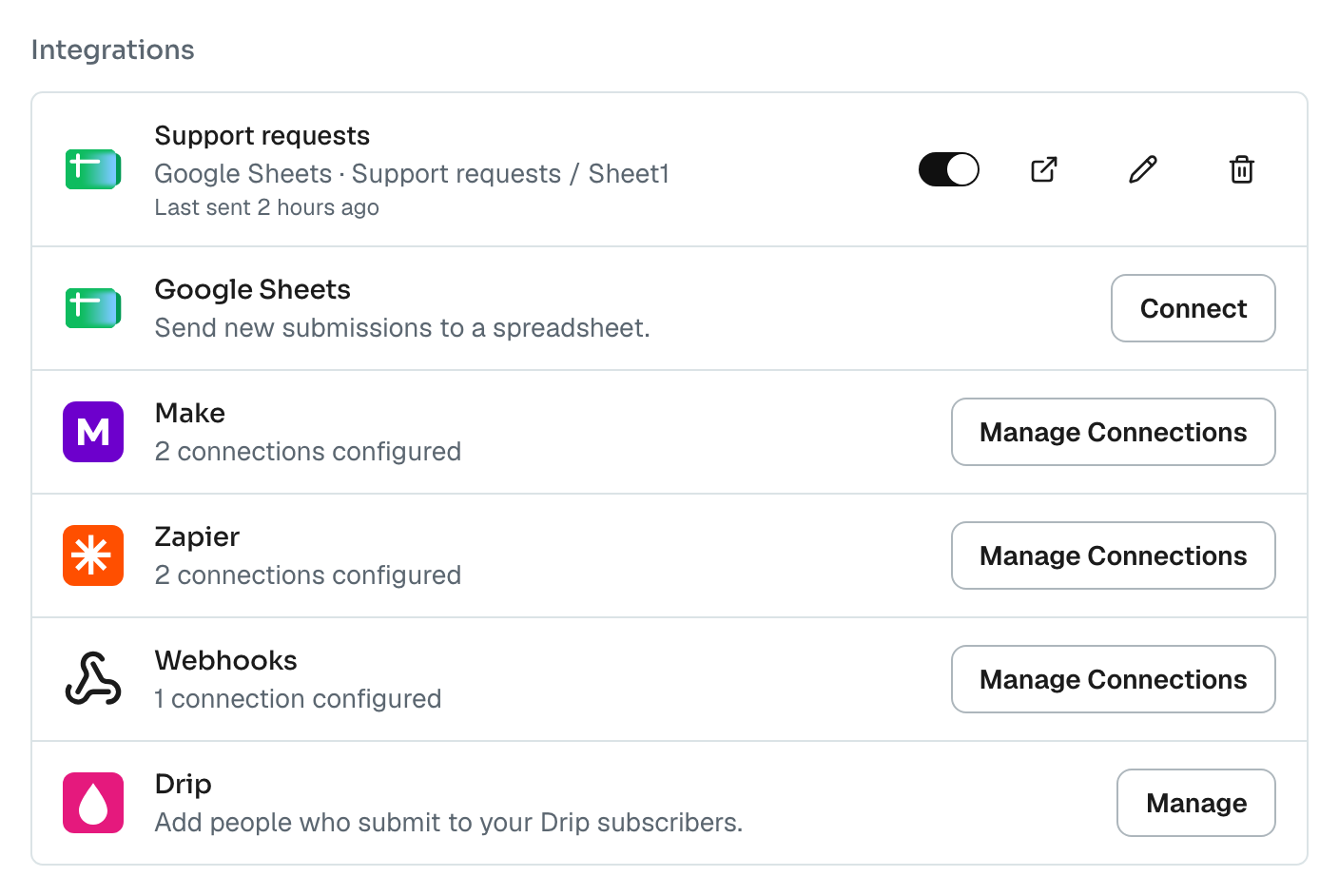
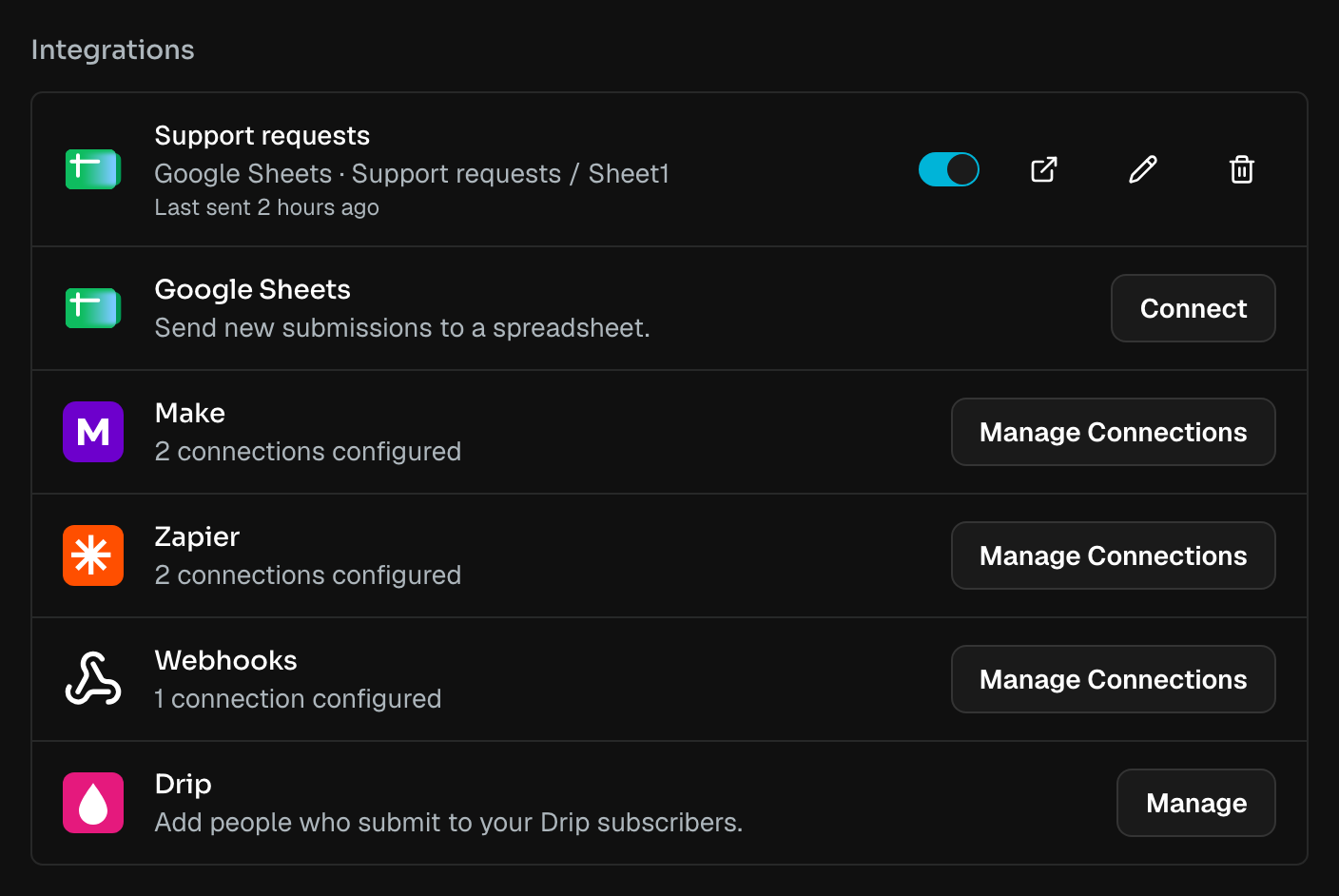
The connection then shows on the form’s Integrations tab with the spreadsheet and tab names. Use its switch to pause it, the pencil to edit it, the arrow to open the sheet and the bin to delete it. A form can send to more than one spreadsheet; add another connection for each.
Choose your own columns
Choose Map Manually under Columns when the form should fit a sheet you already use. Each row pairs a sheet column with what it gets: a question, a part of a name or address, or a detail such as Submitted at. Columns are listed by their header and letter, such as Email (B), or as Column B when the cell is empty. A header that matches a question’s label starts mapped, and Add Column adds a row for the next free column, up to 100. A column with no row is left alone, so remove a row with its bin to keep that column for your own notes. Saving writes labels only into empty header cells, so your own headings stay. A question you add later isn’t sent until you give it a row.
If you change the sheet while the page is open, the refresh button at the end of the Sheet label reloads its tabs, and the one at the end of the Columns label reads row 1 again.
Add the submissions you already have
Turn on Export Existing Submissions and select Save Changes. The note under the switch says how many submissions it will add. The app then adds one row for each complete submission that isn’t spam, oldest first, and on a payment form only those whose payment went through. Running it again adds every row again, so use it only on a sheet that doesn’t have those rows yet.
Good to know
- A row is added right after someone submits. On a payment form it waits until the payment is paid, and spam is never sent.
- Each connection has a status line: Not sent yet, Last sent, or “Could not send the last submission” with the reason, such as Spreadsheet not found. A row Google refused because the sheet is missing or permission is gone is tried again for about 18 hours, so fixing the cause in that time is enough. A row that may already be there, after a Google server error or a dropped connection, isn’t tried again, and the status line asks you to check the sheet before adding it by hand.
- With Full Submission, the columns are fixed when you save. If you add, remove or rename questions later, open the connection with the pencil and select Save Changes again.
- Deleting or tagging a submission later doesn’t change its row, and deleting the connection leaves the spreadsheet as it is.
- If Google access is revoked, the connection shows Reconnect Google account. More detail is on the Google Sheets page.
- If Browse Google Drive says “Reconnect this Google account to browse Google Drive”, the account was connected without the Drive permission. It still adds rows. Select Reconnect under Google Account, pick the same account and allow the permissions Google asks for.
Frequently asked questions
Will my sheet break if I edit the form’s questions?
The columns are fixed when you save the connection. After you add, remove or rename questions, open the connection with the pencil and select Save Changes again. The header is rewritten only if row 1 still holds the header Forminal wrote.
Why is a submission missing from my spreadsheet?
Check the connection’s status line on the form’s Integrations tab. If it says Could not send the last submission, the reason follows, such as Spreadsheet not found or No permission to edit the spreadsheet. On a payment form the row waits until the payment is paid, and spam is never sent.
Can I keep my own header row?
Yes. Choose Map Manually under Columns, and the header text in each column stays as you typed it: saving fills in only the empty header cells. With Full Submission, no header is written when row 1 already holds your own content, and a header you edited by hand is left alone when you save again.
What happens if I rename the tab in Google Sheets?
Forminal finds the tab again and keeps writing to it, so you don’t need to edit the connection.
Can a teammate in my workspace connect the sheet?
No. Connecting integrations stays with the form’s owner. See Work with your team in workspaces for what members can do.
Can I add the submissions a form already has?
Yes. Turn on Export Existing Submissions on the connection and save. It adds one row per complete submission that isn’t spam, oldest first, and a submission with a payment only once it’s paid. Running it again adds them all again.