A CSV file holds a form’s submissions in a shape any spreadsheet app can open. You can download it from the Submissions page, or ask an AI assistant connected to your account, such as Claude, ChatGPT or Cursor, for a download link. By the end of this guide you’ll have the file open in a spreadsheet.
Download from the Submissions page
- On your dashboard, select the number in the form’s Submissions column to open its results. See your submissions shows the other ways in.


- Narrow the table if you want to: pick Submissions or Spam, type in Search, choose dates, or sort by a column.
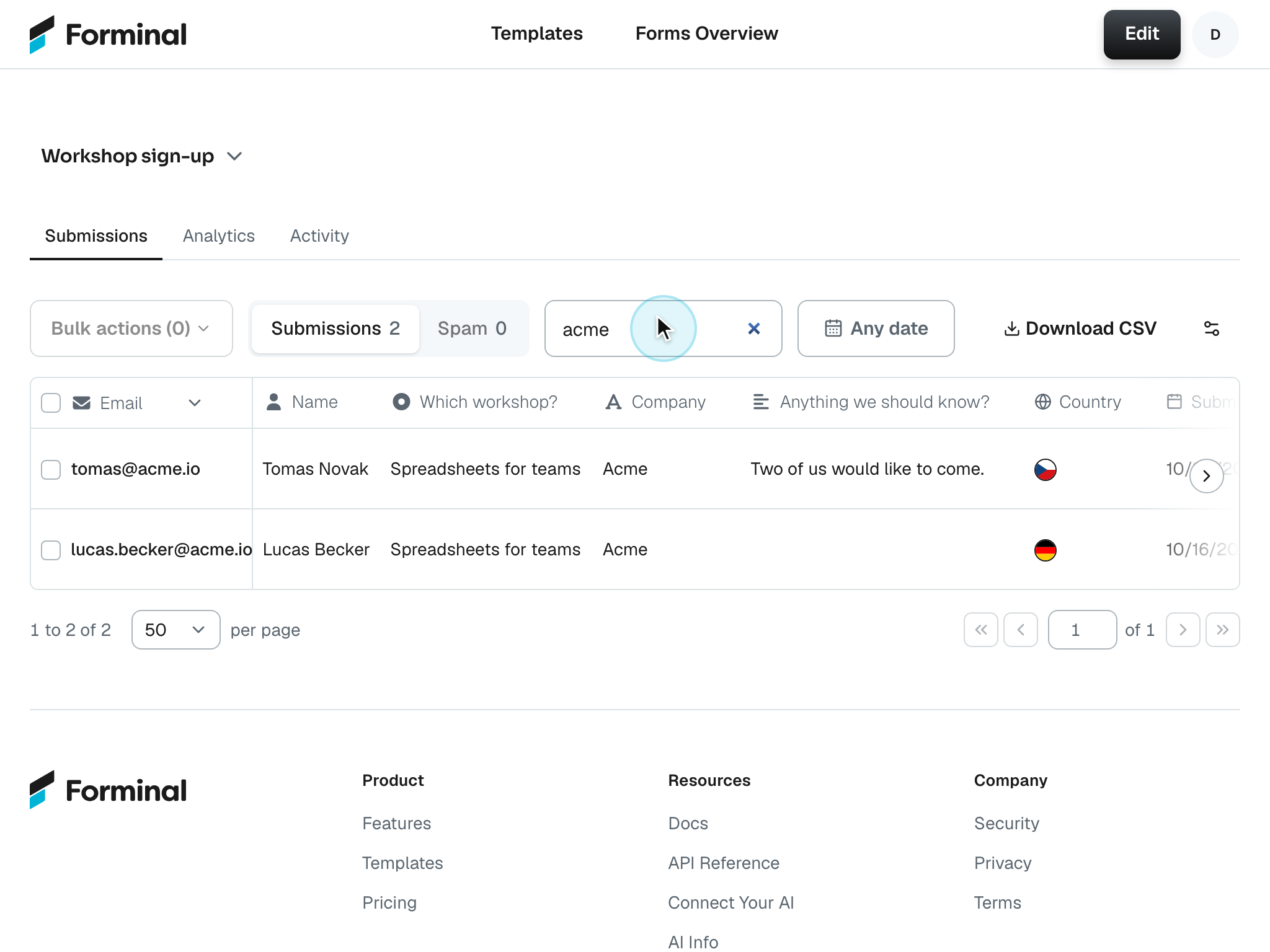
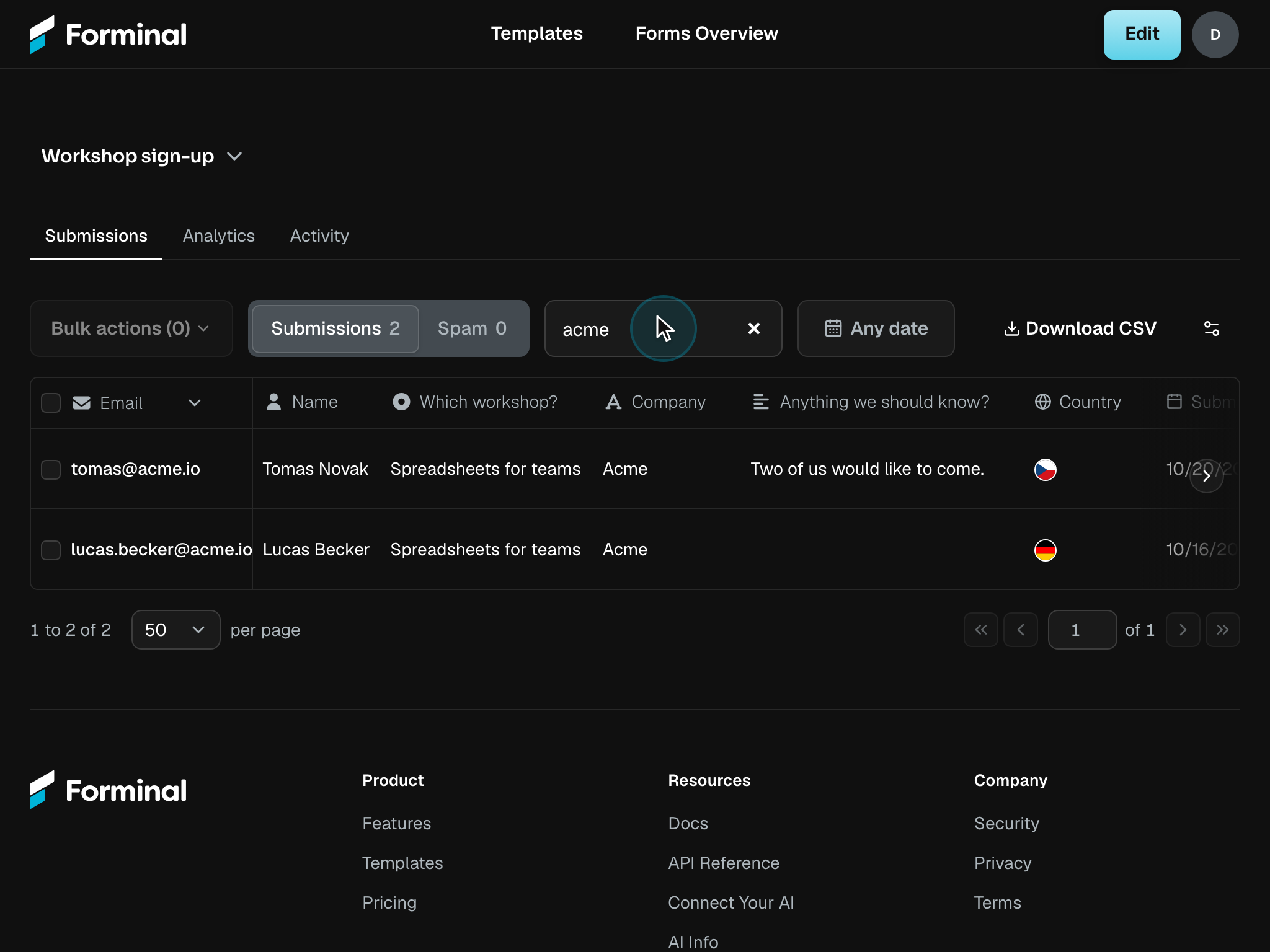
- Select Download CSV, at the right of the toolbar. The file is named after the form.
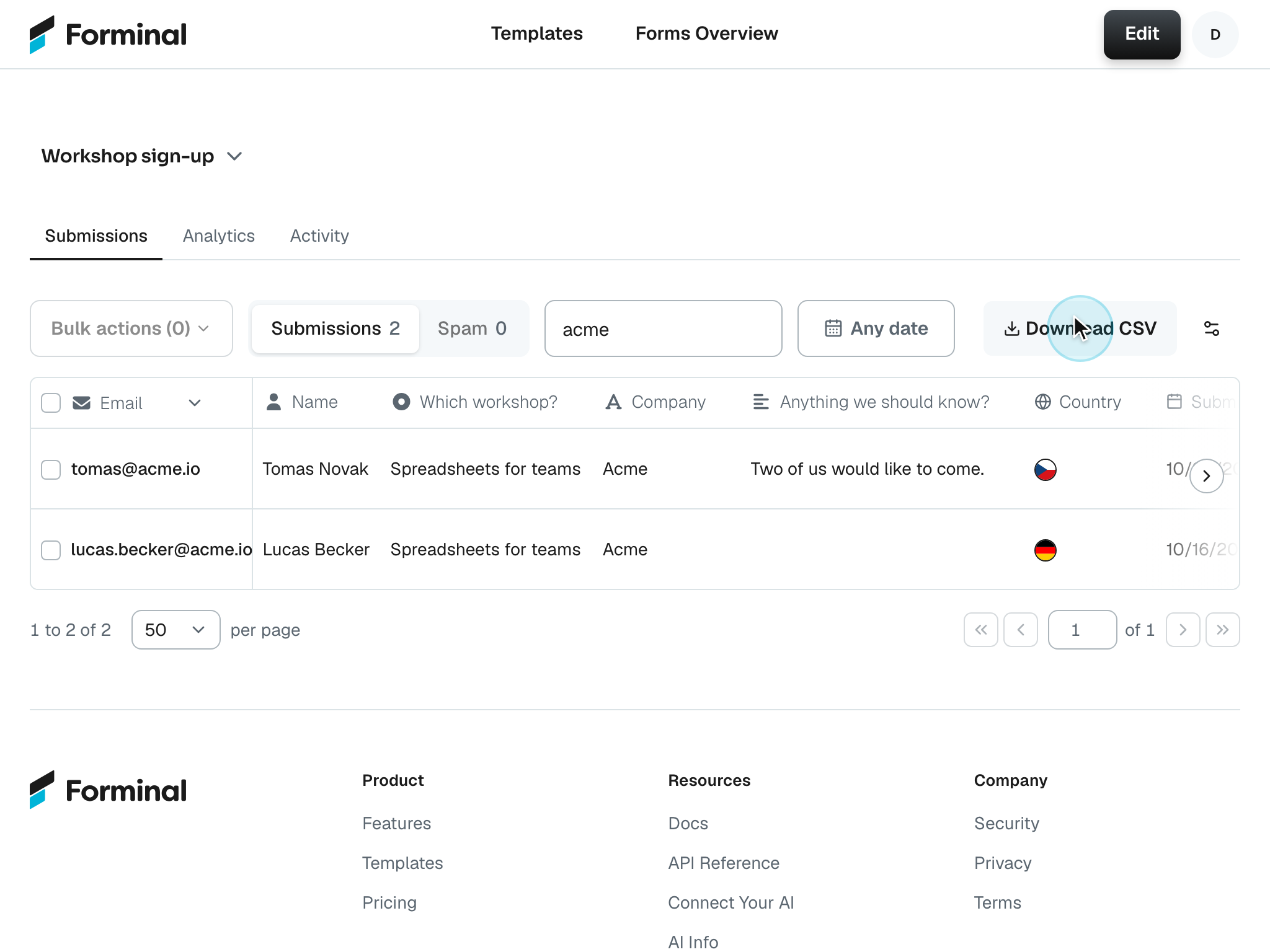
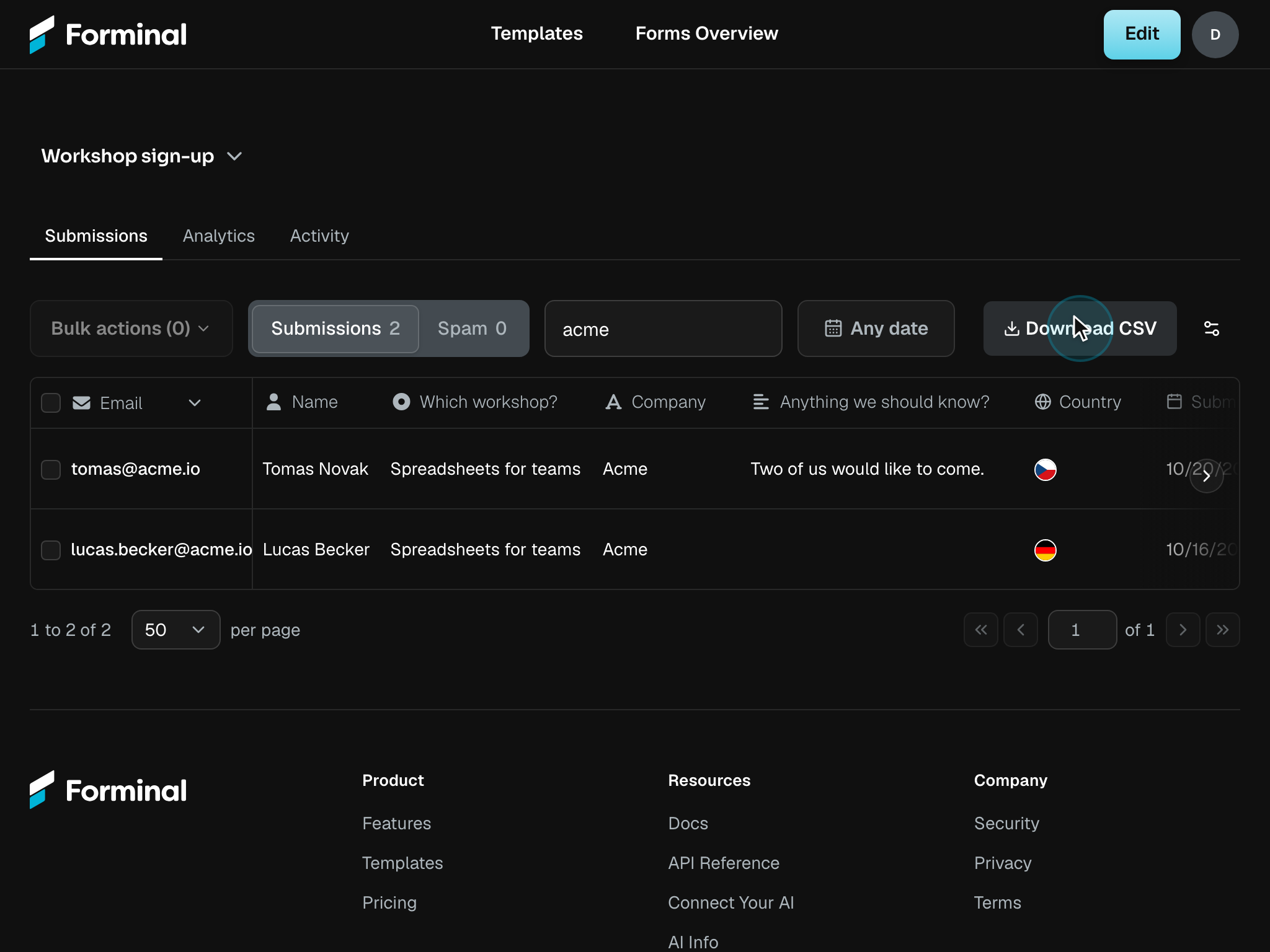
The file follows the table’s filters. It holds every submission that matches the tab, search, dates and UTM filter, from every page of the table, in the table’s sort order. With no search, dates or UTM filter, that’s every submission in the tab.
Export through an assistant
If your assistant isn’t connected yet, do that first:
- Open Account menu » Profile » API keys.
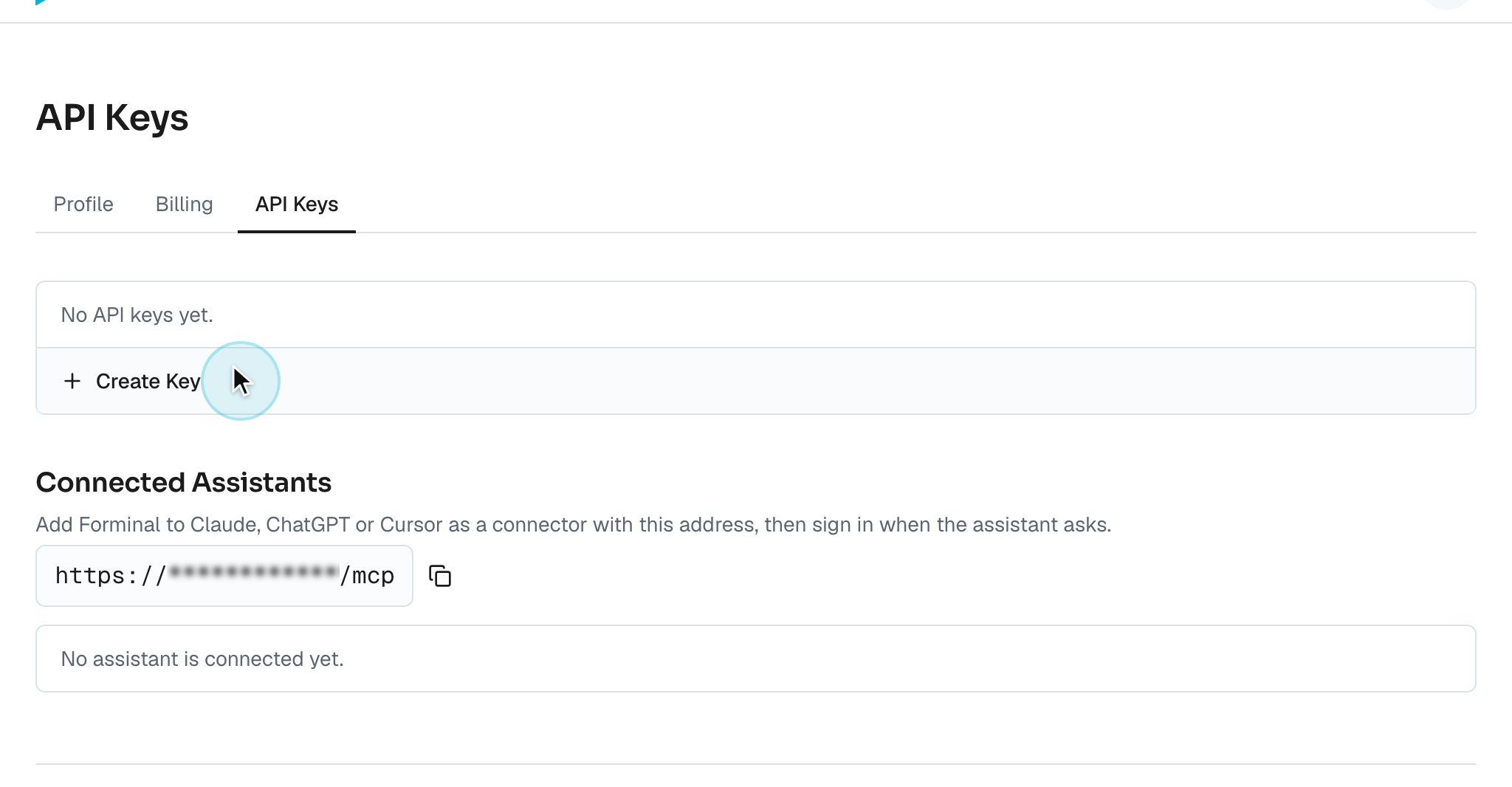
- Under Connected Assistants, select Copy MCP address next to the address.


- In your assistant, add a connector with that address. Sign in when it asks and select Allow. The assistant then shows in the Connected Assistants list.
Step 3 happens in the assistant. More on connecting each client is in Connect an AI agent over MCP. Then:
- Ask the assistant in plain words, for example “Export the submissions of my Workshop sign-up form from March as a CSV”.
- It replies with a link. Open it within 15 minutes to download the file, which is named after the form.
You can narrow the export the same ways you search results: a date range, words in the answers or tags, up to 10 tags that a row must all carry, only submissions nobody has opened yet, a payment status, or the spam folder instead of your submissions. Spam is left out unless you ask for it.
Open the file in a spreadsheet
- Open the downloaded file in Excel, Numbers, Google Sheets or any other spreadsheet app.
- Row 1 is the header. Each row after it is one submission.
The columns are Submission ID, Submitted at, Payment when the form has a Payment field, one column per question titled with its label, then Tags, Origin page, Browser, Time to complete (s) and Country, the English name of the respondent’s country, followed by UTM Source, UTM Medium, UTM Campaign, UTM Term and UTM Content from UTM Tracking. A question without a label is called Question 1, Question 2 and so on. Submitted at is in UTC.
Answers are readable text rather than raw values: choice labels, several choices separated by commas, Yes or No for a checkbox, dates in the field’s format, and a rating as the score out of the top of the scale, such as “4 / 5”. File Upload and Signature answers are links to the files: a file kept in your media library links to Forminal, where it opens for someone signed in with access to the form’s submissions, and a file in Drive links to your Drive. The file is UTF-8, so accents and other scripts stay intact in Excel. A cell that starts with =, +, - or @ gets an apostrophe in front, so it shows as text instead of running as a formula.
Good to know
- Download CSV has no row limit. An export through the assistant holds up to 20,000 rows. If more submissions match, the assistant is told, so ask for smaller date ranges or use the button.
- The assistant’s link needs no sign-in, so anyone who has it can download those rows until it expires. Don’t paste it anywhere public.
- The table’s dates are days in your own time zone, while the assistant’s are days in UTC.
- Workspace members who can view a form’s submissions can export them either way.
- For a copy that updates by itself with every new submission, use Google Sheets instead.
- More detail is on the CSV Export page.
Frequently asked questions
Why do the dates in my export not match the table?
The table picks days in your own time zone, while an assistant’s export uses days in UTC. The Submitted at column in the file is always in UTC.
Why does a cell in my CSV start with an apostrophe?
A cell that starts with =, +, – or @ gets an apostrophe in front, so your spreadsheet app shows it as text instead of running it as a formula.
Can I export the submissions marked as spam?
Yes. Pick the Spam tab before you select Download CSV, or ask your assistant for the spam folder. Spam is left out unless you ask for it.
Does the CSV include uploaded files?
File Upload and Signature answers come as links, not as the files themselves. A link to a file in your media library opens for someone signed in with access to the form’s submissions; a link to a Drive file opens in your Drive.
Can I get a copy that stays up to date?
A CSV is a snapshot of the moment you download it. For a sheet that gets a new row with every submission, connect Google Sheets.