Connect your Stripe account and the Payment field on your forms can take money. Charges go to your own Stripe account, so you see each one in your Stripe Dashboard. By the end of this guide you’ll have a form that charges people when they submit, tested first in test mode.
Connect Stripe
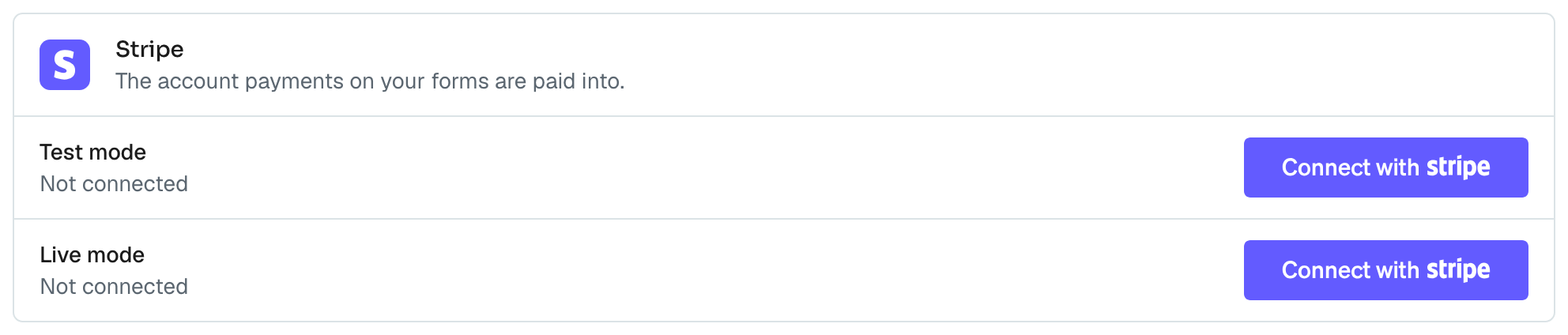
Test mode and Live mode are separate connections. Connect Test mode to try payments with Stripe’s test cards, and Live mode to take real money. You can connect a different Stripe account to each.
- Open Account menu » Integrations. From a form, you can also select Integrations in the builder’s top bar and then Manage next to Stripe.
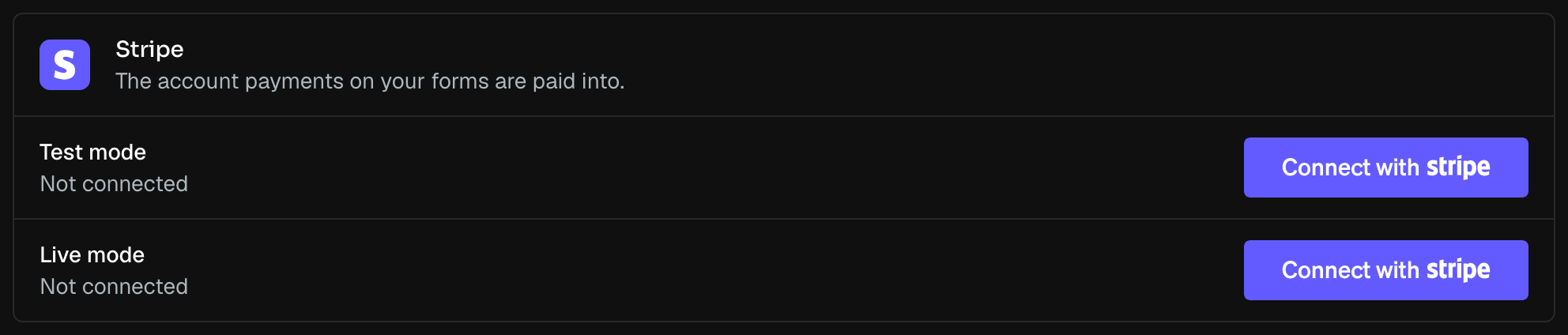
- Under Payments, select Connect with Stripe on the Test mode or Live mode row.
- Sign in to Stripe, pick or create the account, and approve the connection.
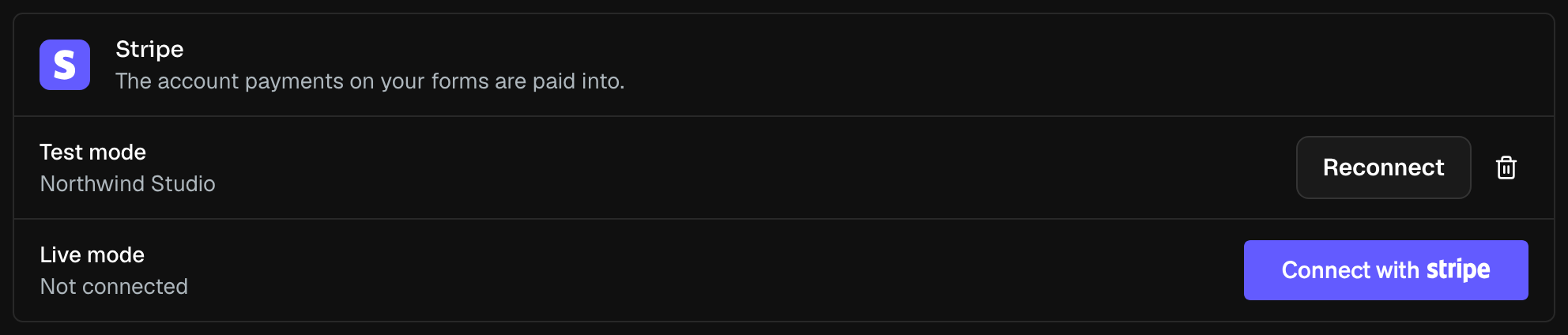
- You come back to the Integrations page with the message “Stripe connected.” and the account’s name on that row.
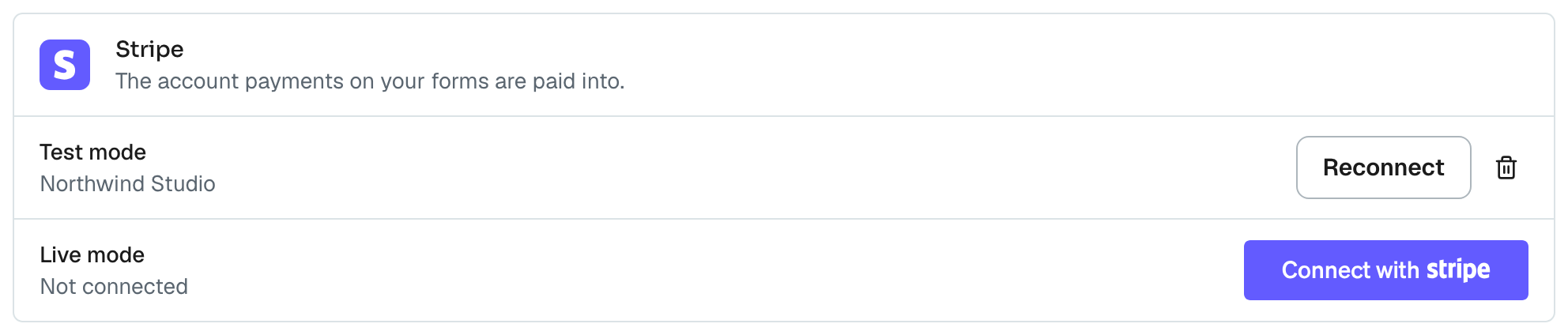
Step 3 happens on Stripe’s own pages. Finish it in the same browser you started it in, while you’re still signed in to the same account here, or the connection is refused and you have to start again. Each form’s Integrations tab then shows which modes are connected.


Add a payment to your form
- Add an Email field to the form. The payment is billed to that address, and the form can’t be published without one.
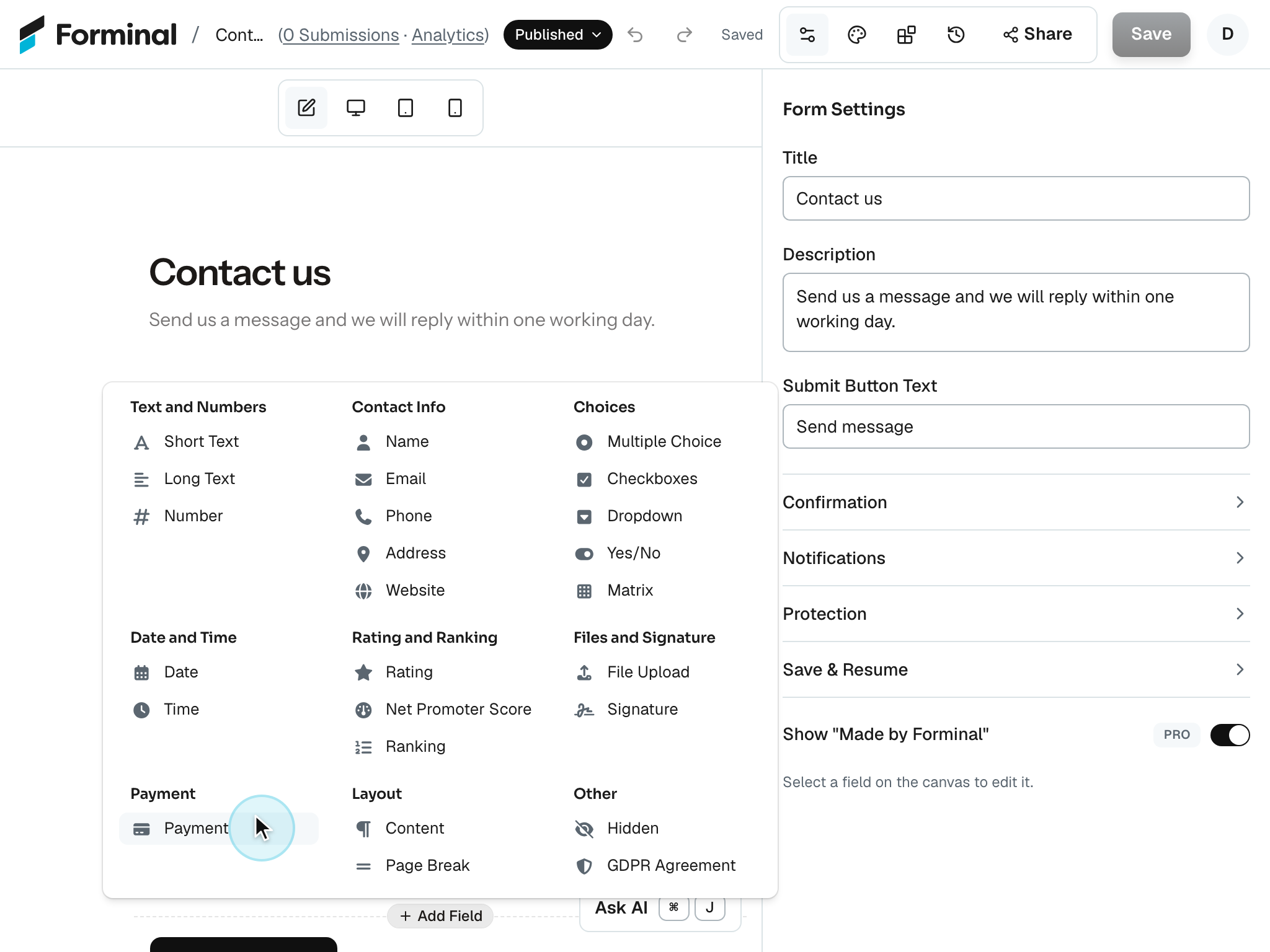
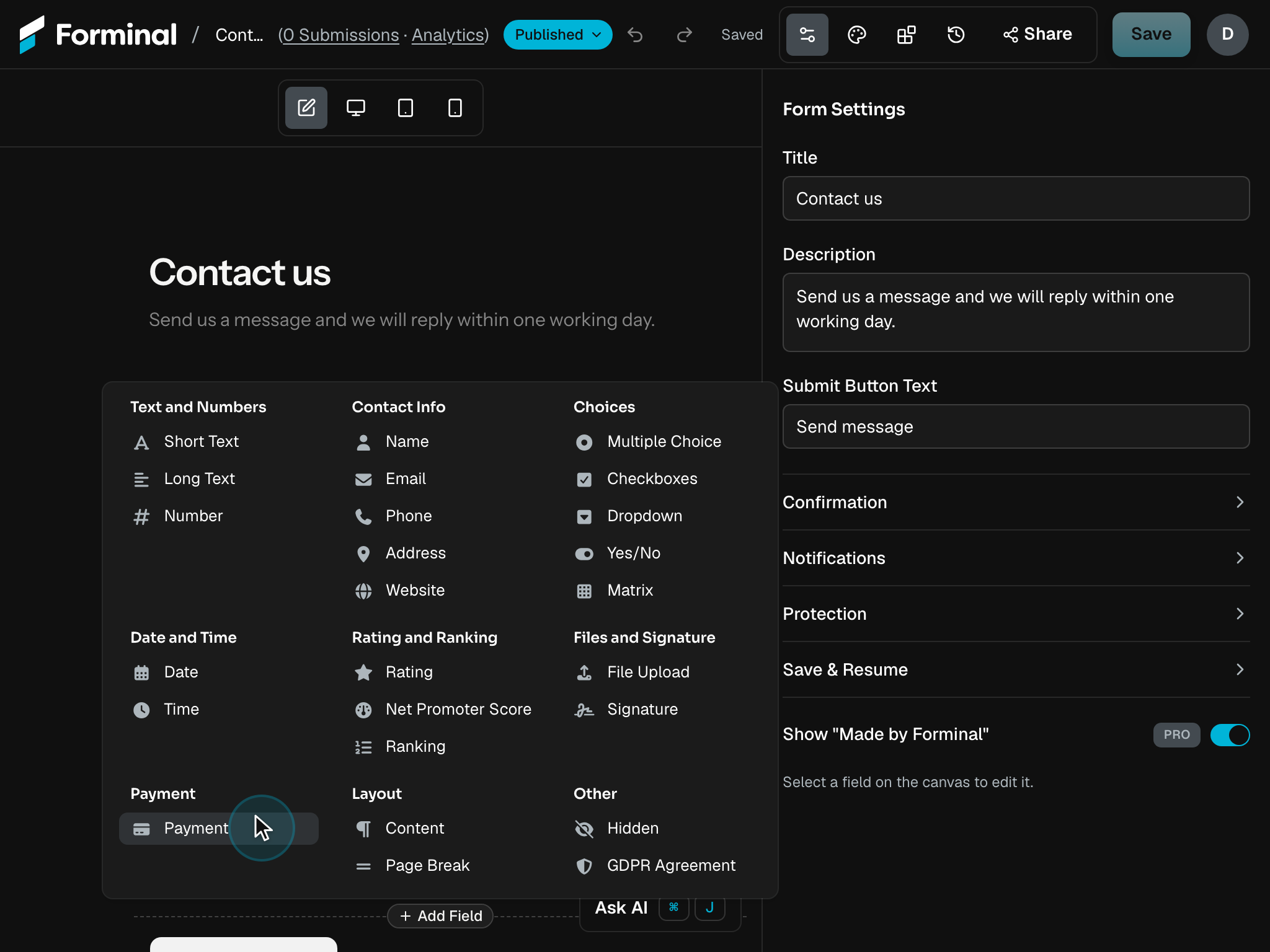
- Select Add Field and choose Payment. On an empty form, select Start from Scratch instead of Add Field. It starts in test mode, charging 10.00 USD once.
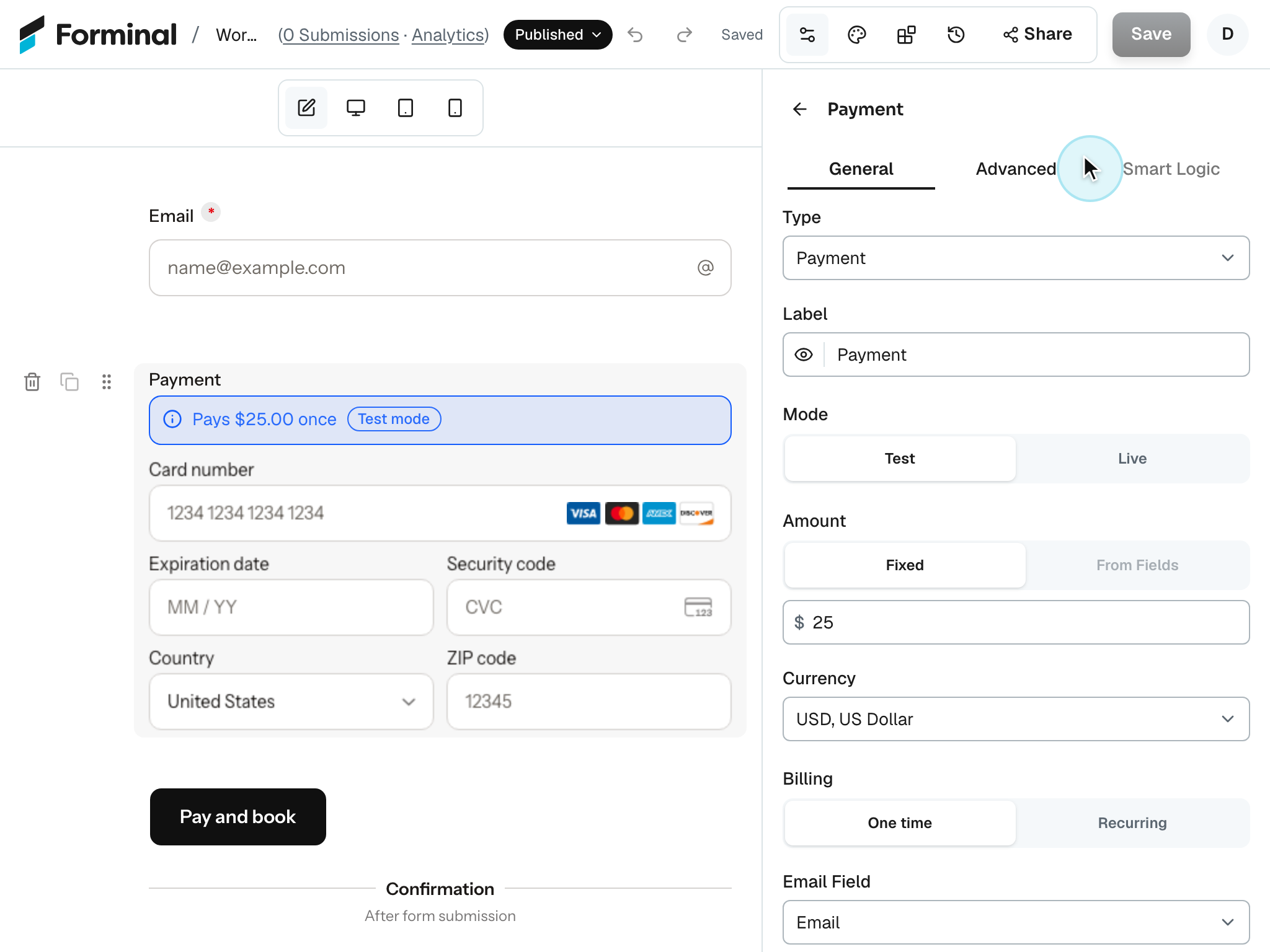
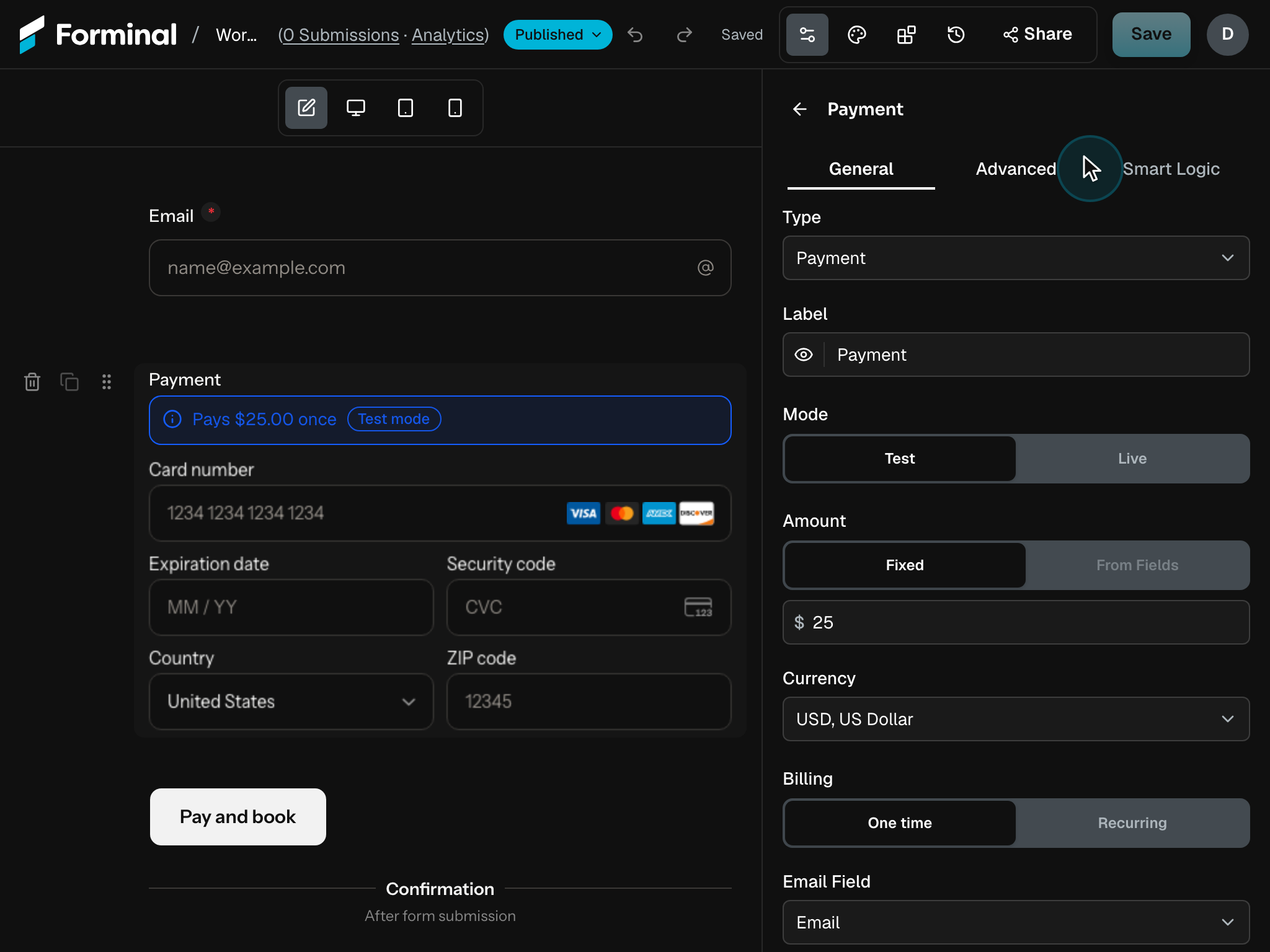
- On the General tab, set the Amount: Fixed for the same amount every time, or From Fields to add up a Number field and the prices of chosen options. Then set the Currency and the Billing, One time or Recurring.
- On the Advanced tab, choose the payment methods: Card, Bank, Cash App Pay and Klarna. Card is always on and covers Apple Pay and Google Pay.
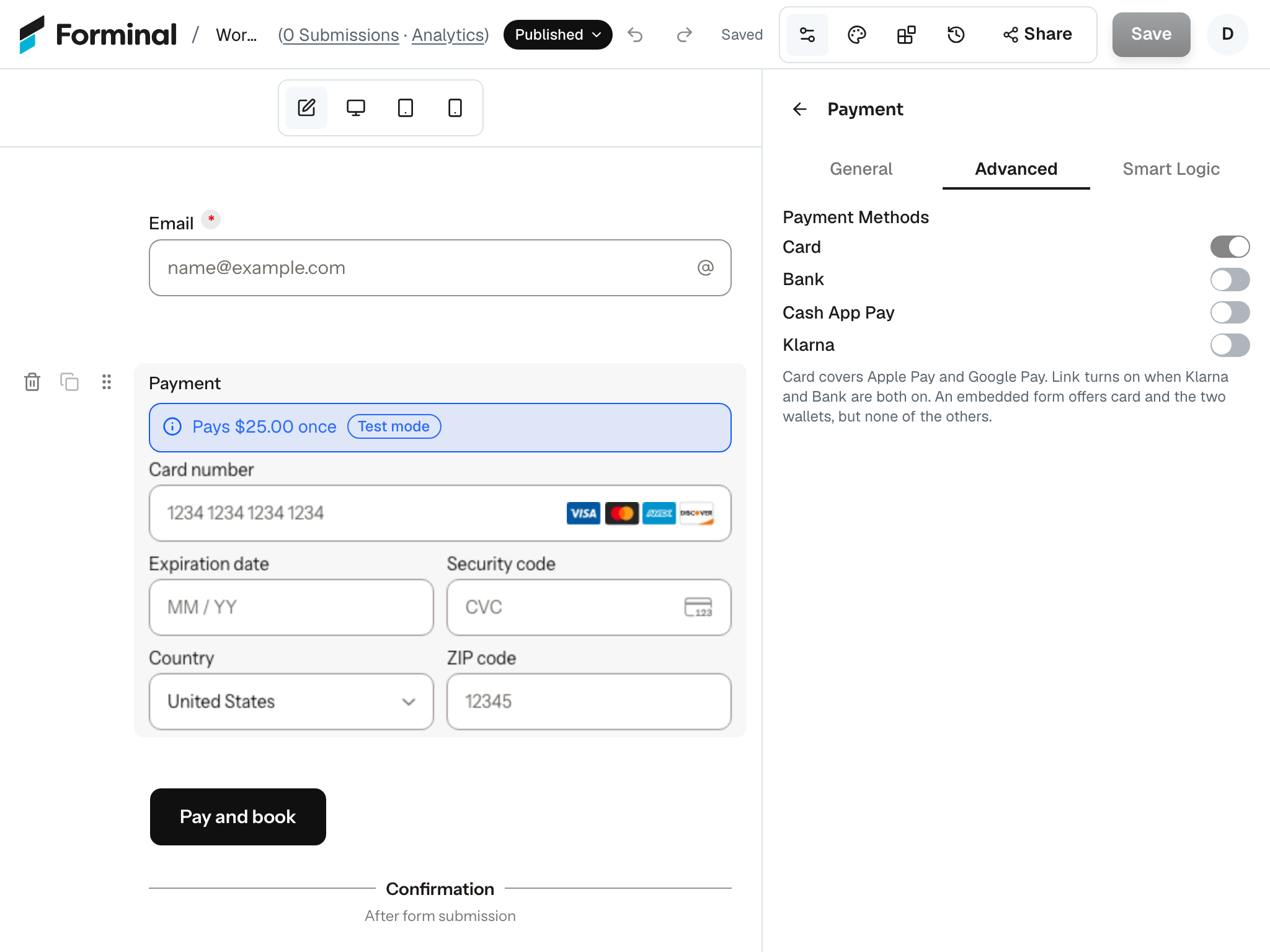
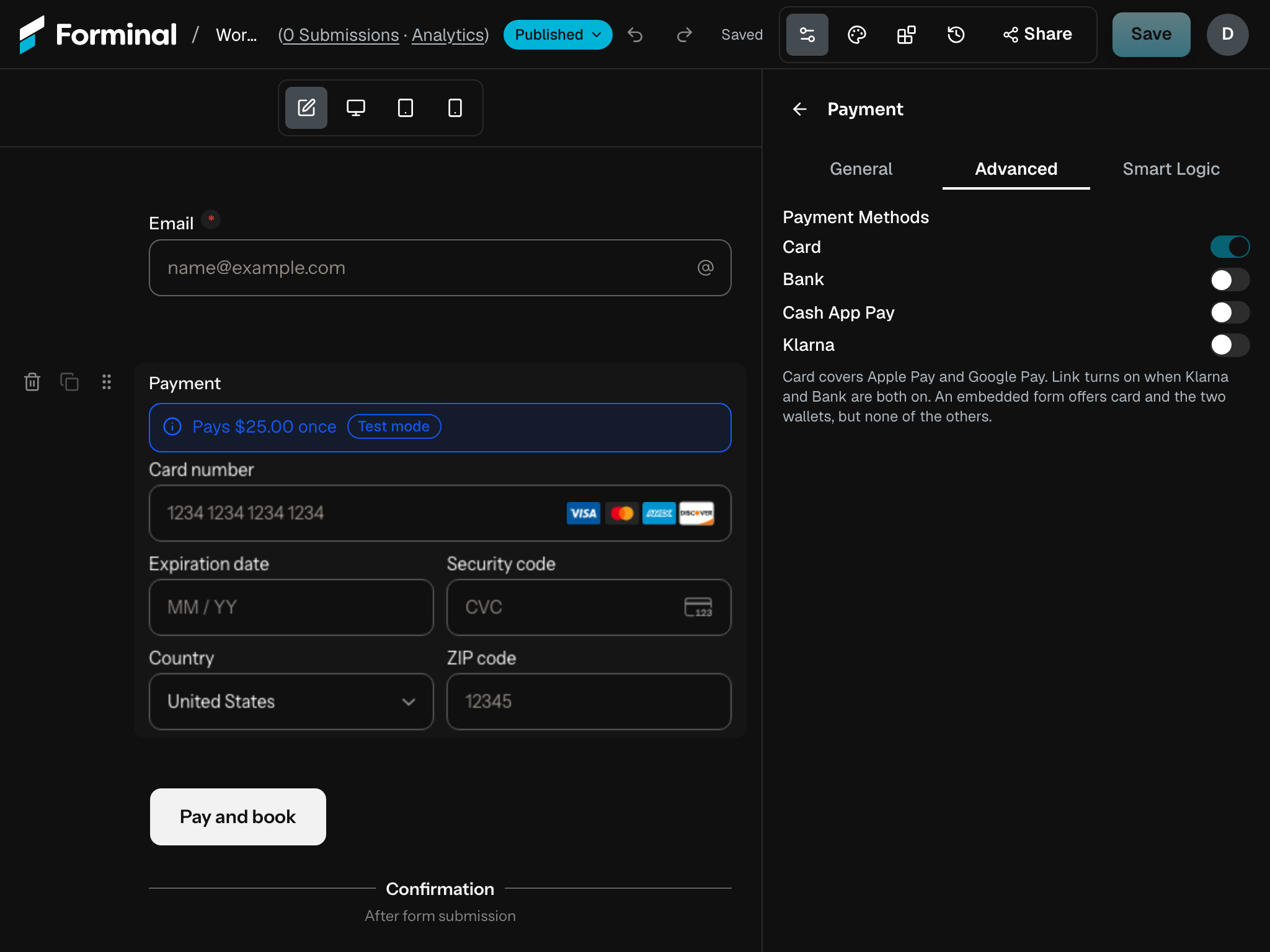
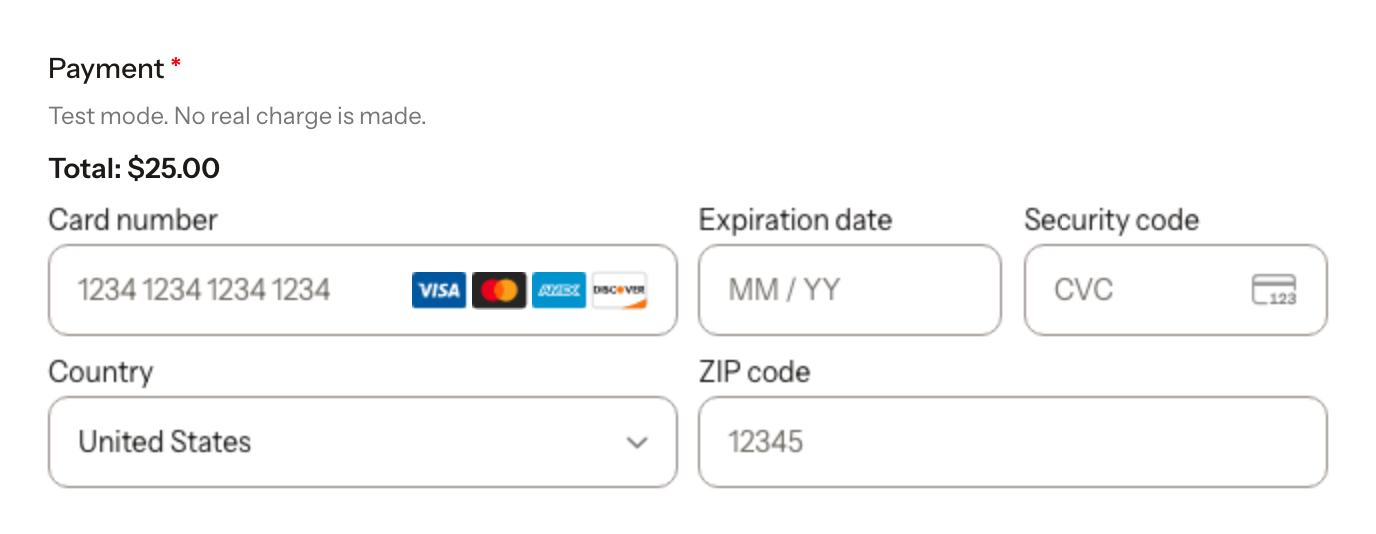
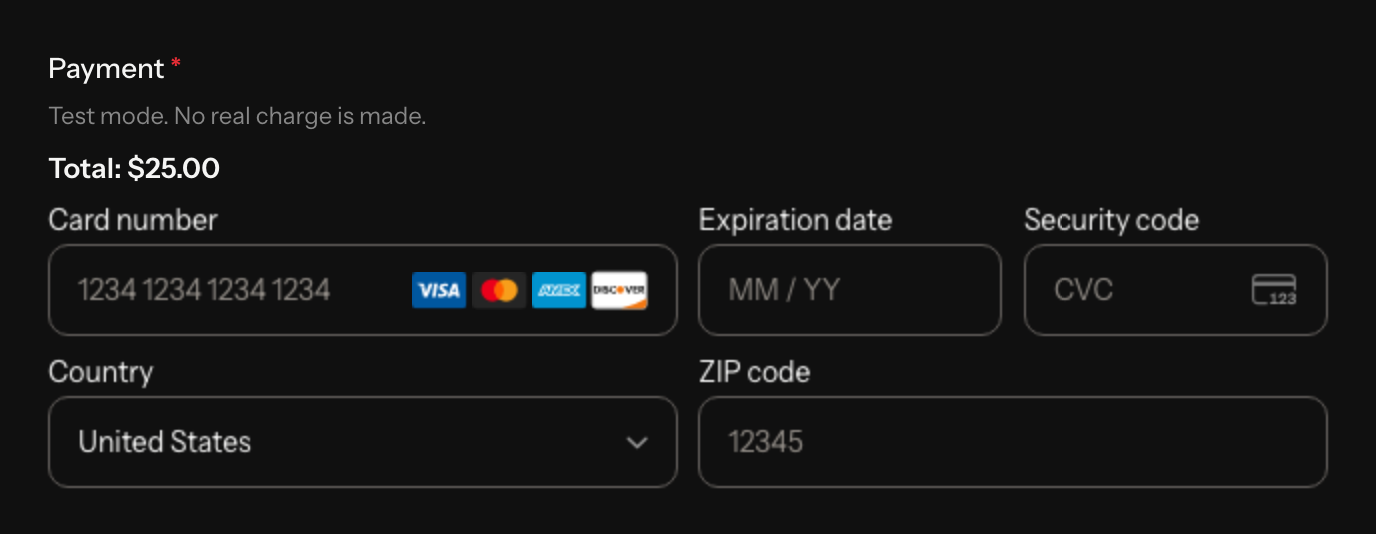
- Publish the form while Mode is Test, open its link and pay with one of Stripe’s test cards. The payment box says “Test mode. No real charge is made.”
When it works, switch Mode to Live and select Save in the top bar. From then on, the form takes real payments.
On the Submissions page, each submission on a payment form gets a Payment column with the amount and a status: Paid, Processing, Pending, Failed, Canceled, or Not completed for a payment still pending after an hour. Open a submission and select View in Stripe to see that payment in your Stripe Dashboard.
Good to know
- A form can have one Payment field. It’s always required and has to be on the last page.
- Bank and Cash App Pay take USD only, Klarna takes a short list of currencies, and only Card and Bank can bill a recurring payment. The panel tells you when a method doesn’t fit, and the form can’t be published until you change it.
- An embedded form takes card payments only.
- Notifications, Google Sheets, Make, Zapier and webhooks wait for the payment to be paid before they send the submission.
- Stripe’s own fees apply, and you handle refunds and disputes in the Stripe Dashboard.
- Payments work on every plan. See the Stripe and Payment pages for every setting.
Frequently asked questions
Do I need a paid Forminal plan to take payments?
No, payments work on every plan. Stripe charges its own fees on each payment, and the money goes to your own Stripe account.
Can the price change based on what people choose?
Set Amount to From Fields, and the total adds up a Number field and the prices of the options people pick. For a total that multiplies or applies a discount, work it out with Calculations in a Number field and use that field as the amount.
How do I refund a payment?
Refunds and disputes are handled in your Stripe Dashboard. Open the submission and select View in Stripe to go straight to that payment.
Who sends the payment receipt?
Stripe sends it to the address in the form’s Email field, which is why the form needs one. The payment box never asks for an email itself.
What happens if Smart Logic hides the Payment field?
The submission is saved without a charge. Submissions caught as spam are never charged either.
What happens to my forms if I disconnect Stripe?
Payment fields in that mode stop taking payments on every form until you connect again. Payments you already took stay in your Stripe account and in your submissions.