Forminal has three plans: Lite, which is free, and the paid Pro and Business. Every plan includes the builder, every field type, Smart Logic, multi-page forms, payments, sharing, embeds, submissions and email notifications; the paid plans add features on top. By the end of this guide you’ll know where to see what your plan includes, how to move to a bigger one, and where your invoices are.
Compare the plans
- Open Account menu » Profile » Billing. You can also open your billing page directly.
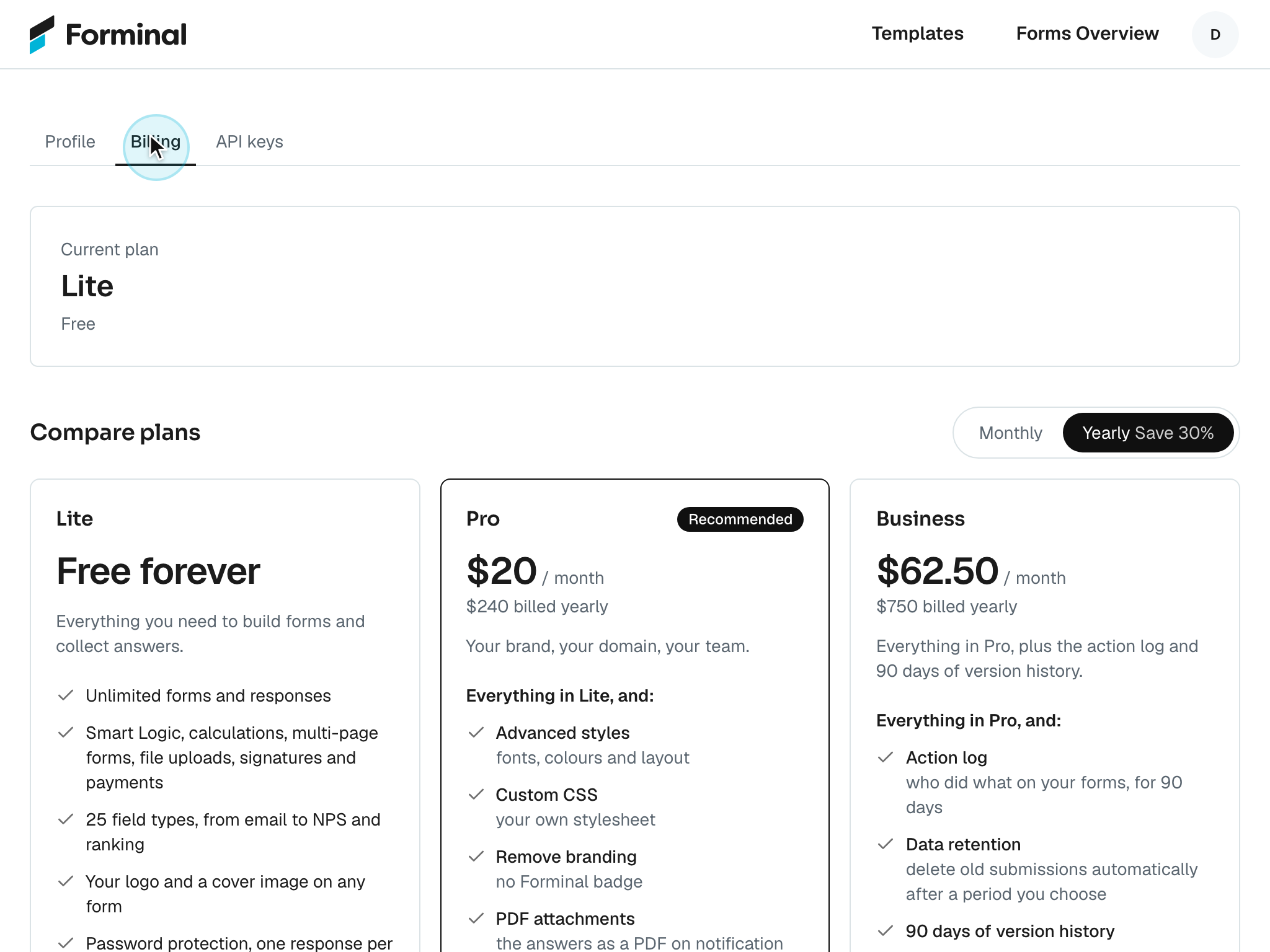
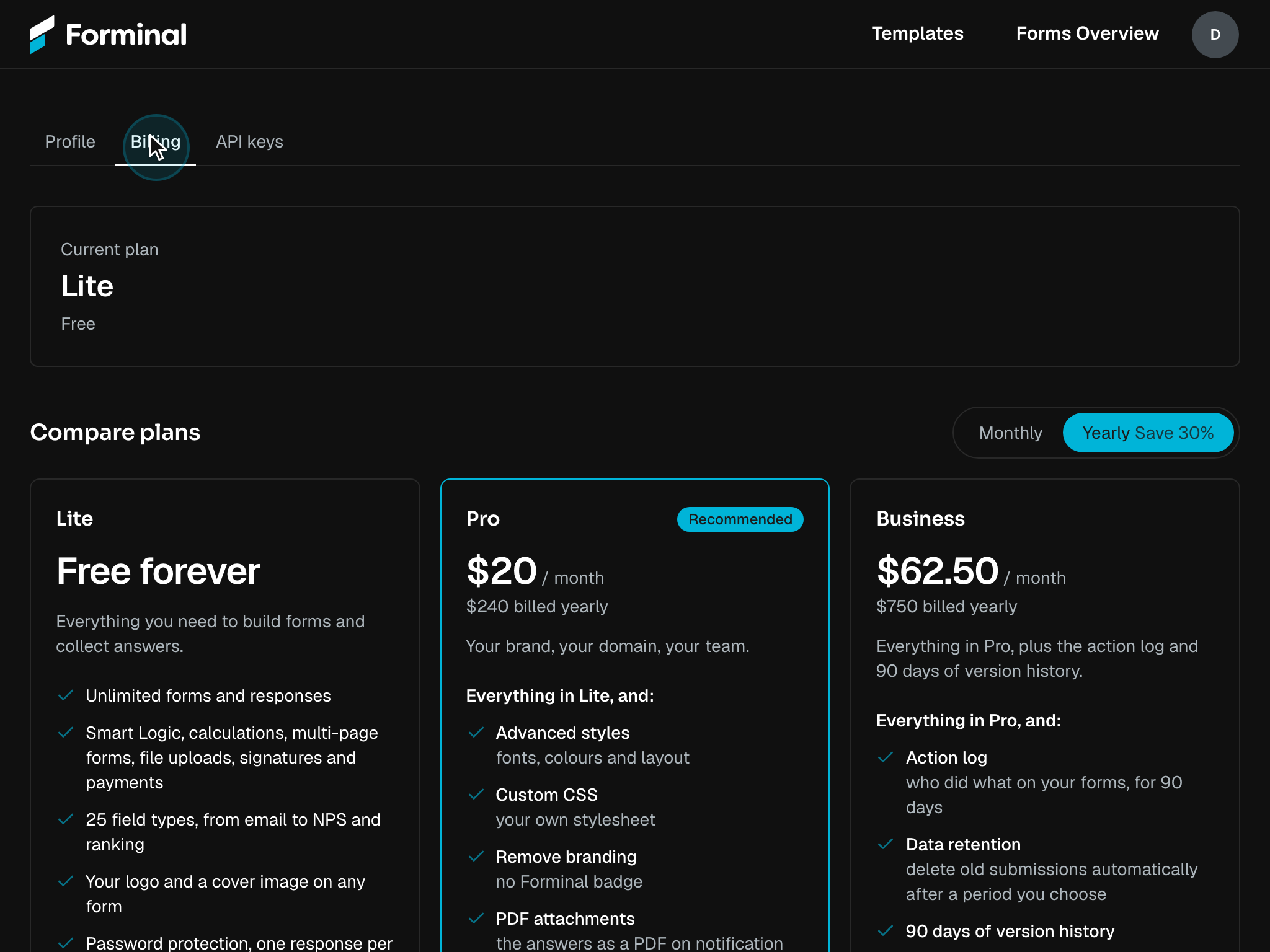
Current plan, at the top, shows the plan you’re on. On a paid plan it also shows the day it renews or cancels, and whether you pay monthly or yearly. Compare Plans lists Lite, Pro and Business side by side, with what each one adds. Switch between Monthly and Yearly above the cards to see the price for each billing period; the page opens on Yearly. Your own plan is marked Your plan.
Lite is free. Pro adds features such as Advanced Styles, Custom CSS, removing the branding, PDF Attachments, Form Analytics, Custom Domains and workspaces. Business includes everything in Pro and adds Submission Pages, the Action Log and Data Retention. Version History keeps 7 days on Lite, 30 on Pro and 90 on Business. For the current prices and the full list, see the pricing page.
From the builder
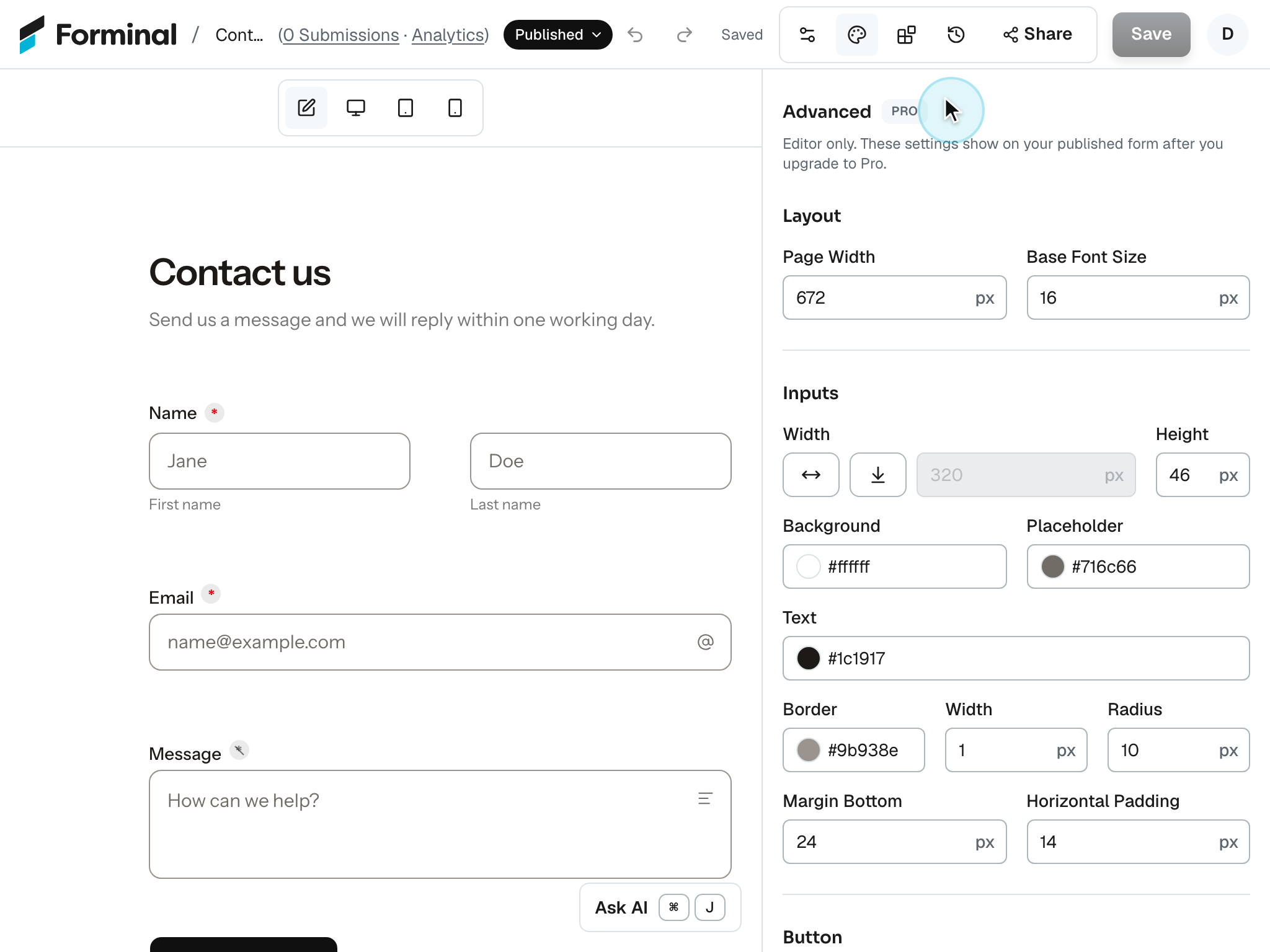
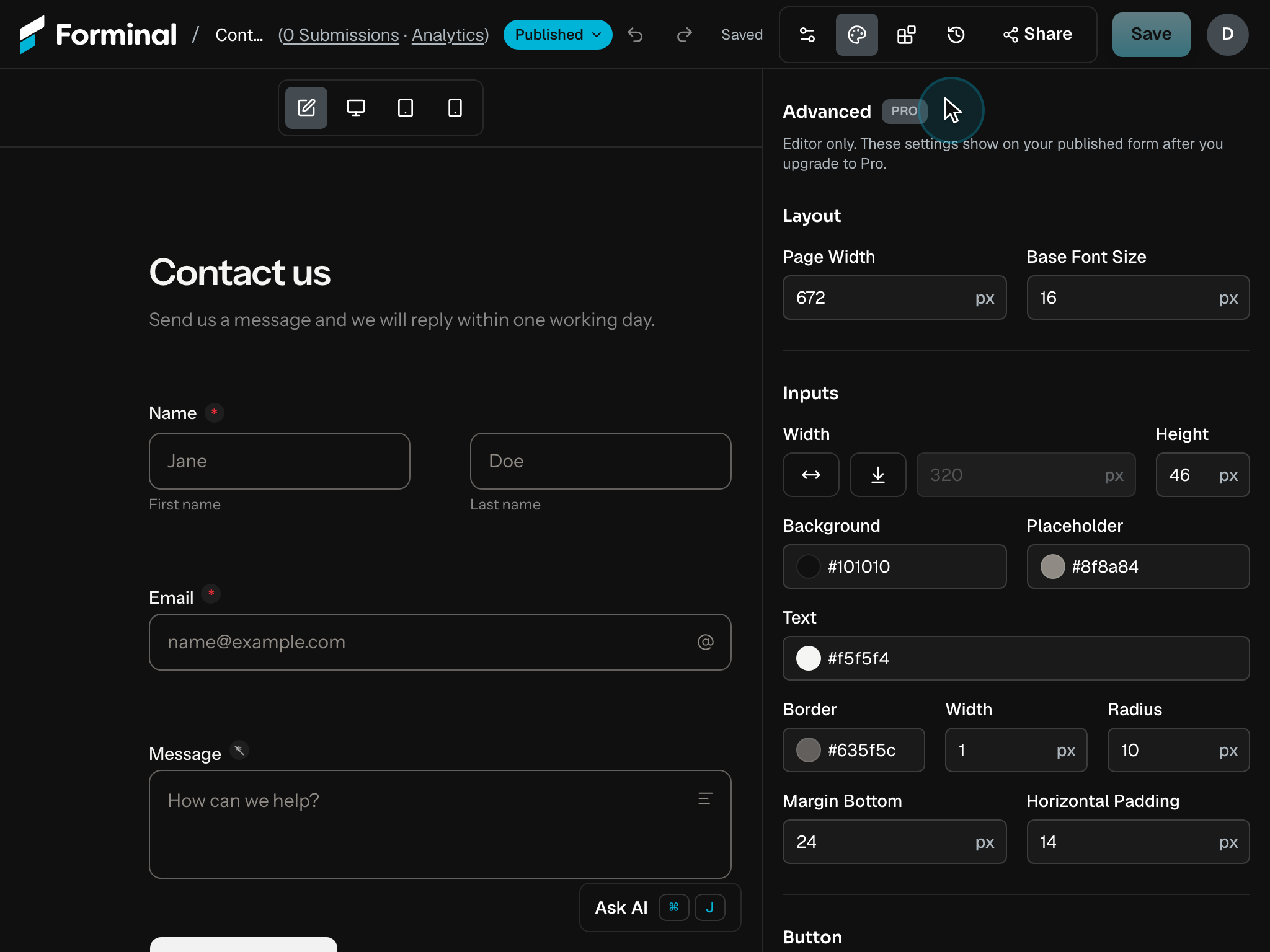
- In the builder, a feature your plan doesn’t include carries a badge with the plan that adds it, PRO or BUSINESS. Select the badge. On a theme tile the PRO badge is only a label, since selecting the tile applies the theme. Select the PRO badge next to Advanced in the Customize panel instead.
- A window says which plan the feature needs. Select Upgrade to Pro, or Upgrade to Business, to go to checkout.
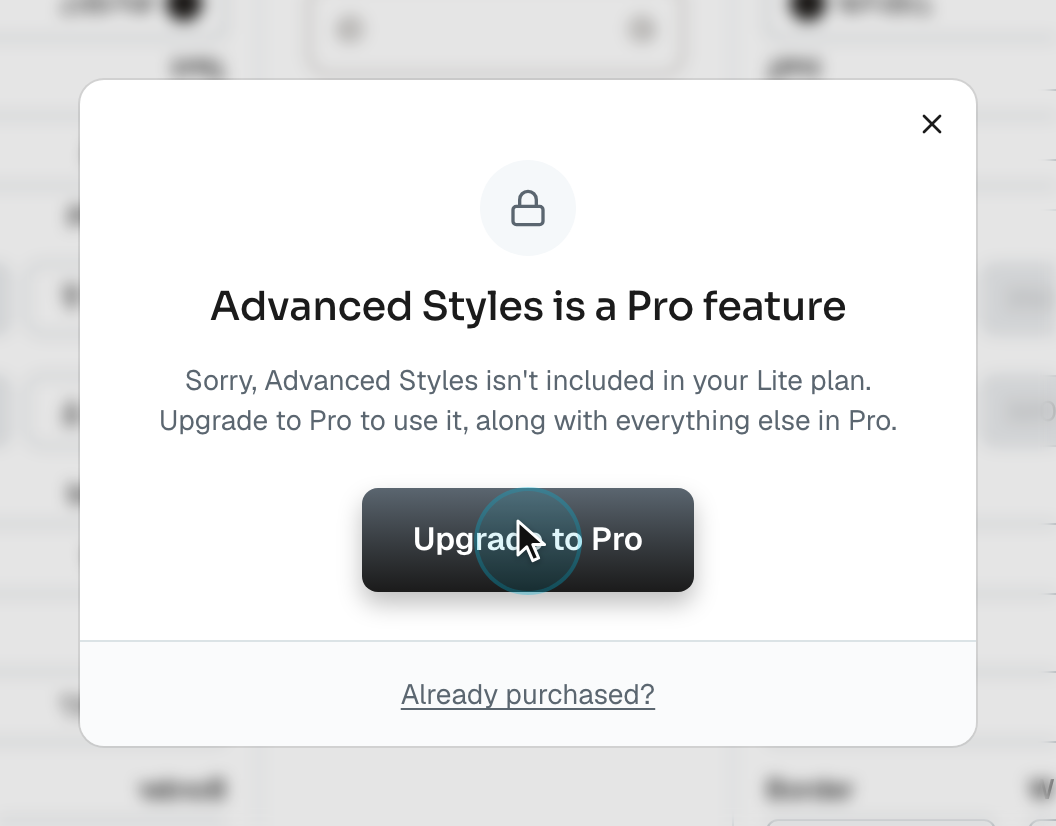
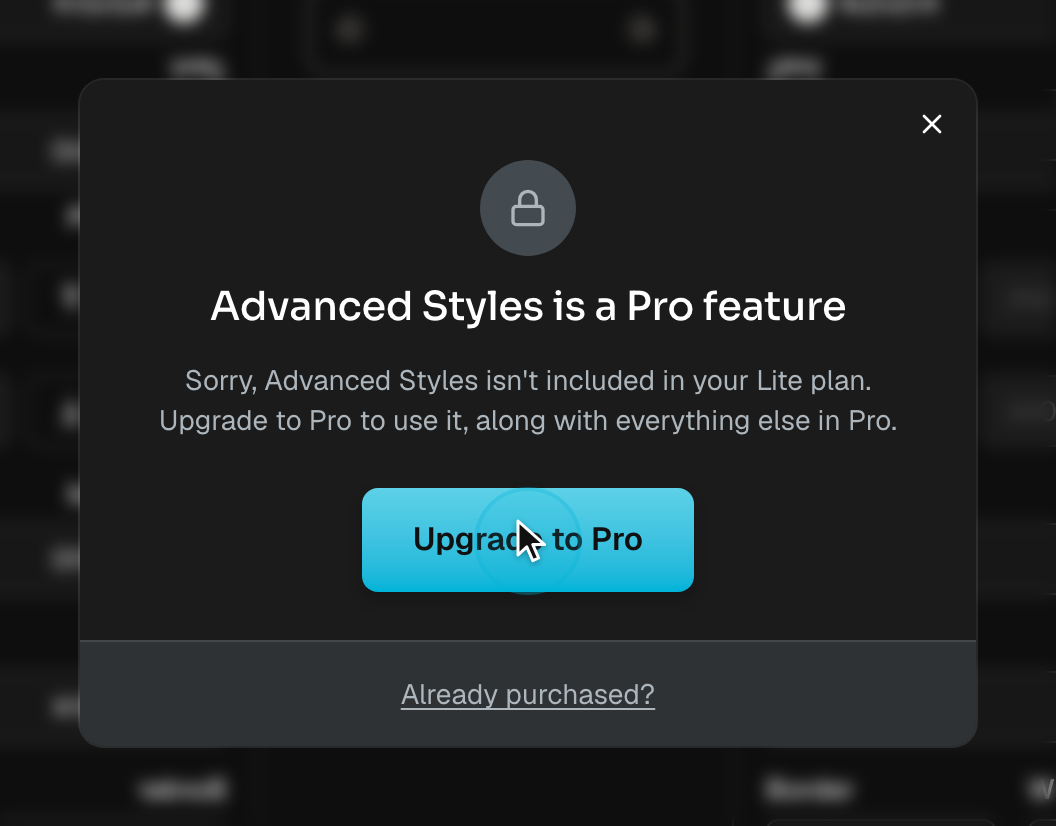
You can still try the feature on the canvas; the published form leaves it out, and the builder tells you what won’t show.
Upgrade
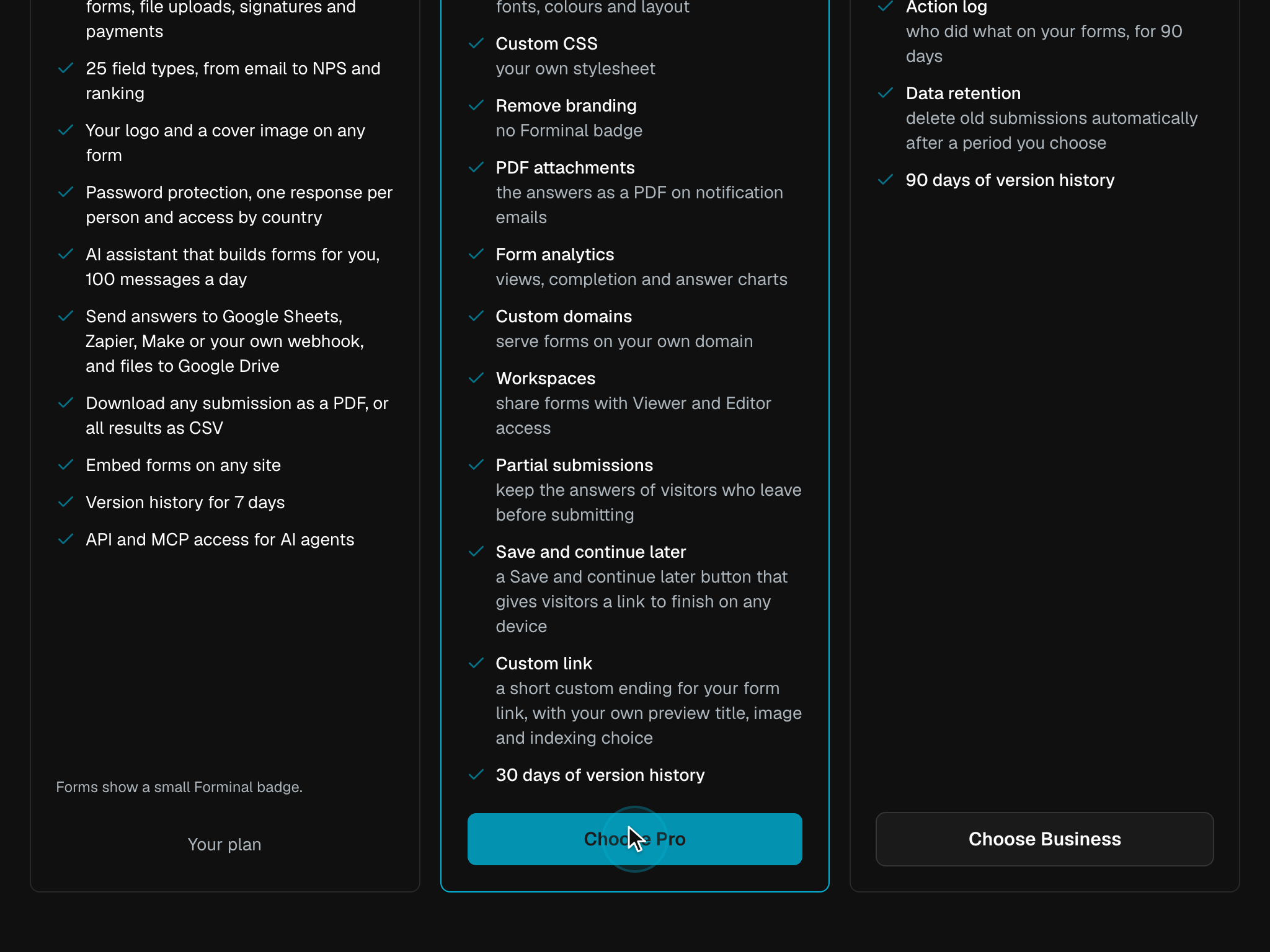
- On the Billing tab, pick Monthly or Yearly, then select Choose Pro or Choose Business.
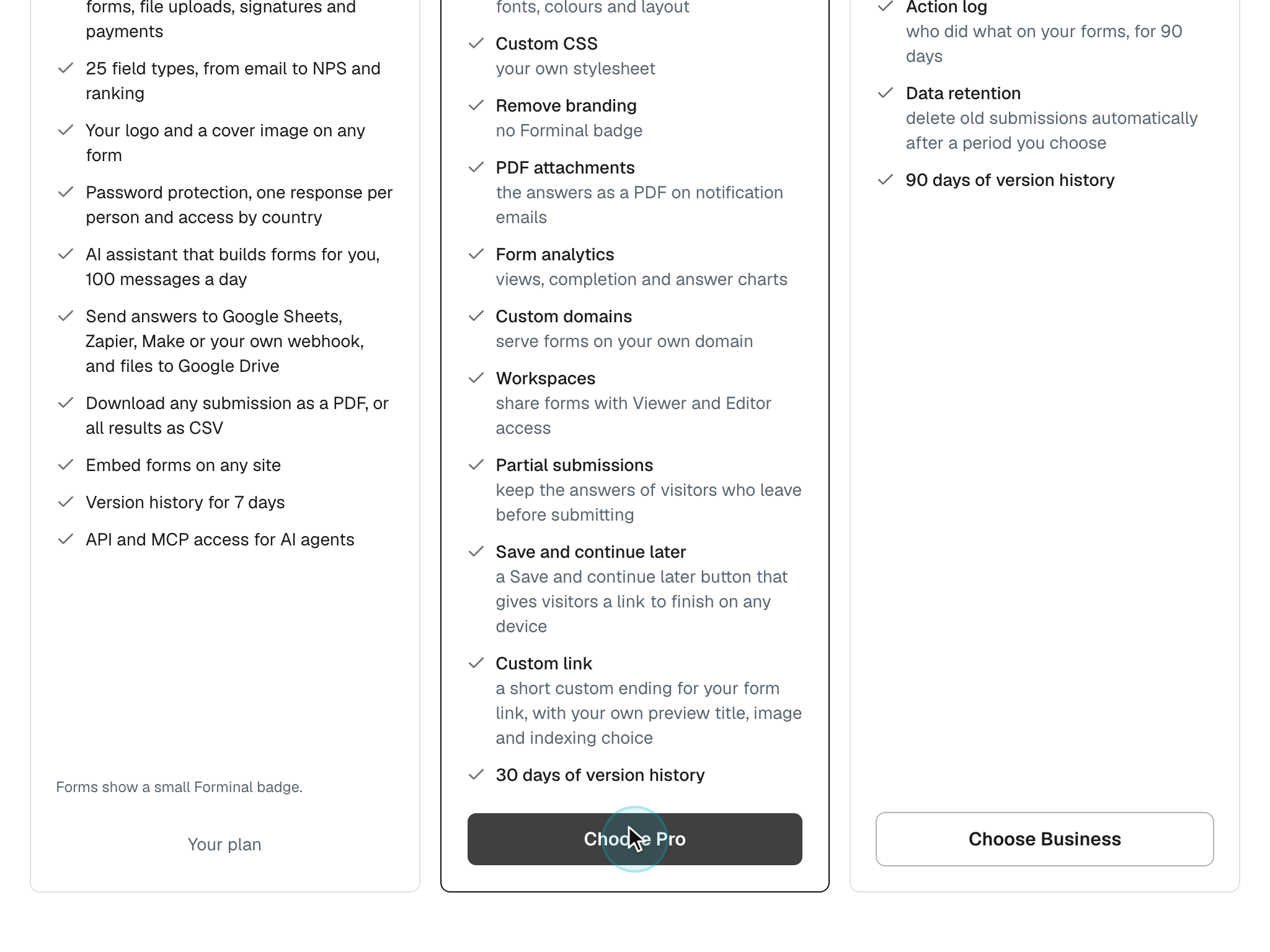
- Check the summary. If you have a code, type it under Discount code and select Apply. A code lowers the first payment only.
- Enter your billing address and payment details, and select Pay.
- The page says “Activating your plan…”. Once it switches, the new features work in your forms, including the ones already published.
Steps 2 and 3 take your card details through Stripe. Choose only shows on plans above yours, and only while you have no paid subscription. If the switch takes longer than a few seconds, the page says your payment went through and asks you to refresh in a few minutes.
Change your plan
- On the Billing tab, select Change Plan under Compare Plans.
- You go to Stripe’s billing portal. There you can move between Pro and Business, or between monthly and yearly billing.
Invoices and cancelling
- On the Billing tab, select Manage billing under your current plan.
- You go to the same billing portal. There you can change your card, read your invoices, and cancel.
Both buttons show only once you have a paid subscription, and the portal is Stripe’s own page. When you cancel, your plan keeps working until the end of the billing period you paid for, and Current plan shows the day it cancels. After that your account moves to Lite.
Good to know
- Moving down a plan keeps your forms and submissions. Forms keep the paid features in their settings, and the published form leaves out what the new plan doesn’t include until you upgrade again. Version History goes back to the new plan’s window, and Data Retention stops deleting old submissions until you upgrade. Published Submission Pages stop showing until you upgrade, and you can still move them to draft or delete them.
- Workspace members work on your forms with your plan’s features, so they don’t need a paid plan of their own.
- If a payment fails, Current plan says “Your last payment failed.” Update your card in Manage billing.
Frequently asked questions
Can I try a Pro feature before I upgrade?
You can. A feature your plan doesn’t include carries a PRO or BUSINESS badge, and you can still set it up on the canvas. The builder tells you what won’t show, and the published form leaves it out until you upgrade.
Do my published forms get the new features as soon as I upgrade?
They do, once the Billing page has finished activating your plan, including forms that are already live. If the switch takes longer than a few seconds, refresh the page in a few minutes.
Why don’t I see a Choose button on the Billing page?
Choose only shows on plans above yours, and only while you have no paid subscription. If you already pay for a plan, use Change Plan to move between Pro and Business in the billing portal.
What happens if my payment fails?
Current plan on the Billing page tells you that your last payment failed. Open Manage billing and update your card there.
Which plan do I need for workspaces or a custom domain?
Pro. It also adds advanced styles, custom CSS, removing the branding and form analytics. Business includes all of that plus Submission Pages, the action log and data retention. The pricing page has the full list.
How far back does version history go on each plan?
7 days on Lite, 30 days on Pro and 90 days on Business. Your 10 most recent published versions are kept however old they are. See Version History.