Tick several rows and change them in one go. In a form’s results you can mark submissions read or unread, move them in or out of spam, export them or delete them. On Forms Overview you can move forms to another workspace, add them to one or delete them.
Select submissions
- Open a form’s Submissions page and pick the tab you want: Submissions, Spam or Partial.
- Tick the box at the start of each row you want. To take every row on the page, tick Select all on this page in the header. While only some rows are ticked, that header box shows a dash.
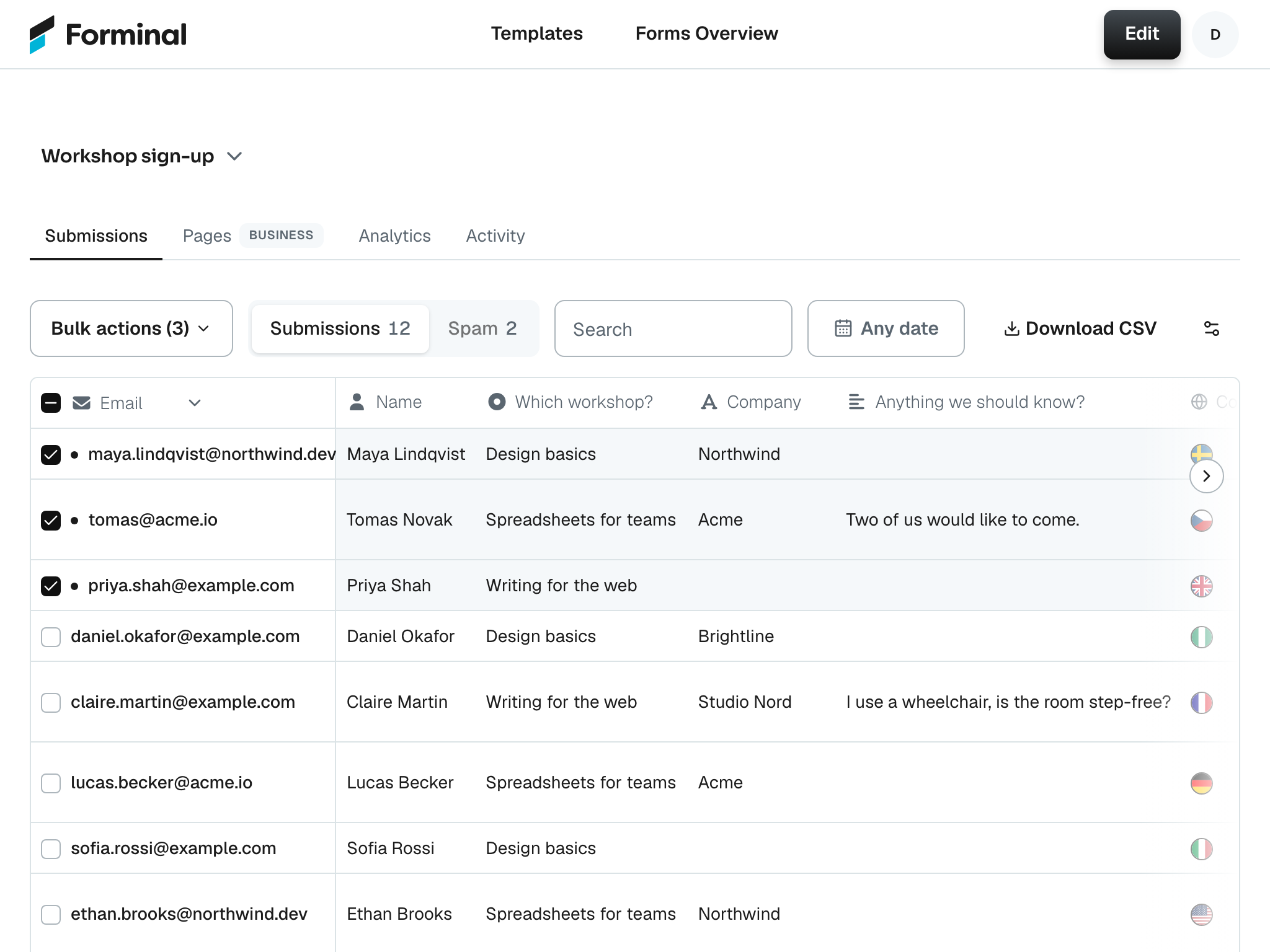
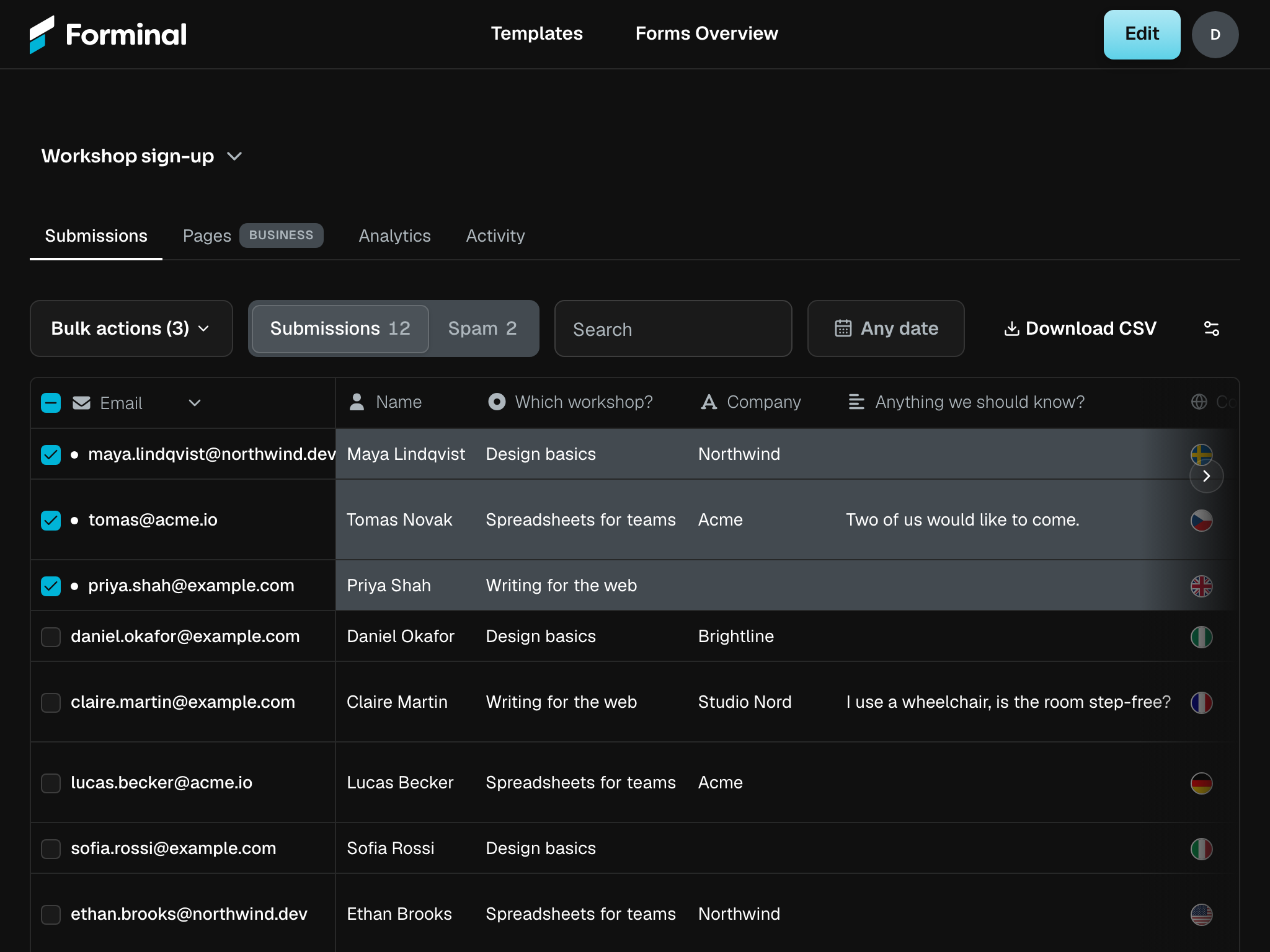
The header box ticks only the rows on the current page. A page holds 10, 25, 50, 100 or 200 rows (50 by default), so pick a bigger page size at the bottom of the table first if you need more. Changing the page, the tab, the search, the dates, the sort or the page size clears your selection.
Act on submissions
- Select Bulk actions (N) and choose an action. It is the first button in the toolbar, before the tabs. Until you tick a row, it is dimmed and its tooltip says “Select rows first”.
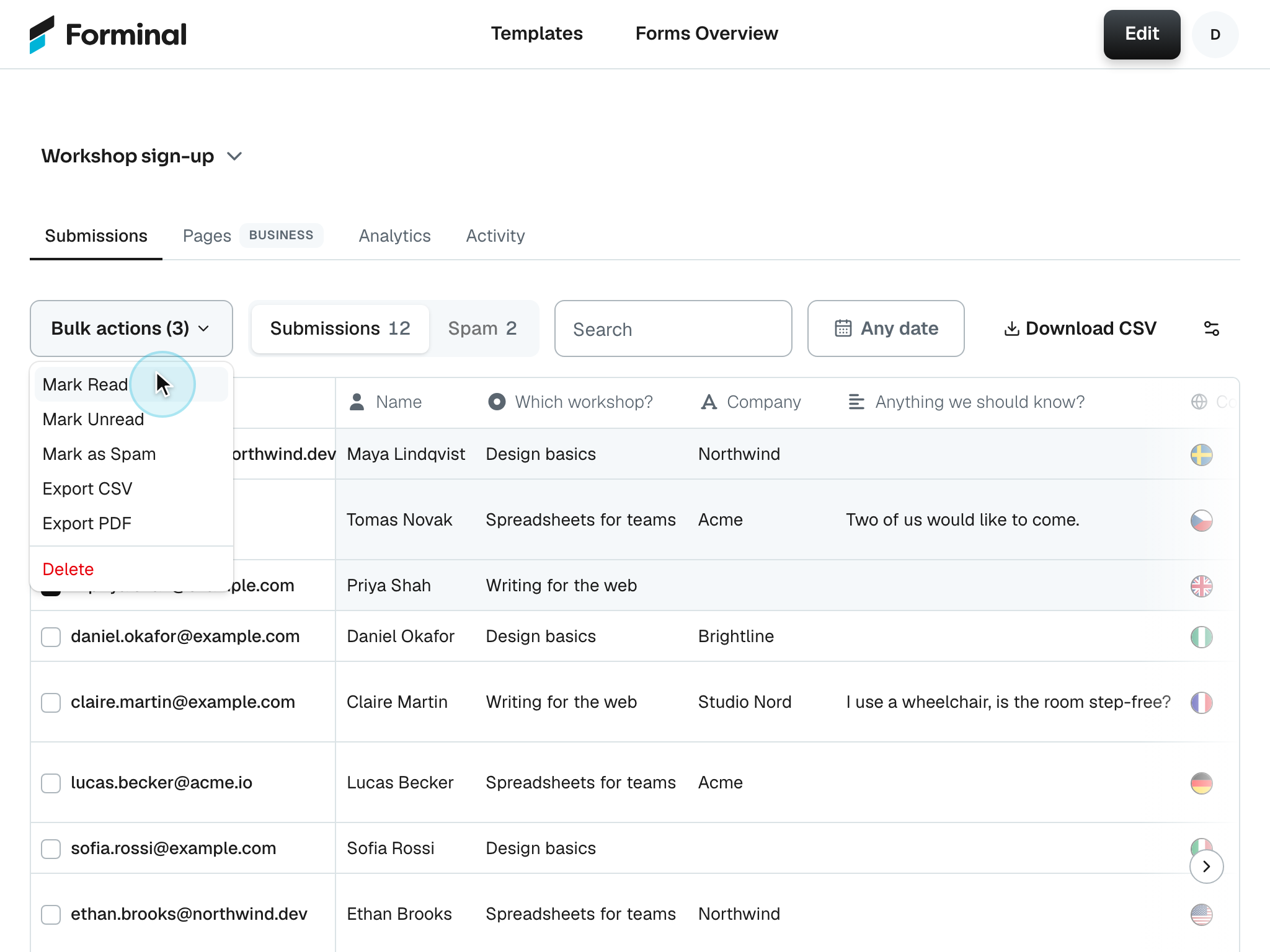
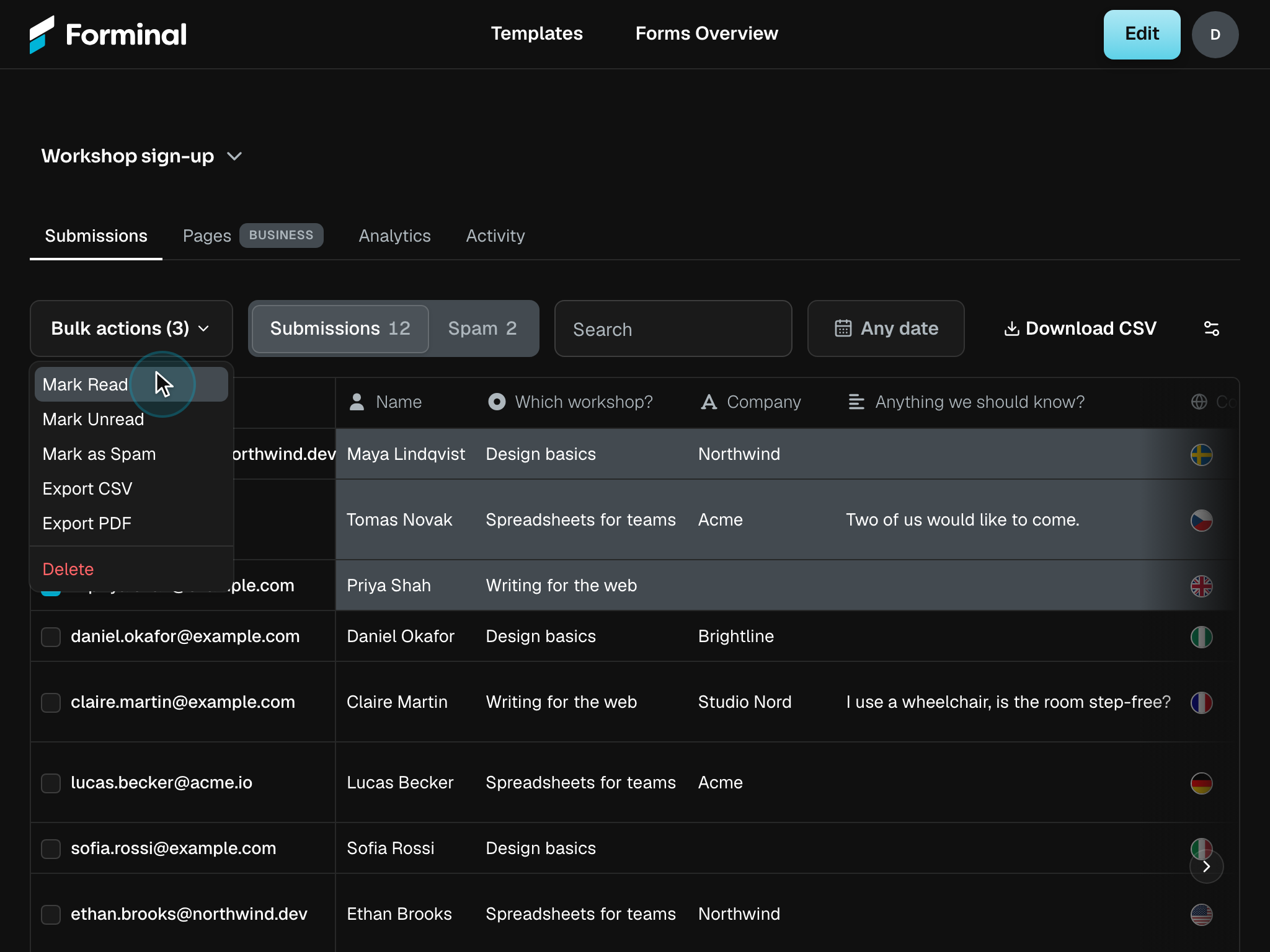
Which actions you get depends on the tab:
- Submissions: Mark Read, Mark Unread, Mark as Spam, Export CSV, Export PDF and Delete.
- Spam: the same, with Not Spam in place of Mark as Spam.
- Partial: Export CSV, Export PDF and Delete.
When an action finishes, a message says what changed, such as “12 submissions marked as spam”. If none of the ticked rows needed the change, it says “Nothing changed”. After a change, the selection clears.
Export CSV downloads the same file as Download CSV, with only the ticked rows in it. Export PDF downloads a landscape table with the same columns as the CSV. Your selection stays after an export, so you can export the same rows in the other format, or act on them next.
Select forms
- Open Forms Overview.
- Tick the box at the start of each form you want. To take a whole workspace, tick Select all in <name> on its header row. It works on a collapsed group too. Without workspaces, the table header has Select all forms instead.
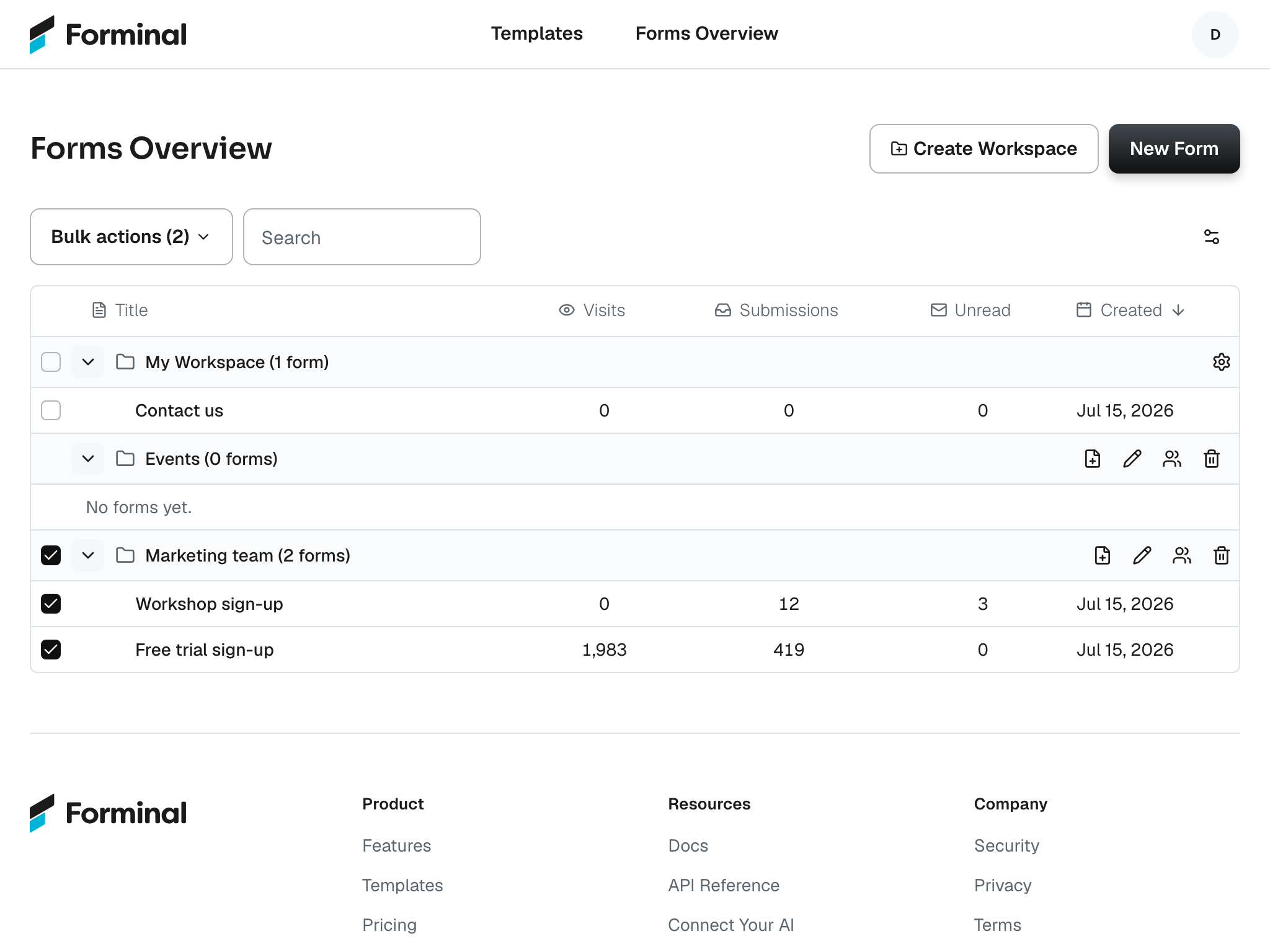
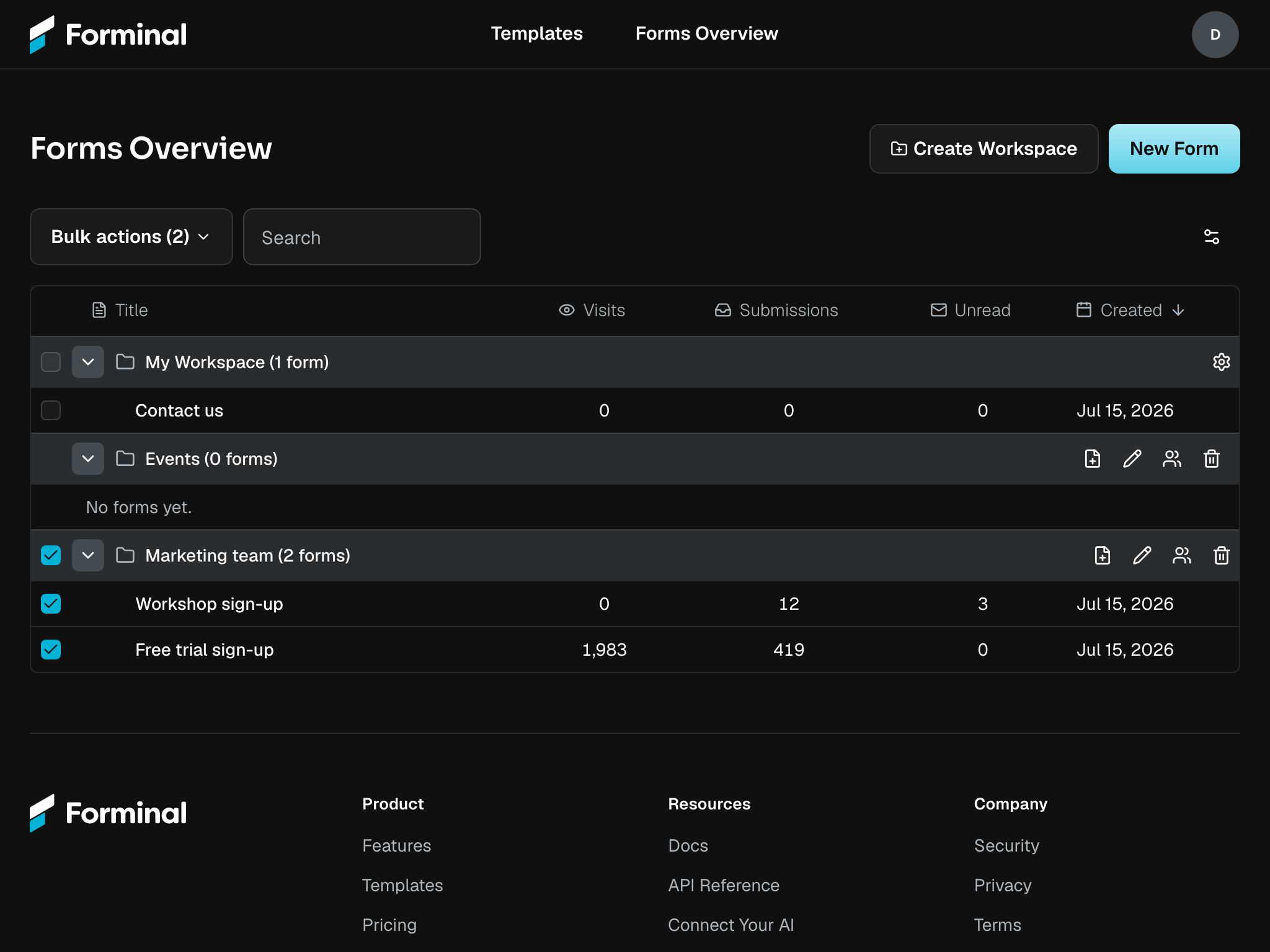
Only forms you own have a box. Forms in workspaces someone shared with you have none, and neither do their headers. A form filed in two workspaces is ticked under both, and it counts once.
Act on forms
- Select Bulk actions (N), the first button in the toolbar before the search box, and choose an action.
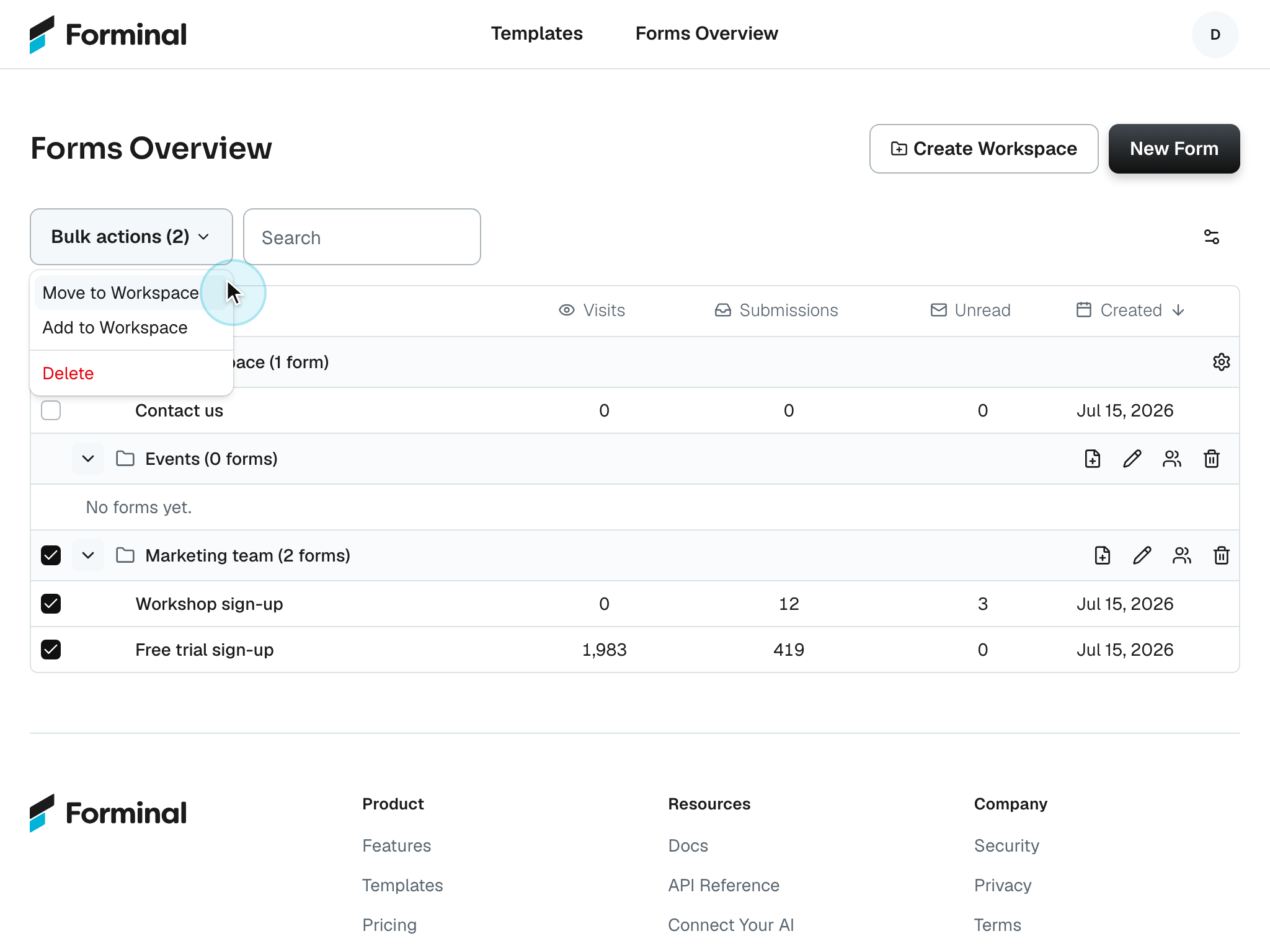
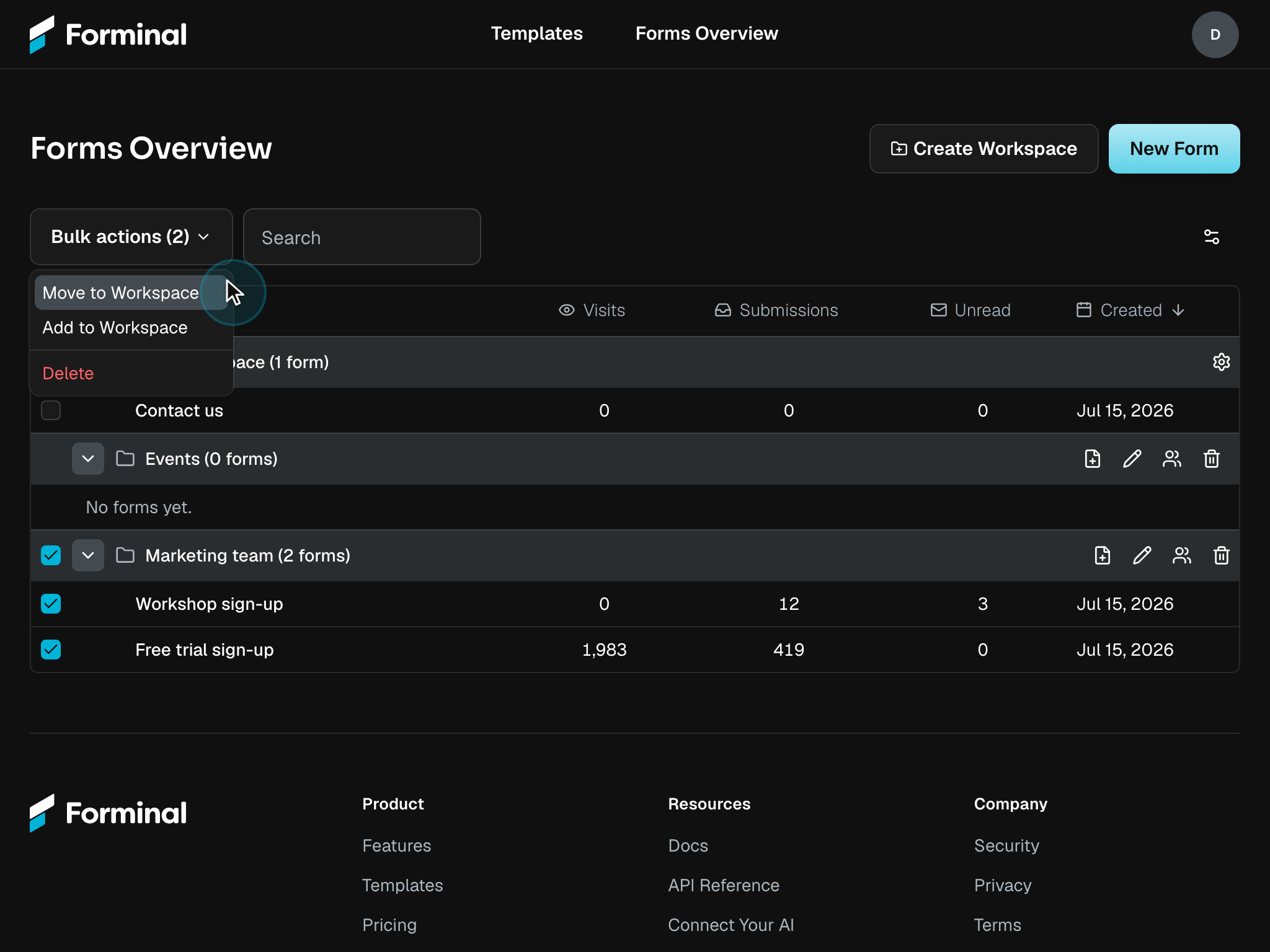
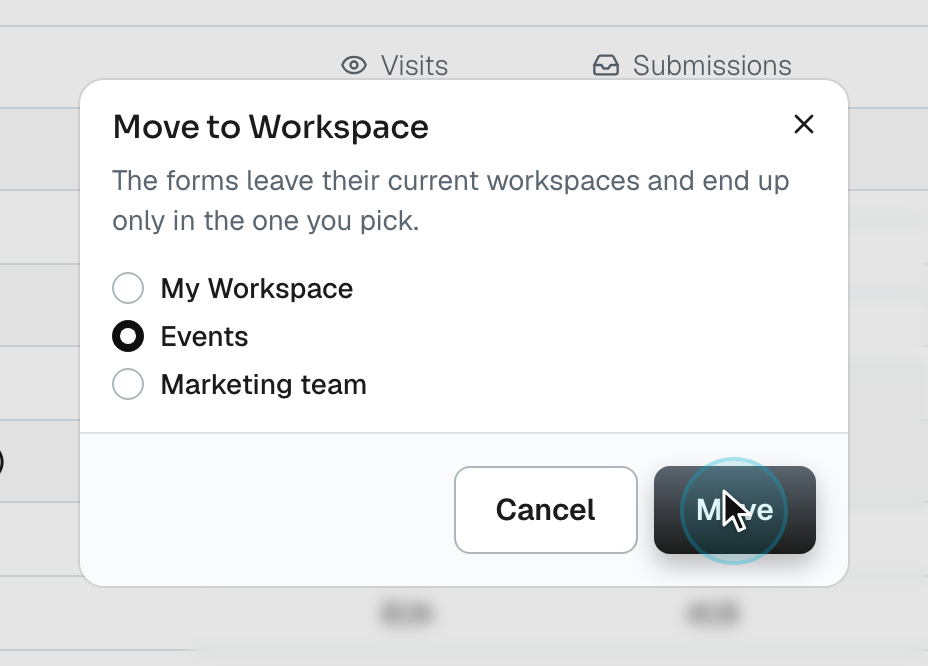
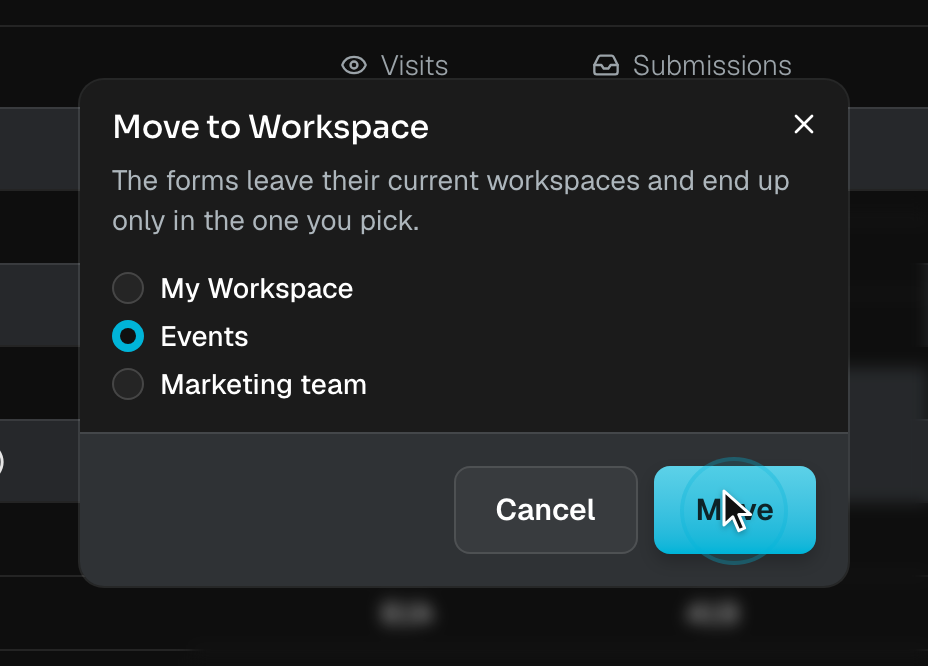
- Move to Workspace: the forms leave the workspaces they are in and go into the one you pick, and only that one. My Workspace is first in the list, and picking it takes the forms out of every workspace.
- Add to Workspace: the forms stay in their workspaces and also join the one you pick.
- Delete: see Delete for good below.
Moving and adding are part of Workspaces, so they’re available on the same plans as Workspaces. Until you have a workspace, Delete is the only action. More on workspaces is in Workspaces.
- For a move or an add, pick the workspace and select Move or Add.
Delete for good
A bulk delete can’t be undone, so it asks you to confirm.
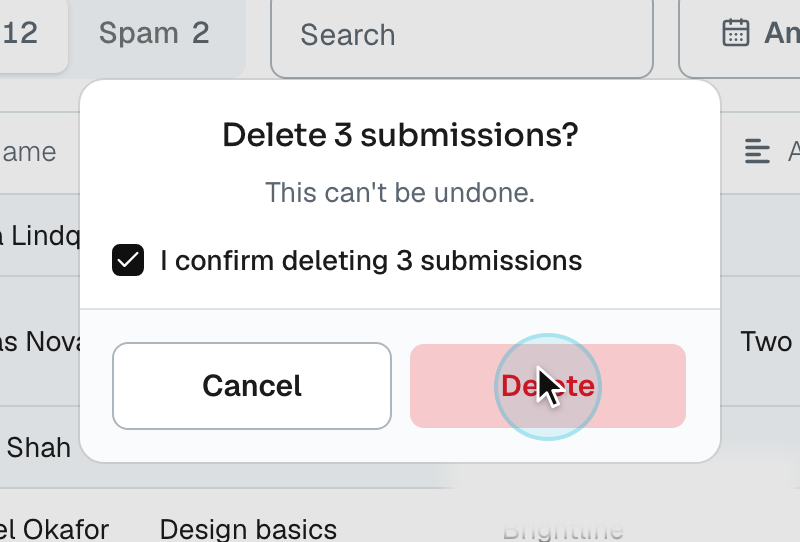
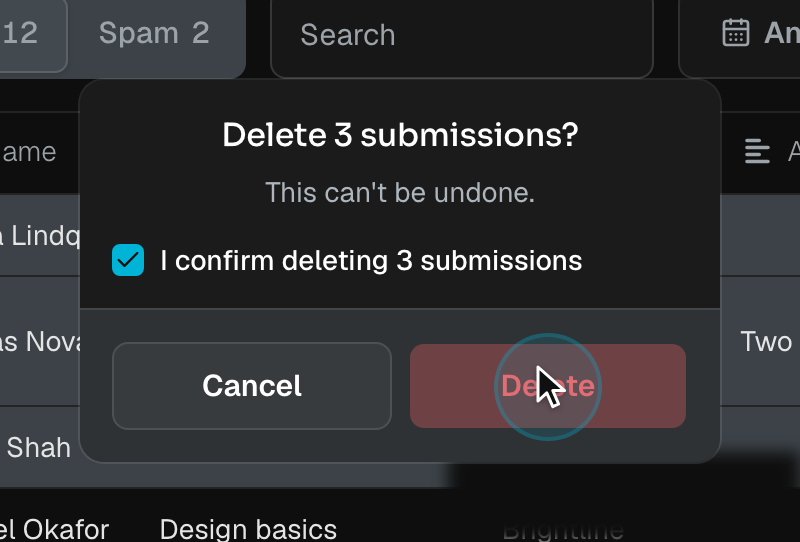
- Tick the rows, then choose Bulk actions (N) » Delete. A dialog titled “Delete N submissions?” or “Delete N forms?” opens. For forms, it adds “Their submissions are deleted too.”
- Tick I confirm deleting N submissions (or forms), then select Delete. The button stays disabled until the box is ticked.
Good to know
- One action on submissions covers at most 200 rows, the size of the biggest page.
- Teammates with Submissions Viewer access in a workspace see only Export CSV and Export PDF.
- A PDF page has room for only so many columns. On a very wide form the PDF keeps the first columns and notes under its title, for example, “4 more columns are in the CSV export.” A very long answer is cut short in the PDF, so use the CSV for the full text.
- The CSV’s columns and format are described in Export submissions to CSV.
Frequently asked questions
Can I select submissions on more than one page?
No. Moving to another page clears the selection. Set the page size to 200 at the bottom of the table to work on up to 200 rows at once.
Can I undo a bulk delete?
No. Deleted submissions and forms are gone for good, and deleting a form deletes its submissions too. Export what you want to keep first.
Why do some forms on Forms Overview have no checkbox?
Only the forms you own can be selected. Forms in a workspace someone shared with you belong to its owner, so they have no checkbox.
Why is Move to Workspace missing from the menu?
Move to Workspace and Add to Workspace show once you have a workspace. Until then, Delete is the only action for forms. See Workspaces to create one.