El aspecto de cada formulario se define en un solo lugar: el panel Personalizar del creador. Al final de esta guía, tu formulario usará un tema, colores y una fuente que coincidan con tu sitio, con tu propio CSS para todo lo que la configuración no alcance.
Elige un tema
- Open the form in the builder and select Customize in the top bar.
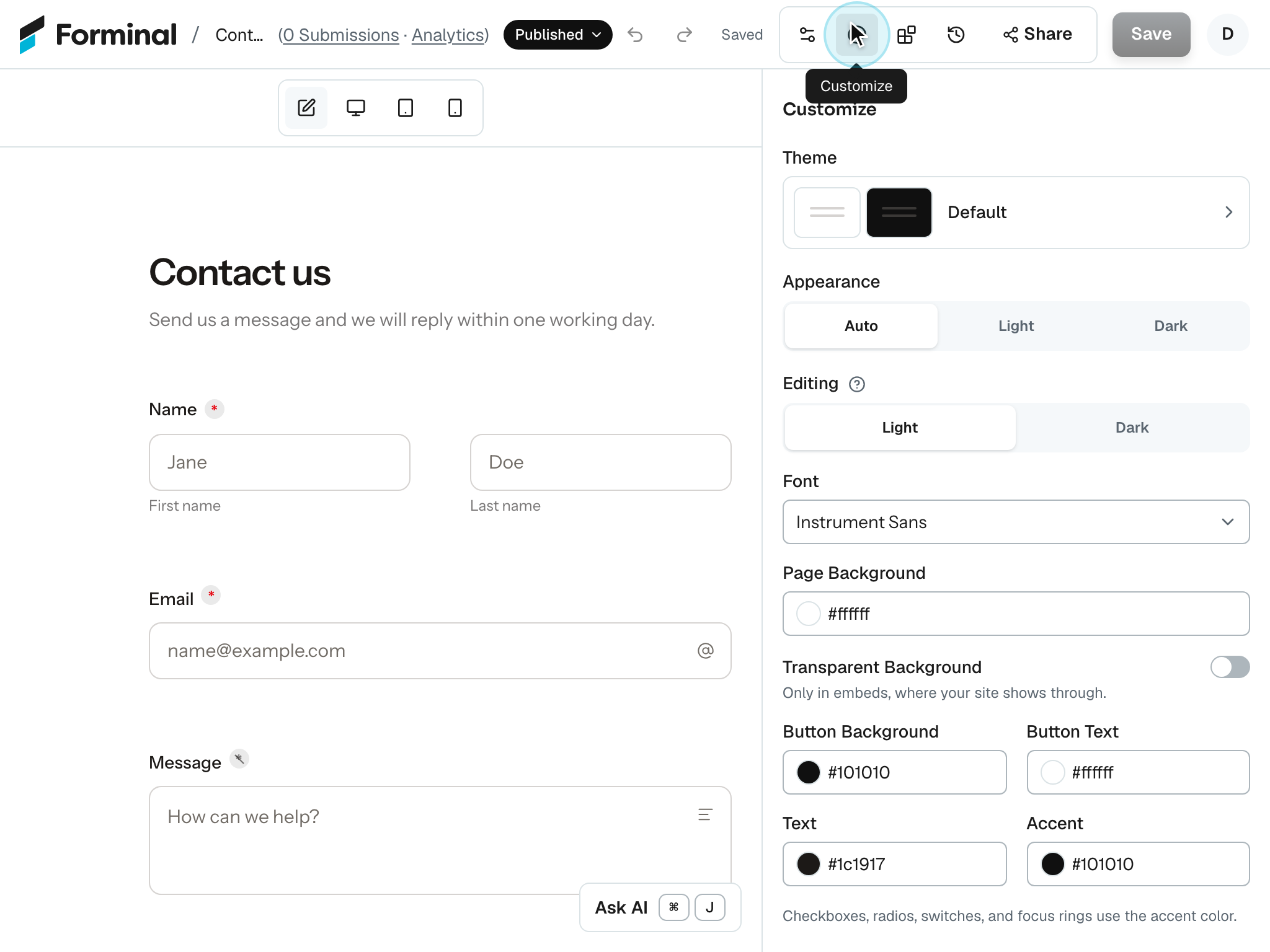
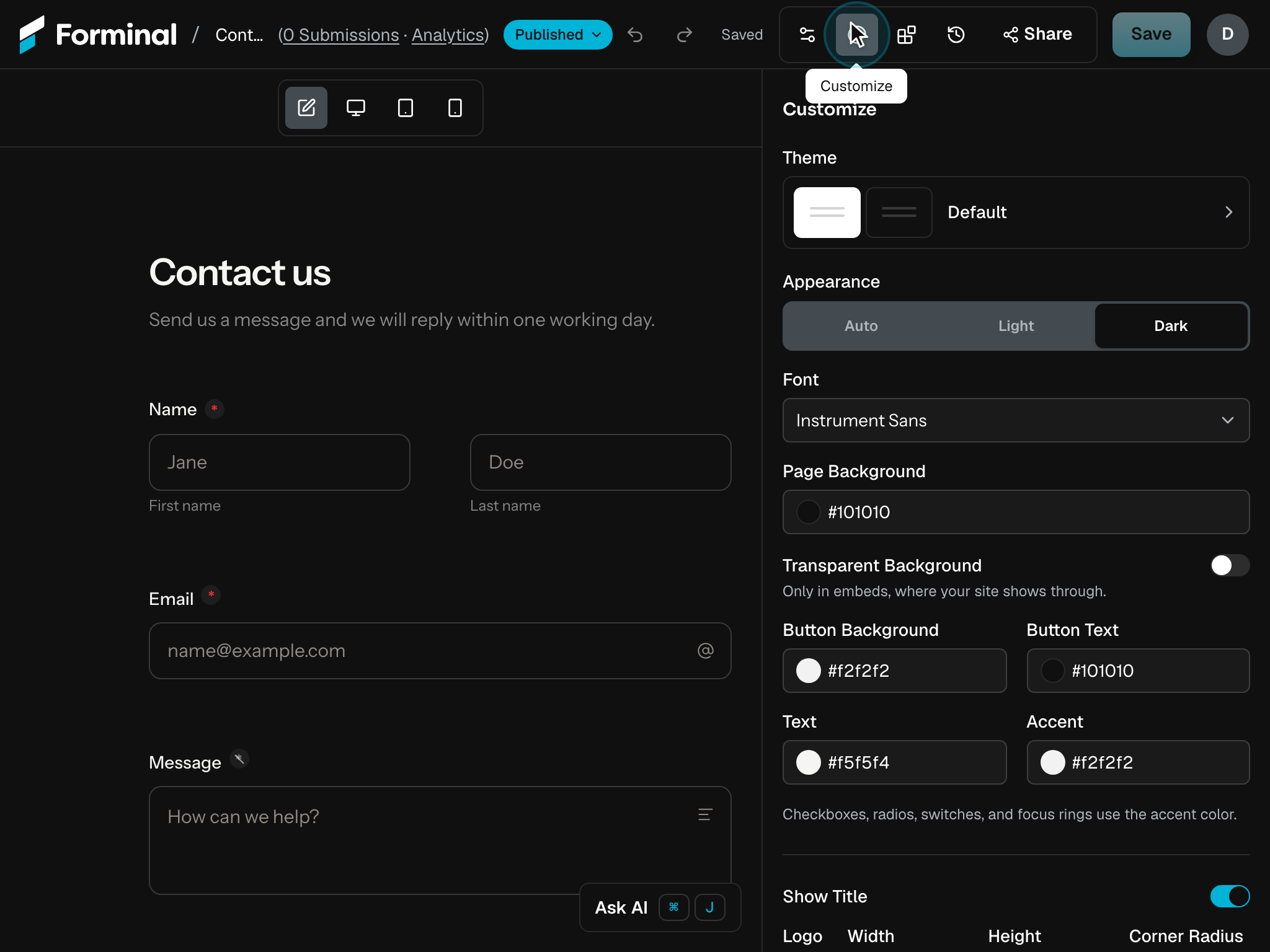
- Under Theme, select the row with your current theme. The sidebar widens over the canvas and lists every theme under Themes, in five groups.
- Select a tile, such as Studio. Each tile shows the theme’s light look beside its dark one. The canvas changes right away, and the list stays open so you can compare. A Use Theme button appears over the tile you picked.
- Select Use Theme, or the back arrow next to Themes, to keep the theme and go back to the Customize panel. To close the list without changing anything, select Cancel at the right end of the same row instead. The form gets back the look it had when you opened the list.
You can’t select Cancel while the AI assistant is working.
- Under the theme row, set Appearance. Auto shows the light look and switches to the dark one on a device set to dark mode. Light always shows the light look, and Dark always shows the dark one.
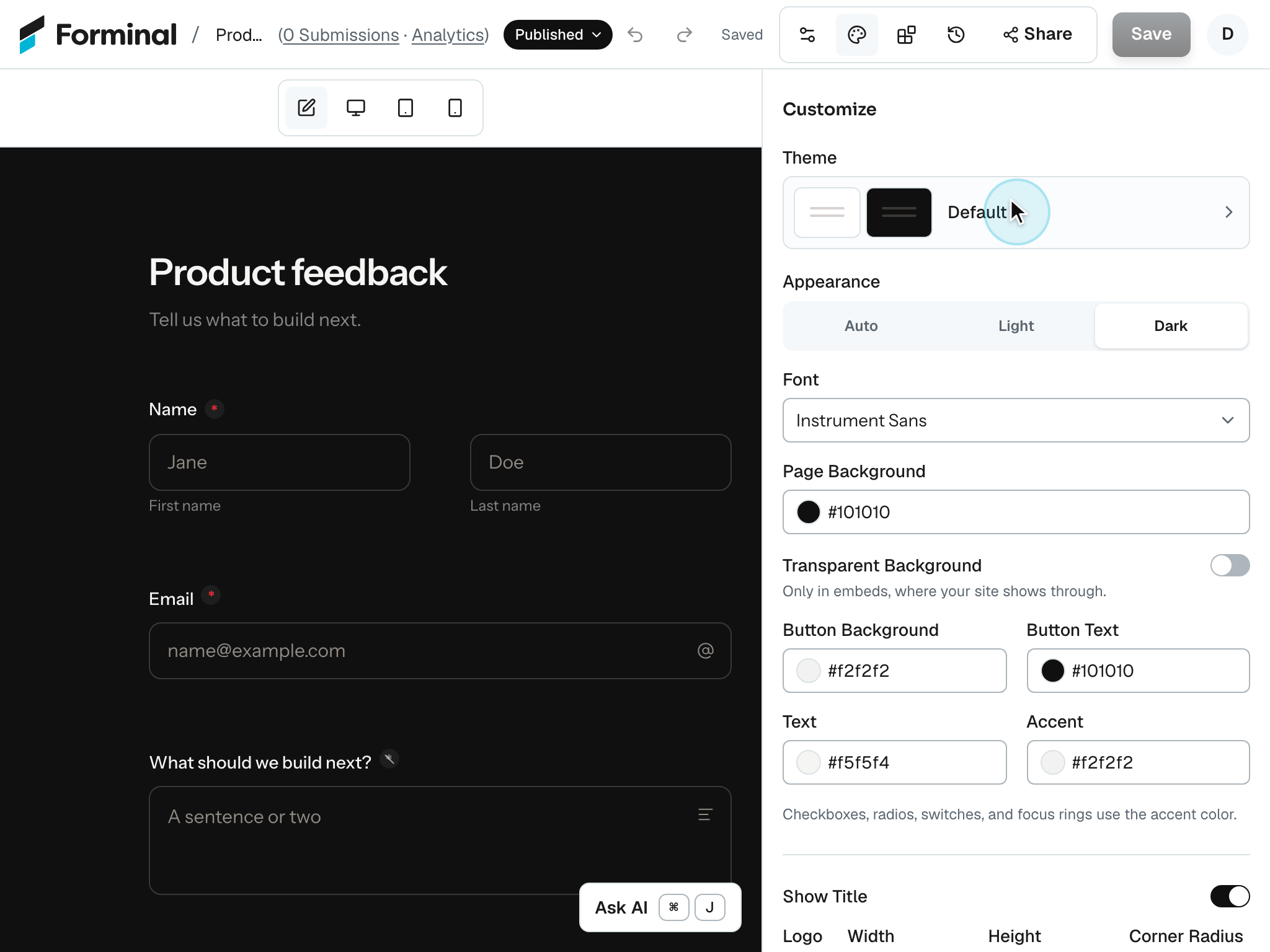
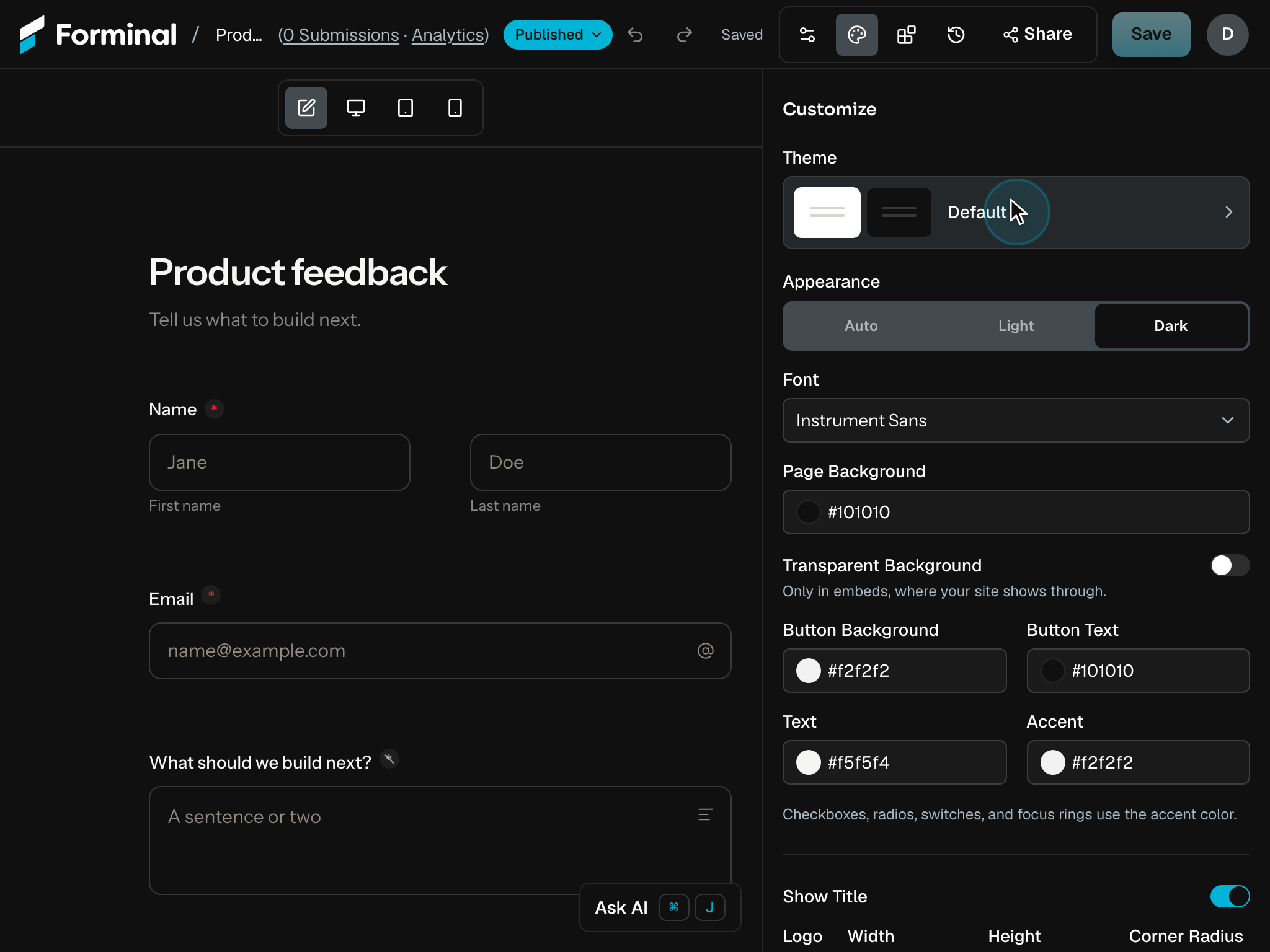
There are 26 themes, each with a light and a dark look. Default is the look of a new form: Instrument Sans, a white page, near-black text and button, 46 px inputs and a 48 px button. A theme sets the font, the colors, the input and button sizes, the text size, the card and where labels and choices sit, so pick it first and adjust from there. If you don’t like the result after you’ve closed the list, select Undo once to get the previous look back.
On Auto, an Editing switch appears under Appearance. Set it to Dark to see the dark look on the canvas and change its colors and images. Sizes and spacing are shared by both looks.
También puedes pedirle al asistente de IA un tema por nombre.
Predeterminado, Alto Contraste y Apariencia funcionan igual en todos los planes. Alto Contraste es Predeterminado con bordes de campo más fuertes, para un formulario cuyos campos necesitan bordes más claros. Los otros 24 temas llevan una insignia PRO cuando tu plan no incluye Estilos Avanzados. Aún puedes elegir uno, y el formulario publicado utiliza el diseño y los tamaños de Predeterminado con los colores, la fuente y la tarjeta del tema. Consulta Temas para ver la lista completa.
Cambiar colores y fuentes
- In Customize, select the round swatch next to a color to open the color picker, or type a hex code such as #7957ff into the box.
- Set Page Background, Text, Button Background, Button Text and Accent. Accent colors checked boxes, the focus ring and the progress bar.
- Open the Font list and pick a font. Each name is shown in its own font. There are 27: System, which uses the visitor’s device font, and 26 web fonts such as Instrument Sans, Inter, DM Sans, Merriweather and JetBrains Mono.
- For sizes and spacing, scroll to Advanced. Layout sets Page Width and Base Font Size, and the Inputs and Button groups set their size, corners and spacing. Inputs also holds the input Background, Placeholder, Text and Border colors, and Button holds the button’s Border and Border Width.
To put the form on a panel with its own color or photo, turn on Card under the logo and cover settings. Its Background Image box opens 52 photos to pick from, and Upload Your Own lets you use an image of yours. See Form Card for every card setting.
Escribe un código hexadecimal de ocho dígitos para hacer que un color sea transparente, por ejemplo #ffffff00 para un fondo transparente en un formulario incrustado. Más información sobre cada configuración está en las páginas de Colores, Fuentes y Estilos Avanzados.
Añadir CSS personalizado
- Scroll to the end of the Advanced section and find the Custom CSS box.
- Escribe o pega tus reglas. El lienzo se actualiza mientras escribes.
Cada regla se aplica solo dentro del formulario, y & por sí sola se dirige a toda el área del formulario:
& {
	line-height: 1.6;
}
button[type="submit"] {
	letter-spacing: 0.05em;
}
El cuadro rechaza todo lo que carga un archivo (@import, url(), image(), image-set(), cross-fade() y src()), así como expression(), etiquetas de cierre y barras invertidas. Cuando algo infringe una regla, el cuadro se pone rojo y muestra por qué, y tu último CSS válido permanece en el formulario. Consulta CSS personalizado para ver las partes del formulario que son fáciles de dirigir.
Bueno saber
- Cambiar de tema reemplaza la fuente, todos los colores, el borde del botón, la altura del campo, el ancho del borde, el radio, el relleno horizontal y el margen inferior, el ancho del botón, la alineación, la altura, el tamaño de fuente, el radio y el relleno horizontal, el tamaño de fuente base y la tarjeta. Mantiene la apariencia, el ancho de página, el logo, la portada, el CSS personalizado, el ancho del campo y el margen vertical del botón. La página de Temas tiene la lista completa.
- Only Auto follows the visitor’s device. A form set to Dark stays dark for everyone, and one set to Light stays light.
- Reset Styles at the bottom of the Customize panel puts the whole form back to Default, with Appearance on Auto, and clears custom CSS.
- El CSS personalizado puede tener hasta 10.000 caracteres y no puede cargar imágenes ni archivos de fuentes.
- Los estilos avanzados y el CSS personalizado necesitan un plan que los incluya. Puedes probarlos en el lienzo de cualquier manera, pero el formulario publicado usa los valores predeterminados hasta que actualices. Eso cubre el diseño y los tamaños de los temas con una insignia PRO también. Predeterminado, Alto Contraste, Apariencia, colores, fuentes, el logo y la portada, y la tarjeta funcionan en todos los planes. Ver la página de precios.
Preguntas frecuentes
¿Puede un formulario alternar entre claro y oscuro con el dispositivo del visitante?
Sí, cuando la Apariencia se establece en Automático, el valor predeterminado para un formulario nuevo. Un formulario establecido en Claro u Oscuro muestra esa apariencia para todos.
¿Puedo usar mi propia fuente en un formulario?
No es un archivo de fuente propio. La lista de fuentes ofrece 27 fuentes, desde Sistema, que usa la fuente del dispositivo de cada visitante, hasta fuentes web como Instrument Sans, Inter y Playfair Display. El CSS personalizado no puede cargar archivos de fuentes.
¿Qué ajustes de estilo requieren un plan de pago?
Los Estilos Avanzados y el CSS Personalizado requieren un plan que los incluya, como Pro. Puedes probar ambos en el lienzo, pero el formulario publicado usa los valores predeterminados hasta que actualices.
¿Puedo hacer que el fondo de un formulario incrustado sea transparente?
Escribe un código hexadecimal de ocho dígitos con 00 al final, como #ffffff00, como color de Fondo de página.
¿Cambiar temas deshace mi CSS personalizado?
No. Un tema reemplaza tu fuente, colores, los tamaños y formas de campos y botones, el tamaño de fuente base y la tarjeta. Mantiene el CSS personalizado, la apariencia, el ancho de página, el logo y la portada, y el ancho del campo. Restablecer estilos en la parte inferior de Personalizar es lo que borra todo, incluido el CSS personalizado.
¿Por qué mi cuadro de CSS personalizado se puso rojo?
Algo en él rompe una regla. El cuadro muestra la razón, por ejemplo @import, url(), image-set() o una barra invertida, y el formulario mantiene tu último CSS válido hasta que lo arregles. El cuadro admite hasta 10.000 caracteres.