Al final de esta guía, un formulario verificará a los visitantes con Google reCAPTCHA antes de aceptar sus respuestas. Los pasos son los mismos para reCAPTCHA v2 Checkbox, v2 Invisible y v3. Si aún estás decidiendo entre ellos, Protección contra spam los compara con los otros CAPTCHA.
Obtén tus claves
Decide primero la versión, porque Google crea cada clave para una sola versión. Este es el tipo a elegir en Google para cada una:
- reCAPTCHA v2 Checkbox: Challenge (v2) » “I’m not a robot” Checkbox.
- reCAPTCHA v2 Invisible: Challenge (v2) » Invisible reCAPTCHA badge.
- reCAPTCHA v3: Score based (v3).
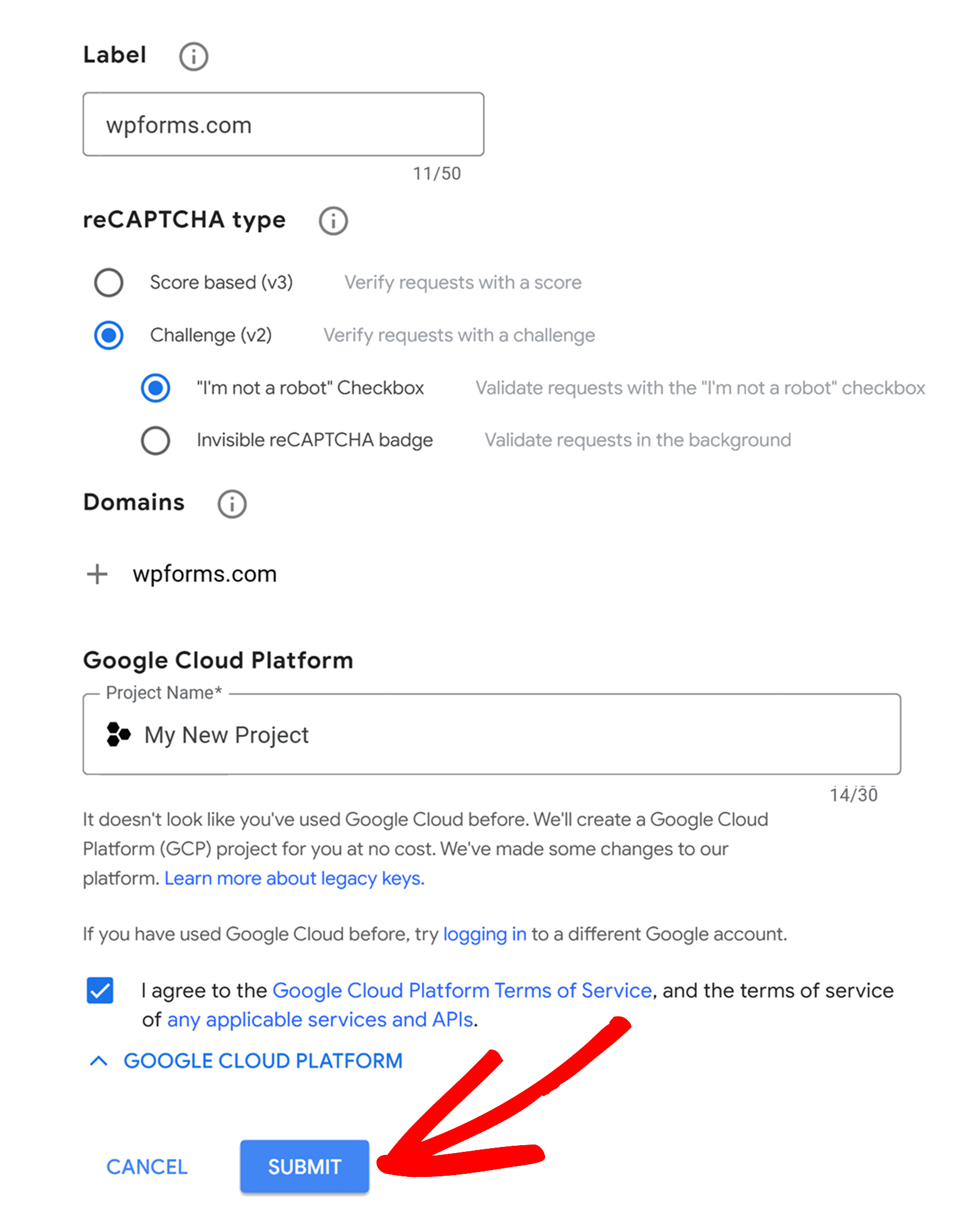
- Abre la consola de administración de reCAPTCHA e inicia sesión con tu cuenta de Google.
- Give the key a Label you will recognize later, then pick the reCAPTCHA type for your version.
- Under Domains, add
app.forminal.ai. Your forms run there, even when they are embedded on your site. If you also serve forms on a custom domain, add that hostname too, such as forms.example.com. - If Google asks for a Google Cloud project, keep the name it suggests or type your own, accept the terms and select Submit.
- Google muestra entonces la clave del sitio y la clave secreta. Mantén la página abierta para el siguiente paso.
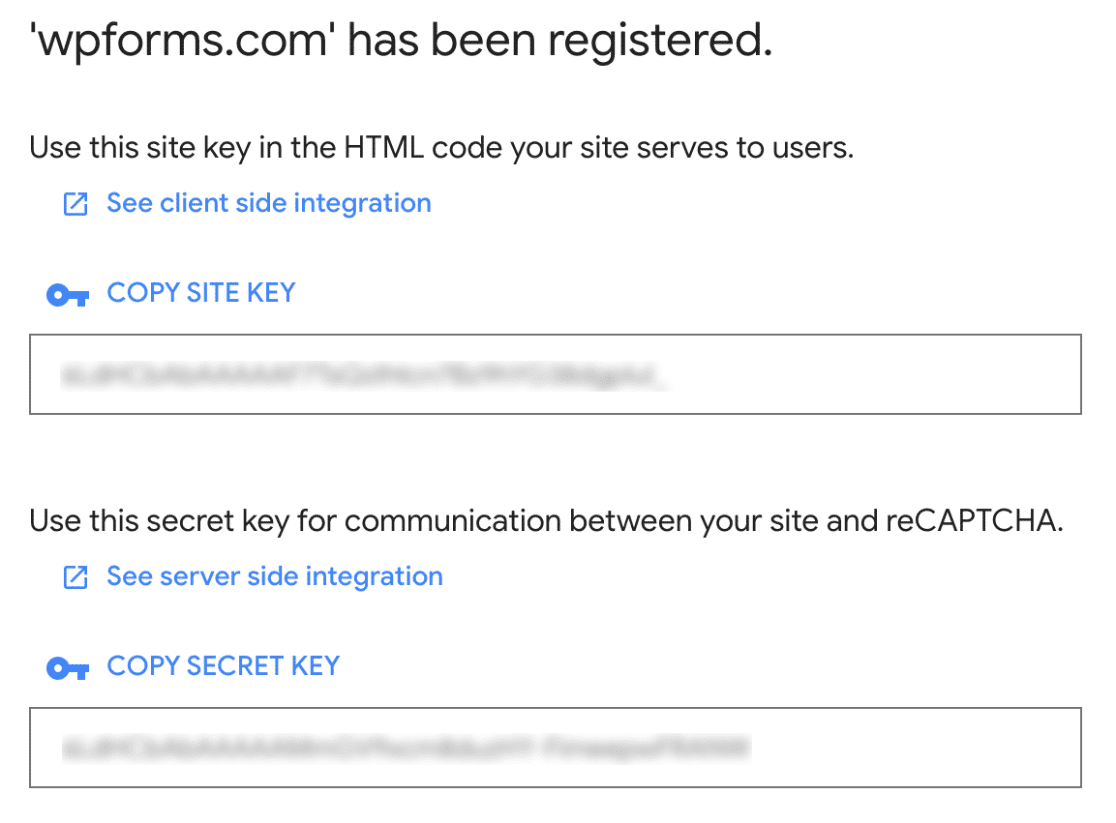
If Google shows the key in Google Cloud instead, open the key, select Use legacy key and copy the secret key from there.
Guarda las claves
- Open Account menu » Integrations.
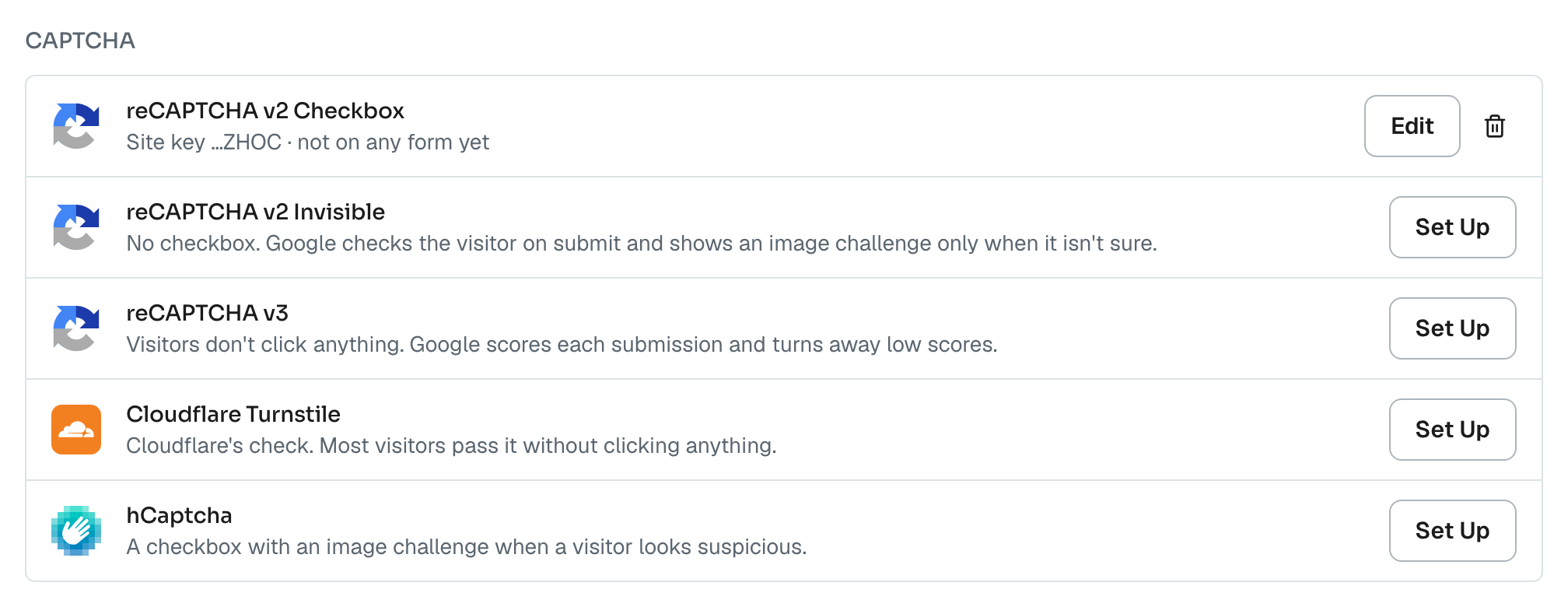
- Under CAPTCHA, select Set Up next to the version you made the key for: reCAPTCHA v2 Checkbox, reCAPTCHA v2 Invisible or reCAPTCHA v3.
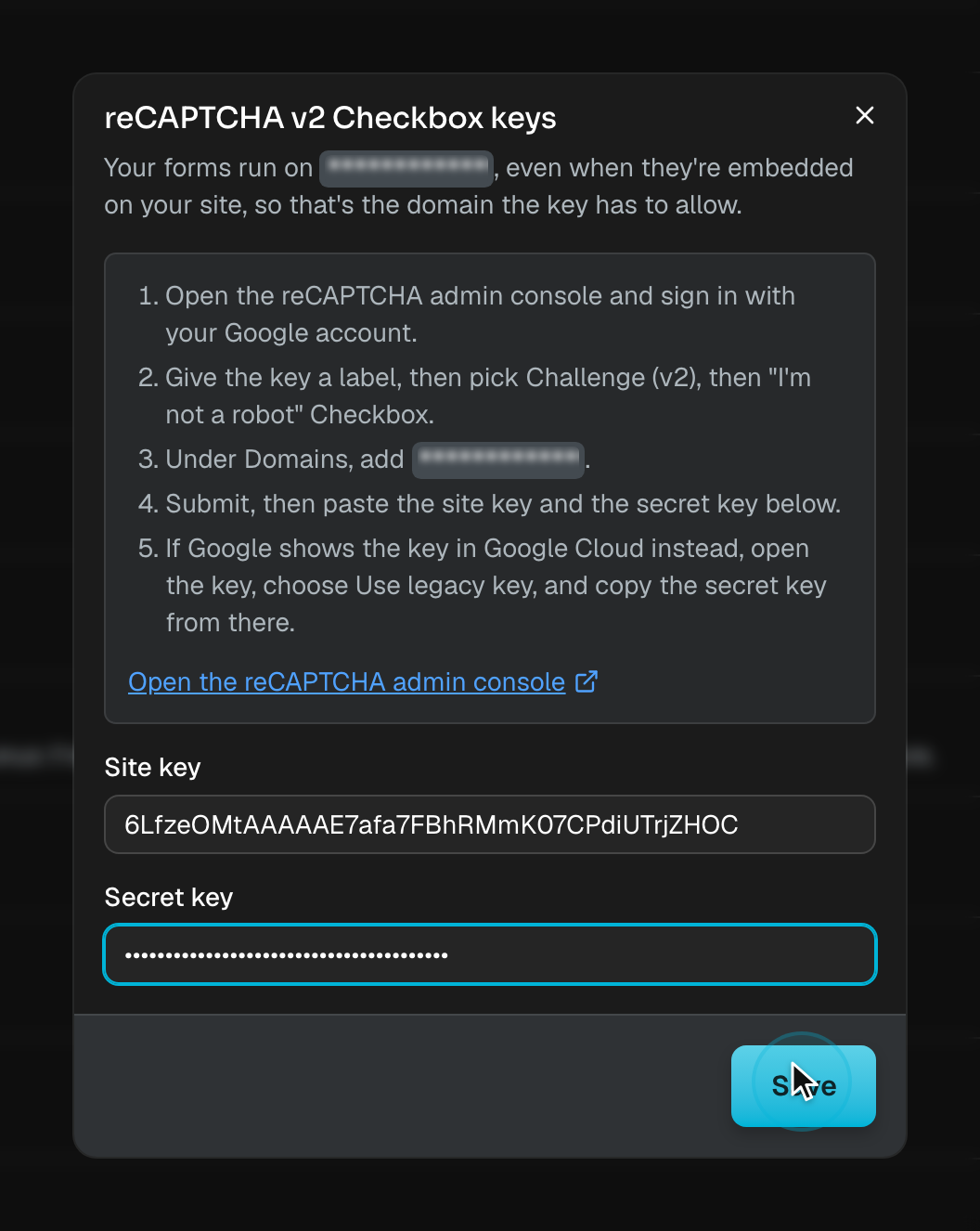
- Paste the site key into Site key and the secret key into Secret key.
- For reCAPTCHA v3, set Lowest passing score. It starts at 0.5. Google scores bots near 0 and people near 1, so a higher number turns away more submissions.
- Select Save.
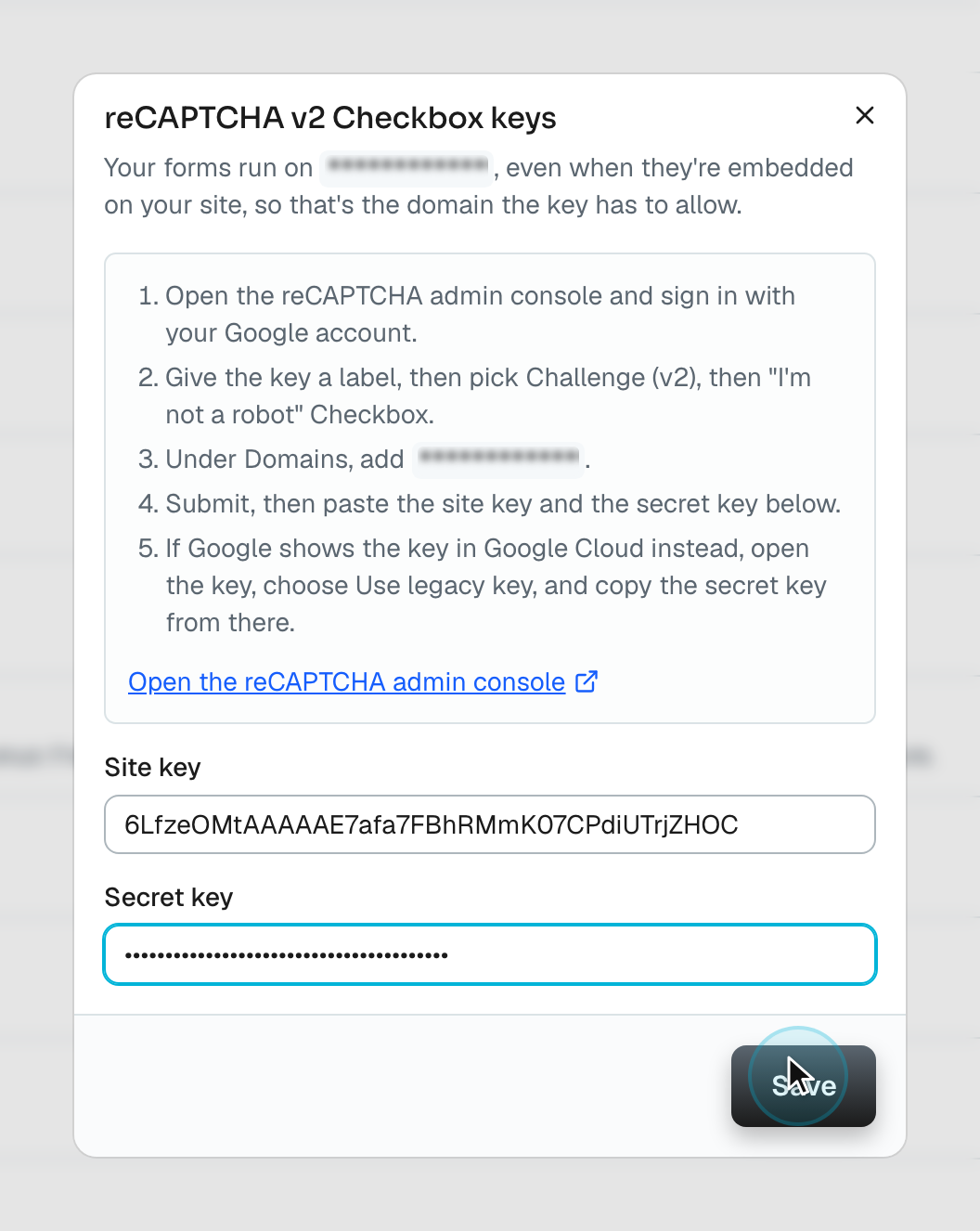
The row now shows the last four characters of your site key and “not on any form yet”. Keys belong to your account, so you save them once and use them on as many forms as you like. To change them later, select Edit. Leave Secret key empty to keep the saved one.
Actívalo para un formulario
- Open the form in the builder and select Integrations in the top bar.
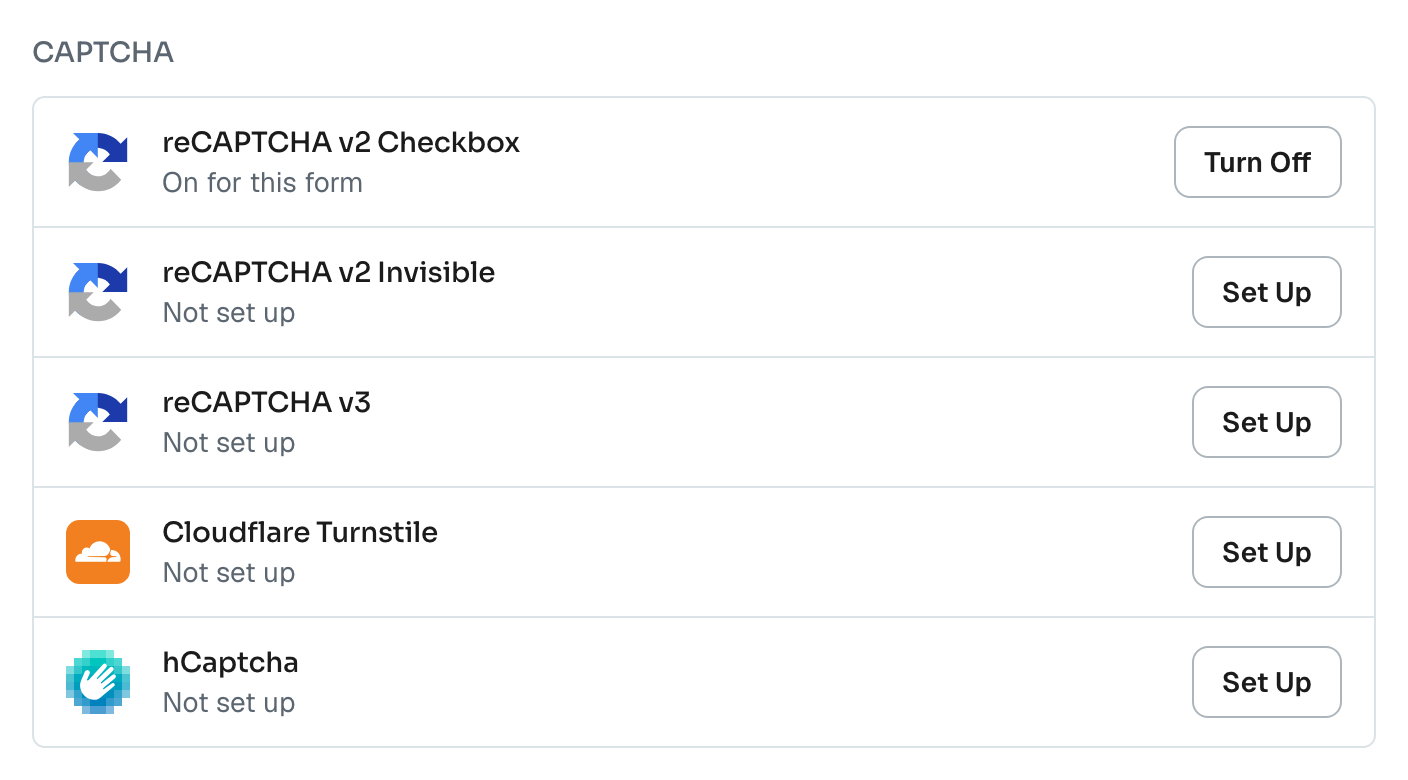
- Under CAPTCHA, select Use next to the version you saved keys for.
The row now reads “On for this form”, and its button changes to Turn Off. The change applies at once, also on a form that is already published. A form runs one CAPTCHA at a time, so selecting Use on another row switches the form to that one.
Comprueba que funciona
- Abre el enlace del formulario en una ventana privada, para verlo como lo haría un visitante.
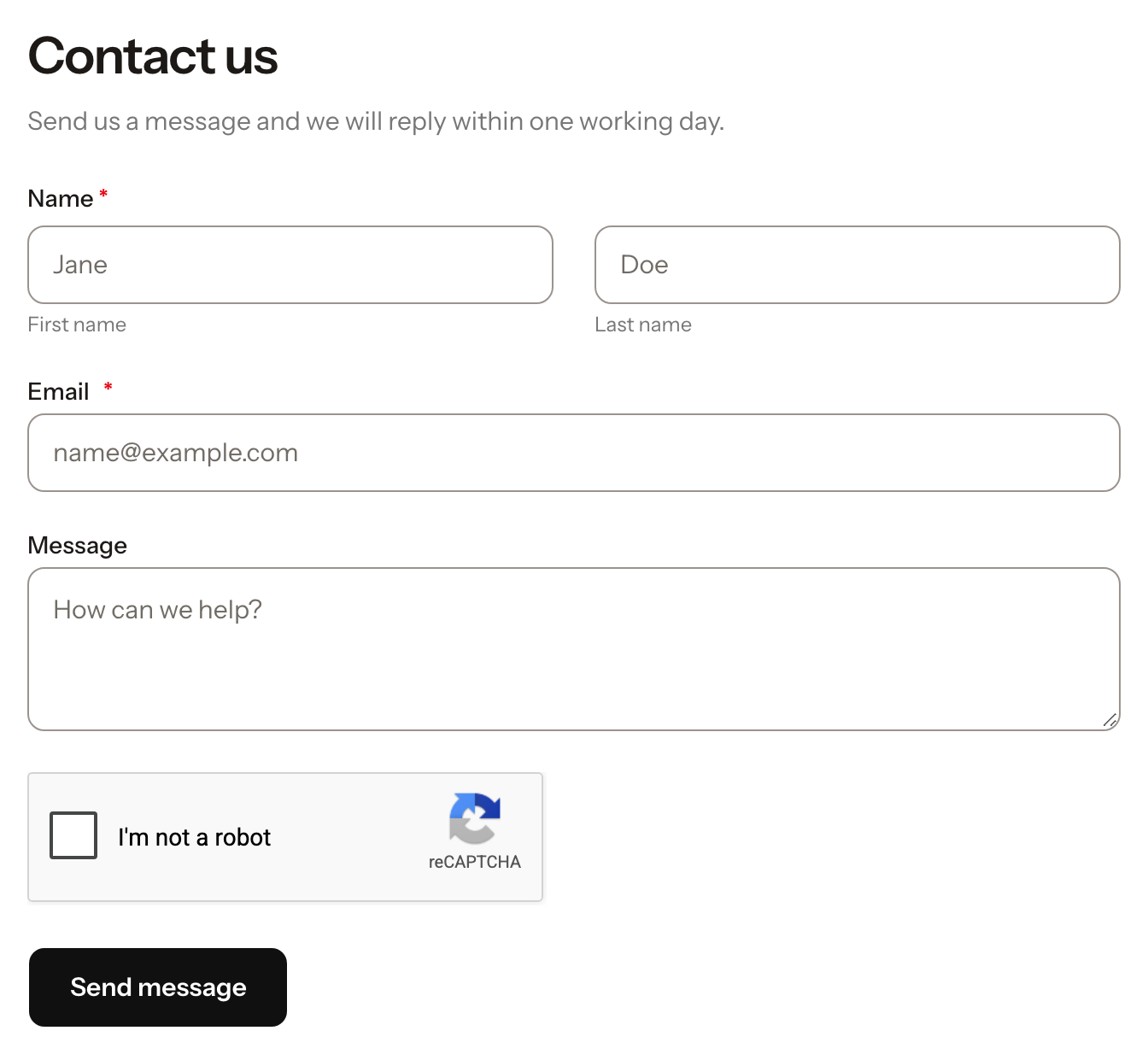
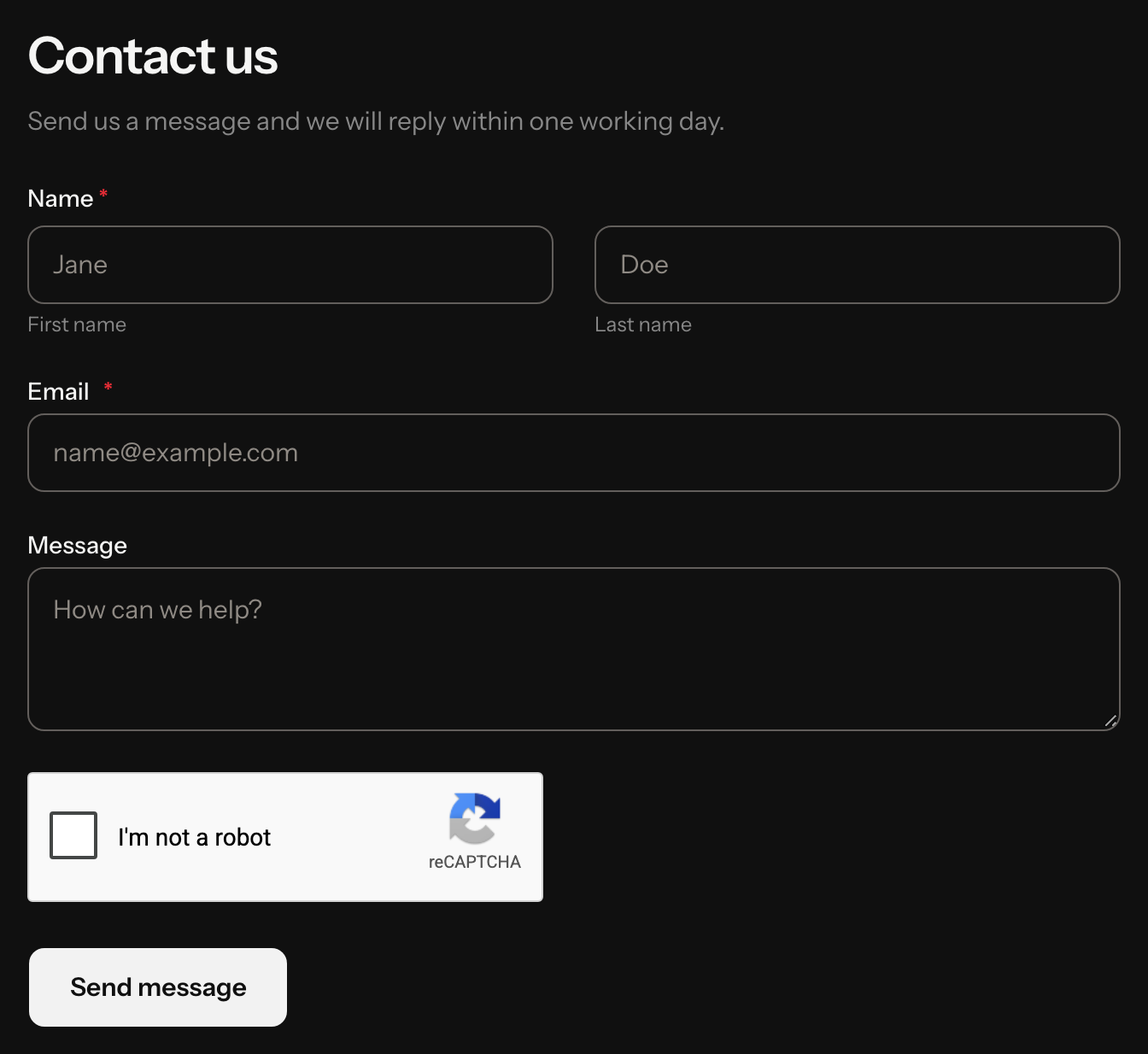
- Con v2 Checkbox, el cuadro "No soy un robot" se encuentra encima del botón de enviar. Con v2 Invisible y v3 no hay cuadro. Una línea debajo de las preguntas dice "Este sitio está protegido por reCAPTCHA y se aplican la Política de Privacidad y los Términos de Servicio de Google."
- Rellena el formulario y envíalo. El envío aparece en la página de Envíos del formulario.
Solución de problemas
Google muestra un error en lugar de la casilla de verificación
Google checks the domain itself, in the widget, before the visitor can submit. “Invalid domain for site key” means the key doesn’t list the host the form ran on. Add app.forminal.ai under Domains in the reCAPTCHA admin console, and your custom domain if the form ran there. “Invalid key type” means the key was made for another version, such as a v3 key saved under reCAPTCHA v2 Checkbox. Save it under the row for its version, or make a new key for the version you want. With v2 Invisible and v3 there is no widget to show the error, so the visitor sees “Complete the CAPTCHA to send your submission.” when they submit.
Claves de Cloudflare o hCaptcha
Las claves de cada proveedor solo funcionan en su propia fila. Con una clave Turnstile o hCaptcha guardada en una fila de reCAPTCHA, el widget de Google muestra un error y el visitante ve "Completa el CAPTCHA para enviar tu envío" cuando lo envía. Guarda la clave en la fila de su proveedor.
Se rechazan personas reales con reCAPTCHA v3
The visitor sees “Complete the CAPTCHA and try again.” because Google scored them below your Lowest passing score. Open Account menu » Integrations, select Edit on the reCAPTCHA v3 row and lower the score, for example to 0.3.
Formularios en un dominio personalizado
Add the exact hostname the form runs on, such as forms.example.com, under Domains on the key. Forms keep running on the app host too, so leave that one on the list.
“Completa el CAPTCHA para enviar tu envío.”
El formulario muestra esto cuando el visitante envía sin una verificación completada, por lo que no tuvo nada que enviar a Google. Si el widget muestra un error propio encima del botón, la clave es la causa: consulta las secciones anteriores. De lo contrario, el visitante aún no ha completado la verificación y puede completarla y volver a enviarla.
“Completa el CAPTCHA e inténtalo de nuevo.”
The form shows this when Google answered the check but Forminal turned it down. With reCAPTCHA v3 the usual cause is a score under your Lowest passing score. With any version it also happens when the check was solved on another site, such as a page that copied your site key, or on a custom domain that is no longer active on your account. Nothing is saved, and the visitor can try again.
“No se pudo cargar el CAPTCHA. Desactiva cualquier bloqueador para esta página y recárgala.”
El navegador del visitante no cargó el script de Google, la mayoría de las veces porque un bloqueador de anuncios o de privacidad lo detuvo. El formulario no se puede enviar hasta que se cargue el script.
“No se pudo verificar el CAPTCHA. Inténtalo de nuevo en un momento.”
No se pudo contactar a Google para verificar la respuesta. No se guarda nada y, por lo general, volver a intentarlo un momento después funciona.
La fila dice “Claves eliminadas, por lo que este formulario no tiene CAPTCHA”
Las claves se eliminaron de tu cuenta, por lo que el formulario acepta envíos sin CAPTCHA. Guarda de nuevo las claves de ese proveedor y el formulario las usará de inmediato.
Preguntas frecuentes
¿Qué versión de reCAPTCHA debo elegir?
La casilla de verificación v2 muestra un cuadro que los visitantes marcan, la v2 Invisible los marca al enviar, y la v3 nunca muestra un desafío pero rechaza las puntuaciones bajas. Protección contra spam las compara con Turnstile y hCaptcha.
¿Puedo pasar de la v2 a la v3 con la misma clave?
No. Google crea cada clave para una versión, así que crea una nueva clave para la v3 y guárdala en la fila de reCAPTCHA v3.
¿Qué puntuación mínima de aprobación debo usar para la v3?
Empieza con 0.5. Si las personas reales ven "Completa la CAPTCHA y vuelve a intentarlo", bájala, por ejemplo a 0.3.
¿Necesito añadir mi propio sitio web a la clave?
No, añade el host en el que se ejecutan tus formularios, que se muestra en el diálogo de claves. Añade el nombre de host de tu dominio personalizado solo si sirves formularios allí.
¿reCAPTCHA detiene los scripts que publican directamente en el formulario?
Sí. Mientras una CAPTCHA está activa, solo un navegador que haya pasado la verificación puede enviar, por lo que los scripts que publican directamente a la dirección de envío son rechazados.