Publica un formulario y tendrá su propia página. Pega el enlace en un correo electrónico, una publicación en redes sociales o un mensaje de chat, y la gente podrá rellenar el formulario sin que necesites tener un sitio web.
Ejemplos
- Una encuesta rápida compartida en un chat de equipo.
- Un enlace de registro en la biografía de una red social.
Obtener el enlace
- In the builder, select Publish. The Share panel opens once the form is live. On a form that is already published, select Share in the top bar.
- Select the Link tab. Under Share a Link, select Copy Link next to Form Link, or the arrow icon (Open the form in a new tab) to open the form in a new tab.
- Pega el enlace donde quieras que la gente encuentre el formulario.
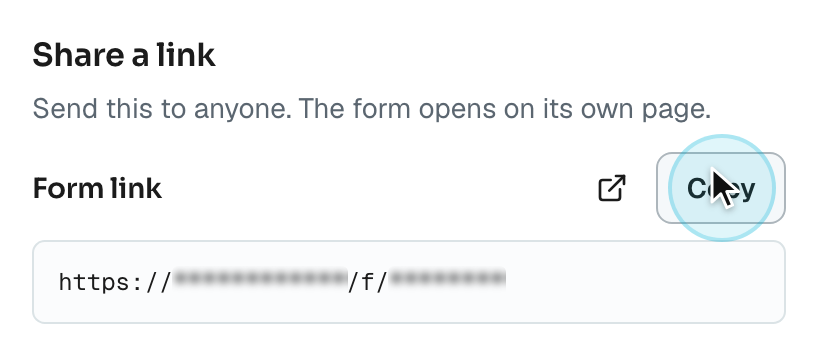
You can open the Share panel any time with Share in the top bar. While the Link tab is open, the builder shows how the link looks when it’s pasted into a chat app. Select Edit in the bar above that preview to go back to editing. While the panel is open, Open Form takes the place of Share and opens the live form in a new tab. The link looks like this, with your form’s id in place of FORM_ID. On Pro and Business, you can also give it a short link ending, and the same tab has a QR code to download. To put the form on your own site instead, see Embed Forms.
https://app.aw.co.ua/f/FORM_IDLo que la gente ve
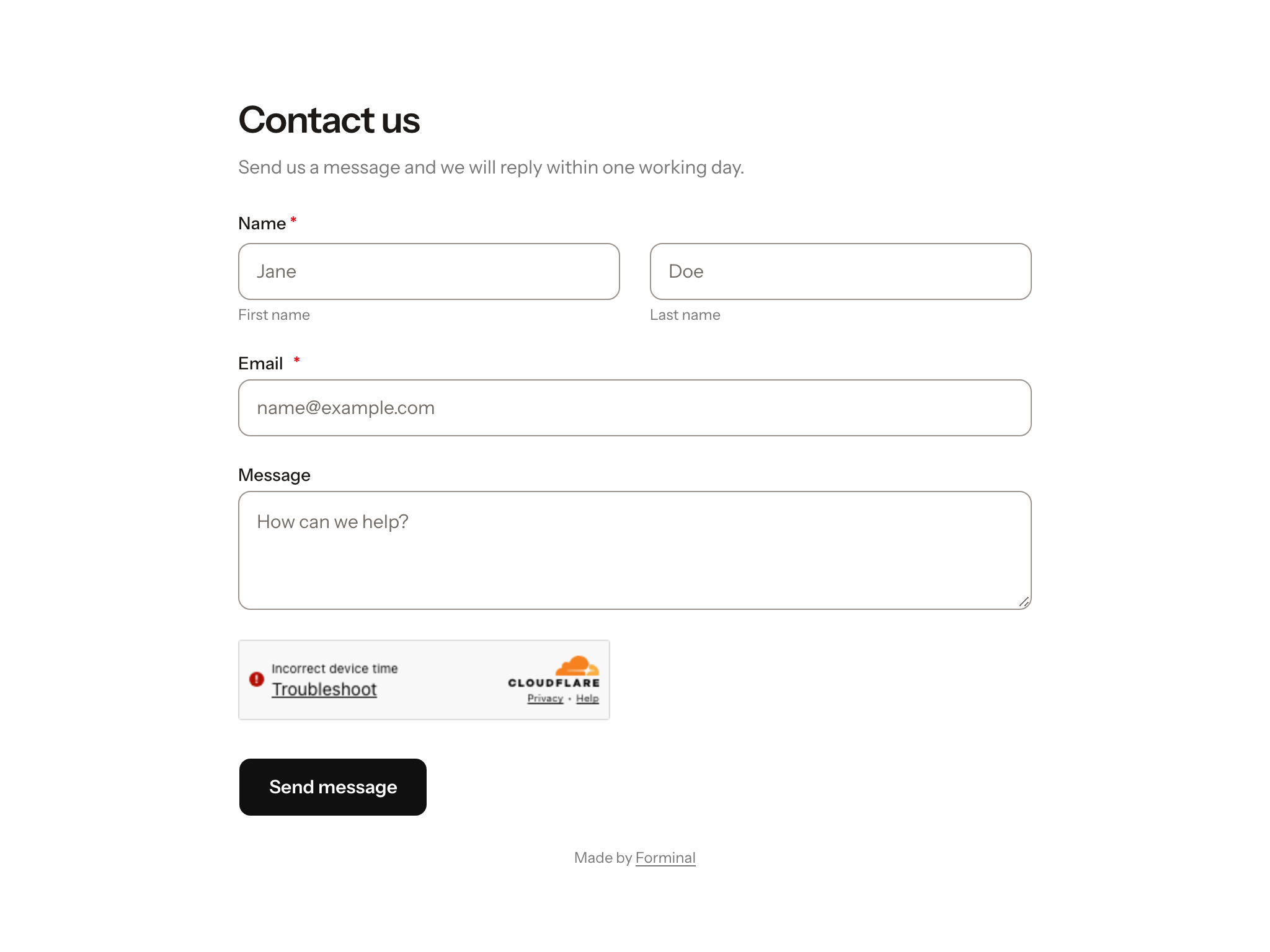
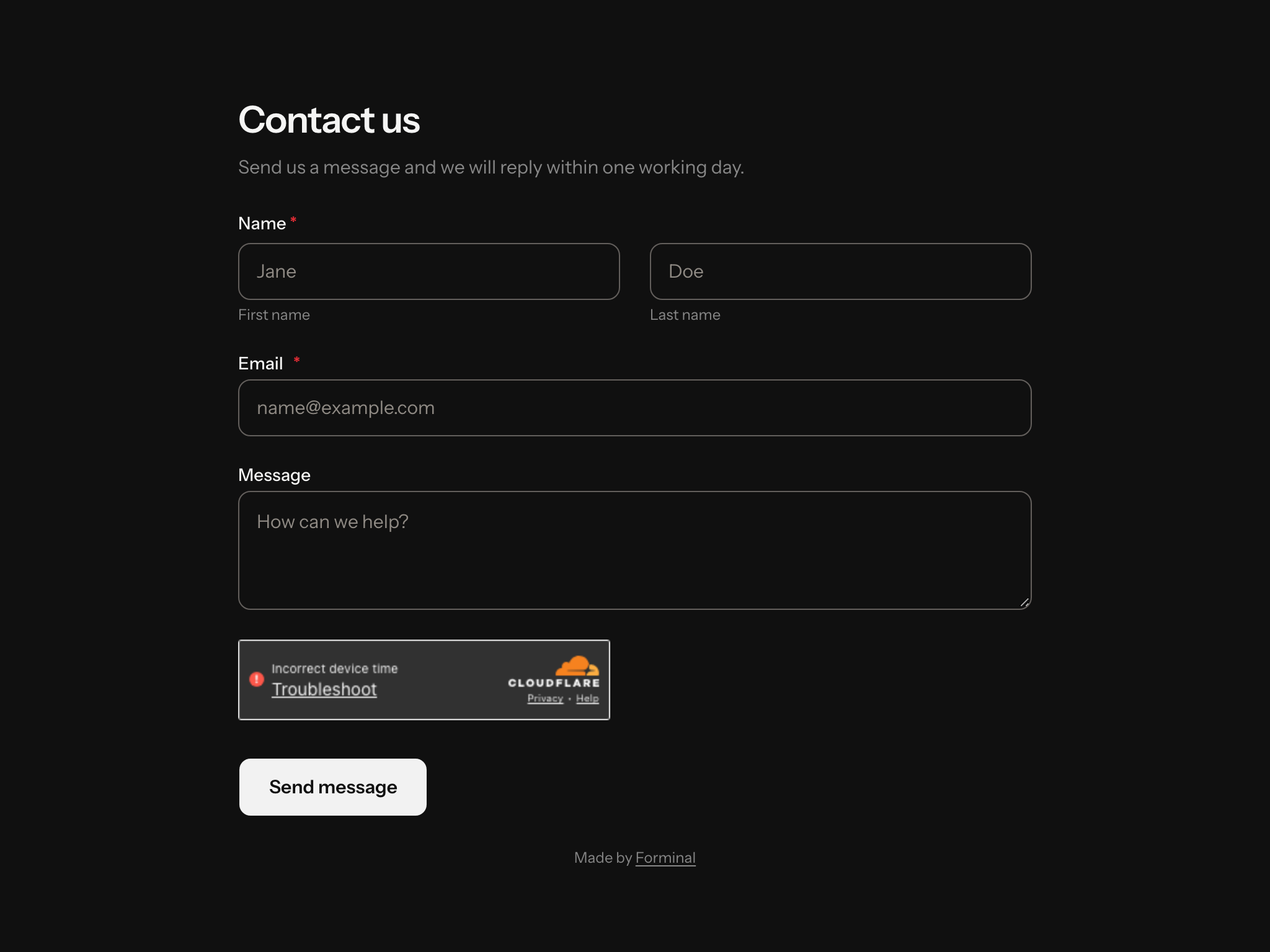
El formulario se abre en su propia página, con el aspecto que estableciste en Personalizar. Cuando alguien envía el formulario, ve tu mensaje de confirmación o va a tu dirección de redirección si configuraste una. Si el formulario tiene una dirección en uno de tus Dominios personalizados, Enlace del formulario muestra esa dirección y Enlace predeterminado muestra la anterior. Cuando el formulario tiene campos ocultos, el panel también muestra la consulta para añadir al enlace para rellenarlos, con un botón de copiar. Cuando has iniciado sesión y abres el enlace tú mismo, los enlaces Editar formulario y Envíos se muestran debajo del título, después de un selector Claro y Oscuro que previsualiza el formulario en cualquiera de los dos aspectos. Los visitantes no los ven.
Bueno saber
Only published forms can be opened from the link. While a form is a draft, the Share panel says “This form is a draft. Publish it to get a link and embed code.”, and anyone else who opens the link gets a page-not-found. You and people with access to the form still see it, marked “Draft preview. Publish to share this form.” The link stays the same after you publish, and later edits show on it once you select Save. To publish, you need to be signed in and the form needs at least one field.
Preguntas frecuentes
¿Necesito un sitio web para compartir un formulario?
No. Un formulario publicado tiene su propia página, por lo que puedes pegar su enlace en un correo electrónico, un chat o una publicación en redes sociales y la gente lo rellena allí.
¿Por qué la gente recibe un error de página no encontrada de mi enlace?
El formulario sigue siendo un borrador. Solo los formularios publicados se abren desde el enlace, así que selecciona Publicar en el creador. Tú y las personas con acceso al formulario todavía ven el borrador como una vista previa.
¿Cambia el enlace cuando edito el formulario?
No. The link stays the same after you publish. Later edits show on it once you select Save in the builder’s top bar.
¿Puede el enlace usar mi propio dominio?
Con un dominio personalizado, el Enlace del formulario del panel Compartir muestra la dirección en tu dominio, y Enlace predeterminado muestra la habitual.
¿Cómo pongo un formulario compartido sin conexión?
In the builder, select the Published badge next to the form title, choose Draft and confirm with Move to Draft. The link stops working for everyone else, and the submissions stay where they are.
¿Puedo rellenar campos desde el enlace?
Añade Campos ocultos al formulario. El panel Compartir muestra entonces la consulta para añadir al enlace, con un botón para copiar.