By the end of this guide a form will check visitors with Cloudflare Turnstile before it accepts their answers. Most visitors pass without clicking anything.
Get your keys
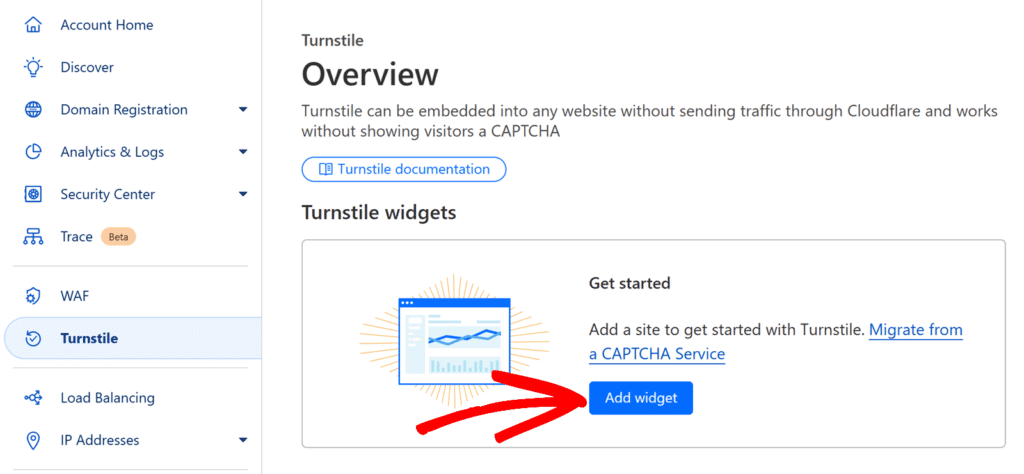
- Open Turnstile in the Cloudflare dashboard, sign in and select Add widget.
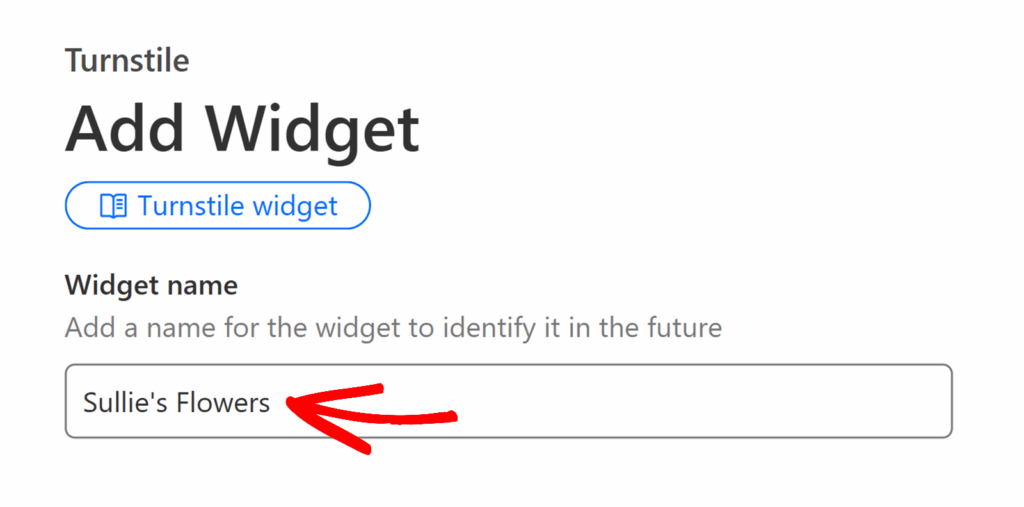
- Type a Widget name you will recognize later, such as the name of your site.
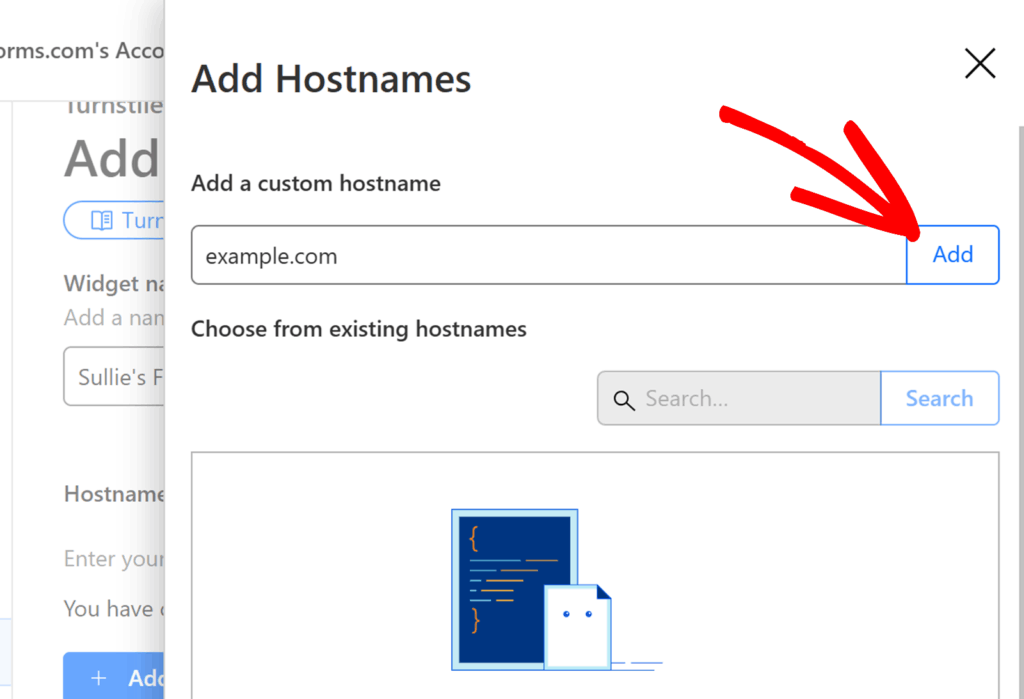
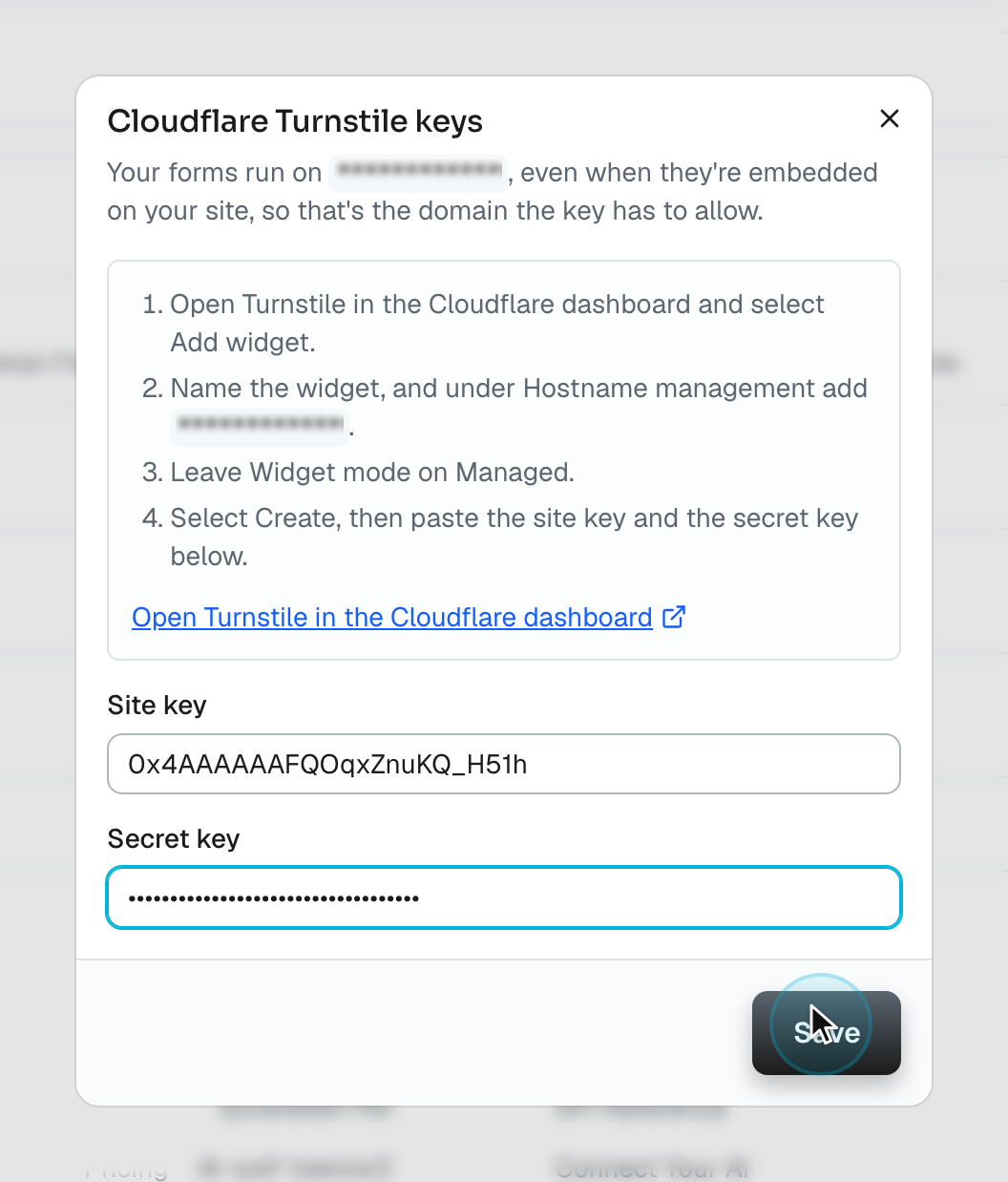
- Under Hostname management, add
app.forminal.ai. Your forms run there, even when they are embedded on your site. If you also serve forms on a custom domain, add that hostname too, such as forms.example.com.
- Leave Widget mode on Managed.
- Select Create.

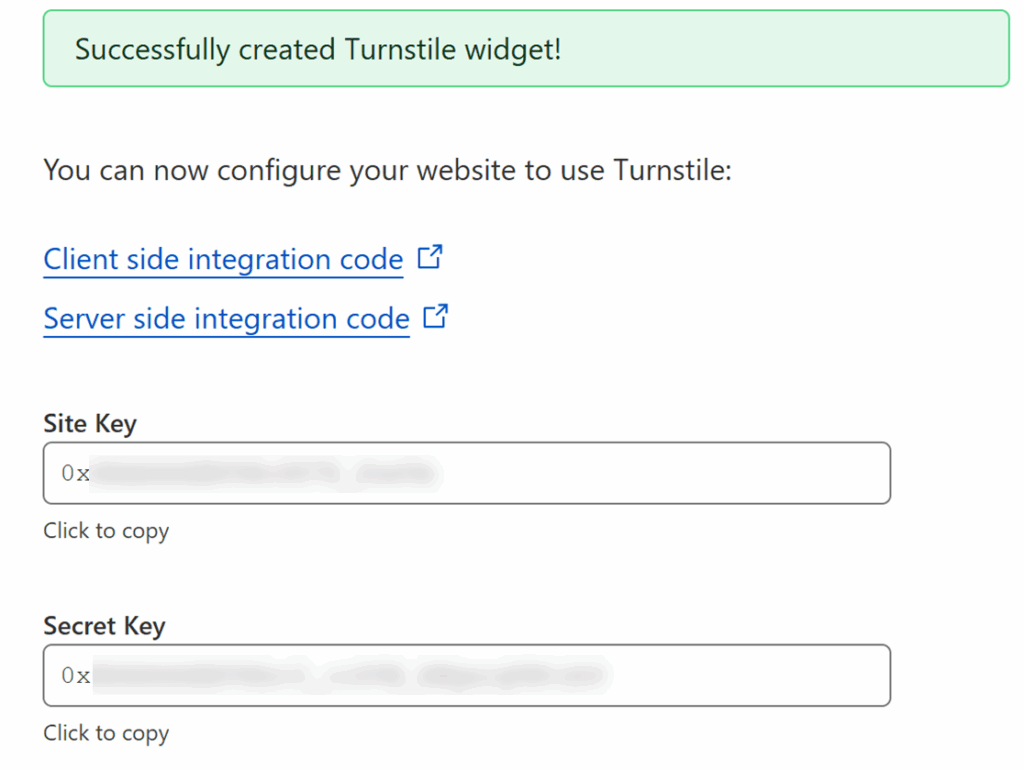
Cloudflare then shows the Site Key and the Secret Key. Keep the page open for the next step.
Save the keys
- Open Account menu » Integrations.
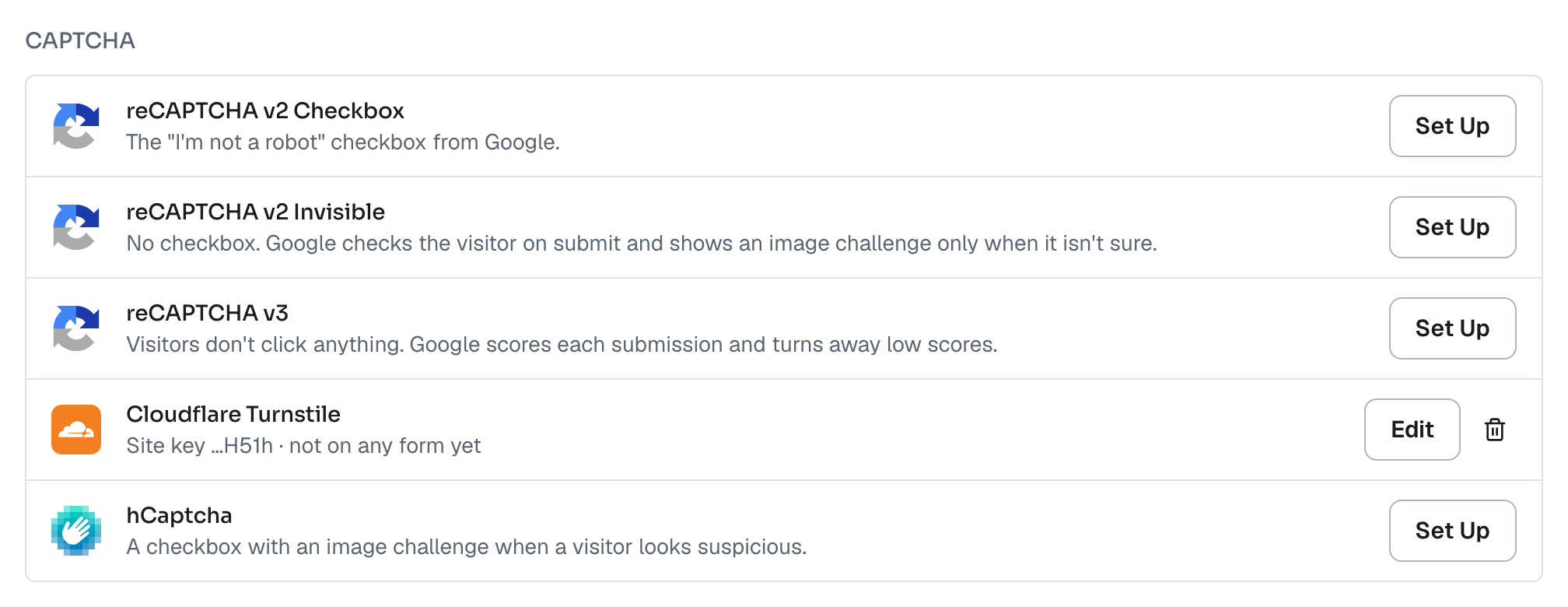
- Under CAPTCHA, select Set Up next to Cloudflare Turnstile.
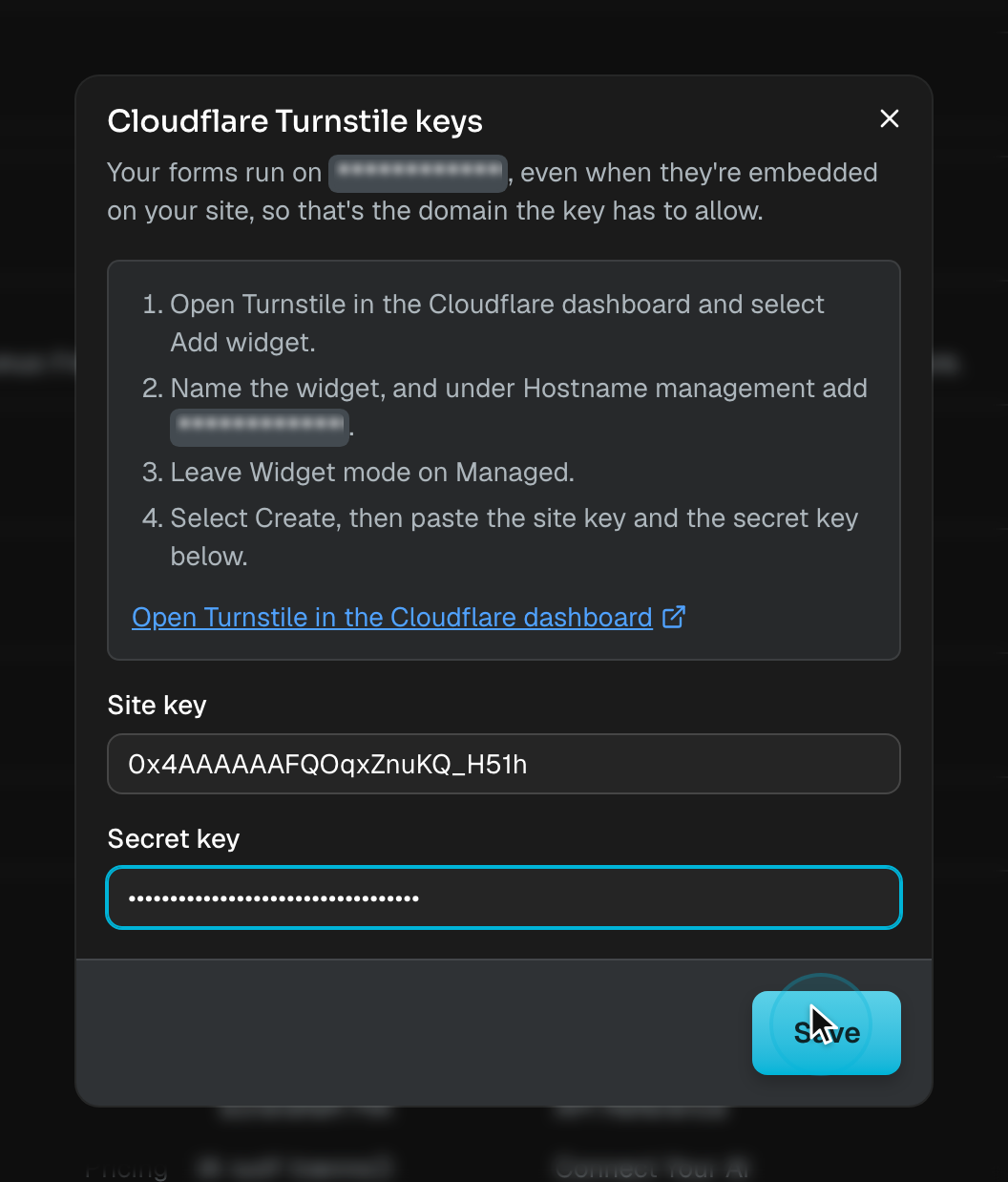
- Paste the site key into Site key and the secret key into Secret key.
- Select Save.
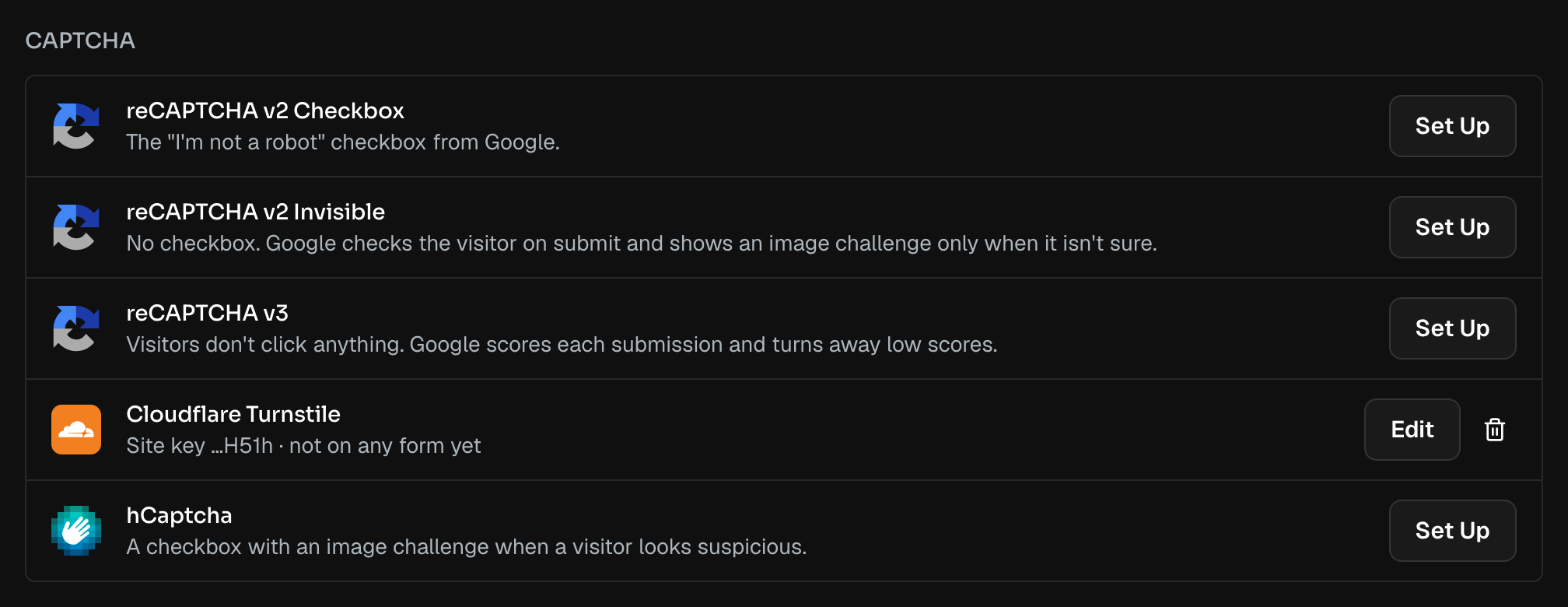
The row now shows the last four characters of your site key and “not on any form yet”. Keys belong to your account, so you save them once and use them on as many forms as you like. To change them later, select Edit. Leave Secret key empty to keep the saved one.
Turn it on for a form
- Open the form in the builder and select Integrations in the top bar.
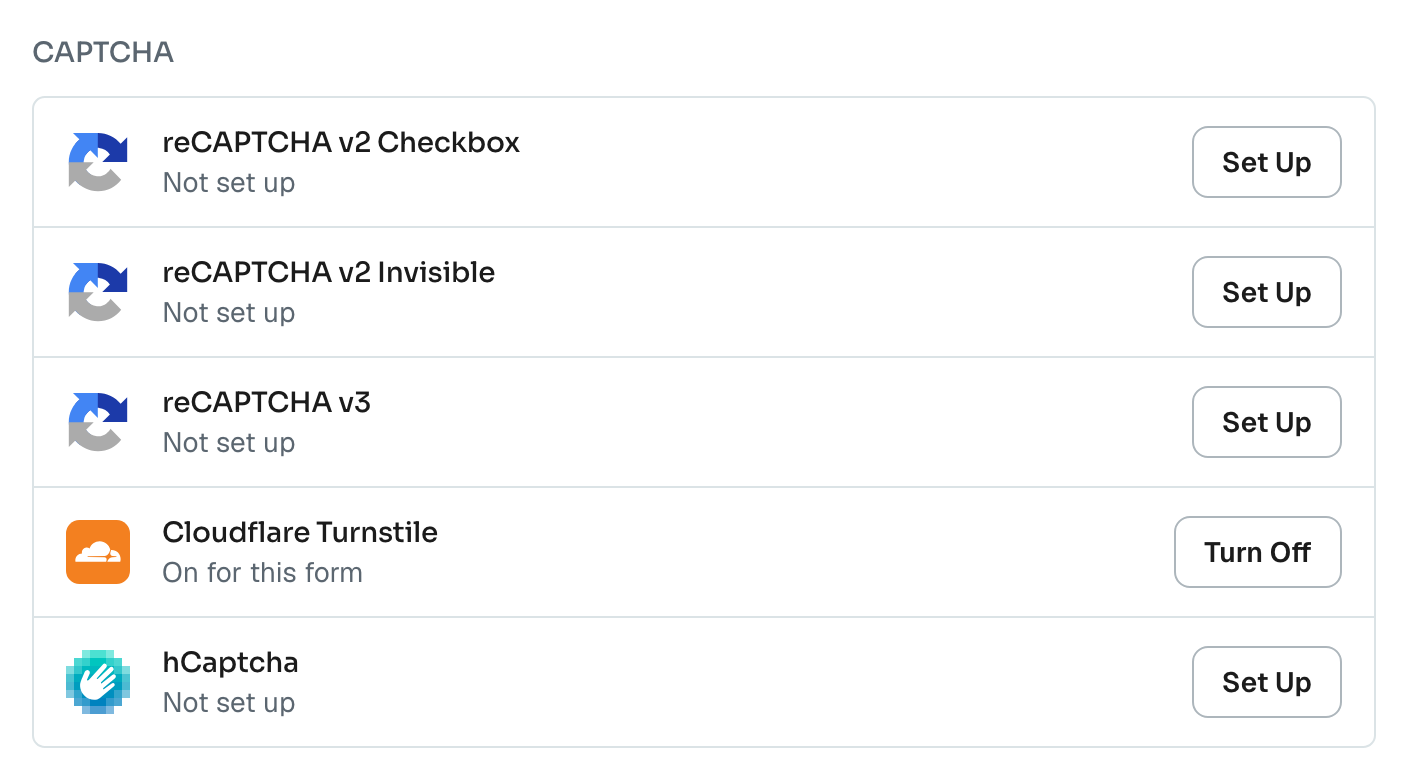
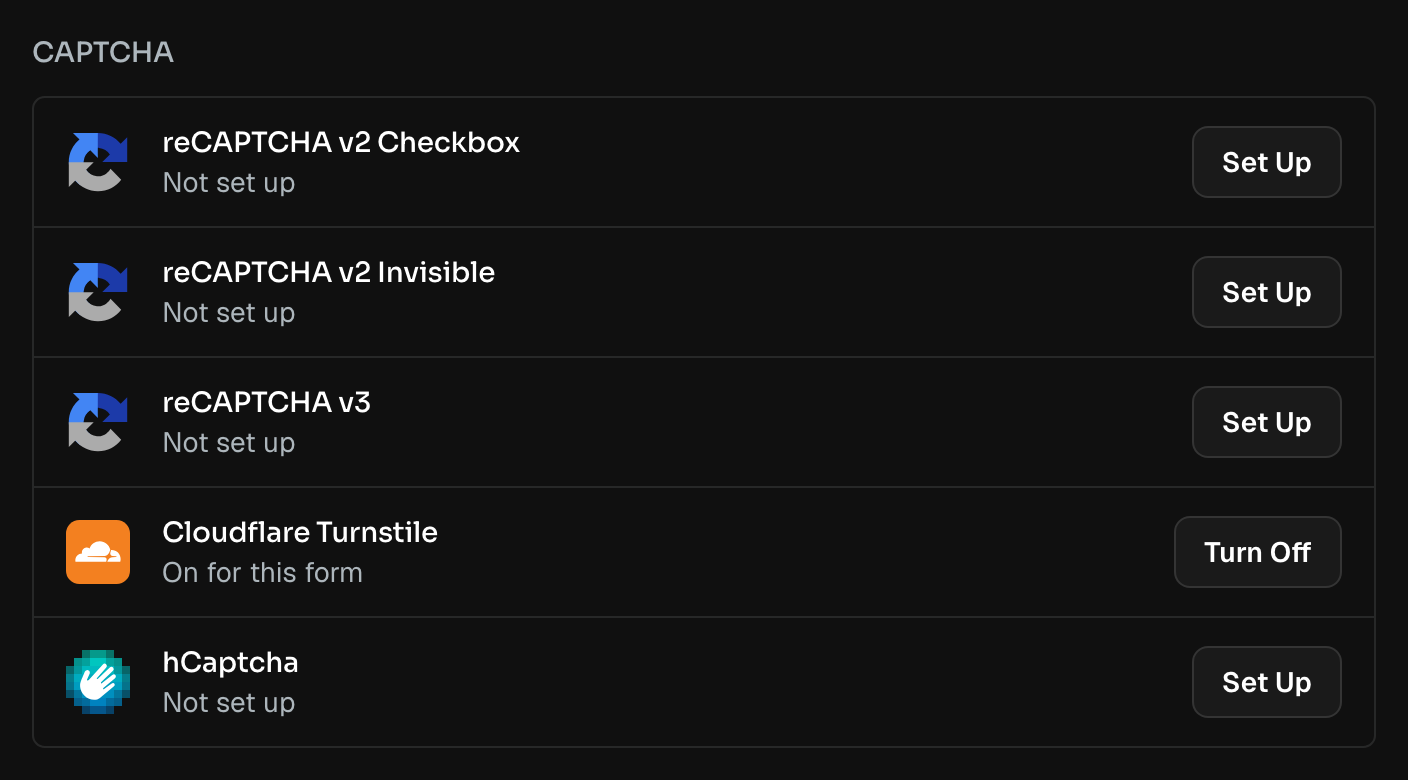
- Under CAPTCHA, select Use next to Cloudflare Turnstile.
The row now reads “On for this form”, and its button changes to Turn Off. The change applies at once, also on a form that is already published. A form runs one CAPTCHA at a time, so selecting Use on another row switches the form to that one.
Check it works
- Open the form’s link in a private window, so you see it the way a visitor does.
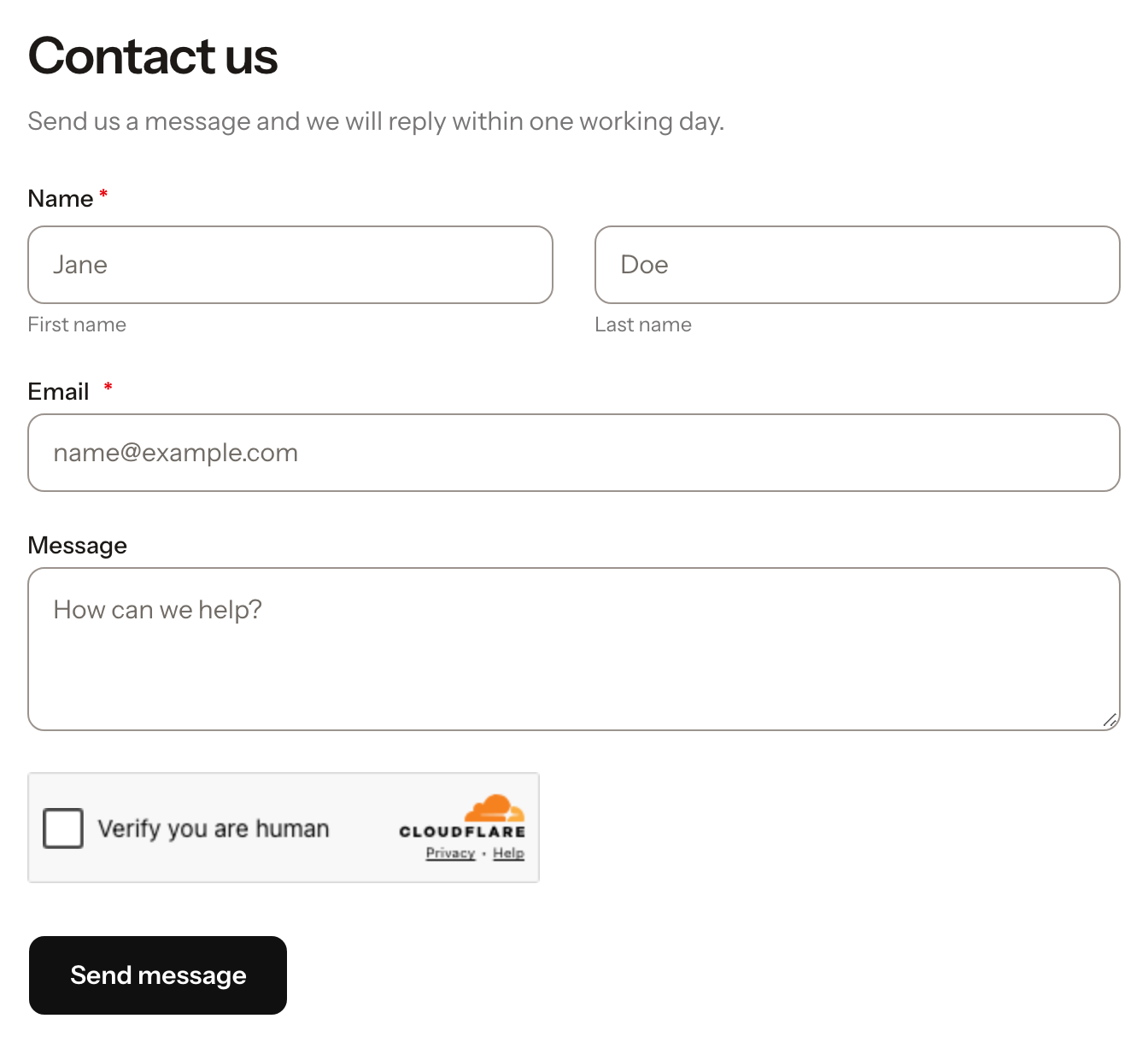
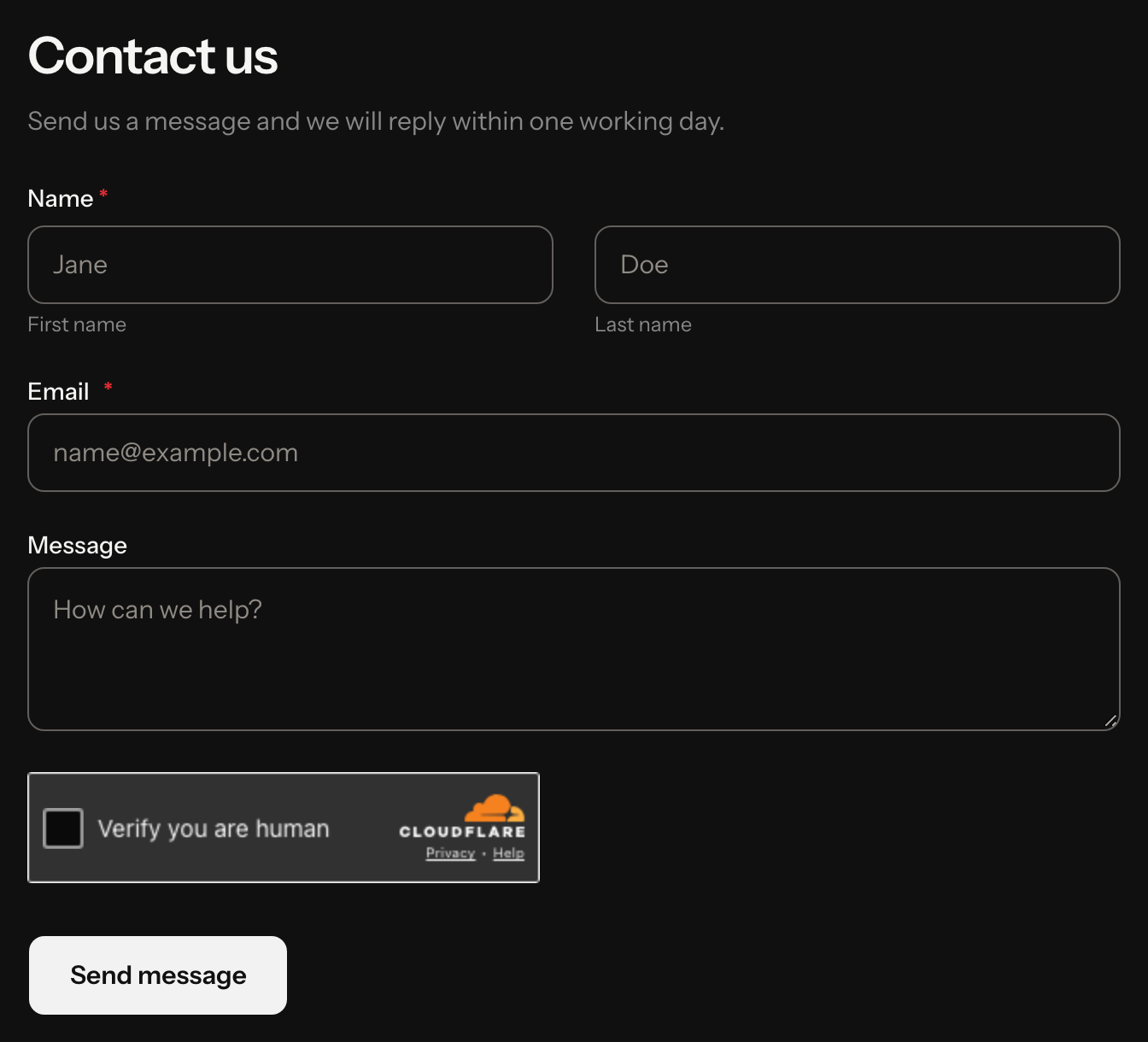
- The Turnstile widget sits above the submit button. Most visitors see it pass on its own, and some are asked to tick “Verify you are human”.
- Fill in the form and submit it. The submission appears on the form’s Submissions page.
Troubleshooting
The widget shows an error instead of passing
Cloudflare checks the hostname itself, in the widget, before the visitor can submit, so a missing hostname or a site key from another widget shows up as an error there. Open the widget in Cloudflare and check that Hostname management has app.forminal.ai, and your custom domain if the form ran there.
Keys from Google or hCaptcha
Each provider’s keys work only on its own row. With a reCAPTCHA or hCaptcha key saved under Cloudflare Turnstile, the Turnstile widget shows an error, and the visitor sees “Complete the CAPTCHA to send your submission.” when they submit. Save the key under the row for its provider.
Forms on a custom domain
Add the exact hostname the form runs on, such as forms.example.com, under Hostname management. Forms keep running on the app host too, so leave that one on the list.
“Complete the CAPTCHA to send your submission.”
The form shows this when the visitor submits without a finished check, so it had nothing to send to Cloudflare. If the widget shows an error of its own above the button, the key is the cause: see the sections above. Otherwise the visitor hasn’t finished the check yet, and can finish it and submit again.
“Complete the CAPTCHA and try again.”
The form shows this when Cloudflare answered the check but Forminal turned it down. It happens when the check was solved on another site, such as a page that copied your site key, or on a custom domain that is no longer active on your account. Nothing is saved, and the visitor can try again.
“The CAPTCHA could not load. Turn off any blocker for this page and reload it.”
The visitor’s browser didn’t load Cloudflare’s script, most often because an ad or privacy blocker stopped it. The form can’t be sent until the script loads.
“Could not check the CAPTCHA. Try again in a moment.”
Cloudflare couldn’t be reached to check the answer. Nothing is saved, and trying again a moment later usually works.
The row says “Keys removed, so this form has no CAPTCHA”
The keys were removed from your account, so the form takes submissions without a CAPTCHA. Save keys for that provider again and the form uses them straight away.
Frequently asked questions
Why choose Turnstile over reCAPTCHA or hCaptcha?
Most visitors pass it without clicking anything, and it works on forms served from a custom domain. The widget does take a little room on the form even when nobody has to click it.
Can I use one Turnstile widget on several forms?
Yes. The keys belong to your account, so you save them once and select Use on each form that needs them.
Do my forms have spam protection before I add Turnstile?
Yes. Every form has a hidden honeypot field that sends bot submissions to the Spam tab, and each address can send at most 10 submissions a minute to a form.
What happens if I delete my Turnstile keys?
Forms that used them keep taking submissions without a CAPTCHA, and their row reads Keys removed, so this form has no CAPTCHA. Save keys again and the forms use them straight away.
Can a form use Turnstile and reCAPTCHA at the same time?
No. A form runs one CAPTCHA at a time, and selecting Use on another provider switches the form to it.