A notification is an email sent every time someone submits your form. By the end of this guide you’ll get an email with every answer when a submission comes in, and you’ll know how to send one to your team or to the person who filled in the form.
Turn on notifications
- Open the form in the builder and select Form Settings in the top bar.
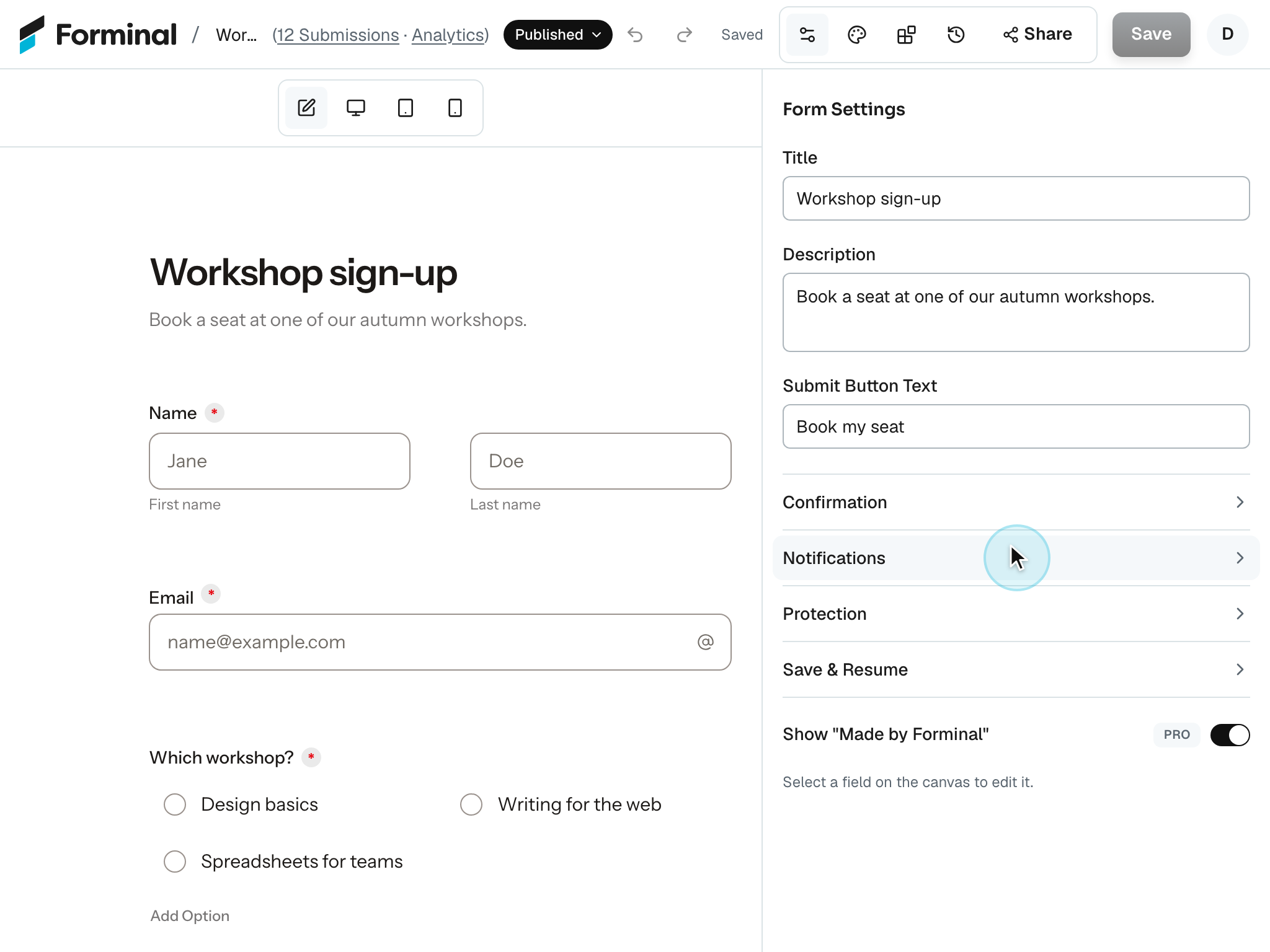
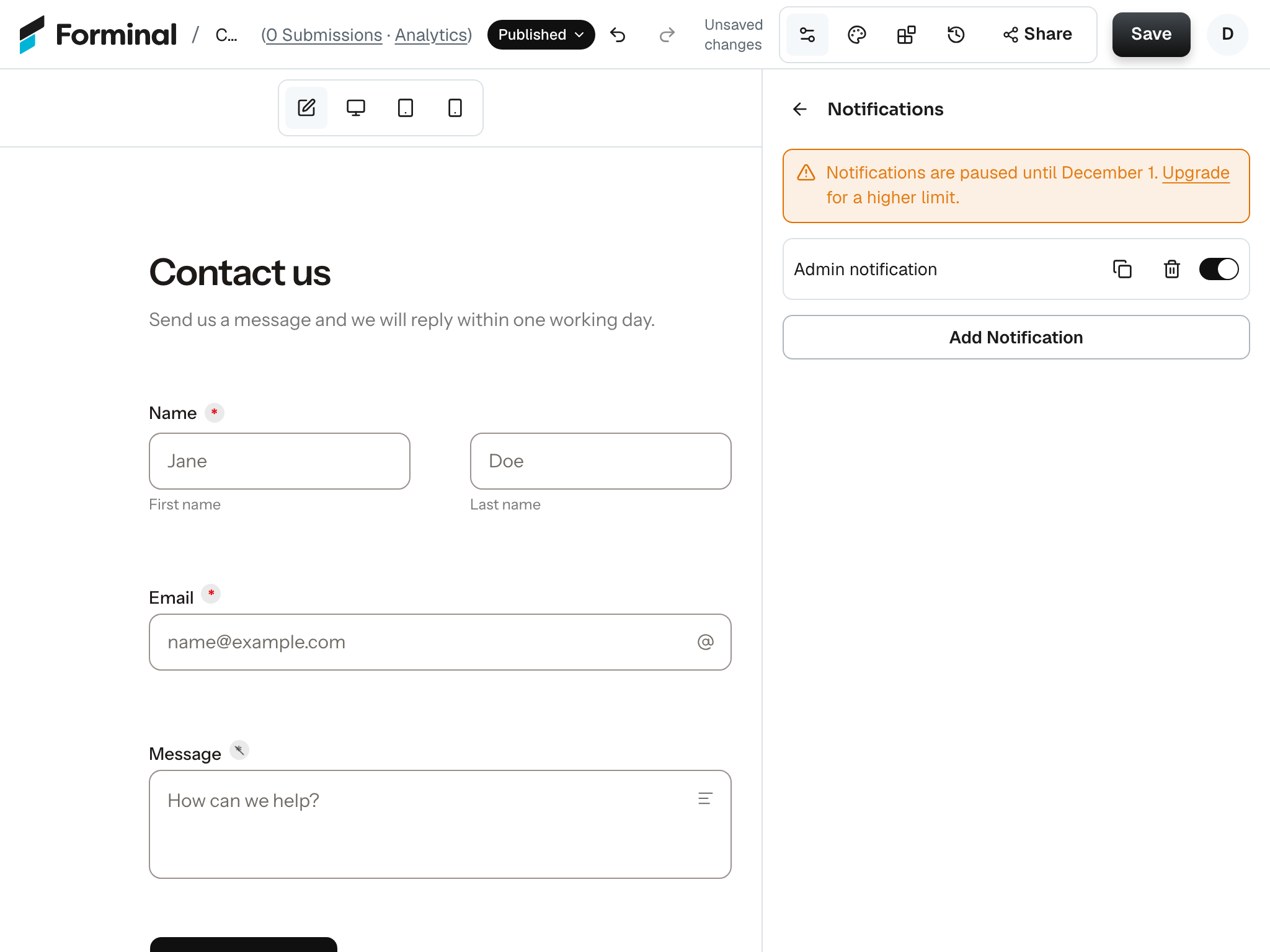
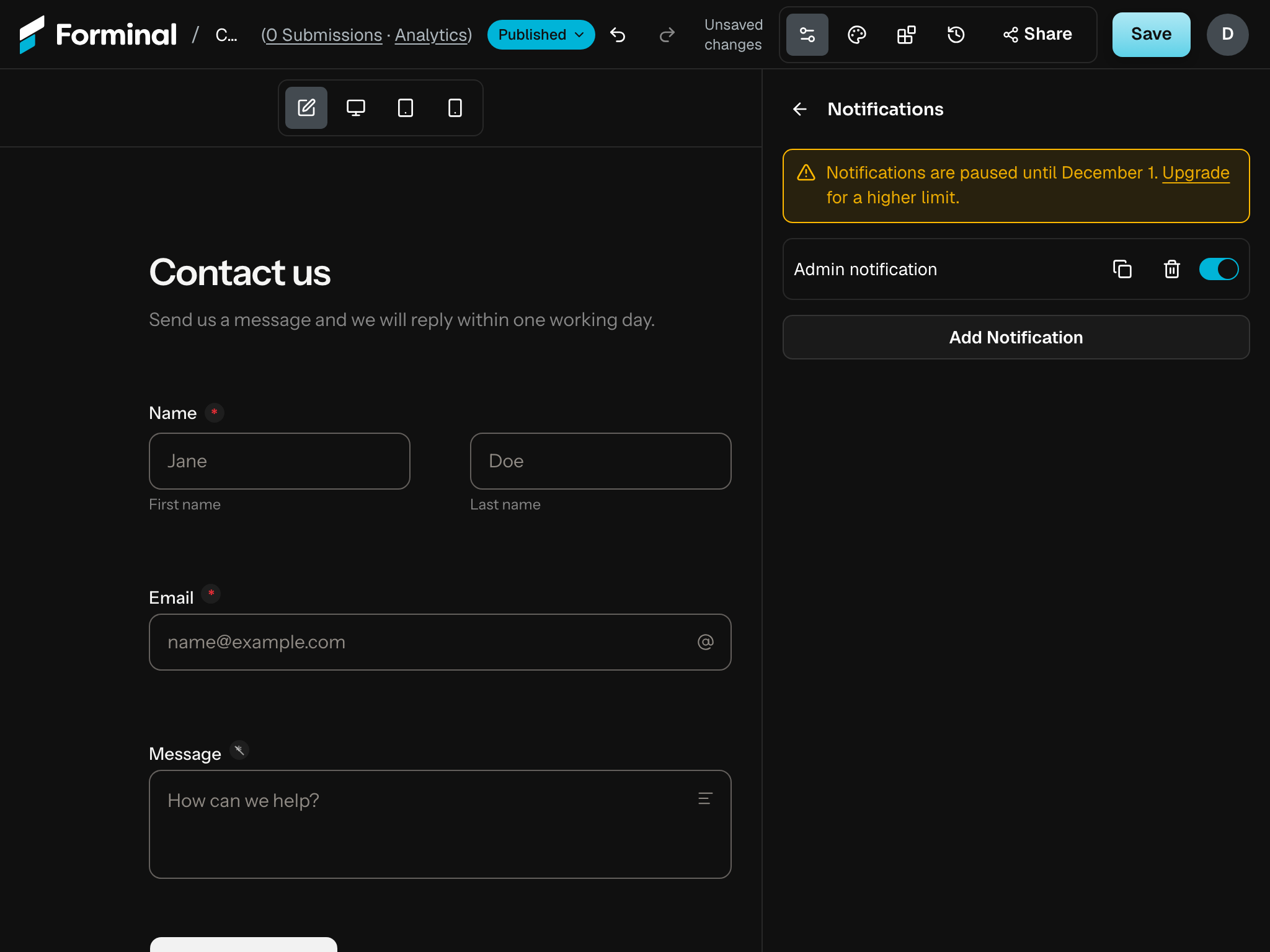
- In Form Settings, select Notifications. Every new form already has one called “Admin notification”, switched off. Turn on its switch, and you’ll get an email for each submission at your account address.
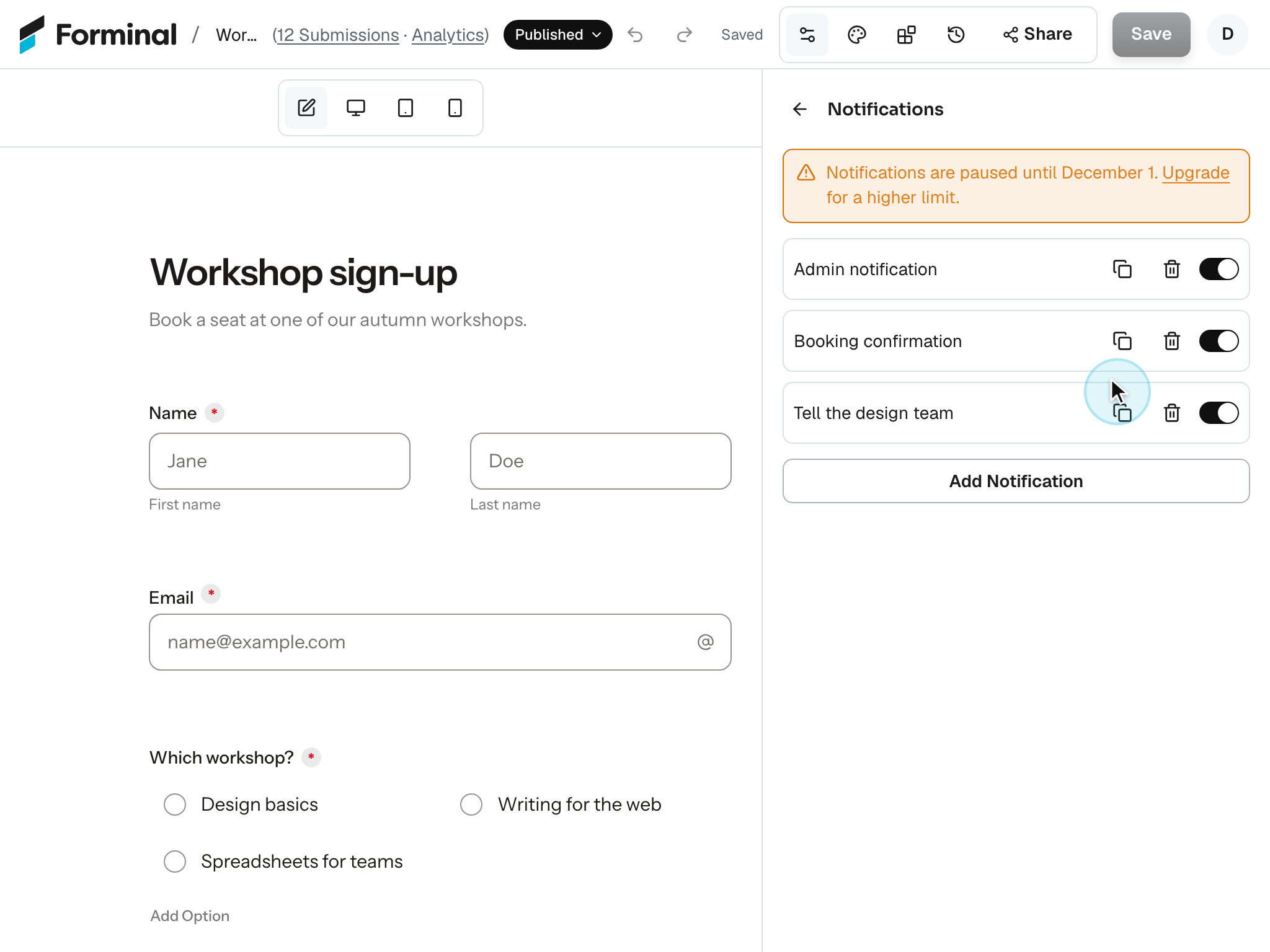
To start another one, select Add Notification. It starts switched on, addressed to you, with the subject “New submission:” and your form’s title, and a message that says “You have a new submission.” followed by every answer. In the list, each notification has its own switch to pause it, a copy icon to duplicate it and a bin to delete it.
Choose who gets them
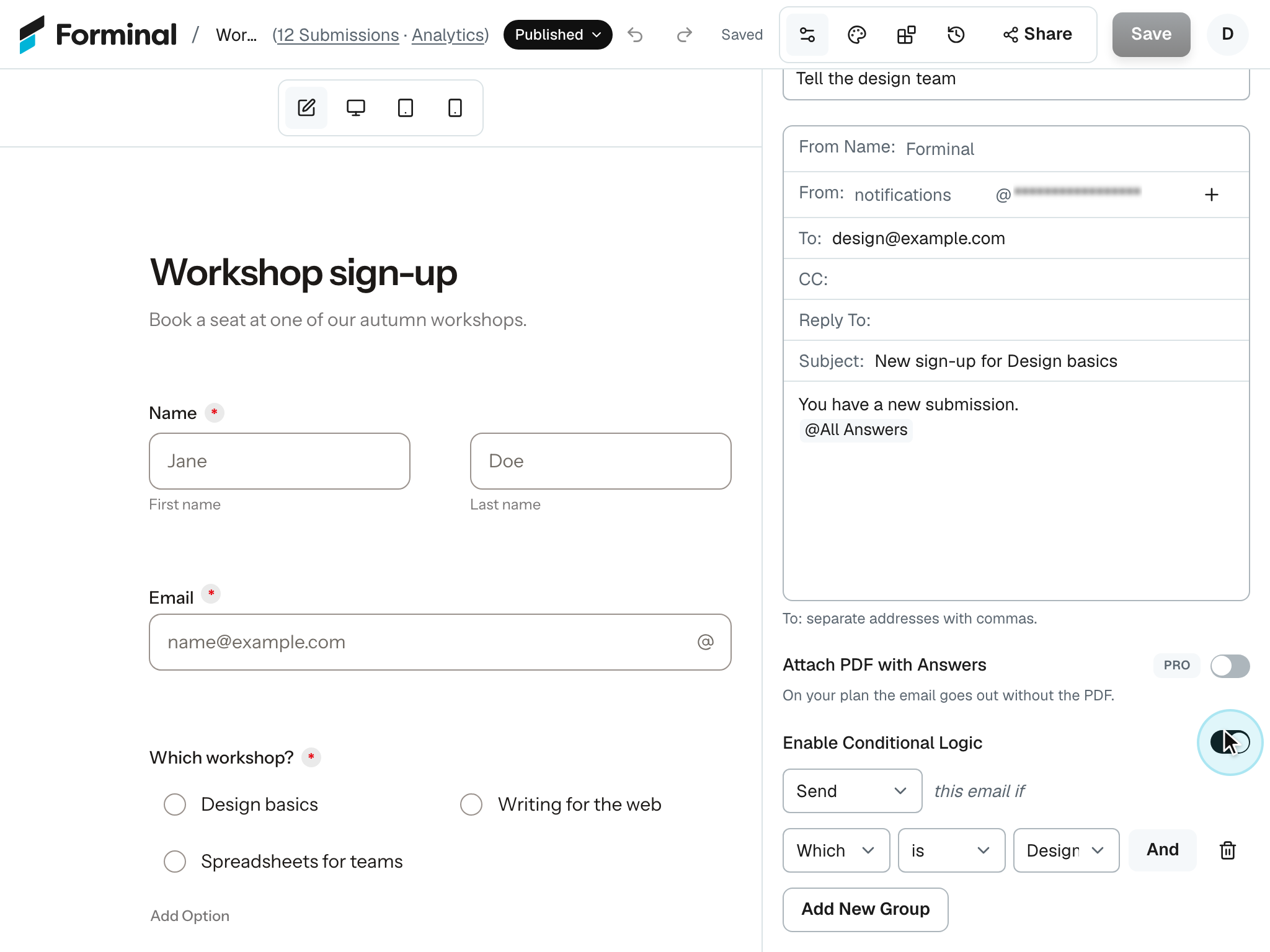
Select a notification’s name to open its email composer. It’s laid out like an email, with one line for each header and the message underneath.
- In To and CC, type one or more addresses separated by commas. Type @ to add Admin Email, which is your own account address, or the answer to one of the form’s Email fields, so the person who filled in the form gets a copy.
- In Reply To, type @ and pick the respondent’s Email field, so hitting Reply answers them directly.
- Write the Subject and the message. Type @ to put in an answer, or All Answers to list every question with its answer.
- Set the From Name, the sender name people see. It’s “Forminal” unless you change it.
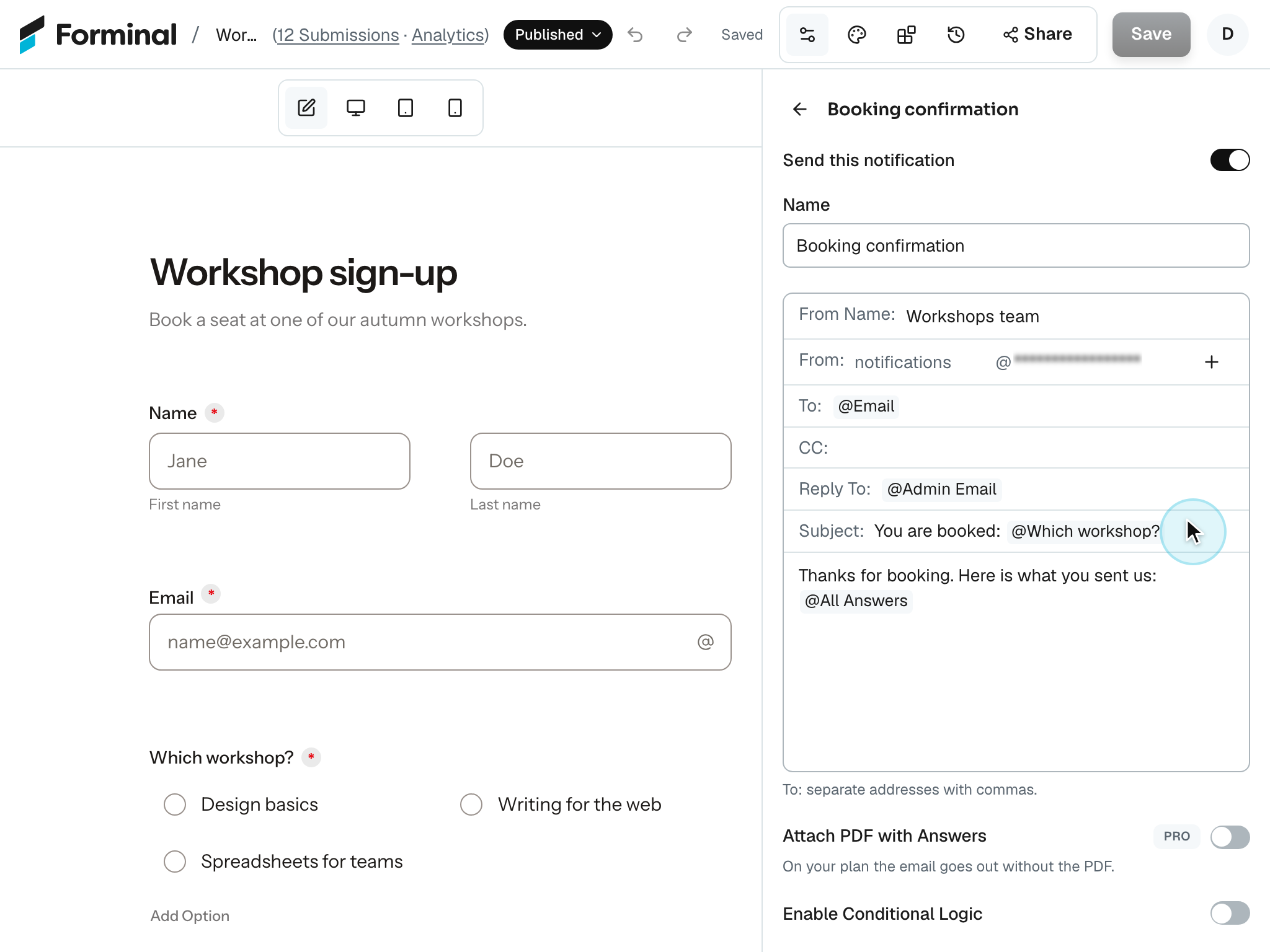
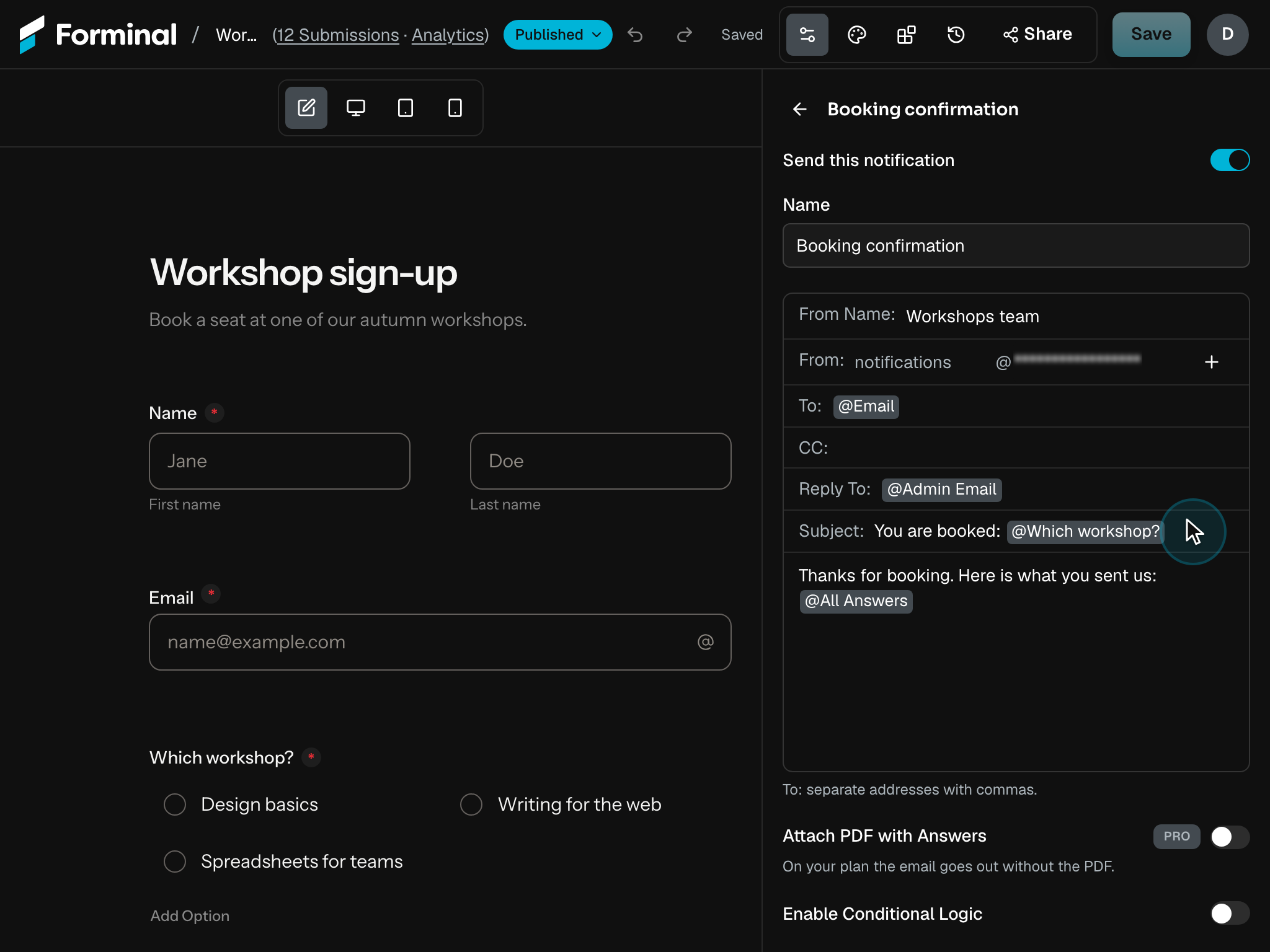
- Select Back to notifications, the arrow at the top of the panel, to return to the list.
A line under the composer points out anything in To, CC or Reply To that isn’t an email address, so you can fix it first. To send only for some answers, turn on Enable Conditional Logic and choose Send or Don’t send “this email if” your rules match; see Smart Logic.
Good to know
- A form can have up to 10 notifications, and each one can go to up to 10 people across To and CC. There’s no BCC.
- If To ends up empty, for example because the respondent left the Email field blank, that email isn’t sent.
- On a payment form, emails wait until the payment goes through. Spam and preview submissions send no email. If an email can’t be sent, the submission is still saved and the app tries again for about 18 hours.
- Messages can’t hold images, and uploaded files come as links.
Frequently asked questions
Why didn’t the person who filled in the form get an email?
The usual cause is an empty To line: if the respondent left the Email field blank, there is no address and the email isn’t sent. On a payment form, emails also wait until the payment goes through, and preview submissions and spam send nothing.
Can I attach uploaded files or a PDF to the email?
Uploaded files come as links: to your media library, where they open for someone signed in with access to the form’s submissions, or to your Google Drive. The one attachment a notification can carry is a PDF of the answers, which is a Pro feature; see PDF Attachments.