Eine Benachrichtigung ist eine E-Mail, die jedes Mal gesendet wird, wenn jemand Ihr Formular absendet. Am Ende dieser Anleitung erhalten Sie eine E-Mail mit jeder Antwort, wenn eine Einreichung eingeht, und Sie erfahren, wie Sie eine an Ihr Team oder an die Person senden, die das Formular ausgefüllt hat.
Benachrichtigungen aktivieren
- Open the form in the builder and select Form Settings in the top bar.
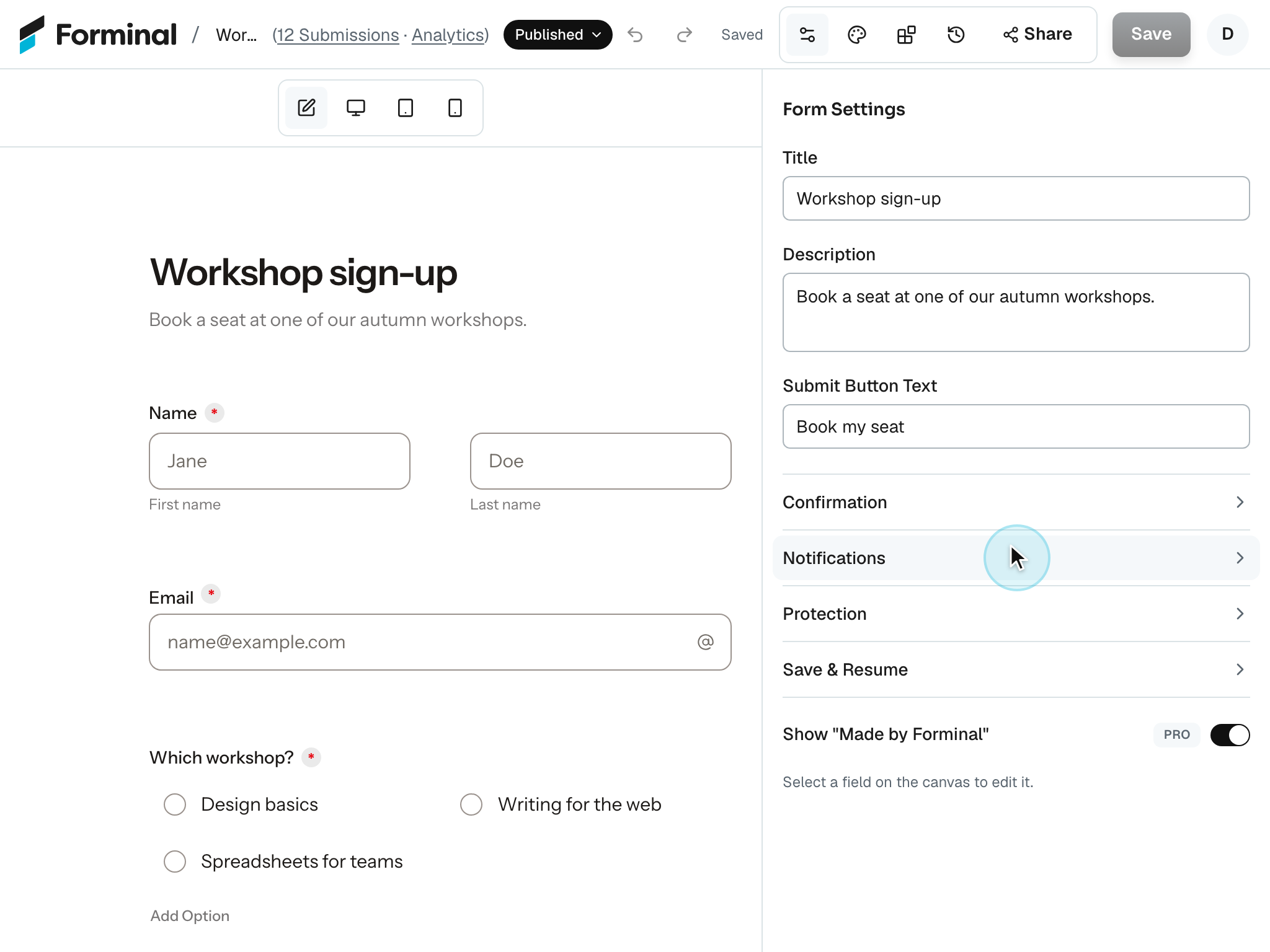
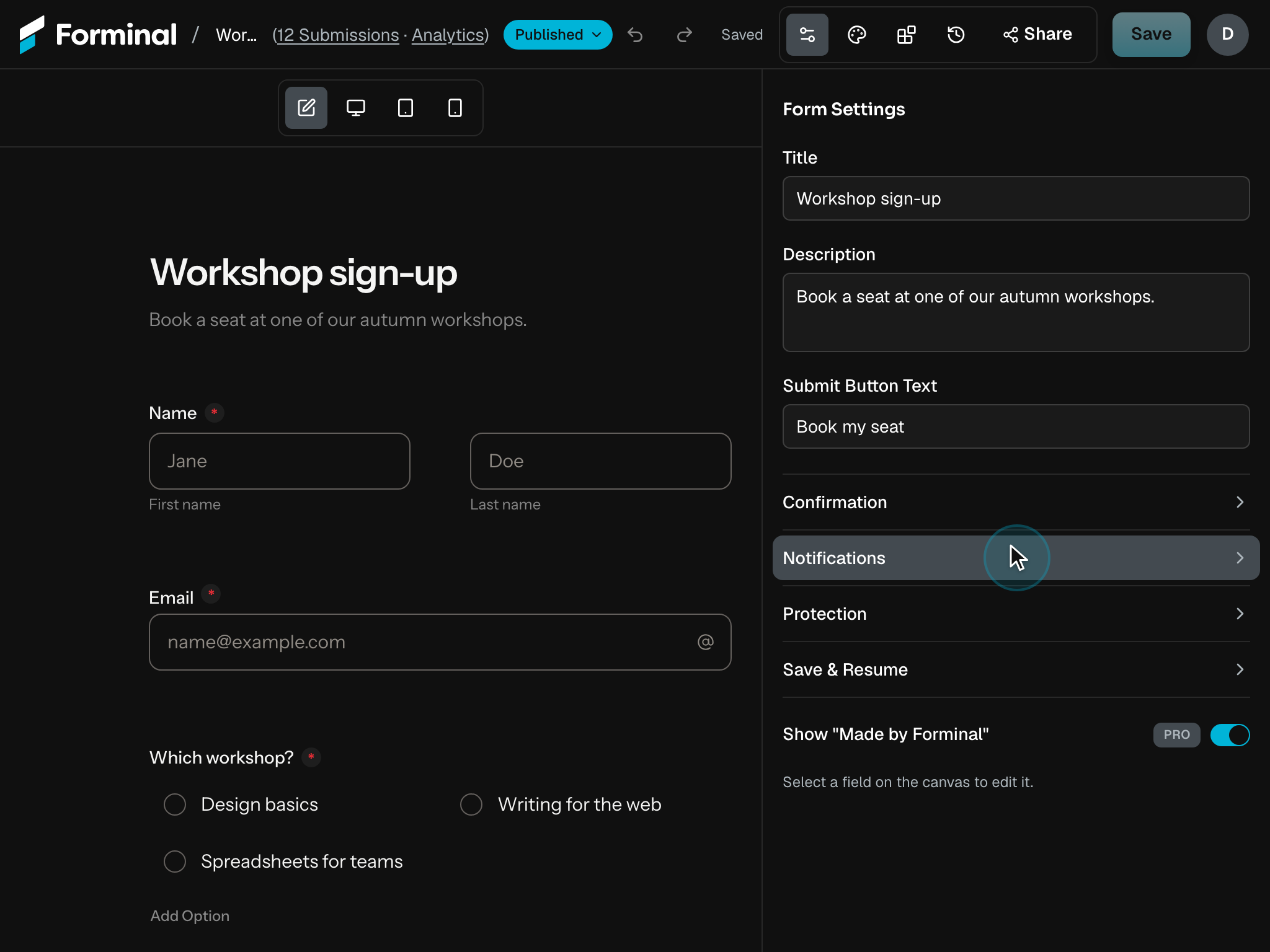
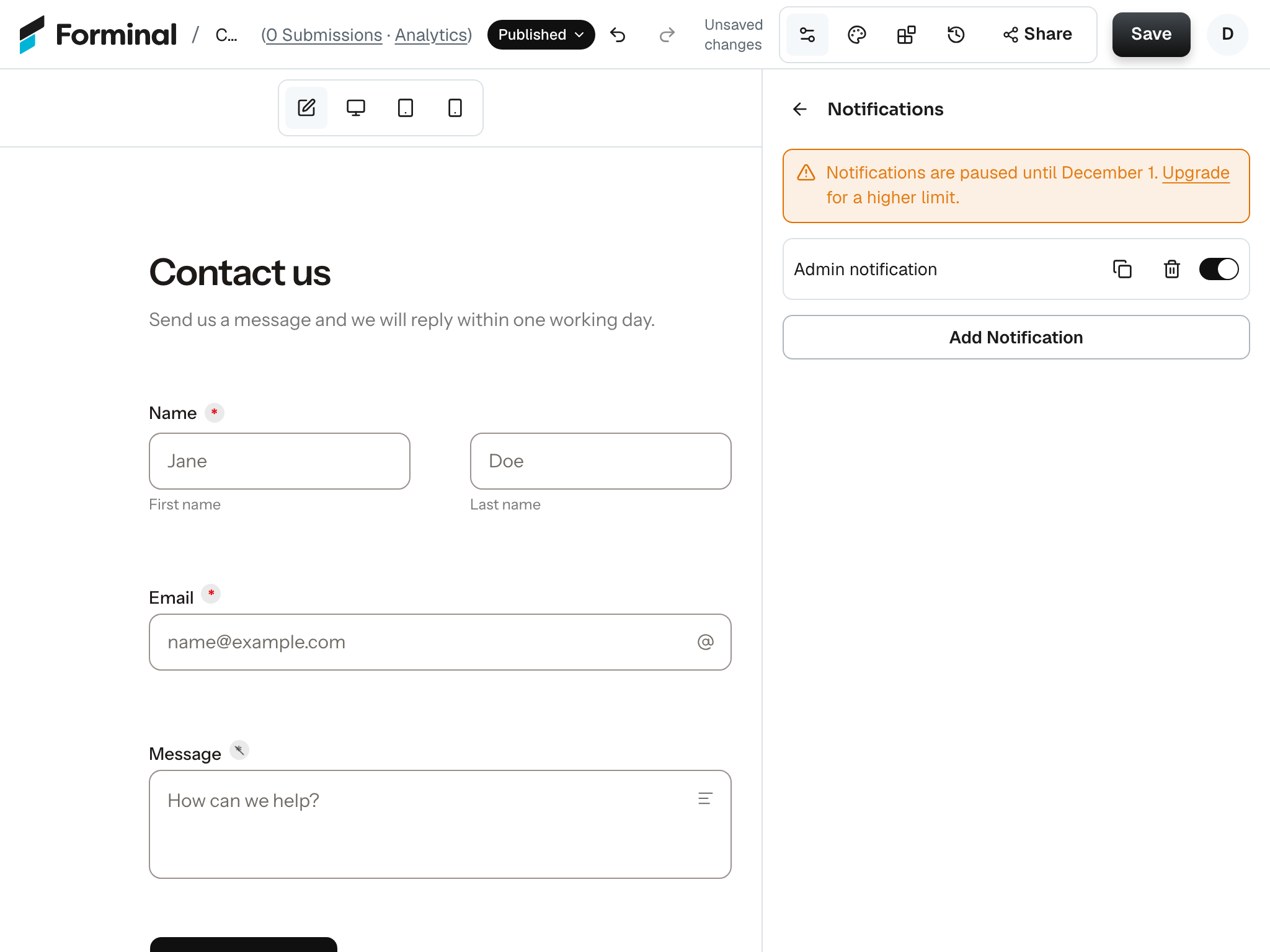
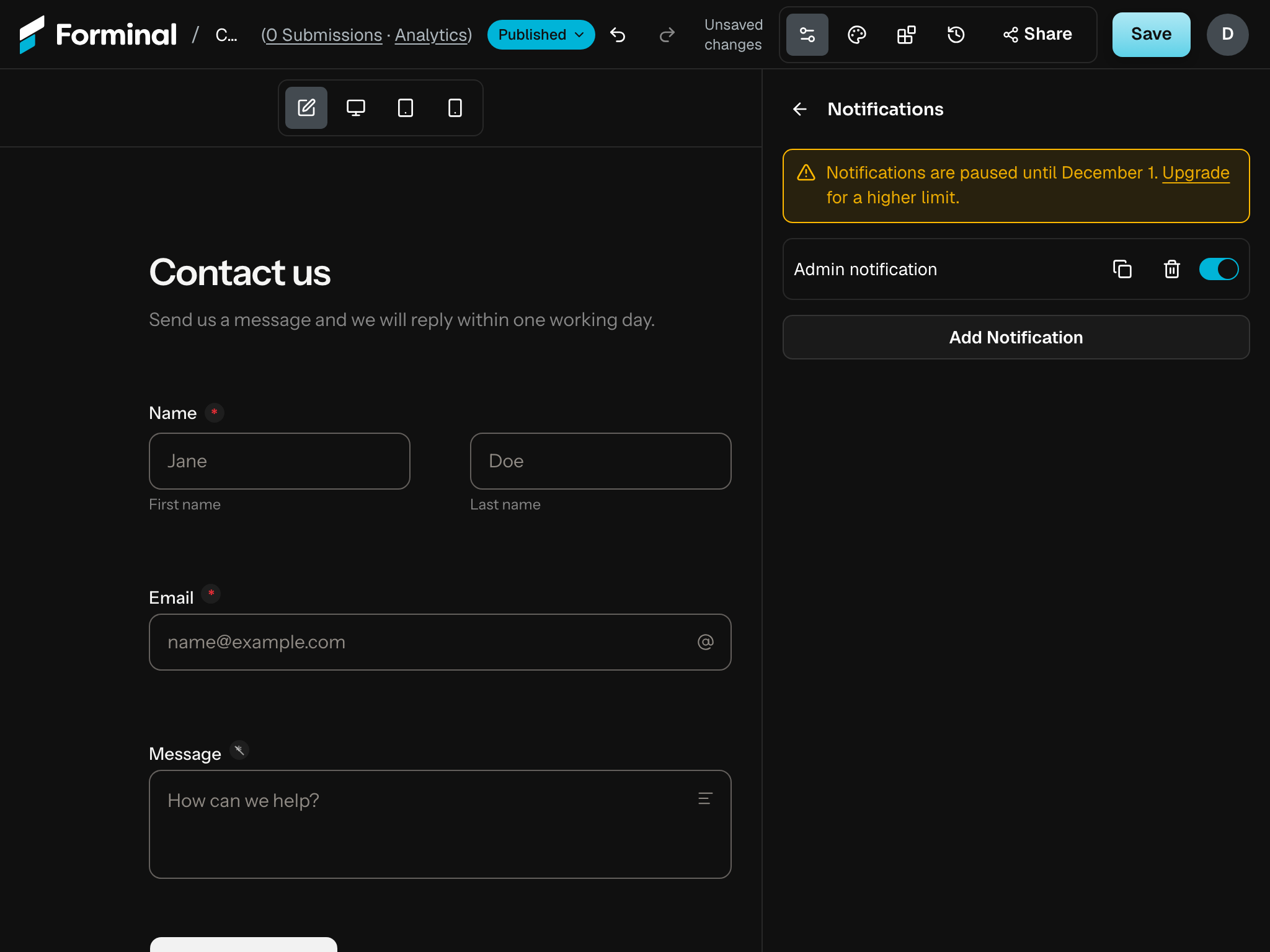
- In Form Settings, select Notifications. Every new form already has one called “Admin notification”, switched off. Turn on its switch, and you’ll get an email for each submission at your account address.
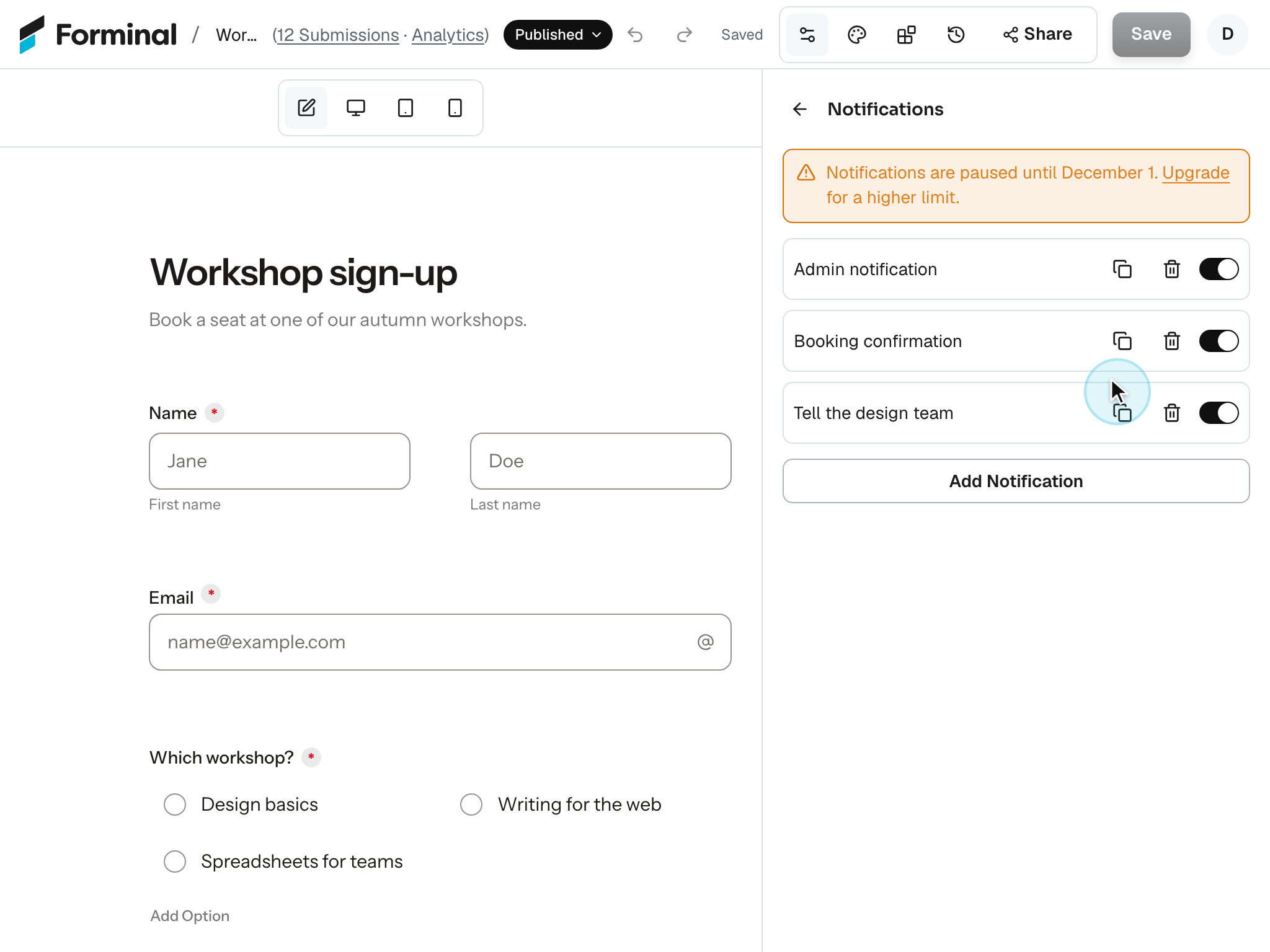
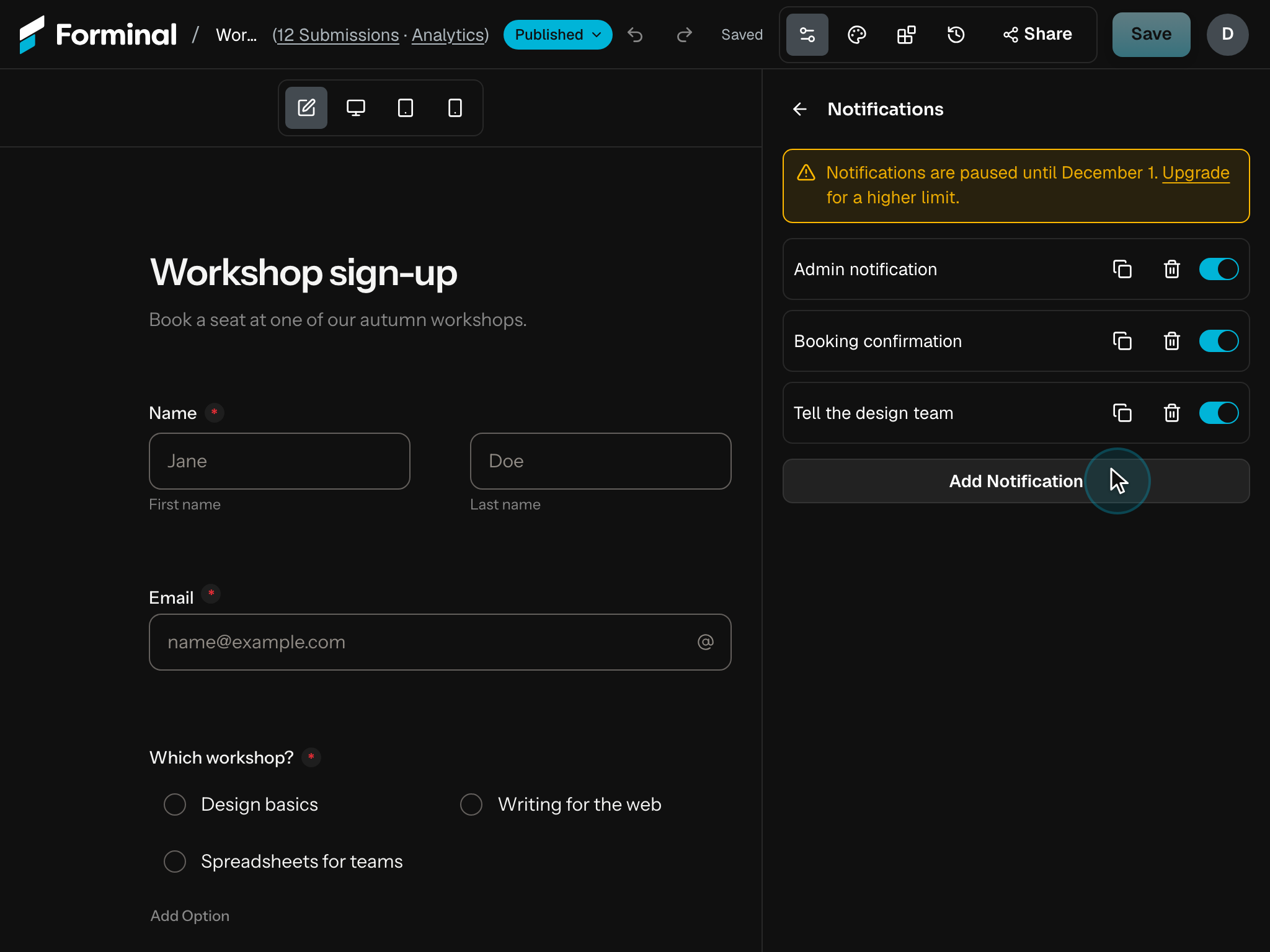
To start another one, select Add Notification. It starts switched on, addressed to you, with the subject “New submission:” and your form’s title, and a message that says “You have a new submission.” followed by every answer. In the list, each notification has its own switch to pause it, a copy icon to duplicate it and a bin to delete it.
Wählen Sie aus, wer sie erhält
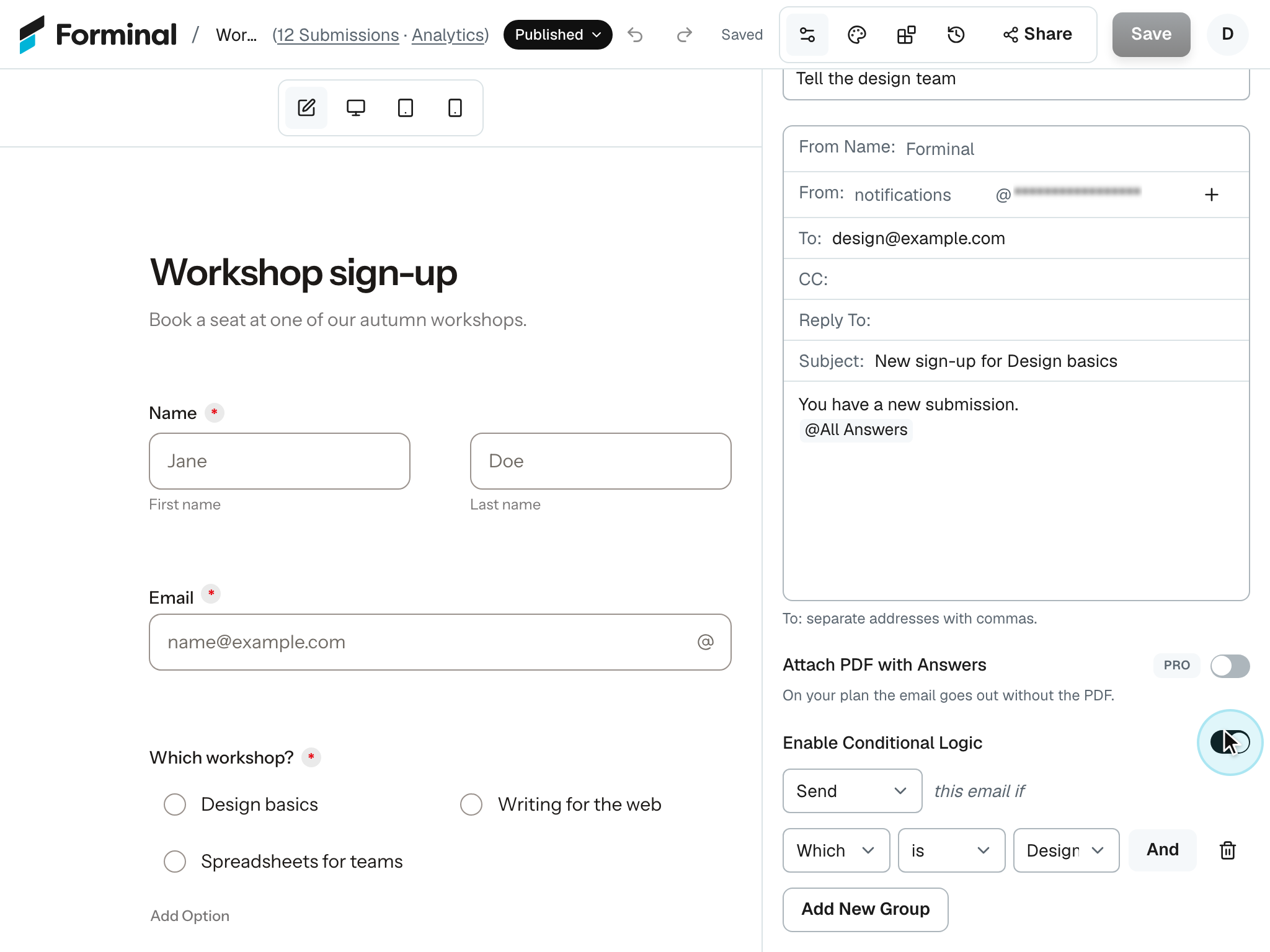
Wählen Sie den Namen einer Benachrichtigung aus, um deren E-Mail-Composer zu öffnen. Er ist wie eine E-Mail aufgebaut, mit einer Zeile für jede Kopfzeile und der Nachricht darunter.
- In To and CC, type one or more addresses separated by commas. Type @ to add Admin Email, which is your own account address, or the answer to one of the form’s Email fields, so the person who filled in the form gets a copy.
- In Reply To, type @ and pick the respondent’s Email field, so hitting Reply answers them directly.
- Write the Subject and the message. Type @ to put in an answer, or All Answers to list every question with its answer.
- Set the From Name, the sender name people see. It’s “Forminal” unless you change it.
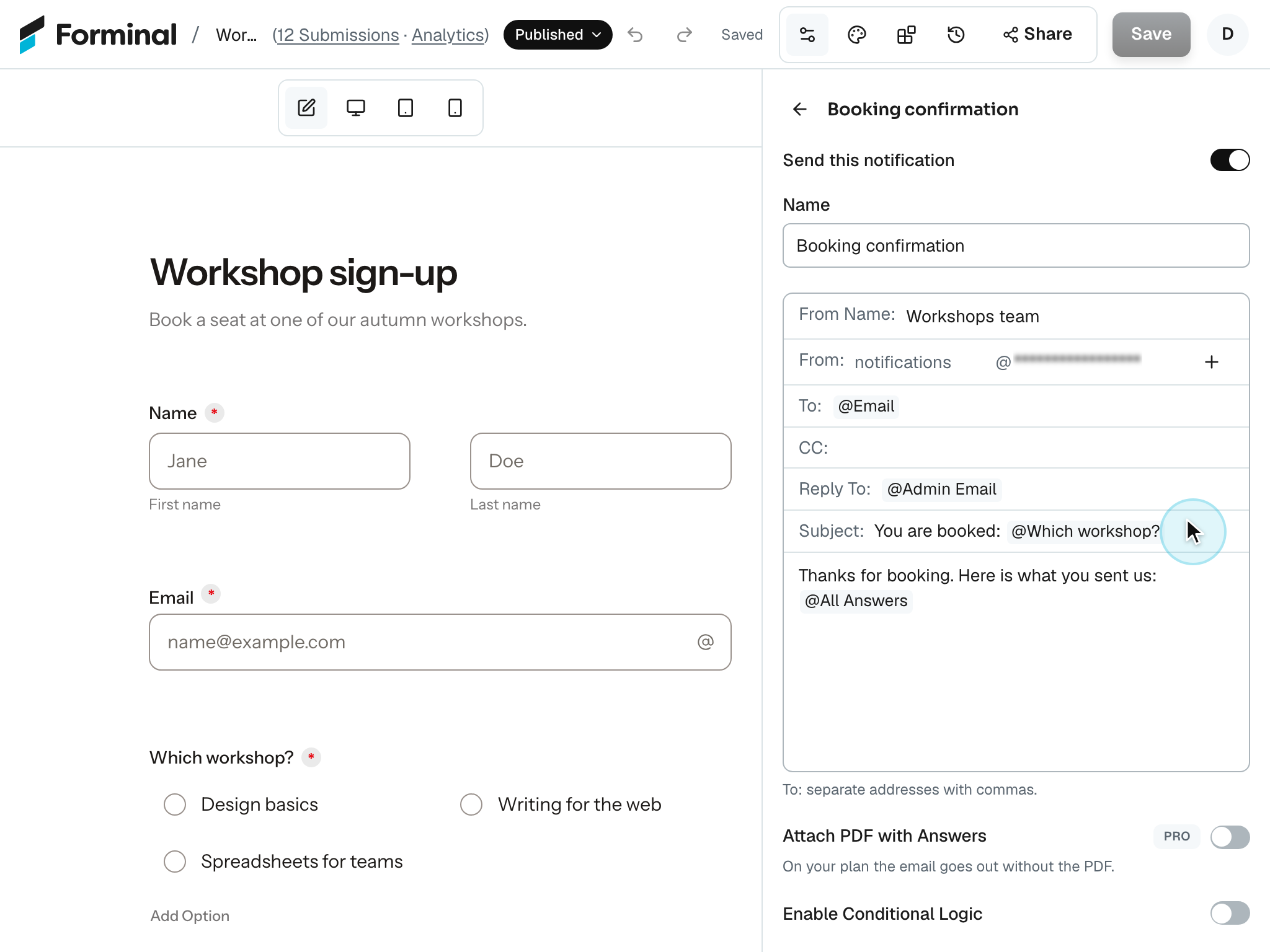
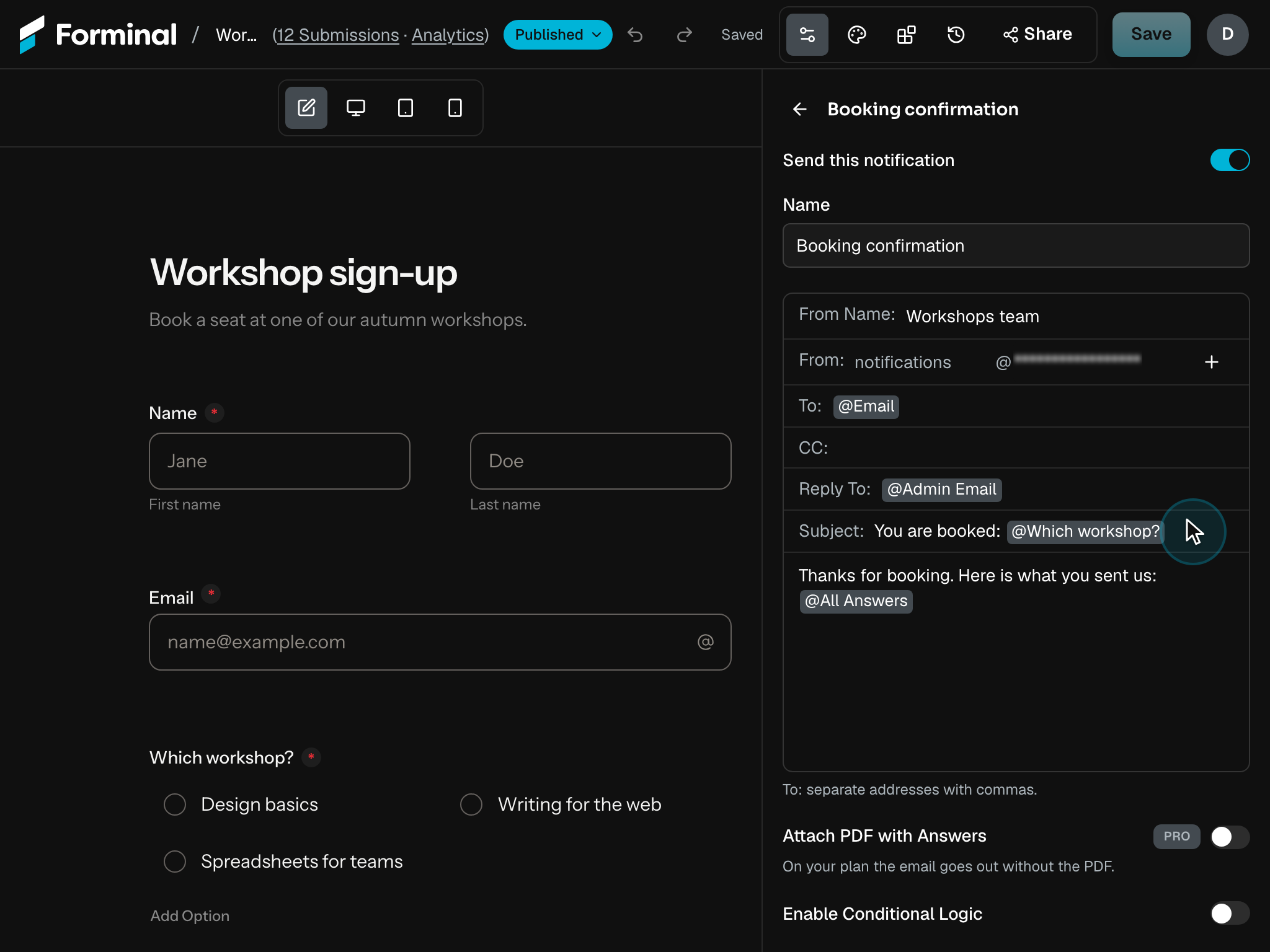
- Select Back to notifications, the arrow at the top of the panel, to return to the list.
A line under the composer points out anything in To, CC or Reply To that isn’t an email address, so you can fix it first. To send only for some answers, turn on Enable Conditional Logic and choose Send or Don’t send “this email if” your rules match; see Smart Logic.
Gut zu wissen
- Ein Formular kann bis zu 10 Benachrichtigungen haben, und jede kann an bis zu 10 Personen in To und CC gehen. Es gibt kein BCC.
- Wenn To leer ist, zum Beispiel weil der Befragte das E-Mail-Feld leer gelassen hat, wird diese E-Mail nicht gesendet.
- Bei einem Zahlungsformular warten E-Mails, bis die Zahlung abgeschlossen ist. Spam- und Vorschau-Einreichungen senden keine E-Mail. Wenn eine E-Mail nicht gesendet werden kann, wird die Einreichung trotzdem gespeichert und die App versucht es etwa 18 Stunden lang erneut.
- Nachrichten können keine Bilder enthalten, und hochgeladene Dateien werden als Links geliefert.
Häufig gestellte Fragen
Warum hat die Person, die das Formular ausgefüllt hat, keine E-Mail erhalten?
Die häufigste Ursache ist eine leere To-Zeile: Wenn der Befragte das E-Mail-Feld leer gelassen hat, gibt es keine Adresse und die E-Mail wird nicht gesendet. Bei einem Zahlungsformular warten E-Mails auch, bis die Zahlung abgeschlossen ist, und Vorschau-Einreichungen und Spam senden nichts.
Kann ich hochgeladene Dateien oder eine PDF-Datei an die E-Mail anhängen?
Hochgeladene Dateien werden als Links geliefert: zu Ihrer Medienbibliothek, wo sie für jemanden geöffnet werden, der mit Zugriff auf die Einreichungen des Formulars angemeldet ist, oder zu Ihrem Google Drive. Der einzige Anhang, den eine Benachrichtigung tragen kann, ist eine PDF-Datei der Antworten, was ein Pro-Feature ist; siehe PDF-Anhänge.