Una vez publicado un formulario, cualquiera que tenga su enlace puede rellenarlo. Esta guía te lleva desde un borrador a un formulario activo, con su enlace en el portapapeles, un código QR para imprimir y, si lo deseas, el formulario mostrado en tu propio sitio web.
Publica tu formulario
- Open the form in the builder. A new form shows a Draft badge in the top bar.
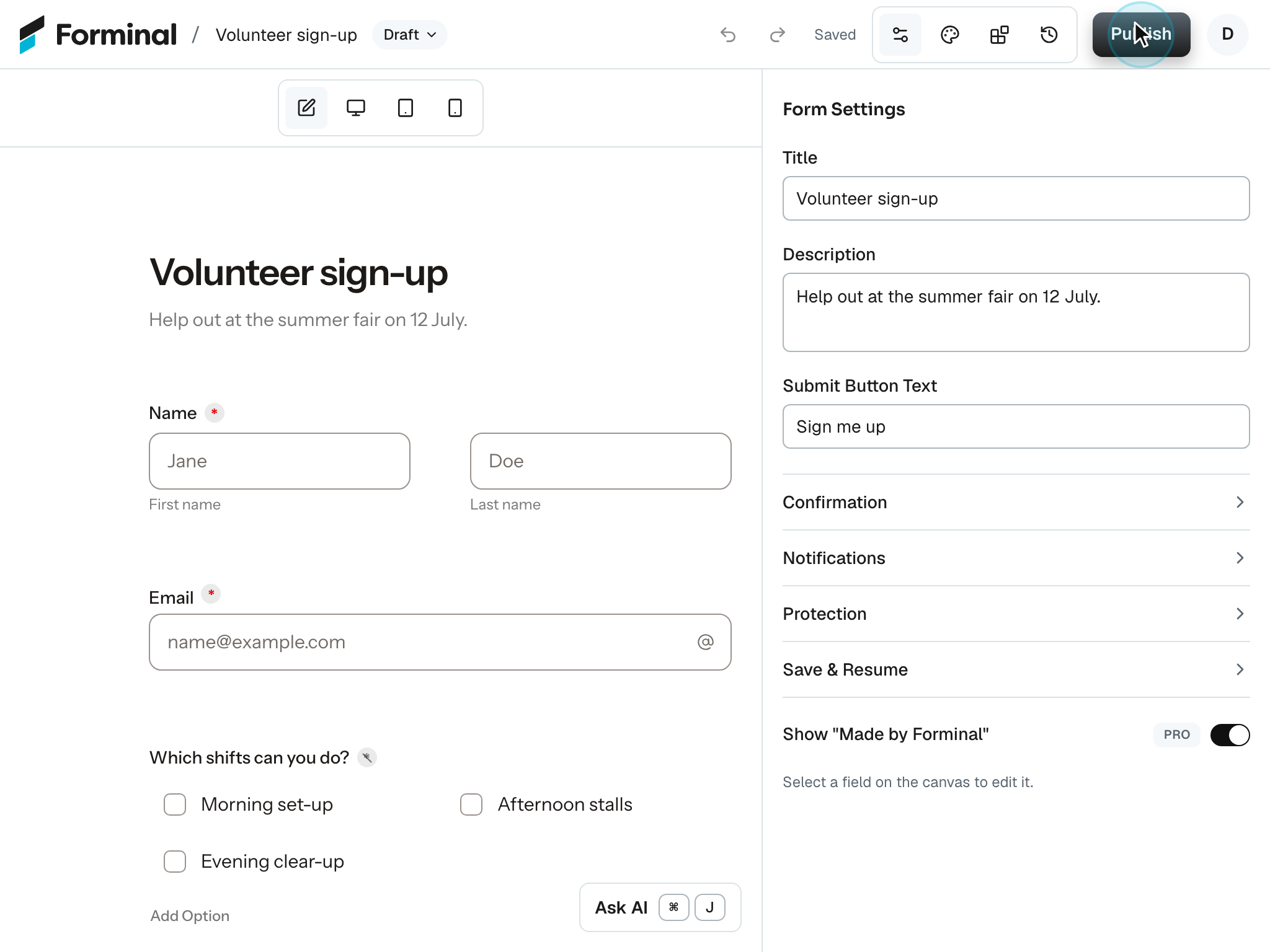
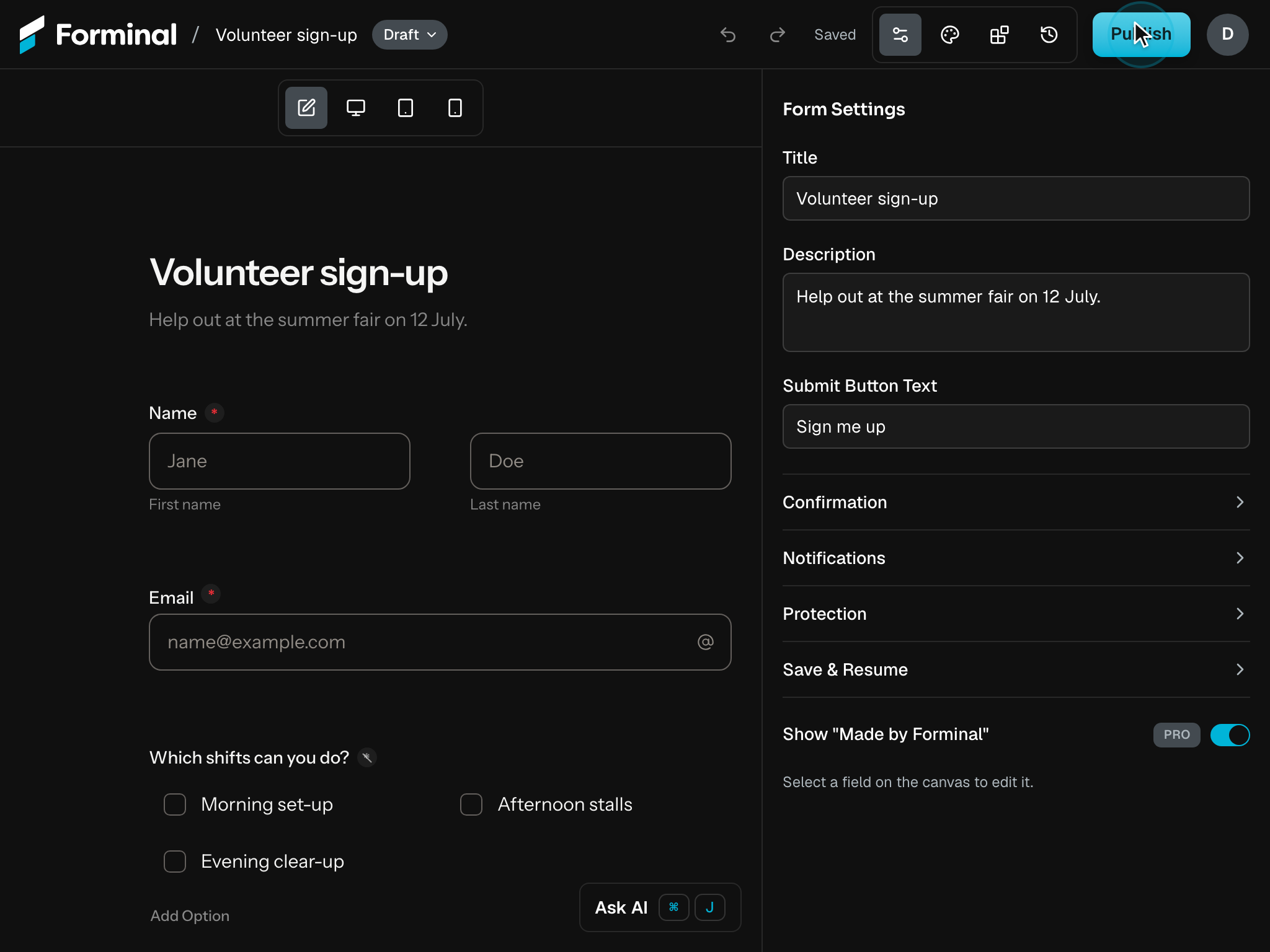
- Select Publish at the top right. If you built the form without an account, you’re asked to sign in first, and the form comes with you.
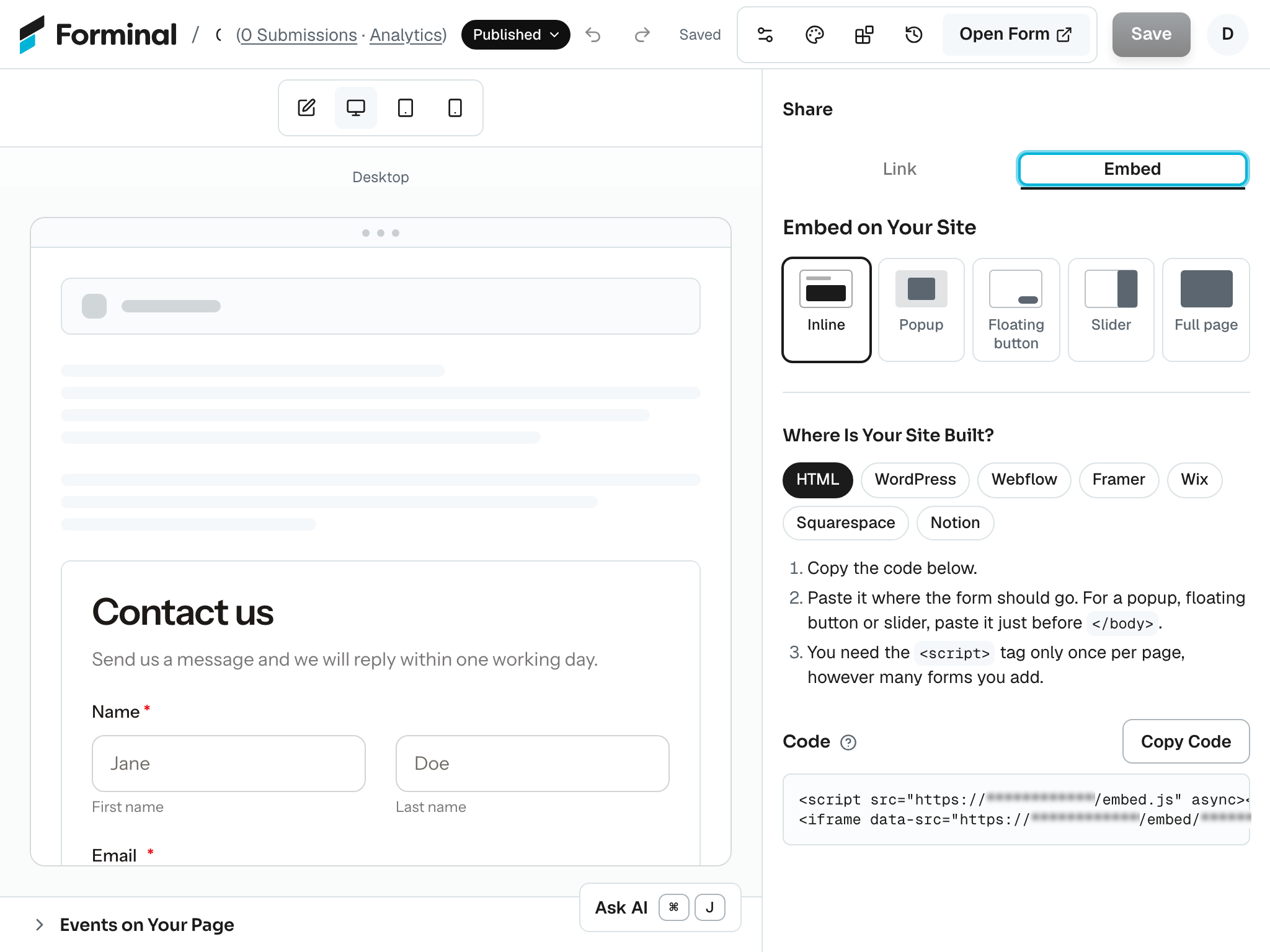
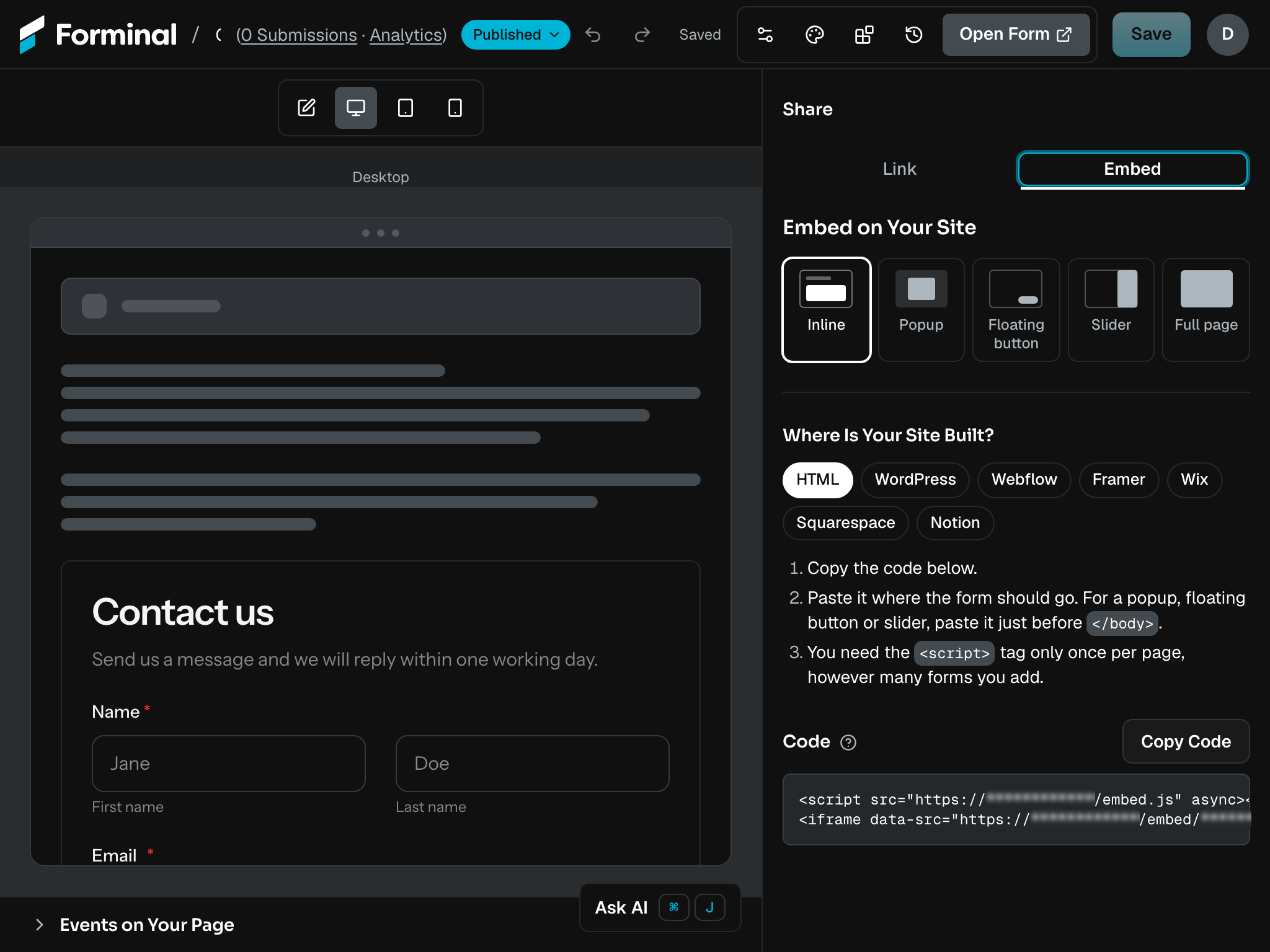
- The badge changes to Published and the Share panel opens. A Save button takes the place of Publish. Select Open Form in the top bar to see the live form in a new tab.
If something stops the form from going live, the builder says what it is. A form needs at least one field, and a form with a Payment field also needs an Email field and a working amount and payment methods. Publishing saves a version in History, so you can go back to it later.
Copia el enlace para compartir
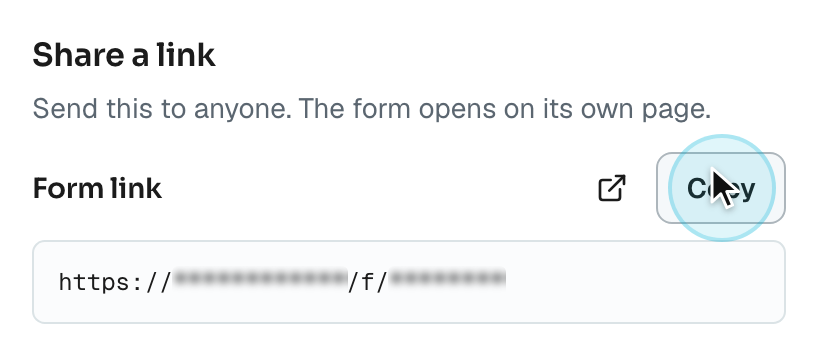
- In the Share panel, select the Link tab, then under Share a Link select Copy Link next to Form Link. The arrow icon next to it opens the form in a new tab.
- Pega el enlace en un correo electrónico, un mensaje de chat, una publicación en redes sociales o en cualquier otro lugar donde la gente lo encuentre.
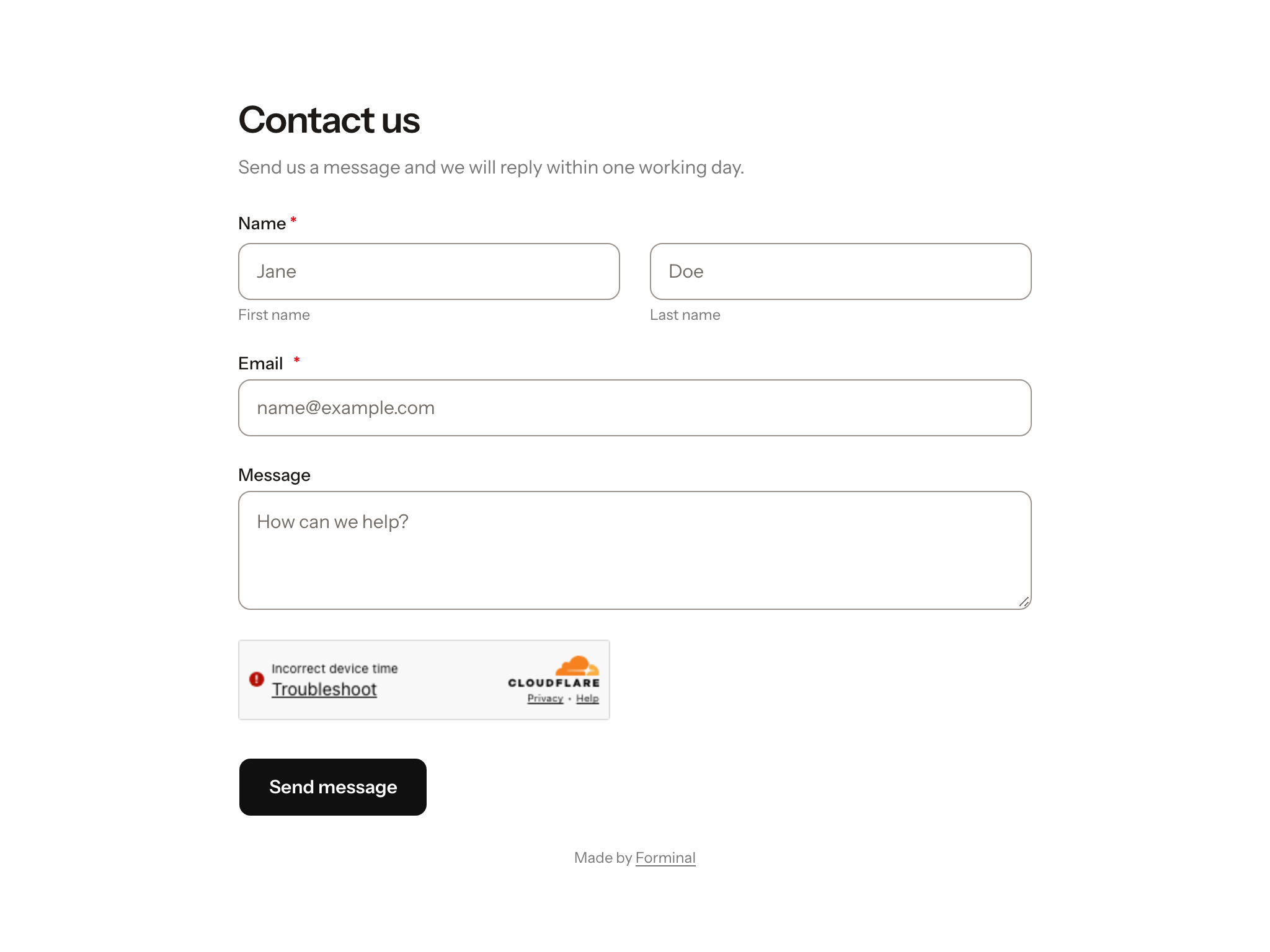
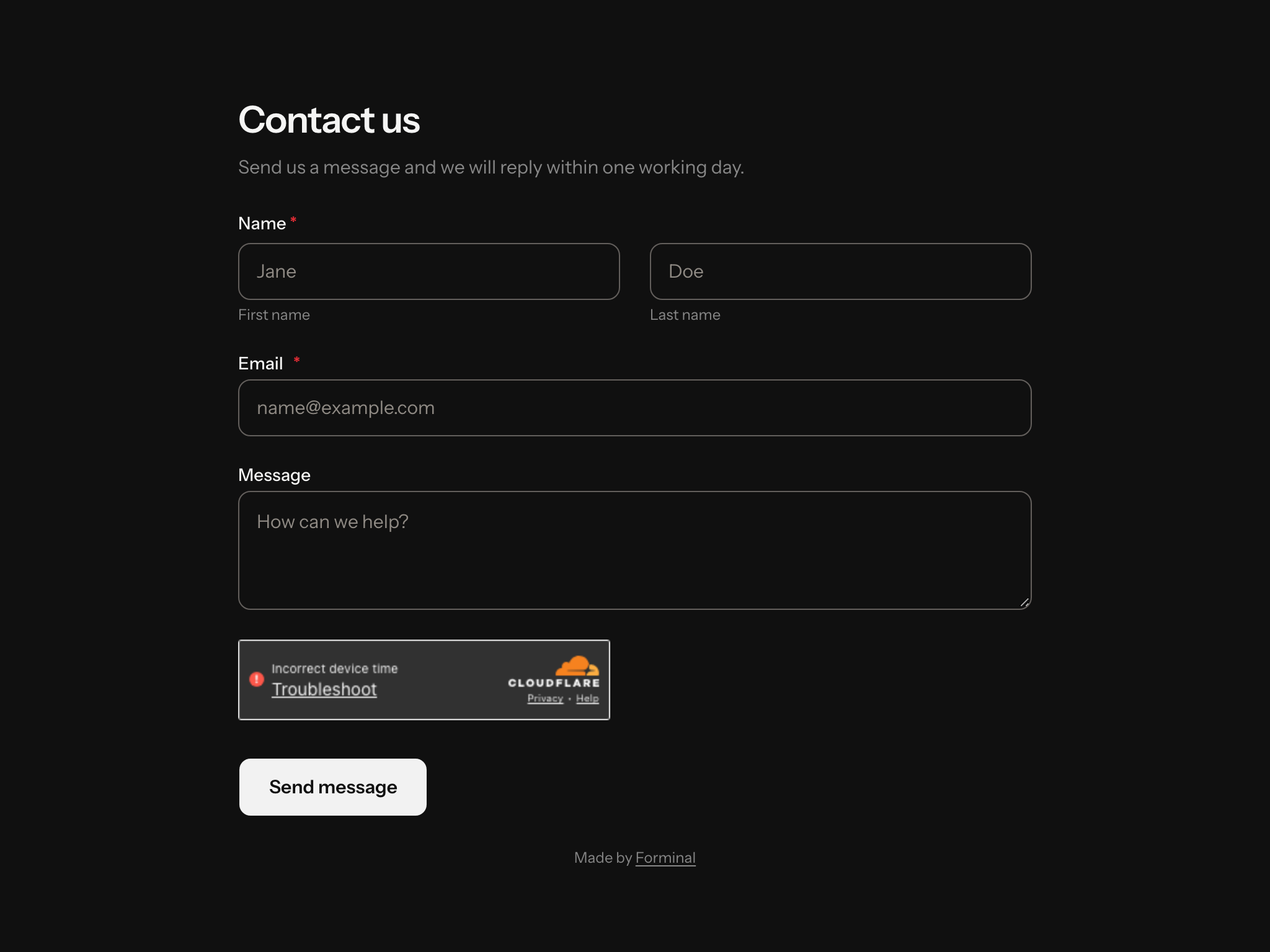
To get back to the panel later, select Share in the builder’s top bar. On your dashboard, the Copy link button on a form’s row copies the same link. If you serve the form from your own domain, Form Link shows that address and Default Link shows the usual one. To give the link a short ending, such as /f/coffee-tasting, and choose what chat apps show when it is pasted, see Customize a form link.
Descarga un código QR
Every published form has a QR code on the Link tab, under QR Code. Put it on a flyer, a poster, a table card or the last slide of a talk, and people open the form by pointing their phone camera at it.
- In the Share panel, select the Link tab.
- Under QR Code, select PNG for an image 1024 pixels square, or SVG for a file that stays sharp at any size, which suits print.
El archivo se nombra según el final del enlace del formulario mientras este tenga uno, como qr-degustacion-cafe.png, y según el ID del formulario en caso contrario. El código se dibuja en tu navegador.
El código siempre abre el formulario por su ID, en app.forminal.ai/f/FORM_ID, o en tu-dominio/FORM_ID cuando el formulario tiene una dirección en uno de tus dominios personalizados. No utiliza el final del enlace, por lo que puedes cambiar o eliminar el final después de imprimir y el código seguirá funcionando. Nuestro logotipo se encuentra en el centro del código sobre un cuadrado blanco, y el código utiliza el nivel más alto de corrección de errores, por lo que los teléfonos aún pueden leerlo. Cuando la marca del formulario se elimina con Eliminar marca, su código tampoco tiene logotipo. Todos los planes tienen códigos QR.
Ponlo en tu sitio web
The panel opens on its Embed tab, which builds the code for your site. Pick how the form shows under Embed on Your Site:
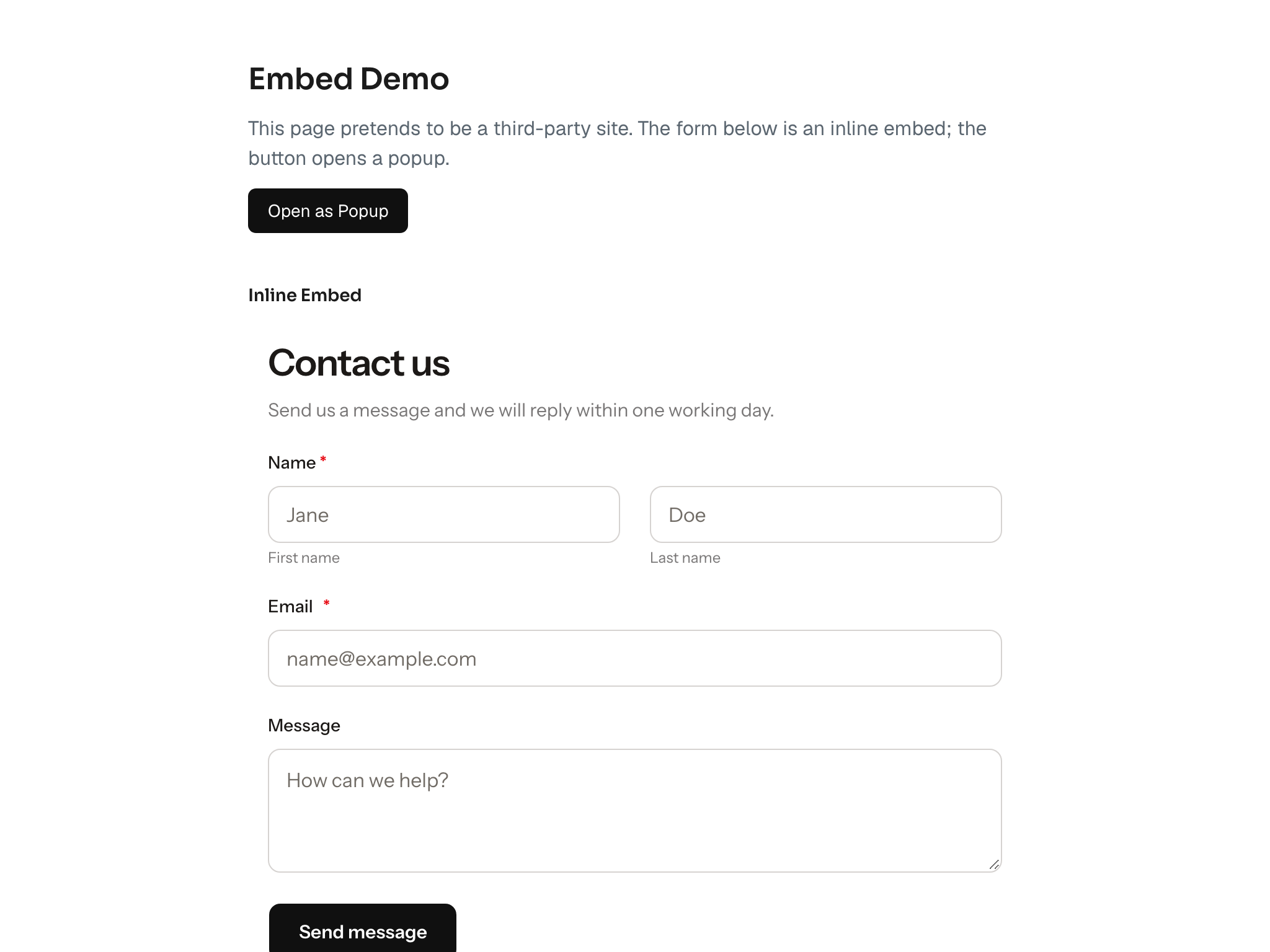
- Inline shows the form inside a page, where you paste it. See Embed a form on a page.
- Popup opens the form over your page when someone clicks a button, or on its own after a delay, on scroll or when the visitor is about to leave. See Open a form in a popup.
- Full page makes the form the whole page, for a blank page on your site. See Make the form the whole page.
- Floating button keeps a button in a bottom corner of the page that opens the form. See Add a floating button.
- Slider puts a tab on the edge of the page that opens the form as a full-height panel. See Add a slider.
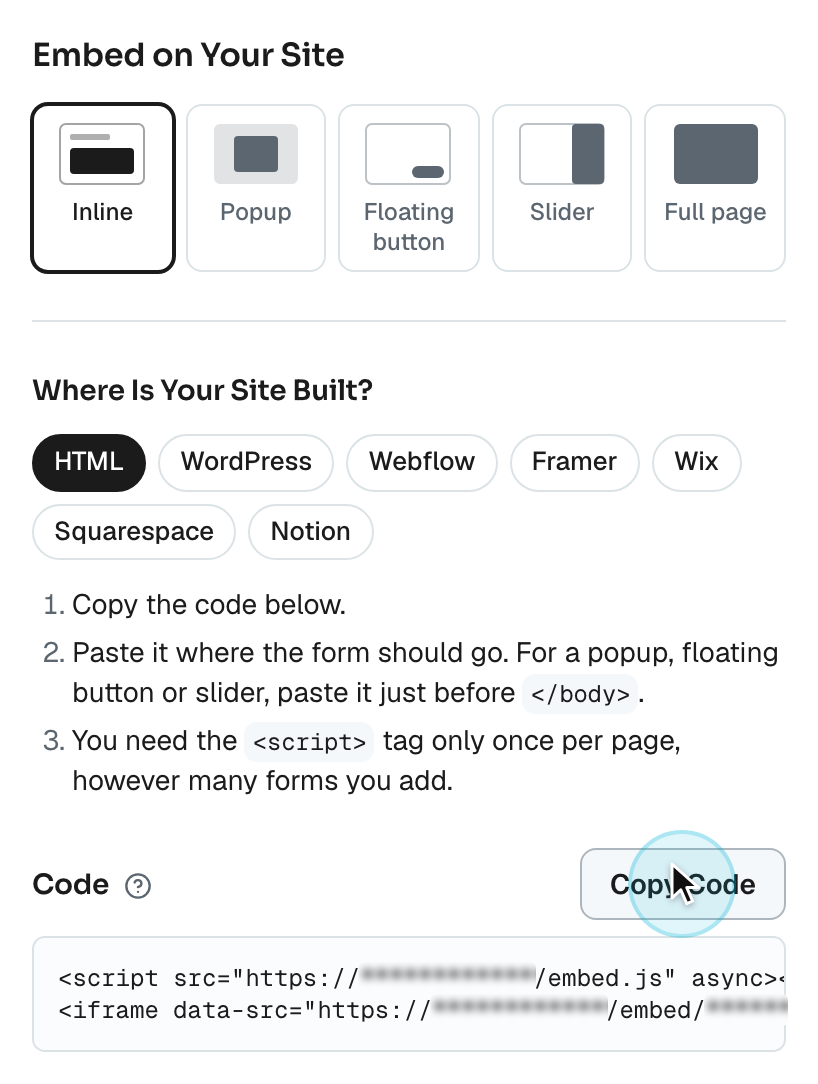
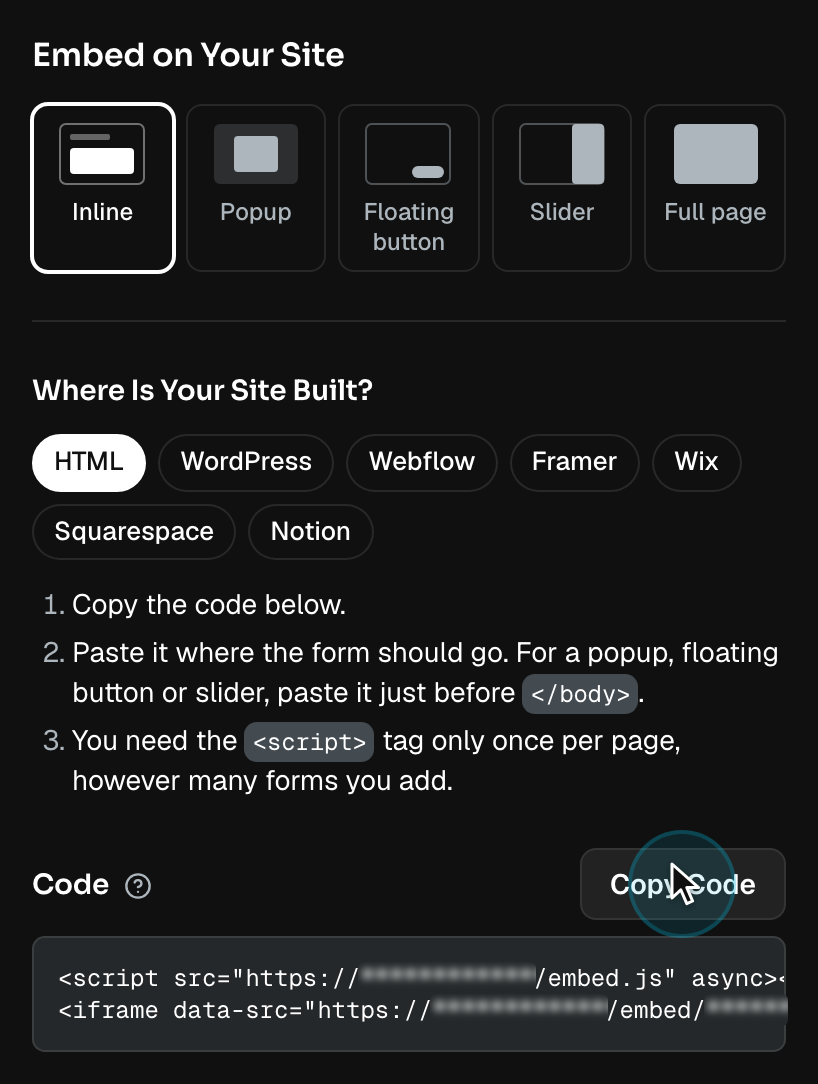
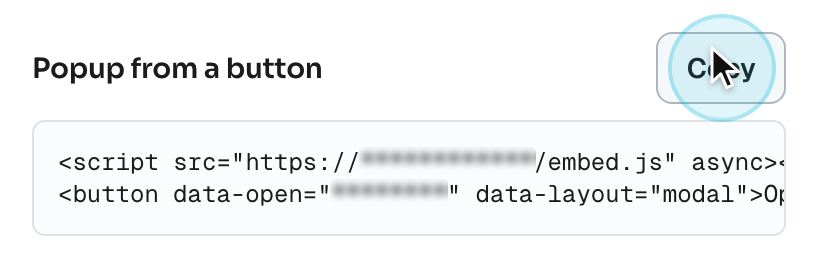
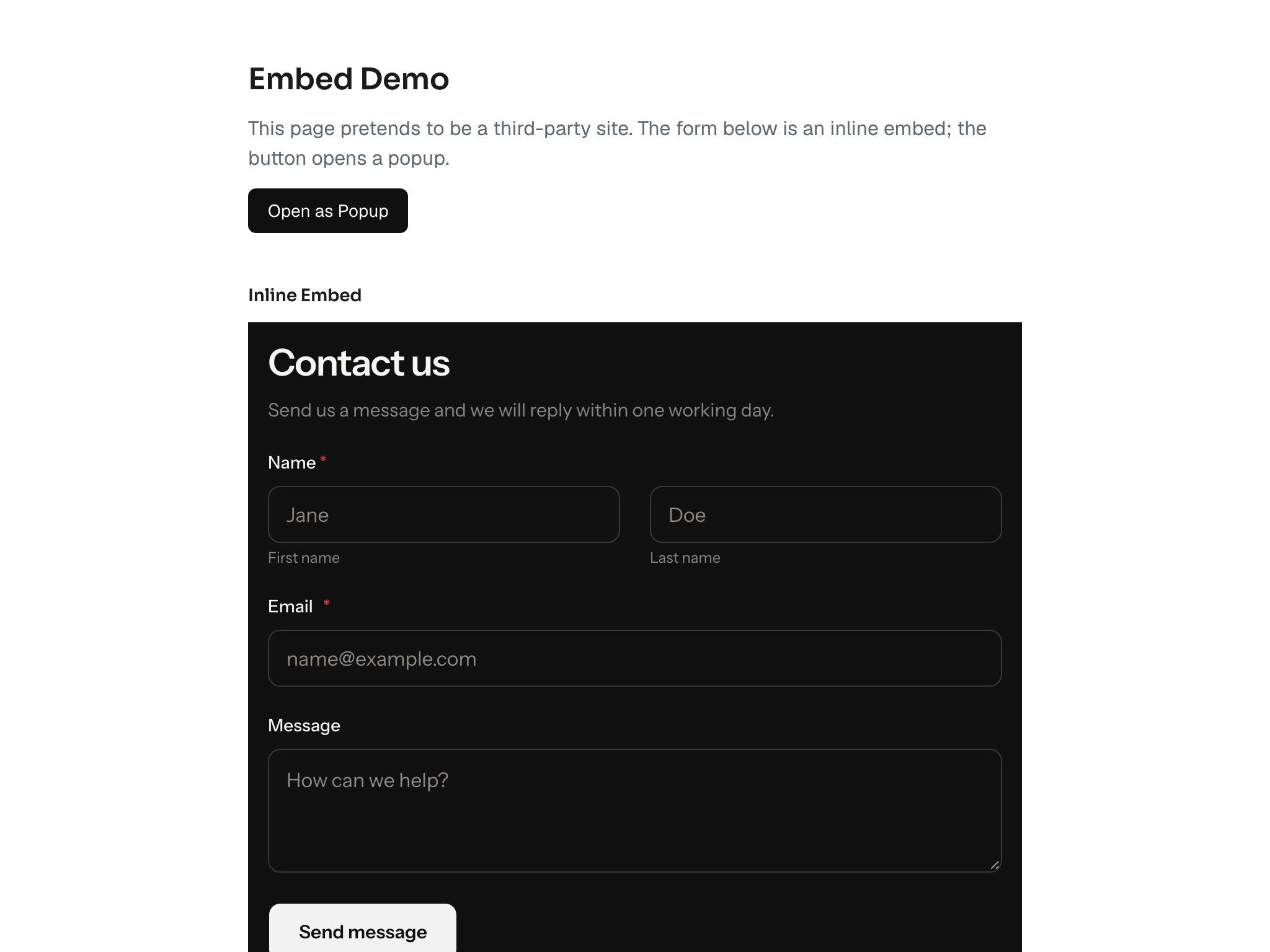
Under Where Is Your Site Built?, pick your site builder to see where the code goes. The Embed Forms page compares the types. Then select Copy Code and paste it into your page’s HTML, or into the HTML or custom code block of your site builder. Every type uses the same script tag, and a page needs it only once. Your choices on the Embed tab are saved with the form, so if you change them later, copy the code again. While the panel is open, the builder shows the type you picked on a sample page, so you can try it before you touch your site.
Bueno saber
- The link stays the same after you publish. Edits to a published form wait in the builder until you select Save in the top bar or press Cmd+S (Ctrl+S elsewhere), and only then reach people. Draft and Publish explains what happens if you leave with unsaved edits.
- Mientras un formulario es un borrador, cualquier otra persona que abra su enlace o escanee su código QR verá una página no encontrada. Tú y las personas con acceso verán una vista previa del borrador, pero no acepta envíos.
- To take a form offline, select the Published badge next to its title and choose Draft. Its link and every embed stop working, and its submissions stay where they are.
- When you’re signed in and open the link yourself, Edit Form and Submissions links show under the title, after a Light and Dark toggle that previews the form in either look. Visitors don’t see them. More on the link itself is on the Share Link page.
Preguntas frecuentes
¿Por qué no puedo publicar mi formulario?
El creador te dice qué lo está impidiendo. Un formulario necesita al menos un campo, y un formulario con un campo de Pago también necesita un campo de Correo electrónico y un importe y métodos de pago que funcionen.
¿Los cambios en un formulario publicado se publican de inmediato?
No. They wait in the builder, and the top bar reads Unsaved changes until you select Save. The link stays the same, and if a change goes wrong, restore an earlier version from History.
¿Puedo compartir un formulario sin un sitio web?
Un formulario publicado tiene su propia página, por lo que puedes enviar el enlace por correo electrónico, chat o una publicación social. Las incrustaciones solo son necesarias para mostrar el formulario en una página propia.
¿Puedo usar mi propio dominio para el enlace del formulario?
Yes, with Custom Domains on Pro or Business. The Share panel then shows your address as Form Link and the usual one as Default Link. See Use your own domain.
¿Puedo mantener un formulario privado para ciertas personas?
Set a password in Form Settings » Protection, and visitors see only a password box until they type it. Password-Protected Forms work on every plan.
¿Anular la publicación de un formulario elimina sus envíos?
No. The submissions stay where they are. To unpublish, select the Published badge in the builder and choose Draft.
¿Se romperá mi código QR impreso si cambio el final del enlace?
No. El código abre el formulario por su ID, que nunca cambia, por lo que puedes cambiar o eliminar el final en cualquier momento.
¿Qué archivo de código QR debo descargar para imprimir?
SVG se mantiene nítido a cualquier tamaño, por lo que es adecuado para pósteres y tarjetas impresas. PNG tiene 1024 píxeles cuadrados, lo que es suficiente para diapositivas, correos electrónicos y la mayoría de las pantallas.