Al final de esta guía tendrás un formulario funcional con tus propias preguntas, publicado y listo para recopilar respuestas. Puedes empezar sin cuenta: el creador se abre de inmediato y solo te registras al publicar.
Empezar con una plantilla o un formulario en blanco
If you sign up before you’ve built anything, Forminal opens a blank draft called “Untitled form” in the builder for you, so you can skip to Add your questions. The steps below start from the template gallery instead, and the video starts from an empty form opened with New Form. Either way, the blank draft stays on Forms Overview, where you can delete it.
- Open the template gallery, or select Templates at the top of the app. To begin with an empty form instead, select New Form on your dashboard, or at the top right of the app if you haven’t signed in. It skips the gallery.
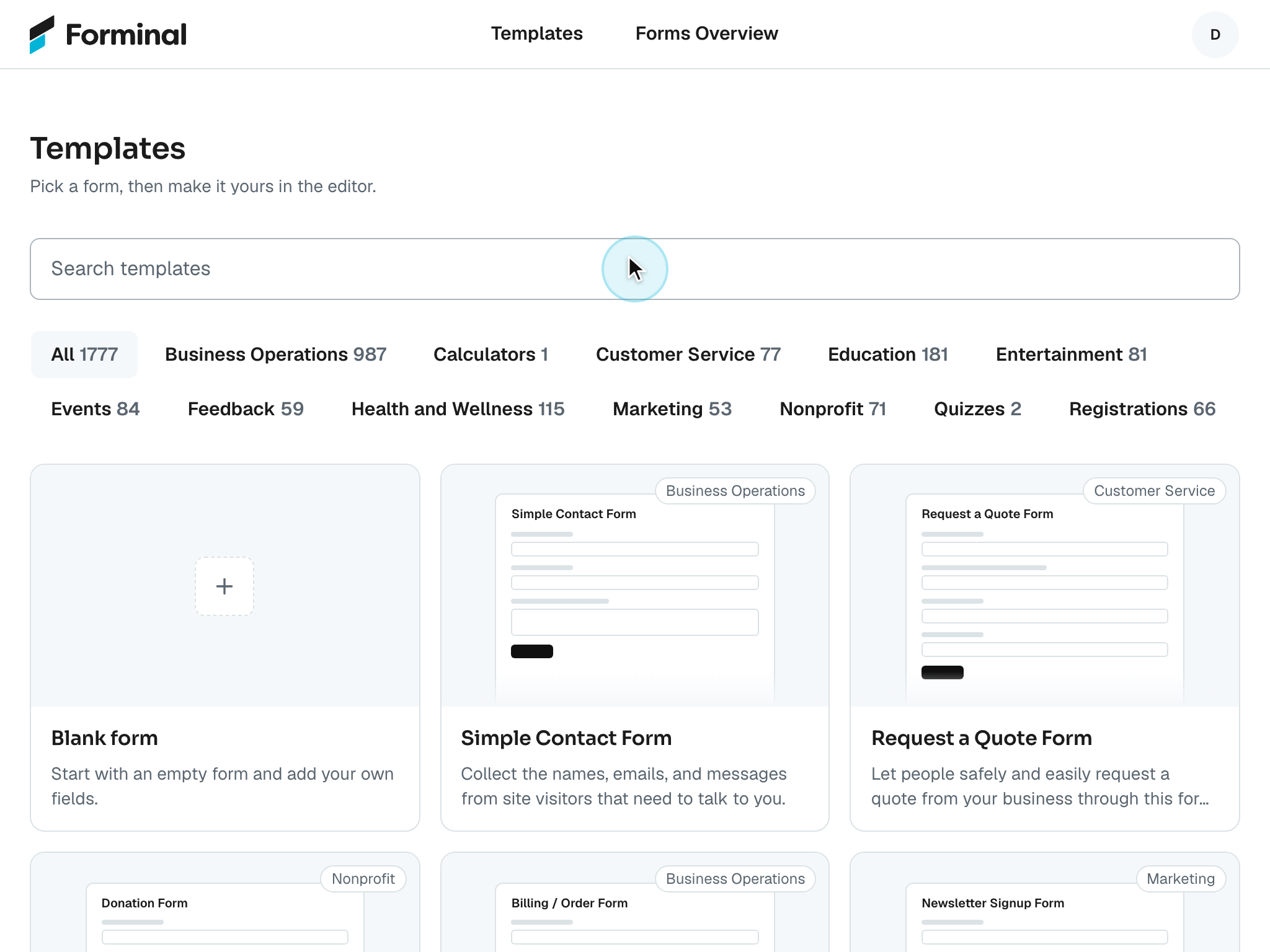
- Search the templates or pick a category to narrow the list. Select See Demo on a card to see the form before you use it.
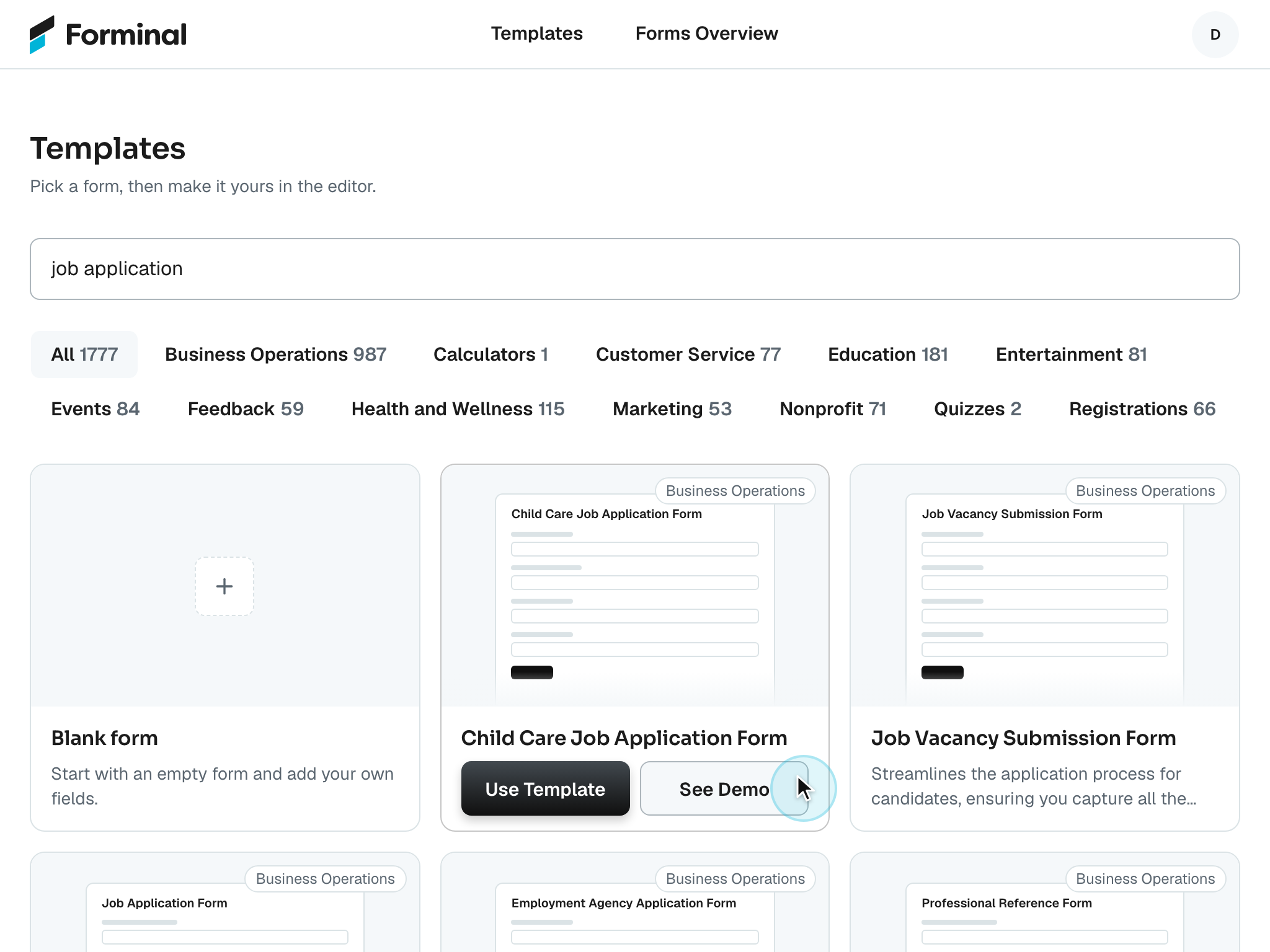
- Select Use Template to open a copy of it in the builder, or select Start from Scratch on the Blank form card to begin with an empty form.
The new form opens in the builder as a draft. Everything you change saves as you go, and you’ll see Saving and then Saved in the top bar. Undo and Redo sit next to it.
Añade tus preguntas
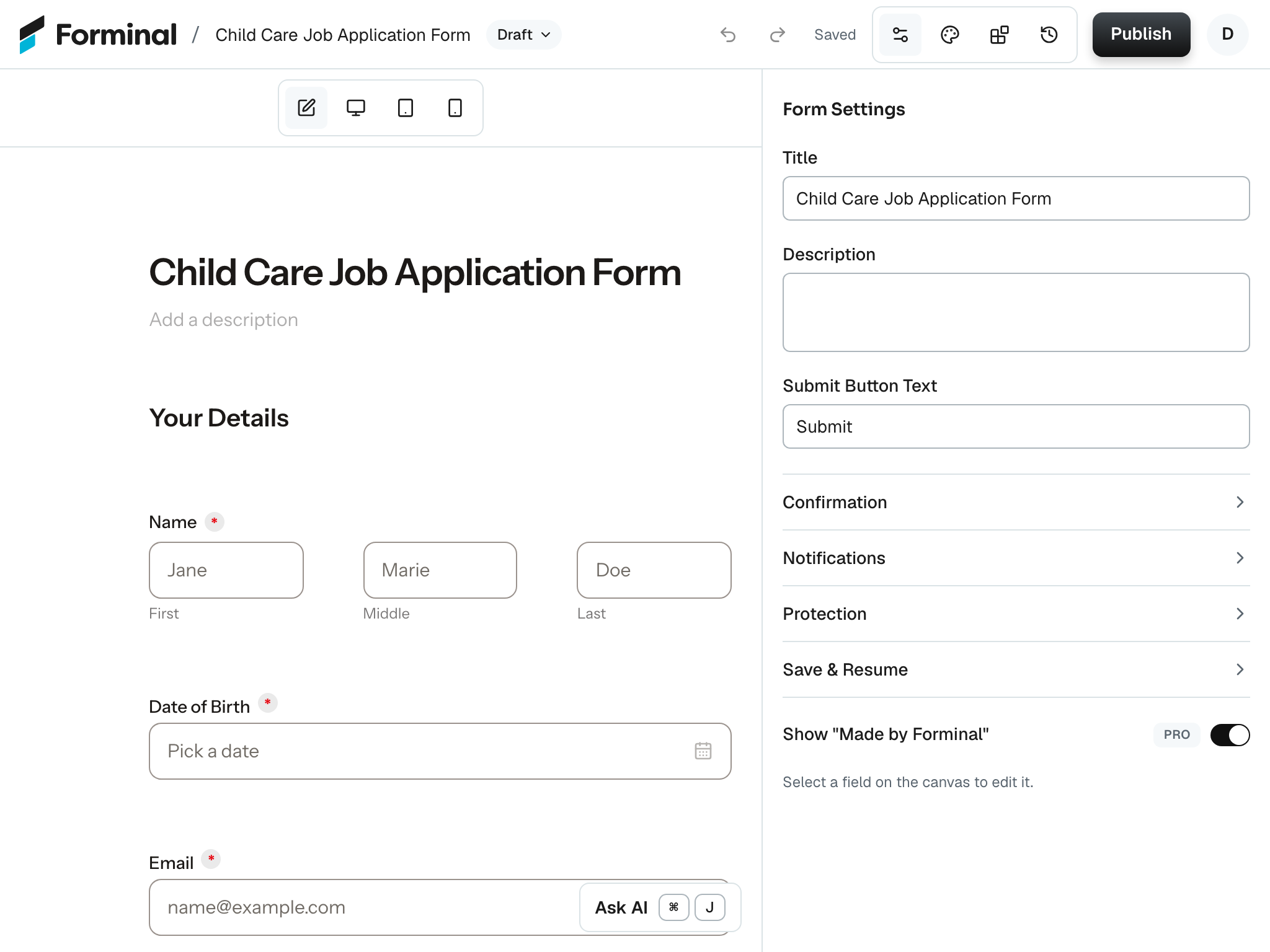
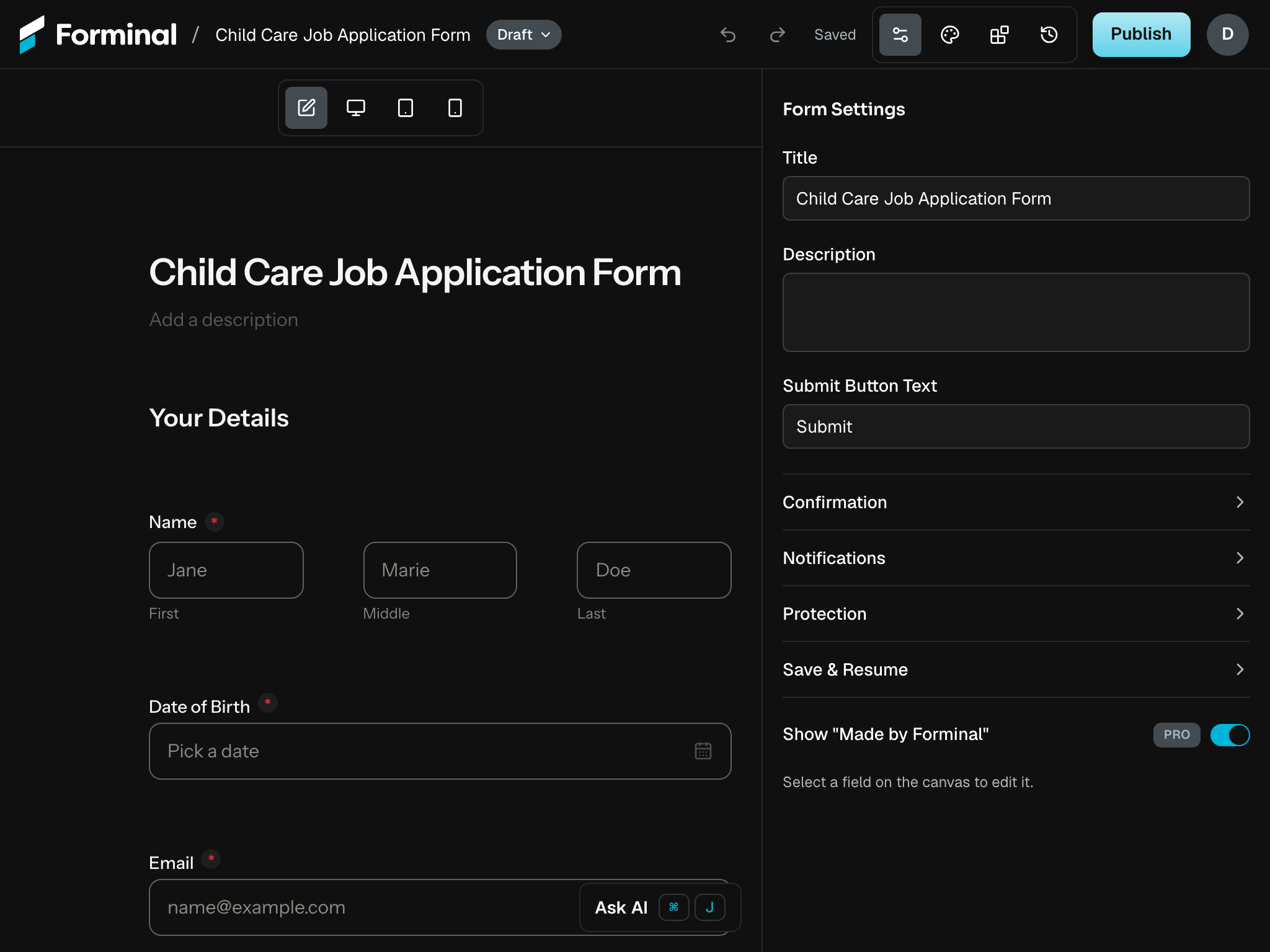
- Haz clic en el título del formulario en el lienzo y escribe el tuyo. Haz lo mismo con la descripción que hay debajo.
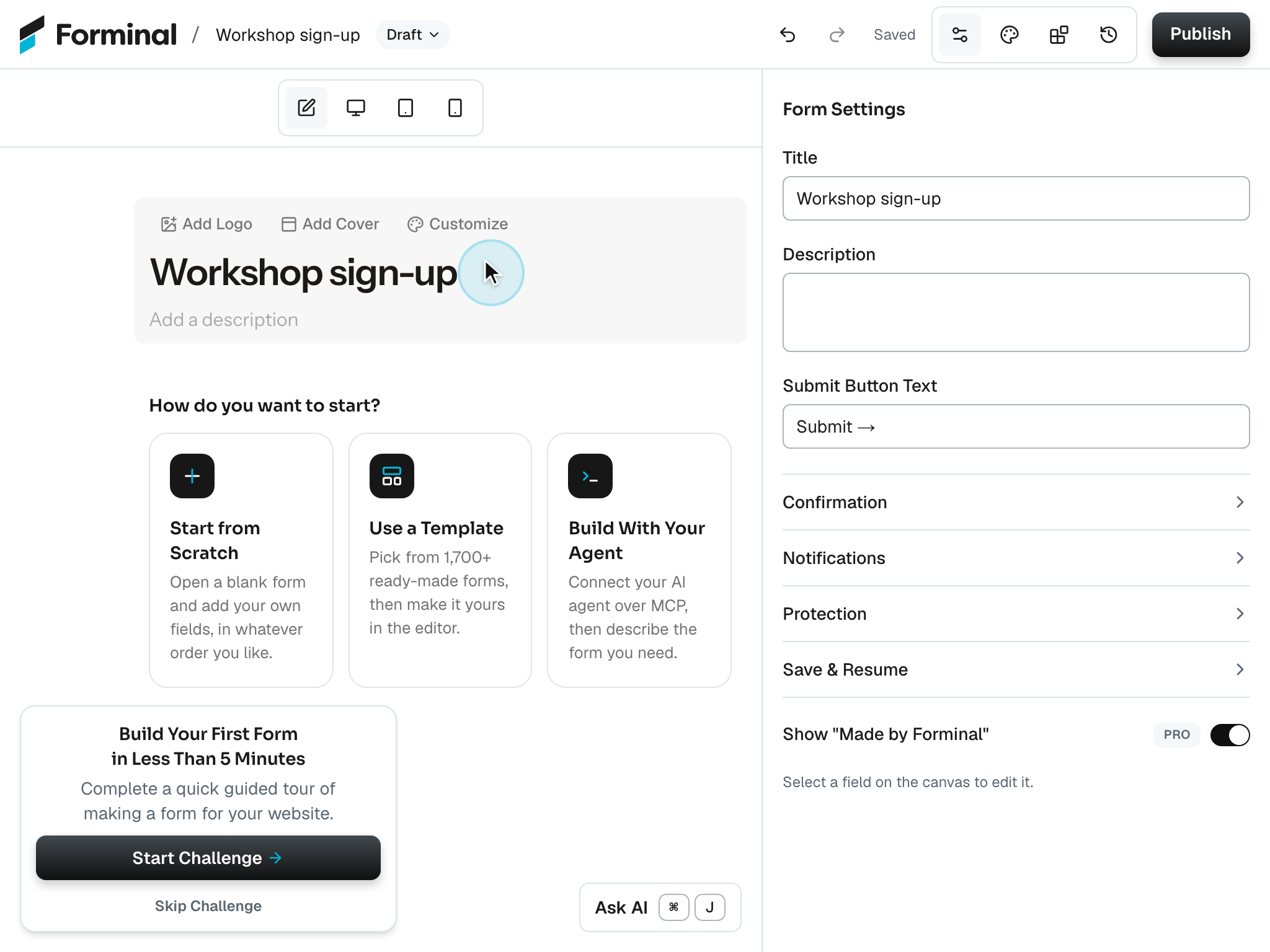
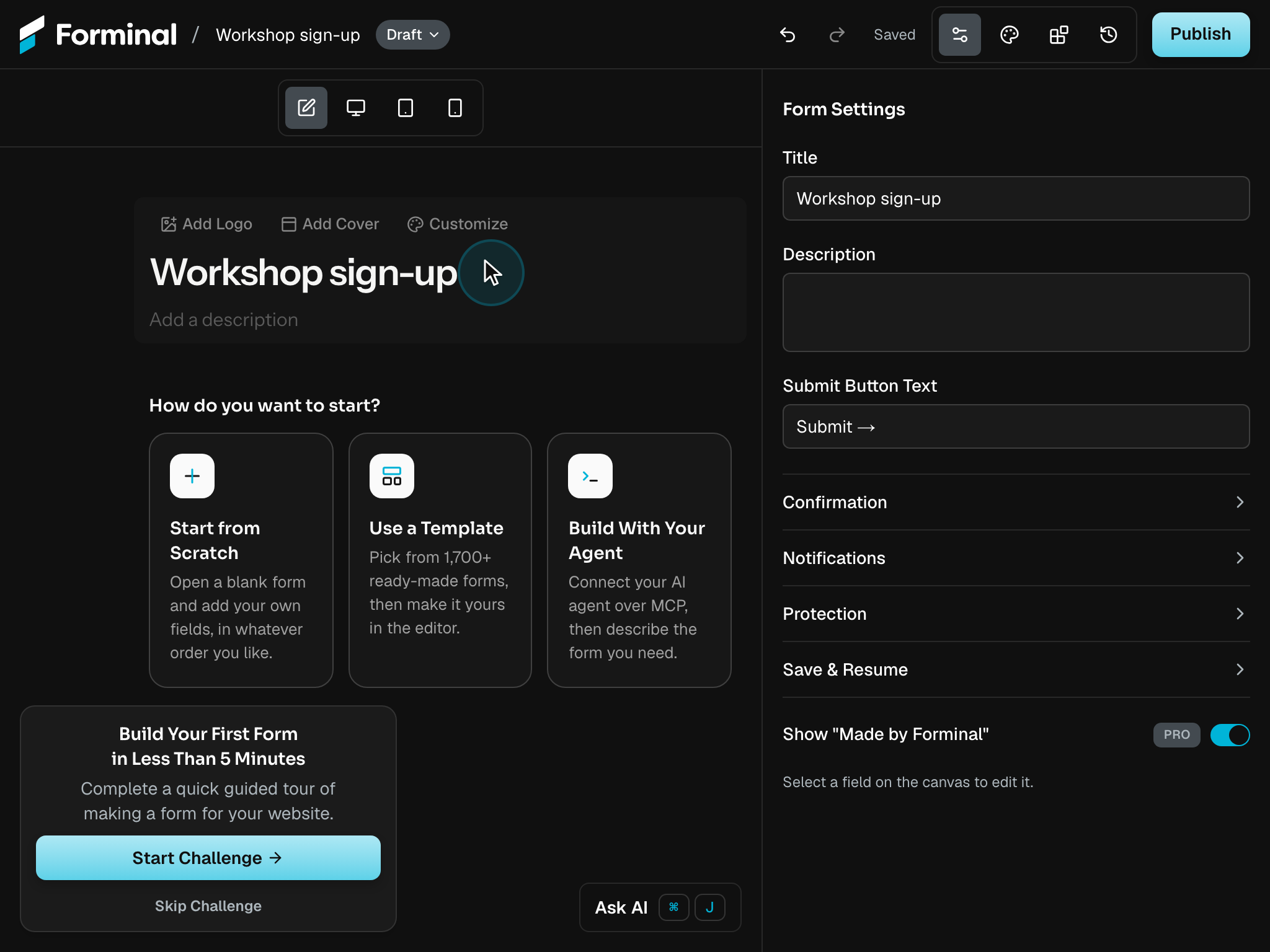
- On an empty form, select Start from Scratch, the first card under “How do you want to start?”. Once the form has fields, hover above or below one and select Add Field. Either way, a menu opens with every field type, grouped into Text and Numbers, Contact Info, Choices, Date and Time, Rating and Ranking, Files and Signature, Payment, Layout and Other.
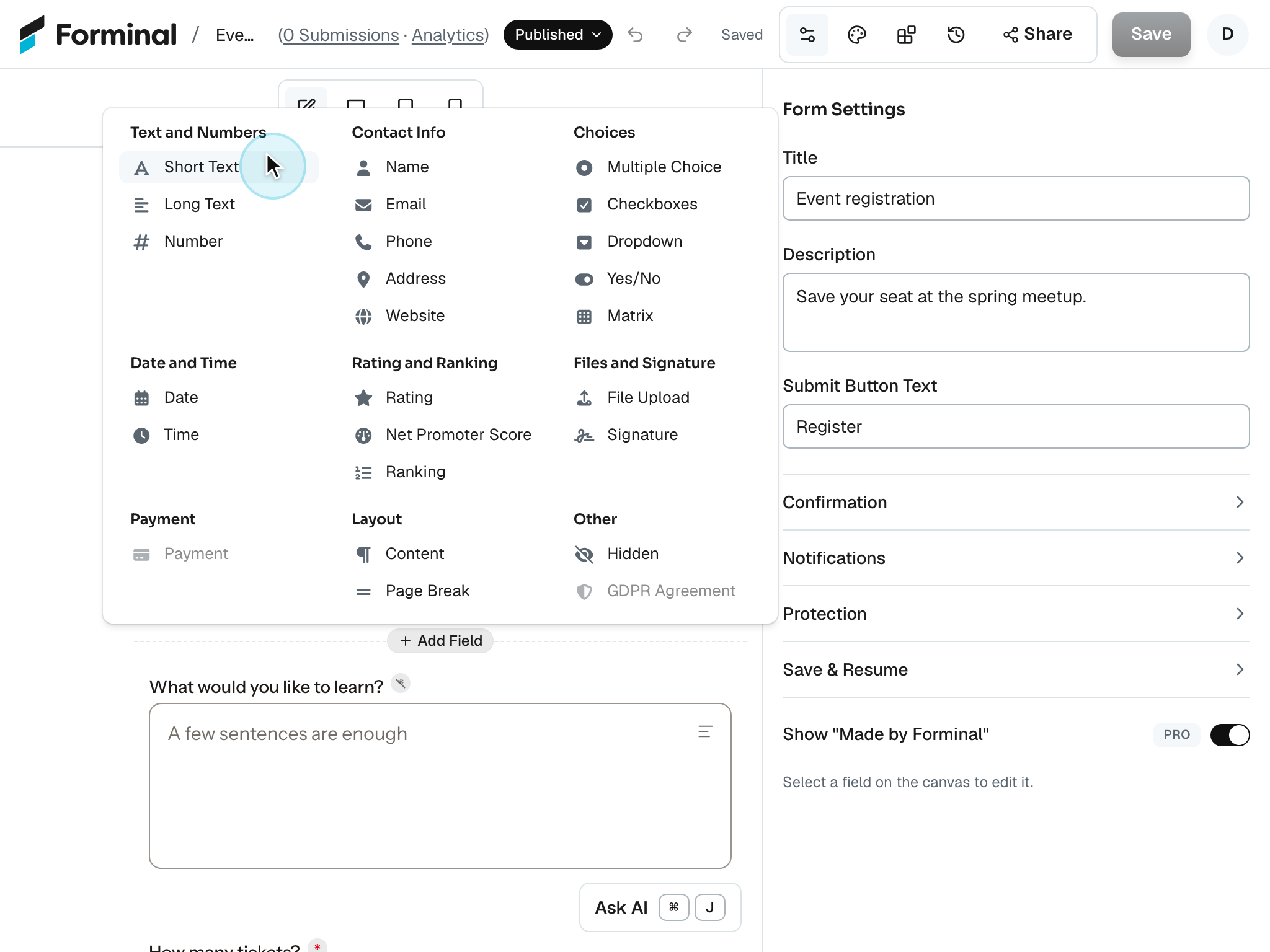
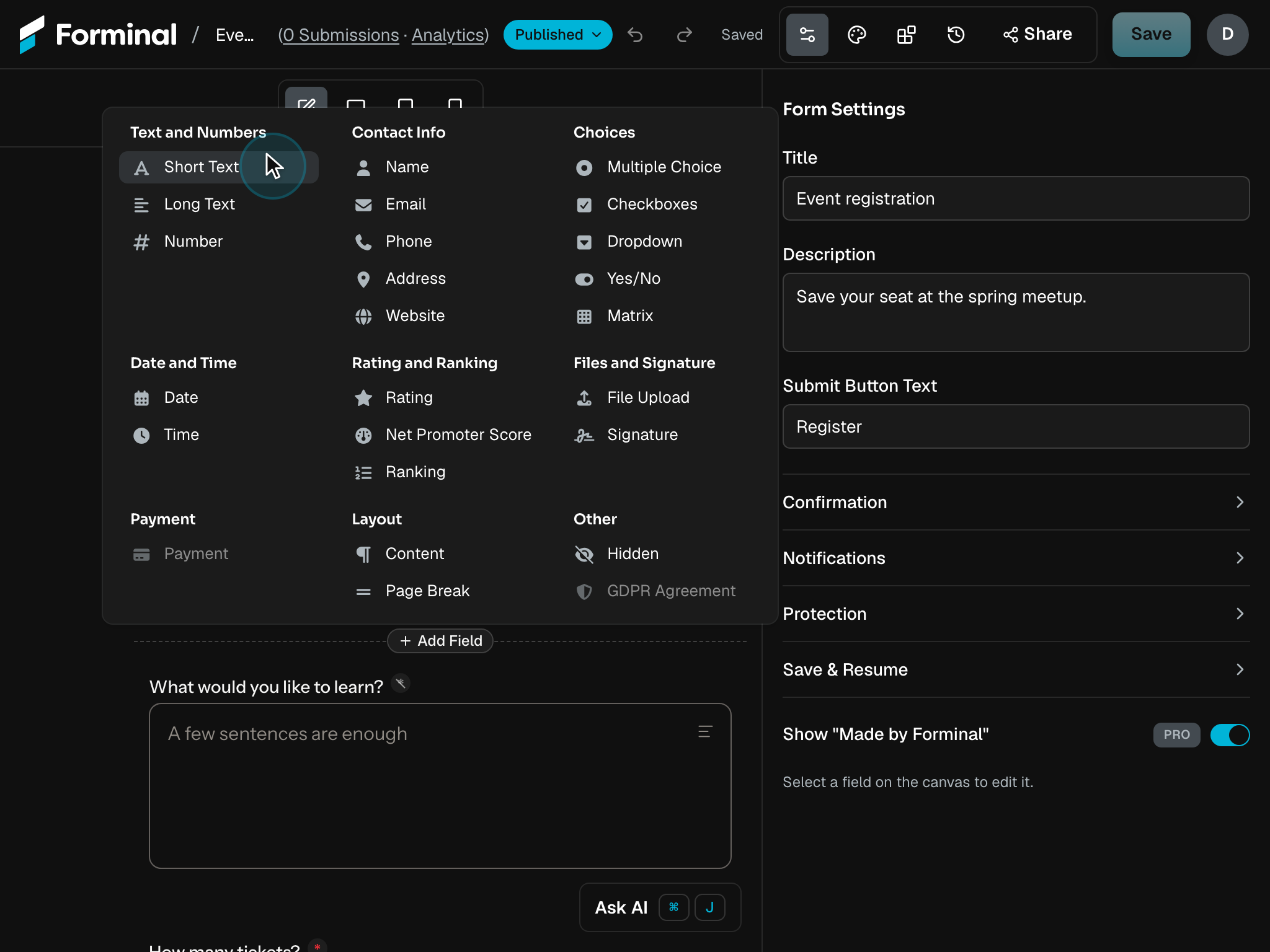
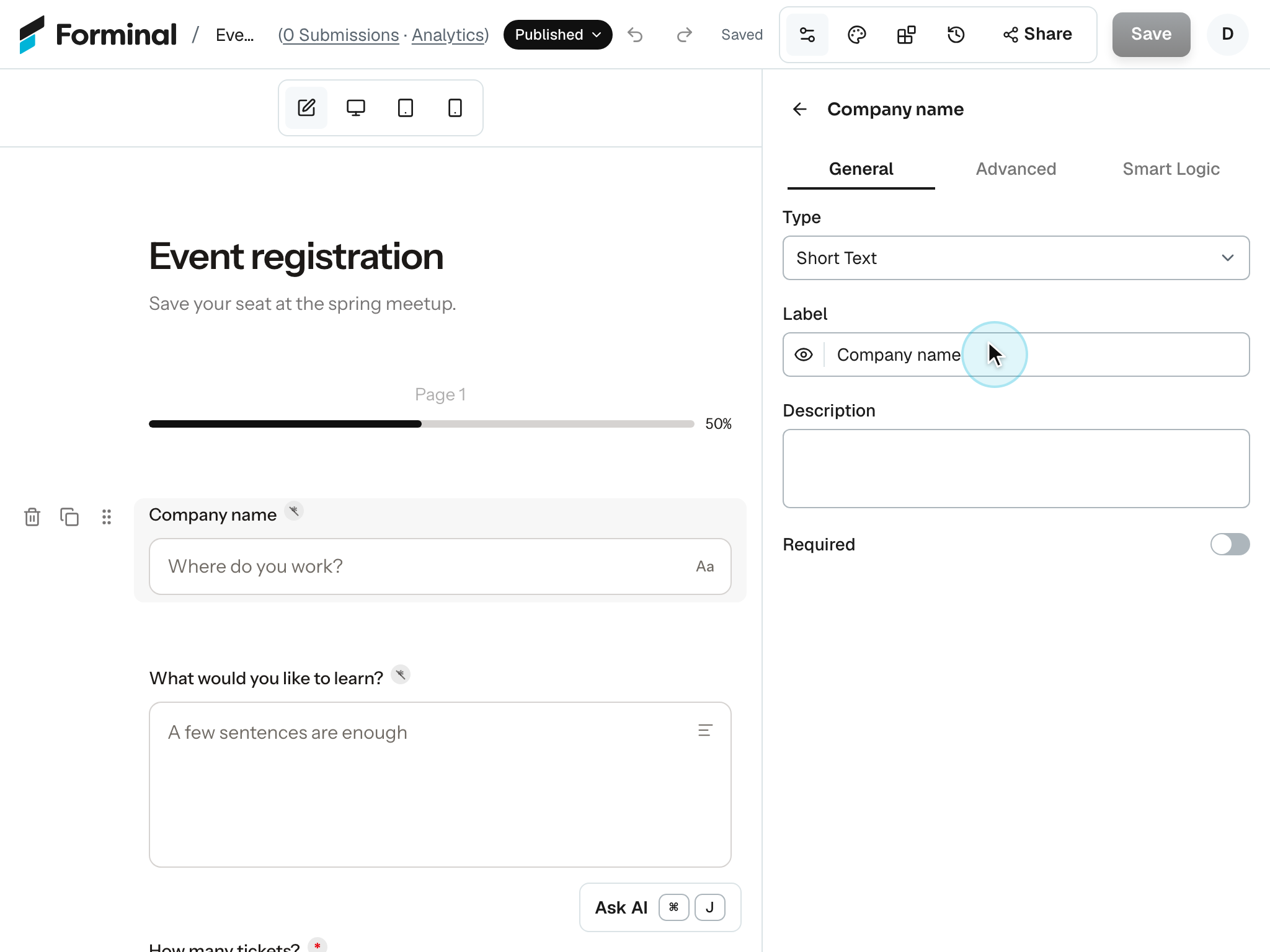
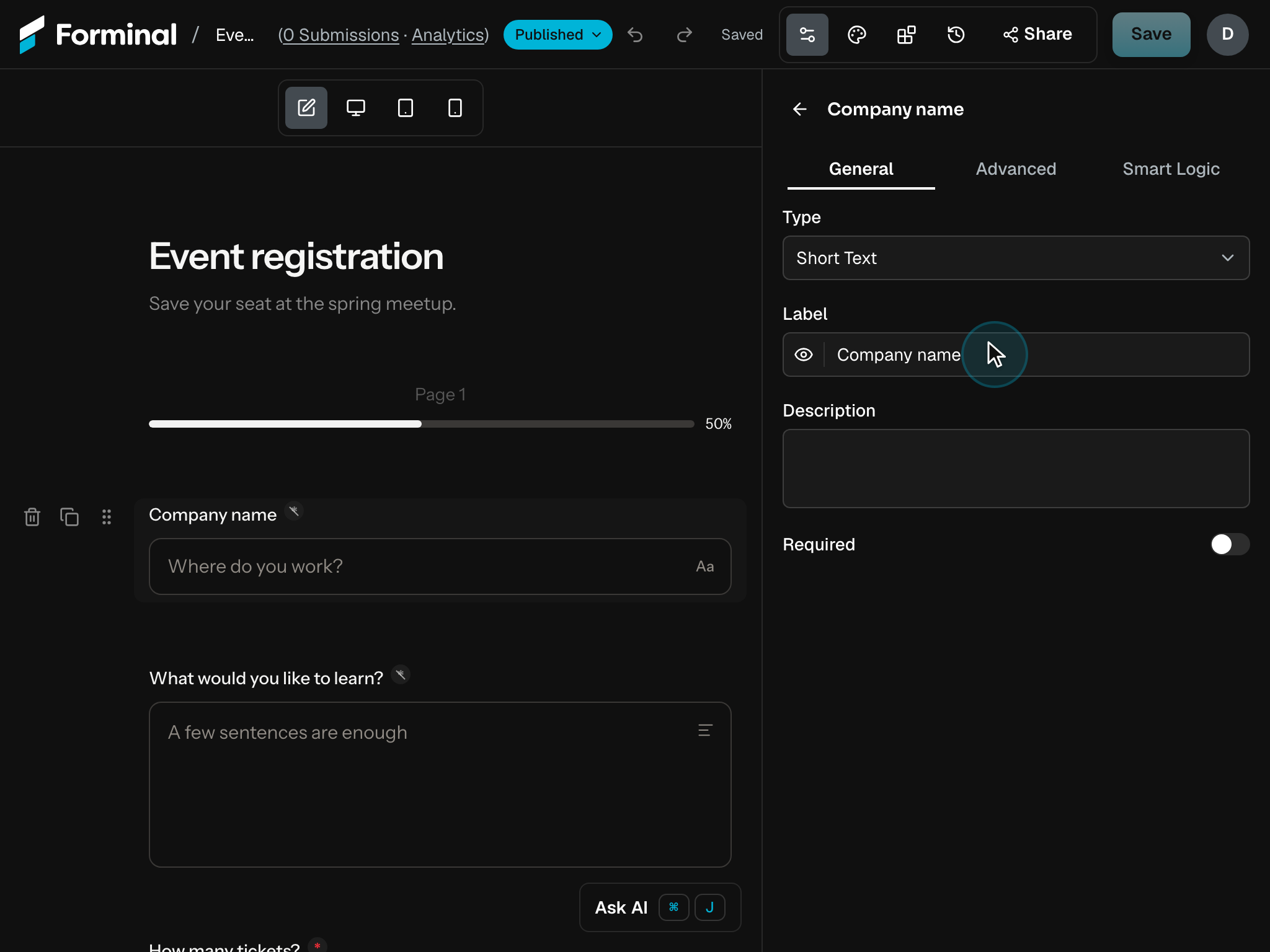
- Elige un tipo. El campo aparece donde abriste el menú y se selecciona, de modo que su configuración se muestra en el panel lateral.
- Haz clic en la etiqueta del campo en el lienzo y escribe tu pregunta. Los campos de opción muestran sus opciones debajo de la etiqueta, y tú escribes sobre cada una.
An empty form has two other cards. Use a Template fills it from one of five popular templates. Build With Your Agent gives you a prompt to paste into an AI agent, which then builds the form over the MCP server. It needs an account, so without one it opens the sign-in page over the builder; once you’re signed in, select it again. The submit button and the thank-you message appear on the canvas once the form has its first field.
To change how the form looks, select Customize in the top bar. Form Settings holds the submit button text, the thank-you message, email notifications and Save & Resume. Switch the canvas from Edit to Desktop, Tablet or Mobile to try the form the way people will see it. A preview saves nothing and sends no email. For everything you can do with fields, see Add and arrange fields.
Publicar
- Select Publish at the top right of the builder.
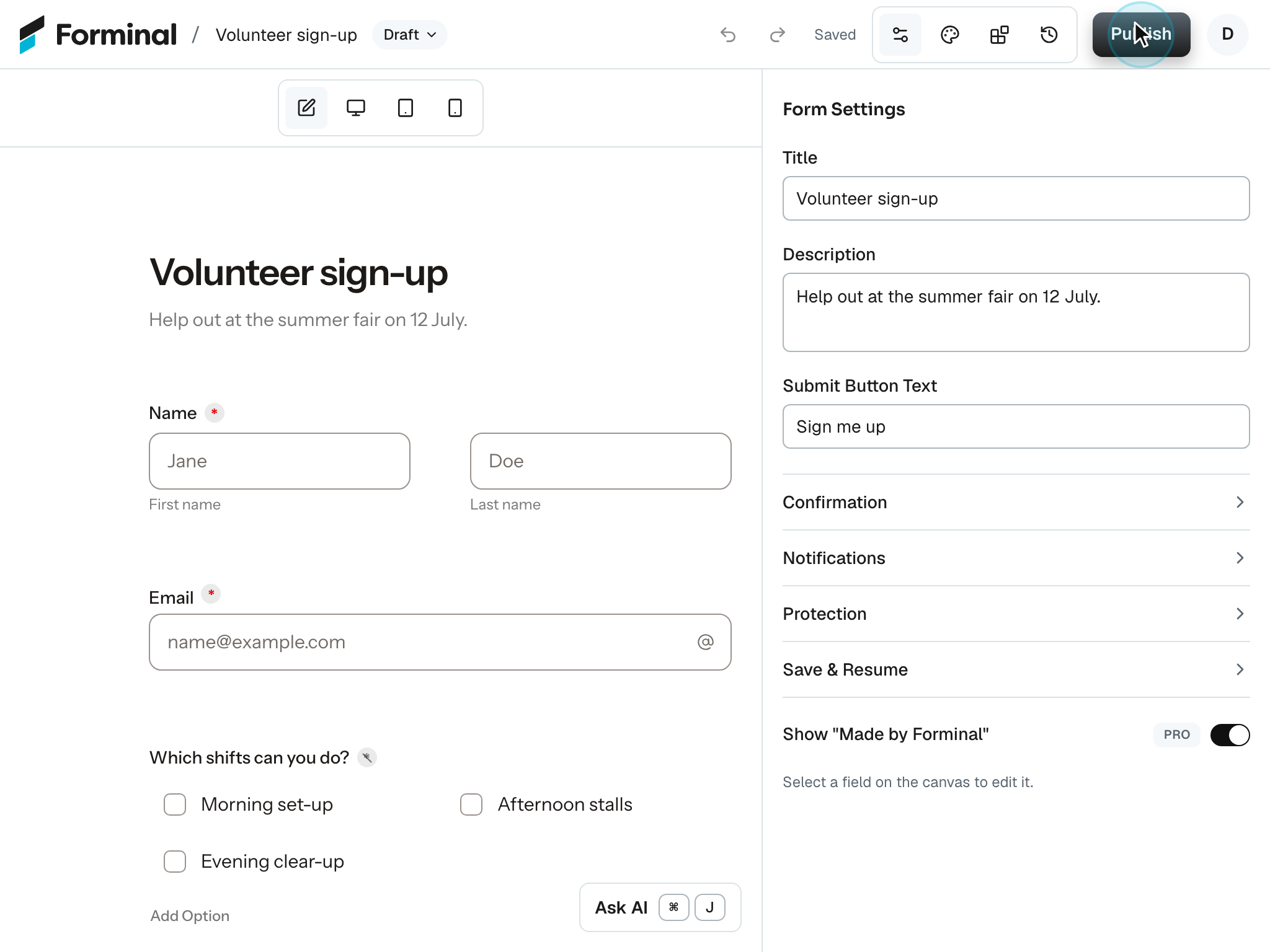
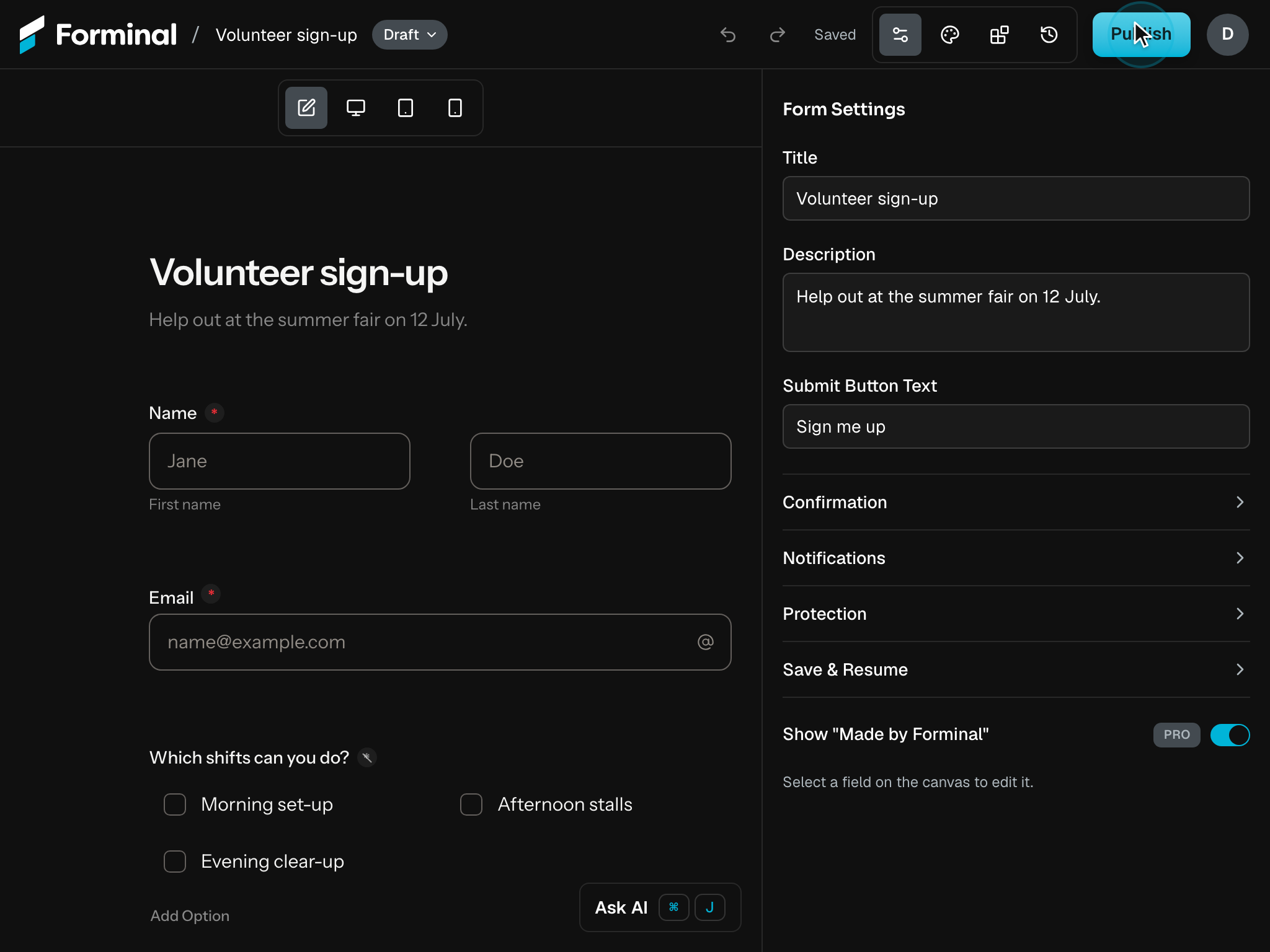
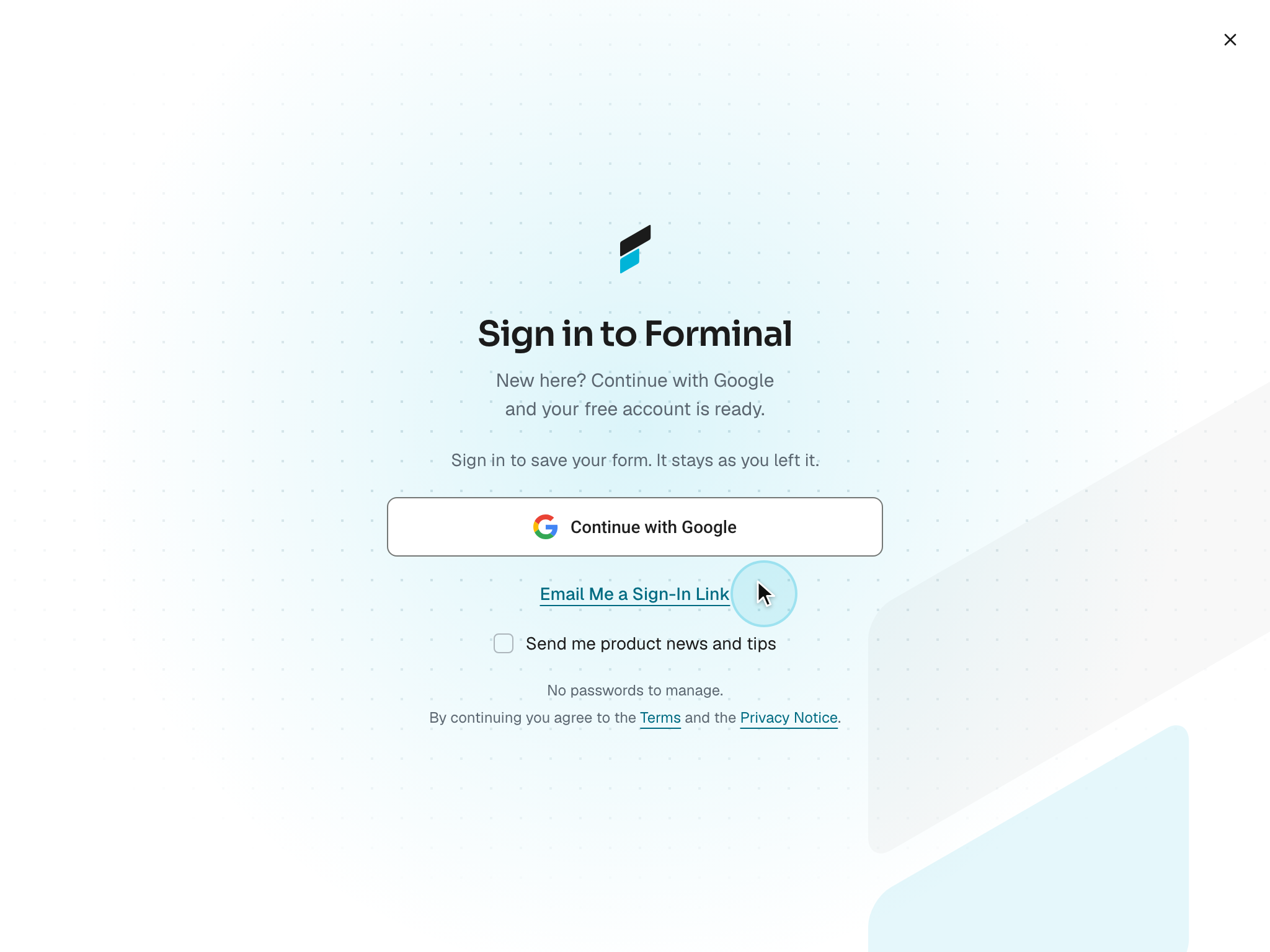
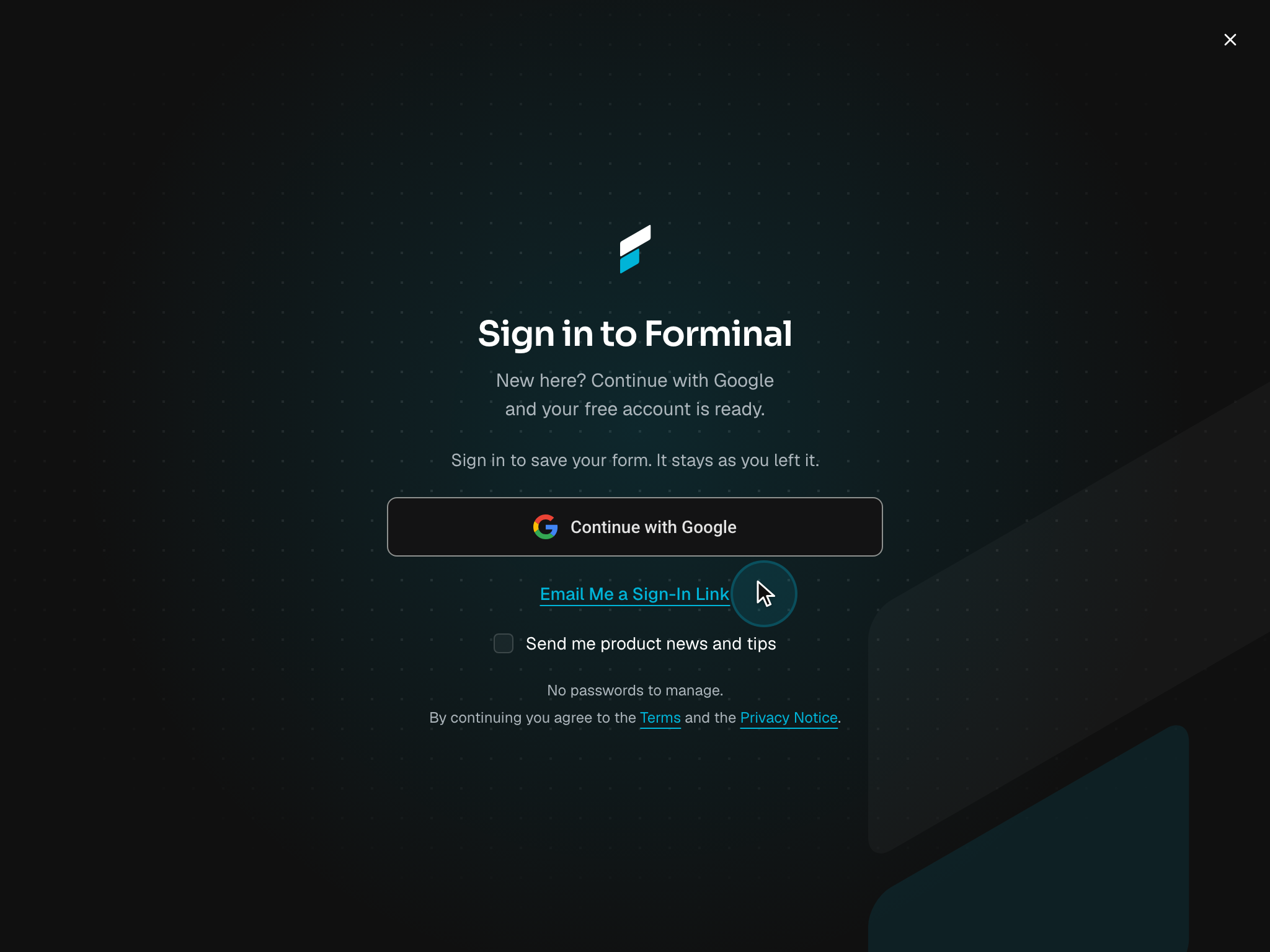
- Si empezaste sin cuenta, la página de inicio de sesión se abre sobre el creador. Inicia sesión con Google o un enlace de correo electrónico, y el formulario se traslada a tu cuenta exactamente como está.
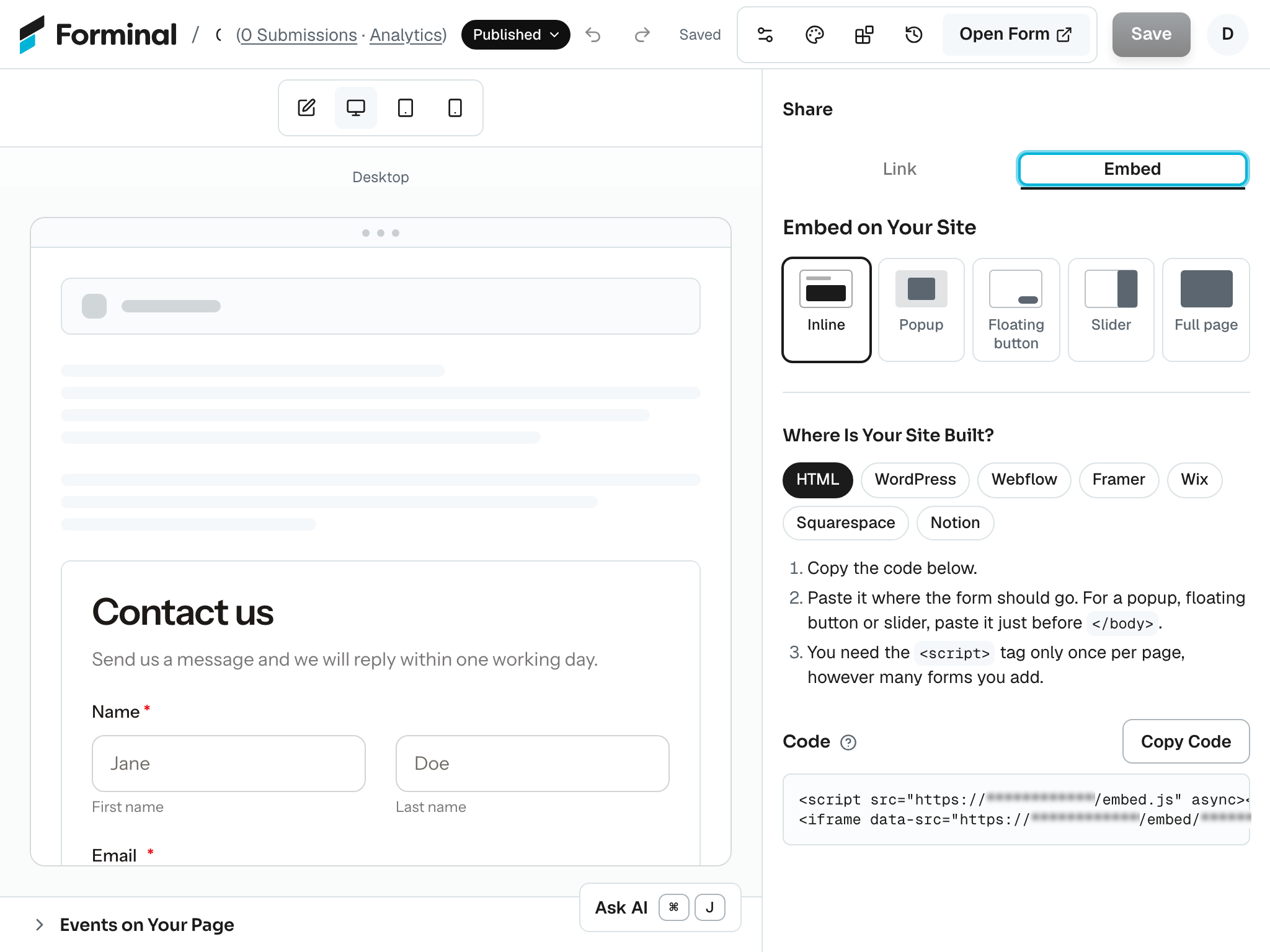
- The badge in the top bar changes from Draft to Published, and the Share panel opens with the form’s link and embed codes.
A continuación, comparte el formulario y luego lee los resultados.
Bueno saber
- Un formulario necesita al menos un campo antes de poder publicarse, y puede contener hasta 50 campos.
- Hasta que inicies sesión, un formulario que creas pertenece al navegador en el que lo hiciste. Inicia sesión antes de cambiar a otro dispositivo, o no podrás volver a abrirlo allí.
- Cada plantilla y tipo de campo funciona en todos los planes. La página de precios muestra lo que añaden los planes de pago.
- Más información sobre cómo empezar sin registrarse está en la página Crear sin cuenta.
Preguntas frecuentes
¿Necesito una cuenta para crear un formulario?
No. Puedes crear, estilizar y previsualizar un formulario sin una. Necesitas una cuenta para publicarlo, compartirlo, conectar integraciones o usar el asistente de IA. Consulta Crear sin cuenta.
¿Puedo crear un formulario describiéndolo?
El Asistente de IA de tu cuenta crea o modifica un formulario a partir de una descripción. Necesitas tener la sesión iniciada, y tu plan determina cuántos mensajes puedes enviarle al día: 10 en Lite, 30 en Pro y 100 en Business.
¿Qué pasa con mi borrador si borro las cookies de mi navegador?
Antes de iniciar sesión, un formulario pertenece al navegador en el que lo creaste, por lo que borrar las cookies o cerrar una ventana privada que utilizaste lo pone fuera de tu alcance. Inicia sesión primero y el formulario se traslada a tu cuenta.
¿Puedo volver a una versión anterior de mi formulario?
Select History in the builder’s top bar, preview an earlier version and select Restore. How far back it goes depends on your plan.
¿Las plantillas tienen un coste adicional?
No. Cada plantilla y tipo de campo funciona en todos los planes, y cada plantilla que utilices se convierte en un formulario independiente que puedes modificar.
¿Puede un agente de IA crear el formulario por mí?
Sí. En un formulario vacío, selecciona Crear con tu agente, copia la indicación de configuración y pégala en un agente como Claude Code o Cursor. Se conecta a través del servidor MCP, te pide que inicies sesión y los campos que añade aparecen en el creador.