Google Drive saves the files people upload to your form in a folder in your own Google Drive. You connect a Google account once, then pick a folder for each form in a File Upload or Signature field’s settings. By the end of this guide every file sent through the form will land in that folder, with each submission’s files in a subfolder of their own. Google Drive works on every plan.
Connect your Google account
- Open Account menu » Integrations.
- In the Google Drive box under Storage, select Continue with Google.


- Pick the Google account and allow access. You come back to the Integrations page with the account listed.
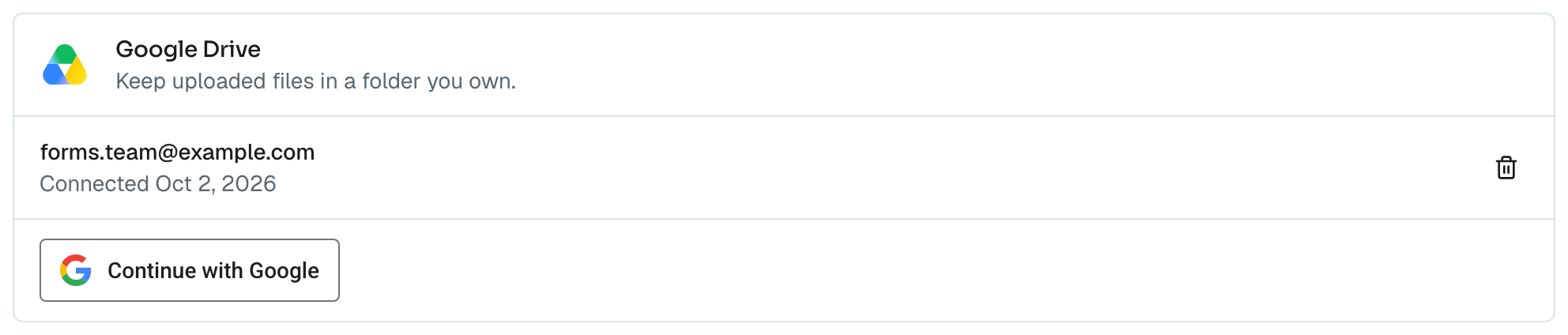
Step 3 happens on Google’s own consent screen. Forminal gets to see only the folders and files it creates or that you pick, not the rest of your Drive. This connection is separate from Google Sheets, even when it’s the same Google account, so connect it here even if Sheets already uses that account. Google Permissions for Sheets and Drive explains what each permission allows and how to take access back.
Choose the folder for a form
- Open the form in the builder. Add a File Upload or Signature field, or select one the form already has, to open its settings.
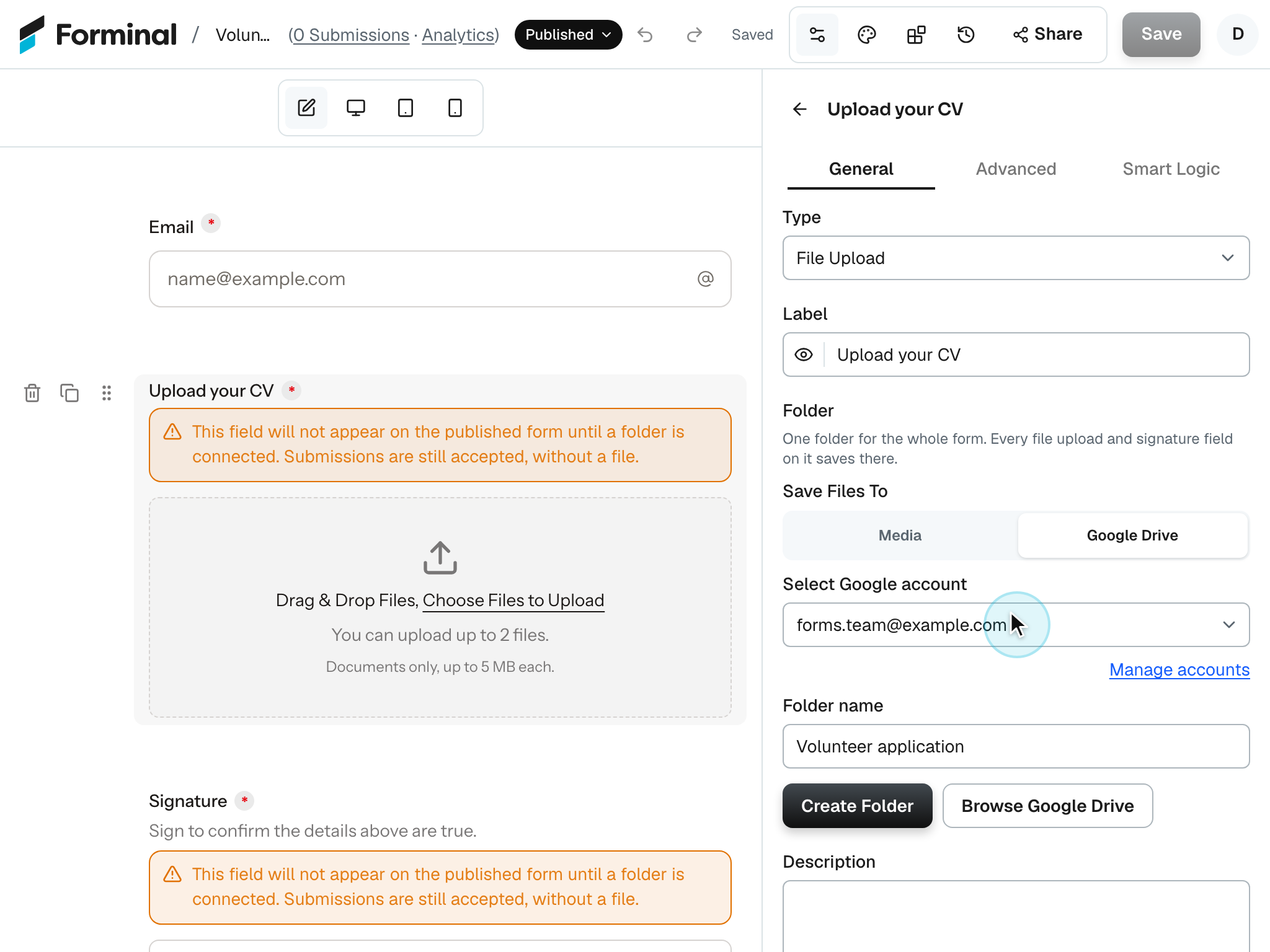
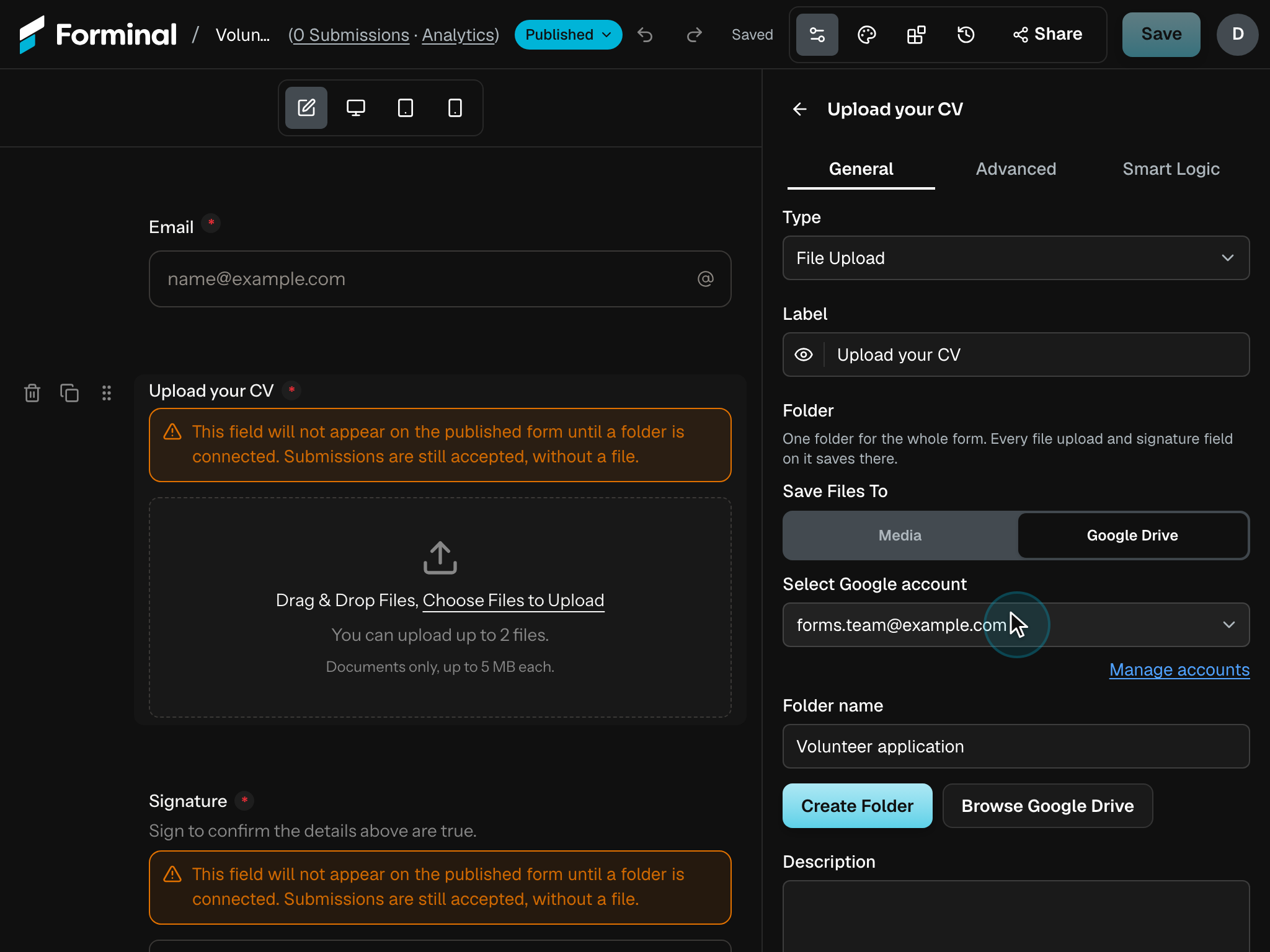
- Under Folder, set Save Files To to Google Drive. On a new form it’s set to Media, which keeps files in your media library in Forminal.
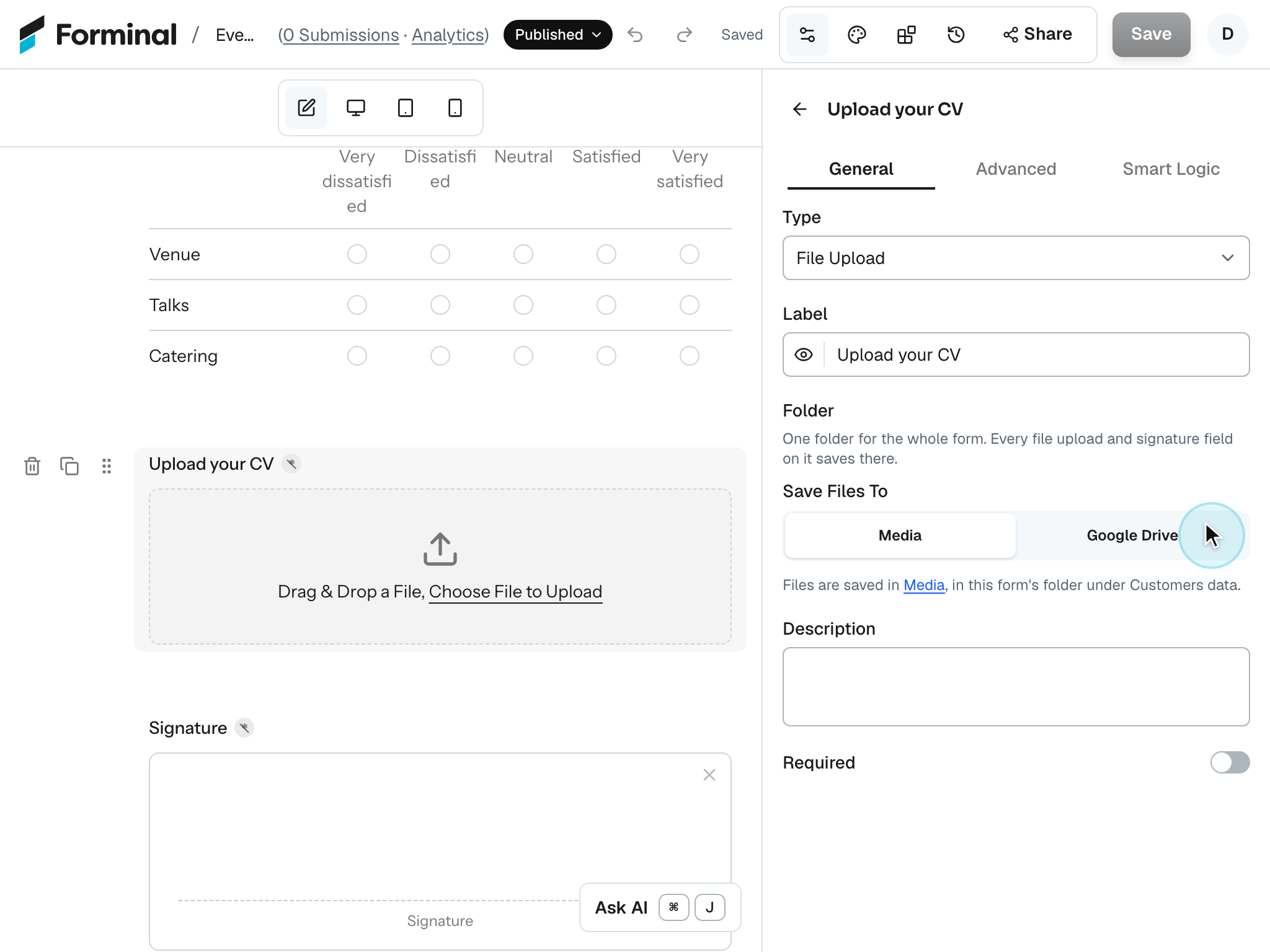
If you haven’t connected a Google account yet, choosing Google Drive takes you to the Integrations page. Connect one there as above, then select Back to followed by the form’s name. The builder opens the same field with Google Drive chosen.
- Pick the account in Select Google account.
- To make a new folder, check the Folder name and select Create Folder. The name starts as the form’s title and can be up to 200 characters. To use a folder you already have, select Browse Google Drive and pick it in Google’s file picker.
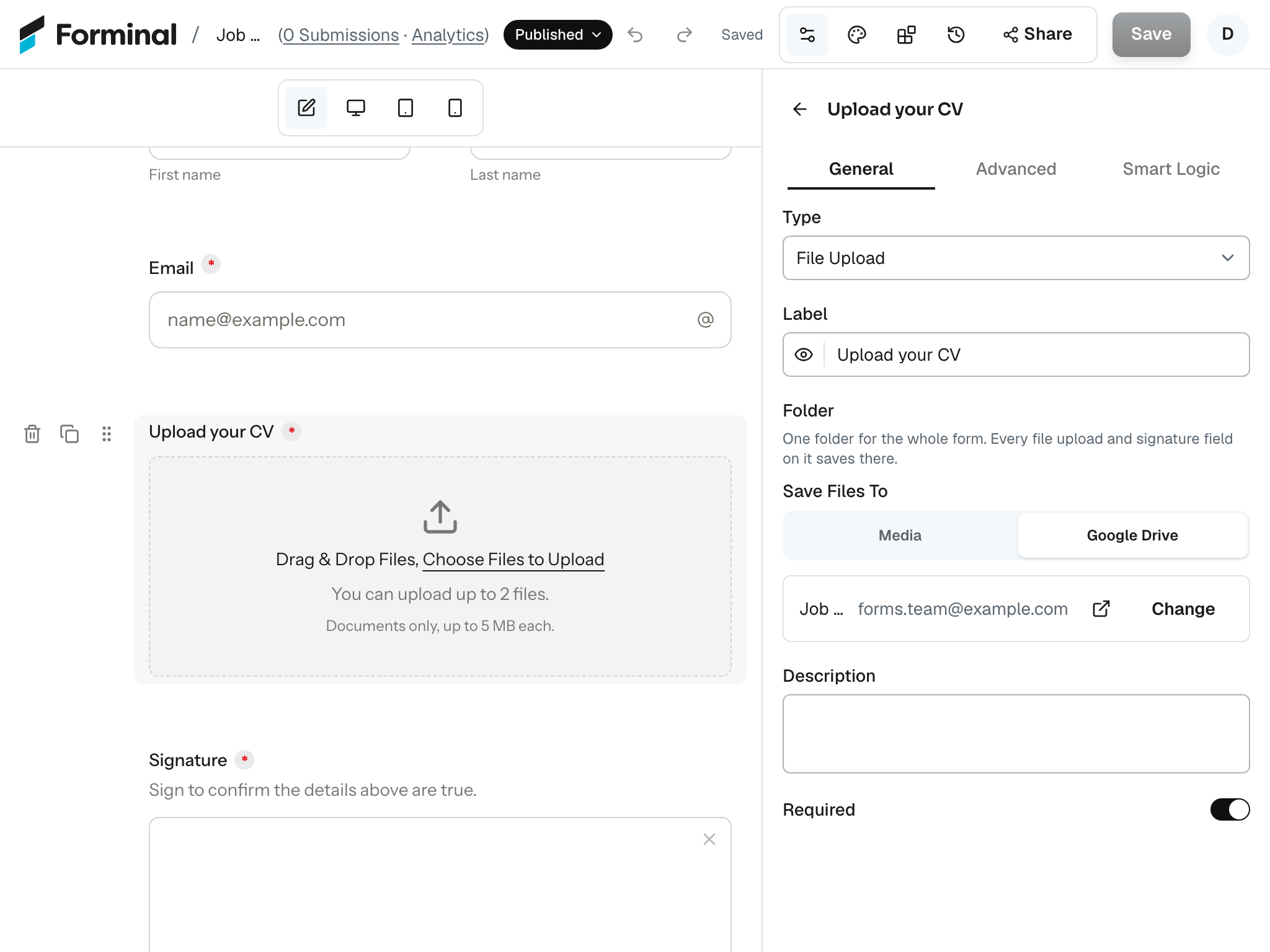
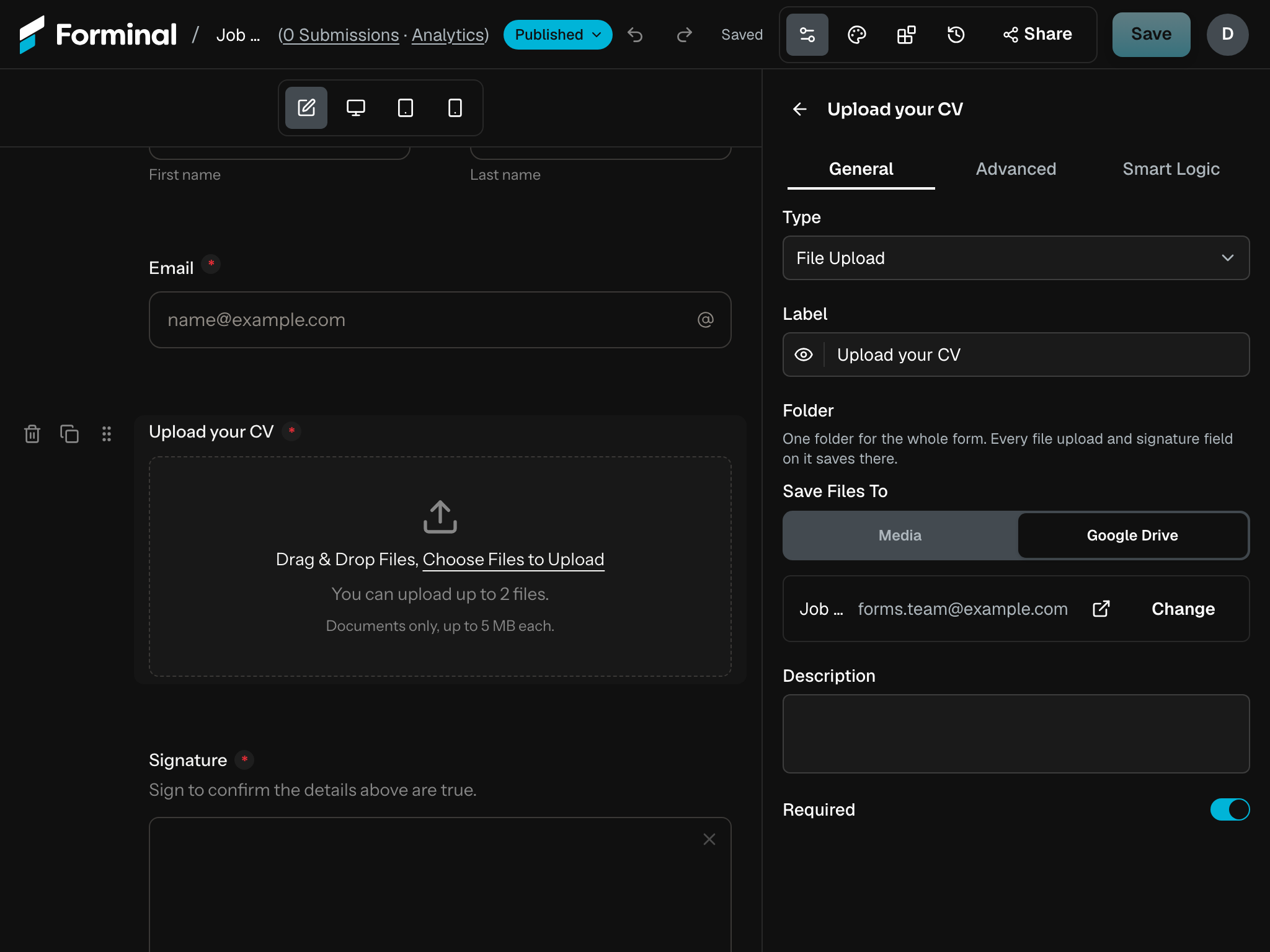
The folder is saved straight away, with no separate save step. The settings then show its name, the account, a link to open it in Google Drive and Change to pick another one.
It’s one folder for the whole form, so every File Upload and Signature field on it saves there, and you set it up once. Until a folder is saved, each file field on the canvas shows “This field will not appear on the published form until a folder is connected. Submissions are still accepted, without a file.”
Check it works
- Publish the form, open its link and send it with a file attached.
- Open the folder from the link in the field’s settings. It now has a subfolder named after the submission ID, holding the file under the name it was uploaded with.
- Open the form’s Submissions page. The file answer is a link to the file in your Drive.
Files go to Drive right after the form is submitted. Two files with the same name in one submission are numbered, so neither replaces the other. The same Drive links appear in the CSV export, in Google Sheets rows, in webhook requests and in what Zapier and Make receive. On a form that also sends to Google Sheets, the files go first, so the row can carry their links. Files from submissions marked as spam go into a subfolder called spam, and back out if you unmark them.
Pause or stop saving to Drive
To go back to keeping files in Forminal, set Save Files To to Media. The folder stays saved for when you switch back, and files still waiting to be copied to Drive go to your media library instead.
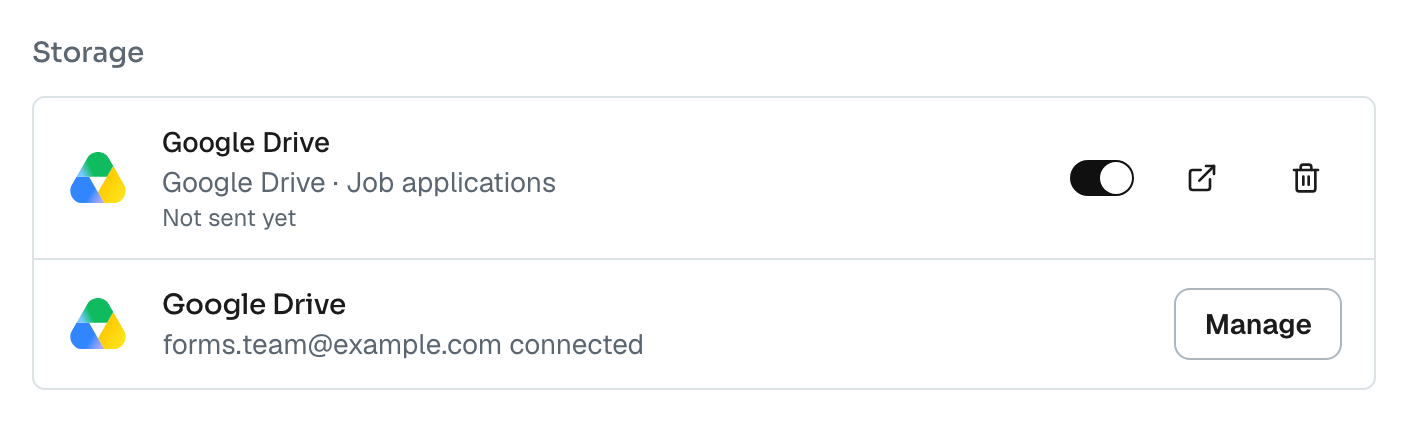
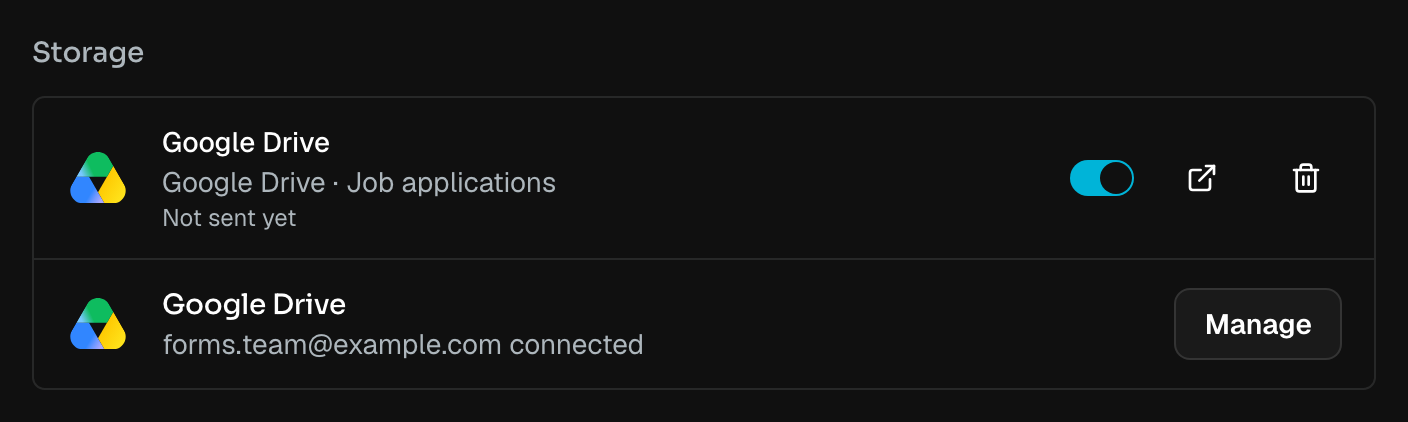
The folder also shows as a row under Storage on the form’s Integrations tab, with a switch, a link to the folder and a bin. Turn the switch off to pause it: new files then go to your media library until you turn it back on. To remove the folder from the form, select the bin and confirm with Delete. Nothing already in your Drive is removed. If Save Files To is still on Google Drive, the file fields then stay off the published form until you save another folder or switch to Media.
Troubleshooting
Google access was not granted.
The Integrations page shows this when you closed or refused Google’s consent screen. Select Continue with Google in the Google Drive box again and allow access.
The file field doesn’t show on the published form
With Google Drive chosen, File Upload and Signature fields stay off the published form until a folder is saved, and the canvas warns on each one. Save a folder as above, or set Save Files To to Media. The form keeps accepting submissions in the meantime, without files.
Reconnect your Google account
The canvas shows “Reconnect your Google account. Until then this field does not appear on the published form and no files are collected.” when Google access behind the folder was revoked or expired. Open Account menu » Integrations, where the account reads Needs reconnect, select Continue with Google beside it and pick the same account. Reconnecting also sends the files that were waiting.
Uploads have stopped being retried
When Drive refuses an upload, Forminal keeps the file and tries again, waiting longer each time, from a minute up to an hour, for up to 10 attempts. If the folder was deleted or the account lost access to it, it stops at once, and the field’s settings say how many uploads have stopped. Fix the cause in Drive, then select Change and save the same folder again: saving a folder, even the same one, puts those files back in the queue.
This account needs reconnecting before it can hold a folder.
The account picked in Select Google account lost its Google access. Pick another account, or reconnect this one on the Integrations page through Manage accounts.
The form owner manages the Google Drive folder.
A workspace member sees this instead of the folder settings. Only the form’s owner can change Save Files To or the folder, because the files go to the owner’s Drive.
Good to know
- Each file can be up to 10 MB, and a field can take up to 10 files. You can set lower limits in the field’s settings.
- Forminal never deletes anything from your Drive. Deleting a submission, the folder connection or the Google account leaves the files where they are.
- Changing the folder affects new submissions only; earlier files stay in the old folder.
- Forminal keeps a file until it’s copied to Drive. A file whose upload has stopped stays on our servers, encrypted, until you save the folder again, switch Save Files To to Media, or delete its submission. A form set to Media keeps its files in your media library instead.
More detail is on the Google Drive feature page.
Frequently asked questions
Can a form builder save file uploads straight to Google Drive?
Yes. In Forminal, connect a Google account on the Integrations page, then set Save Files To to Google Drive in a File Upload or Signature field and pick a folder. Every file sent through that form lands there, in a subfolder per submission.
Do I need to connect Google Drive separately from Google Sheets?
Yes. They are separate connections, even for the same Google account, so connect the account in the Google Drive box on the Integrations page too.
Can each File Upload field save to a different folder?
No. It’s one folder for the whole form, and every File Upload and Signature field on it saves there. Each submission gets its own subfolder, so one person’s files stay together.
What happens to uploads if Google Drive is unavailable?
Forminal keeps the file and tries again, up to 10 times, waiting longer each time. If the folder is gone or access was removed, it stops and the field’s settings tell you, and saving the folder again sends the waiting files.
Can I share the Drive folder with people who don’t use Forminal?
Yes. The folder is a normal folder in your Google Drive, so you share it the way you share any folder there, and people open the files without a Forminal account.
Does deleting a submission delete its files from Drive?
No. Forminal never deletes anything from your Drive, so the files stay in the folder after the submission is gone.