Scelta multipla mostra tutte le opzioni contemporaneamente come un elenco di pulsanti circolari, e le persone ne scelgono esattamente una. Usala quando l'elenco è abbastanza corto da poter essere letto a colpo d'occhio. Per un elenco lungo, un Menu a tendina occupa meno spazio.
Esempi
- Una domanda del sondaggio su come qualcuno ti ha conosciuto, con le opzioni mescolate in modo che la prima non venga scelta più spesso solo perché è la prima.
- Un modulo per eventi che chiede la taglia della maglietta, con M selezionata in anticipo.
- Un modulo d'ordine in cui ogni pacchetto ha il suo prezzo e quello scelto viene aggiunto al pagamento.
Aggiungilo a un modulo
- In the builder, point between two fields and select Add Field. On an empty form, select Start from Scratch.
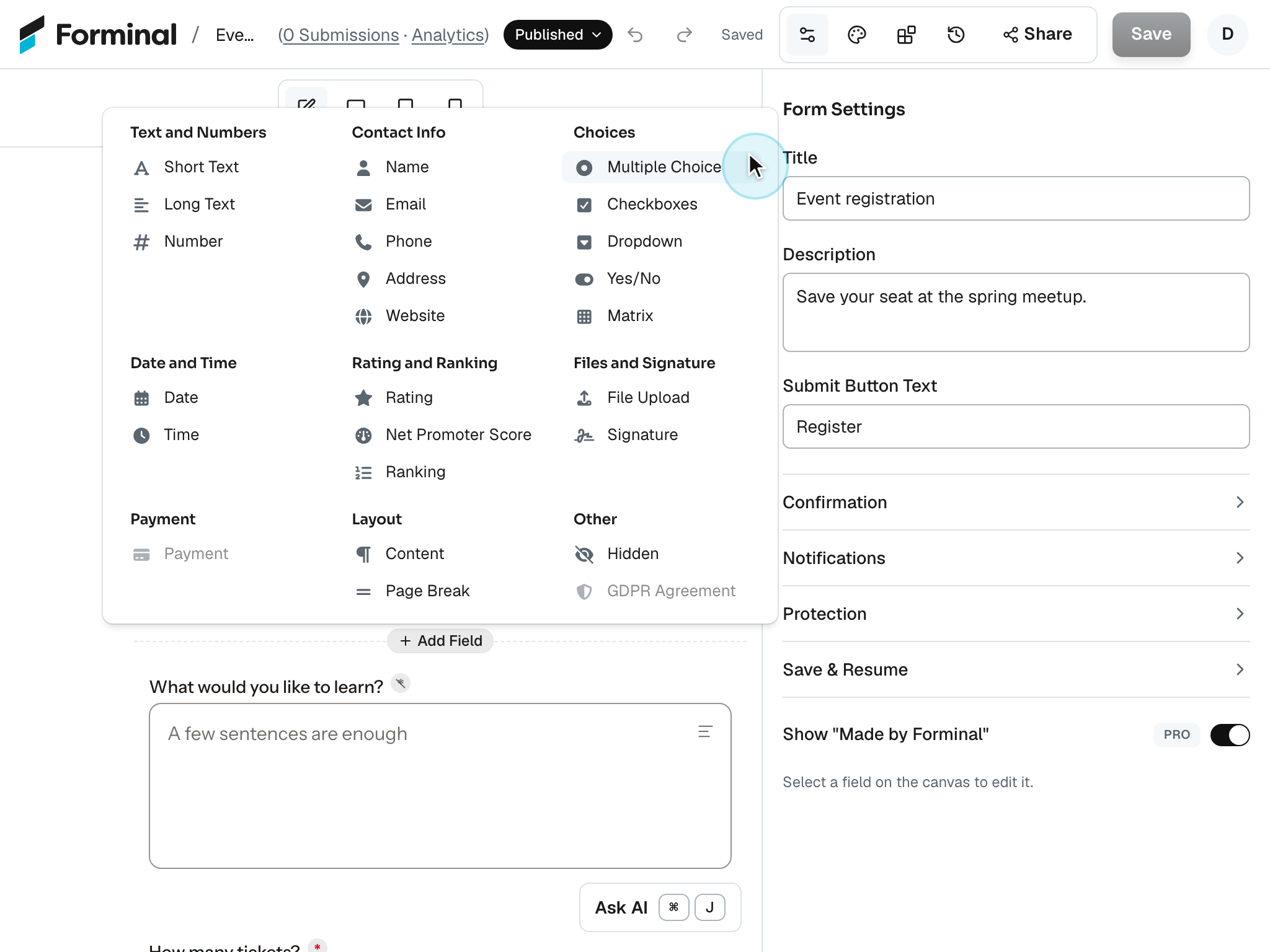
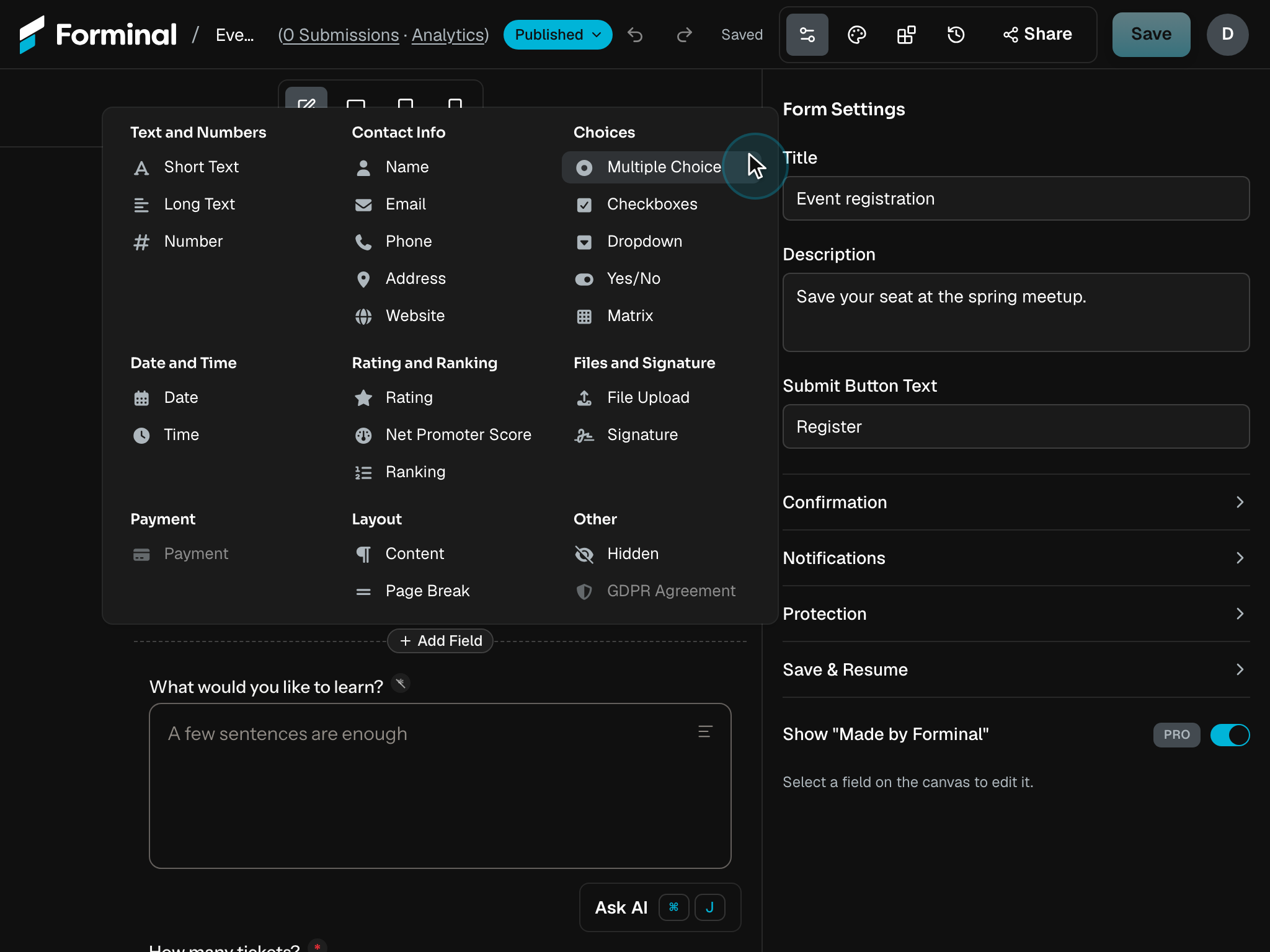
- Under Choices, select Multiple Choice.
- The field starts with the label “Choose one” and three options, Choice 1 to Choice 3. Change the label in the settings panel on the General tab.
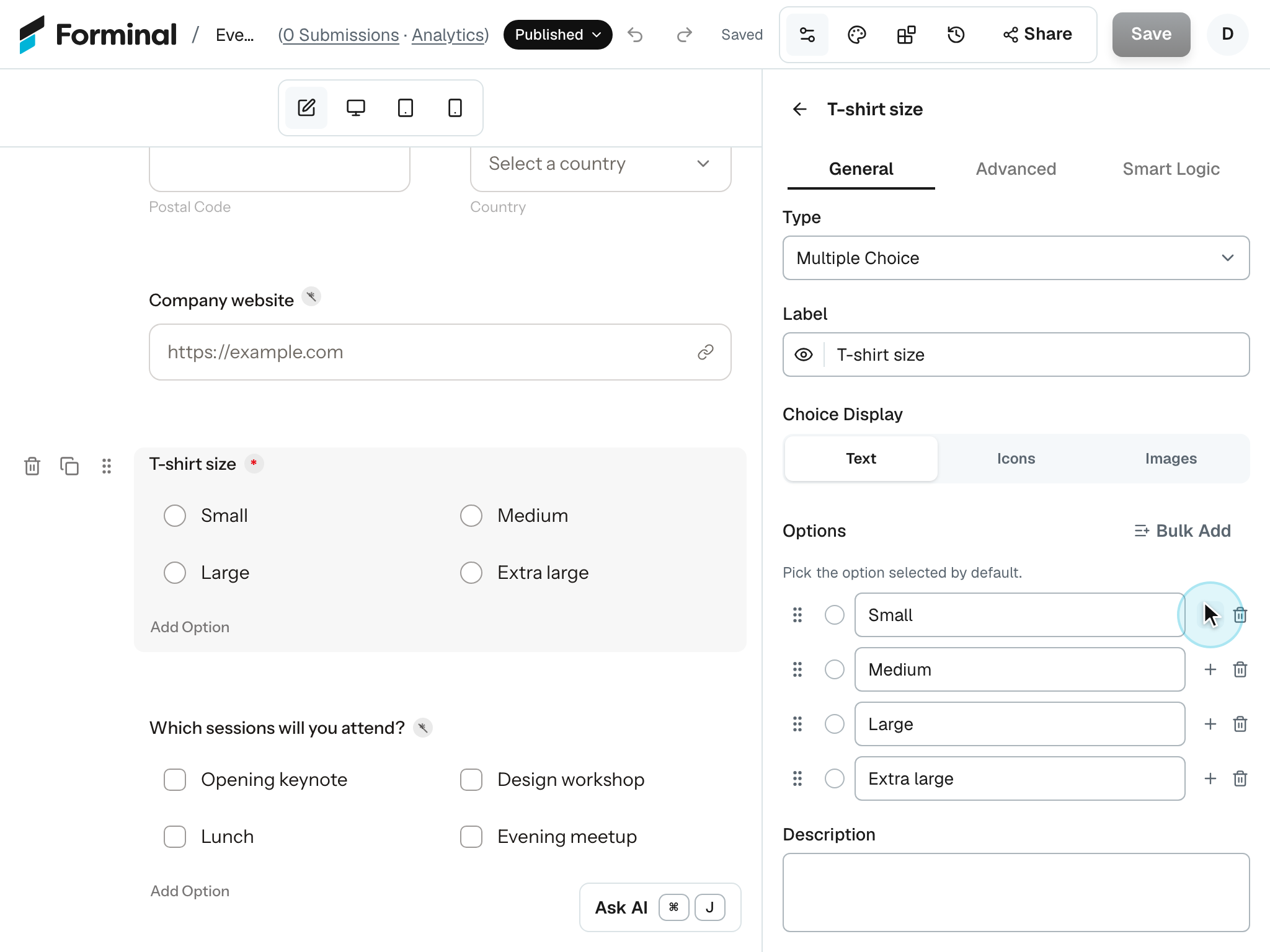
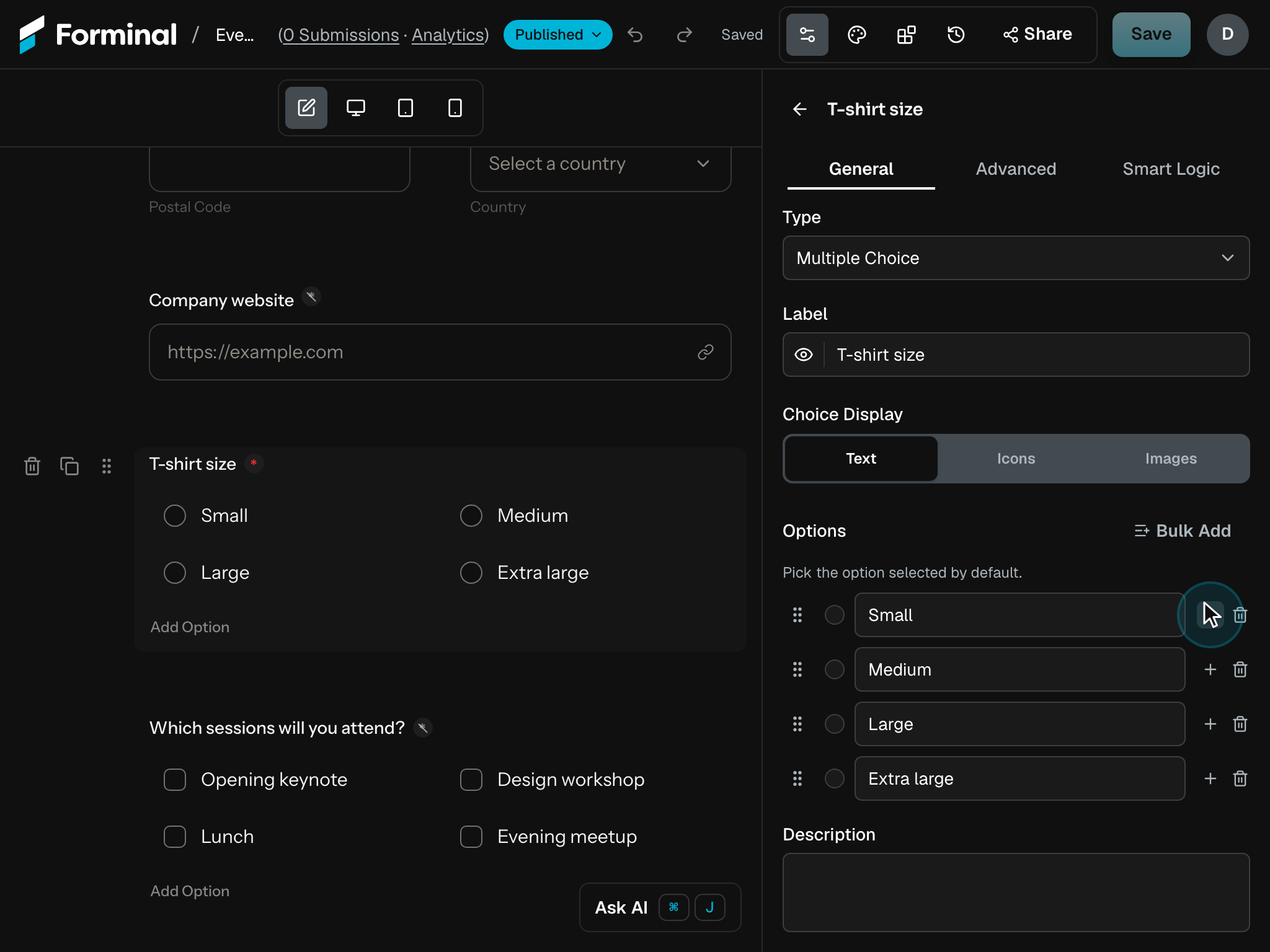
- Under Options, type over each option. Select the small + at the end of a row to add an option right after it, or the bin icon to delete one. A field always keeps at least one option.
- Turn on Required if people must answer before they can submit.
Impostazioni
Scheda Generale
Here you edit the Label, the Options, an optional Description with its Description Position (under the label, or under the options), and Required. Each option label can be up to 200 characters. To pick an option in advance, select the round marker at the start of its row in the Options list. Select the marker again to clear the default. While the field’s settings are open, you can also click that option on the canvas. Under Choice Display, pick Icons or Images to show a picture with each option; see Icon and Image Choices.
To add many options at once, select Bulk Add above the list, type one option per line and select Add Choices. Lines that match an option already in the list are skipped, and a field that still has its starting Choice 1 to Choice 3 gets the new list in their place. Show Presets fills the box with a ready list, such as Countries, U.S. States, Months or a five-point agreement scale.
Scheda Avanzate
Layout comes first. It sets how the options sit on the form: 1 Column, 2 Columns, 3 Columns or Inline. Inline puts the options side by side in a row that wraps, each as wide as its text. Until you pick one, Layout has nothing selected and the options follow the form’s theme: two columns on most themes, a wrapping row on a few such as Pill, and one stacked list on Grouped, Joined, Sage, Swiss and Prompt. Once you pick a column layout, a narrow field on a phone or in a slim embed drops to fewer columns when an option would get narrower than about 160 pixels, so every option stays readable. Icon and image cards follow the same setting; see Icon and Image Choices.
Randomize Options shuffles the order every time someone opens the form. The canvas keeps the order you wrote, so you can still find each one while you edit.
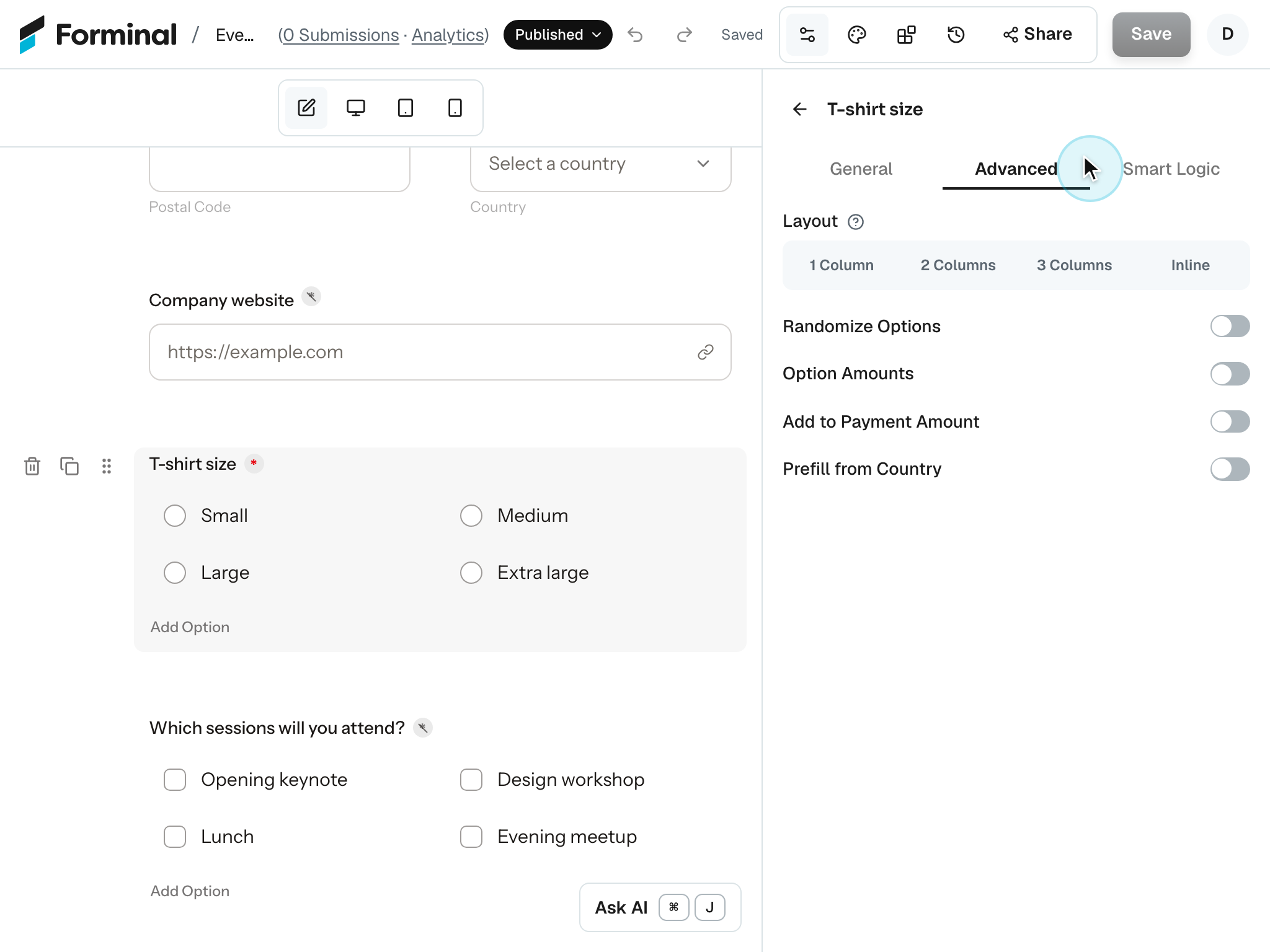
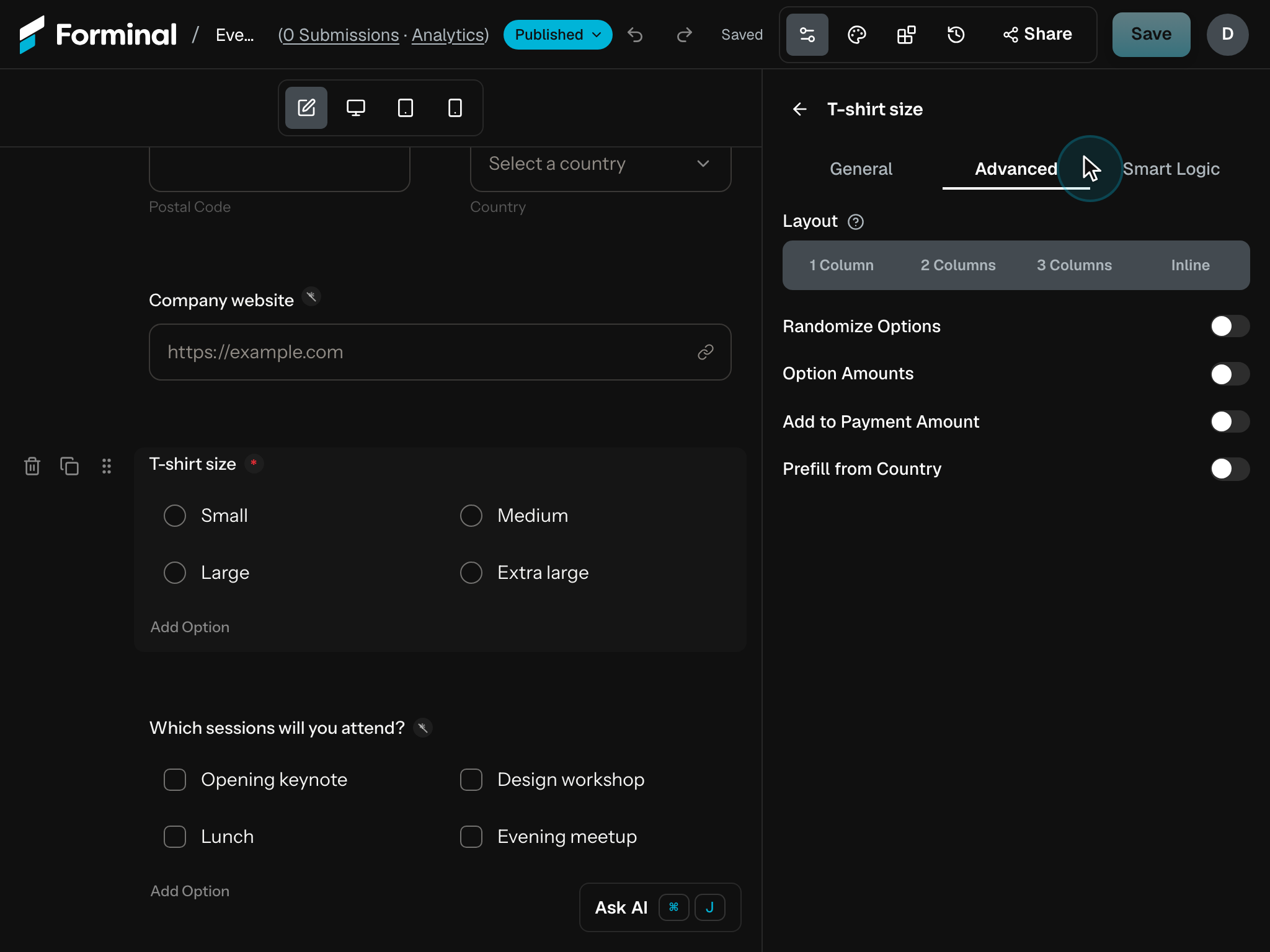
Option Amounts gives each option an amount: turn it on and a price box appears next to each option, in the Options list and on the canvas. A calculation can read those amounts. Switching it off clears them.
When the form has a Payment field, you also get Add to Payment Amount. Turn it on and the price of the option someone picks is added to the total. While the payment charges the field, the price boxes stay on and Option Amounts can’t be switched off. Show Price After Item Labels then prints the price after each option, for example “Premium – $49.00”. Prices use the Payment field.
Cosa vedono le persone e come vengono visualizzate le risposte
Le persone vedono l'etichetta e un pulsante rotondo per ogni opzione. Selezionarne una cancella la selezione precedente. Se saltano un campo obbligatorio, vedono "Scegli una delle opzioni" quando provano a continuare.
Nella tabella delle sottomissioni, nell'esportazione CSV e nelle email di notifica, la risposta appare come l'etichetta dell'opzione. Rinominare un'opzione in seguito cambia anche il modo in cui vengono lette le risposte precedenti, poiché ogni risposta punta all'opzione anziché al testo che aveva. Una risposta vuota viene omessa dall'email.
Con Smart Logic puoi mostrare o nascondere altri campi quando questa risposta è, o non è, una determinata opzione, o quando è vuota o non vuota. Puoi anche inserire l'etichetta dell'opzione scelta in una domanda successiva o nel messaggio di ringraziamento.
Buono a sapersi
You can switch the field to Checkboxes, Dropdown or Ranking from the Type menu and keep your options. If you delete an option, earlier answers that picked it no longer show a readable label, so rename instead of deleting when you can. The shuffle runs on the form’s link, in embeds and in the builder preview. The canvas shows the first 20 options of a long list, with a note saying so; the published form shows them all.
On the Grouped, Joined, Sage, Swiss and Prompt themes, text options stay one stacked list whatever you pick under Layout; icon and image cards still follow it. Switching the field to Checkboxes keeps the layout; Dropdown and Ranking have none.
Domande frequenti
Quando dovrei usare la scelta multipla invece di un menu a tendina?
La scelta multipla mostra tutte le opzioni contemporaneamente, il che è adatto per un elenco breve. Per un elenco lungo, un menu a tendina occupa meno spazio. Se le persone possono scegliere più di una risposta, usa le caselle di controllo.
Posso mescolare l'ordine delle opzioni per ogni persona?
Attiva "Randomizza opzioni" nella scheda Avanzate. L'ordine cambia ogni volta che qualcuno apre il modulo, sul suo link, negli incorporamenti e nell'anteprima del builder, mentre la tela mantiene l'ordine che hai scritto.
Cosa succede alle risposte precedenti se rinomino o elimino un'opzione?
Rinominare un'opzione cambia anche il modo in cui vengono lette le risposte precedenti. Eliminarne una lascia le risposte precedenti che l'hanno scelta senza un'etichetta leggibile, quindi rinominala invece quando puoi.
Ogni opzione può avere il suo prezzo?
Attiva "Importi opzione" per dare a ogni opzione un importo. Su un modulo con un campo Pagamento, "Aggiungi all'importo del pagamento" aggiunge il prezzo dell'opzione scelta al totale. Vedi Pagamento.
Posso cambiare una domanda a scelta multipla in caselle di controllo in seguito?
Scegli Caselle di controllo, Menu a tendina o Classifica dal menu Tipo, e le tue opzioni verranno mantenute.
Posso visualizzare le opzioni in due o tre colonne?
Sì: imposta Layout nella scheda Avanzate su 1 Colonna, 2 Colonne, 3 Colonne o In linea. Su un telefono, le opzioni di testo di solito scendono a una colonna, mentre le schede icona o immagine Piccole e Medie mantengono fino a due per riga. I temi Raggruppato, Unito, Sage, Swiss e Prompt mantengono le opzioni di testo in un elenco impilato qualunque cosa tu scelga.