Multiple Choice shows every option at once as a list of round buttons, and people pick exactly one. Use it when the list is short enough to read at a glance. For a long list, a Dropdown takes less room.
Examples
- A survey question about how someone heard of you, with the options shuffled so the first one doesn’t get picked more often just for being first.
- An event form asking for a T-shirt size, with M picked in advance.
- An order form where each package has its own price and the chosen one is added to the payment.
Add it to a form
- In the builder, point between two fields and select Add Field. On an empty form, select Start from Scratch.
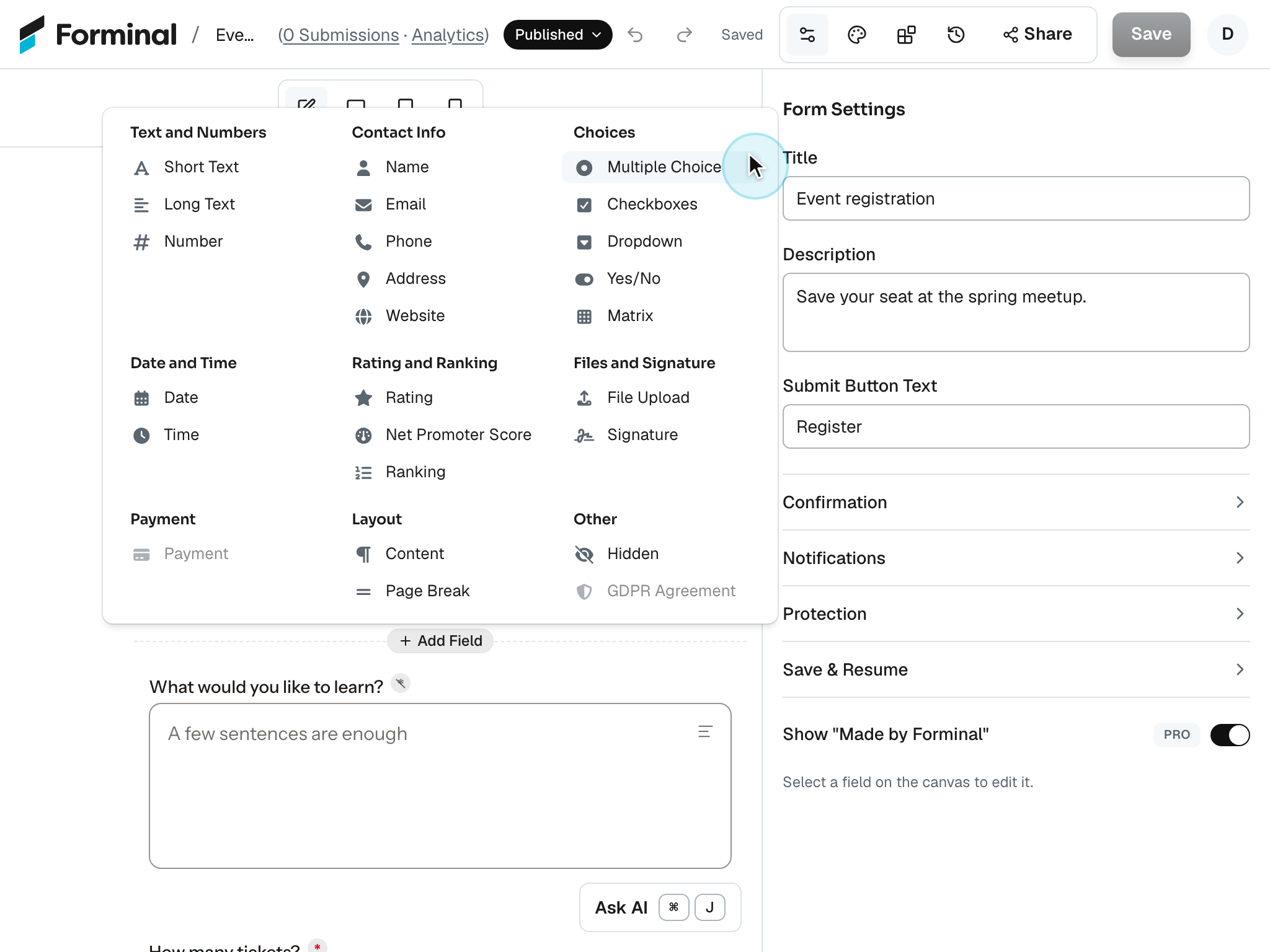
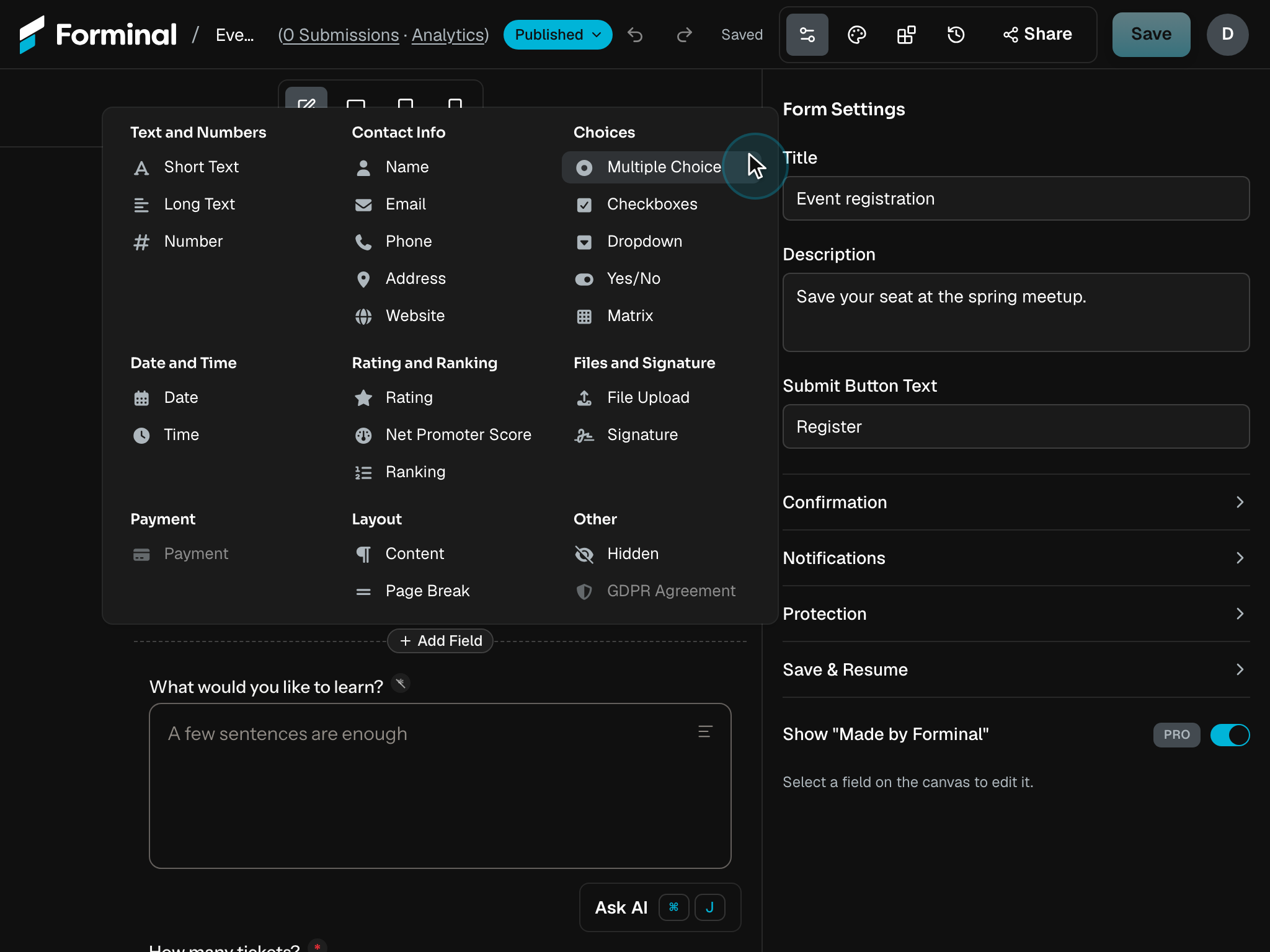
- Under Choices, select Multiple Choice.
- The field starts with the label “Choose one” and three options, Choice 1 to Choice 3. Change the label in the settings panel on the General tab.
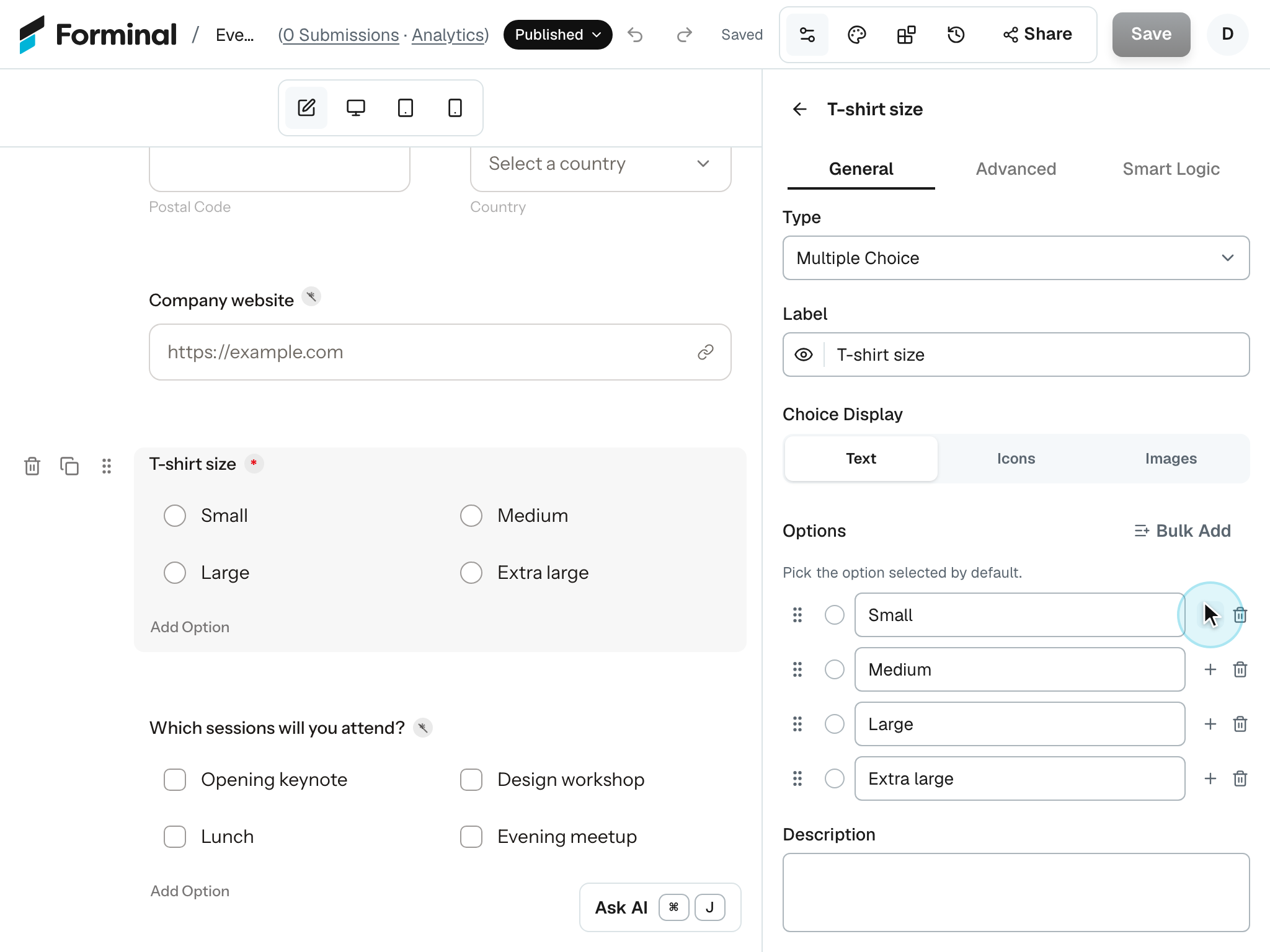
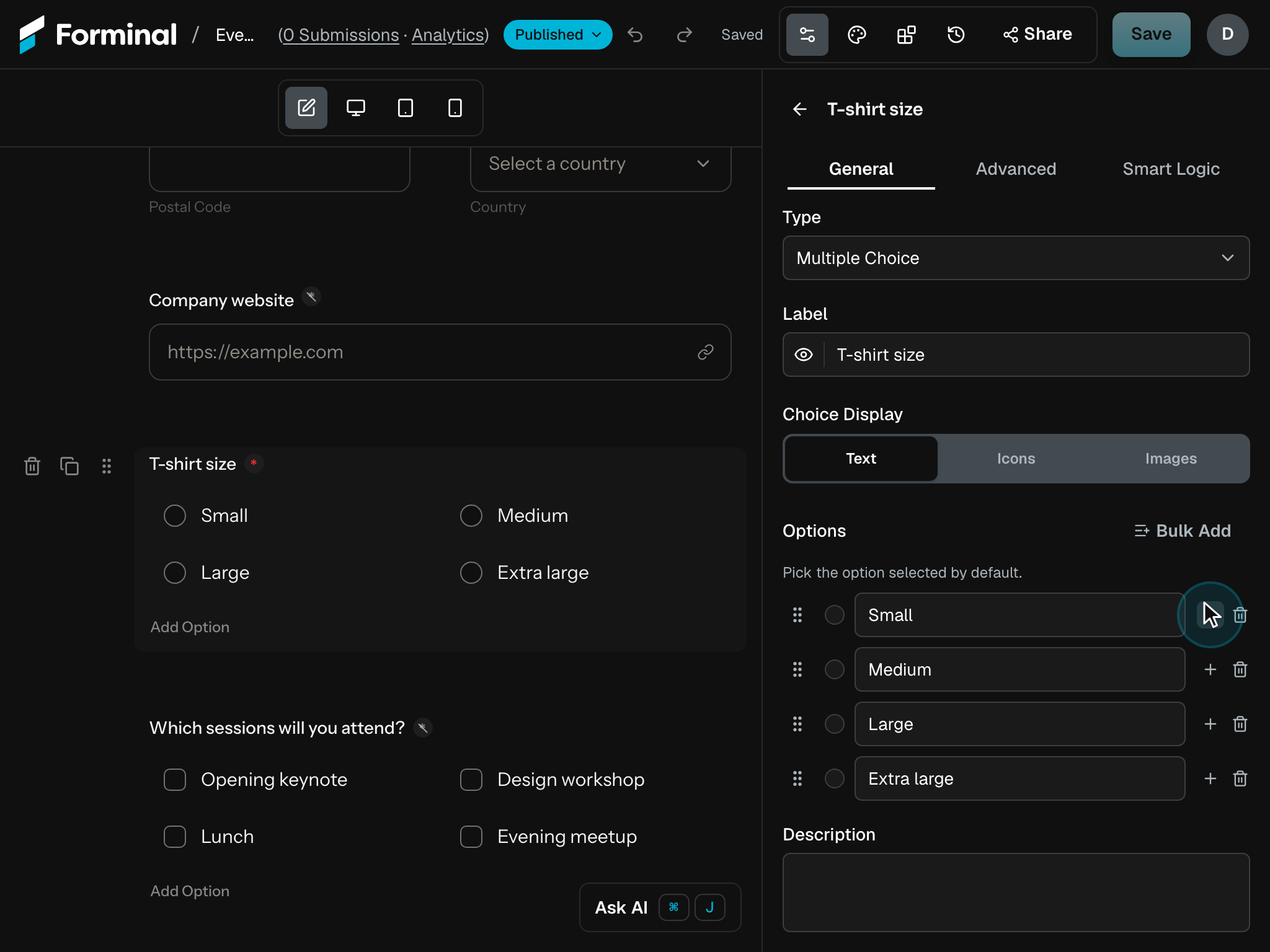
- Under Options, type over each option. Select the small + at the end of a row to add an option right after it, or the bin icon to delete one. A field always keeps at least one option.
- Turn on Required if people must answer before they can submit.
Settings
General tab
Here you edit the Label, the Options, an optional Description with its Description Position (under the label, or under the options), and Required. Each option label can be up to 200 characters. To pick an option in advance, select the round marker at the start of its row in the Options list. Select the marker again to clear the default. While the field’s settings are open, you can also click that option on the canvas. Under Choice Display, pick Icons or Images to show a picture with each option; see Icon and Image Choices.
To add many options at once, select Bulk Add above the list, type one option per line and select Add Choices. Lines that match an option already in the list are skipped, and a field that still has its starting Choice 1 to Choice 3 gets the new list in their place. Show Presets fills the box with a ready list, such as Countries, U.S. States, Months or a five-point agreement scale.
Advanced tab
Layout comes first. It sets how the options sit on the form: 1 Column, 2 Columns, 3 Columns or Inline. Inline puts the options side by side in a row that wraps, each as wide as its text. Until you pick one, Layout has nothing selected and the options follow the form’s theme: two columns on most themes, a wrapping row on a few such as Pill, and one stacked list on Grouped, Joined, Sage, Swiss and Prompt. Once you pick a column layout, a narrow field on a phone or in a slim embed drops to fewer columns when an option would get narrower than about 160 pixels, so every option stays readable. Icon and image cards follow the same setting; see Icon and Image Choices.
Randomize Options shuffles the order every time someone opens the form. The canvas keeps the order you wrote, so you can still find each one while you edit.
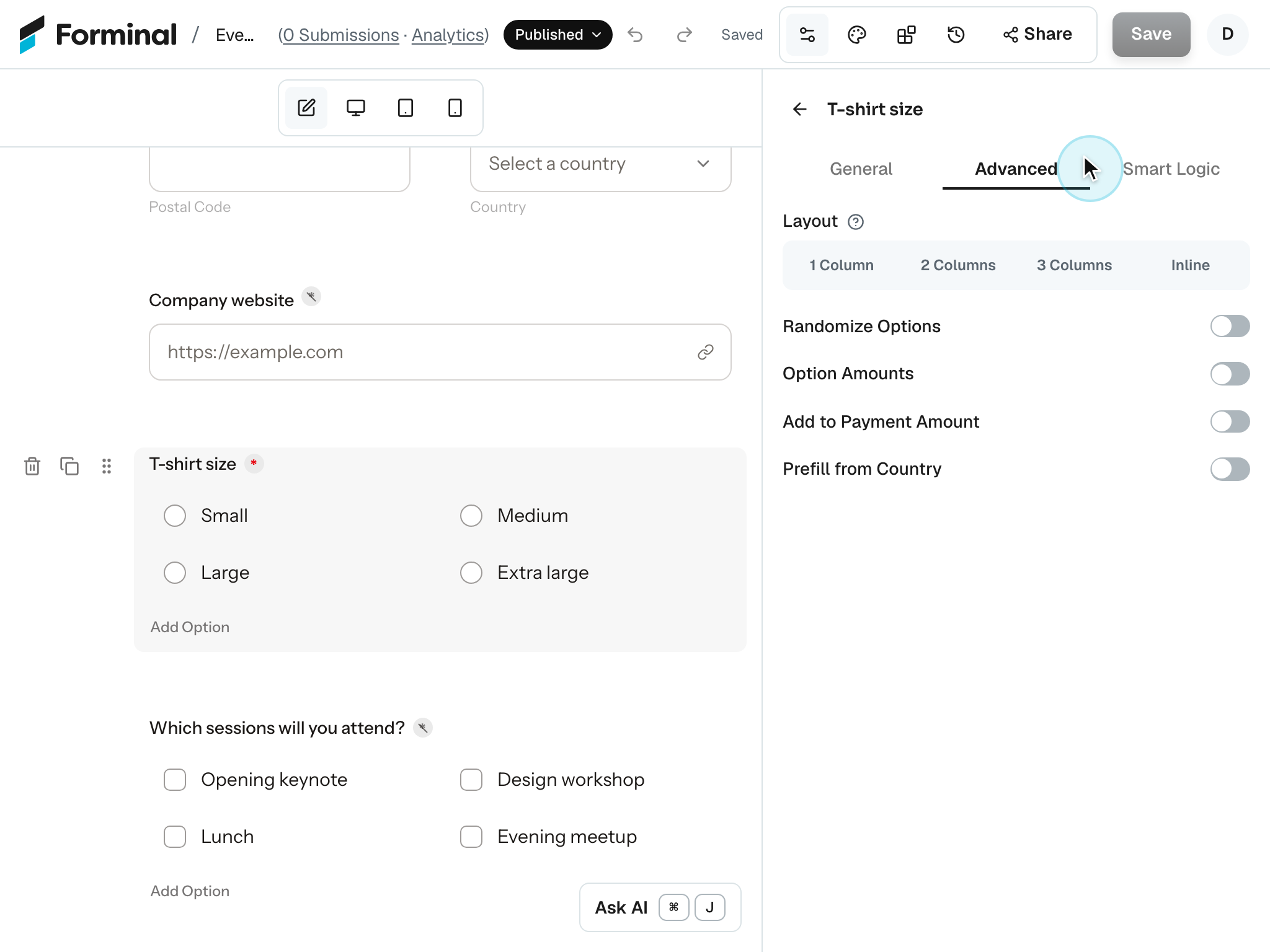
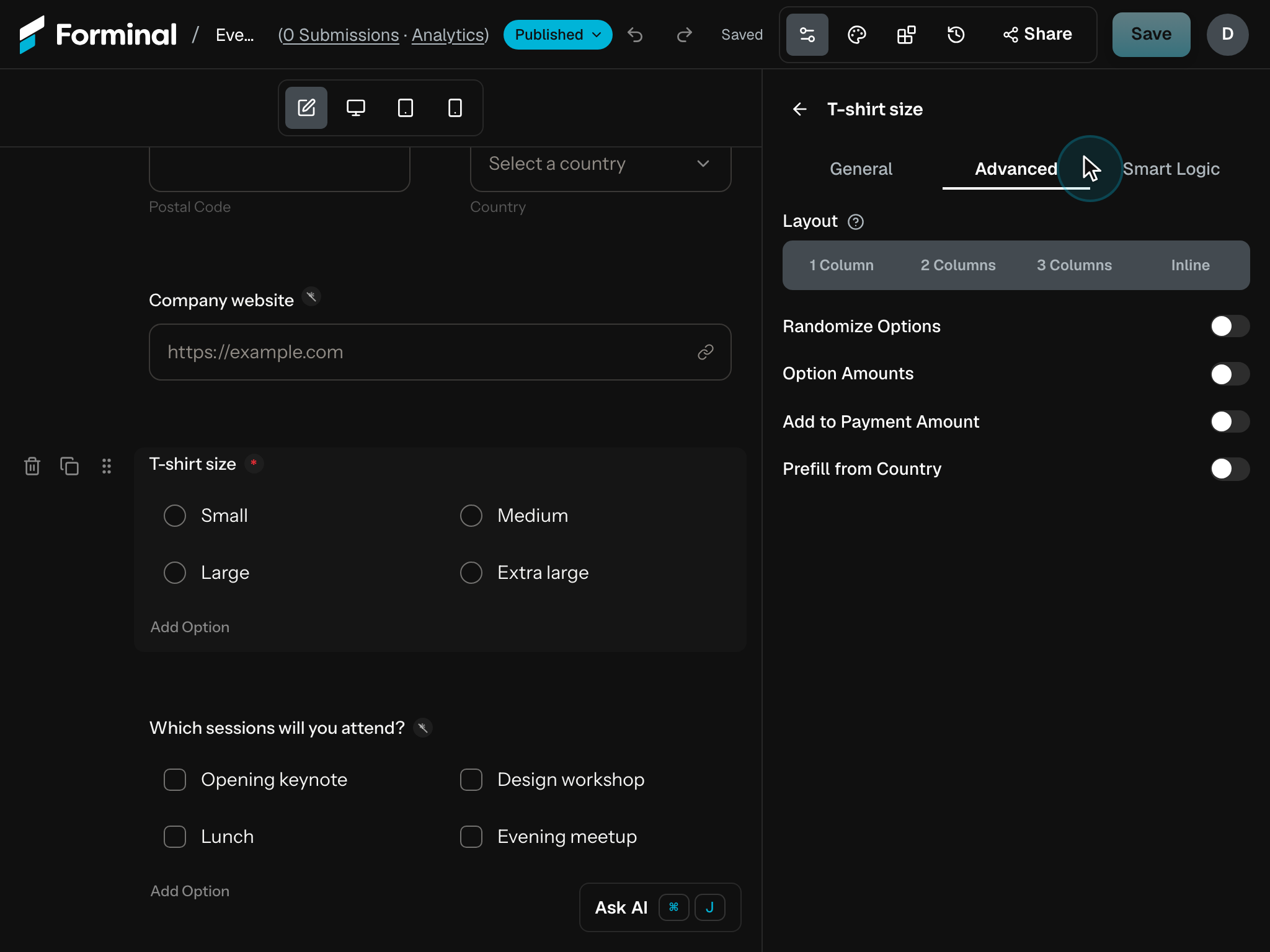
Option Amounts gives each option an amount: turn it on and a price box appears next to each option, in the Options list and on the canvas. A calculation can read those amounts. Switching it off clears them.
When the form has a Payment field, you also get Add to Payment Amount. Turn it on and the price of the option someone picks is added to the total. While the payment charges the field, the price boxes stay on and Option Amounts can’t be switched off. Show Price After Item Labels then prints the price after each option, for example “Premium – $49.00”. Prices use the Payment field.
What people see and how answers show
People see the label and a round button for each option. Picking one clears the previous pick. If they skip a required field, they see “Choose one of the options” when they try to go on.
In the submissions table, the CSV export and notification emails, the answer appears as the option’s label. Renaming an option later changes how earlier answers read too, because each answer points to the option rather than to the text it had. An empty answer is left out of the email.
With Smart Logic you can show or hide other fields when this answer is, or is not, a given option, or when it is empty or not empty. You can also pipe the chosen option’s label into a later question or the thank-you message.
Good to know
You can switch the field to Checkboxes, Dropdown or Ranking from the Type menu and keep your options. If you delete an option, earlier answers that picked it no longer show a readable label, so rename instead of deleting when you can. The shuffle runs on the form’s link, in embeds and in the builder preview. The canvas shows the first 20 options of a long list, with a note saying so; the published form shows them all.
On the Grouped, Joined, Sage, Swiss and Prompt themes, text options stay one stacked list whatever you pick under Layout; icon and image cards still follow it. Switching the field to Checkboxes keeps the layout; Dropdown and Ranking have none.
Frequently asked questions
When should I use multiple choice instead of a dropdown?
Multiple Choice shows every option at once, which suits a short list. For a long list, a Dropdown takes less room. If people may pick more than one answer, use Checkboxes.
Can I shuffle the order of the options for each person?
Turn on Randomize Options on the Advanced tab. The order changes every time someone opens the form, on its link, in embeds and in the builder preview, while the canvas keeps the order you wrote.
What happens to earlier answers if I rename or delete an option?
Renaming an option changes how earlier answers read too. Deleting one leaves earlier answers that picked it without a readable label, so rename it instead when you can.
Can each option have its own price?
Turn on Option Amounts to give each option an amount. On a form with a Payment field, Add to Payment Amount adds the price of the chosen option to the total. See Payment.
Can I change a multiple choice question into checkboxes later?
Pick Checkboxes, Dropdown or Ranking from the Type menu, and your options carry over.
Can I show the options in two or three columns?
Yes: set Layout on the Advanced tab to 1 Column, 2 Columns, 3 Columns or Inline. On a phone, text options usually drop to one column, while Small and Medium icon or image cards keep up to two per row. The Grouped, Joined, Sage, Swiss and Prompt themes keep text options in one stacked list whatever you pick.