Le checkbox servono per domande in cui più di una risposta può essere vera. Ogni opzione viene mostrata con la sua casella, e le persone selezionano quante ne applicano, o nessuna se il campo non è obbligatorio.
Esempi
- Un'iscrizione a un workshop in cui le persone selezionano ogni sessione a cui intendono partecipare.
- Un sondaggio sui prodotti che chiede quali funzionalità una persona utilizza, con le opzioni mescolate.
- Un modulo d'ordine in cui ogni extra ha un prezzo e ogni extra selezionato viene aggiunto al pagamento.
Aggiungilo a un modulo
- In the builder, point between two fields and select Add Field. On an empty form, select Start from Scratch.
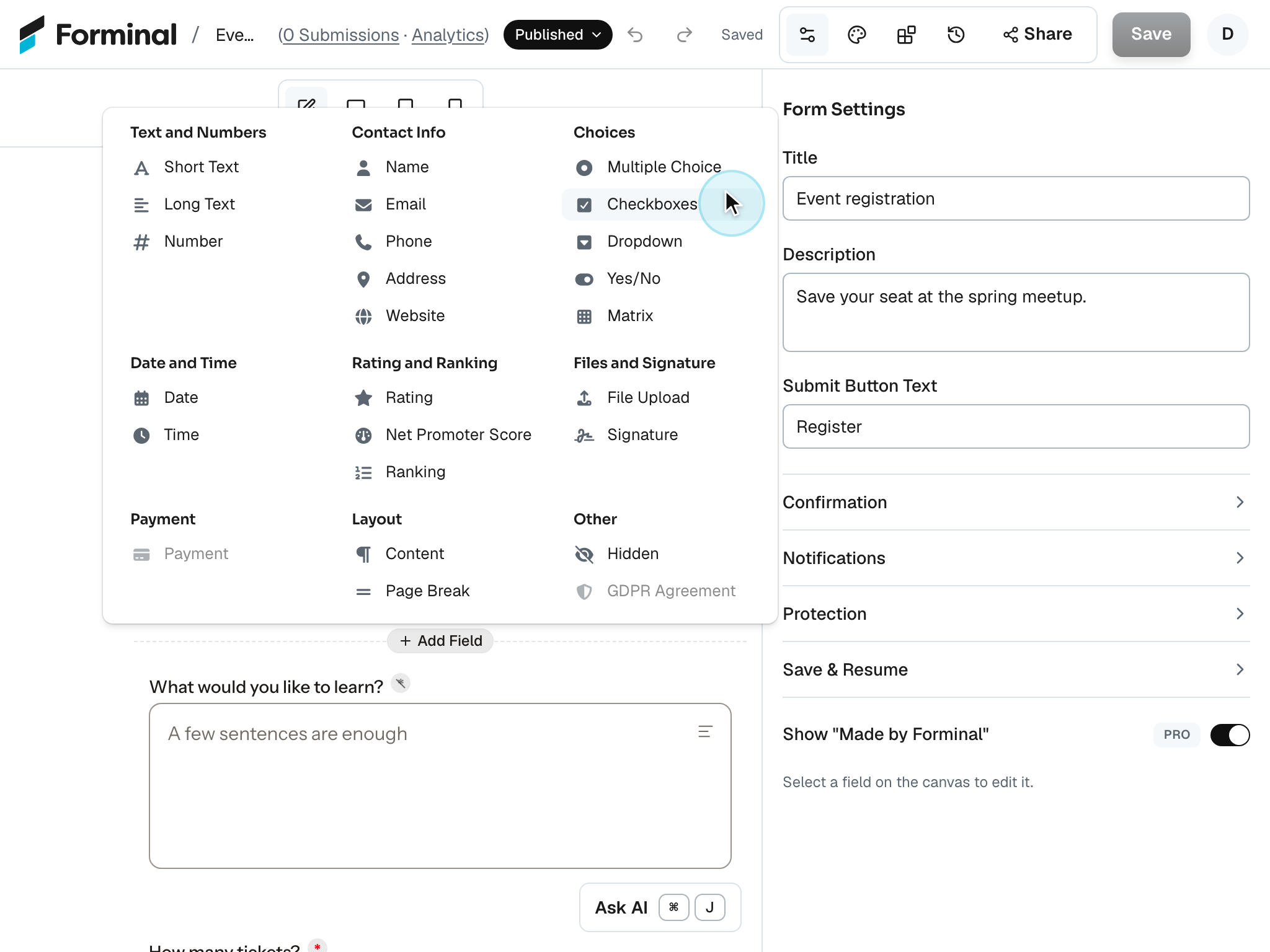
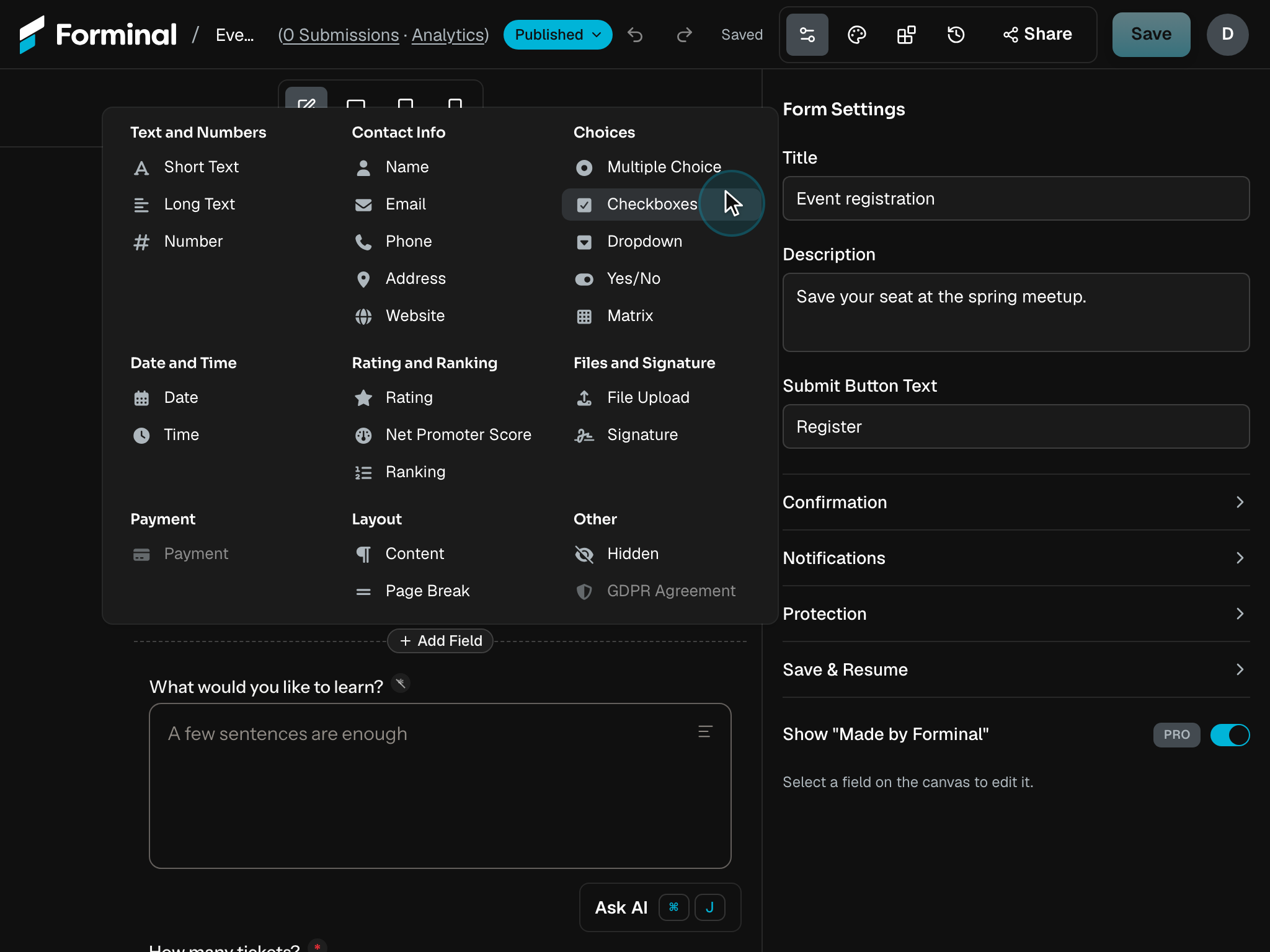
- Under Choices, select Checkboxes.
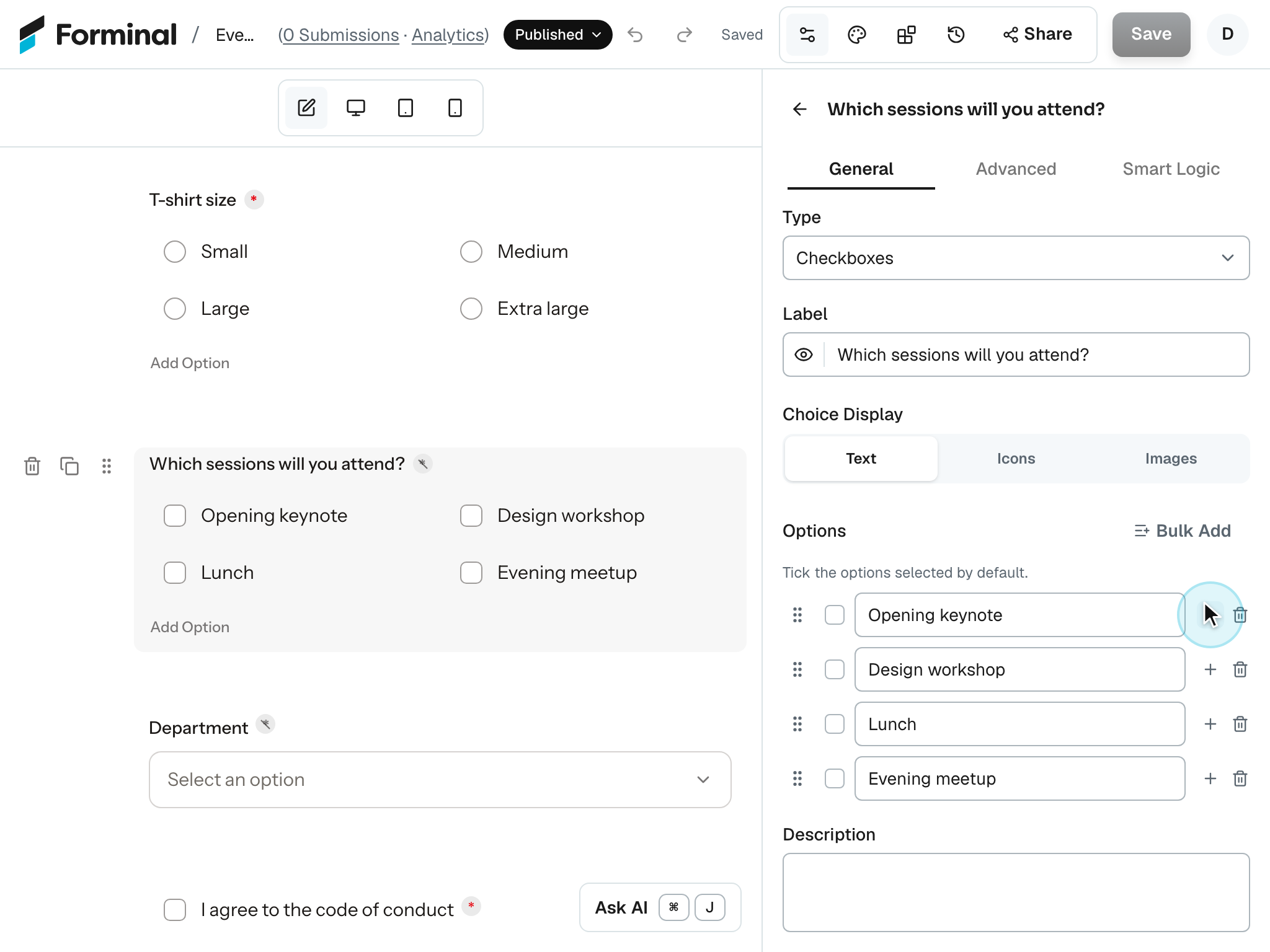
- The field starts with the label “Choose all that apply” and three options, Choice 1 to Choice 3. Change the label on the General tab of the settings panel.
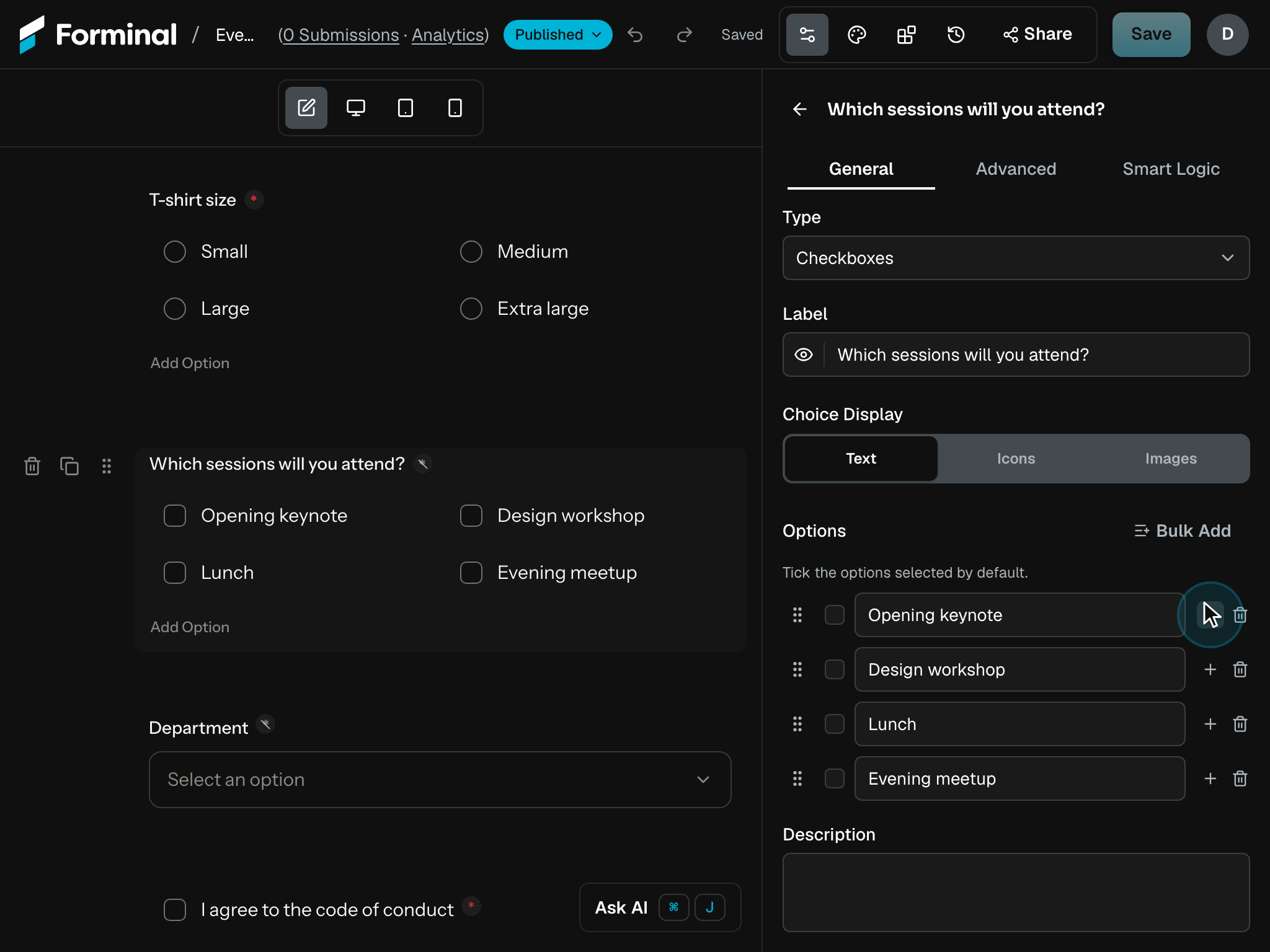
- Under Options, type over each option. Select the small + at the end of a row to add an option right after it, or delete one with the bin icon. At least one option always stays.
- Turn on Required if people must tick at least one box.
Impostazioni
Scheda Generale
Label, Options, Description, Description Position and Required. Option labels can be up to 200 characters. To tick options in advance, tick the box at the start of their rows in the Options list. While the field’s settings are open, you can also tick them on the canvas. You can pre-tick several. Under Choice Display, pick Icons or Images to show a picture with each option; see Icon and Image Choices.
To add many options at once, select Bulk Add above the list, type one option per line and select Add Choices. Lines that match an option already in the list are skipped, and a field that still has its starting Choice 1 to Choice 3 gets the new list in their place. Show Presets fills the box with a ready list, such as Countries, U.S. States, Months or a five-point agreement scale.
Scheda Avanzate
Layout comes first. It sets how the options sit on the form: 1 Column, 2 Columns, 3 Columns or Inline. Inline puts the options side by side in a row that wraps, each as wide as its text. Until you pick one, Layout has nothing selected and the options follow the form’s theme: two columns on most themes, a wrapping row on a few such as Pill, and one stacked list on Grouped, Joined, Sage, Swiss and Prompt. Once you pick a column layout, a narrow field on a phone or in a slim embed drops to fewer columns when an option would get narrower than about 160 pixels, so every option stays readable. Icon and image cards follow the same setting; see Icon and Image Choices.
Randomize Options shuffles the order every time someone opens the form. The canvas keeps your order.
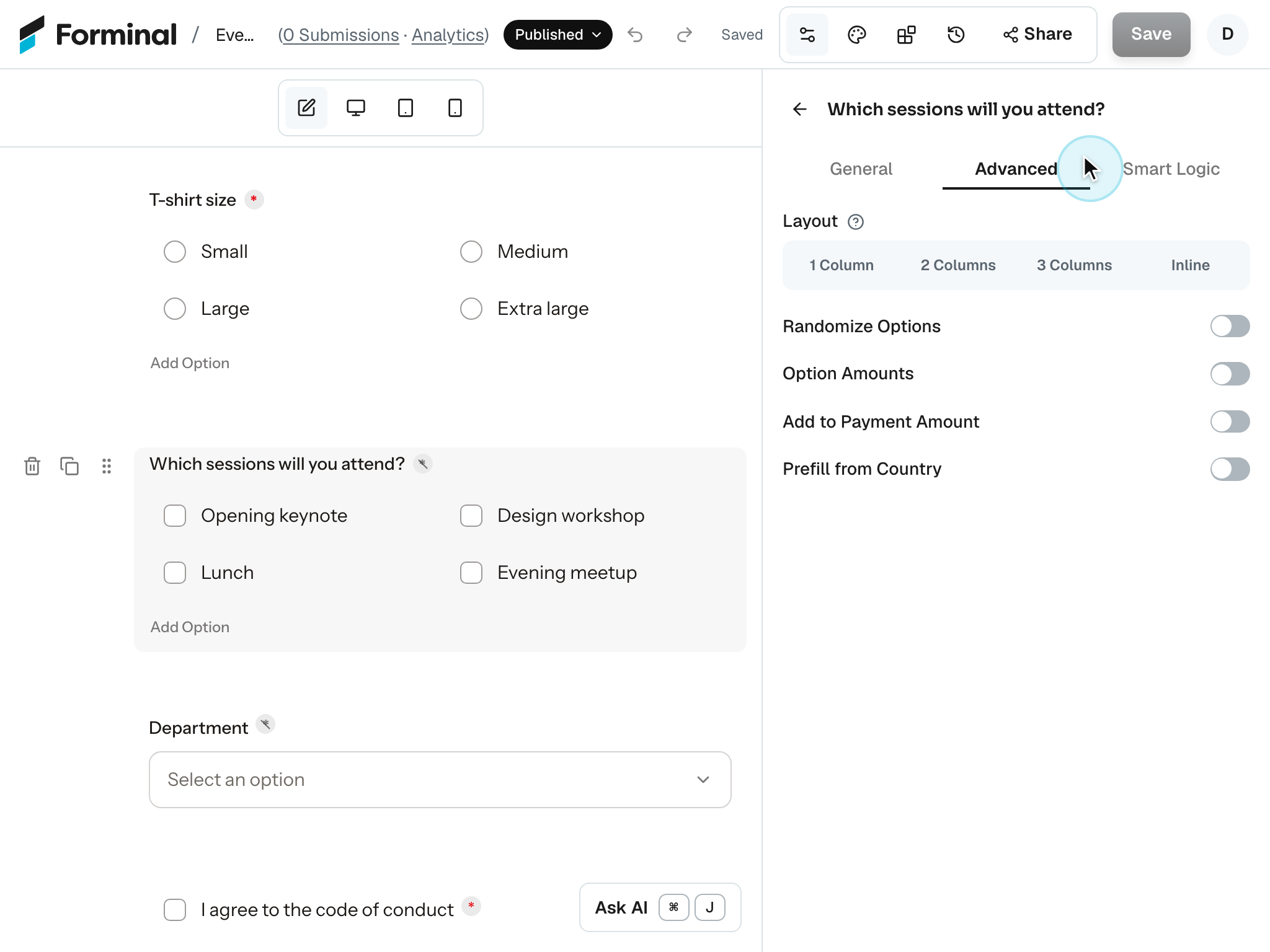
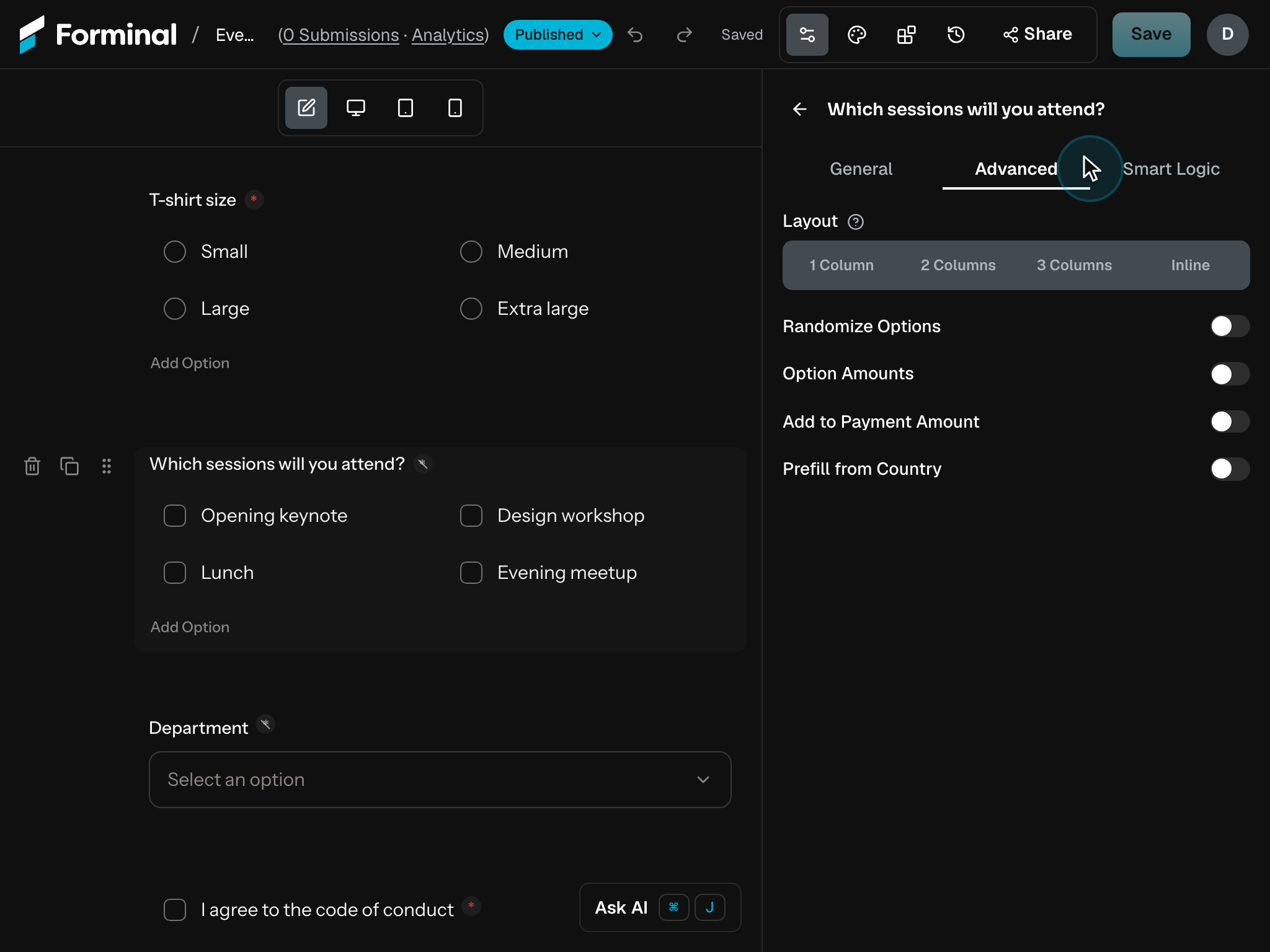
Option Amounts gives each option an amount: turn it on and a price box appears next to each option, in the Options list and on the canvas. A calculation can read those amounts. Switching it off clears them.
If the form has a Payment field, Add to Payment Amount adds the prices of all ticked options to the total. While the payment charges the field, the price boxes stay on and Option Amounts can’t be switched off. Show Price After Item Labels prints each price after its option, like “Lunch – $12.00”. Prices use the Payment field.
Cosa vedono le persone e come vengono visualizzate le risposte
Le persone vedono una casella accanto a ogni opzione. Se il campo è obbligatorio e nulla è selezionato, vedono "Scegli almeno un'opzione".
Nella tabella delle sottomissioni, nell'esportazione CSV e nelle email di notifica, le opzioni selezionate sono elencate in una cella, separate da virgole, ad esempio "Sessione mattutina, Pranzo". Nulla di selezionato significa una cella vuota, e l'email esclude quella domanda.
In Logica Intelligente, "è" corrisponde quando l'opzione scelta è tra quelle selezionate, e "non è" quando non lo è. Puoi anche controllare per vuoto e non vuoto.
Buono a sapersi
There is no limit on how many boxes someone can tick, and no minimum beyond one when the field is required. If you want a single tick box for consent, use the Yes/No field instead. You can switch to Multiple Choice, Dropdown or Ranking from the Type menu and keep your options. Renaming an option also changes how earlier answers read, but deleting one leaves earlier answers without a readable label. The canvas shows the first 20 options of a long list, with a note saying so; the published form shows them all.
On the Grouped, Joined, Sage, Swiss and Prompt themes, text options stay one stacked list whatever you pick under Layout; icon and image cards still follow it. Switching the field to Multiple Choice keeps the layout; Dropdown and Ranking have none.
Domande frequenti
Posso limitare quante caselle le persone possono selezionare?
No. Non c'è un massimo e nessun minimo oltre uno quando il campo è obbligatorio.
Come vengono visualizzate le opzioni selezionate nell'esportazione CSV?
Le opzioni selezionate sono elencate in una cella, separate da virgole, come "Sessione mattutina, Pranzo". Se non viene selezionato nulla, la cella è vuota e l'email di notifica omette la domanda.
Dovrei usare le caselle di spunta per una casella di termini e condizioni?
Per un singolo consenso con spunta, usa invece il campo Sì/No. Le caselle di spunta servono per domande in cui più risposte possono essere vere.
La logica intelligente può reagire a un'opzione selezionata?
Una regola con "è" corrisponde quando quell'opzione è tra quelle selezionate, e "non è" quando non lo è. Puoi anche verificare se il campo è vuoto.
Ogni extra selezionato può essere aggiunto al totale del pagamento?
Su un modulo con un campo Pagamento, attiva Aggiungi all'importo del pagamento e i prezzi di tutte le opzioni selezionate vengono aggiunti al totale.
Posso visualizzare le opzioni in due o tre colonne?
Sì: imposta Layout nella scheda Avanzate su 1 Colonna, 2 Colonne, 3 Colonne o In linea. Su un telefono, le opzioni di testo di solito scendono a una colonna, mentre le schede icona o immagine Piccole e Medie mantengono fino a due per riga. I temi Raggruppato, Unito, Sage, Swiss e Prompt mantengono le opzioni di testo in un elenco impilato qualunque cosa tu scelga.