Opción múltiple muestra todas las opciones a la vez como una lista de botones redondos, y las personas eligen exactamente una. Úsala cuando la lista sea lo suficientemente corta como para leerla de un vistazo. Para una lista larga, un Desplegable ocupa menos espacio.
Ejemplos
- Una pregunta de encuesta sobre cómo te conocieron, con las opciones barajadas para que la primera no se elija más a menudo solo por ser la primera.
- Un formulario de evento que pide una talla de camiseta, con la M seleccionada de antemano.
- Un formulario de pedido donde cada paquete tiene su propio precio y el elegido se añade al pago.
Añadirlo a un formulario
- In the builder, point between two fields and select Add Field. On an empty form, select Start from Scratch.
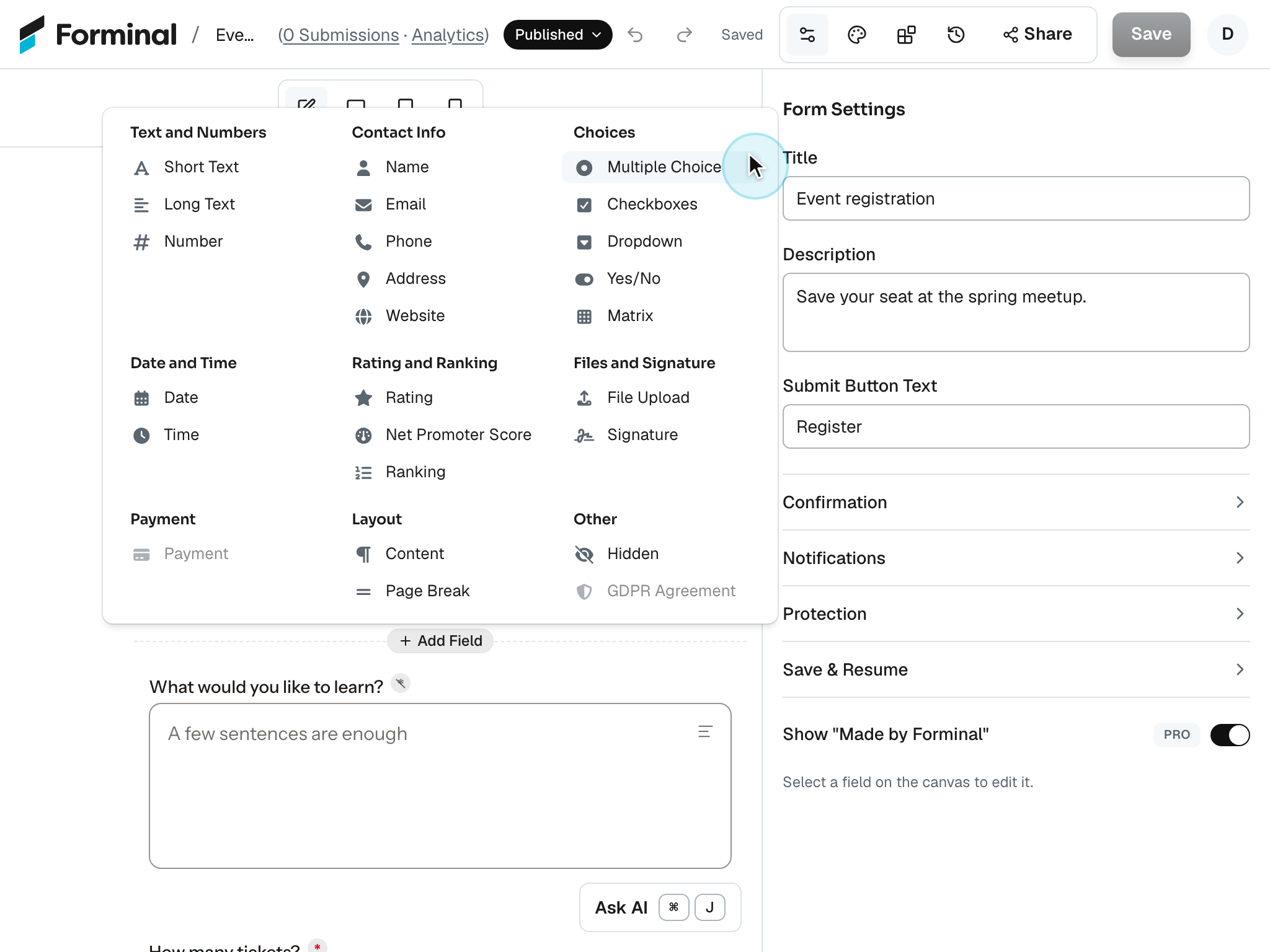
- Under Choices, select Multiple Choice.
- The field starts with the label “Choose one” and three options, Choice 1 to Choice 3. Change the label in the settings panel on the General tab.
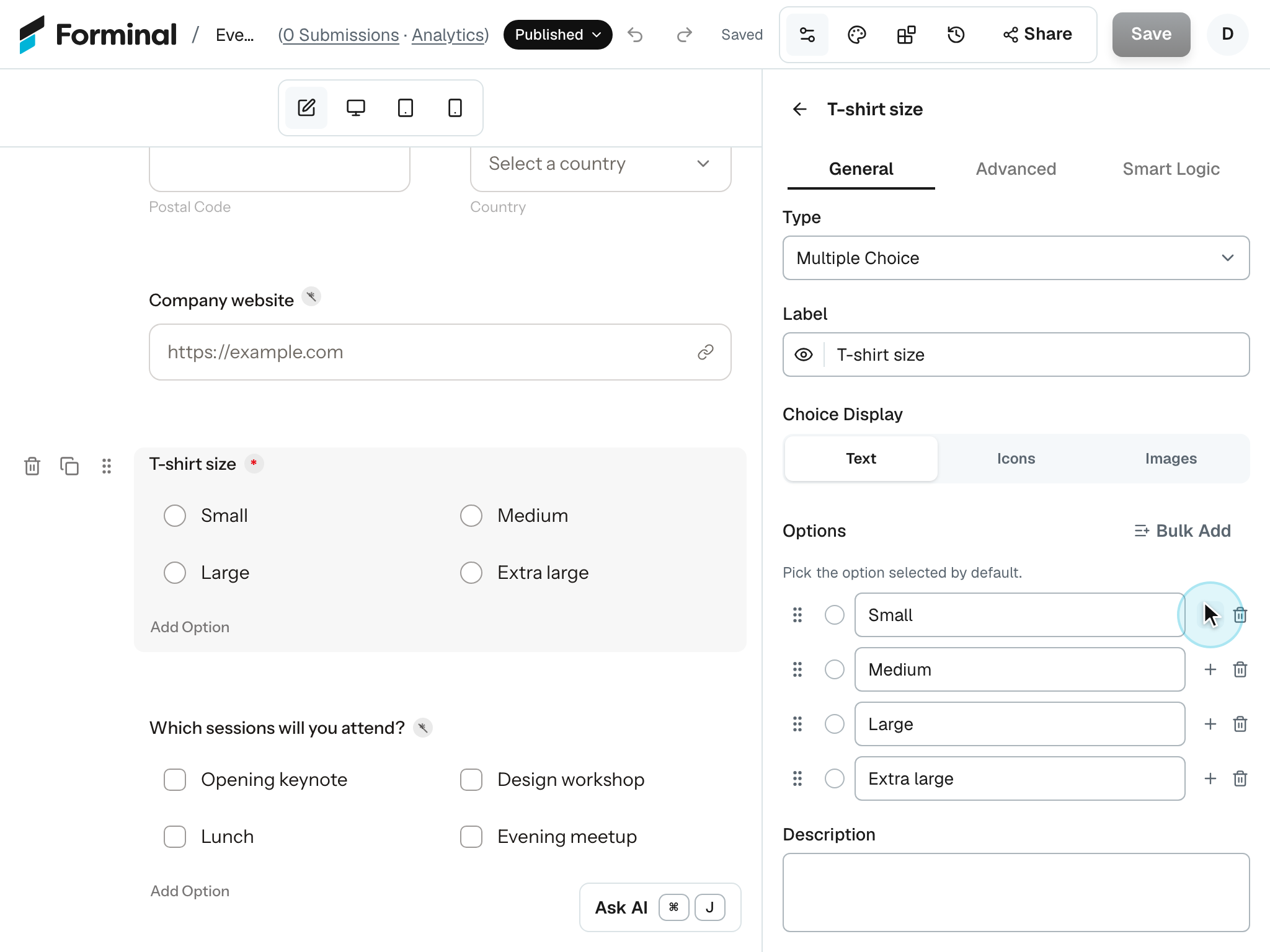
- Under Options, type over each option. Select the small + at the end of a row to add an option right after it, or the bin icon to delete one. A field always keeps at least one option.
- Turn on Required if people must answer before they can submit.
Ajustes
Pestaña General
Here you edit the Label, the Options, an optional Description with its Description Position (under the label, or under the options), and Required. Each option label can be up to 200 characters. To pick an option in advance, select the round marker at the start of its row in the Options list. Select the marker again to clear the default. While the field’s settings are open, you can also click that option on the canvas. Under Choice Display, pick Icons or Images to show a picture with each option; see Icon and Image Choices.
To add many options at once, select Bulk Add above the list, type one option per line and select Add Choices. Lines that match an option already in the list are skipped, and a field that still has its starting Choice 1 to Choice 3 gets the new list in their place. Show Presets fills the box with a ready list, such as Countries, U.S. States, Months or a five-point agreement scale.
Pestaña Avanzado
Layout comes first. It sets how the options sit on the form: 1 Column, 2 Columns, 3 Columns or Inline. Inline puts the options side by side in a row that wraps, each as wide as its text. Until you pick one, Layout has nothing selected and the options follow the form’s theme: two columns on most themes, a wrapping row on a few such as Pill, and one stacked list on Grouped, Joined, Sage, Swiss and Prompt. Once you pick a column layout, a narrow field on a phone or in a slim embed drops to fewer columns when an option would get narrower than about 160 pixels, so every option stays readable. Icon and image cards follow the same setting; see Icon and Image Choices.
Randomize Options shuffles the order every time someone opens the form. The canvas keeps the order you wrote, so you can still find each one while you edit.
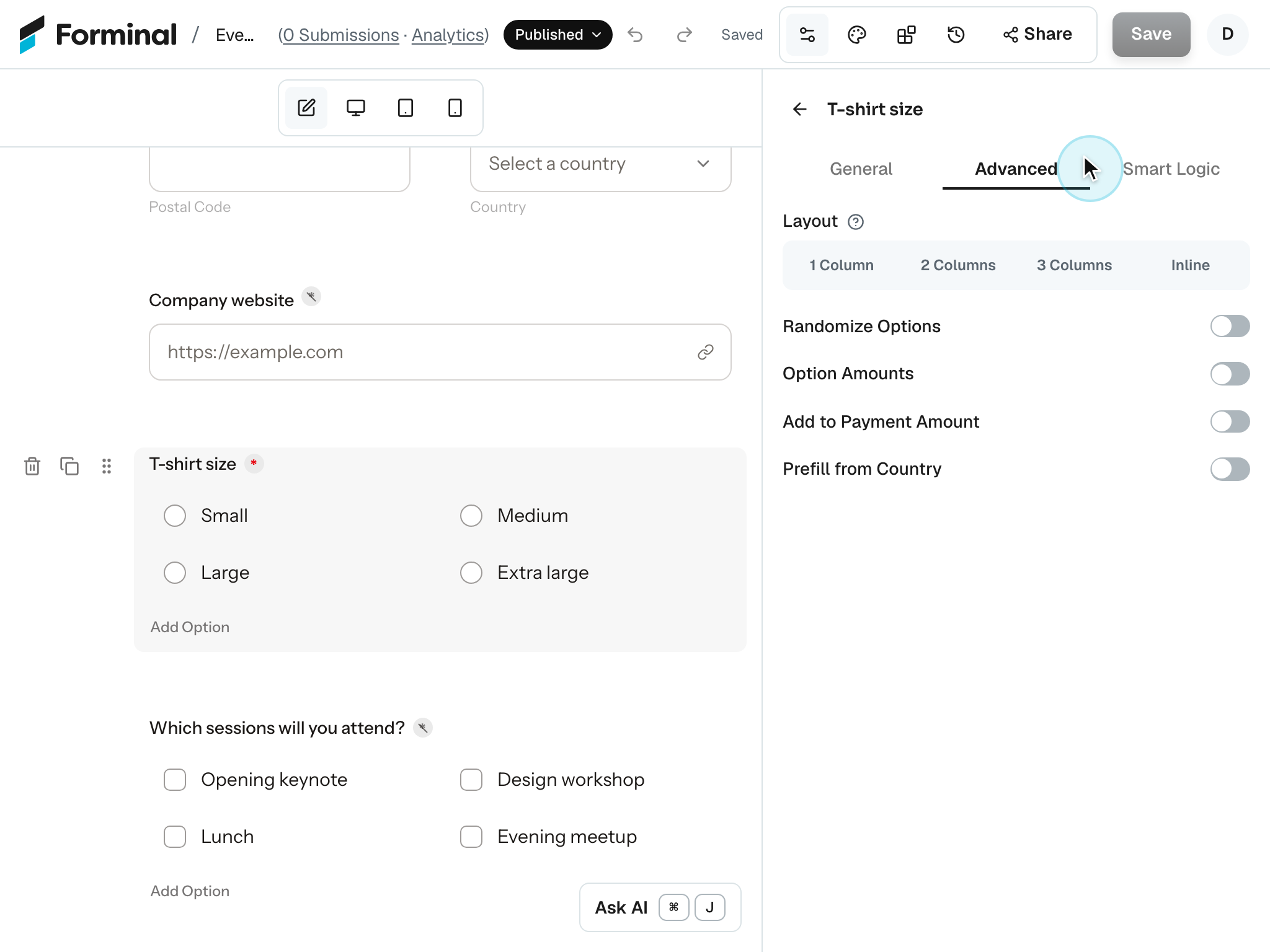
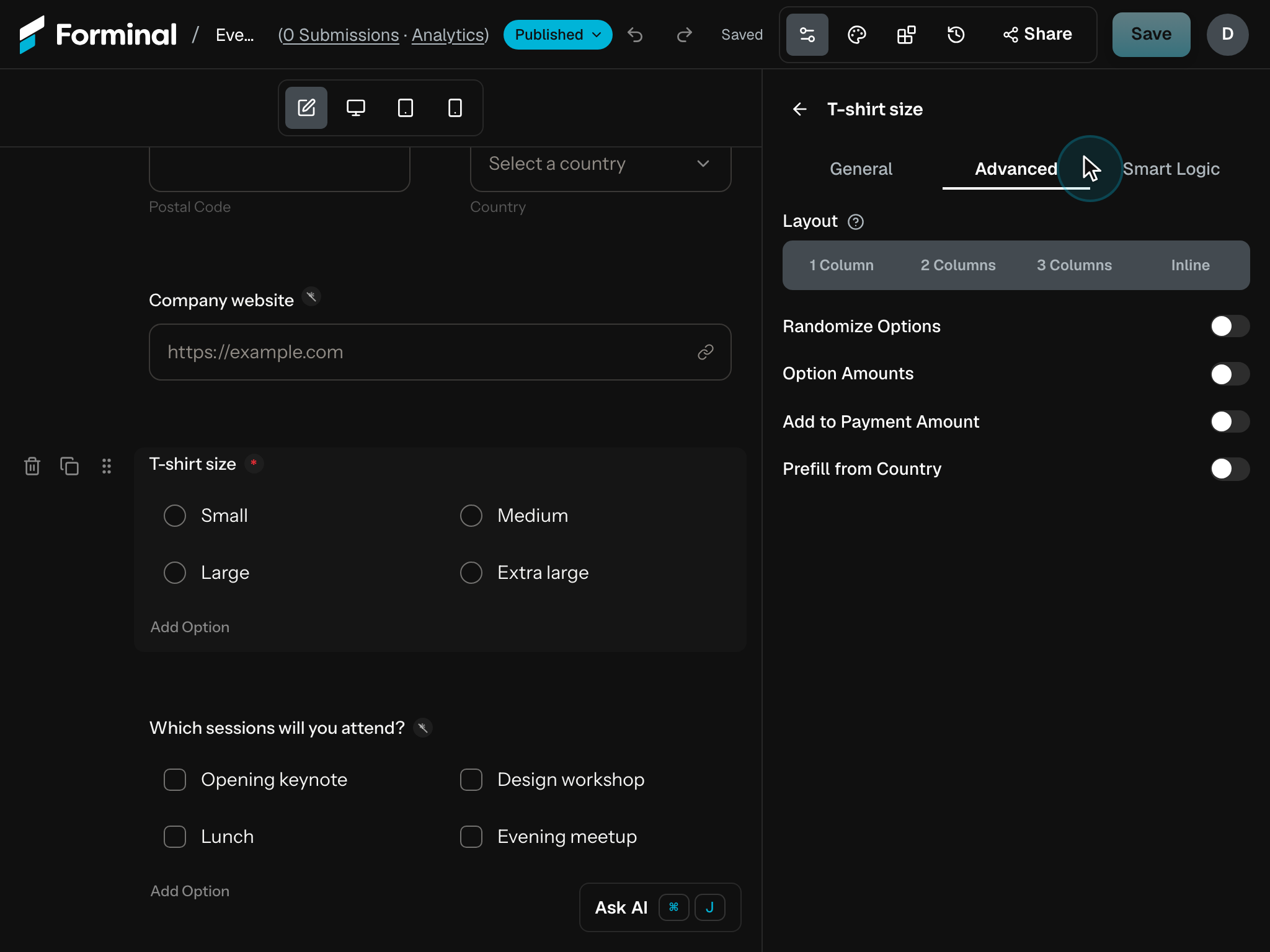
Option Amounts gives each option an amount: turn it on and a price box appears next to each option, in the Options list and on the canvas. A calculation can read those amounts. Switching it off clears them.
When the form has a Payment field, you also get Add to Payment Amount. Turn it on and the price of the option someone picks is added to the total. While the payment charges the field, the price boxes stay on and Option Amounts can’t be switched off. Show Price After Item Labels then prints the price after each option, for example “Premium – $49.00”. Prices use the Payment field.
Lo que la gente ve y cómo se muestran las respuestas
Las personas ven la etiqueta y un botón redondo para cada opción. Elegir una borra la selección anterior. Si omiten un campo requerido, ven “Elige una de las opciones” cuando intentan continuar.
En la tabla de envíos, la exportación CSV y los correos electrónicos de notificación, la respuesta aparece como la etiqueta de la opción. Renombrar una opción más tarde también cambia cómo se leen las respuestas anteriores, porque cada respuesta apunta a la opción en lugar de al texto que tenía. Una respuesta vacía se deja fuera del correo electrónico.
Con Smart Logic puedes mostrar u ocultar otros campos cuando esta respuesta es, o no es, una opción determinada, o cuando está vacía o no está vacía. También puedes insertar la etiqueta de la opción elegida en una pregunta posterior o en el mensaje de agradecimiento.
Bueno saber
You can switch the field to Checkboxes, Dropdown or Ranking from the Type menu and keep your options. If you delete an option, earlier answers that picked it no longer show a readable label, so rename instead of deleting when you can. The shuffle runs on the form’s link, in embeds and in the builder preview. The canvas shows the first 20 options of a long list, with a note saying so; the published form shows them all.
On the Grouped, Joined, Sage, Swiss and Prompt themes, text options stay one stacked list whatever you pick under Layout; icon and image cards still follow it. Switching the field to Checkboxes keeps the layout; Dropdown and Ranking have none.
Preguntas frecuentes
¿Cuándo debo usar opción múltiple en lugar de un menú desplegable?
Opción múltiple muestra todas las opciones a la vez, lo que es adecuado para una lista corta. Para una lista larga, un Menú desplegable ocupa menos espacio. Si las personas pueden elegir más de una respuesta, usa Casillas de verificación.
¿Puedo aleatorizar el orden de las opciones para cada persona?
Activa Aleatorizar opciones en la pestaña Avanzado. El orden cambia cada vez que alguien abre el formulario, en su enlace, en los incrustados y en la vista previa del creador, mientras que el lienzo mantiene el orden que escribiste.
¿Qué sucede con las respuestas anteriores si renombro o elimino una opción?
Renombrar una opción también cambia cómo se leen las respuestas anteriores. Eliminar una deja a las respuestas anteriores que la eligieron sin una etiqueta legible, así que renómbrala en su lugar cuando puedas.
¿Puede cada opción tener su propio precio?
Activa Importes de opción para dar a cada opción un importe. En un formulario con un campo de Pago, Añadir al importe de pago suma el precio de la opción elegida al total. Ver Pago.
¿Puedo cambiar una pregunta de opción múltiple por casillas de verificación más tarde?
Elige Casillas de verificación, Menú desplegable o Clasificación en el menú Tipo, y tus opciones se conservarán.
¿Puedo mostrar las opciones en dos o tres columnas?
Sí: establece la Distribución en la pestaña Avanzado en 1 Columna, 2 Columnas, 3 Columnas o En línea. En un teléfono, las opciones de texto normalmente se reducen a una columna, mientras que las tarjetas de iconos o imágenes Pequeñas y Medianas mantienen hasta dos por fila. Los temas Grouped, Joined, Sage, Swiss y Prompt mantienen las opciones de texto en una lista apilada independientemente de lo que elijas.