UTM tracking tells you which campaign, ad or link brought in each submission. Put UTM parameters on the link to your form, and every submission keeps them, with no field to add. You can then filter your submissions by campaign, and with Form Analytics see how many of that campaign’s visitors sent the form.
Examples
- Filter submissions to
utm_campaign=spring_saleto see who answered that ad. - Compare the conversion rate of your Facebook traffic with your Google traffic.
- Check whether the newsletter link brought more sign-ups this month than last month.
- Count submissions from Facebook and Google ads whose links carry no UTM tags at all.
Tag your links
There’s nothing to turn on. Add any of the five UTM parameters to the end of the form’s link: utm_source, utm_medium, utm_campaign, utm_term and utm_content. A link ending in ?utm_source=newsletter&utm_medium=email&utm_campaign=spring_sale saves those three values with each submission sent from it. It works on the form’s own link and on a custom domain.
When the form is embedded, put the parameters on the page that holds the embed, such as https://example.com/signup?utm_campaign=spring_sale. The embed code passes them on to the form.
Ads without UTM tags
Facebook and Google add their own click id to the links in their ads. When the link has no utm_source, the form reads that id instead:
- A Google Ads click (
gclid) saves sourcegoogle, and mediumcpcunless the link names another medium. - A Facebook click (
fbclid) saves sourcefacebookand no medium, because Facebook adds the id to clicks on ordinary posts too, not only to ads.
When a link carries both, Google wins. The click id itself is never stored.
See it in your submissions
Once some submissions carry UTM values, the Submissions page shows a UTM button in its toolbar. Select it to see each parameter that has values, such as Source or Campaign, with the values it has and how many submissions hold each one. Tick the values you want to keep. Values of one parameter add up, so ticking two campaigns shows both. You can pick up to 20 values per parameter. Ticks across parameters narrow the list, so a source and a campaign show only submissions with both. No value keeps the submissions that came without that parameter.
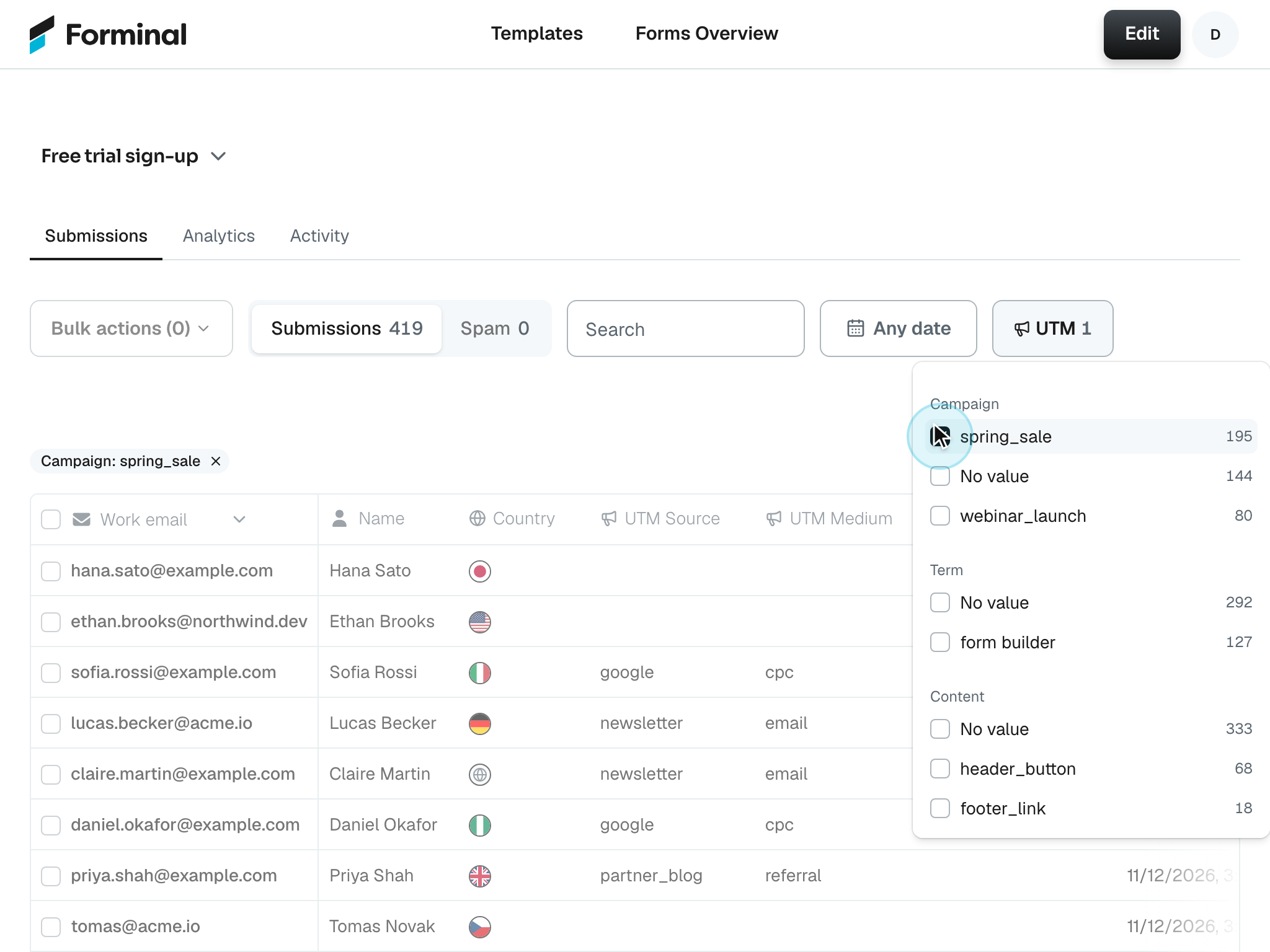
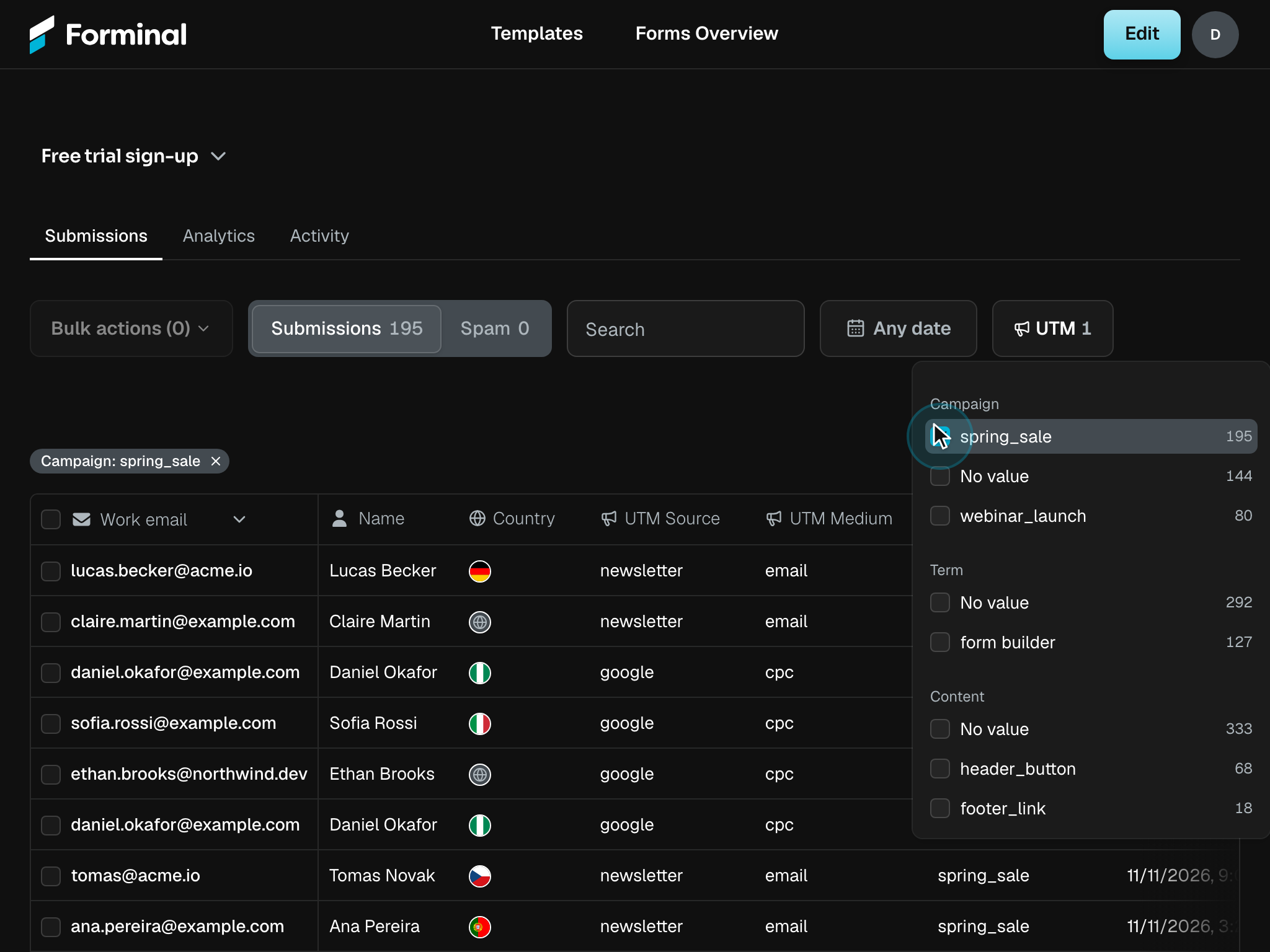
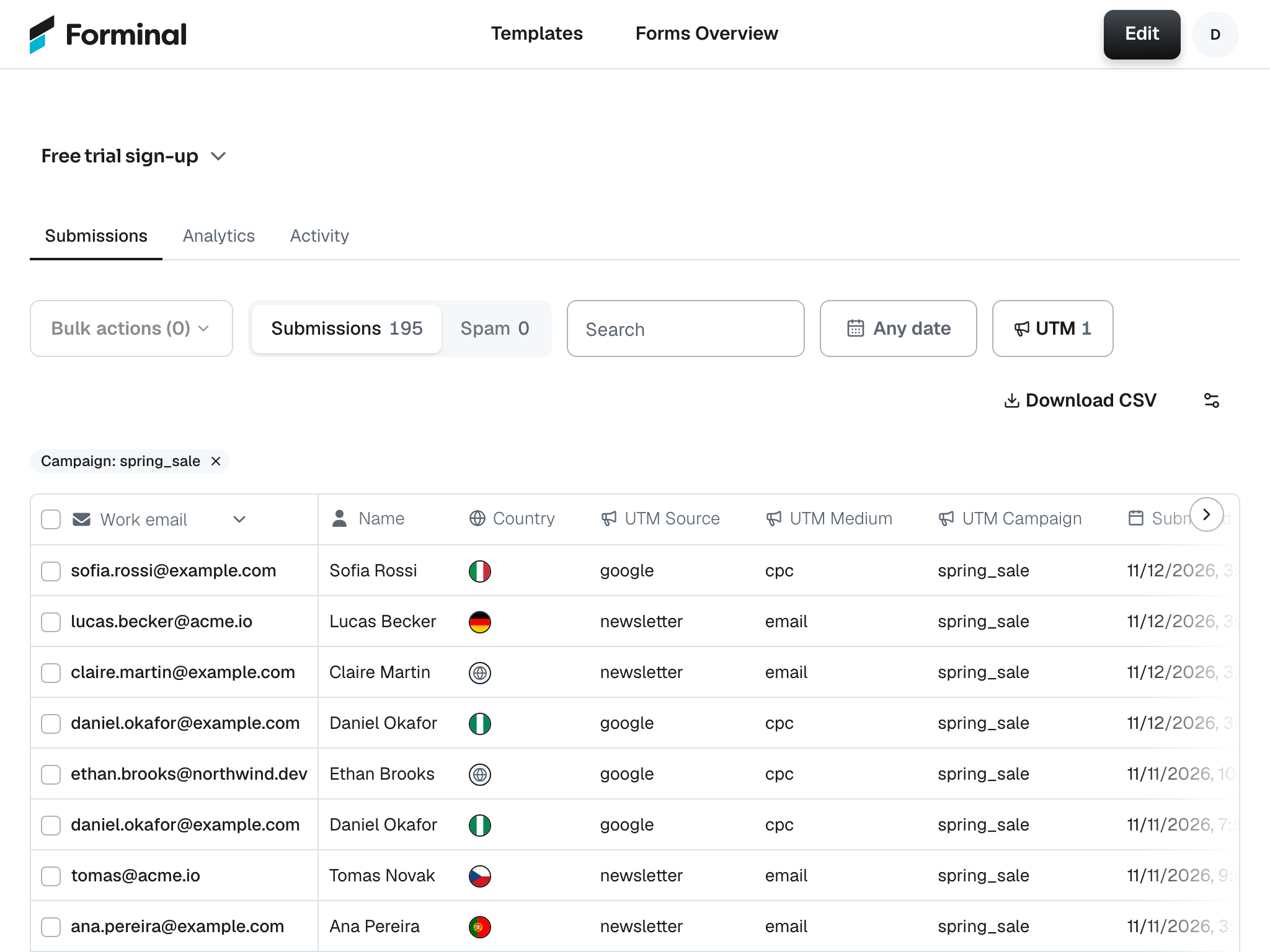
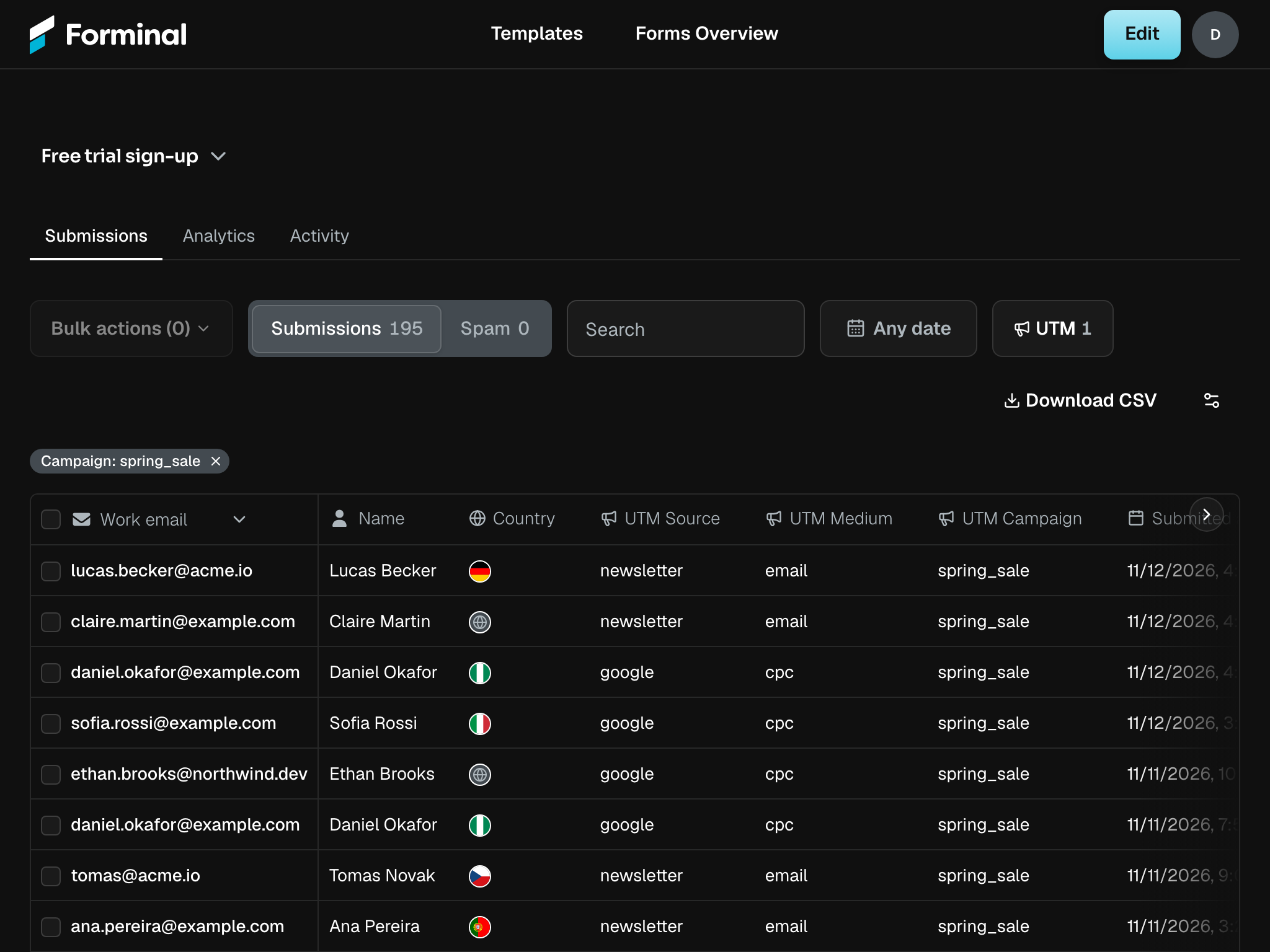
Each filter you pick shows as a chip, such as “Campaign: spring_sale”. Select the remove button on the chip to take it off. The counts, the CSV download and deleting every matching submission all follow the filter. The search box matches UTM values too.
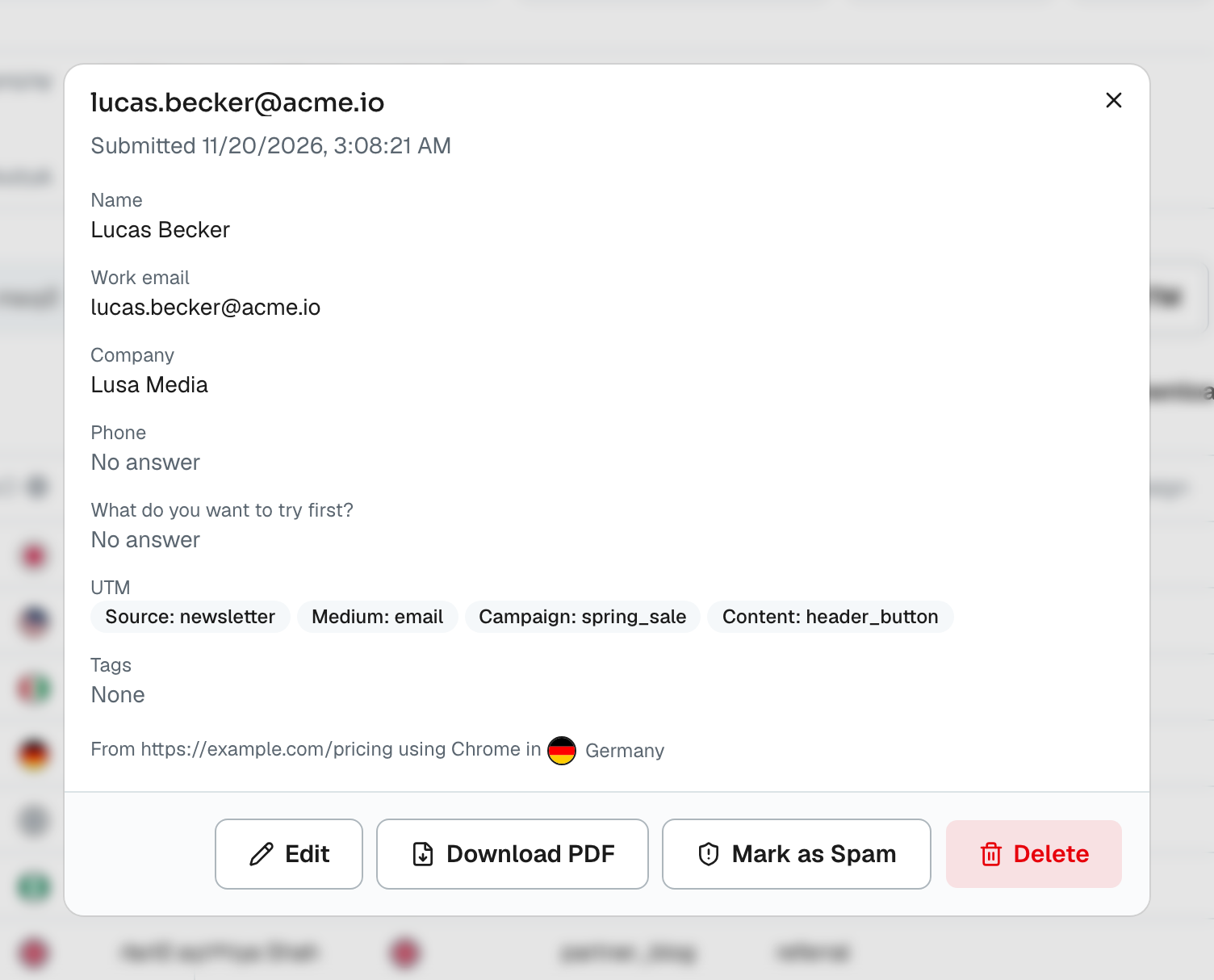
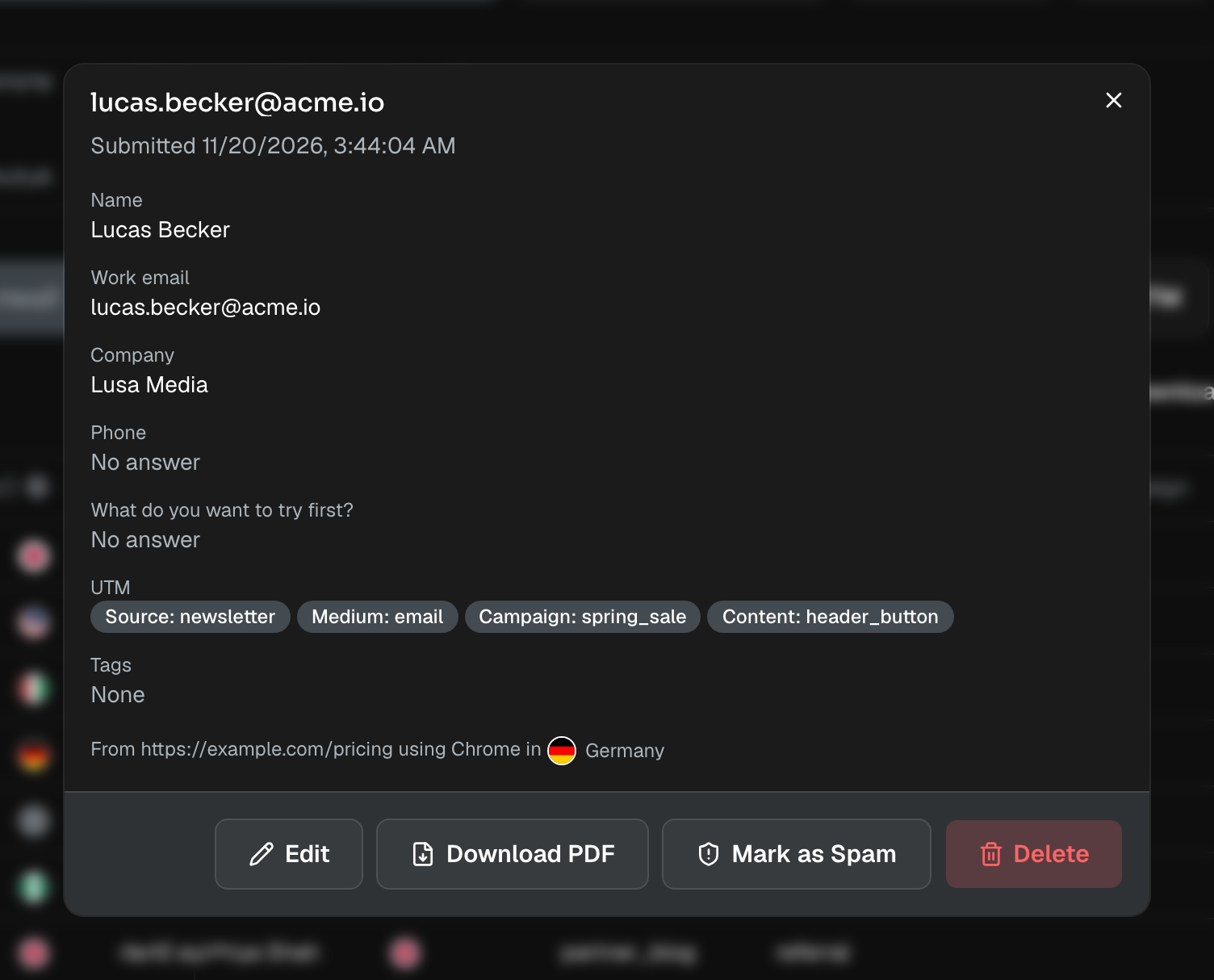
To see the values in the table, select Column settings at the right of the toolbar and turn on UTM Source, UTM Medium, UTM Campaign, UTM Term or UTM Content. They’re hidden until you do. Select a column’s heading to sort by it. View submission lists the parameters a submission carried under UTM, such as “Source: newsletter”.
Exports and integrations
- CSV downloads have the five UTM columns after Country.
- New Google Sheets connections get the same columns. A sheet connected earlier keeps its columns until you connect it again.
- Webhooks, Zapier and Make get them under
submission.utm, with only the parameters the visit carried. - The REST API returns them with each submission and can filter by them.
Compare campaigns in Analytics
The UTM filter on the Analytics page is part of Form Analytics, so it’s available on the same plans as Form Analytics.
- Open the form’s Analytics tab and pick a period.
- Open the chart menu at the top of the Charts card and pick Traffic, the last option. The traffic settings sit inside the card, above the chart.
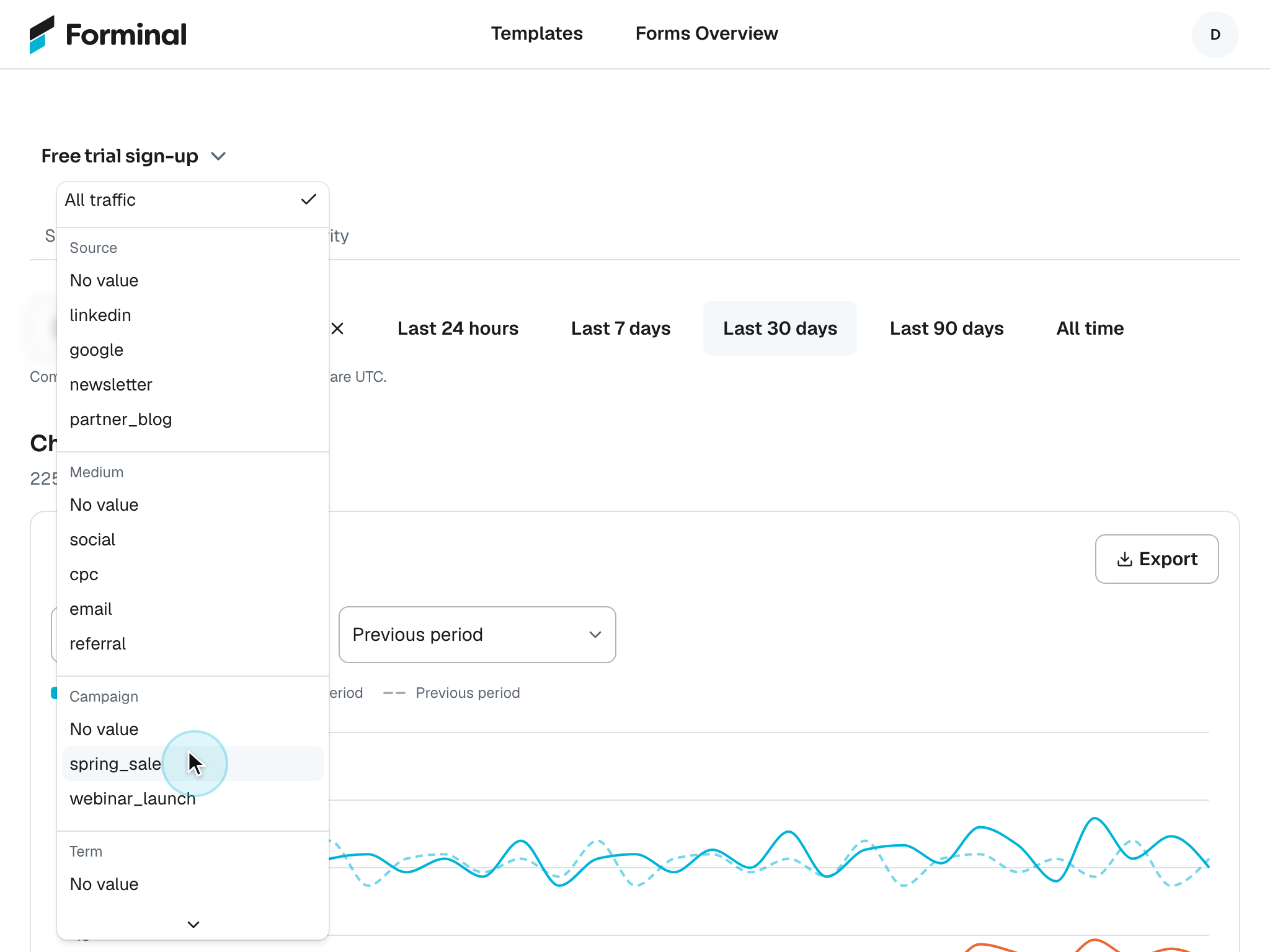
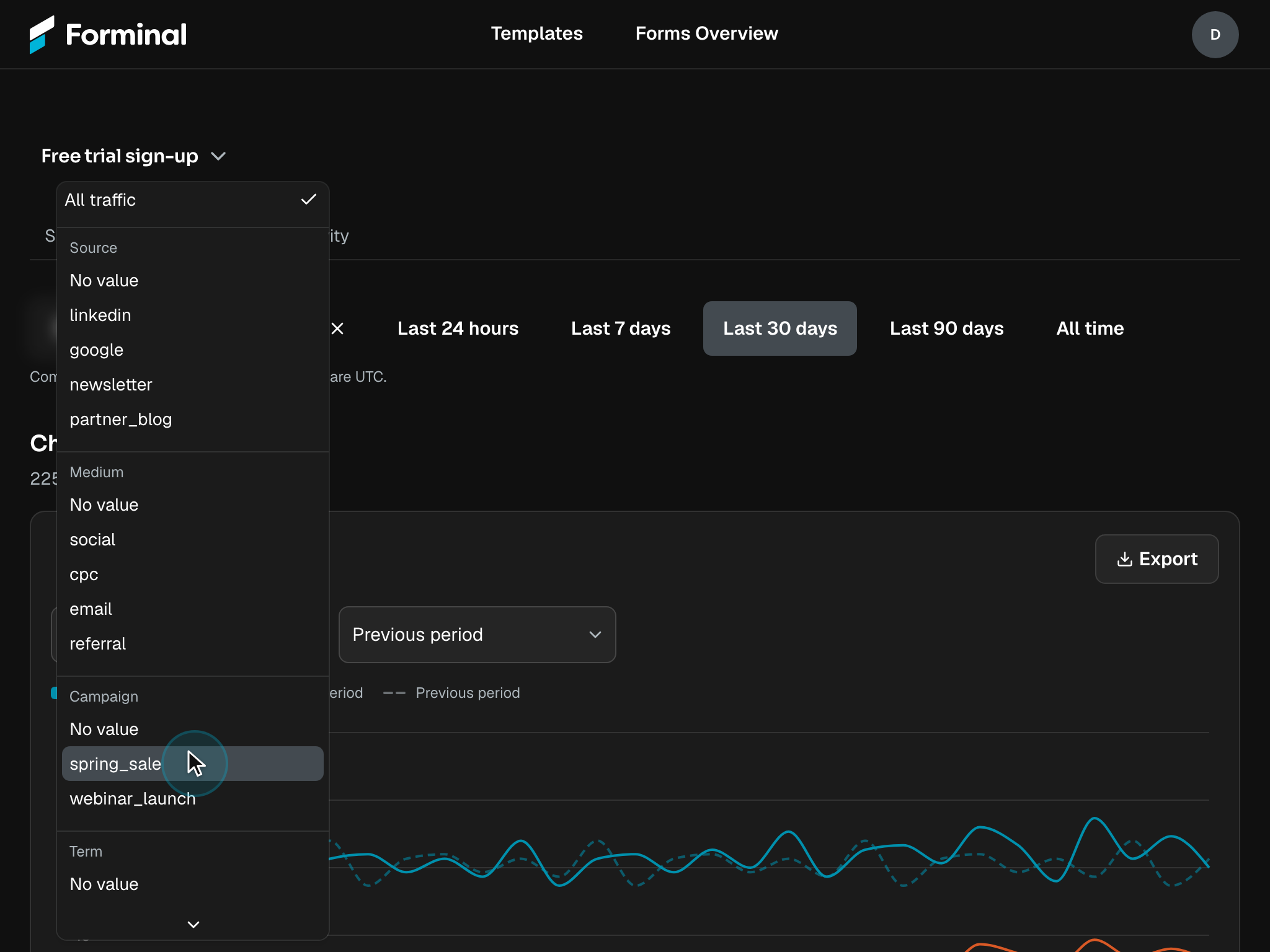
- Open All traffic and pick a value under Source, Medium, Campaign, Term or Content.
- Under Compare with, pick Previous period or Custom period, or another value of the same parameter, such as another campaign under Another campaign. For a custom period, choose its dates in the date picker beside it.
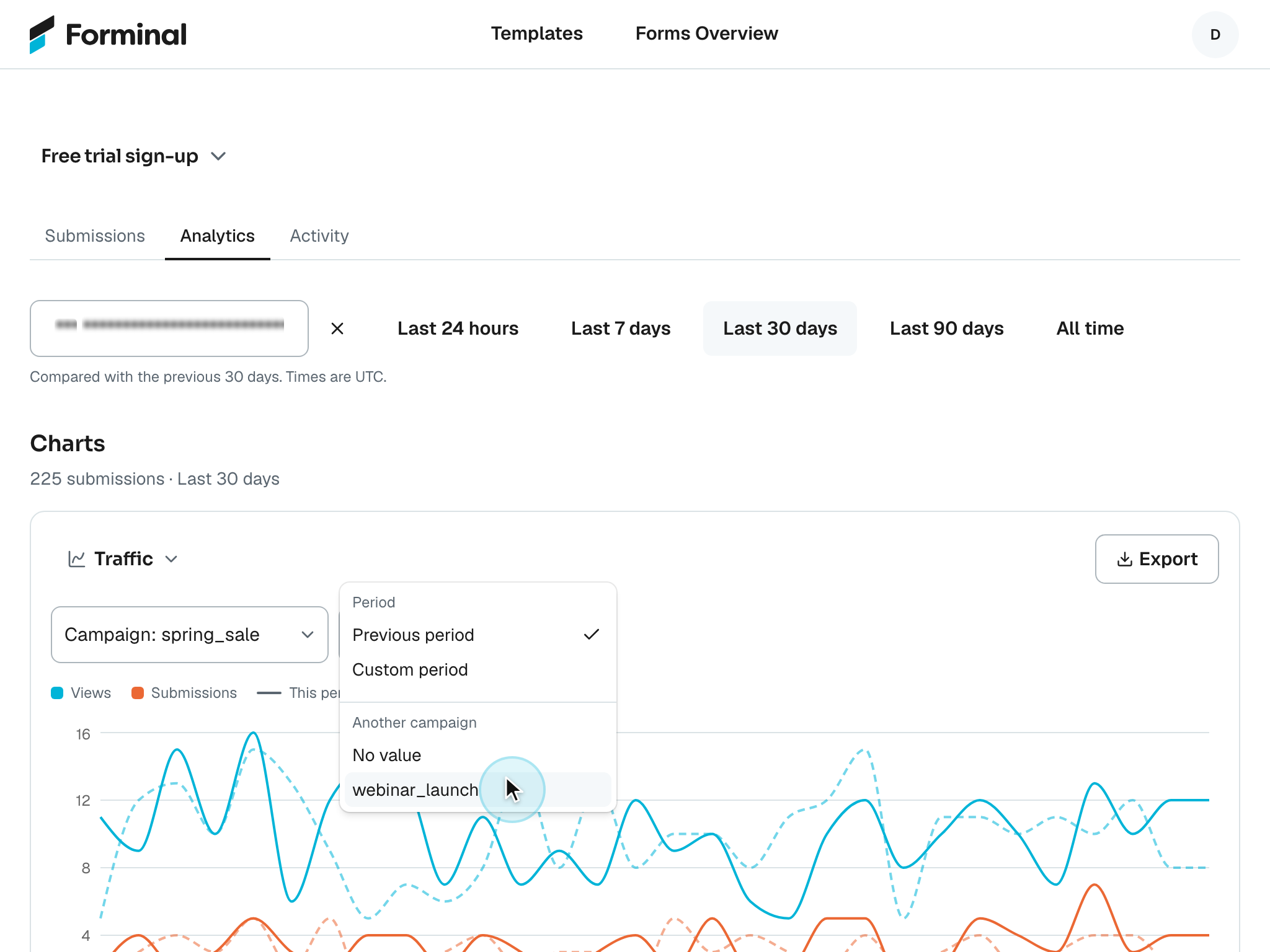
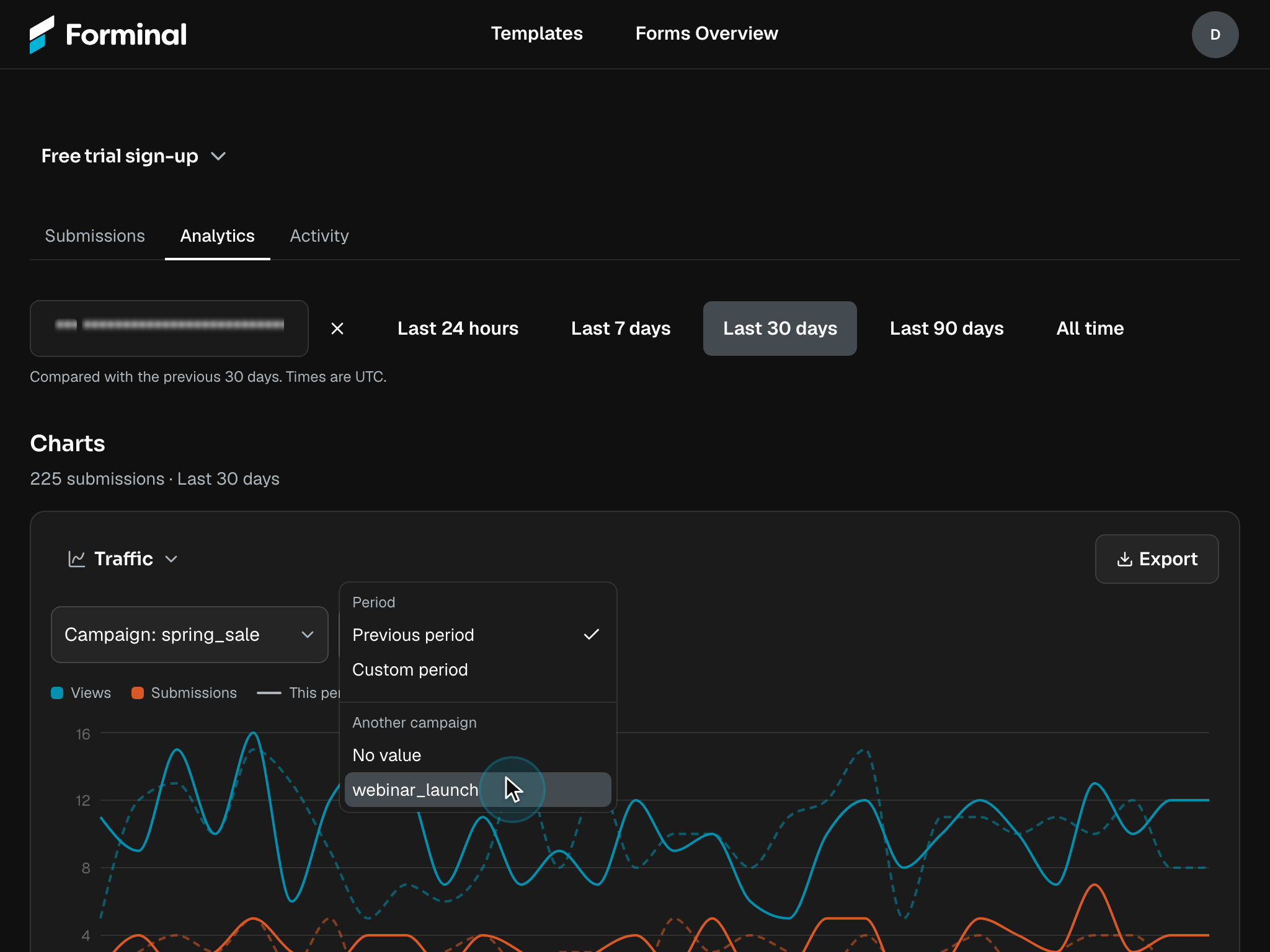
Views, Submissions and Conversion Rate then count only that traffic, and each shows how it changed from what you compare it with. Interactions, Abandonments and Errors keep counting every visit and are marked All traffic. The field table and the answer charts count every visit too. Pick All traffic to go back.
The Traffic chart
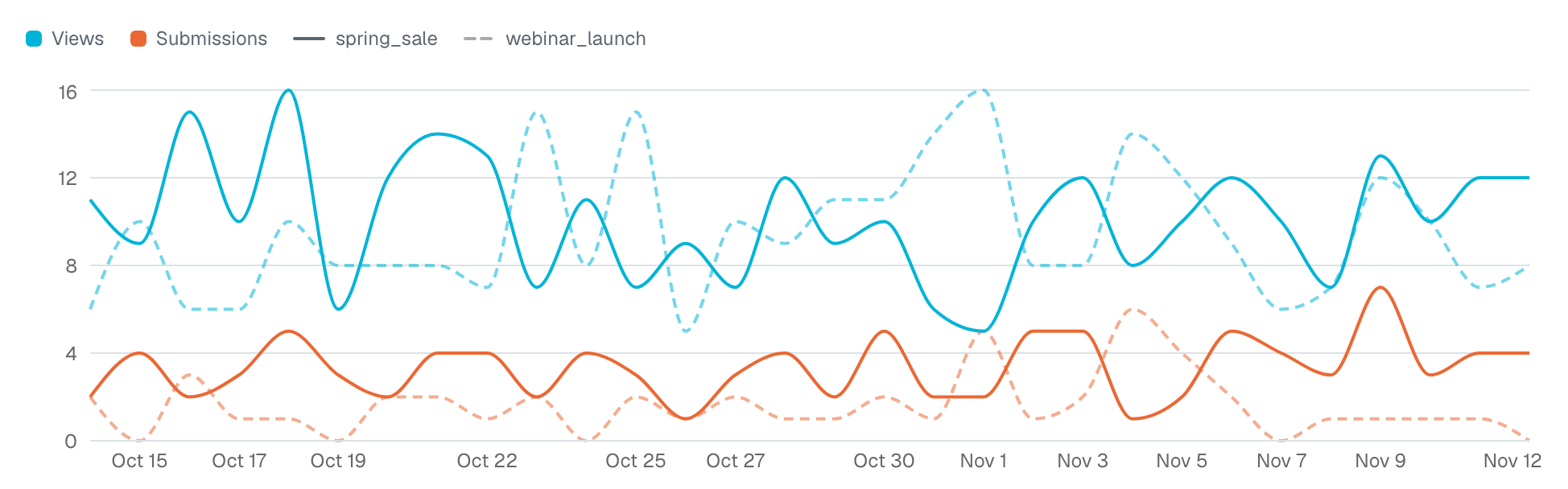
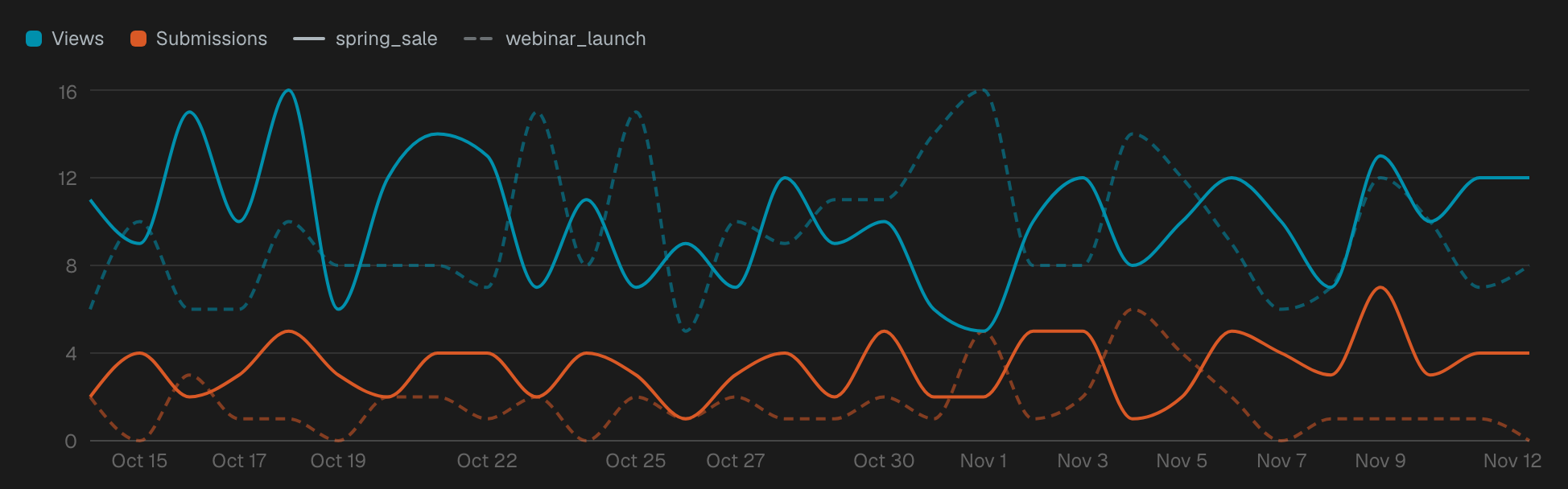
The Traffic chart draws views and submissions over the period, one point a day, or one an hour for Last 24 hours. Pick Traffic in the chart menu to see it; while a filter or a comparison is on, the card opens on it. With a comparison, the compared traffic draws as fainter dashed lines, lined up from the first day of each period, and the key names both, such as “spring_sale” and “webinar_launch”.
Privacy
Nothing is saved in the visitor’s browser for UTM tracking: no cookie and no storage. The values are campaign labels from the link. A submission’s values are deleted with the submission. Analytics keeps each value with its view counts, and nothing that identifies the visitor, until you delete the form. Copies already sent to Google Sheets or an integration stay there. Only the visit that sends the form counts, so someone who first came from an ad and later came back through a plain link has no UTM values. Disable User Details on the GDPR Agreement doesn’t remove them, because they describe the link, not the person.
Good to know
Values are saved in lower case, so Facebook and facebook count together, and each is cut to 200 characters. When a parameter appears twice in a link, the first one counts. The builder’s preview records nothing.
Submissions sent before UTM tracking launched have no values, and Analytics counts UTM views only from that day. When you filter by a UTM value and the period, or the one you compare with, starts earlier, the Traffic chart says “UTM data starts on” and the date. Analytics counts each parameter on its own, up to 200 values per parameter a day. On a busy form, views past that count under Other for that parameter. Other has views only, so its Submissions and Conversion Rate read “Not counted for Other”.
A hidden field named utm_campaign keeps working as an ordinary answer, separate from the UTM values. Partial submissions record UTM values too.
UTM tracking and the Submissions filter are available on every plan.
Frequently asked questions
Do I need to add a field to track UTM parameters?
No. Every submission records the UTM parameters of the link it came from, on the form’s link and in embeds.
Can I see which Facebook or Google ad submissions came from if my links have no UTM tags?
You’ll see the source. A Google Ads click saves source google with medium cpc, and a Facebook click saves source facebook. Tag the links with utm_campaign to tell one campaign from another.
Can I compare two campaigns?
On the Analytics page, pick Traffic in the chart menu, then one campaign under All traffic and another under Compare with. You can also compare a campaign with the previous period or with dates you choose.
Does UTM tracking set cookies?
No. Nothing is saved in the visitor’s browser, because the values are read from the link. A submission’s values are deleted with it, and Analytics keeps only view counts per value, with nothing that identifies the visitor, until you delete the form.
Why do older submissions have no UTM values?
Values are recorded from the day UTM tracking launched. Earlier submissions and views have none.
Is UTM tracking on the free plan?
Yes. Recording the values and filtering submissions by them work on every plan. Filtering the Analytics page by campaign is part of Form Analytics, on Pro and Business.