A webhook sends each new submission to a URL you choose, as a signed HTTPS request. You add it to a form once, and from then on your server, an internal tool or any service that accepts HTTPS requests gets every submission a moment after it arrives. By the end of this guide your endpoint will get each new submission and can check that it came from Forminal. Webhooks work on every plan.
Add the webhook
- Open the form in the builder and select Integrations in the top bar.
- Select Connect next to Webhooks. Once the form has a webhook, the button reads Manage Connections and opens the same page.
- Under Add a Webhook, paste your URL. It has to start with https:// and point at a public address.
- Give it a Name if you like. If you leave it empty, the webhook takes the URL’s host as its name.
- Under Method, choose GET, POST, PUT, PATCH or DELETE. POST is selected to start with.
- Under Format, choose JSON or Form. GET has no format, because it sends the body as a query string.
- If your endpoint needs a key or a token, select Add Header and type the header’s name and value, such as Authorization and Bearer followed by your token.
- Under Request Body, leave the list empty to send the whole submission. If your endpoint expects its own keys, select Add Field for each one, type the key, then the value. Type @ in the value to insert an answer. GET needs at least one body field.
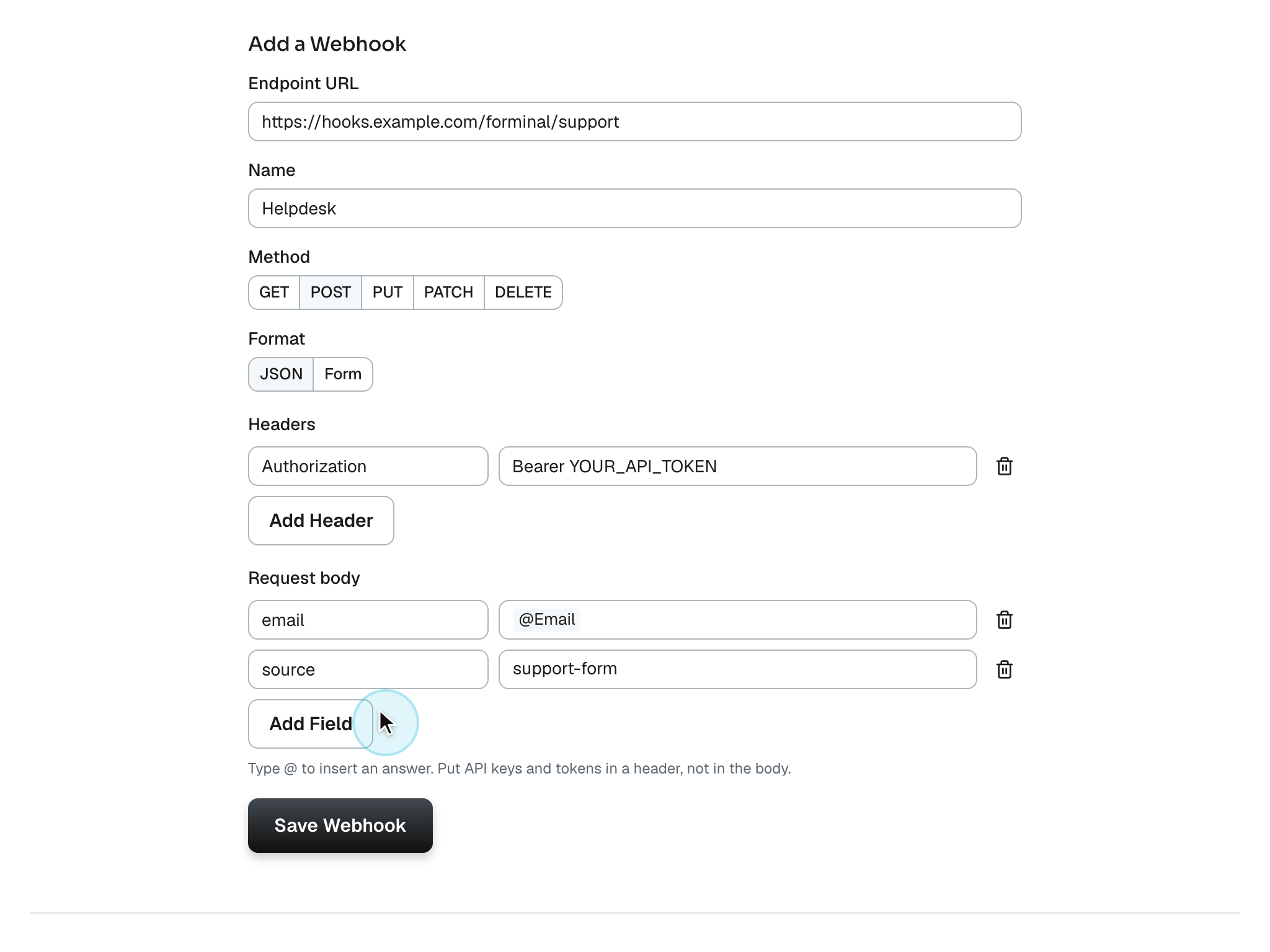
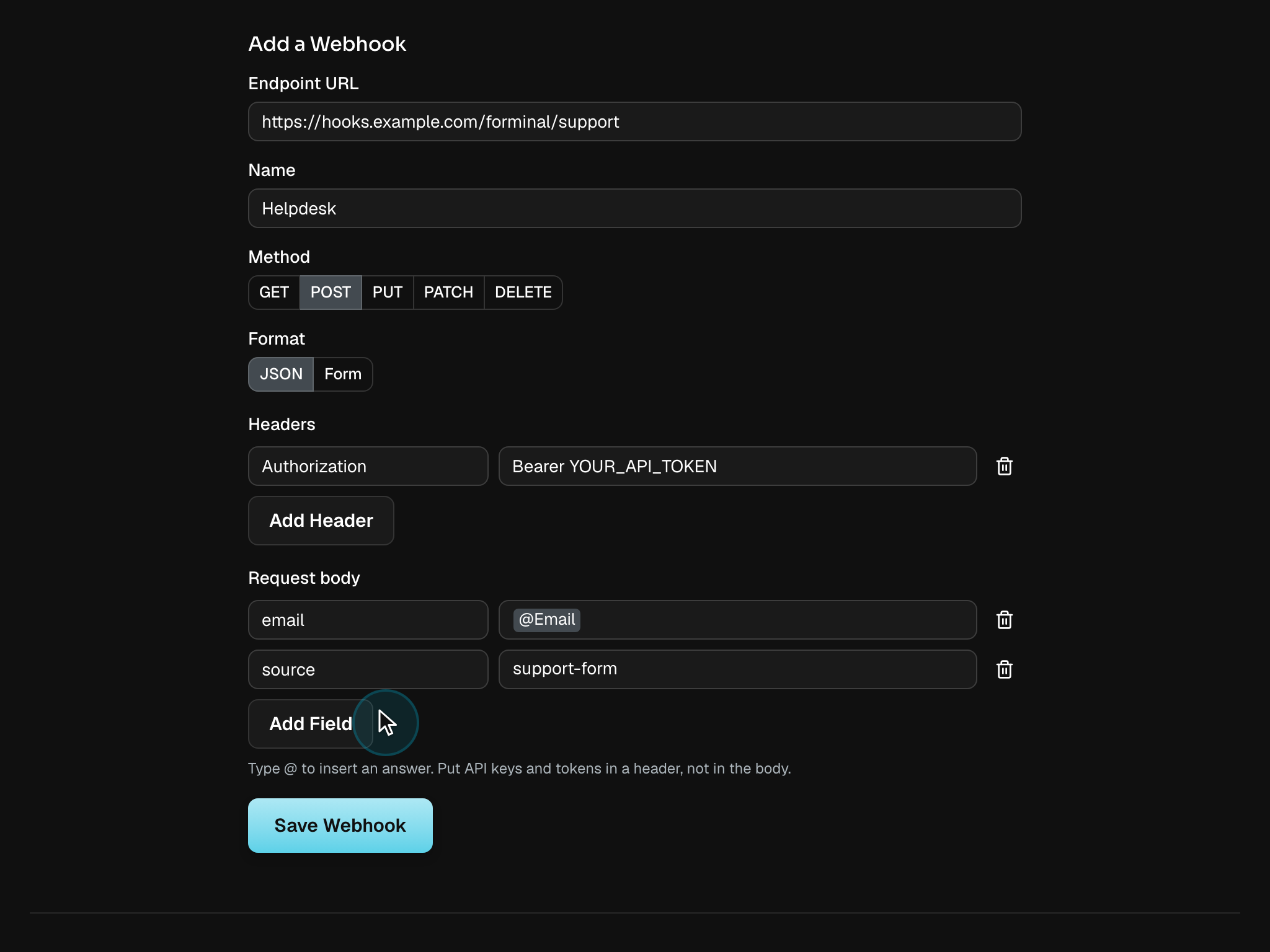
- Select Save Changes. It appears under Connected Webhooks.
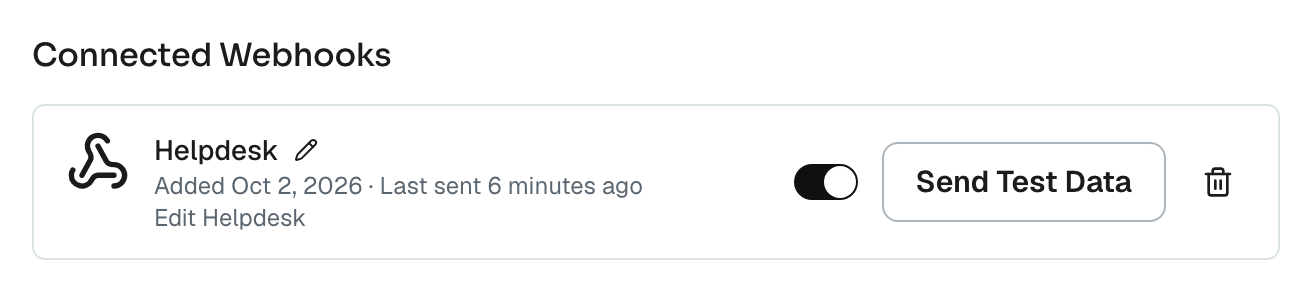
Each row has a switch to pause the webhook, Send Test Data, a pencil to rename it, the export button (the upload arrow) to export existing submissions and a bin to delete it. Under its name, a status line says Not sent yet, Last sent, or “Could not send the last submission” with the reason, and a link opens the webhook’s own page. On that page you can change the URL, method, format, headers and body, export existing submissions, find the signing secret and see recent deliveries.
Send test data
Select Send Test Data on the webhook’s row. Forminal sends your endpoint one request with a sample answer for every question on the form, signed the same way as a real one, and the row says “Sent. Check your endpoint for the test delivery.” when your endpoint answers with a 2xx status. Otherwise the row shows the reason, such as “The webhook answered 401”.
Test data has test set to true, and its webhook-id starts with msg_test_, so your code can tell it from a real submission. A test isn’t retried and doesn’t show in Recent Deliveries. The webhook has to be on to send one, and Send Test Data and Resend together allow 20 sends a minute.
What your endpoint receives
Each submission arrives as one request, with the method you chose and these headers:
Content-Type:application/jsonfor JSON,application/x-www-form-urlencodedfor Form. A GET request has no body and no content type.User-Agent:Forminal/1.0.webhook-id,webhook-timestampandwebhook-signature, which sign the request (see the next section).- Every header you added.
With an empty Request Body and JSON, the body of a contact form’s submission looks like this:
{
  "event": "submission.created",
  "test": false,
  "form": { "id": "FORM_ID", "title": "Contact us" },
  "submission": {
    "id": "SUBMISSION_ID",
    "submittedAt": "2026-11-19T10:00:00.000Z",
    "originPage": "https://example.com/contact",
    "browser": "Chrome",
    "durationSeconds": 42,
    "country": { "code": "DE", "name": "Germany" },
    "tags": [],
    "payment": null
  },
  "answers": { "Email": "[email protected]", "Message": "Can I change my order?" },
  "answersById": { "f_k3x9qa": "[email protected]", "f_p7m2wd": "Can I change my order?" },
  "fields": [
    { "id": "f_k3x9qa", "type": "email", "label": "Email", "title": "Email", "value": "[email protected]", "text": "[email protected]" },
    { "id": "f_p7m2wd", "type": "long_text", "label": "Message", "title": "Message", "value": "Can I change my order?", "text": "Can I change my order?" }
  ]
}eventis alwayssubmission.created.submissionholds the origin page, the browser, the time it took in seconds, the Respondent’s Country (null when it’s unknown), the tags, and the payment on a form that takes one. Autmobject with the UTM values is added when the link carried any.answershas each answer as text, keyed by the question’s label. A question with no label is keyed as Question 3 or whatever its place is, and two questions with the same label become Email and Email (2).answersByIdhas the same text keyed by field ID. Use it when your code must keep working after someone renames a question.fieldslists every question with its ID, type, label, the answer as text and its rawvalue. For a choice question,valueholds the option IDs andtextthe option labels.- A File Upload or Signature answer is the link to the file, in your Google Drive or in your media library, with several files joined by commas. A media library link opens only for someone signed in with access to the form’s submissions, or with an API key.
Your own body fields
When you add body fields, the body holds only those keys, each with its value, such as {"email": "[email protected]", "source": "website"}. An inserted answer reads as it does in answers. When the question was left unanswered, the value takes the Default Value you set by selecting the inserted answer, or stays empty.
Form and GET requests
Form sends the same document URL-encoded, with nested keys in brackets: form[title], answers[Email], fields[0][id]. PHP and most web frameworks read that back as nested data. GET puts the same encoding in the query string, after any query the URL already has, and the URL with its query has to stay within 2000 characters. Servers and proxies often log the full address, answers included, so use POST for anything personal.
Check the signature
Anyone who learns your URL could send a request to it, so check the signature before you trust a request. Forminal signs every request following the Standard Webhooks specification:
webhook-idnames the delivery,msg_followed by 32 hex characters. It stays the same on every retry and resend.webhook-timestampis the time this attempt was sent, in seconds since 1970.webhook-signatureisv1,followed by a base64 HMAC-SHA256 of the id, the timestamp and the raw body, joined by dots. The key is your signing secret without itswhsec_prefix, decoded from base64. For a GET request, the query string it was sent with, without the?, takes the body’s place.
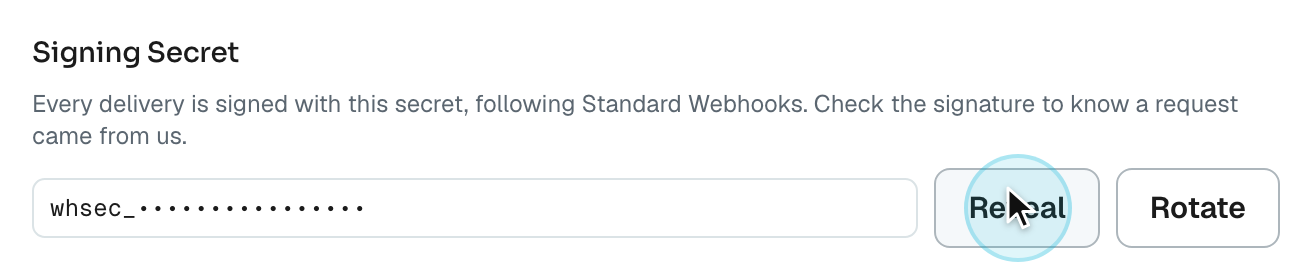
To find the secret, open the webhook’s page from the link on its row and select Reveal under Signing Secret.
A Standard Webhooks library does the check for you. In Node.js, with the raw request body and the secret:
import { Webhook } from 'standardwebhooks'
const payload = new Webhook(process.env.WEBHOOK_SECRET).verify(rawBody, req.headers)
verify throws when the signature doesn’t match or the timestamp is more than five minutes off. Check the body exactly as it arrived, before any parsing. Keep the webhook-id of each delivery you handle, and skip a request whose id you have already seen. Answer with a 2xx status within 10 seconds, and do slow work after you’ve answered.
If the secret leaks, select Rotate, then Rotate Secret. The old secret stops working at once, so update your endpoint right after.
Deliveries and retries
A request goes out right after each submission, once per submission. On a form with a Payment field it waits until the payment is paid, and spam is never sent. Any 2xx answer counts as delivered. Redirects aren’t followed, so a 3xx answer counts as a failure.
If your endpoint doesn’t answer within 10 seconds, can’t be reached or answers with any other status, Forminal tries again after 1 minute, then 5 and 30 minutes, then 2, 5 and 10 hours: seven attempts over about 18 hours. A retry goes to the URL and headers the webhook has at that moment, so fixing a wrong URL also fixes the deliveries waiting for it. It keeps the method, format and body of the first attempt. An answer of 410 Gone stops the retries at once.
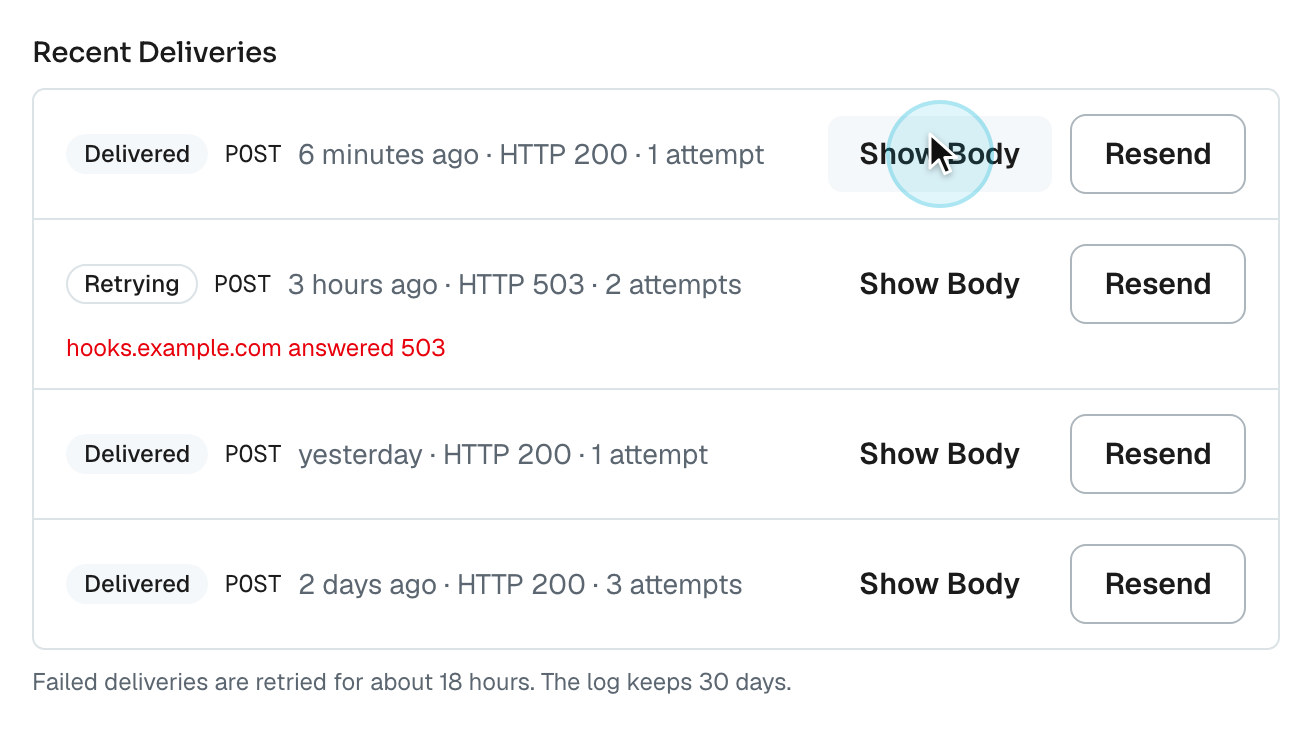
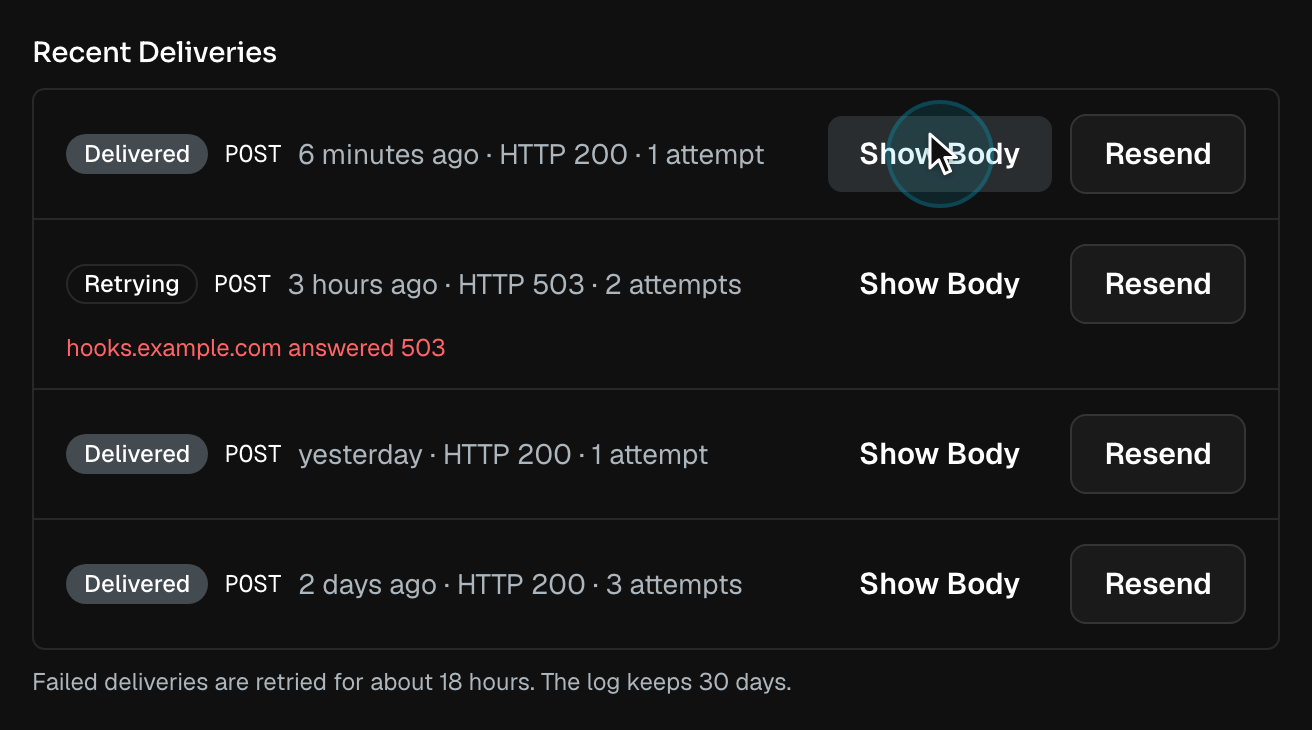
Recent Deliveries on the webhook’s page lists the newest 50, each as Delivered, Retrying or Failed, with the last status code, the number of attempts and the error, if any. Select Show Body to see exactly what was sent, and Resend to send it again now, under the same webhook-id. Deliveries stay in the log for 30 days.
Send the submissions you already have
To send the submissions a form had before you added the webhook, select the export button on its row and then Export, or turn on Export Existing Submissions on the webhook’s page and save. Each complete submission that isn’t spam, and a submission with a payment only once it’s paid, goes as its own signed request, oldest first, at most 50 a minute, and shows in Recent Deliveries. The row shows “Exporting · 120 of 400 sent · Stop export” while it runs. Select Stop export to drop the rest. Running it again sends everything again under new webhook-ids, so use the submission ID to skip one your endpoint already has.
Turning the webhook off with its switch pauses it. Submissions that come in while it’s off aren’t sent on their own, and a delivery waiting for a retry is marked Failed with “The webhook was off”. Turn it back on and select Resend on any delivery you still want sent, or export existing submissions to send them all again. Deleting the webhook drops its log and any deliveries waiting to retry.
Troubleshooting
Use an https URL
The webhook can’t be saved with an http:// address. Put your endpoint behind HTTPS. For local development, use a tunnel that gives you a public https:// address.
This URL points at a private network address
Localhost, addresses on a private network and names without a dot are refused when you save. A host name that resolves to a private address when the request goes out fails with “resolves to a private network address”. Use the endpoint’s public address.
Put credentials in a header, not in the URL
A URL such as https://user:[email protected] is refused. Select Add Header and send the credentials there instead, for example as an Authorization header.
Invalid request body
Saving shows this when a header or a body field breaks a rule. A header name uses letters, digits and dashes and appears once, and its value stays on one line in plain characters, up to 1000 of them. Content-Type, Content-Length, User-Agent, Host and the three webhook- headers are set for you, and connection headers such as Connection or Upgrade can’t be set. A body key is 1 to 100 characters on one line and appears once, and keys are case-sensitive, so Email and email are two keys. A value can be up to 2000 characters. The URL itself can be up to 2000 characters.
Add the fields a GET request should send
A GET request has no body, so it sends only the body fields you add, in the query string. Select Add Field for at least one key, or switch the method to POST to send the whole submission.
The webhook answered with a status code
“The webhook answered 401” or any other code means your endpoint got the request and refused it. A 401 or 403 usually points to a missing or wrong token in a header. A 404 means the path is wrong, and a 3xx means the URL redirects: use the address it redirects to. Select Show Body on the delivery to see what was sent.
The webhook did not answer within 10 seconds
Your endpoint took too long. Answer with a 2xx status first and do the slow work afterwards. “Could not reach” followed by the host means the request didn’t connect at all, often because of a typo in the URL, a DNS problem or a server that is down. Both are retried on the schedule above.
The query string is too long for a GET request. Send fewer or shorter body fields
With the answers filled in, the URL went over 2000 characters, so the request wasn’t sent and won’t be retried. Remove body fields, shorten their keys, or switch to POST.
The signature doesn’t match
Check the raw body, not a copy your framework parsed and serialized again. Make sure the endpoint has the current secret, since Rotate replaces it at once, and that its clock is right, because a timestamp more than five minutes off fails the check.
The Webhooks page sums up the feature, and Send Every Submission to Your Own App with a Webhook walks through a real setup. To fetch submissions on your own schedule instead, see Use the REST API.
Frequently asked questions
Can one form send to a webhook and Google Sheets at the same time?
Yes. Each connection on a form’s Integrations tab gets every new submission on its own, so a form can add a row to a Google Sheet and send the same submission to up to 10 webhooks.
What does a Forminal webhook payload look like?
With an empty Request Body, it’s a JSON document with event set to submission.created, the form’s ID and title, the submission’s details, and the answers keyed by label, by field ID and as a list of fields. With your own body fields, it holds only the keys you added.
How do I test a webhook before anyone submits the form?
Select Send Test Data on the webhook’s row. Your endpoint gets a signed request with sample answers and test set to true, and the row tells you whether it answered with a 2xx status.
What happens if my server is down when someone submits?
Forminal tries again after 1, 5 and 30 minutes, then after 2, 5 and 10 hours, so seven attempts over about 18 hours. Each retry keeps the same webhook-id, so your endpoint can skip one it already handled.
Are submissions sent later if the webhook was turned off?
Not on their own. Submissions that come in while a webhook is off aren’t sent to it, and a delivery that was waiting for a retry is marked Failed. Once the webhook is back on, send one with Resend, or export existing submissions from its row to send them all again.
Do uploaded files come through a webhook?
As links. A File Upload or Signature answer is the link to the file in your Google Drive or your media library, never the file itself.
Can a teammate in my workspace add a webhook?
No. Adding, editing and deleting webhooks stays with the form’s owner. See Work with Your Team in Workspaces for what members can do.