La classifica chiede alle persone di mettere un elenco in ordine, dal primo all'ultimo. Trascinano gli elementi su e giù, o li spostano con i pulsanti freccia, così scopri cosa è più importante per loro.
Esempi
- Chiedere ai clienti quale delle cinque funzionalità pianificate desiderano per prima.
- Un voto di squadra sul momento migliore per una riunione settimanale.
- Un sondaggio sul prodotto che chiede alle persone di classificare prezzo, velocità e supporto, con l'ordine iniziale mescolato per ogni persona.
Aggiungilo a un modulo
- In the builder, point between two fields and select Add Field. On an empty form, select Start from Scratch.
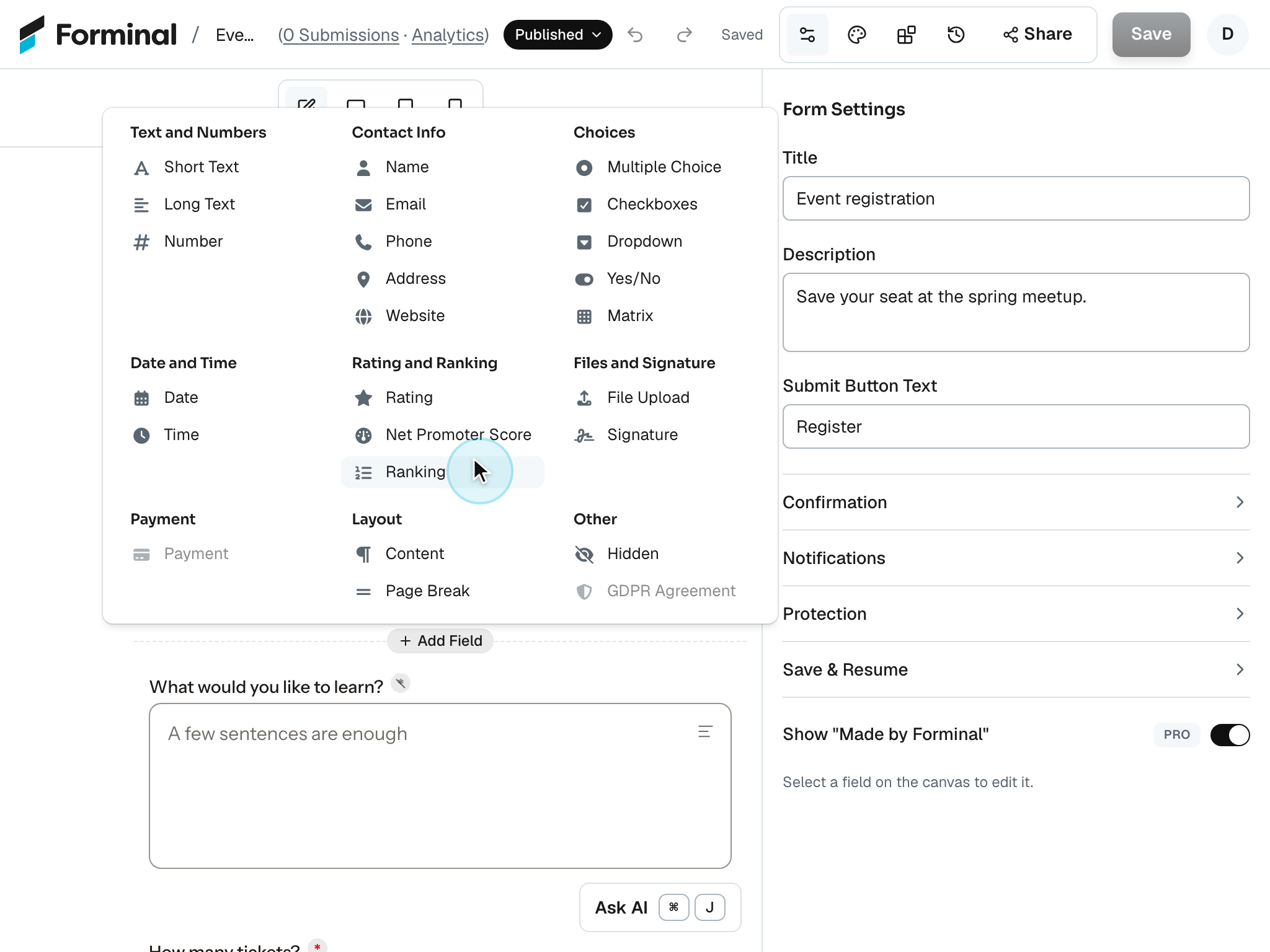
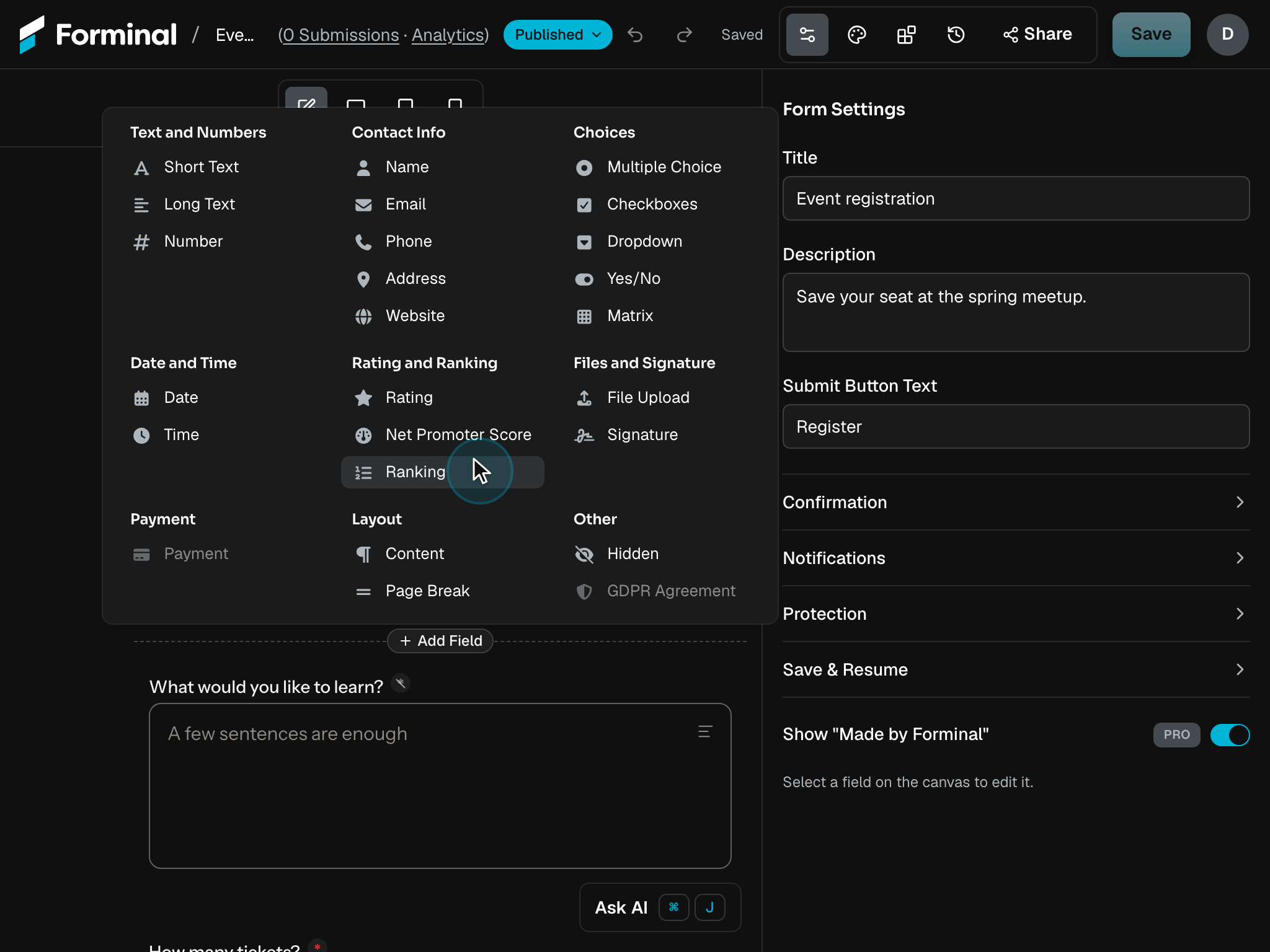
- Under Rating and Ranking, select Ranking.
- The field starts with the label “Rank in order of preference” and three options, Choice 1 to Choice 3. Change the label on the General tab of the settings panel.
- Type over each option, either on the canvas or under Options in the settings panel. To add one, select Add Option under the list on the canvas, or the small + at the end of a row in the panel, which adds it right after that row. Select the bin icon in the panel to delete one. A field always keeps at least one option.
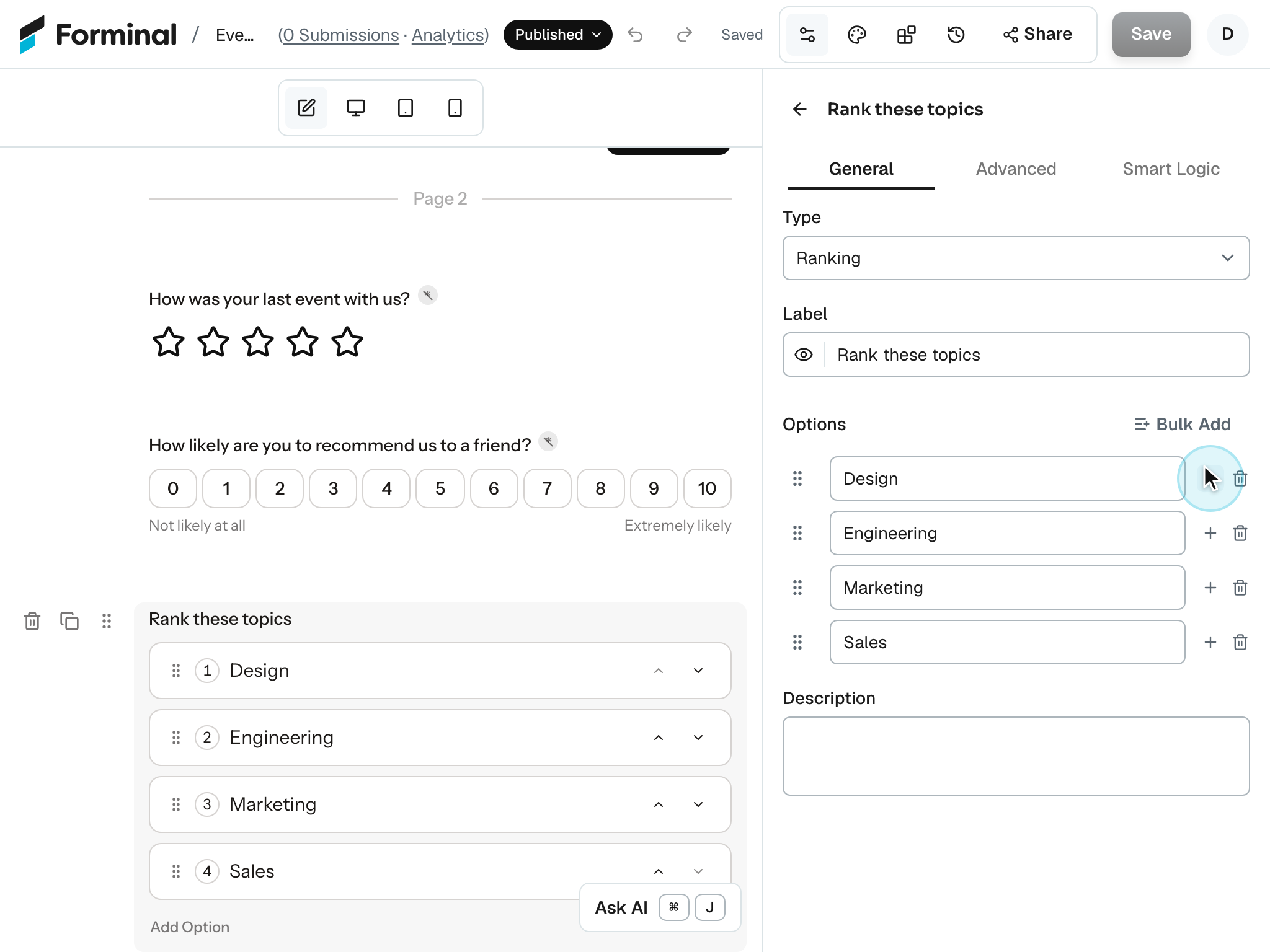
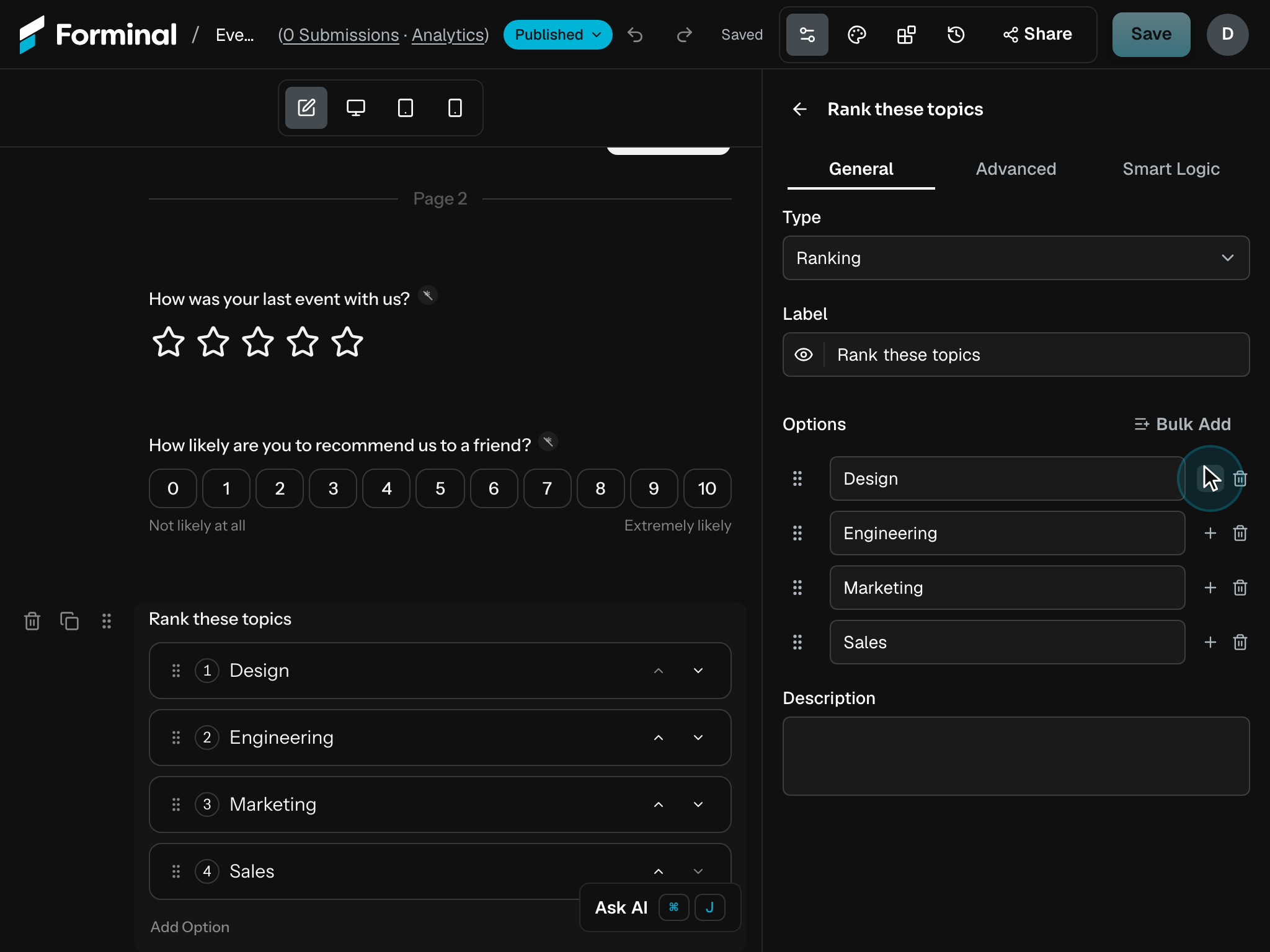
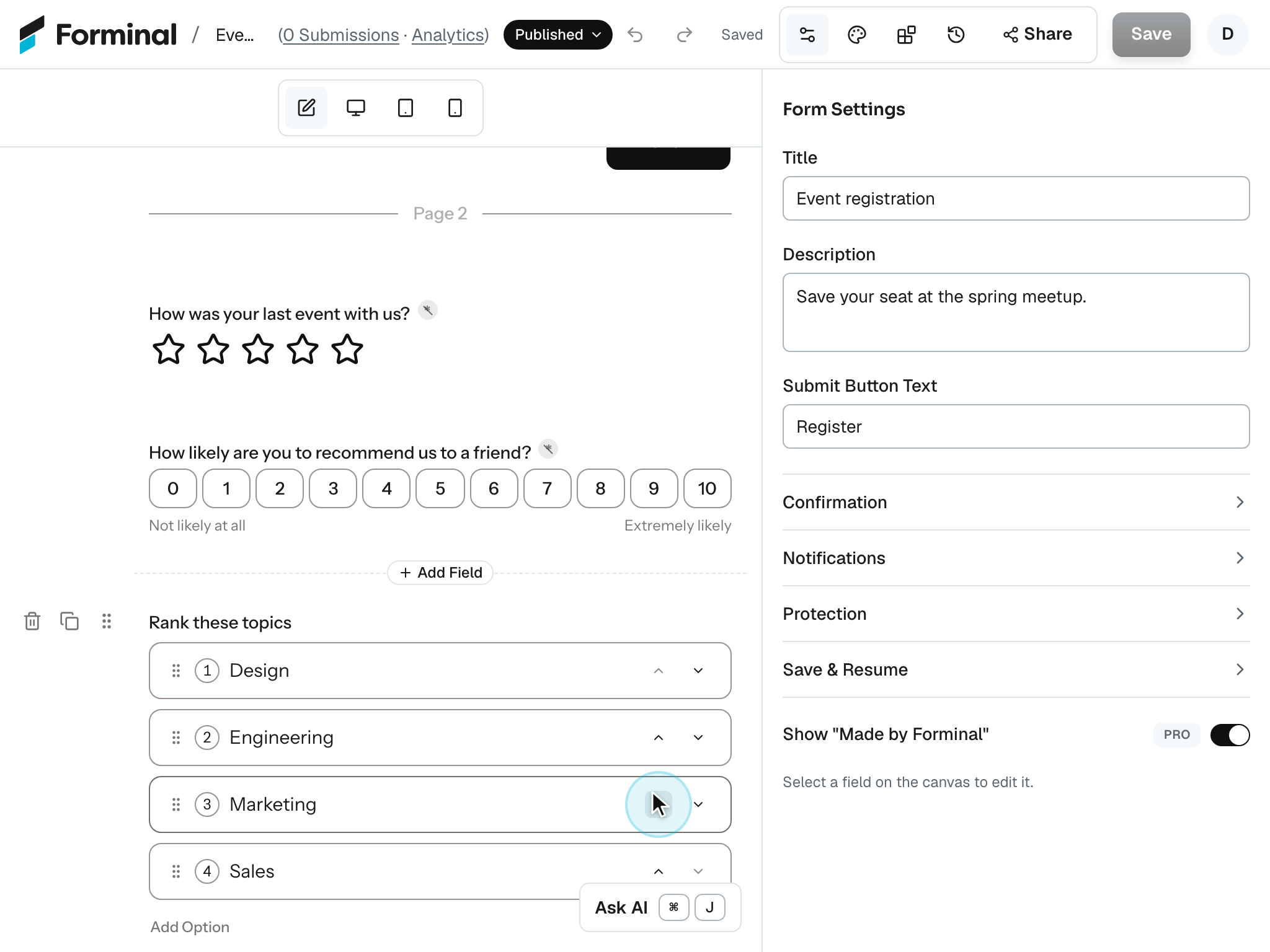
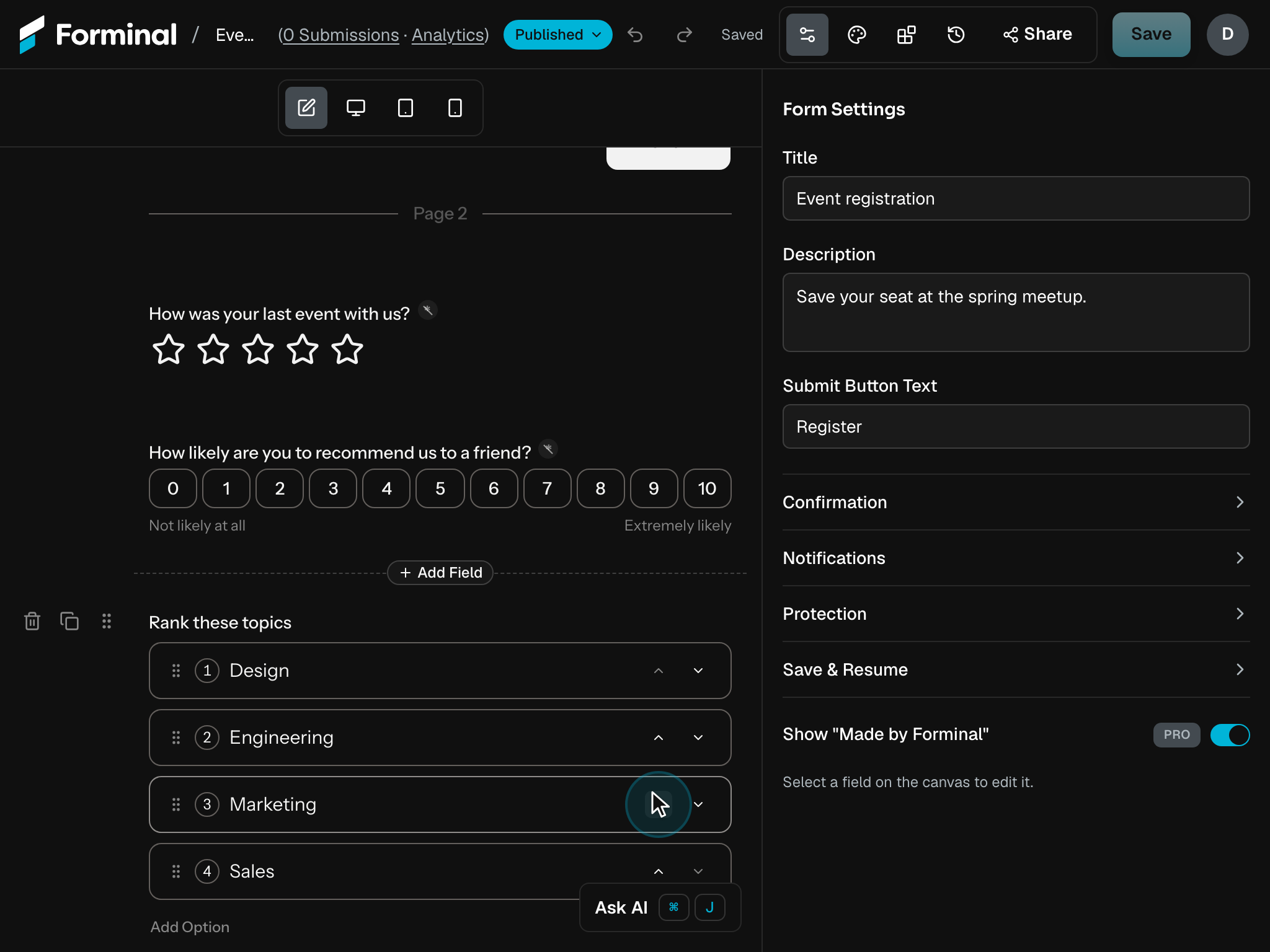
- Imposta l'ordine iniziale con le frecce su e giù accanto a ogni opzione sulla tela. Quello è l'ordine che le persone vedono per primo.
Impostazioni
The General tab has the Label, the Options and an optional Description with its Description Position (under the label, or under the list). There’s no Required switch, because every ranking answer is already a complete order.
To add many options at once, select Bulk Add above the list, type one option per line and select Add Choices. Lines that match an option already in the list are skipped, and a field that still has its starting Choice 1 to Choice 3 gets the new list in their place. Show Presets fills the box with a ready list, such as Countries, U.S. States, Months or a five-point agreement scale.
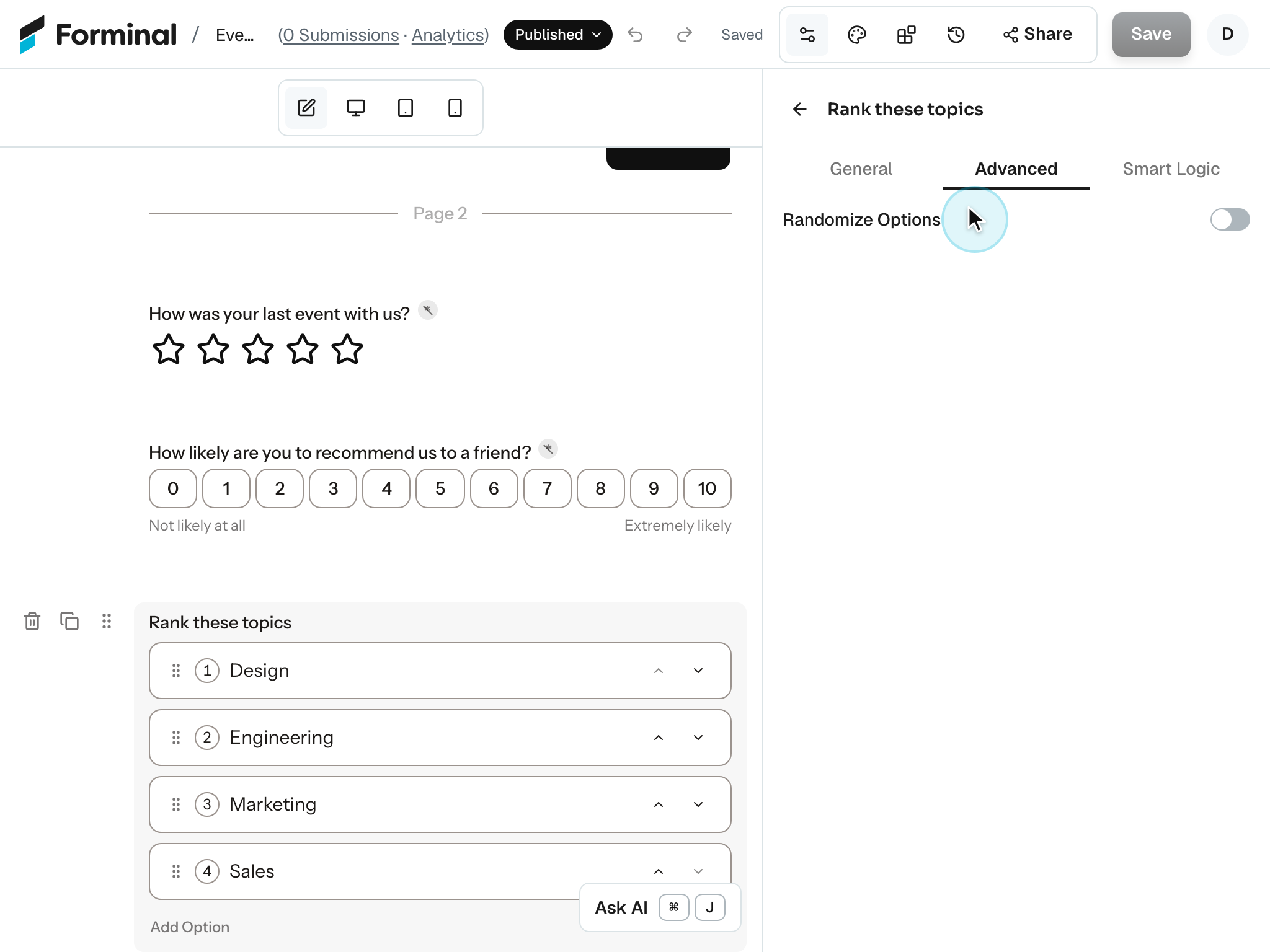
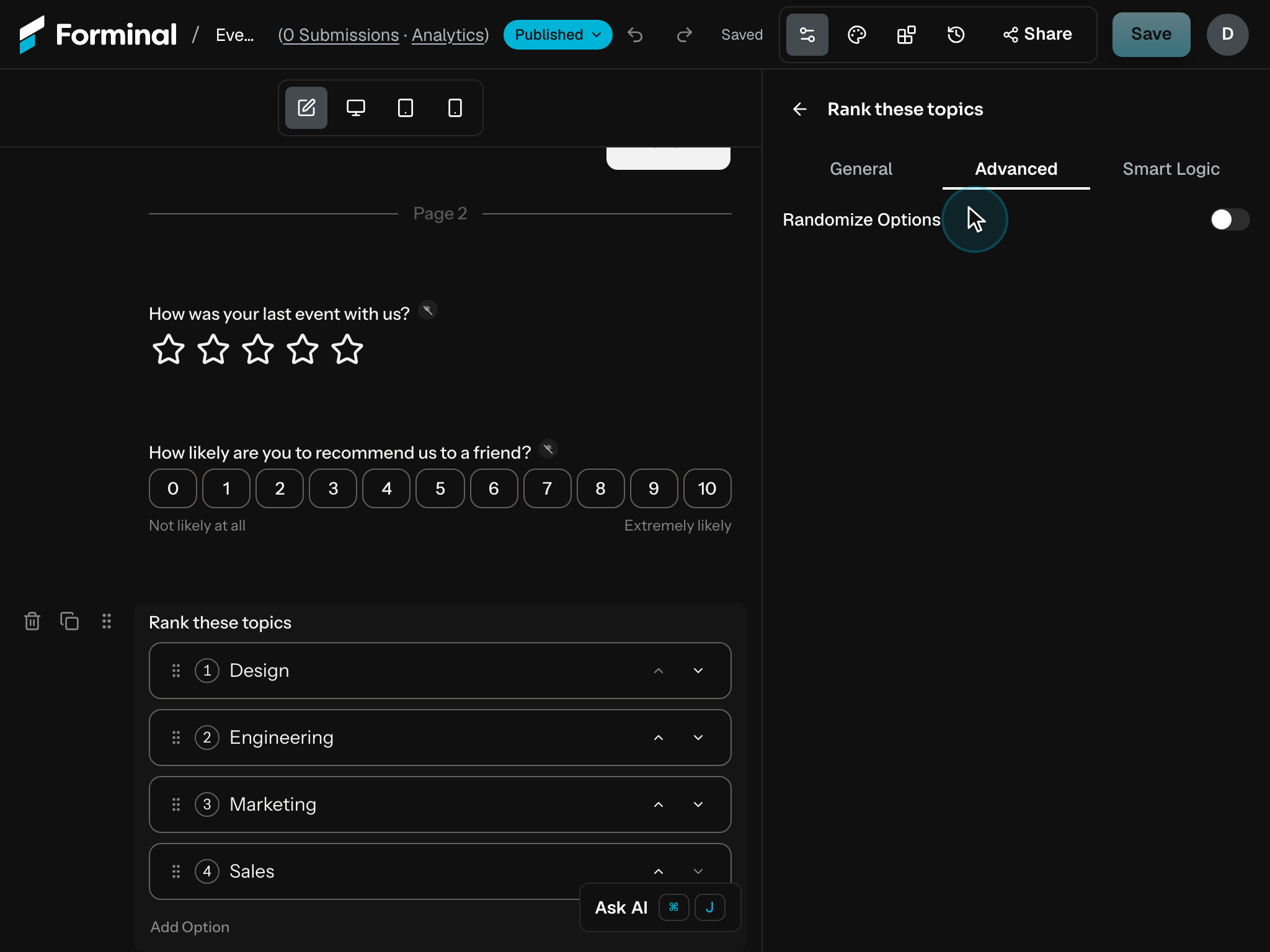
On the Advanced tab, Randomize Options shuffles the starting order each time someone opens the form, so the option you happened to put first doesn’t get an edge. The canvas keeps the order you wrote.
Cosa vedono le persone
Ogni opzione si trova sulla propria riga con un numero per la sua posizione, una presa e frecce su e giù. Le persone trascinano una riga con un mouse o un dito, o usano le frecce. Gli screen reader annunciano ogni spostamento, ad esempio "Supporto spostato alla posizione 1 di 3".
Come vengono visualizzate le risposte nelle sottomissioni
La tabella delle sottomissioni, l'esportazione CSV e le email di notifica mostrano l'ordine come un elenco numerato su una riga, ad esempio "1. Supporto, 2. Prezzo, 3. Velocità". Puoi inserire quella stessa riga in una domanda successiva o nel messaggio di ringraziamento.
Buono a sapersi
If someone doesn’t move anything, their answer is the order they were shown, which with Randomize Options on is a random one. A ranking can’t be used as a Smart Logic condition, though Smart Logic can still show or hide the ranking itself. Options can’t have prices, so a ranking never adds to a payment. You can switch the field to Multiple Choice, Checkboxes or Dropdown from the Type menu and keep your options.
Domande frequenti
Posso rendere obbligatoria una domanda di classifica?
Non c'è un interruttore Obbligatorio, perché ogni risposta di classifica è già un ordine completo.
E se qualcuno non sposta nessun elemento?
La sua risposta è l'ordine in cui è stato mostrato. Con Randomizza opzioni attivo, è un ordine casuale, quindi tienilo a mente quando leggi i risultati.
Posso mostrare altre domande in base a come qualcuno ha classificato?
No. Una classifica non può essere utilizzata come condizione di Smart Logic, anche se Smart Logic può comunque mostrare o nascondere la classifica stessa.
La classifica funziona su telefoni e con screen reader?
Le persone possono trascinare le righe con un dito o usare le frecce su e giù. Gli screen reader annunciano ogni spostamento, ad esempio “Supporto spostato alla posizione 1 di 3”.
Come viene visualizzata una classifica nell'esportazione CSV?
Come elenco numerato su una riga, ad esempio “1. Supporto, 2. Prezzo, 3. Velocità”. La tabella delle risposte e le email di notifica la mostrano allo stesso modo.