Ranking asks people to put a list in order, from first to last. They drag the items up and down, or move them with arrow buttons, so you learn what matters most to them.
Examples
- Asking customers which of five planned features they want first.
- A team vote on the best time for a weekly meeting.
- A product survey that asks people to rank price, speed and support, with the starting order shuffled for each person.
Add it to a form
- In the builder, point between two fields and select Add Field. On an empty form, select Start from Scratch.
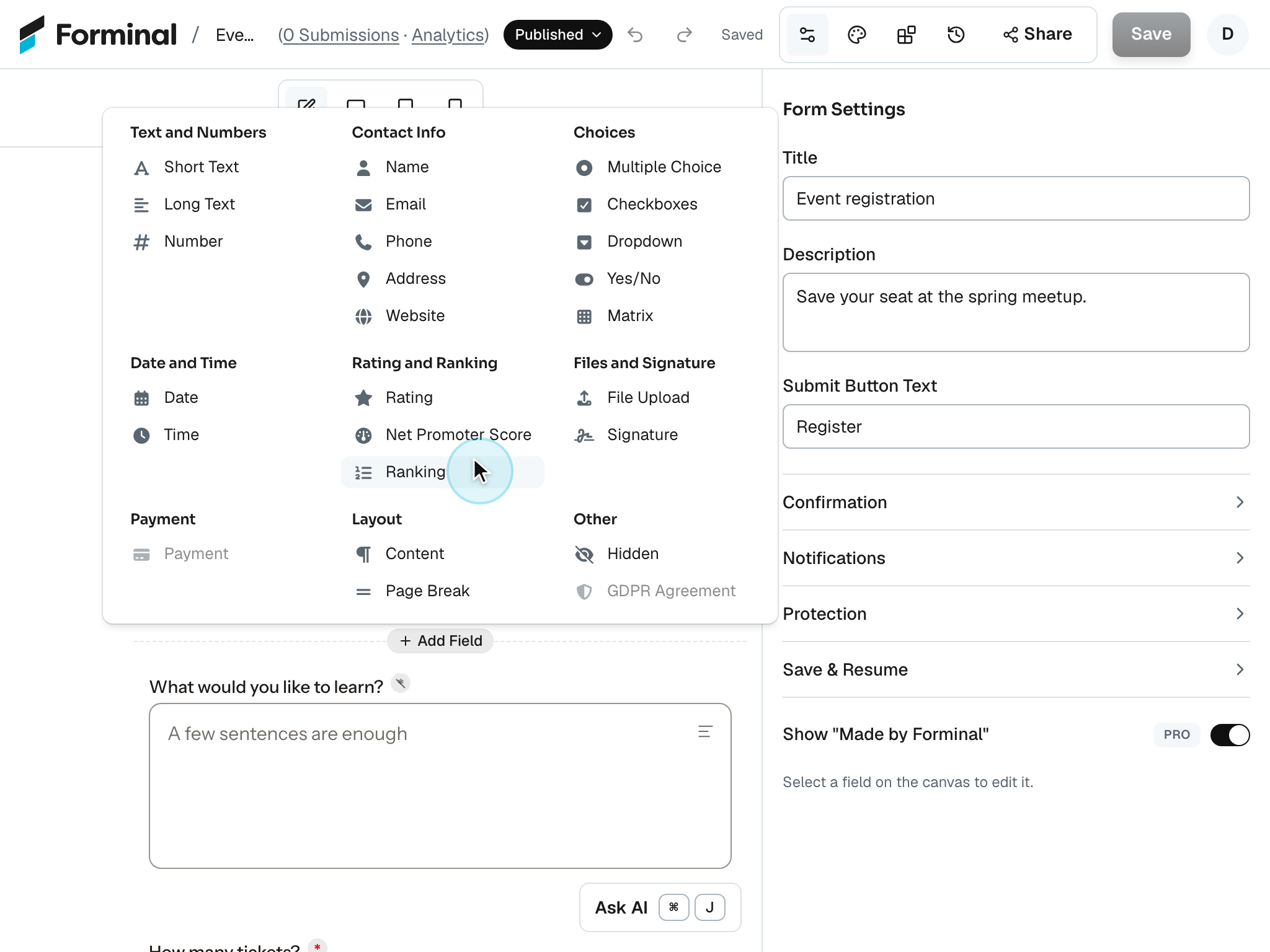
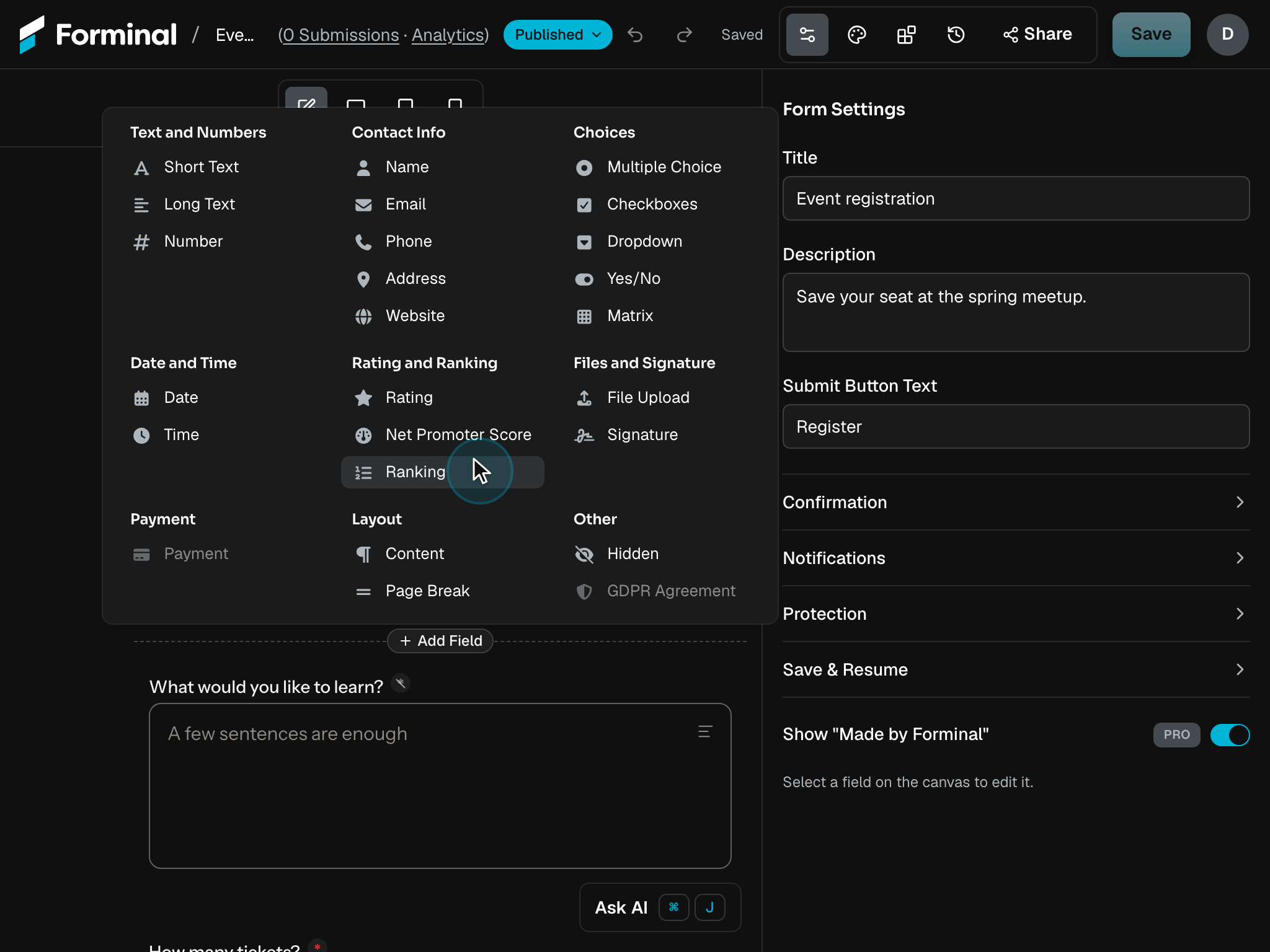
- Under Rating and Ranking, select Ranking.
- The field starts with the label “Rank in order of preference” and three options, Choice 1 to Choice 3. Change the label on the General tab of the settings panel.
- Type over each option, either on the canvas or under Options in the settings panel. To add one, select Add Option under the list on the canvas, or the small + at the end of a row in the panel, which adds it right after that row. Select the bin icon in the panel to delete one. A field always keeps at least one option.
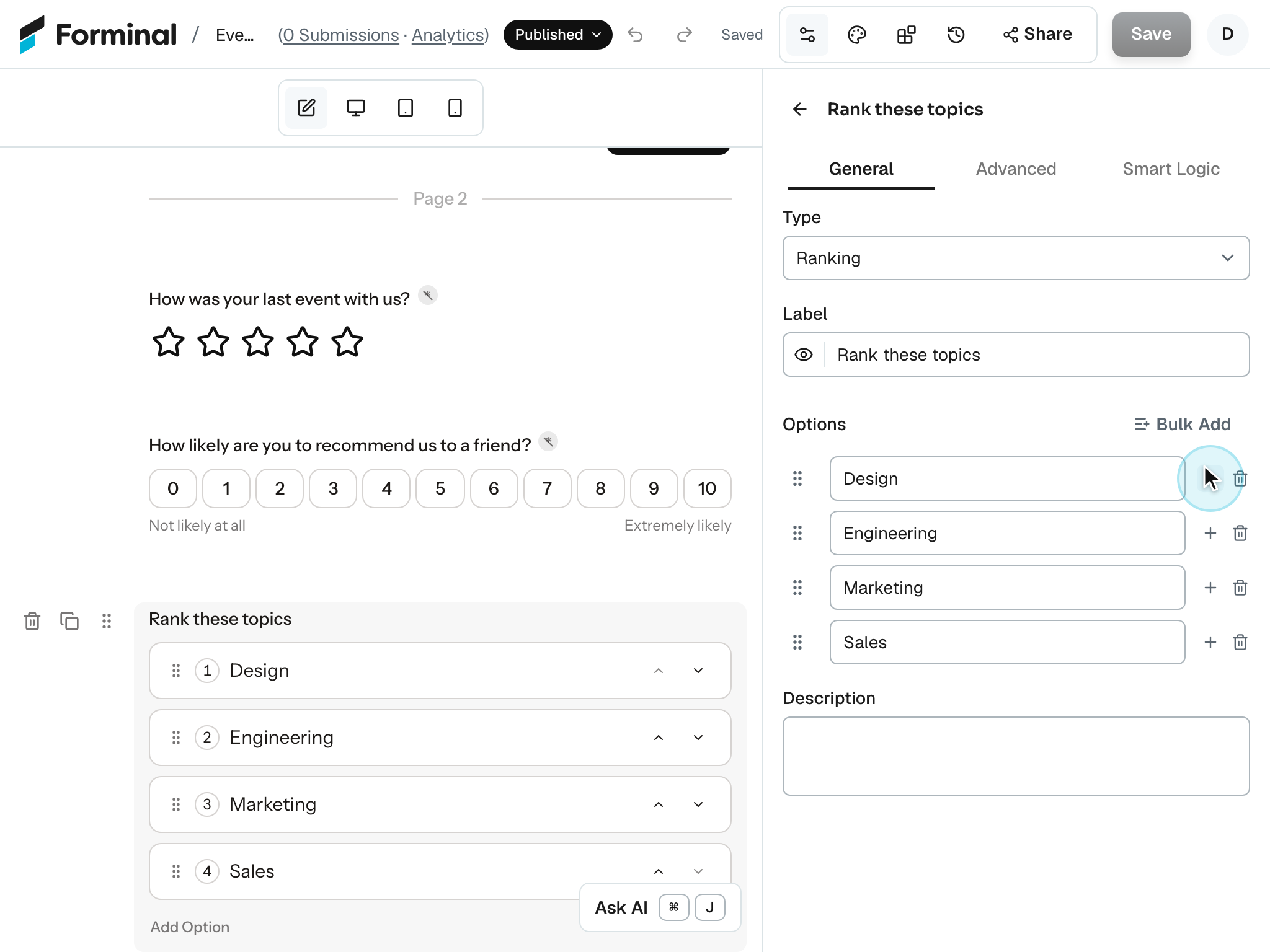
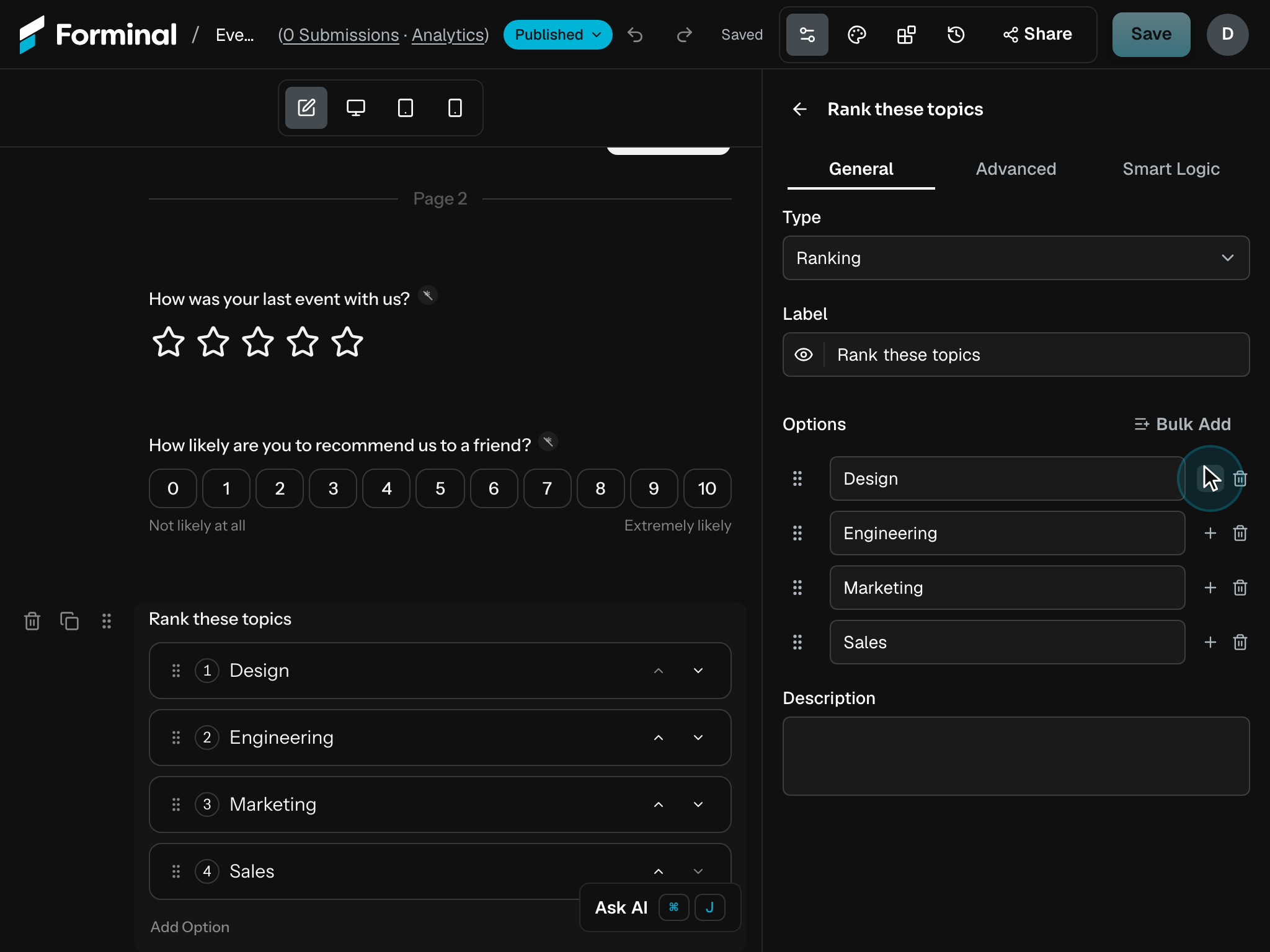
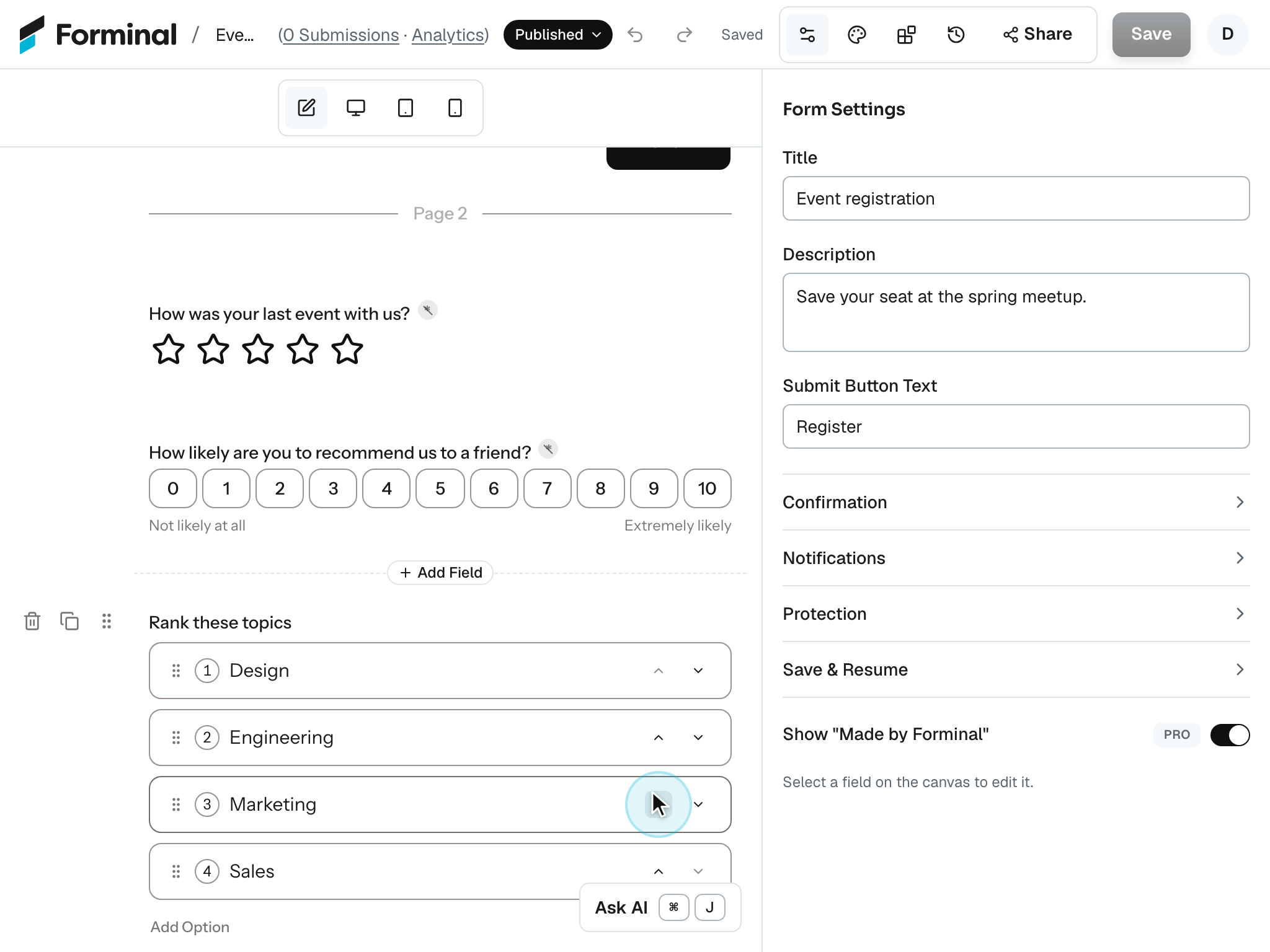
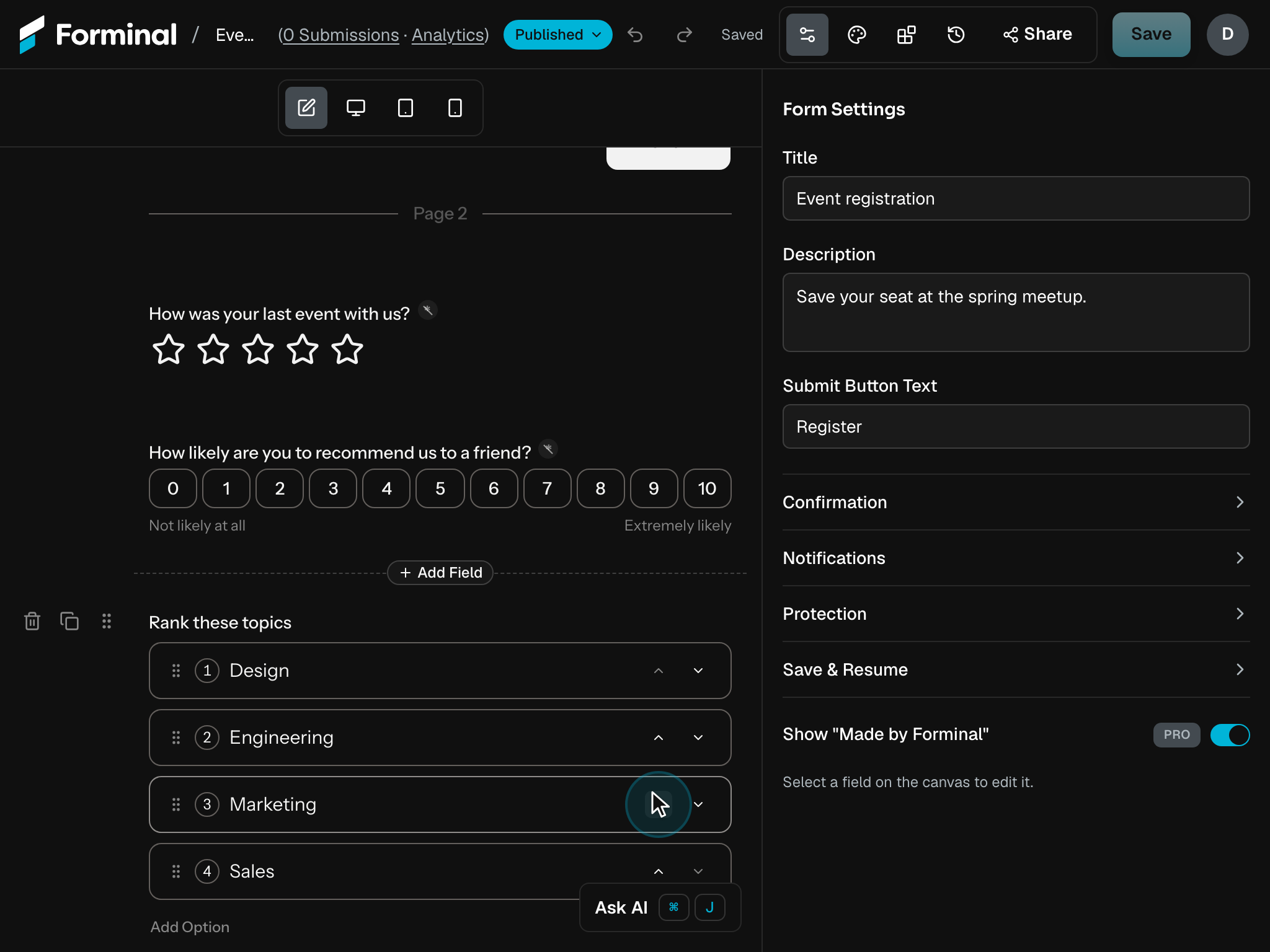
- Set the starting order with the up and down arrows next to each option on the canvas. That’s the order people see first.
Settings
The General tab has the Label, the Options and an optional Description with its Description Position (under the label, or under the list). There’s no Required switch, because every ranking answer is already a complete order.
To add many options at once, select Bulk Add above the list, type one option per line and select Add Choices. Lines that match an option already in the list are skipped, and a field that still has its starting Choice 1 to Choice 3 gets the new list in their place. Show Presets fills the box with a ready list, such as Countries, U.S. States, Months or a five-point agreement scale.
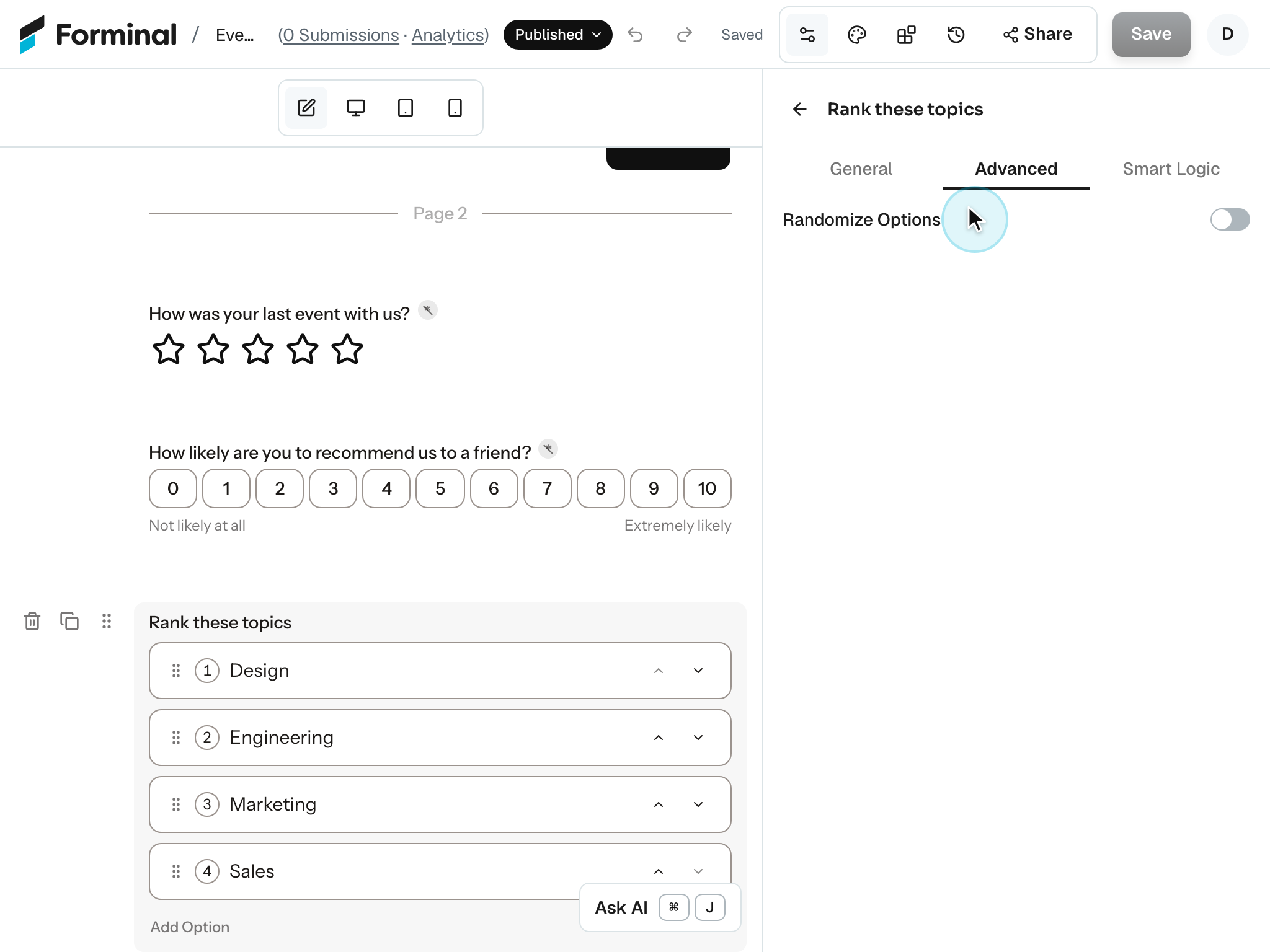
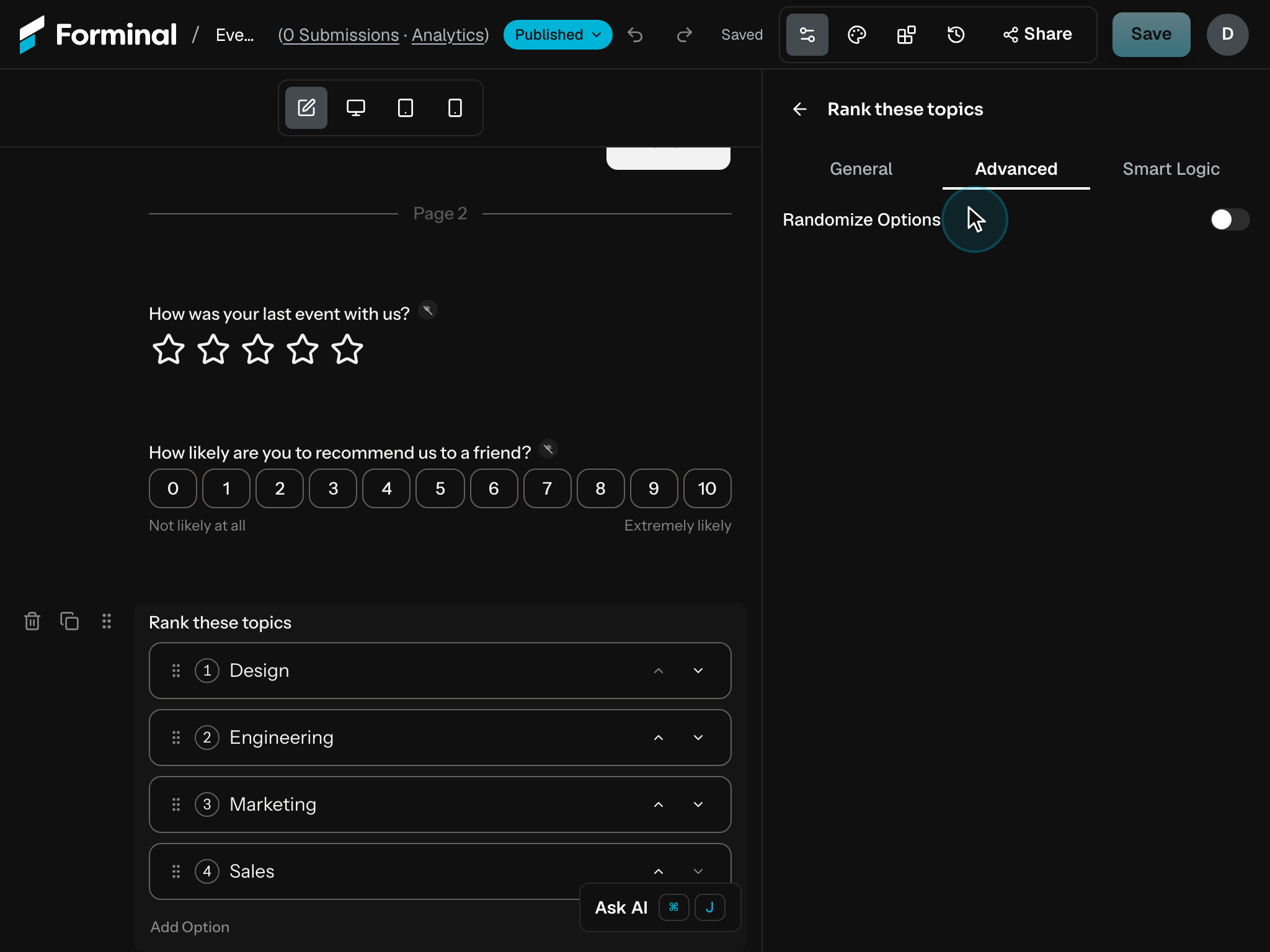
On the Advanced tab, Randomize Options shuffles the starting order each time someone opens the form, so the option you happened to put first doesn’t get an edge. The canvas keeps the order you wrote.
What people see
Each option sits on its own row with a number for its place, a grip, and up and down arrows. People drag a row with a mouse or a finger, or use the arrows. Screen readers announce each move, for example “Support moved to position 1 of 3”.
How answers show in submissions
The submissions table, the CSV export and notification emails show the order as a numbered list on one line, such as “1. Support, 2. Price, 3. Speed”. You can pipe that same line into a later question or the thank-you message.
Good to know
If someone doesn’t move anything, their answer is the order they were shown, which with Randomize Options on is a random one. A ranking can’t be used as a Smart Logic condition, though Smart Logic can still show or hide the ranking itself. Options can’t have prices, so a ranking never adds to a payment. You can switch the field to Multiple Choice, Checkboxes or Dropdown from the Type menu and keep your options.
Frequently asked questions
Can I make a ranking question required?
There’s no Required switch, because every ranking answer is already a complete order.
What if someone doesn’t move any items?
Their answer is the order they were shown. With Randomize Options on, that’s a random order, so keep it in mind when you read the results.
Can I show other questions based on how someone ranked?
No. A ranking can’t be used as a Smart Logic condition, though Smart Logic can still show or hide the ranking itself.
Does ranking work on phones and with screen readers?
People can drag rows with a finger or use the up and down arrows. Screen readers announce each move, for example “Support moved to position 1 of 3”.
How does a ranking show in the CSV export?
As a numbered list on one line, such as “1. Support, 2. Price, 3. Speed”. The submissions table and notification emails show it the same way.