Chaque nouveau formulaire commence comme un brouillon. Seuls vous et les personnes avec qui vous travaillez pouvez l'ouvrir, afin de pouvoir le créer et le tester à votre rythme. Une fois que vous l'avez publié, toute personne possédant le lien peut le remplir.
Exemples
- Préparation d'un formulaire d'événement une semaine avant l'ouverture des inscriptions.
- Revue d'un formulaire avec un collègue avant sa mise en ligne.
Pendant que c'est un brouillon
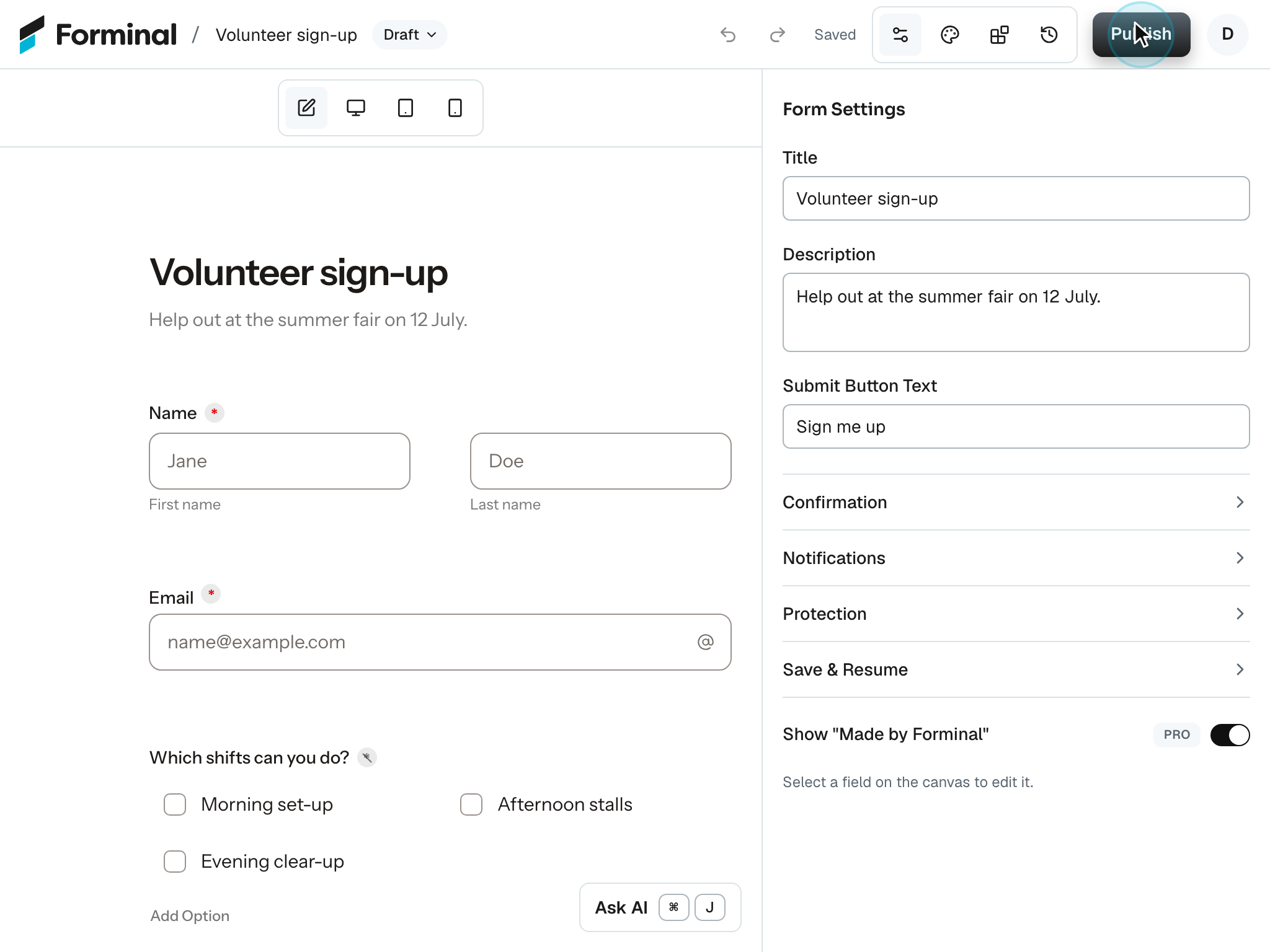
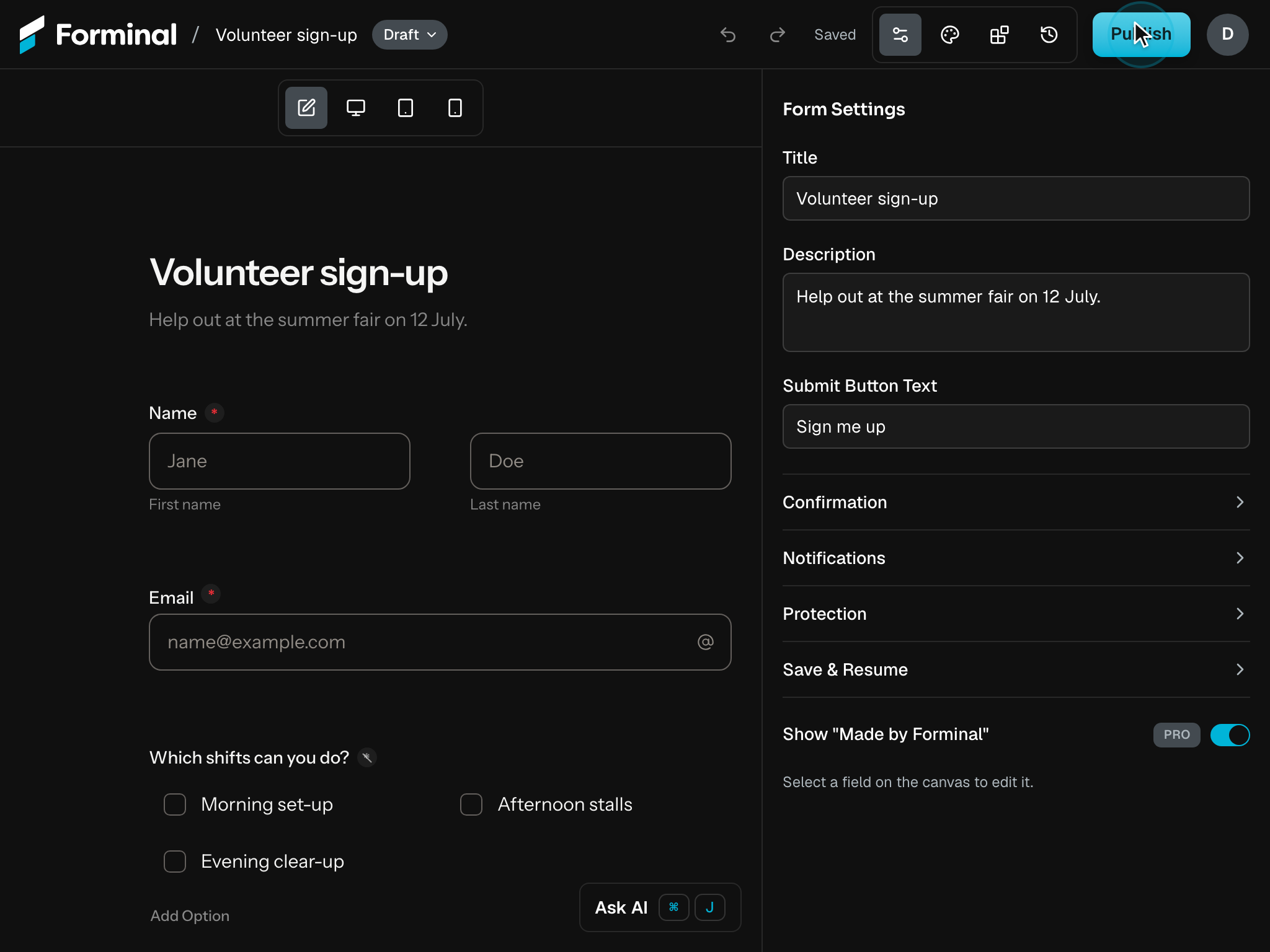
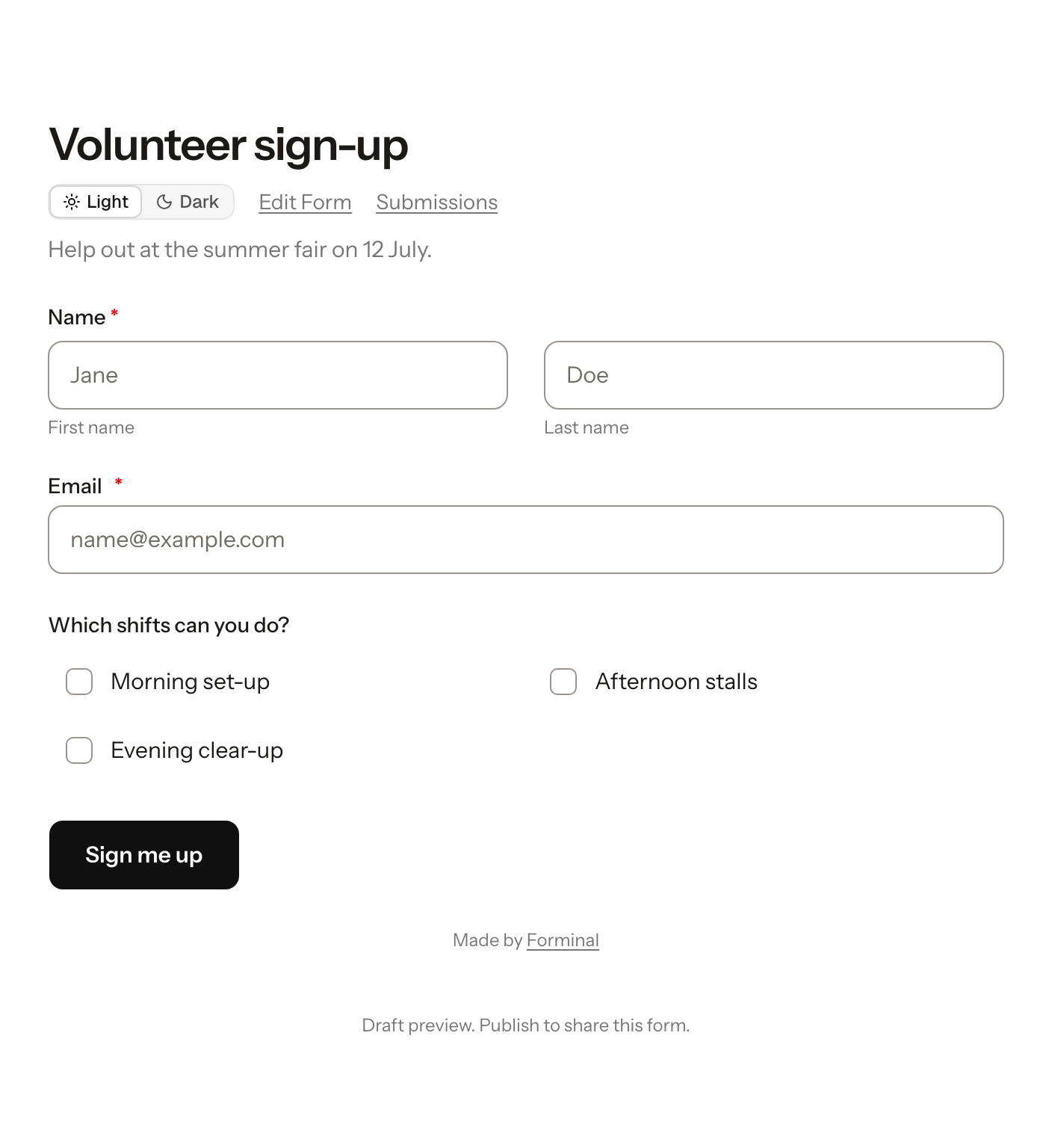
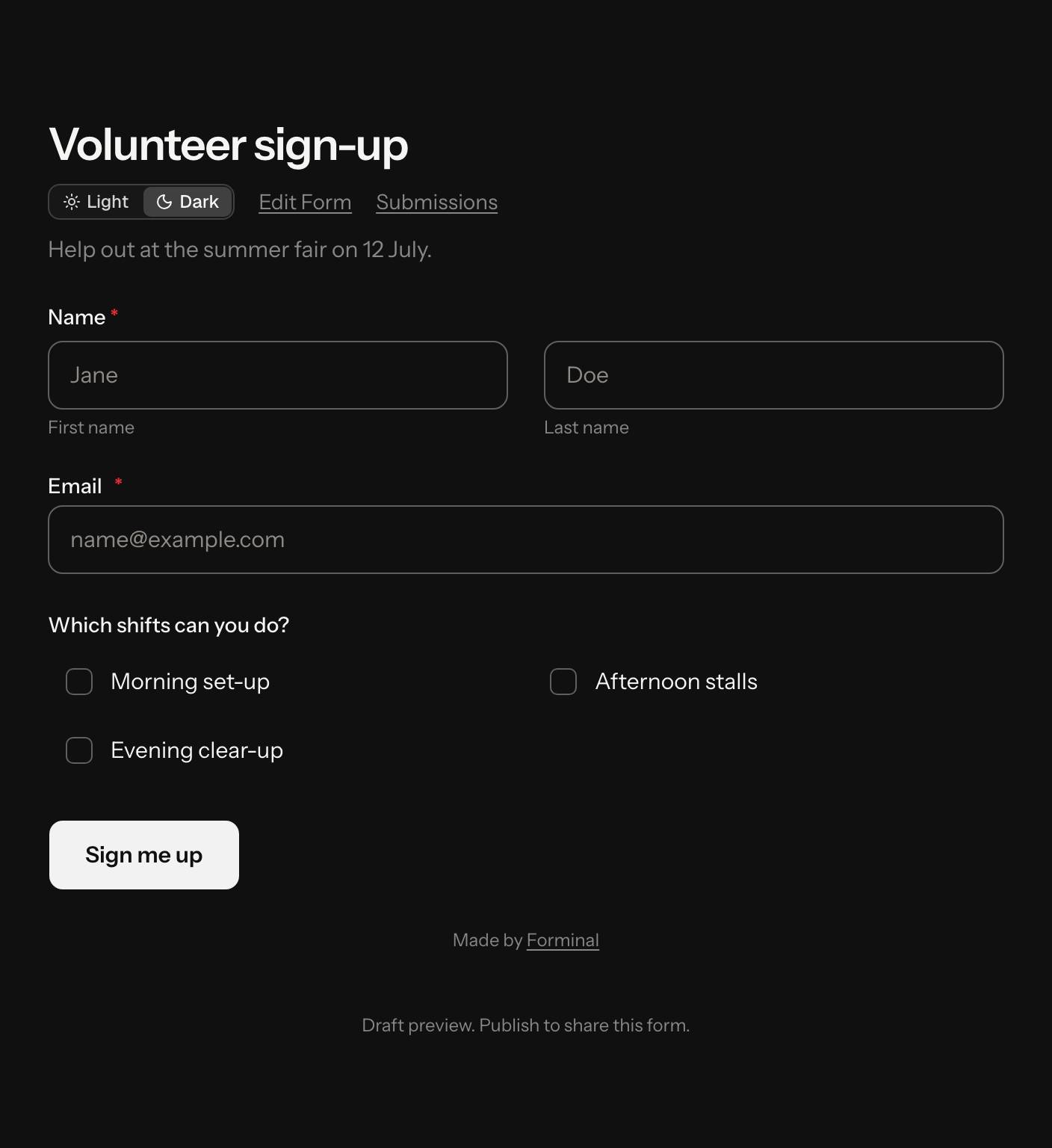
The builder’s top bar shows a Draft badge, and the builder saves every change as you go. You’ll see Saving and then Saved next to the undo buttons. Anyone else who opens the form’s link, or a page that embeds it, gets a page that says it can’t be found. You and people with access to the form can open the link and see the form with “Draft preview. Publish to share this form.” under it, but a draft doesn’t accept submissions. To test the whole flow, switch the builder to Desktop, Tablet or Mobile and submit there; preview saves nothing and sends no email.
Publier un formulaire
- Select Publish at the top right of the builder. If you built the form without an account, you’re asked to sign in first.
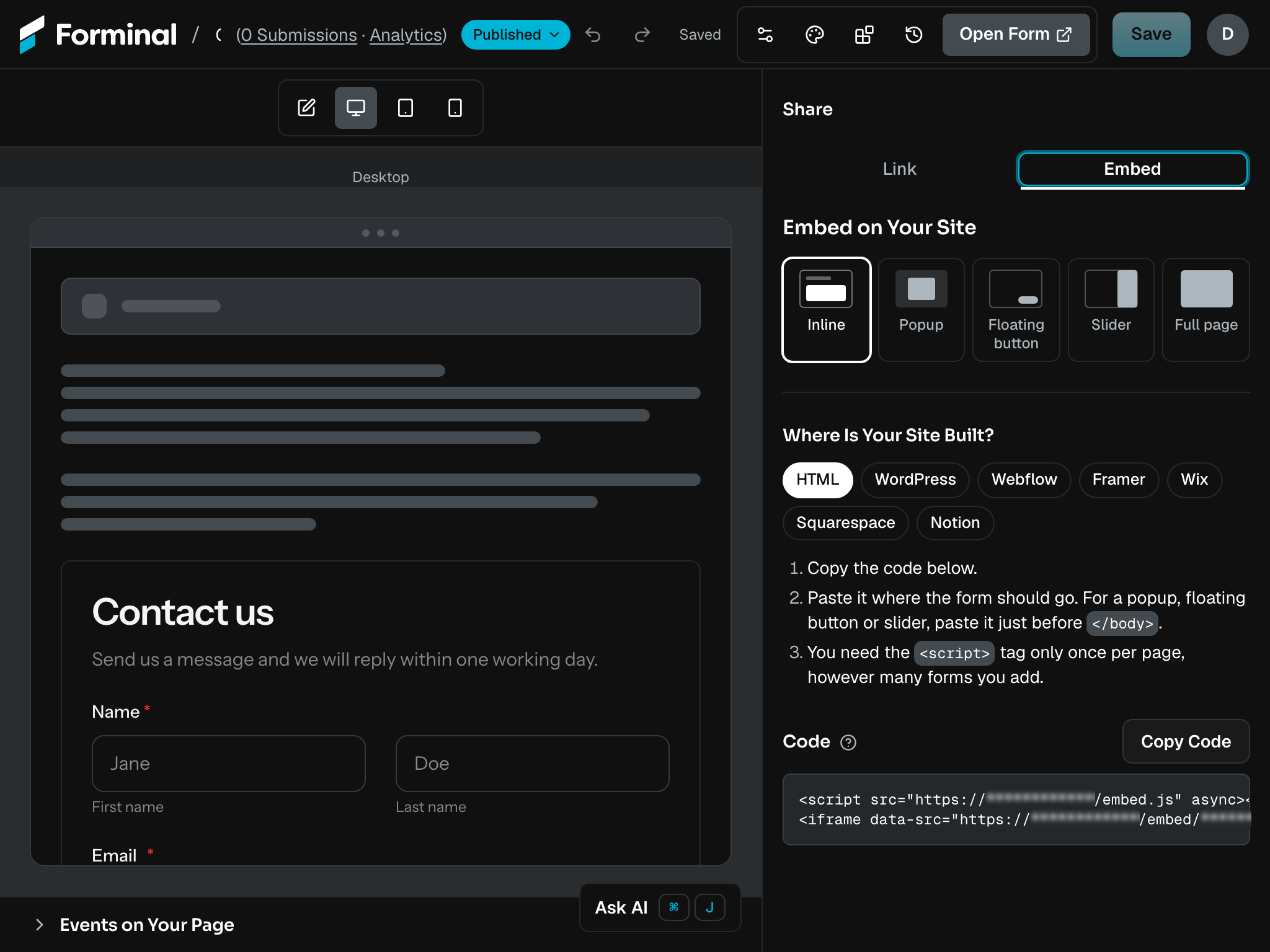
- The badge changes to Published and the Share panel opens, with the form’s embed code on one tab and its link on the other. A Save button takes the place of Publish.
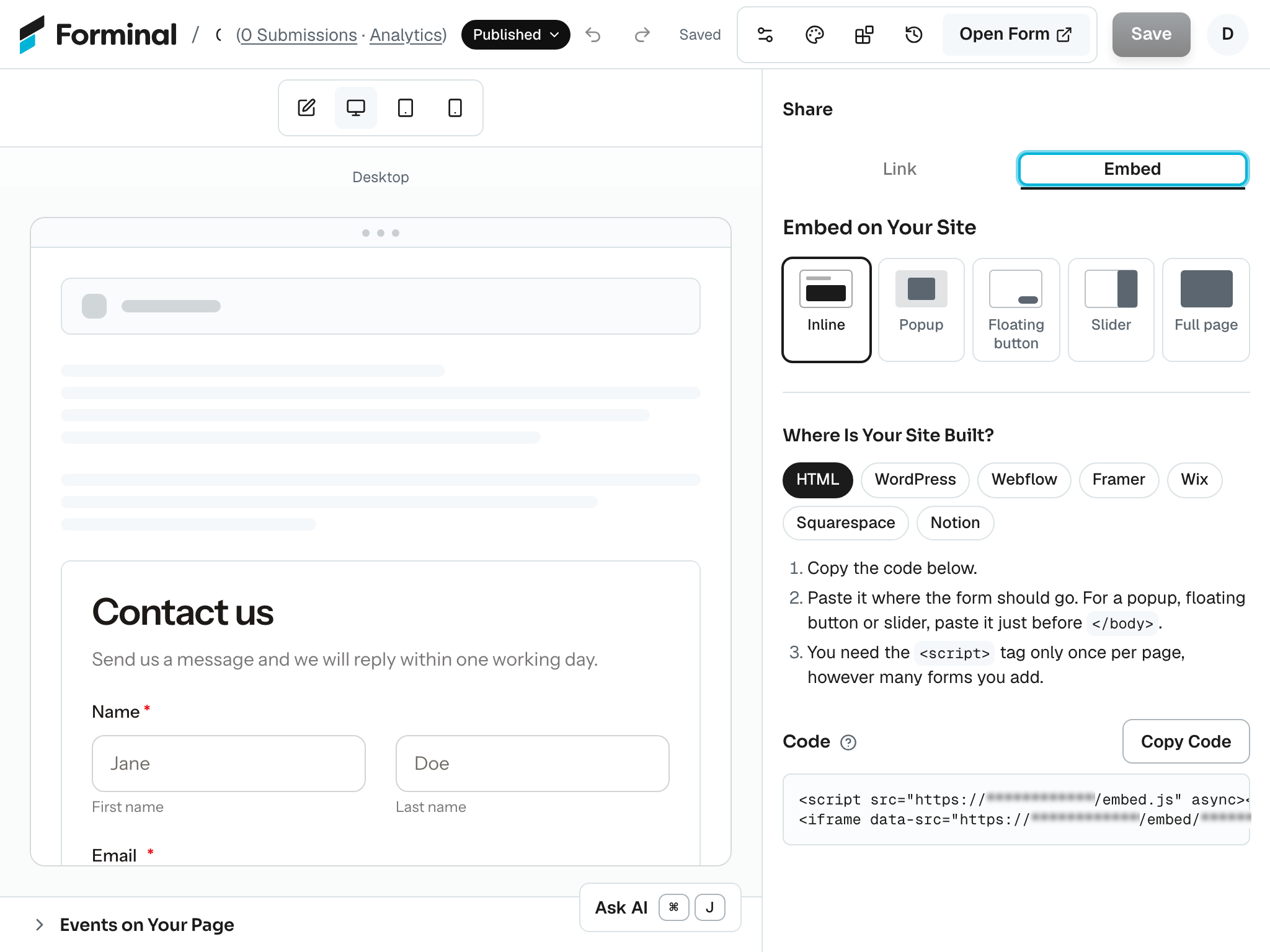
Certains formulaires ne peuvent pas encore être publiés, et vous verrez pourquoi. Un formulaire doit comporter au moins un champ. Un formulaire avec un champ de paiement nécessite également un champ E-mail, une source de montant avec un prix et des méthodes de paiement compatibles avec sa devise. Si le formulaire utilise des fonctionnalités que votre forfait n'inclut pas, il se publie quand même, et une notice indique ce qui n'apparaîtra pas sur le formulaire en direct.
Modifier un formulaire publié
Once a form is published, the builder stops saving as you go, so nobody filling it in sees a half-made change. Your edits wait in the builder, and the top bar reads Unsaved changes. To put them live, select Save in the top bar, or press Cmd+S on a Mac or Ctrl+S elsewhere. Save checks the form by the same rules as Publish: if something would stop it from publishing, the builder says what to fix and the live form stays as it was. The link stays the same.
Each Save keeps the version it replaces in Version History, so you can go back to it later. Publishing saves a version too. A version you restore on a published form also waits as unsaved edits until you select Save. The top bar links to the form’s submissions and analytics, and Share opens the Share panel again.
The assistant in the builder works the same way on a published form: its changes go in as unsaved edits and reach people only when you select Save. For a big change, you can also ask the assistant on your Forms page to duplicate the form and work on the copy.
Partir avec des modifications non enregistrées
If you select a link that leaves the builder before you save, a window titled Save Your Changes? asks what to do. Save Changes puts your edits live and then leaves, Discard Changes drops them and leaves, and Cancel keeps you in the builder. If you close or reload the tab instead, your browser shows its own warning, which has no Save option.
Déplacer un formulaire vers les brouillons
- In the builder, select the Published badge next to the form title.
- Choose Draft.
- In the Move to Draft? window, select Move to Draft.
The window warns: “Your form will go offline. Its link and every embed stop working until you publish it again.” Within 10 minutes of publishing there’s no window, and the form moves straight to draft, because it has had little time to be shared. Unsaved edits are saved into the draft, so you don’t lose them and none of them go live. Submissions stay where they are. To put the form back online, select Publish; the link is the same as before.
Bon à savoir
Les vues et autres analyses ne sont comptabilisées que sur un formulaire publié.
Vous pouvez également demander à l'assistant sur votre page Formulaires de publier ou de retirer un formulaire.
Questions fréquemment posées
Ai-je besoin d'un compte pour publier un formulaire ?
Oui. Vous pouvez créer un formulaire sans compte, mais sélectionner Publier vous demande de vous connecter ou d'en créer un d'abord, et le formulaire est alors déplacé dans votre compte.
Un formulaire brouillon peut-il collecter des soumissions ?
Un brouillon n'accepte pas les soumissions, et toute personne qui ne travaille pas sur le formulaire reçoit une page indiquant qu'il est introuvable. L'aperçu dans le générateur vous permet de tester le flux, mais il n'enregistre rien et n'envoie aucun e-mail.
Comment puis-je retirer un formulaire de la publication ?
Select the Published badge next to the form title in the builder, choose Draft and confirm with Move to Draft. The form goes back to being a draft, its link and every embed stop working, and its submissions stay where they are.
Puis-je modifier un formulaire publié sans que les gens voient les changements immédiatement ?
Yes. On a published form your edits wait in the builder until you select Save or press Cmd+S (Ctrl+S elsewhere), so people keep seeing the live version until then.
Que deviennent les modifications non enregistrées si je quitte le générateur ?
Une fenêtre vous demande si vous souhaitez les enregistrer, les ignorer ou rester dans le générateur. Fermer ou recharger l'onglet affiche l'avertissement de votre navigateur à la place.
Pourquoi ne puis-je pas publier mon formulaire ?
Un formulaire nécessite au moins un champ. Un formulaire avec un champ de paiement nécessite également un champ E-mail, une source de montant avec un prix et des méthodes de paiement compatibles avec sa devise. Le générateur vous indique lesquels de ces éléments sont manquants.
Puis-je publier un formulaire qui utilise des fonctionnalités que mon forfait n'inclut pas ?
Il est quand même publié, et une notification liste ce qui ne s'affichera pas sur le formulaire en ligne avant que vous ne mettiez à niveau.