Every new form starts as a draft. Only you and the people you work with can open it, so you can build and test at your own pace. Once you publish it, anyone with the link can fill it in.
Examples
- Preparing an event form a week before registration opens.
- Reviewing a form with a colleague before it goes live.
While it’s a draft
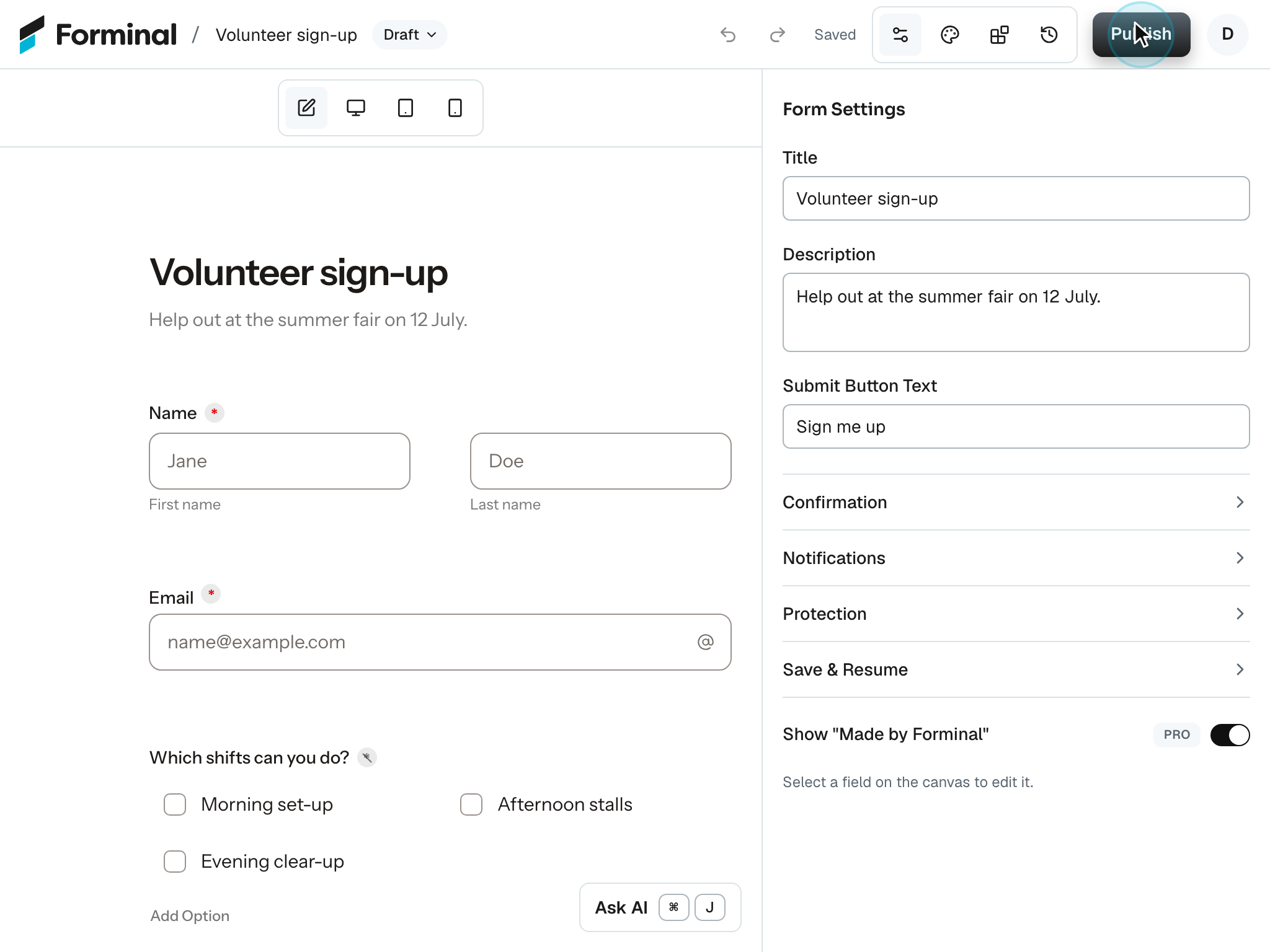
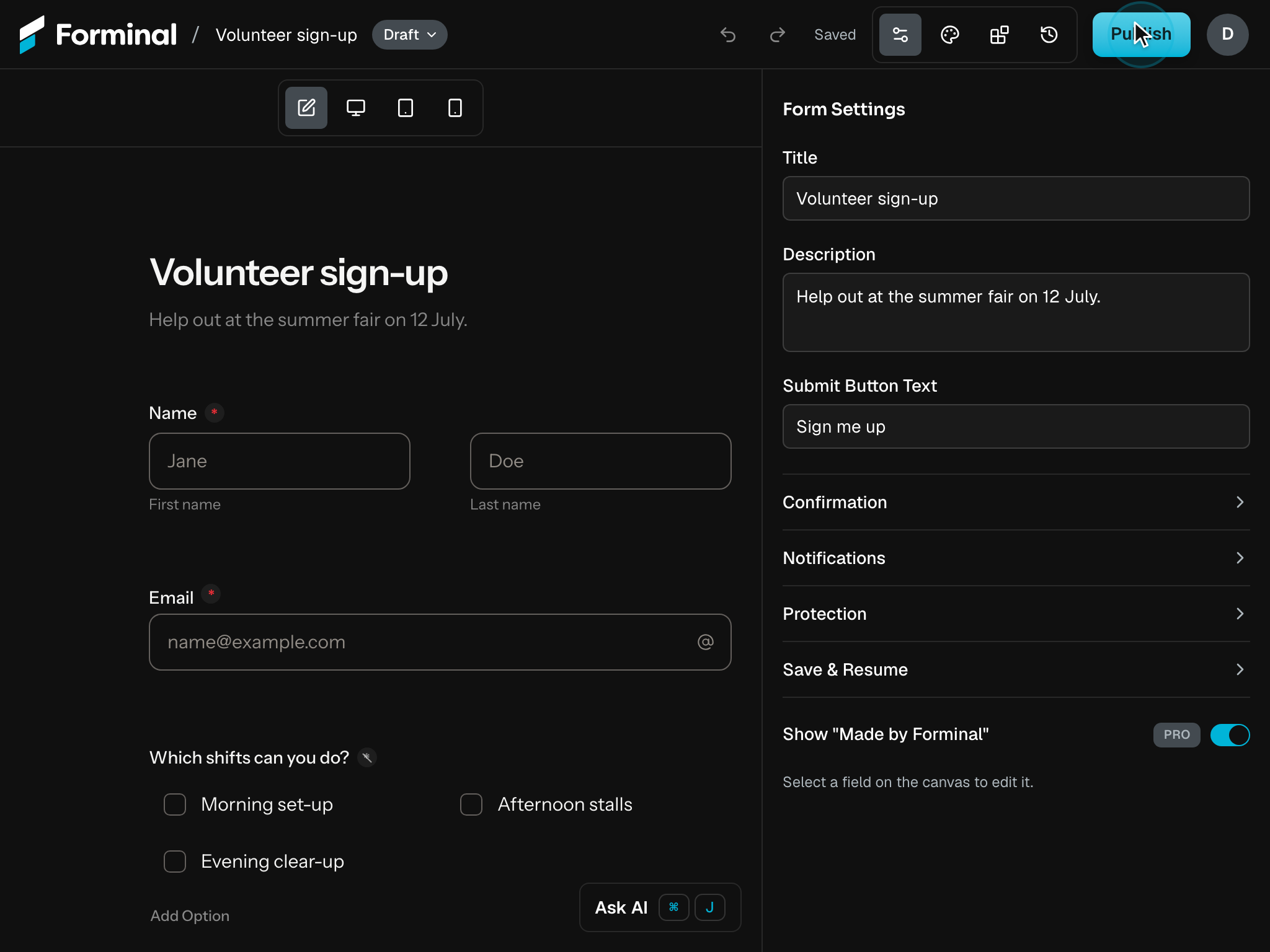
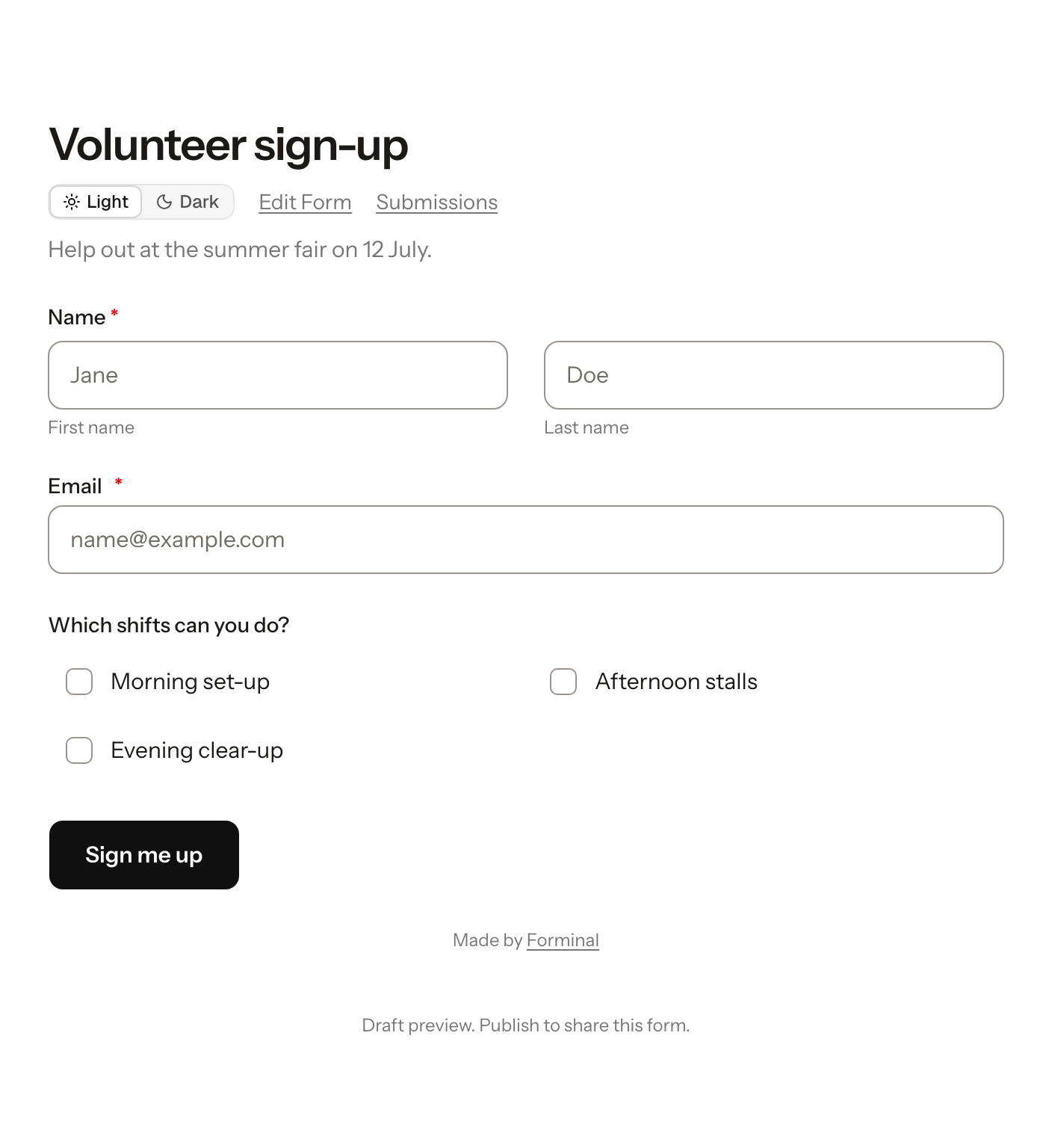
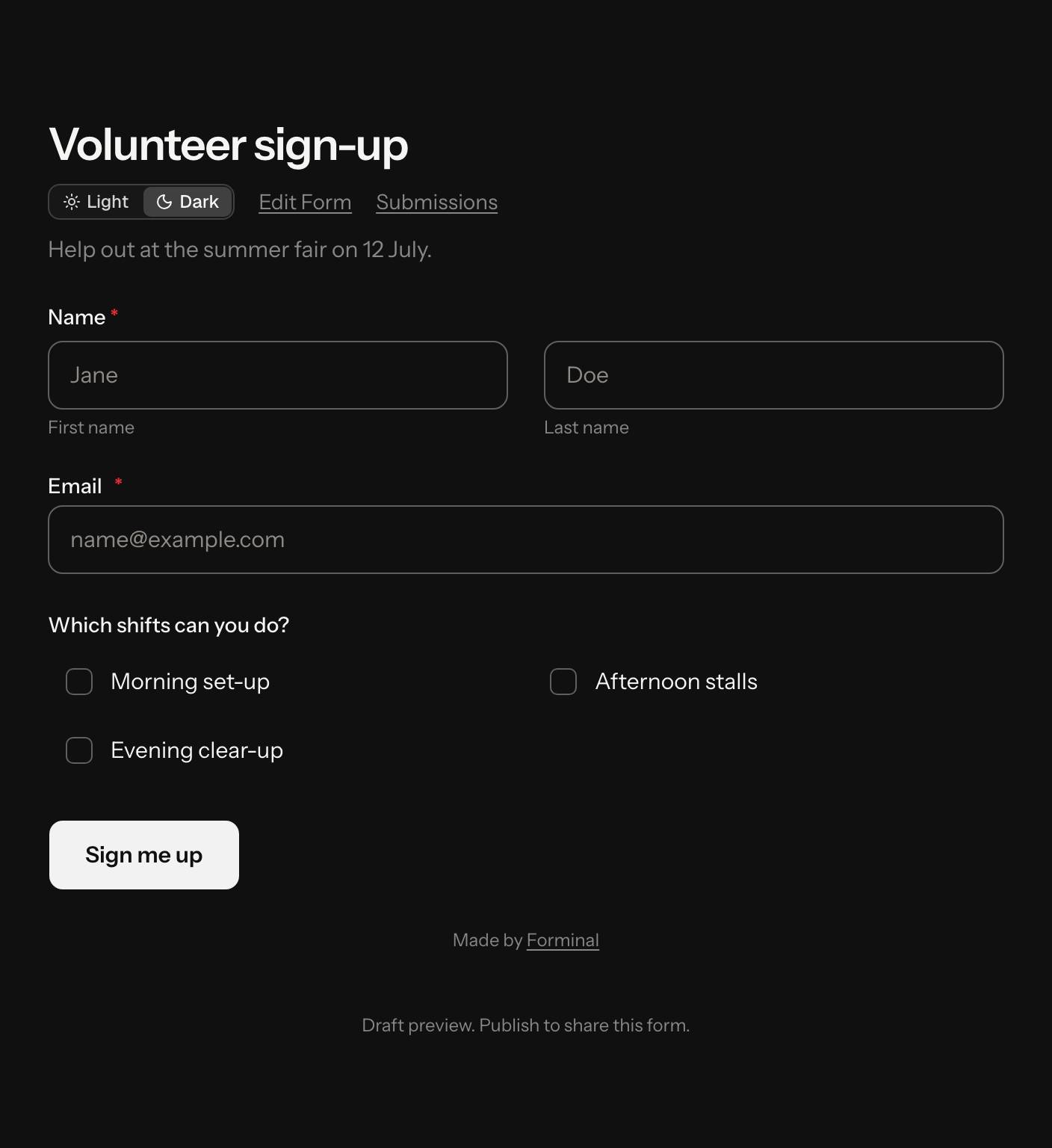
The builder’s top bar shows a Draft badge, and the builder saves every change as you go. You’ll see Saving and then Saved next to the undo buttons. Anyone else who opens the form’s link, or a page that embeds it, gets a page that says it can’t be found. You and people with access to the form can open the link and see the form with “Draft preview. Publish to share this form.” under it, but a draft doesn’t accept submissions. To test the whole flow, switch the builder to Desktop, Tablet or Mobile and submit there; preview saves nothing and sends no email.
Publish a form
- Select Publish at the top right of the builder. If you built the form without an account, you’re asked to sign in first.
- The badge changes to Published and the Share panel opens, with the form’s embed code on one tab and its link on the other. A Save button takes the place of Publish.
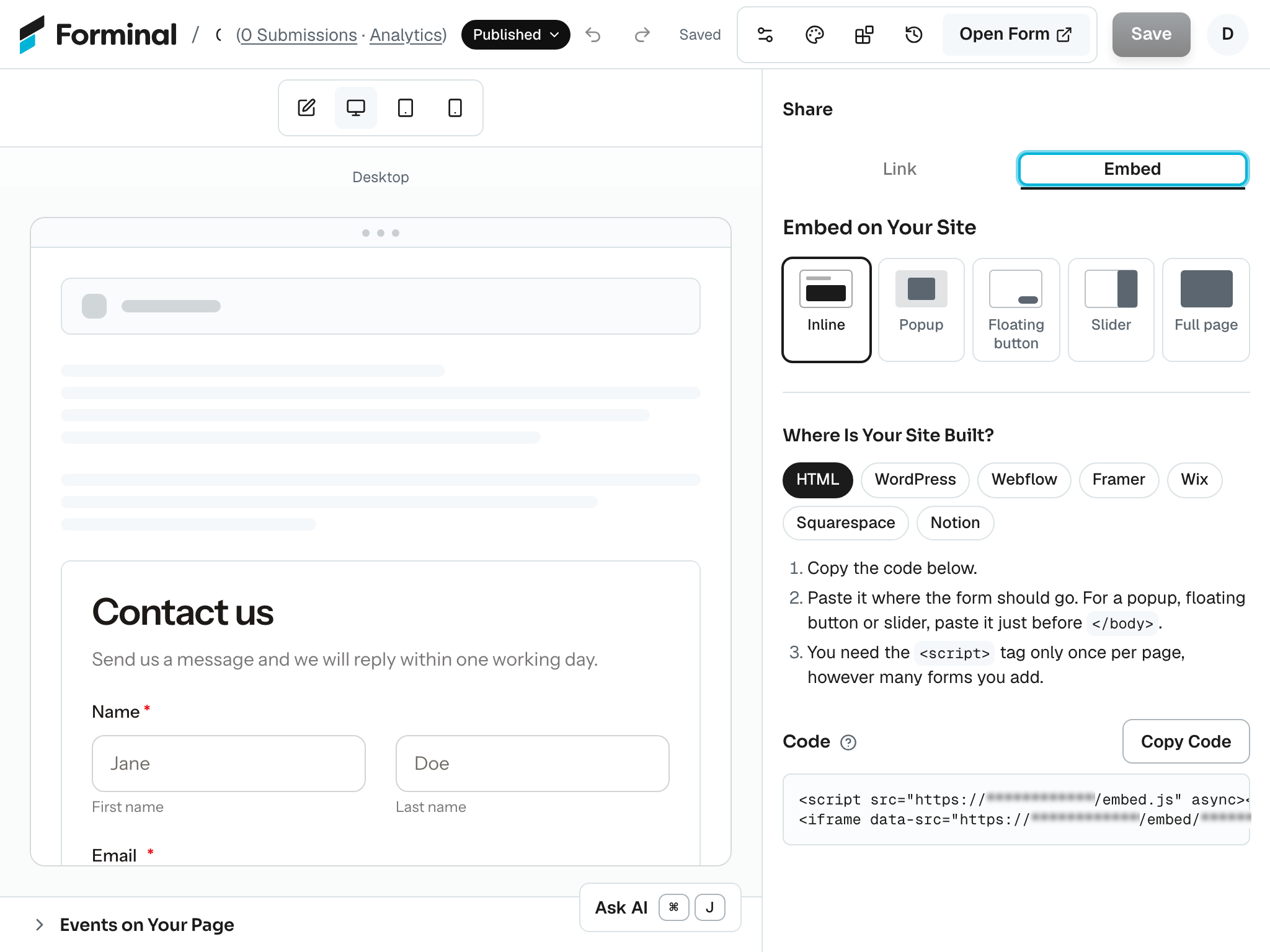
Some forms can’t be published yet, and you’ll see why. A form needs at least one field. A form with a payment field also needs an Email field, an amount source with a price, and payment methods that work with its currency. If the form uses features your plan doesn’t include, it still publishes, and a notice lists what won’t show on the live form.
Edit a published form
Once a form is published, the builder stops saving as you go, so nobody filling it in sees a half-made change. Your edits wait in the builder, and the top bar reads Unsaved changes. To put them live, select Save in the top bar, or press Cmd+S on a Mac or Ctrl+S elsewhere. Save checks the form by the same rules as Publish: if something would stop it from publishing, the builder says what to fix and the live form stays as it was. The link stays the same.
Each Save keeps the version it replaces in Version History, so you can go back to it later. Publishing saves a version too. A version you restore on a published form also waits as unsaved edits until you select Save. The top bar links to the form’s submissions and analytics, and Share opens the Share panel again.
The assistant in the builder works the same way on a published form: its changes go in as unsaved edits and reach people only when you select Save. For a big change, you can also ask the assistant on your Forms page to duplicate the form and work on the copy.
Leaving with unsaved edits
If you select a link that leaves the builder before you save, a window titled Save Your Changes? asks what to do. Save Changes puts your edits live and then leaves, Discard Changes drops them and leaves, and Cancel keeps you in the builder. If you close or reload the tab instead, your browser shows its own warning, which has no Save option.
Move a form back to draft
- In the builder, select the Published badge next to the form title.
- Choose Draft.
- In the Move to Draft? window, select Move to Draft.
The window warns: “Your form will go offline. Its link and every embed stop working until you publish it again.” Within 10 minutes of publishing there’s no window, and the form moves straight to draft, because it has had little time to be shared. Unsaved edits are saved into the draft, so you don’t lose them and none of them go live. Submissions stay where they are. To put the form back online, select Publish; the link is the same as before.
Good to know
Views and other analytics are only counted on a published form.
You can also ask the assistant on your Forms page to publish or unpublish a form.
Frequently asked questions
Do I need an account to publish a form?
Yes. You can build a form without an account, but selecting Publish asks you to sign in or create one first, and the form moves into your account as it is.
Can a draft form collect submissions?
A draft doesn’t accept submissions, and anyone who isn’t working on the form gets a page that says it can’t be found. Preview in the builder lets you test the flow, but it saves nothing and sends no email.
How do I unpublish a form?
Select the Published badge next to the form title in the builder, choose Draft and confirm with Move to Draft. The form goes back to being a draft, its link and every embed stop working, and its submissions stay where they are.
Can I edit a published form without people seeing the changes right away?
Yes. On a published form your edits wait in the builder until you select Save or press Cmd+S (Ctrl+S elsewhere), so people keep seeing the live version until then.
What happens to unsaved edits if I leave the builder?
A window asks whether to save them, discard them or stay in the builder. Closing or reloading the tab shows your browser’s own warning instead.
Why can’t I publish my form?
A form needs at least one field. A form with a payment field also needs an Email field, an amount source with a price, and payment methods that work with its currency. The builder tells you which of these is missing.
Can I publish a form that uses features my plan doesn’t include?
It still publishes, and a notice lists what won’t show on the live form until you upgrade.