Colors lets you set every main color of the form yourself, so it matches your brand instead of a preset. You pick each color from a color picker or type its hex code.
Examples
- Matching a button to your brand color.
- A transparent background so the form sits on your page design.
Change a color
- Open the form in the builder and select Customize in the top bar.
- Under Theme, select the row with your current theme, pick the theme closest to what you want, such as Default or Studio, and select Use Theme on its tile.
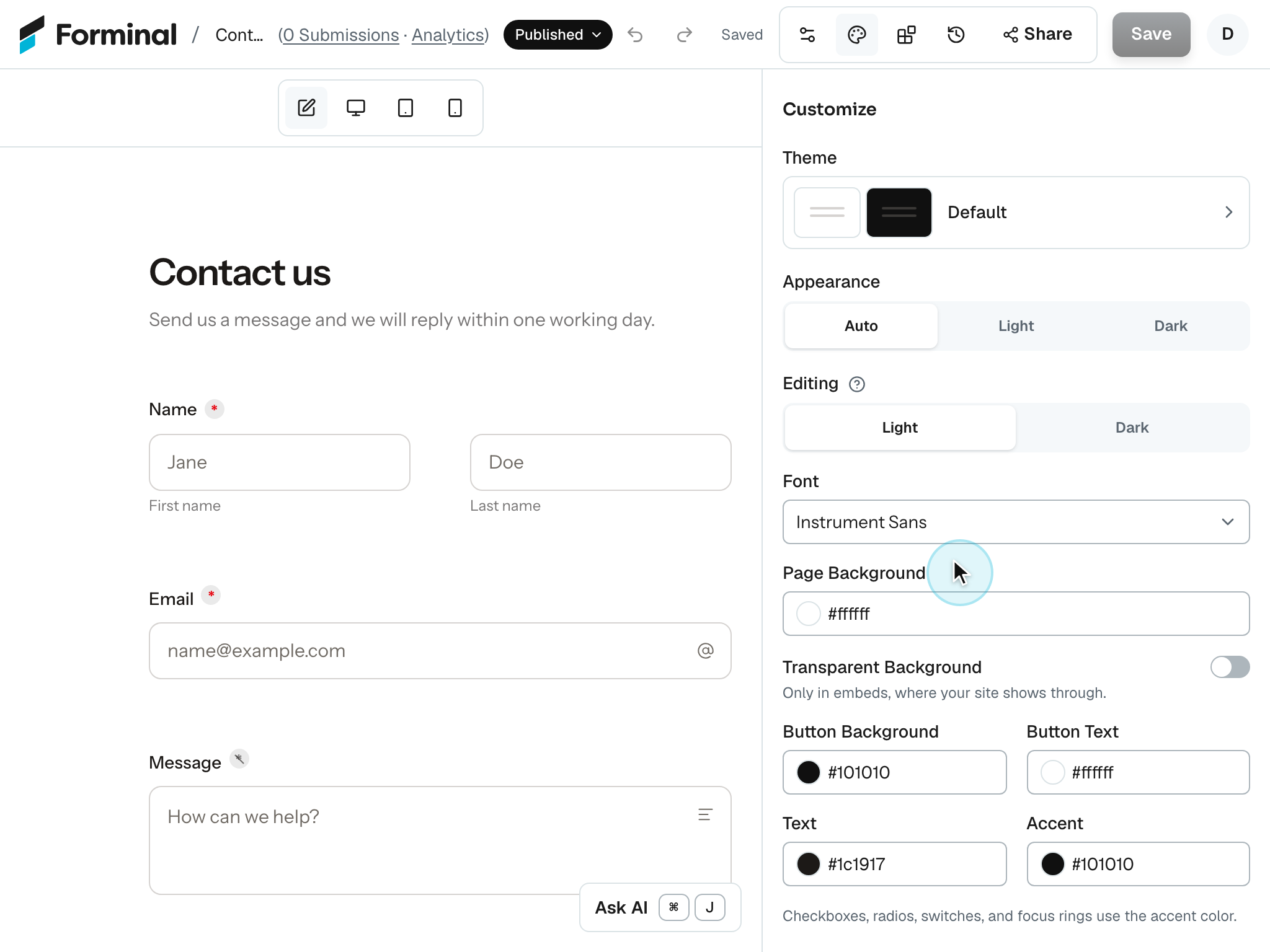
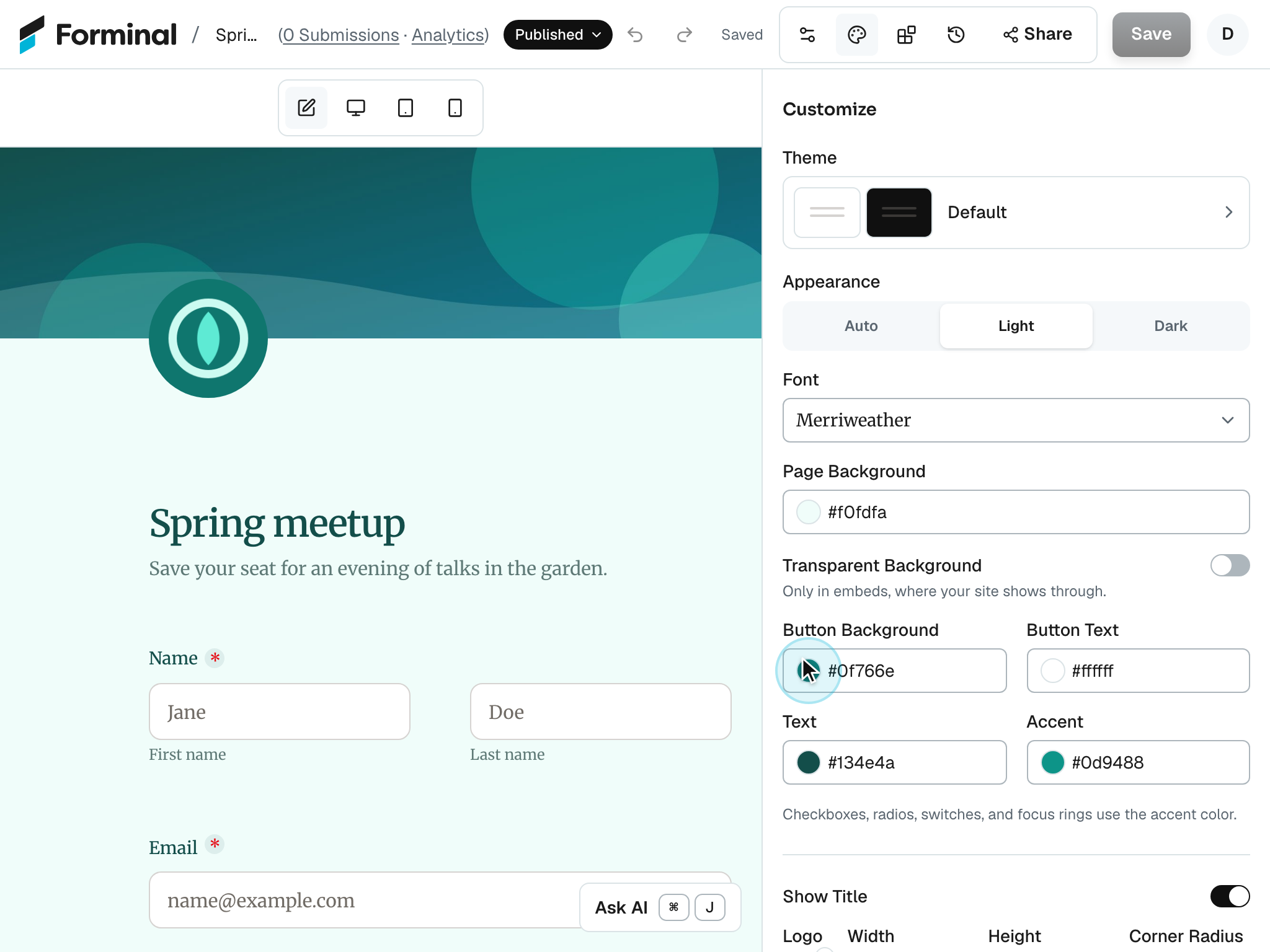
- Select the round swatch next to a color to open the color picker, or type a hex code such as
#7957ffinto the box.
The colors you can set
These sit at the top of the Customize panel:
- Page Background fills the form and, on the form’s own link, the whole page around it. When the form sits on a card, the card has its own color and photo, and Page Background colors the page outside it.
- Text colors the title, labels and answers. Help text and captions use a lighter mix of it.
- Button Background and Button Text color the submit button, and the Next and Previous buttons on a form with several pages.
- Accent colors checked checkboxes, radios and switches, the focus ring around the field someone is typing in, and the progress bar.
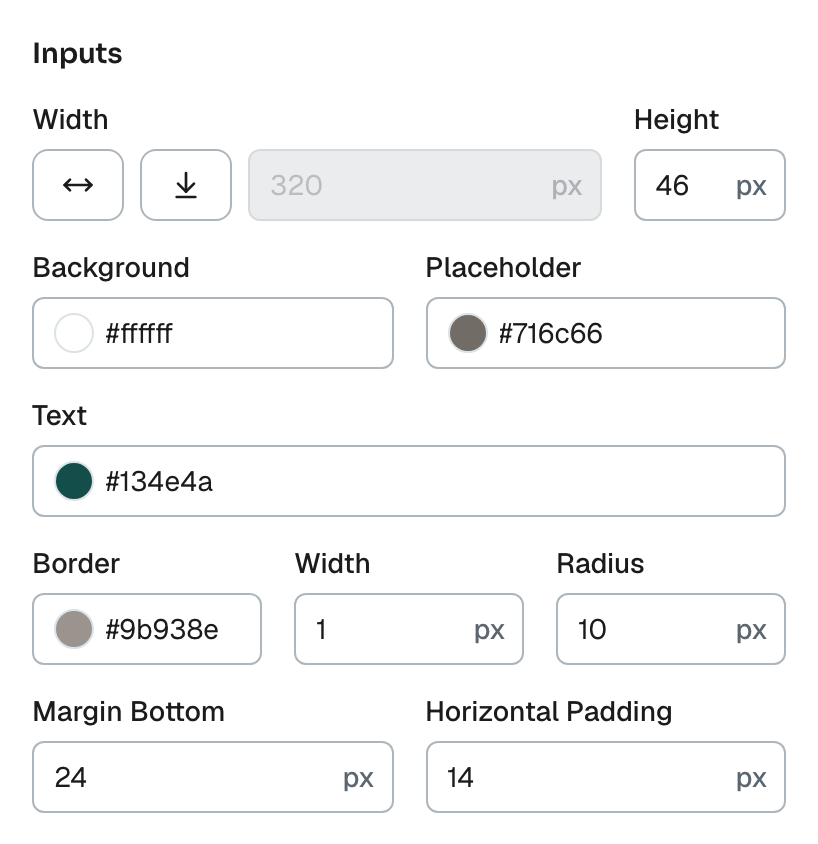
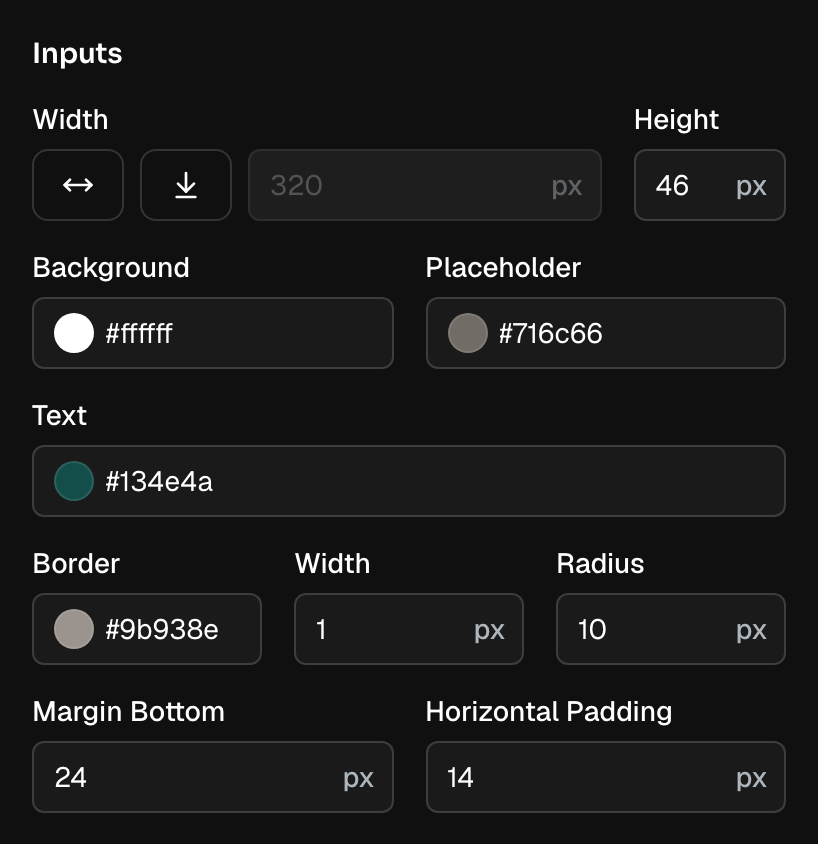
Four more are under Inputs in the Advanced section, and you can change them with the colors above: Background for the inside of each input, Placeholder for the hint text in an empty input, Text for what people type, and Border for the input outline. Text starts as the form’s Text color. Unchecked checkboxes, radios and switches use the input background too.
The Button group under Advanced has a Border color too, with Border Width beside it. The border stays hidden until you set a width above 0. These colors, and the card’s Card Background and Border, work on every plan.
Colors for the dark look
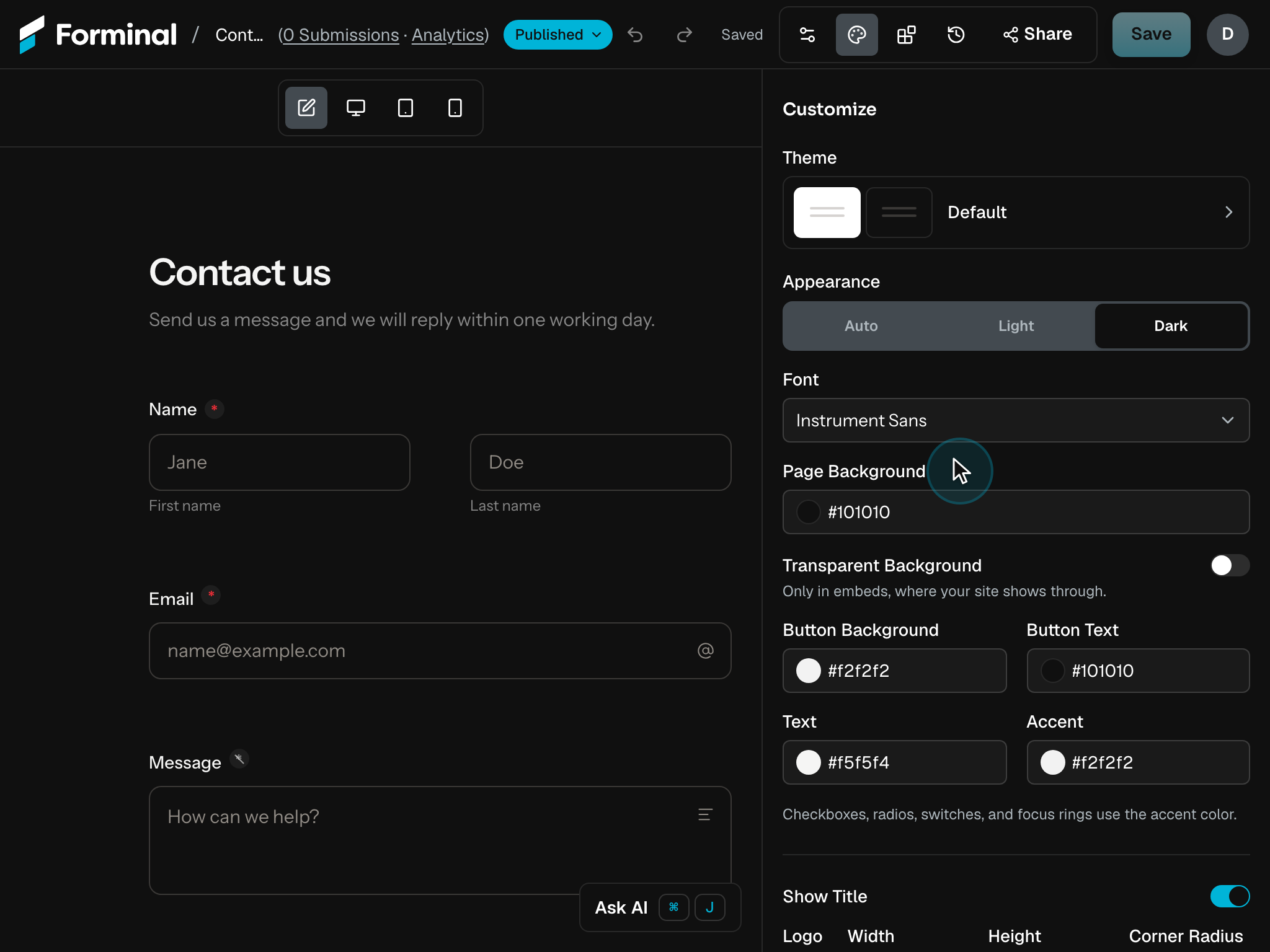
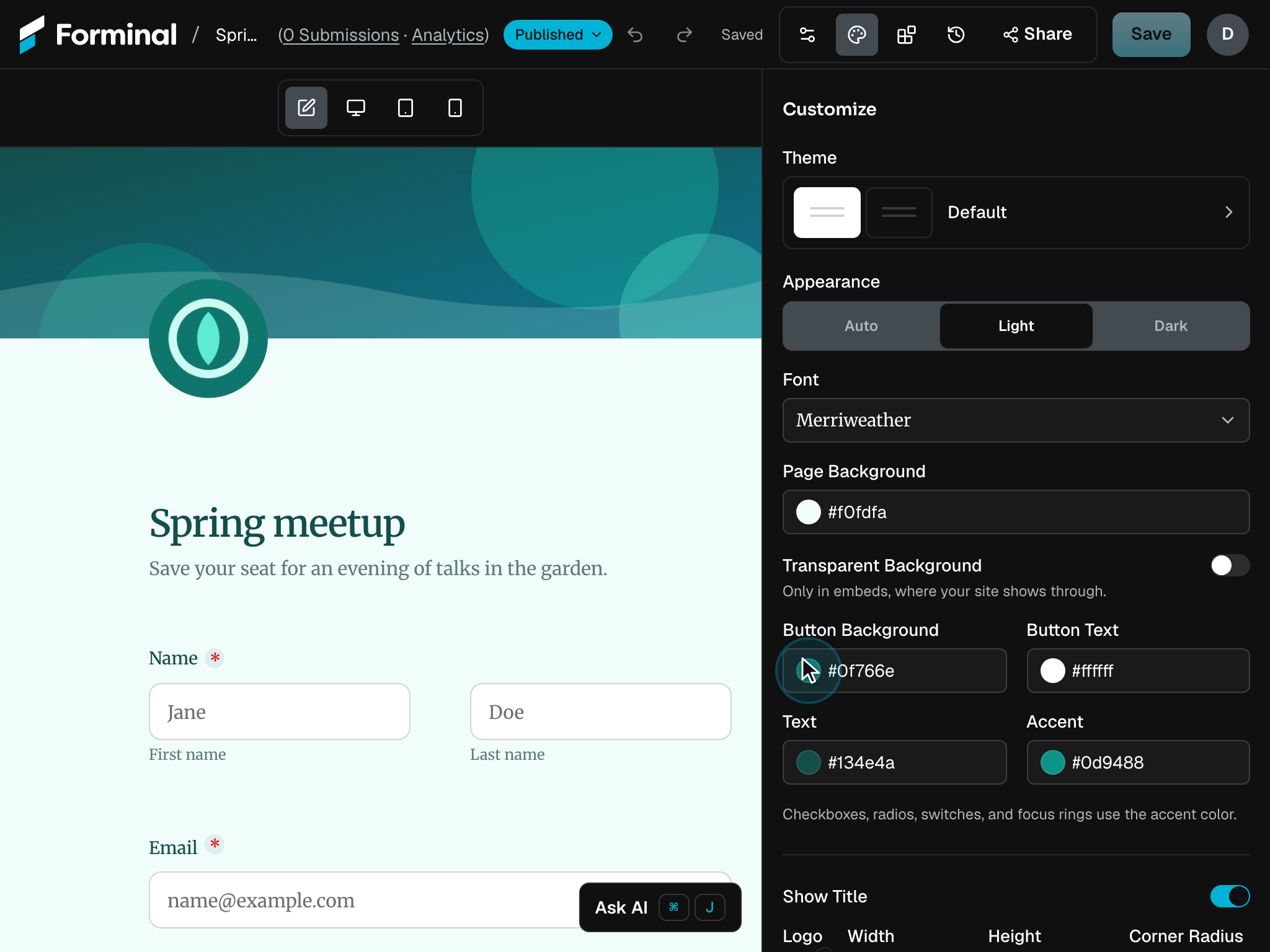
Every theme has a light and a dark look, and the form’s Appearance decides which one visitors see. On Auto, set the Editing switch under it to Dark to change the dark look’s colors. Each color you change there applies to the dark look only, and a reset button appears beside it to put back the theme’s own dark color. A color you leave alone follows the theme. On Dark, the colors you see in Customize are the dark look’s.
Transparent colors
Type an eight-digit hex code to make a color see-through. The last two digits set the opacity, from 00 (fully transparent) to ff (solid). For example, #ffffff00 as the Page Background lets your page show through an embedded form. The color picker keeps a color’s opacity but can’t change it, so type the code to set it.
To clear the background in inline and full-page embeds only, turn on Transparent Background in Customize, right under Page Background. Your page then shows through the form, and the form’s own page and popups keep your Page Background color. A card keeps its own color and photo either way. It works on every plan.
Good to know
A color has to be a six- or eight-digit hex code. Anything else shows “Use a hex color like #7957ff” and isn’t saved. Picking a theme afterwards replaces every color with the theme’s own, in both looks, so choose the theme first. Colors apply the same way on the form’s link, in an inline embed, in a popup and in the preview.
Frequently asked questions
Can I make the form background transparent?
Type an eight-digit hex code ending in 00, such as #ffffff00, as the Page Background. The color picker can’t change opacity, so type the code. To clear it in inline and full-page embeds only, turn on Transparent Background in Customize. The form’s own page and popups keep their color.
Can I use RGB values or color names?
No. A color has to be a six- or eight-digit hex code, and anything else shows an error and isn’t saved.
Can I change the input border and placeholder colors?
You’ll find Background, Placeholder, Text and Border for the inputs under Inputs in the Advanced section of Customize. These input colors always apply, even on a plan without Advanced Styles.
Do my colors look the same when the form is embedded?
They do. Colors apply the same way on the form’s link, in an inline embed, in a popup and in the preview.
Do I need a paid plan to change colors?
No, colors work on every plan.