Mit Farben können Sie jede Hauptfarbe des Formulars selbst festlegen, damit es zu Ihrer Marke passt und nicht einer voreingestellten Vorlage entspricht. Sie wählen jede Farbe aus einer Farbauswahl oder geben ihren Hex-Code ein.
Beispiele
- Eine Schaltfläche passend zu Ihrer Markenfarbe gestalten.
- Ein transparenter Hintergrund, damit das Formular in Ihr Seitendesign passt.
Eine Farbe ändern
- Open the form in the builder and select Customize in the top bar.
- Under Theme, select the row with your current theme, pick the theme closest to what you want, such as Default or Studio, and select Use Theme on its tile.
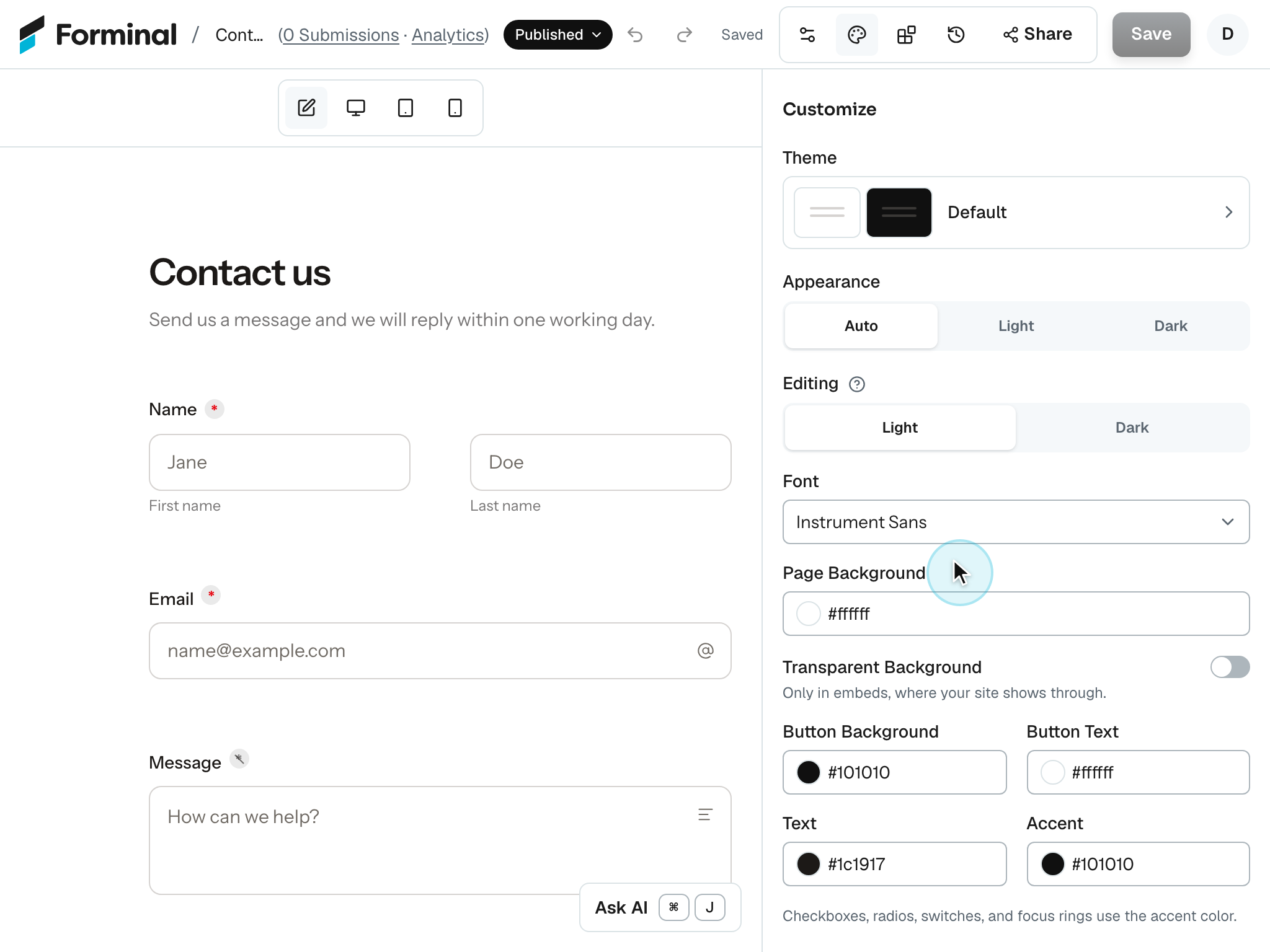
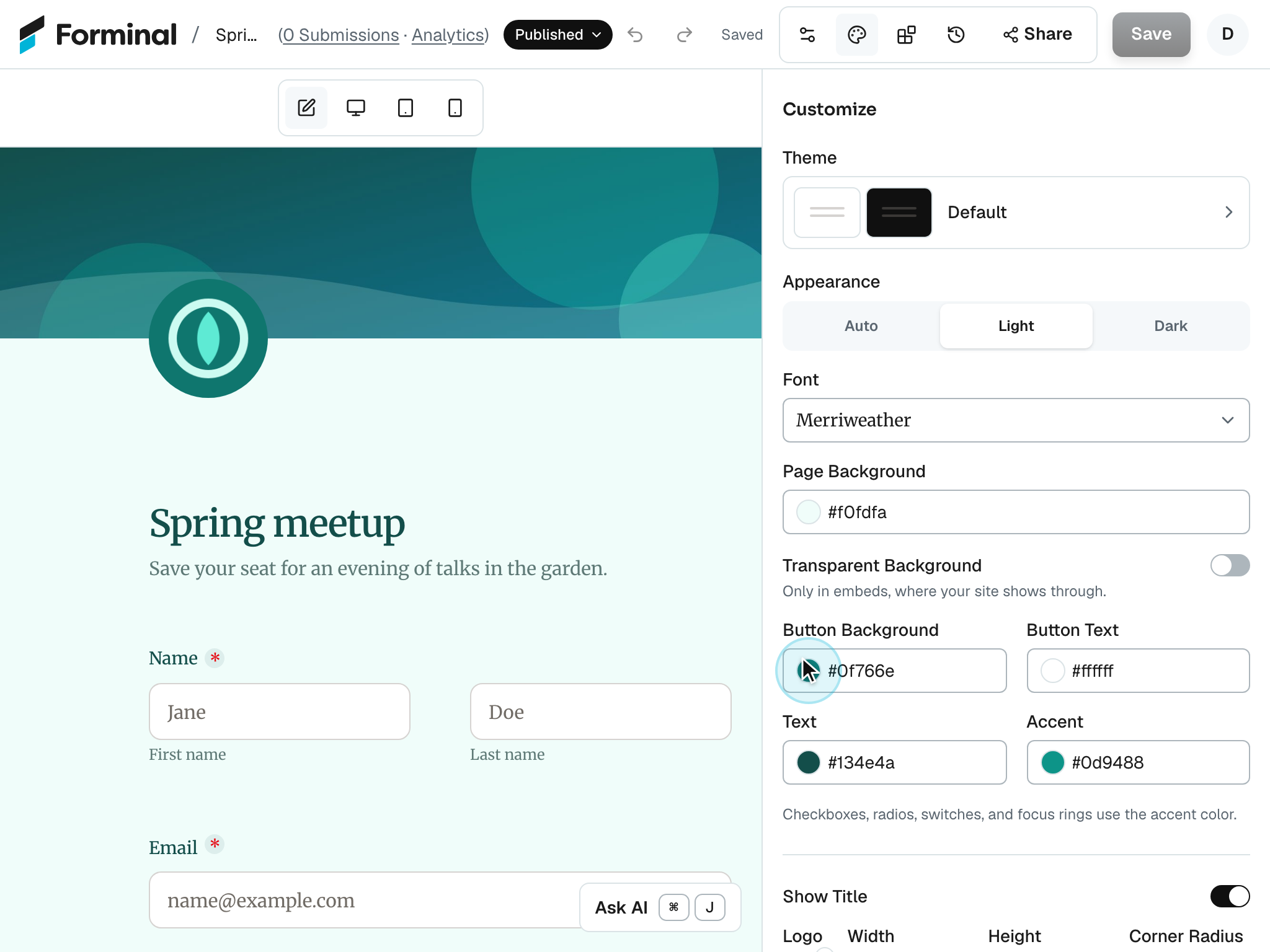
- Wählen Sie die runde Farbprobe neben einer Farbe aus, um die Farbauswahl zu öffnen, oder geben Sie einen Hex-Code wie
#7957ffin das Feld ein.
Die Farben, die Sie festlegen können
Diese befinden sich oben im Anpassungsfenster:
- Page Background fills the form and, on the form’s own link, the whole page around it. When the form sits on a card, the card has its own color and photo, and Page Background colors the page outside it.
- Text colors the title, labels and answers. Help text and captions use a lighter mix of it.
- Button Background and Button Text color the submit button, and the Next and Previous buttons on a form with several pages.
- Accent colors checked checkboxes, radios and switches, the focus ring around the field someone is typing in, and the progress bar.
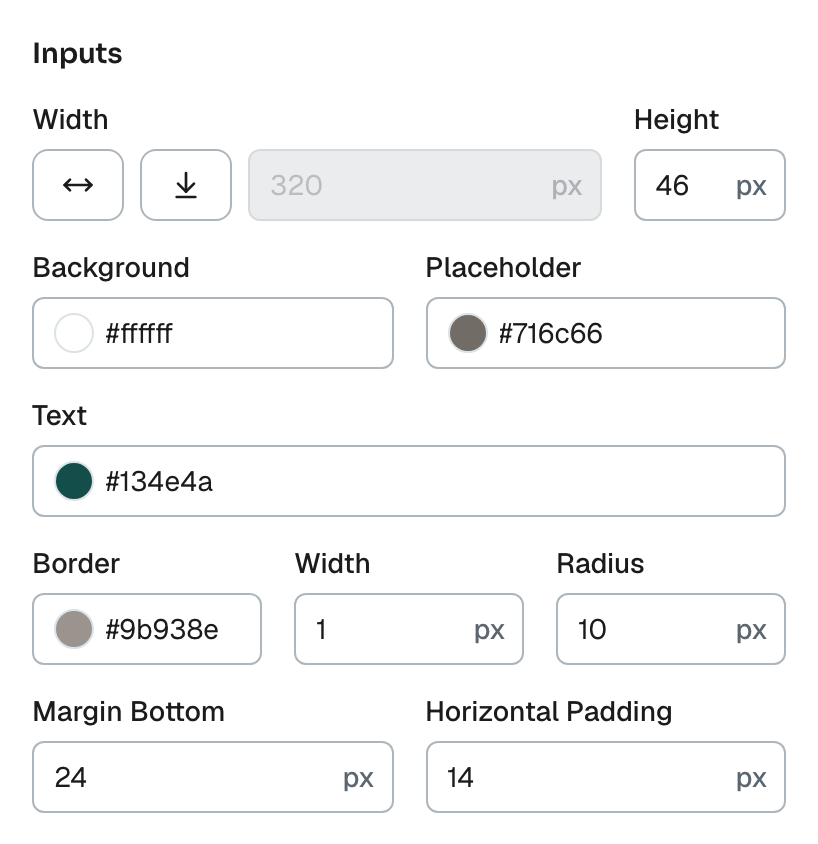
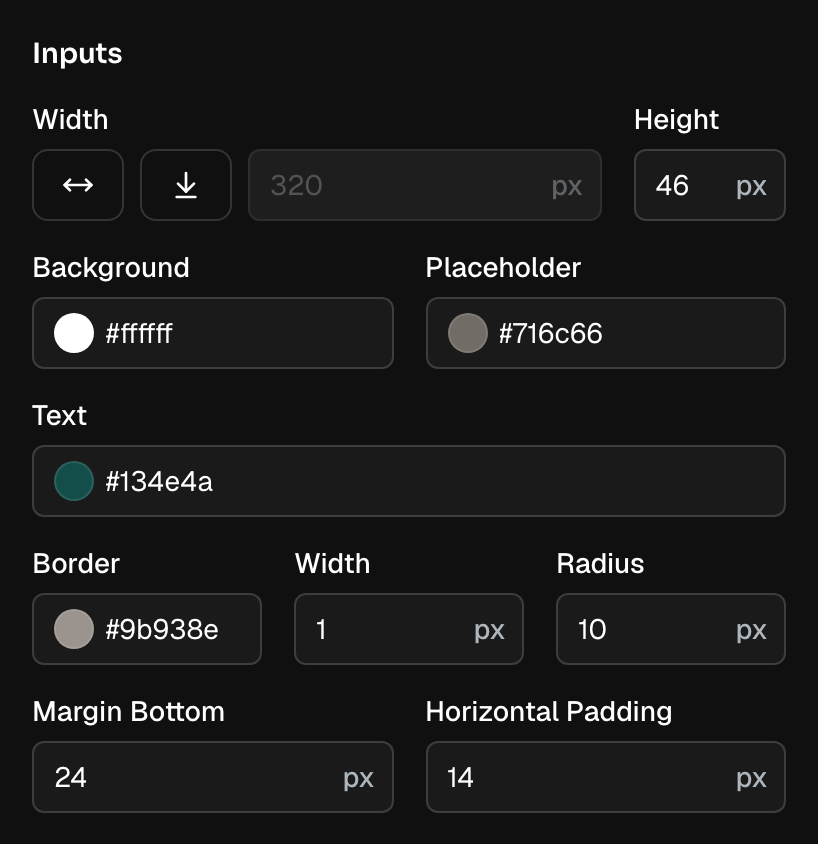
Four more are under Inputs in the Advanced section, and you can change them with the colors above: Background for the inside of each input, Placeholder for the hint text in an empty input, Text for what people type, and Border for the input outline. Text starts as the form’s Text color. Unchecked checkboxes, radios and switches use the input background too.
The Button group under Advanced has a Border color too, with Border Width beside it. The border stays hidden until you set a width above 0. These colors, and the card’s Card Background and Border, work on every plan.
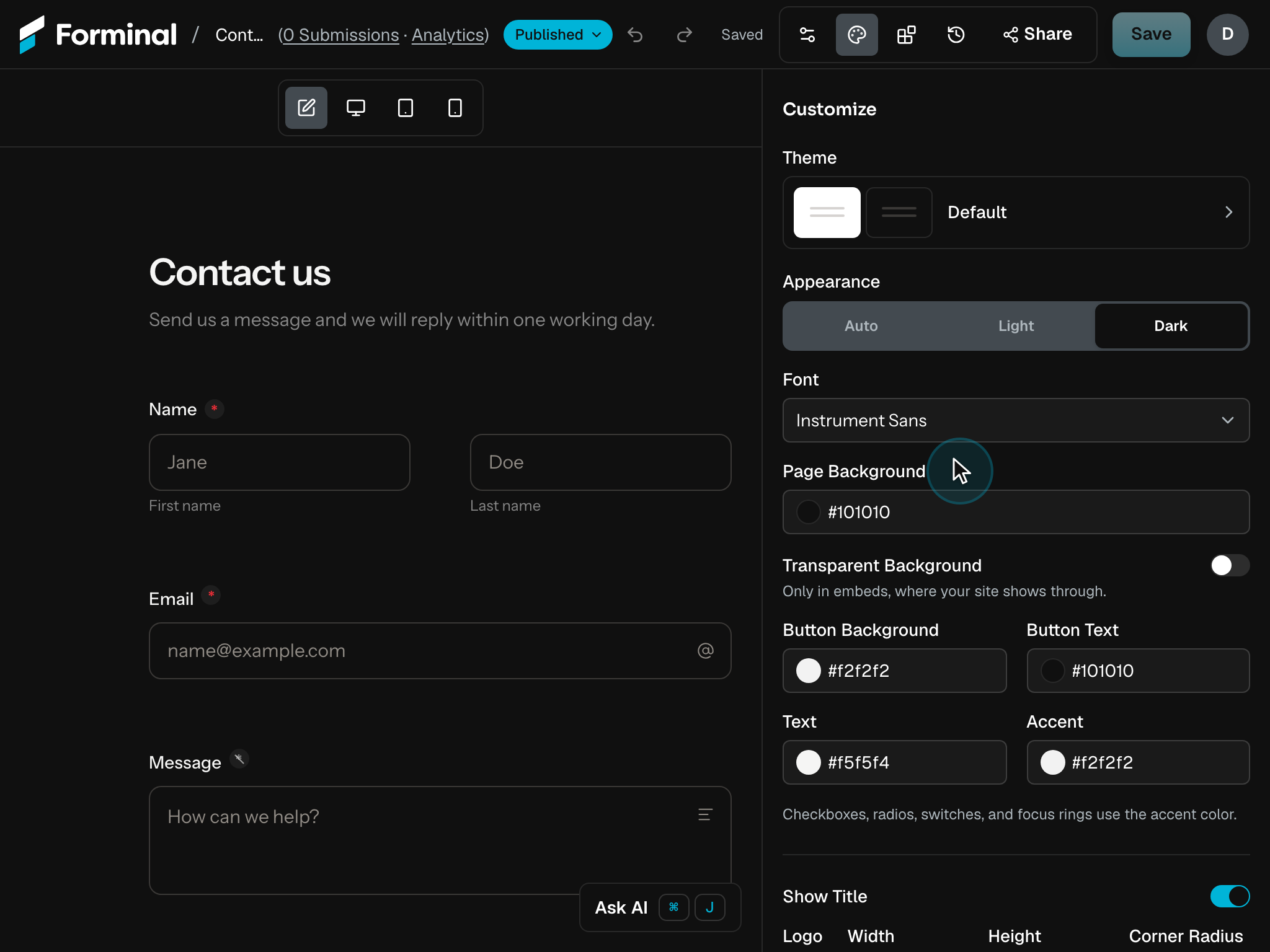
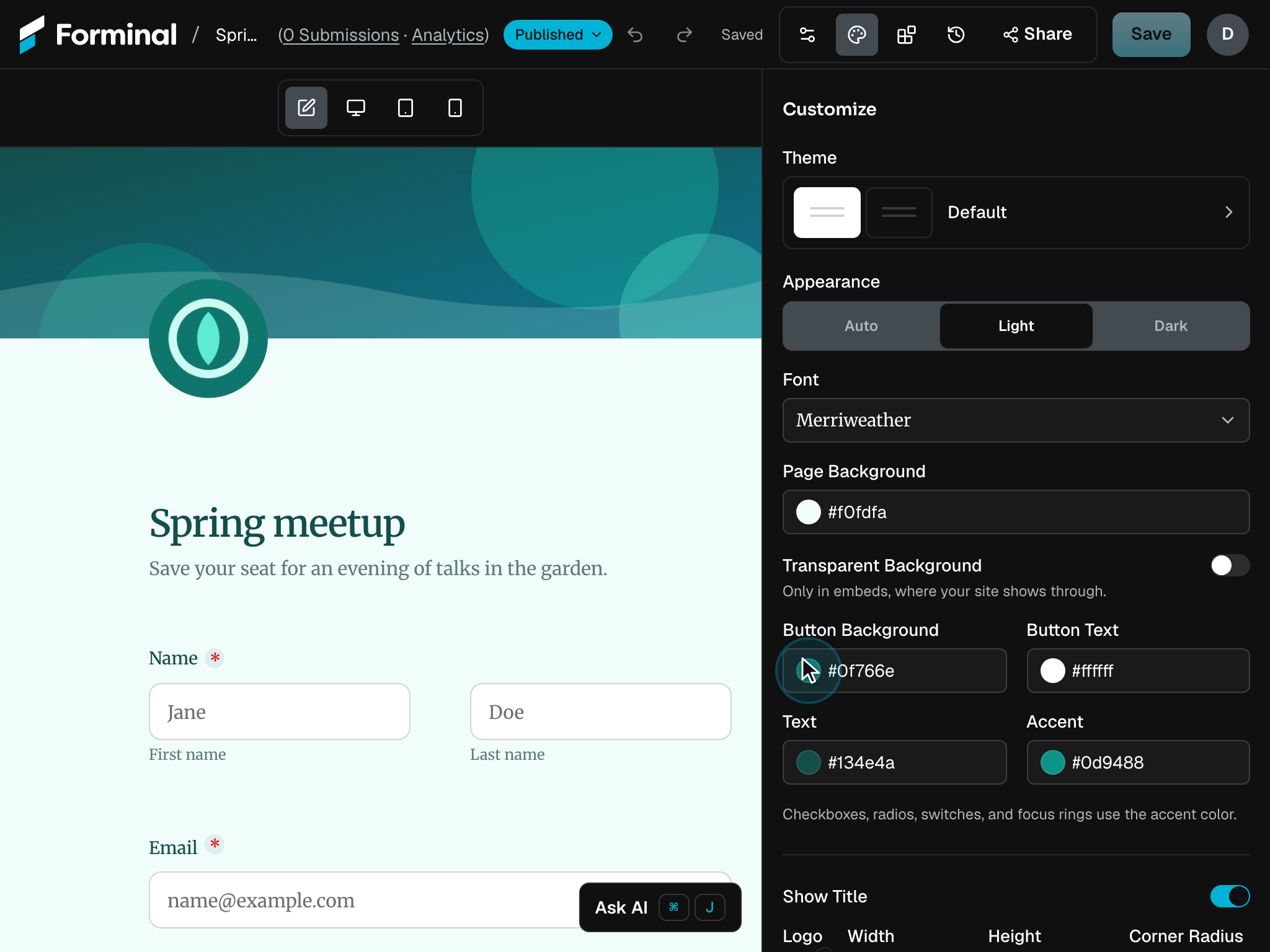
Farben für den dunklen Look
Every theme has a light and a dark look, and the form’s Appearance decides which one visitors see. On Auto, set the Editing switch under it to Dark to change the dark look’s colors. Each color you change there applies to the dark look only, and a reset button appears beside it to put back the theme’s own dark color. A color you leave alone follows the theme. On Dark, the colors you see in Customize are the dark look’s.
Transparente Farben
Type an eight-digit hex code to make a color see-through. The last two digits set the opacity, from 00 (fully transparent) to ff (solid). For example, #ffffff00 as the Page Background lets your page show through an embedded form. The color picker keeps a color’s opacity but can’t change it, so type the code to set it.
To clear the background in inline and full-page embeds only, turn on Transparent Background in Customize, right under Page Background. Your page then shows through the form, and the form’s own page and popups keep your Page Background color. A card keeps its own color and photo either way. It works on every plan.
Gut zu wissen
Eine Farbe muss ein sechs- oder achtstelliger Hex-Code sein. Alles andere zeigt "Verwenden Sie eine Hex-Farbe wie #7957ff" und wird nicht gespeichert. Das anschließende Auswählen eines Designs ersetzt jede Farbe durch die eigene des Designs, in beiden Looks. Wählen Sie daher zuerst das Design aus. Farben gelten auf die gleiche Weise für den Link des Formulars, in einer Inline-Einbettung, in einem Popup und in der Vorschau.
Häufig gestellte Fragen
Kann ich den Formularhintergrund transparent machen?
Geben Sie einen achtstelligen Hex-Code ein, der auf 00 endet, z. B. #ffffff00, als Seitenhintergrund. Der Farbwähler kann die Deckkraft nicht ändern, geben Sie daher den Code ein. Um ihn nur in Inline- und Vollseiten-Einbettungen zu löschen, aktivieren Sie "Transparenter Hintergrund" unter "Anpassen". Die eigene Seite und die Popups des Formulars behalten ihre Farbe.
Kann ich RGB-Werte oder Farbnamen verwenden?
Nein. Eine Farbe muss ein sechs- oder achtstelliger Hex-Code sein, alles andere führt zu einem Fehler und wird nicht gespeichert.
Kann ich die Farben für Eingabefelder und Platzhalter ändern?
Hintergrund, Platzhalter, Text und Rahmen für die Eingabefelder finden Sie unter "Eingabefelder" im Abschnitt "Erweitert" von "Anpassen". Diese Eingabefarben gelten immer, auch in einem Plan ohne Erweiterte Stile.
Sehen meine Farben gleich aus, wenn das Formular eingebettet ist?
Ja. Farben werden auf dem Link des Formulars, in einer Inline-Einbettung, in einem Popup und in der Vorschau auf die gleiche Weise angewendet.
Benötige ich einen kostenpflichtigen Plan, um Farben zu ändern?
Nein, Farben funktionieren in jedem Plan.