If your team follows up on leads from a spreadsheet, let the form fill it in. With the Google Sheets integration, every new submission to your contact or quote form becomes a row in a sheet you choose, a moment after it’s sent. Nobody copies answers out of an inbox, and the list is never a day behind. Google Sheets works on every plan.
Build a form your team can follow up on
Ask only what the person following up will use. A typical lead form has a Name, an Email, a Short text for the company, a Dropdown for what they’re interested in and a Long text for the details. Each question gets its own column in the sheet, so short, clear labels make the sheet easy to scan.
You don’t need a field to know which campaign a lead came from. UTM Tracking saves the UTM source, medium, campaign, term and content of each submission, and the sheet gets a column for each.
Connect your Google account
- Open Account menu » Integrations.
- In the Google Sheets box, select Continue with Google.
- Pick the Google account and allow access to your spreadsheets. You come back to the Integrations page with the account listed.
You do this once per Google account. Google Drive is a separate connection, so this step gives no access to your Drive files. Google Permissions for Sheets and Drive explains what each permission is for.
Send the form to a sheet
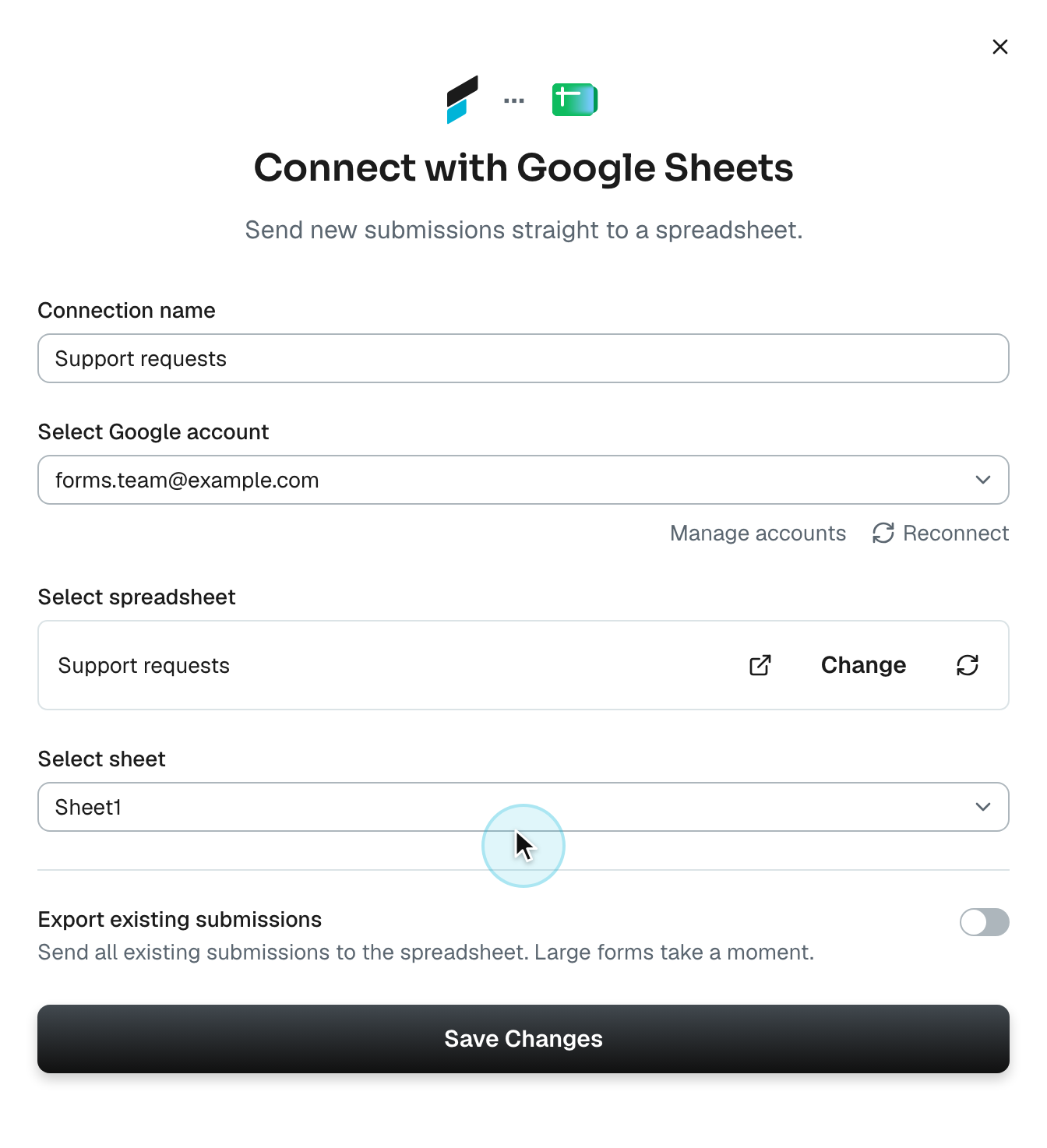
- Open the form in the builder and select Integrations in the top bar.
- Select Connect next to Google Sheets.
- Under Google Account, choose the account to write with.
- Under Spreadsheet, choose Create a New Spreadsheet for a fresh lead list named after the form, or Browse Google Drive to pick a sheet you already have. You need edit access to it.
- Under Sheet, pick the tab the rows go to.
- Leave Export Existing Submissions off, unless you also want the leads you already have in the sheet.
- Select Save Changes.
Leave Columns on Full Submission, and there’s nothing to map. If row 1 is empty, it gets a header, and every submission after that adds a row under it: the submission ID, when it came in, one column per question, then details such as the country and the UTM values.
Only the form’s owner can connect it. On Pro and Business, a teammate in your workspace can read the leads in Forminal too, and anyone can read them in the sheet once you share it with them.
Make the sheet work as a tracker
- Keep your counts, filters and charts on a second tab that reads from the first. The form only adds rows to the tab you picked, so your formulas stay out of its way.
- To keep a Status or Owner column the form never writes to, choose Map Manually under Columns on the connection and give that column no row. Headings you typed stay as they are.
- Share the spreadsheet with your sales team from Google Sheets. People who only work the leads don’t need a Forminal account.
- If two teams need the same leads, give each its own spreadsheet. A form can send to several; add a connection for each one.
- Renaming the tab in Google Sheets is fine. Forminal finds it again and keeps writing to it.
- When you add, remove or rename questions, open the connection with the pencil and select Save Changes again, so the columns match the form.
- If someone should hear about a lead straight away, add an email too. See Get an Email for Each Submission.
When a lead doesn’t show up
Each connection on the form’s Integrations tab has a status line. “Could not send the last submission” comes with the reason, such as Spreadsheet not found. A row Google refused because the sheet is missing or access is gone is tried again for about 18 hours, so fixing the cause within that time is enough. If Google had a server problem or the connection dropped mid-write, the row may already be in the sheet, so it isn’t tried again, and the status line asks you to check the sheet before you add the row by hand. Spam submissions are never sent, and on a form that takes a payment the row waits until the payment is paid.
Deleting or tagging a submission later doesn’t change its row, and deleting the connection leaves the spreadsheet as it is. The full reference is in Send Submissions to Google Sheets and on the Google Sheets page.
Create a free account and send your first lead form to a sheet.