Kontrollkästchen sind für Fragen, bei denen mehr als eine Antwort richtig sein kann. Jede Option wird mit einem eigenen Feld angezeigt, und die Leute wählen so viele aus, wie zutreffen, oder keine, wenn das Feld nicht erforderlich ist.
Beispiele
- Eine Workshop-Anmeldung, bei der die Leute jede Sitzung ankreuzen, an der sie teilnehmen möchten.
- Eine Produktumfrage, in der gefragt wird, welche Funktionen jemand nutzt, wobei die Optionen gemischt werden.
- Ein Bestellformular, bei dem jedes Extra einen Preis hat und jedes angekreuzte Extra zur Zahlung hinzugefügt wird.
Zu einem Formular hinzufügen
- In the builder, point between two fields and select Add Field. On an empty form, select Start from Scratch.
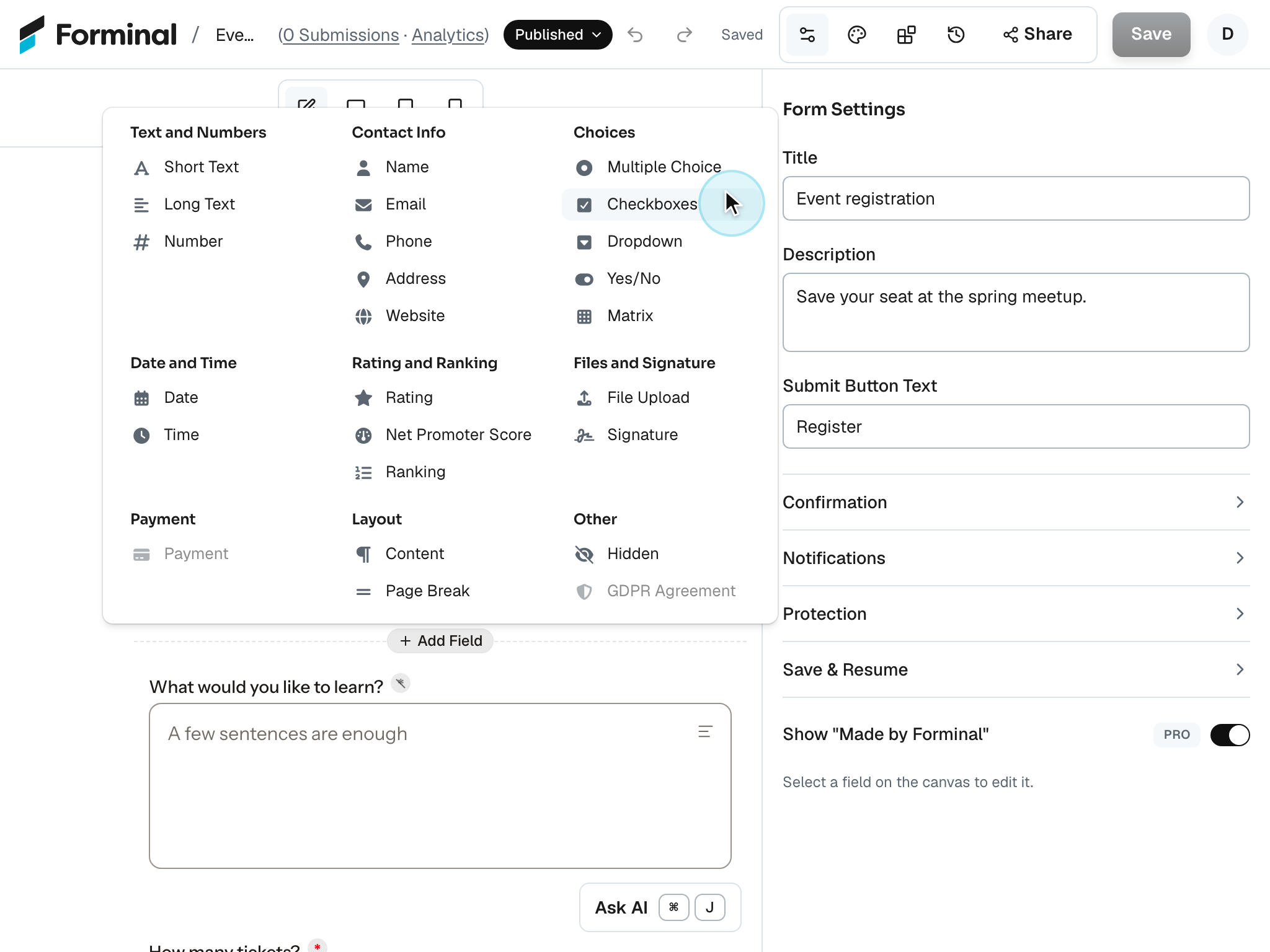
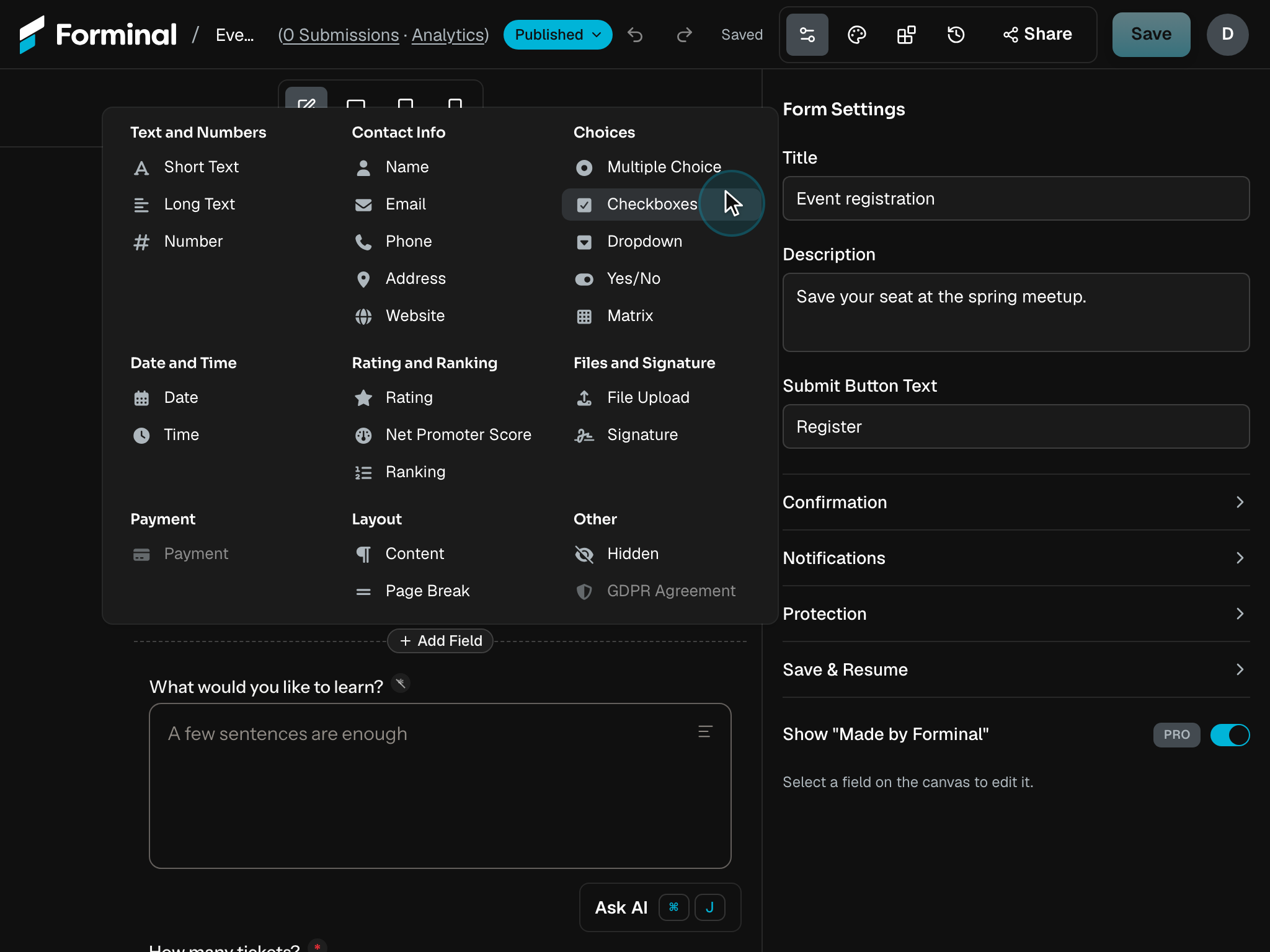
- Under Choices, select Checkboxes.
- The field starts with the label “Choose all that apply” and three options, Choice 1 to Choice 3. Change the label on the General tab of the settings panel.
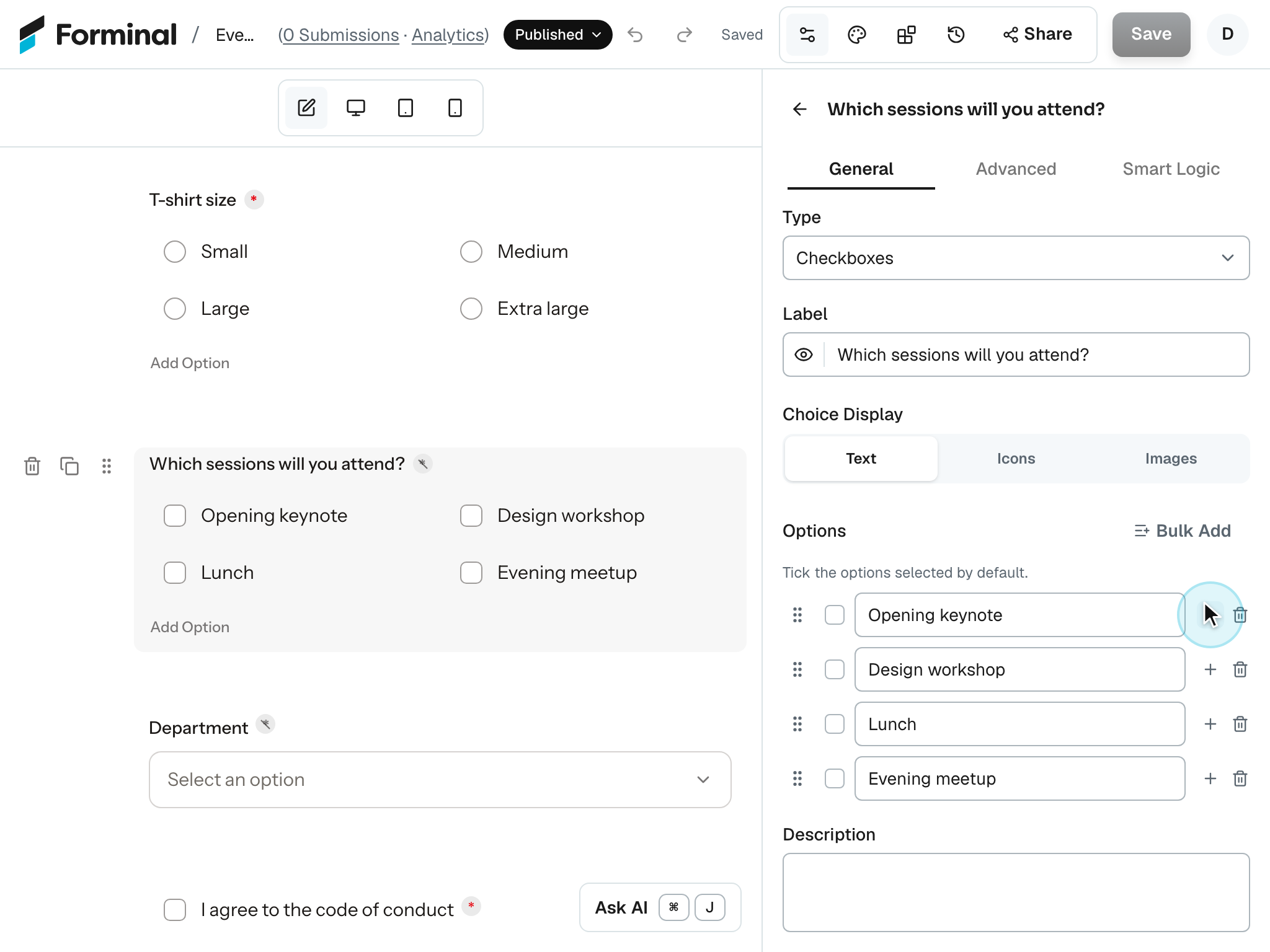
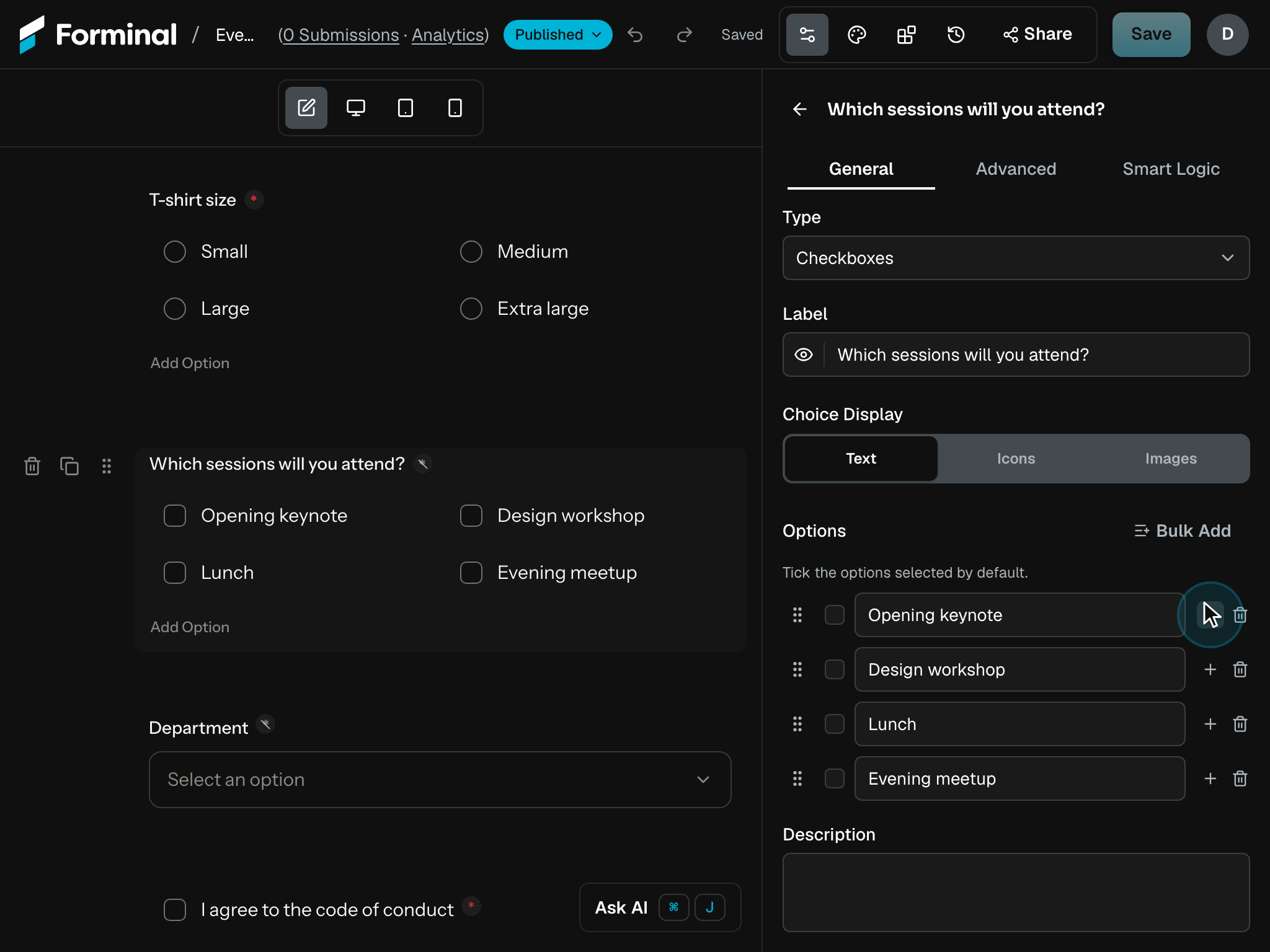
- Under Options, type over each option. Select the small + at the end of a row to add an option right after it, or delete one with the bin icon. At least one option always stays.
- Turn on Required if people must tick at least one box.
Einstellungen
Registerkarte Allgemein
Label, Options, Description, Description Position and Required. Option labels can be up to 200 characters. To tick options in advance, tick the box at the start of their rows in the Options list. While the field’s settings are open, you can also tick them on the canvas. You can pre-tick several. Under Choice Display, pick Icons or Images to show a picture with each option; see Icon and Image Choices.
To add many options at once, select Bulk Add above the list, type one option per line and select Add Choices. Lines that match an option already in the list are skipped, and a field that still has its starting Choice 1 to Choice 3 gets the new list in their place. Show Presets fills the box with a ready list, such as Countries, U.S. States, Months or a five-point agreement scale.
Erweiterte Registerkarte
Layout comes first. It sets how the options sit on the form: 1 Column, 2 Columns, 3 Columns or Inline. Inline puts the options side by side in a row that wraps, each as wide as its text. Until you pick one, Layout has nothing selected and the options follow the form’s theme: two columns on most themes, a wrapping row on a few such as Pill, and one stacked list on Grouped, Joined, Sage, Swiss and Prompt. Once you pick a column layout, a narrow field on a phone or in a slim embed drops to fewer columns when an option would get narrower than about 160 pixels, so every option stays readable. Icon and image cards follow the same setting; see Icon and Image Choices.
Randomize Options shuffles the order every time someone opens the form. The canvas keeps your order.
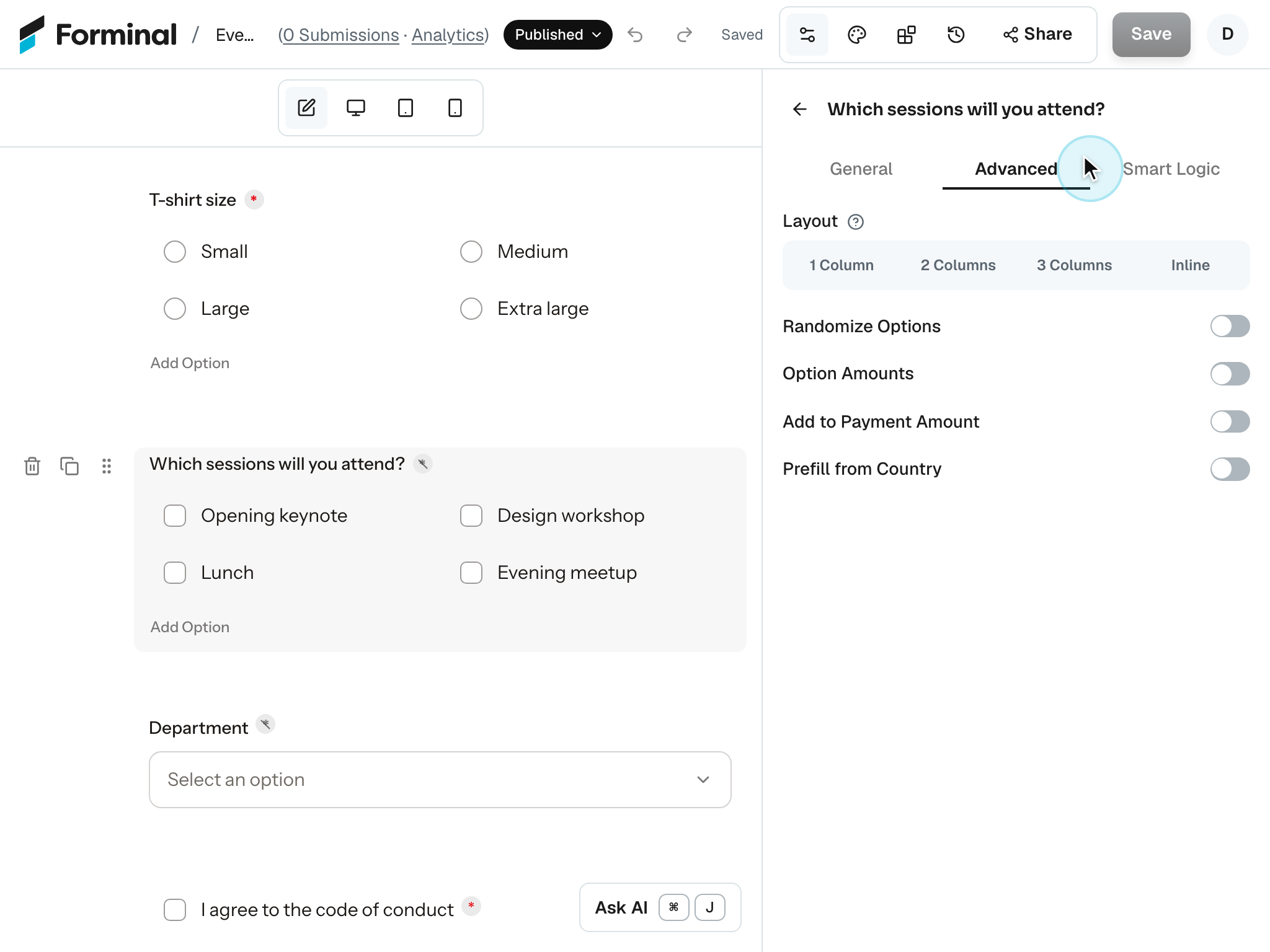
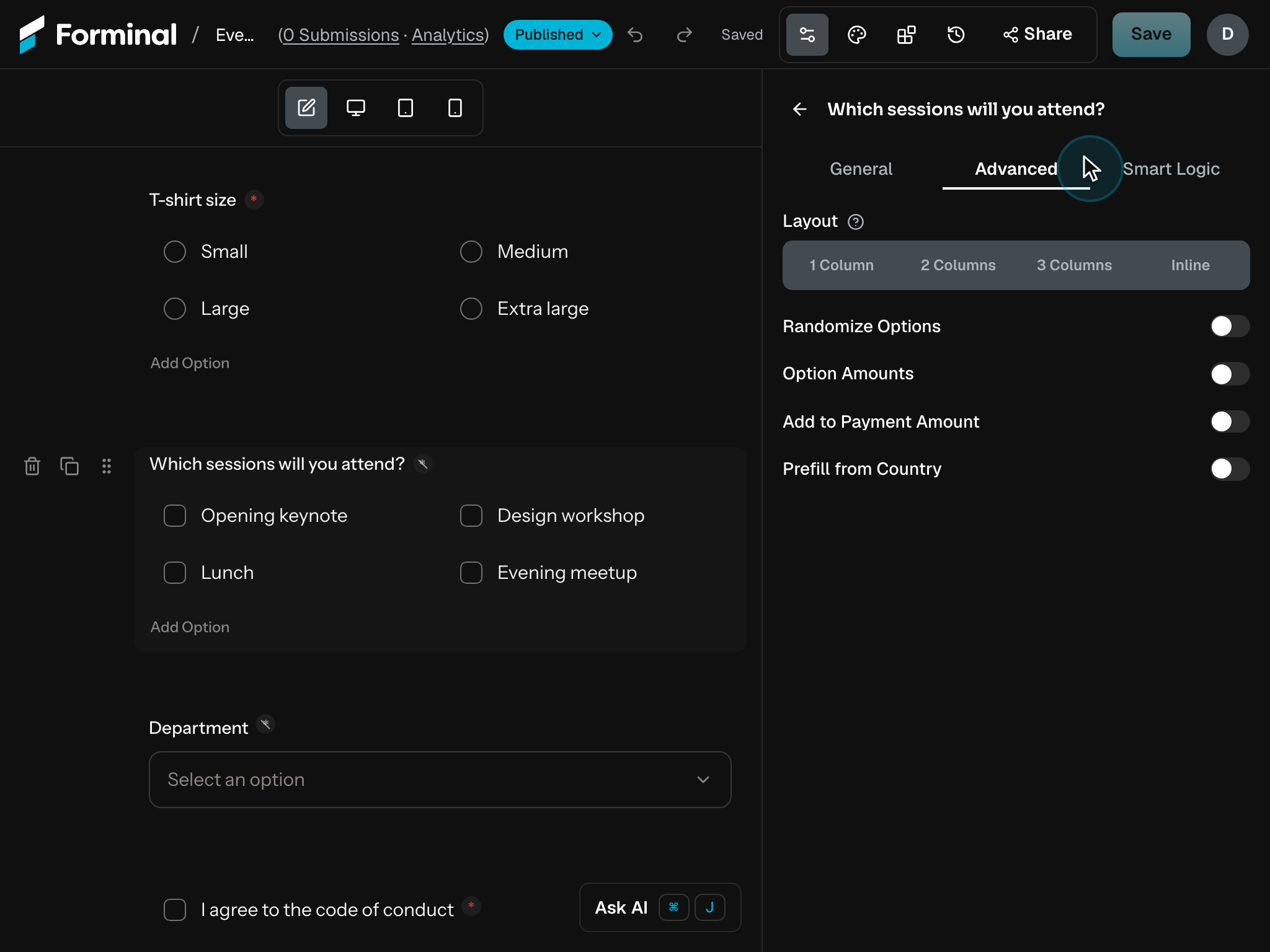
Option Amounts gives each option an amount: turn it on and a price box appears next to each option, in the Options list and on the canvas. A calculation can read those amounts. Switching it off clears them.
If the form has a Payment field, Add to Payment Amount adds the prices of all ticked options to the total. While the payment charges the field, the price boxes stay on and Option Amounts can’t be switched off. Show Price After Item Labels prints each price after its option, like “Lunch – $12.00”. Prices use the Payment field.
Was Benutzer sehen und wie Antworten angezeigt werden
Die Leute sehen ein Feld neben jeder Option. Wenn das Feld erforderlich ist und nichts angekreuzt ist, sehen sie „Wählen Sie mindestens eine Option aus“.
In der Einreichungstabelle, beim CSV-Export und in Benachrichtigungs-E-Mails werden die angekreuzten Optionen in einer Zelle aufgeführt, getrennt durch Kommas, z. B. „Morgensitzung, Mittagessen“. Nichts angekreuzt bedeutet eine leere Zelle, und die E-Mail lässt diese Frage aus.
In Smart Logic entspricht „ist“ dem Fall, wenn die gewählte Option unter den angekreuzten ist, und „ist nicht“ dem Fall, wenn sie nicht darunter ist. Sie können auch auf leer und nicht leer prüfen.
Gut zu wissen
There is no limit on how many boxes someone can tick, and no minimum beyond one when the field is required. If you want a single tick box for consent, use the Yes/No field instead. You can switch to Multiple Choice, Dropdown or Ranking from the Type menu and keep your options. Renaming an option also changes how earlier answers read, but deleting one leaves earlier answers without a readable label. The canvas shows the first 20 options of a long list, with a note saying so; the published form shows them all.
On the Grouped, Joined, Sage, Swiss and Prompt themes, text options stay one stacked list whatever you pick under Layout; icon and image cards still follow it. Switching the field to Multiple Choice keeps the layout; Dropdown and Ranking have none.
Häufig gestellte Fragen
Kann ich begrenzen, wie viele Kästchen die Leute ankreuzen können?
Nein. Es gibt kein Maximum und kein Minimum über eins hinaus, wenn das Feld erforderlich ist.
Wie werden angekreuzte Optionen im CSV-Export angezeigt?
Die angekreuzten Optionen werden in einer Zelle aufgeführt, getrennt durch Kommas, z. B. „Morgensitzung, Mittagessen“. Wenn nichts angekreuzt ist, ist die Zelle leer und die Benachrichtigungs-E-Mail lässt die Frage aus.
Sollte ich Kontrollkästchen für eine AGB-Box verwenden?
Für eine einzelne Zustimmungsmarkierung verwenden Sie stattdessen das Feld Ja/Nein. Kontrollkästchen sind für Fragen, bei denen mehrere Antworten richtig sein können.
Kann Smart Logic auf eine angekreuzte Option reagieren?
Eine Regel mit „ist“ stimmt überein, wenn diese Option zu den angekreuzten gehört, und „ist nicht“, wenn sie nicht dazugehört. Sie können auch prüfen, ob das Feld leer ist.
Kann jeder angekreuzte Zusatz zum Zahlungsbetrag hinzugefügt werden?
Schalten Sie in einem Formular mit einem Zahlungsfeld die Option „Zum Zahlungsbetrag hinzufügen“ ein, und die Preise aller angekreuzten Optionen werden zum Gesamtbetrag addiert.
Kann ich die Optionen in zwei oder drei Spalten anzeigen?
Ja: Stellen Sie das Layout auf der Registerkarte "Erweitert" auf 1 Spalte, 2 Spalten, 3 Spalten oder Inline. Auf einem Telefon fallen Textoptionen normalerweise auf eine Spalte zurück, während kleine und mittlere Symbol- oder Bildkarten bis zu zwei pro Zeile beibehalten. Die Themen Grouped, Joined, Sage, Swiss und Prompt behalten Textoptionen in einer gestapelten Liste, egal was Sie auswählen.