Fields can share a row. Drag a field next to another one on the canvas and they sit side by side. The row splits its width equally until you pick another Row Layout, such as 33/66 for one narrow field and one wide one. It keeps short fields together and makes a long form take less scrolling.
Examples
- Email and phone on one line in a contact form.
- Start date and end date next to each other on a leave request.
- First name, last name and job title across one row of an event registration.
- A wide City field and a narrow Postcode field in a 66/33 row of a delivery form.
Put fields on one row
- Open the form in the builder, with the canvas in Edit view.
- Point at a field and drag it by the handle (the six dots to its left) over the left or right edge of another field. A line on that side shows where it will land.
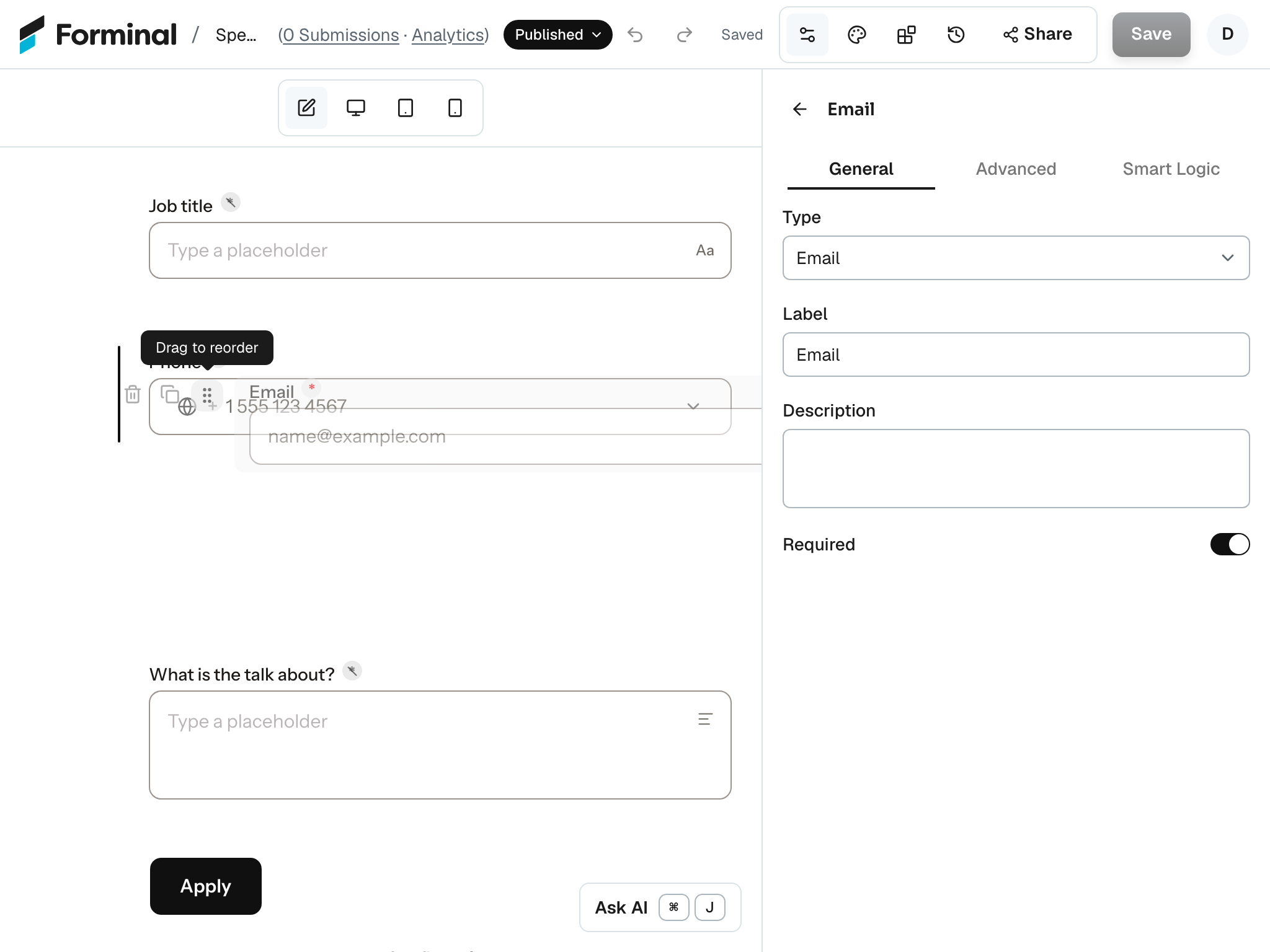
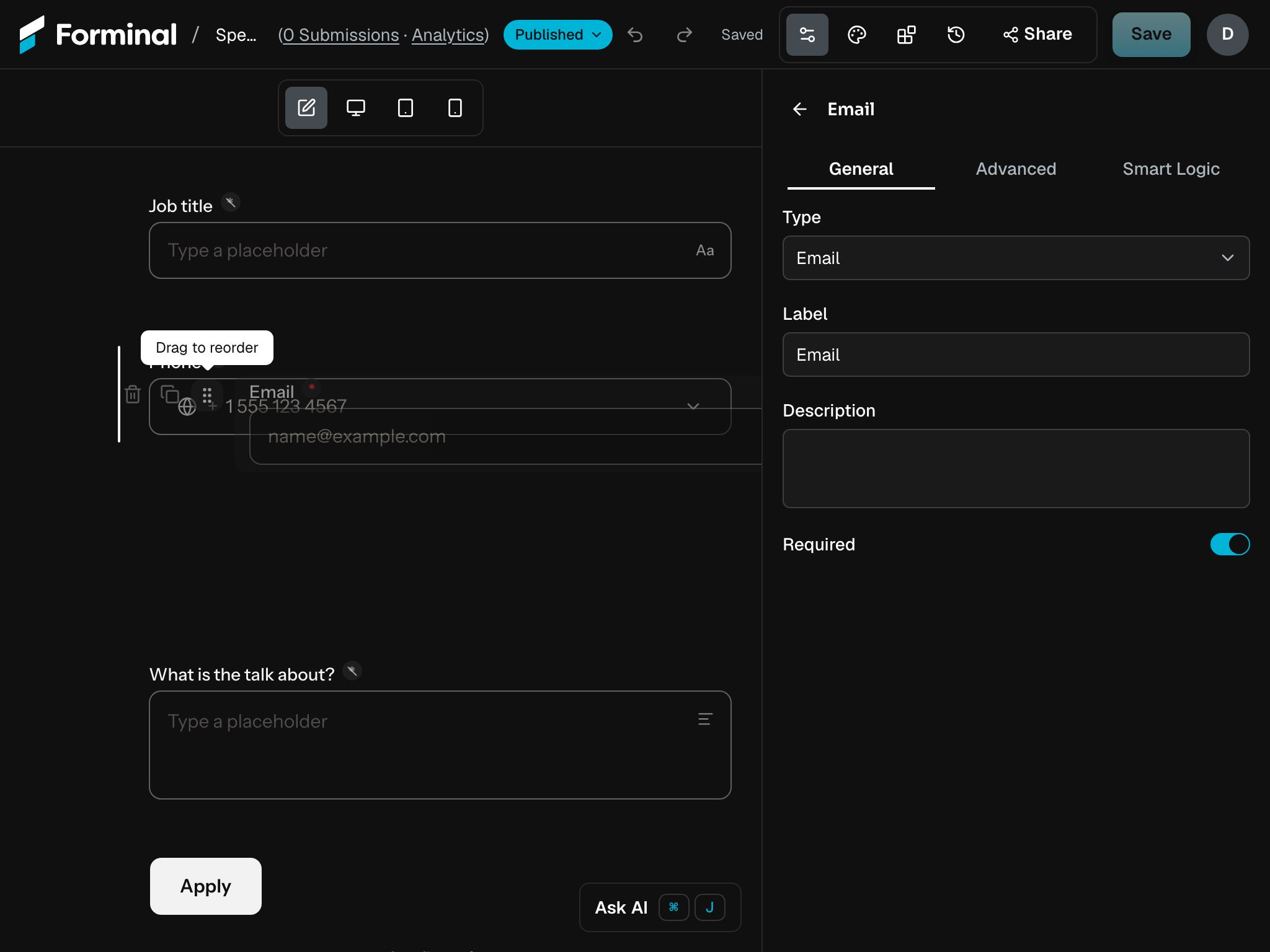
- Drop it. The two fields now share the row, and you can drag more fields beside them, up to four in a row.
- In a narrow builder window the Edit view stacks the fields of a row the way a phone does. Select Desktop above the canvas to see them side by side.
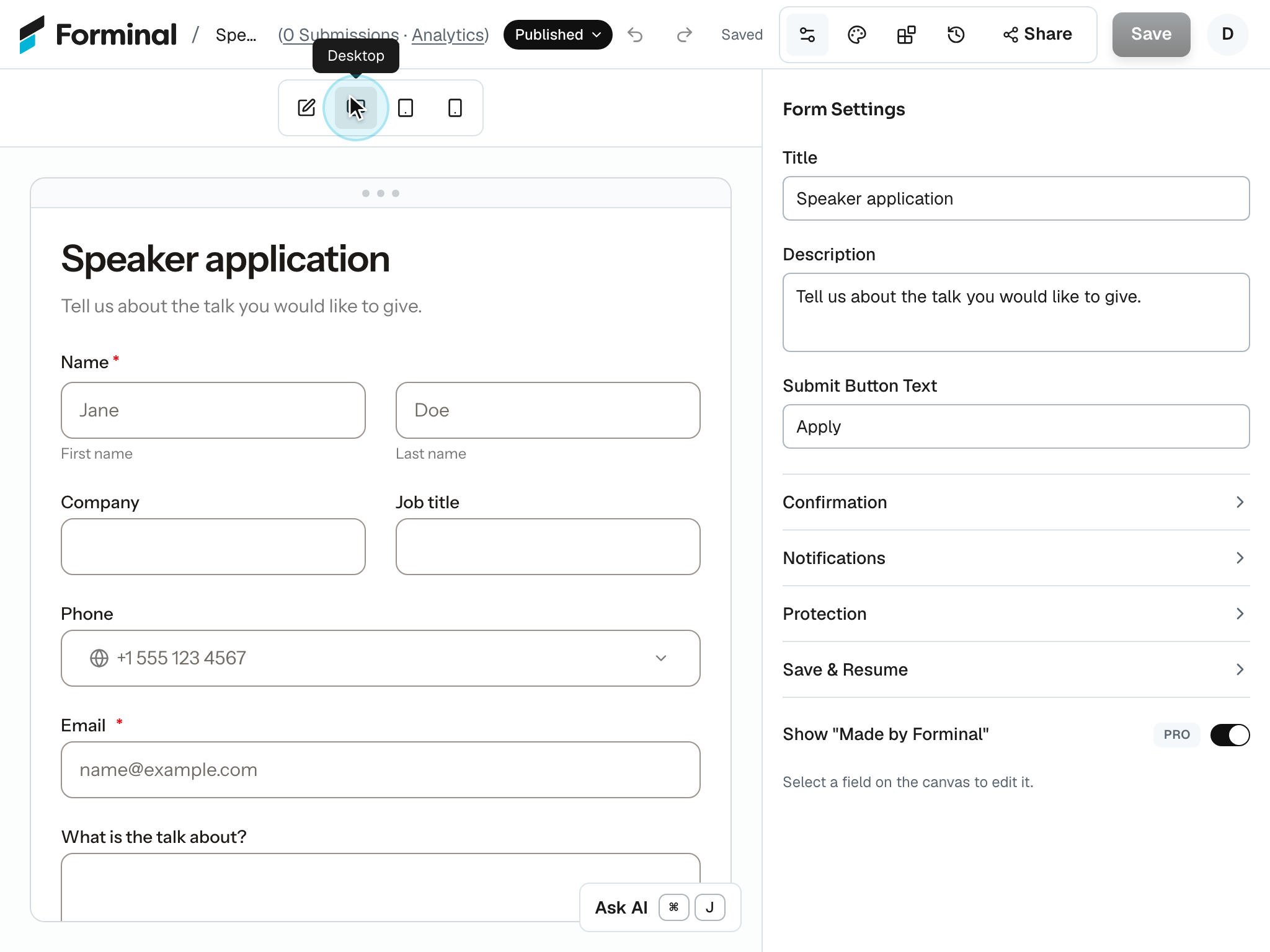
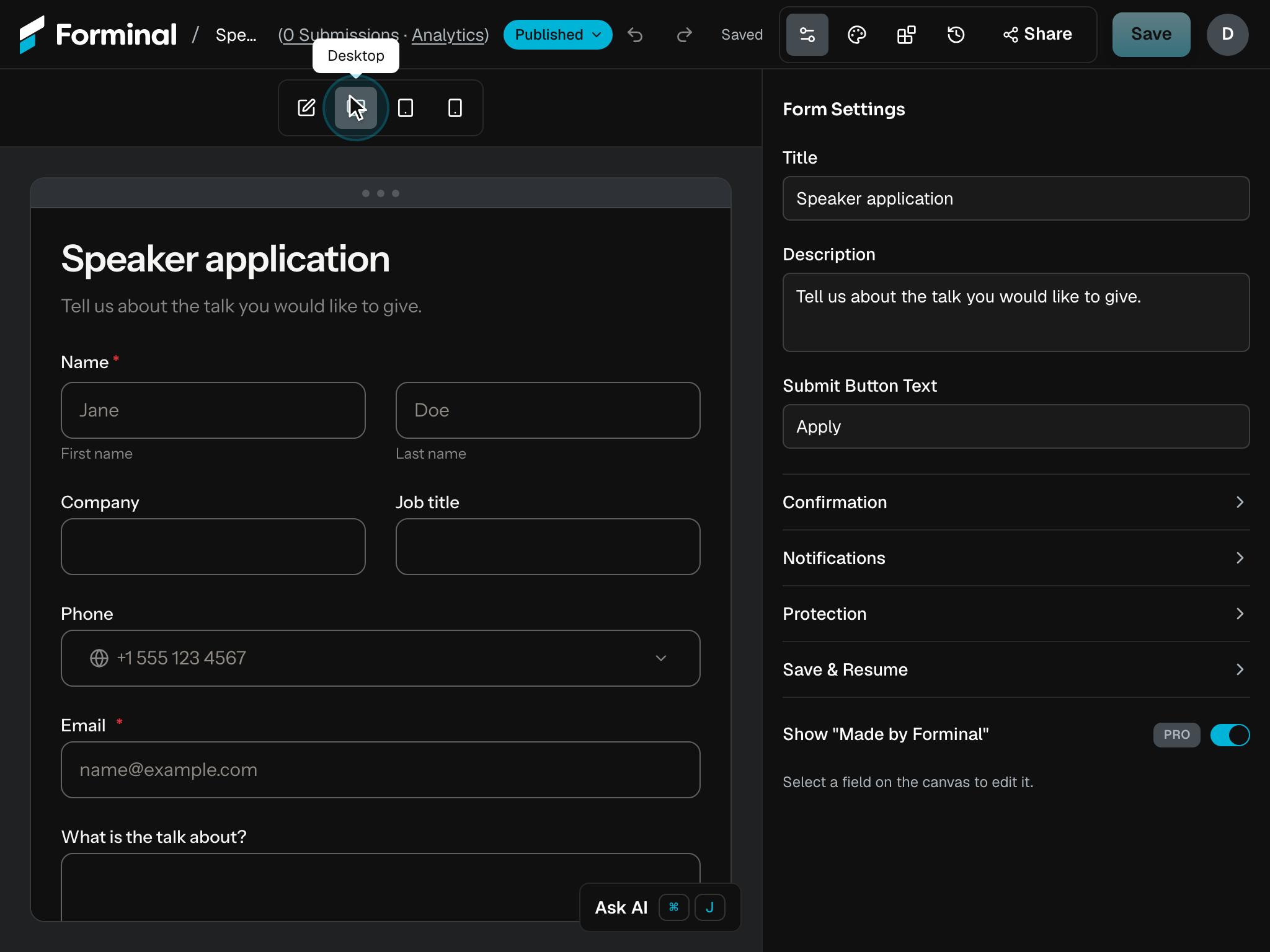
To give a field its own row again, drag it above or below the row. You can also ask the AI assistant to put fields side by side, or to make one field in a row wider than the others.
Set how wide each field is
A row starts with an even split. To give its fields different widths:
- Select any field in the row and open the Advanced tab of its settings. Row Layout is the first setting there, and it shows only for a field that shares a row.
- Choose a tile. Each tile draws the row, and pointing at one shows its widths as numbers, such as 33/66.
- The canvas redraws the row at the new widths. If the Edit view shows it stacked, select Desktop above the canvas.
The layouts depend on how many fields share the row:
- Two fields: 50/50, 33/66, 66/33, 25/75 or 75/25.
- Three fields: 33/33/33, 50/25/25, 25/50/25 or 25/25/50.
- Four fields: only 25/25/25/25, the even split.
The layout belongs to the whole row, so it doesn’t matter which of its fields you select. Each width stays with its field: drag the fields of a row into a new order and their widths move with them. When a field joins the row or leaves it, the row goes back to an even split, so pick its layout again. Duplicating a field leaves the row as it is and puts the copy on a row of its own under it.
What people see
Each field in a row is as wide as its Row Layout says, and the fields share the width equally until you pick another layout. The gap between them is the same as the space between rows (Margin Bottom under Advanced Styles). When the form is narrower than about 480 px, as on most phones, the fields in a row stack one under another so each stays readable. The Mobile preview in the builder shows that.


If Smart Logic hides one field in a row, the fields left in it share the space equally, whatever the Row Layout.
Good to know
A row holds up to four fields. A page break never shares a row, so a row always stays on one page of a multi-page form. A hidden field never shares one either. The stacking depends on the width of the form, not the screen, so a form embedded in a narrow column of your site stacks too. When you hide a field’s label, the field sits at the bottom of its row, so its box lines up with the boxes beside it. On the Compact theme the fields of a row stack, one to a line, and on a wide form each has its label in a column beside it. Compact is part of Advanced Styles, so below Pro the published form keeps the row side by side.
Row Layout works on every plan. A form written through the REST API or the MCP server sets the same layouts with each field’s width (1/4, 1/3, 1/2, 2/3 or 3/4). Widths that make none of the layouts are dropped, and that row splits evenly.
Frequently asked questions
How many fields can share one row?
Up to four.
What do side-by-side fields look like on a phone?
When the form is narrower than about 480 px, the fields in a row stack one under another so each stays readable. The Mobile preview in the builder shows this.
Why are my fields stacked in the builder?
In a narrow builder window the Edit view stacks a row the way a phone does. Select Desktop above the canvas to see the fields side by side. On the Compact theme a row stacks on every screen size, one field to a line. Below Pro the published form keeps the row side by side.
Why does my embedded form stack fields on a desktop screen?
Stacking depends on the width of the form, not the screen. A form embedded in a narrow column of your site stacks its rows too.
Can every field share a row?
Most can. A page break never shares a row, so a row always stays on one page of a multi-page form, and a hidden field never shares one either.
Can the AI assistant put fields side by side?
Yes, ask it to put the fields you name on one row. It can also set the Row Layout, for example to make a last name field twice as wide as the first name.
Can fields in one row have different widths?
Yes. Select a field in the row, open its Advanced tab and pick a tile under Row Layout, such as 33/66 or 25/75. It works on every plan.
Why did my row go back to equal widths?
Adding a field to the row or taking one out puts it back to an even split, so pick the layout again. On the published form, a row also splits evenly while Smart Logic hides one of its fields.