Publish a form and it gets its own page. Paste the link into an email, a social post or a chat message, and people can fill in the form without you having a website.
Examples
- A quick poll shared in a team chat.
- A sign-up link in a social media bio.
Get the link
- In the builder, select Publish. The Share panel opens once the form is live. On a form that is already published, select Share in the top bar.
- Select the Link tab. Under Share a Link, select Copy Link next to Form Link, or the arrow icon (Open the form in a new tab) to open the form in a new tab.
- Paste the link wherever you want people to find the form.
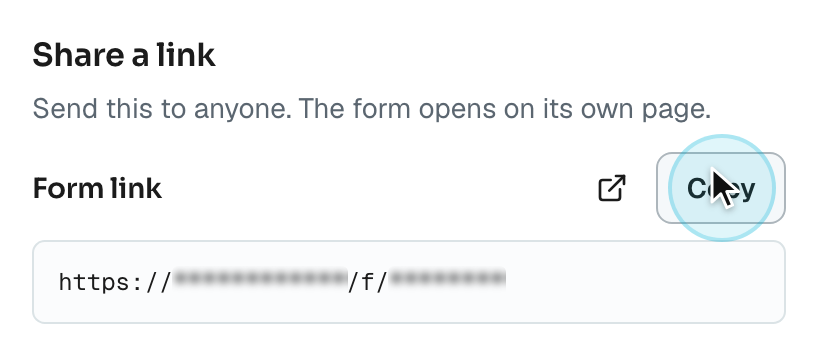
You can open the Share panel any time with Share in the top bar. While the Link tab is open, the builder shows how the link looks when it’s pasted into a chat app. Select Edit in the bar above that preview to go back to editing. While the panel is open, Open Form takes the place of Share and opens the live form in a new tab. The link looks like this, with your form’s id in place of FORM_ID. On Pro and Business, you can also give it a short link ending, and the same tab has a QR code to download. To put the form on your own site instead, see Embed Forms.
https://app.aw.co.ua/f/FORM_IDWhat people see
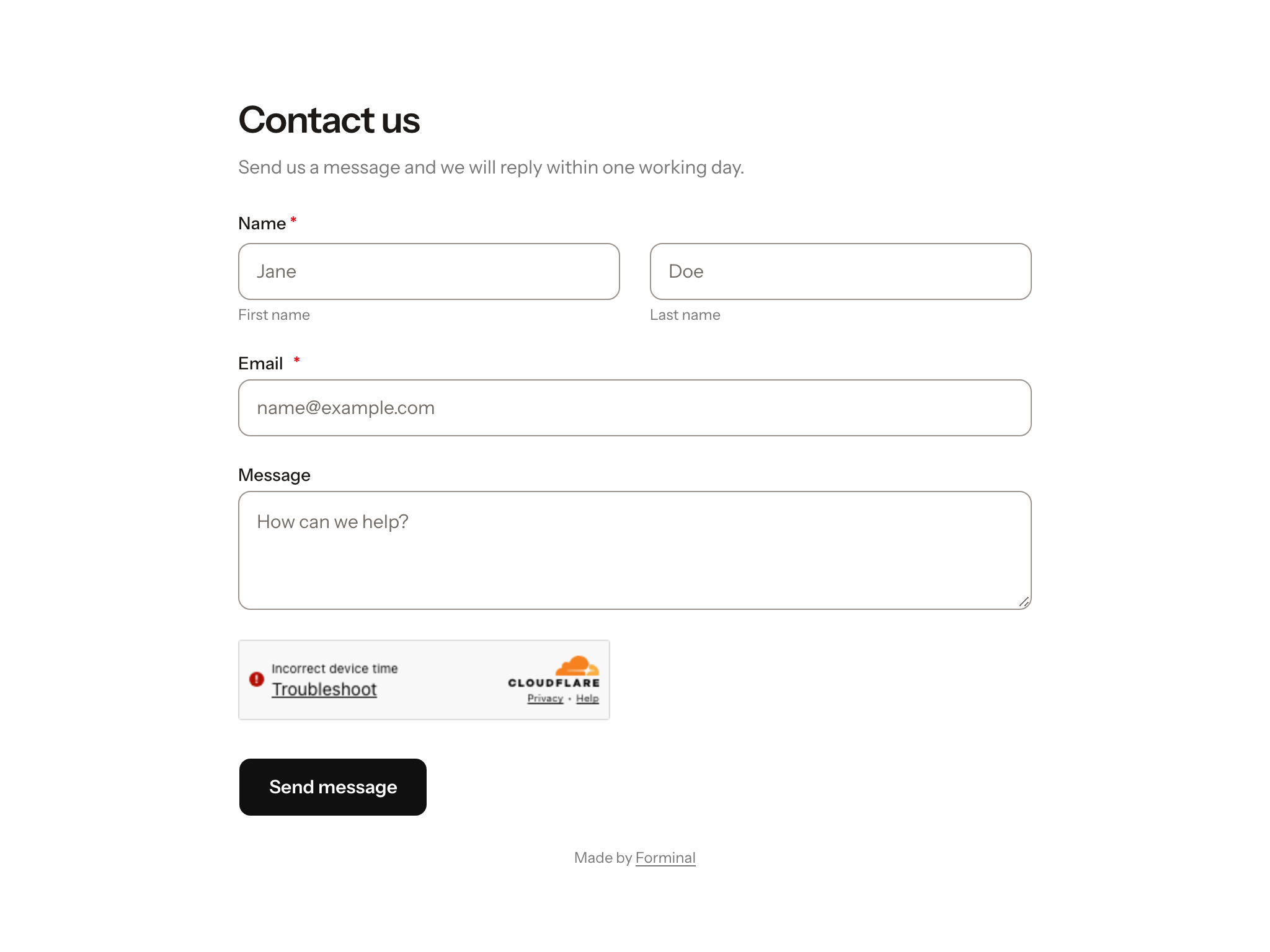
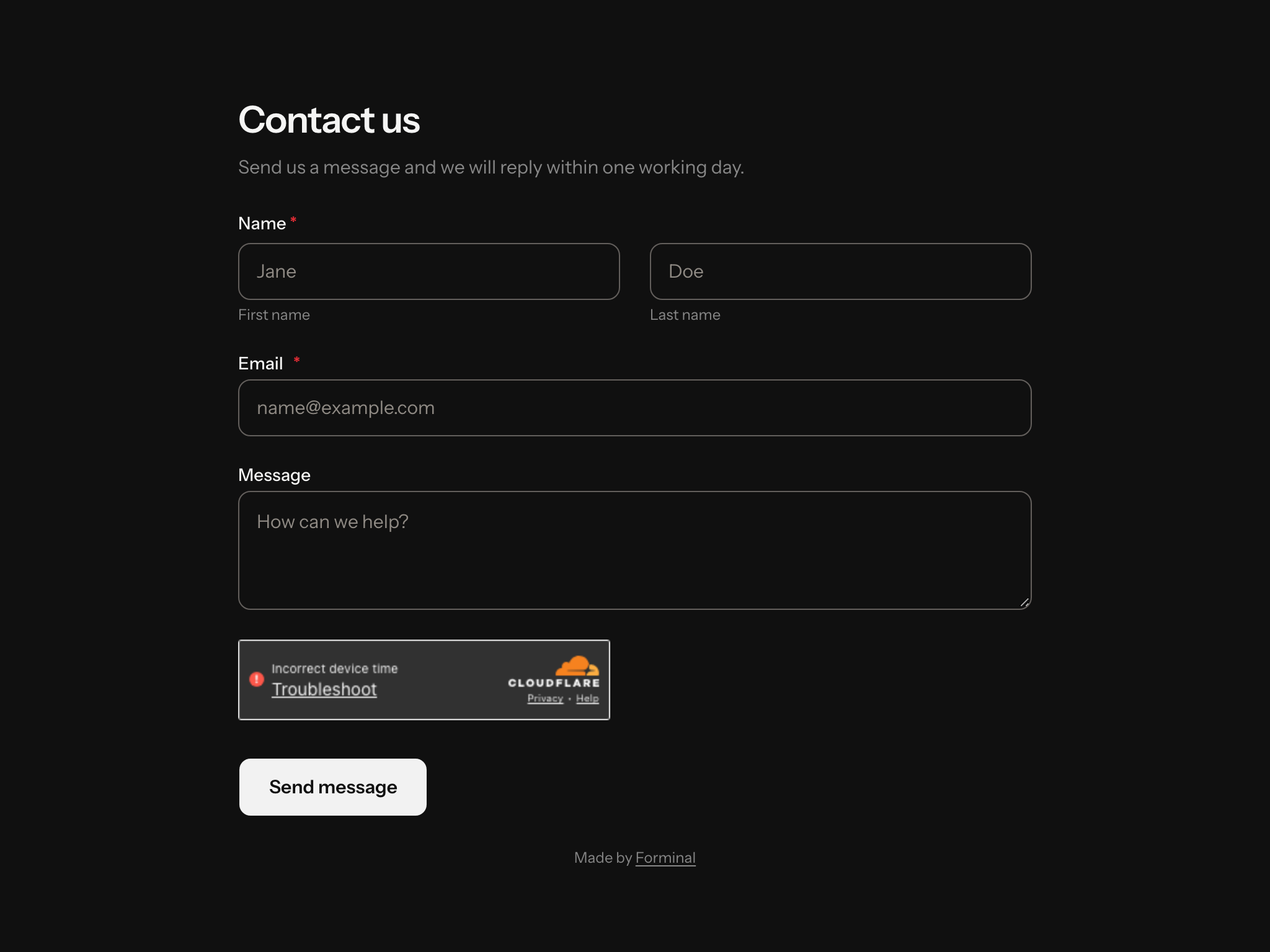
The form opens on a page of its own, in the look you set in Customize. When someone submits, they see your confirmation message, or go to your redirect address if you set one. If the form has an address on one of your Custom Domains, Form Link shows that address and Default Link shows the one above. When the form has hidden fields, the panel also shows the query to add to the link to fill them, with a copy button. When you’re signed in and open the link yourself, Edit Form and Submissions links show under the title, after a Light and Dark toggle that previews the form in either look. Visitors don’t see them.
Good to know
Only published forms can be opened from the link. While a form is a draft, the Share panel says “This form is a draft. Publish it to get a link and embed code.”, and anyone else who opens the link gets a page-not-found. You and people with access to the form still see it, marked “Draft preview. Publish to share this form.” The link stays the same after you publish, and later edits show on it once you select Save. To publish, you need to be signed in and the form needs at least one field.
Frequently asked questions
Do I need a website to share a form?
No. A published form has its own page, so you can paste its link into an email, a chat or a social post and people fill it in there.
Why do people get a page-not-found error from my link?
The form is still a draft. Only published forms open from the link, so select Publish in the builder. You and people with access to the form still see the draft as a preview.
Does the link change when I edit the form?
No. The link stays the same after you publish. Later edits show on it once you select Save in the builder’s top bar.
Can the link use my own domain?
With a custom domain, the Share panel’s Form Link shows the address on your domain, and Default Link shows the usual one.
How do I take a shared form offline?
In the builder, select the Published badge next to the form title, choose Draft and confirm with Move to Draft. The link stops working for everyone else, and the submissions stay where they are.
Can I fill in fields from the link?
Add Hidden Fields to the form. The Share panel then shows the query to add to the link, with a copy button.