The Submissions page lists every submission to a form in a table. You pick the columns, search and filter by date, and open, edit, tag, flag or delete each submission. Open it from the submissions count in the builder’s top bar, or from the Submissions tab of a form.
Examples
- Tagging leads as “hot” or “follow up” right in the table.
- Searching for a customer’s email to find their order request from last March.
- Clearing out spam after a busy week.
Open the results
- On your dashboard, select the number in the form’s Submissions column. In the builder, select the submissions count next to the form’s title instead.


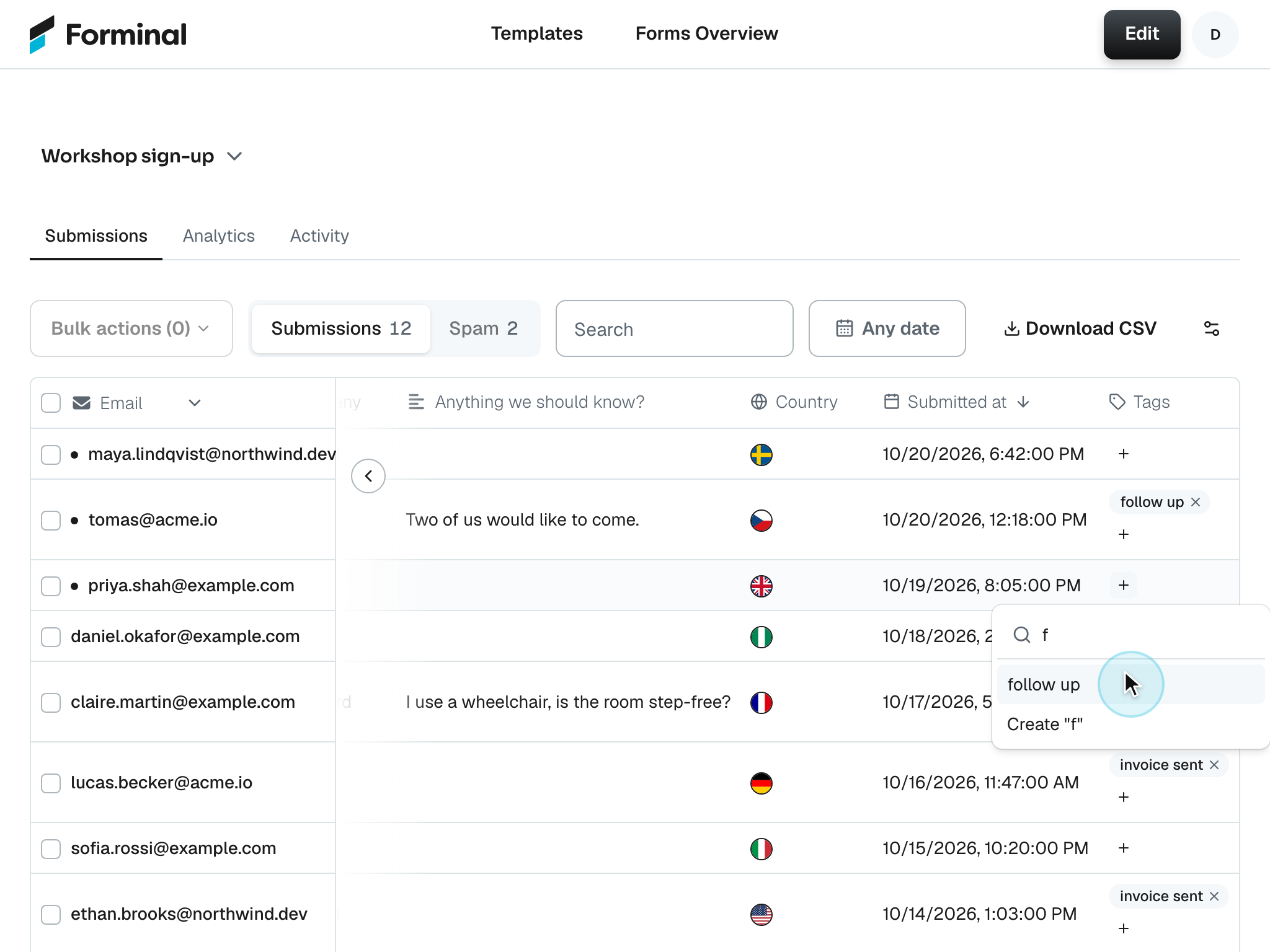
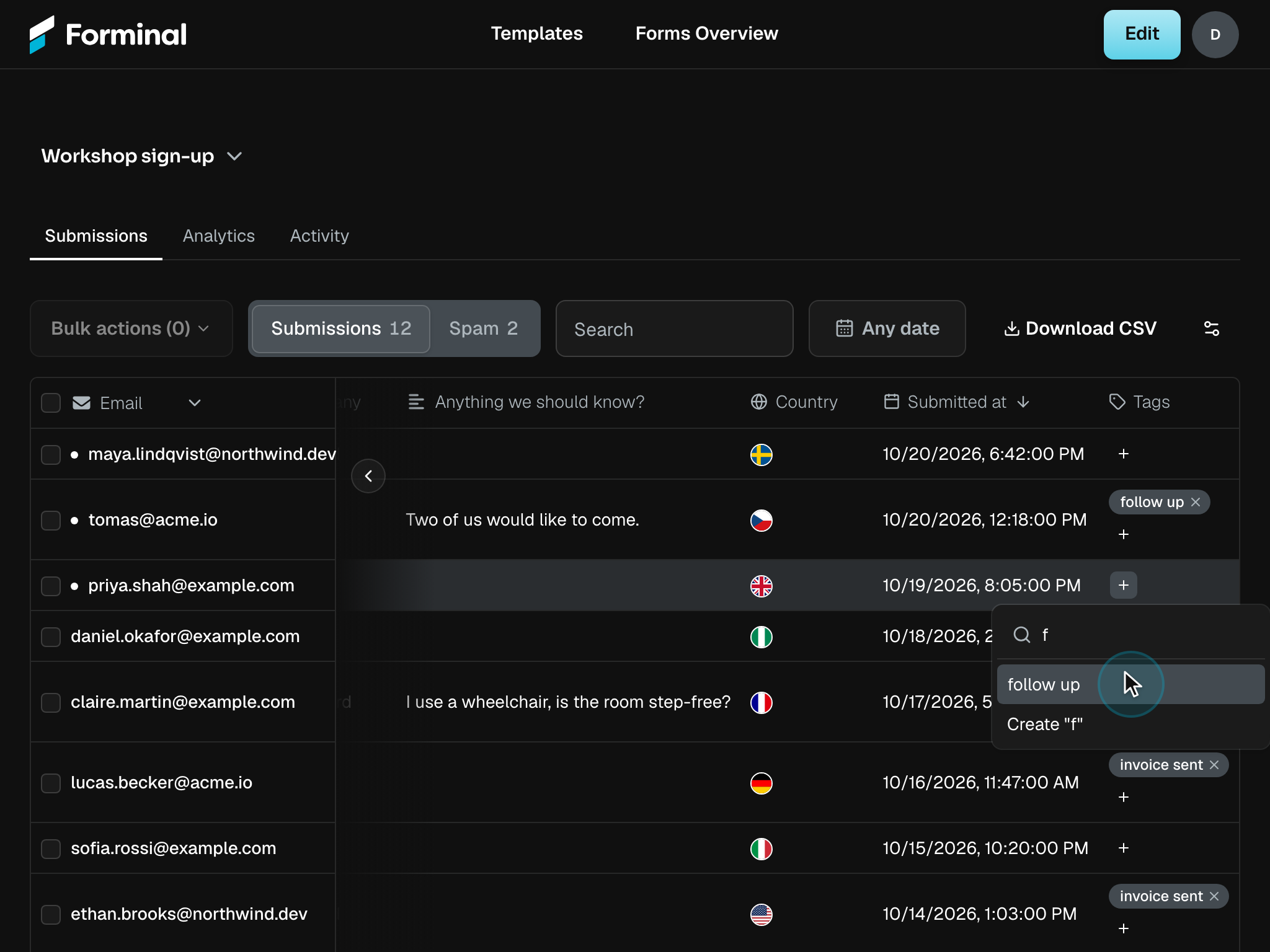
- Look through the table. The newest submissions come first, and the ones nobody has opened yet have a dot next to them.
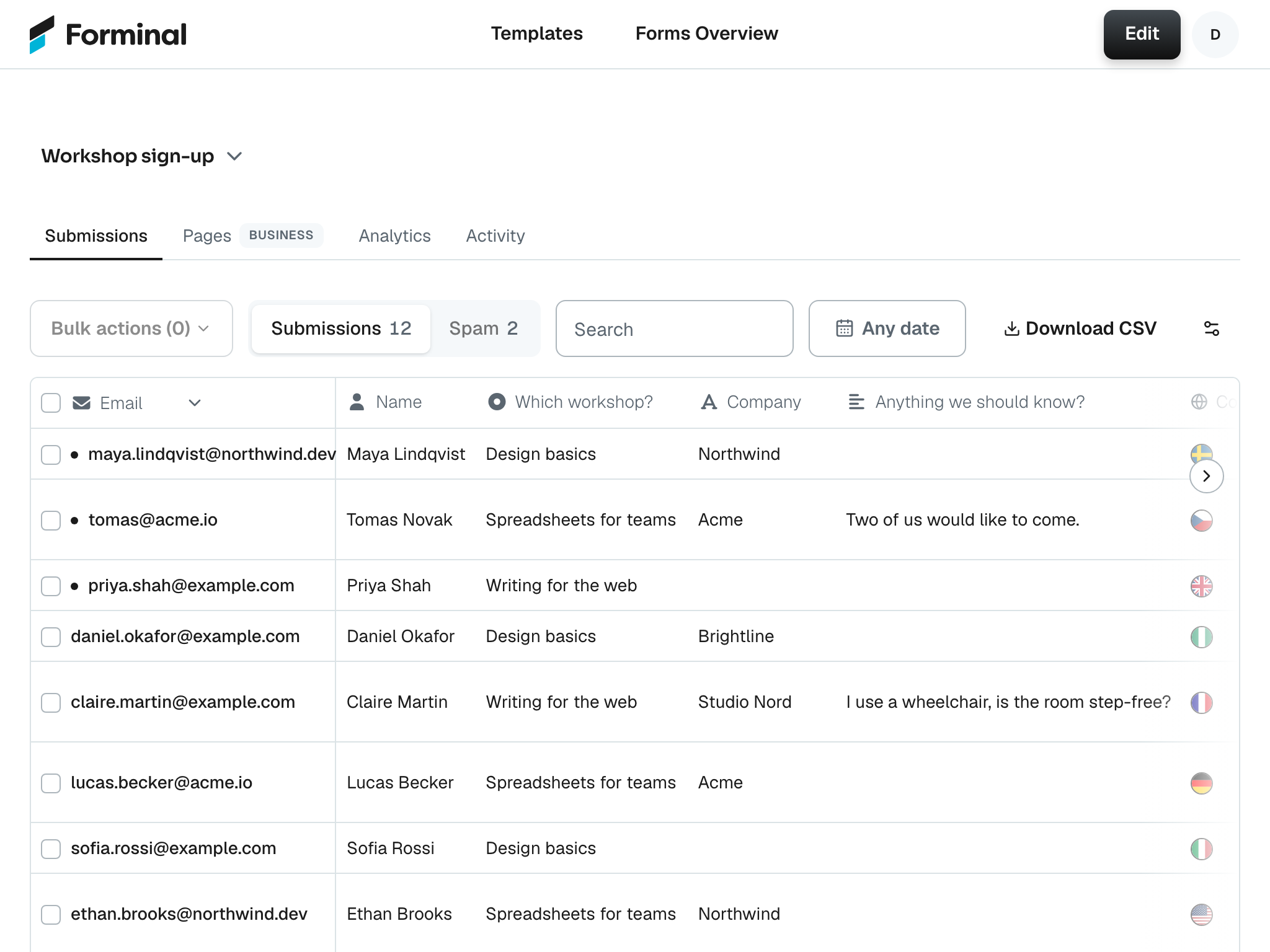
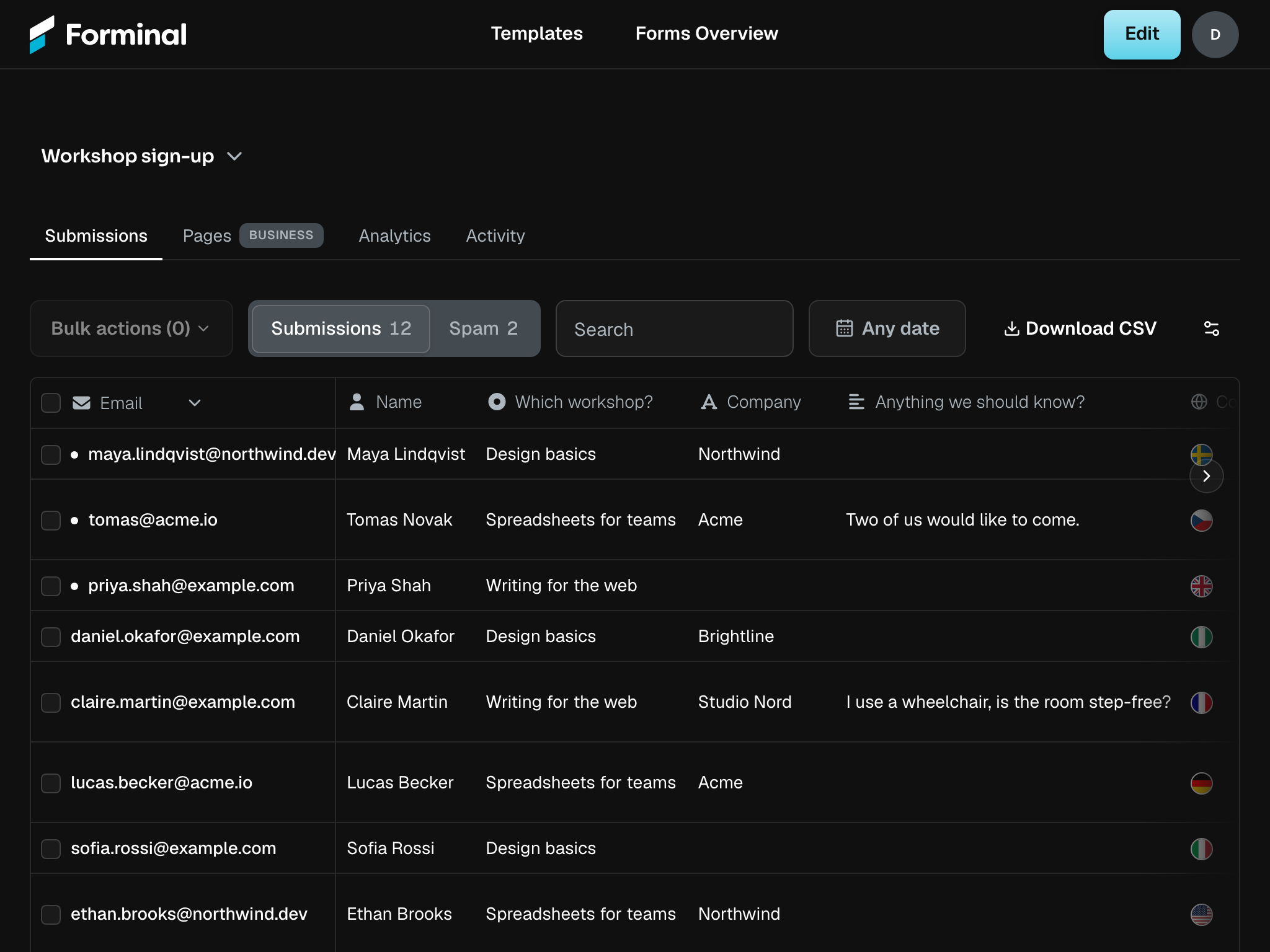
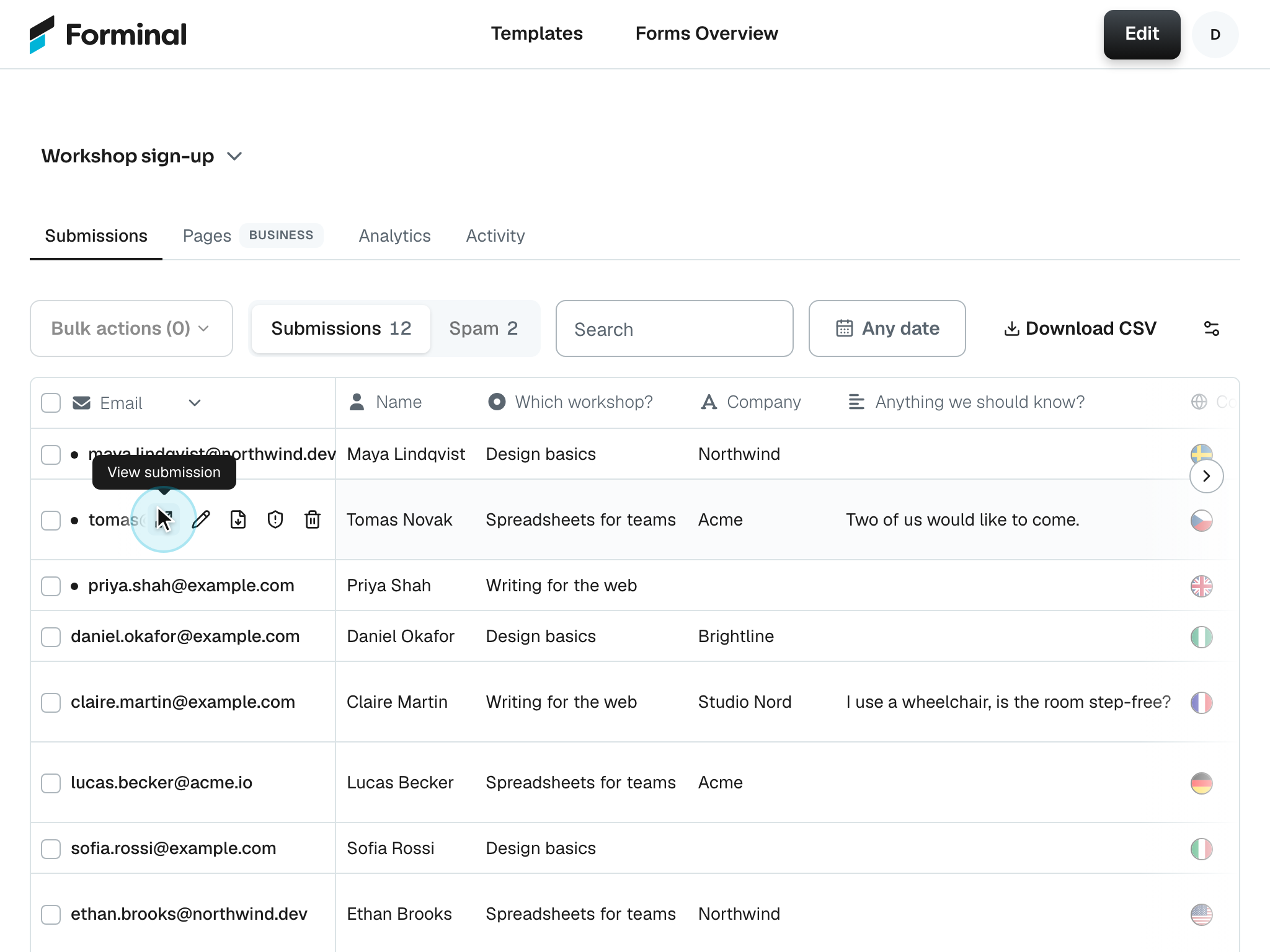
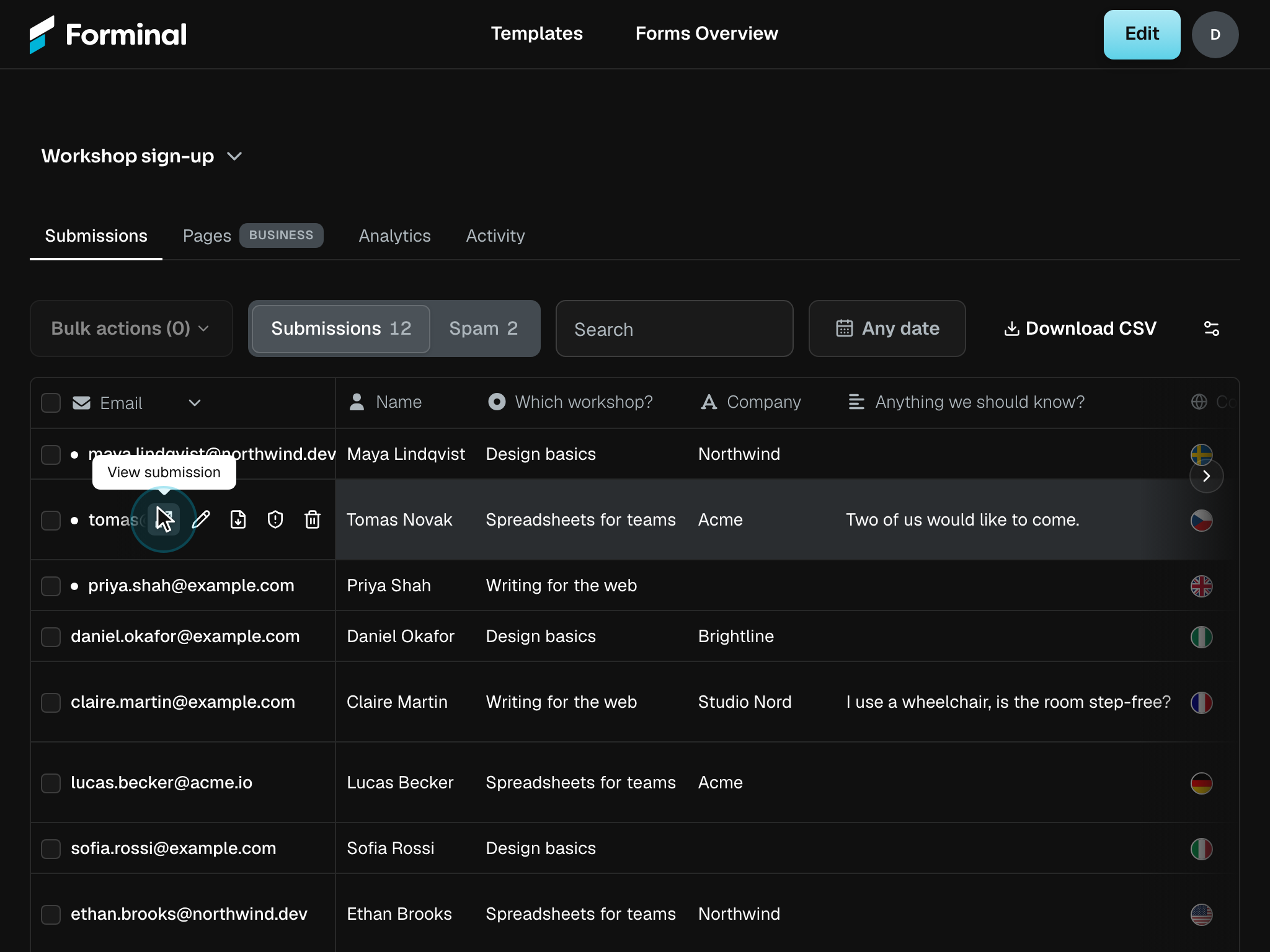
- Hover over a row to see its quick actions, and select View submission to read it in full.
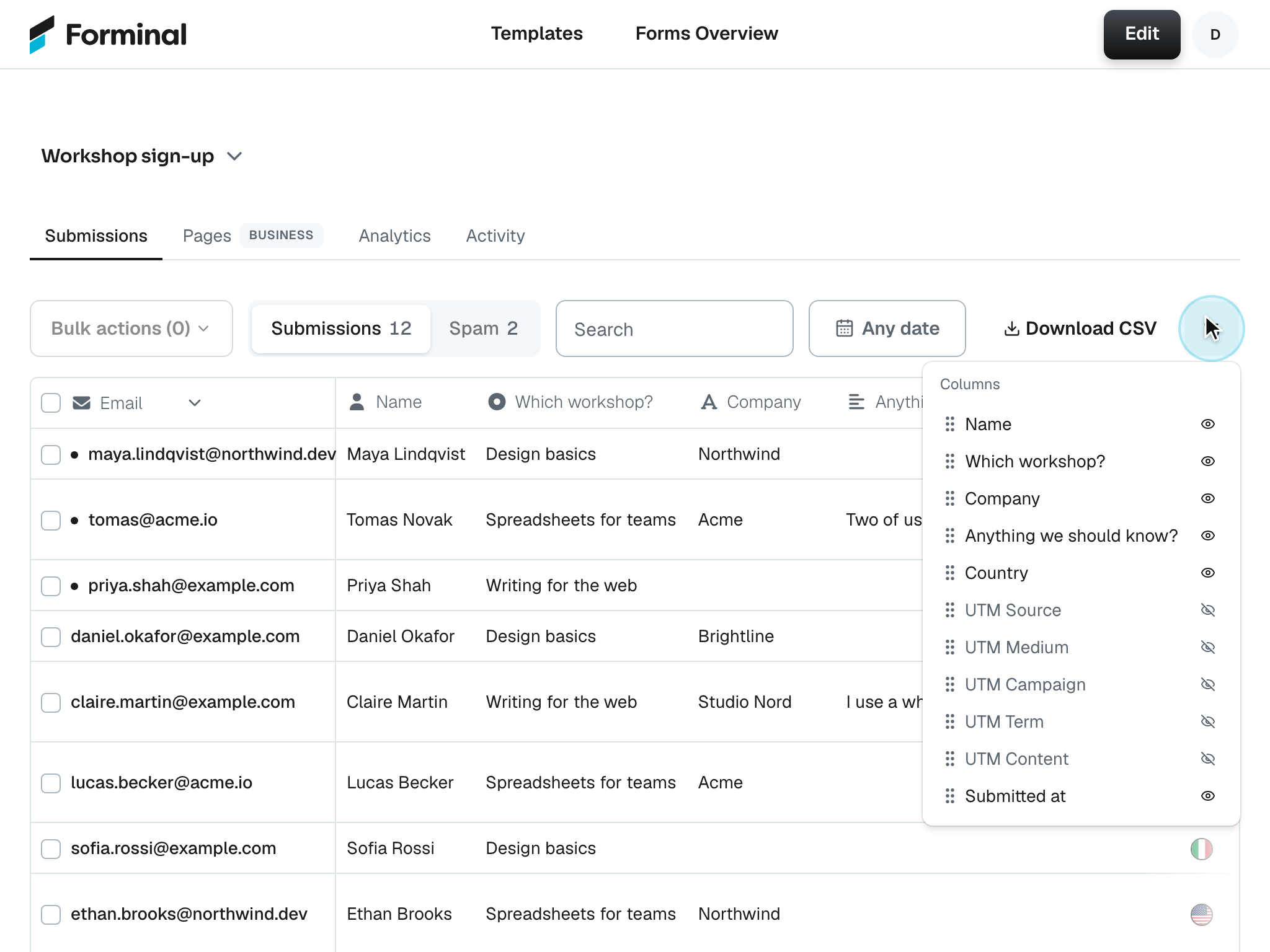
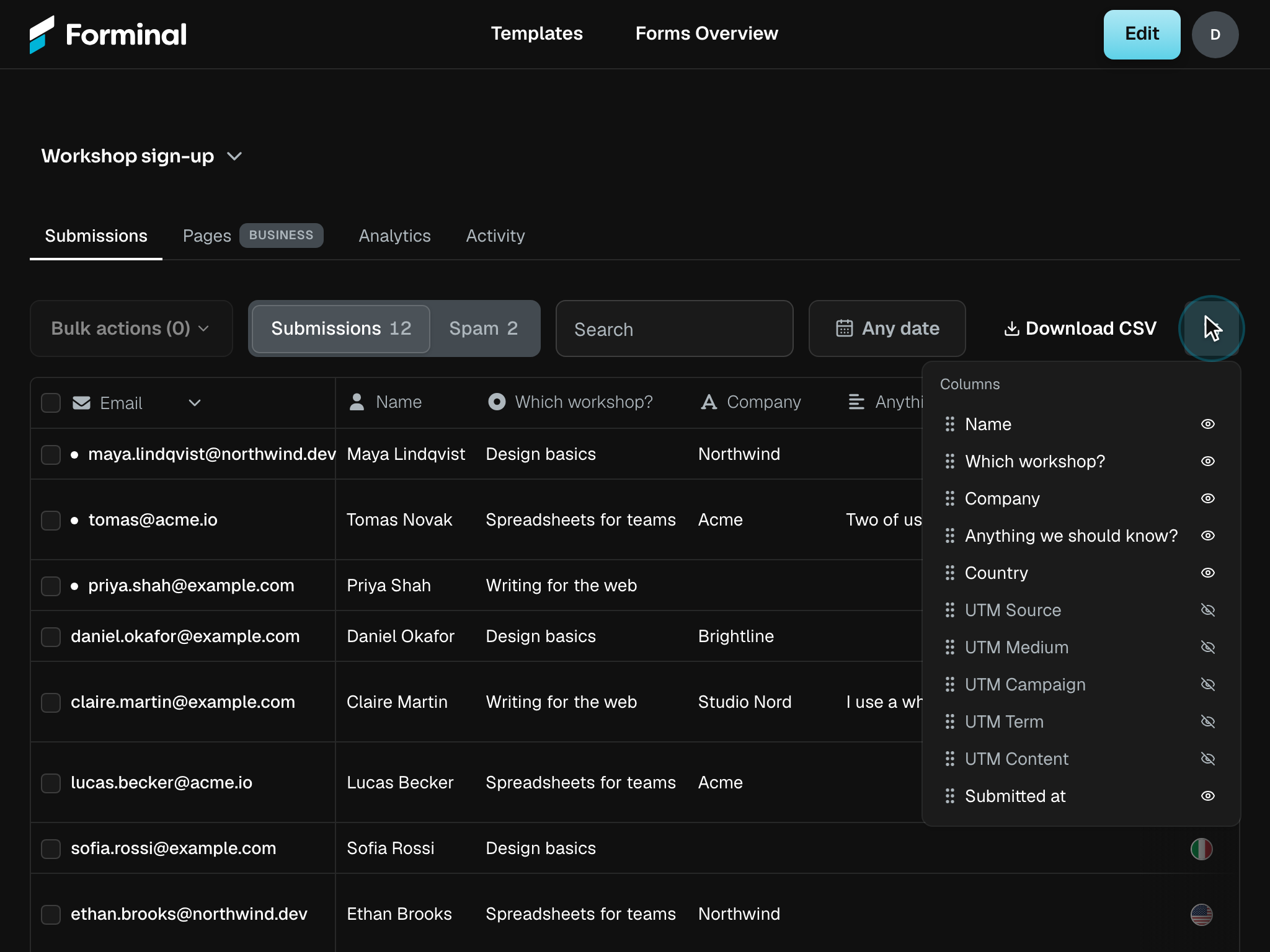
- To change which columns show, select Column settings, the icon at the right of the toolbar.
Set up the table
- The first column is the primary column. It starts as the form’s first Email field, or the first question if there’s none, and it stays in place while you scroll sideways. Use the arrow next to its name to pick another question.
- Column settings, at the right of the toolbar, lists the other columns. Drag them to change the order, and hide the ones you don’t need. Submitted at, Payment on a payment form, and the Respondent’s Country are columns too. Country shows a flag, with the country’s name when you hover over it. A submission with no detected country shows a grey globe, named Unknown. A rating shows as the field’s icons, filled up to the score, and hovering over it gives the score, such as “4 of 5”.
- Select a column’s name to sort by it. Select it again to reverse the order. The table starts with the newest submissions first.
- Rows per page, under the table, shows 10, 25, 50, 100 or 200 rows. It starts at 50.
These choices are saved with the form, so the table looks the same next time. When you, the form’s owner, open the Submissions page, every submission is marked as read, and the dots stay until you leave the page. A workspace member’s visit doesn’t mark anything as read.
Find submissions
- Submissions and Spam switch between real submissions and the ones caught as spam. Each tab shows its count.
- Search looks through every answer, every tag and the UTM values as you type, including the labels of the choices people picked.
- The date button, which says Any date, opens a calendar. Pick one day, or a first and a last day, to see what came in then. Clear dates removes the filter.
- UTM shows once some submissions carry UTM values. Tick the values to keep, such as one campaign. See UTM Tracking.
- The assistant can filter further, for example by tag, by unread or by payment status. While its filter is on, a chip above the table says so, and clearing it brings back your own search.
Read and manage a submission
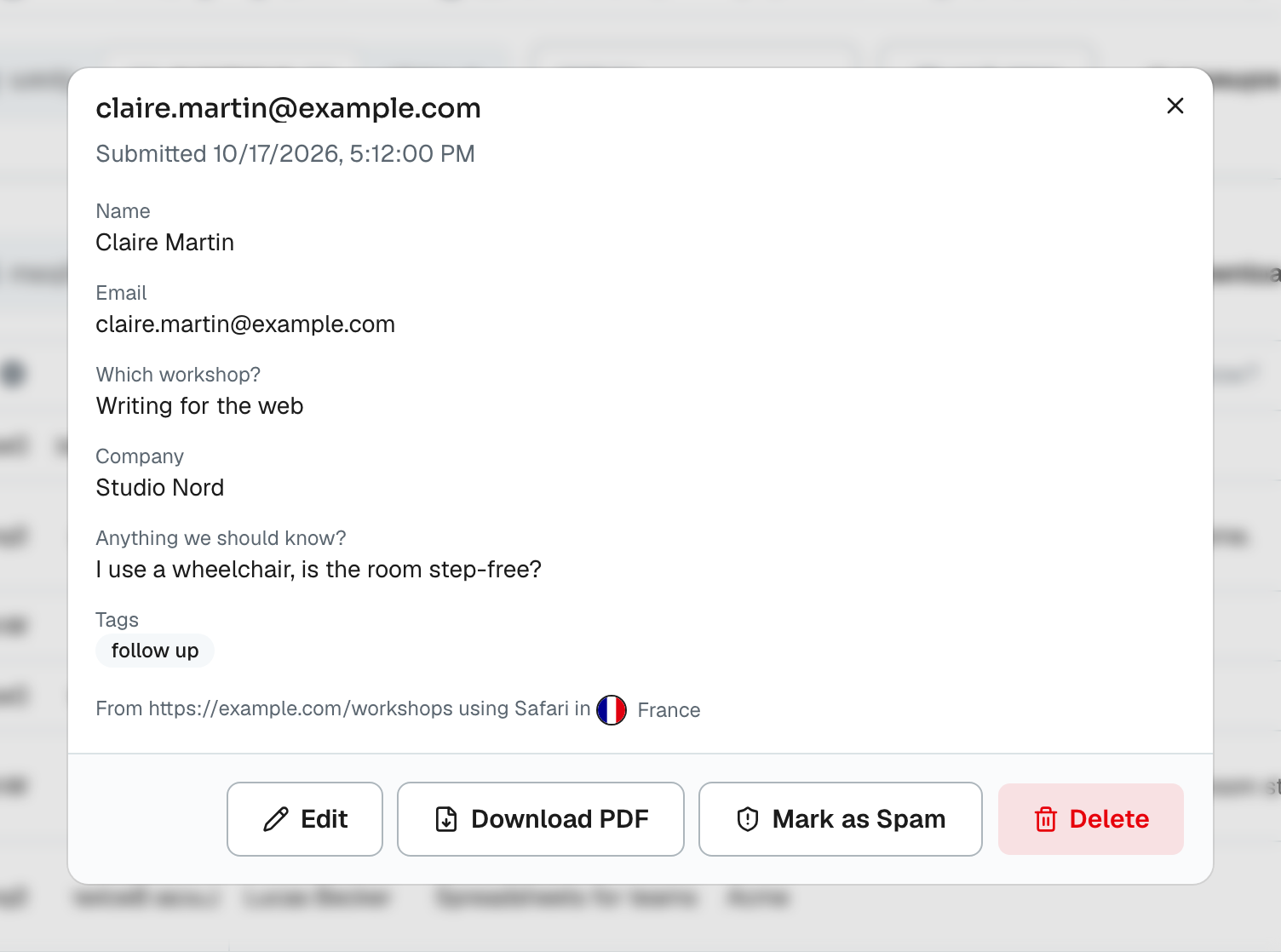
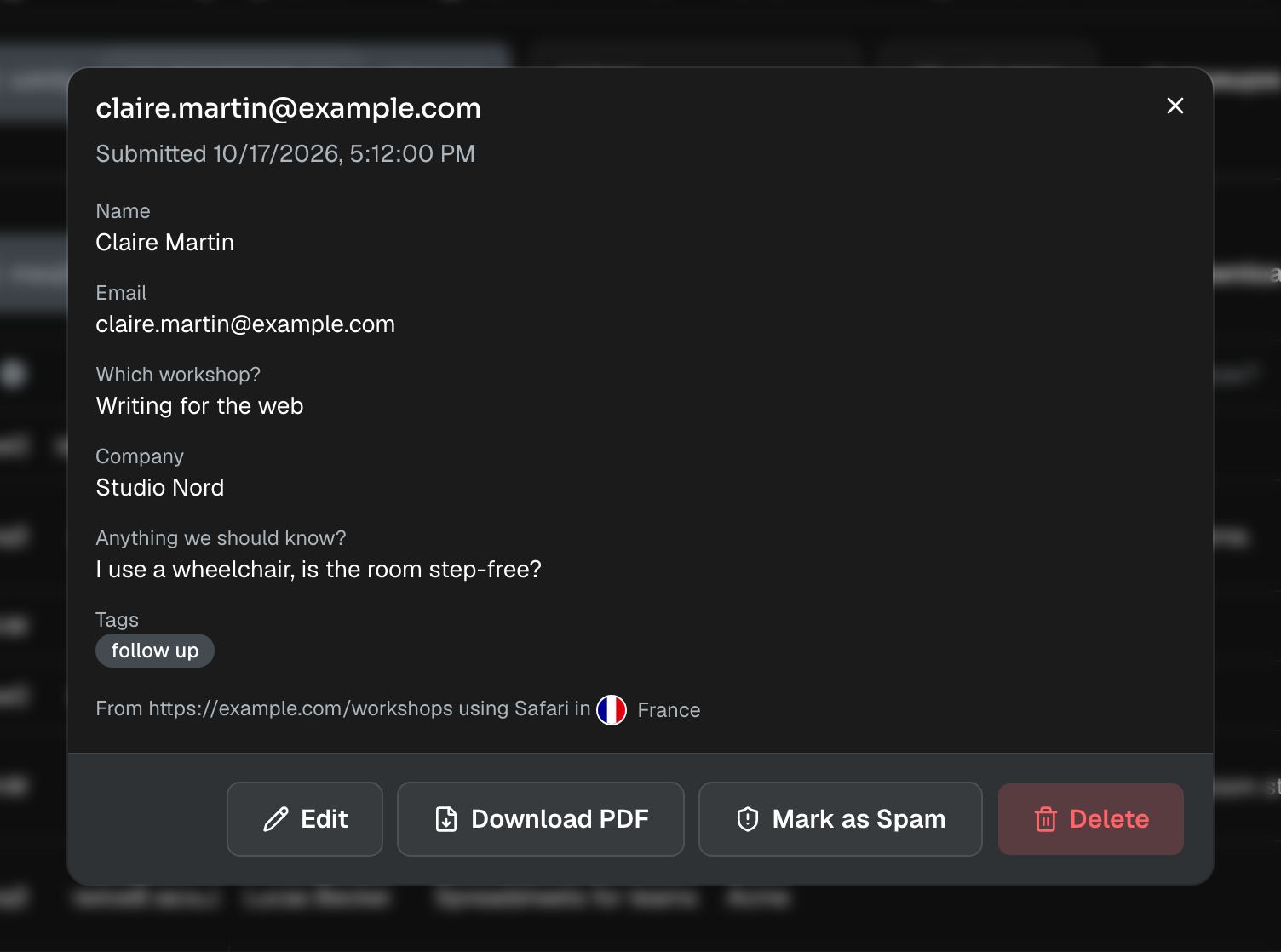
Hover over a row to see its quick actions: View submission, Edit submission, Download PDF, Mark as spam (or Not spam) and Delete submission. View submission opens every answer in full, with “No answer” for questions left blank, uploaded files as links, ratings as icons with the score beside them, the payment amount and status (with a Test mode badge for a test payment and a View in Stripe link), the tags, and the page, browser and country it was sent from. When an AI agent, the browser’s autofill or a browser extension filled some of the answers, a line under that names those fields, such as “Filled in by an AI agent: Email, Company”. The buttons at the bottom of the window are Edit, Download PDF, Mark as Spam (or Not Spam) and Delete, and the X in the corner closes it.
To tag a row, select + in its Tags column. Type to find a tag you’ve used before, or select Create to add a new one. A tag can be up to 30 characters and a submission can carry up to 20. Marking a submission as spam moves it to the Spam tab, and Not spam moves it back. In the submission window, the window stays open after Mark as Spam, so you can select Not Spam right away if you clicked it by mistake. Delete asks “Delete this Submission?” first, because it can’t be undone.
Approve submissions for Submission Pages
Once the form has a Submission Page, the table gets a Pages column with a chip for each page, such as “Photo wall: Pending”. Select a chip and choose Approve to put the submission live on that page, or Hide to keep it off. To handle several at once, tick their rows and pick Approve on or Hide on a page from the bulk actions. The page status filter above the table shows, for example, only the submissions still pending on one page.
Edit a submission
You can fix a typo, fill in an answer someone missed or swap an uploaded file without asking the respondent to send the form again. The form’s owner can edit on every plan. Submissions saved by Partial Submissions can’t be edited. On a published Submission Page, you can also edit a submission right on the page.
- Open the submission with View submission and select Edit at the bottom of the window. Or hover over the row and select Edit submission to open it ready to edit.
- Change the answers. Each question uses the form’s own input, so a dropdown is still a dropdown and a date still has its date picker.
- Select Save. Cancel takes you back to the answers without changing anything.
Your changes are checked by the same rules as a new submission: required questions, formats such as an email address, and Smart Logic. If your change hides a question, its answer is removed. Calculations are worked out again from the new answers. When an answer doesn’t pass, the message shows under that question and nothing is saved.
Files and signatures
On a File Upload or Signature question, each file is listed with its name, a preview for images and an X to remove it. A new upload is added next to the files already there, up to the field’s limit. If the field takes one file and already has one, you see “You can add only one file. Remove the current file first.” Removing a signature brings the signature box back, so you can sign again.
Files you remove are deleted when you save. A copy already in Google Drive stays in Drive. New files kept in your media library count toward its storage.
What you can’t change
The GDPR Agreement stays as the respondent left it, with the note “This answer can’t be changed here.” Consent is the respondent’s own choice, so only they can give it. Payments aren’t shown while you edit, and they keep their amount and status.
After you save
The submission window shows “Edited” with the date and time, next to when it was submitted, and the form’s Action Log records that you edited a submission, without the answers. Nothing is sent again: notification emails, webhooks and integrations keep what they already sent. One that hasn’t gone out yet sends the edited answers. PDFs and CSV files you download after the edit show the new answers.
Export submissions
Download CSV, at the right of the toolbar, saves the submissions as a CSV file named after the form. It takes every submission that matches the tab, search, dates and UTM filter you have on, or the assistant’s filter while it’s on, from every page of the table and in its sort order. With no filters, you get every submission in the tab. The file has a column for each question, along with Submission ID, Submitted at, Tags, Origin page, Browser, Time to complete in seconds, Country and the five UTM columns, and a Payment column on a payment form. For a copy that updates by itself, connect Google Sheets. See CSV Export.
Good to know
Times show in your own time zone. In a workspace, a member who can only view submissions sees the table and can search, open submissions and download the CSV, but can’t edit, tag, flag, delete or change the columns.
Frequently asked questions
Who can see the submissions to my form?
You, as the owner, and workspace members whose Submissions access is Viewer. Those members can search, open submissions and download the CSV, but they can’t edit, tag, flag, delete or change the columns. See workspaces.
Can I get a deleted submission back?
Deleting a submission can’t be undone, so the Submissions page asks you to confirm first. Restoring an earlier form version doesn’t bring submissions back either.
Where do spam submissions go?
Submissions caught as spam go to the Spam tab, apart from your real submissions. If one is there by mistake, select Not spam to move it back to Submissions. If it never reached your notification emails and integrations, they get it then, as long as it’s less than 30 days old.
How many tags can I add to a submission?
A submission can carry up to 20 tags, and each tag can be up to 30 characters. Search finds submissions by their tags as well as their answers.
What time zone does the Submissions page use?
Times in the table are in your own time zone. A downloaded PDF and the Submitted at column of a CSV file use UTC instead.
Can I change the answers in a submission?
Yes, if you own the form. Open the submission, select Edit, change the answers and select Save. The answers are checked by the same rules as the form, and payments and the GDPR Agreement can’t be changed.
Does editing a submission send the notification again?
No. Notification emails, webhooks and integrations keep what they already sent. A notification or integration that hasn’t gone out yet sends the edited answers.