Page Break ends one page of the form and starts the next. Use it to split a long form into short steps. Each page can have its own title, and you write the labels on its Previous and Next buttons.
Examples
- An application with personal details on one page and work history on the next.
- A quiz with one question per page.
- A booking form whose last page, titled “Payment”, holds the Payment field.
Add it to a form
- In the builder, point between the two fields where you want the new page to start and select Add Field.
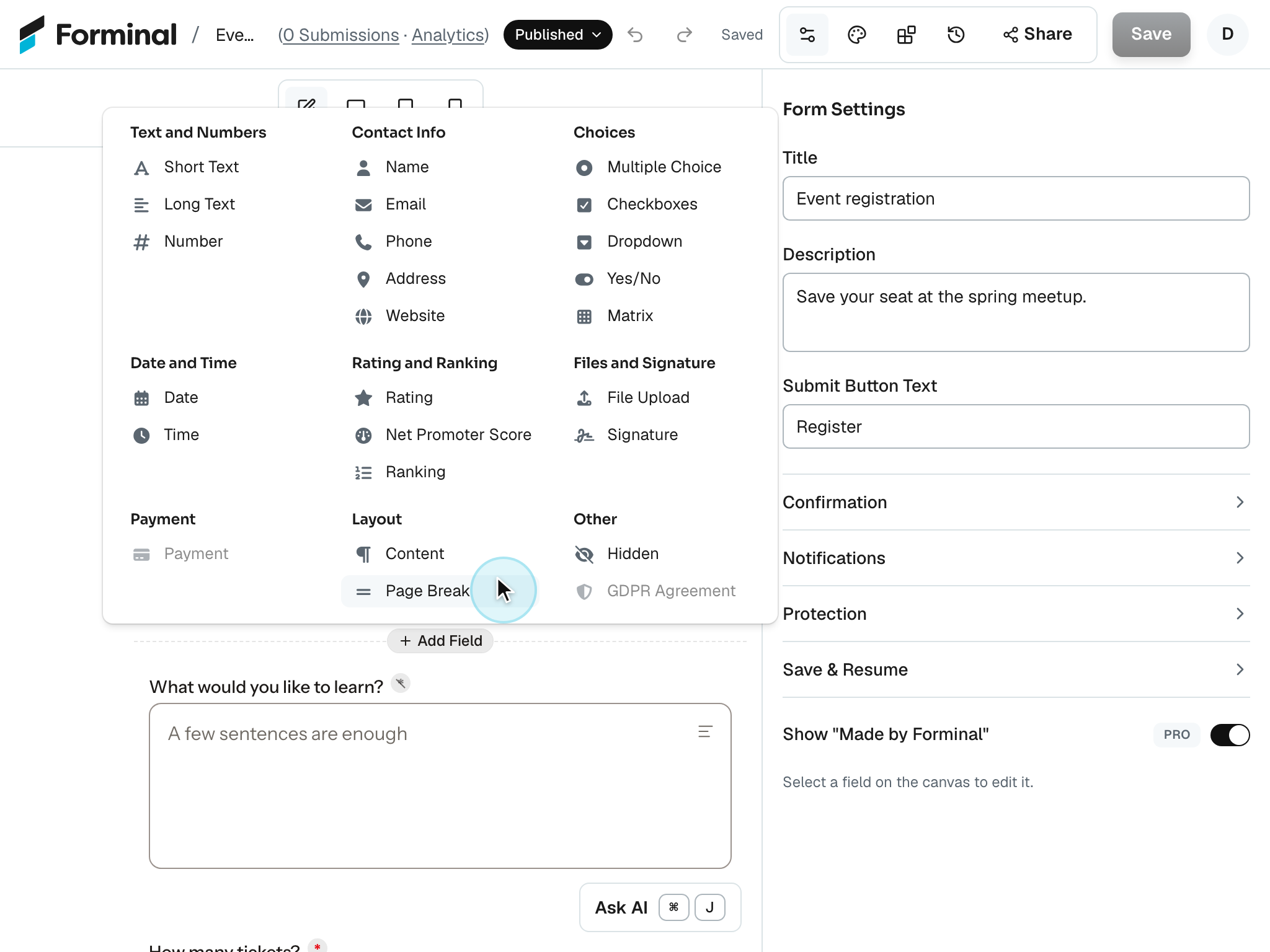
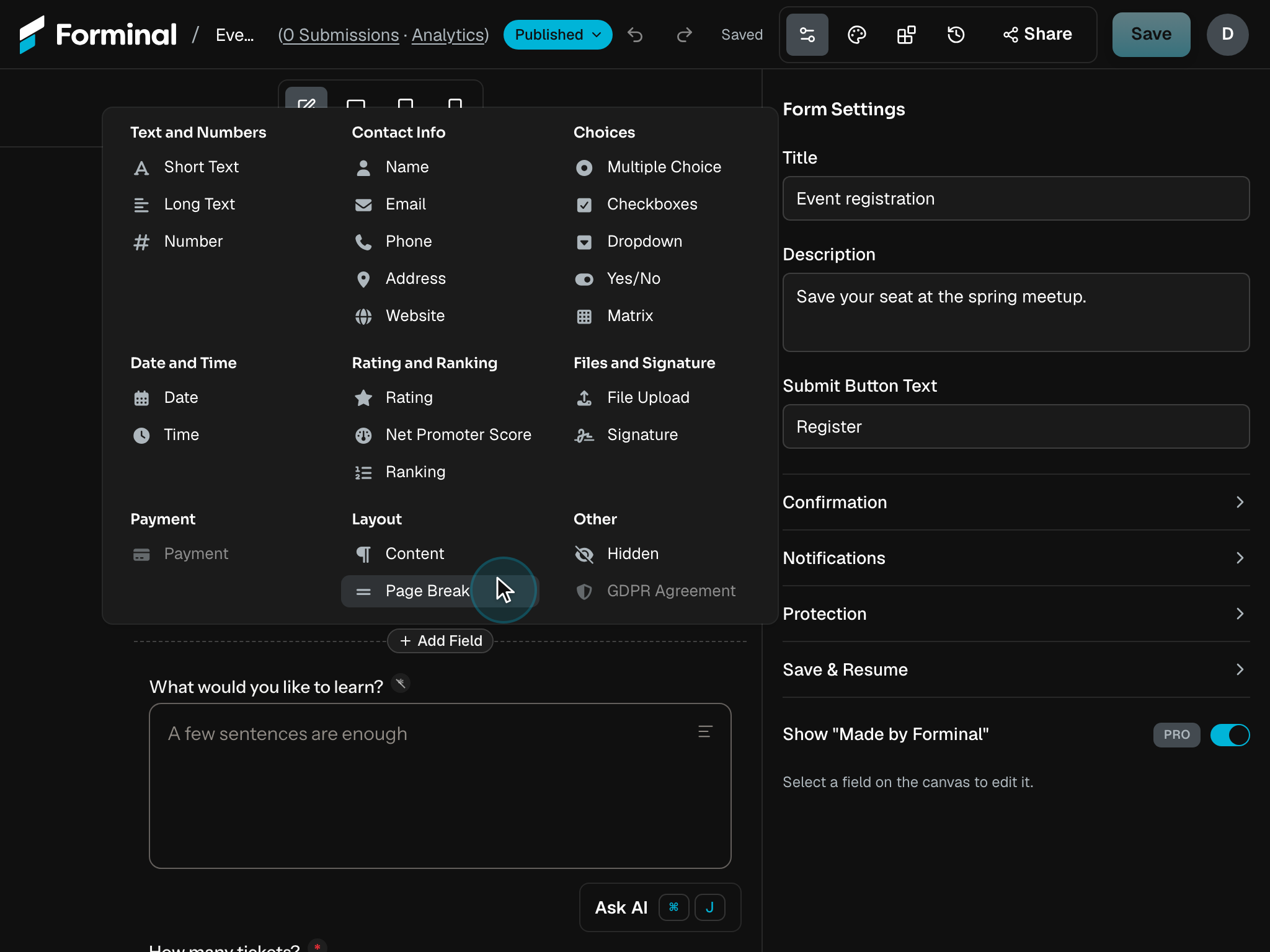
- Under Layout, select Page Break.
- On the canvas, the break shows the Next button for the page above it and a line with the title of the page below it. Click either one to type over it.
- Add more breaks for more pages. Move a break the same way you move a field.
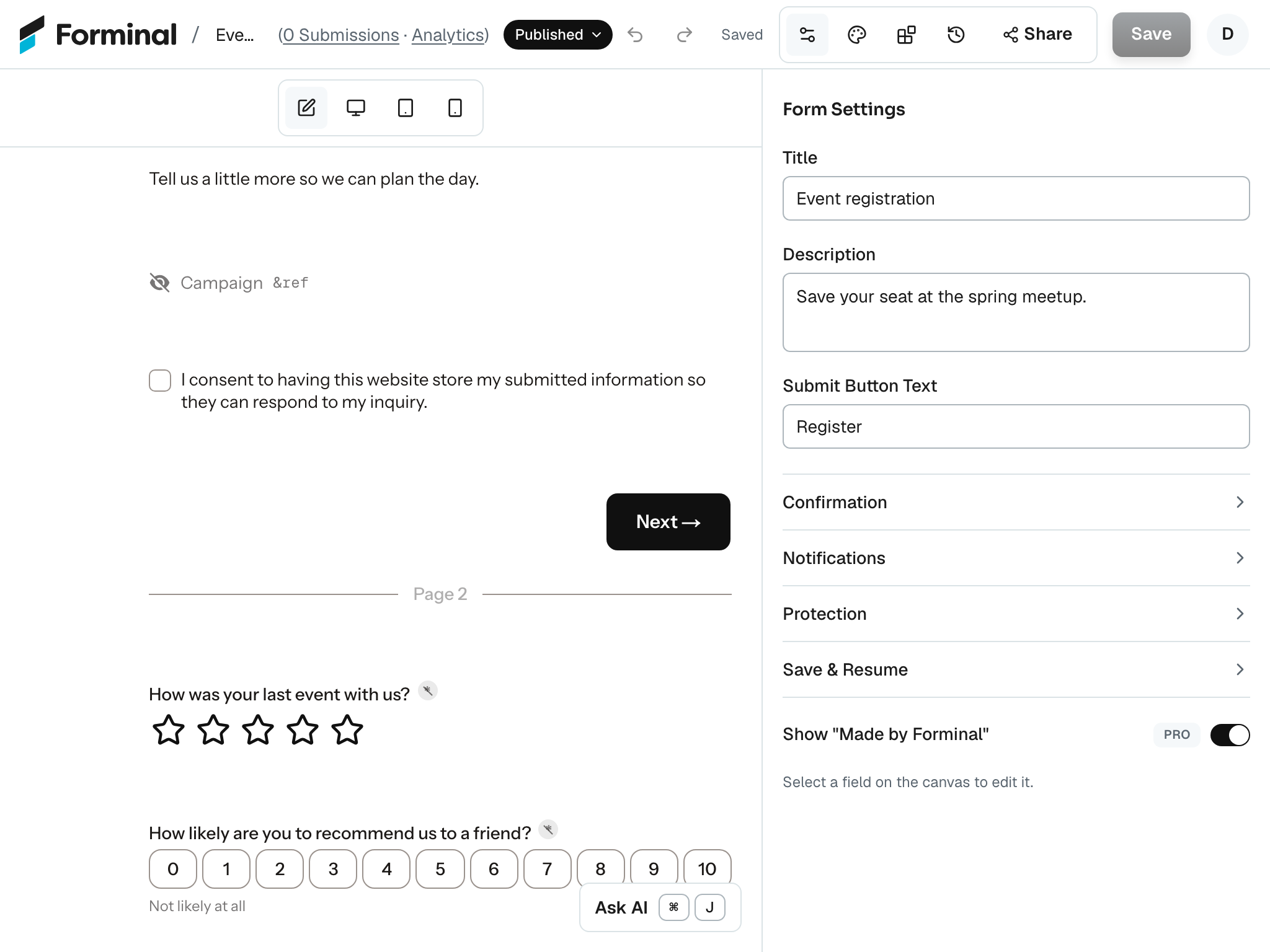
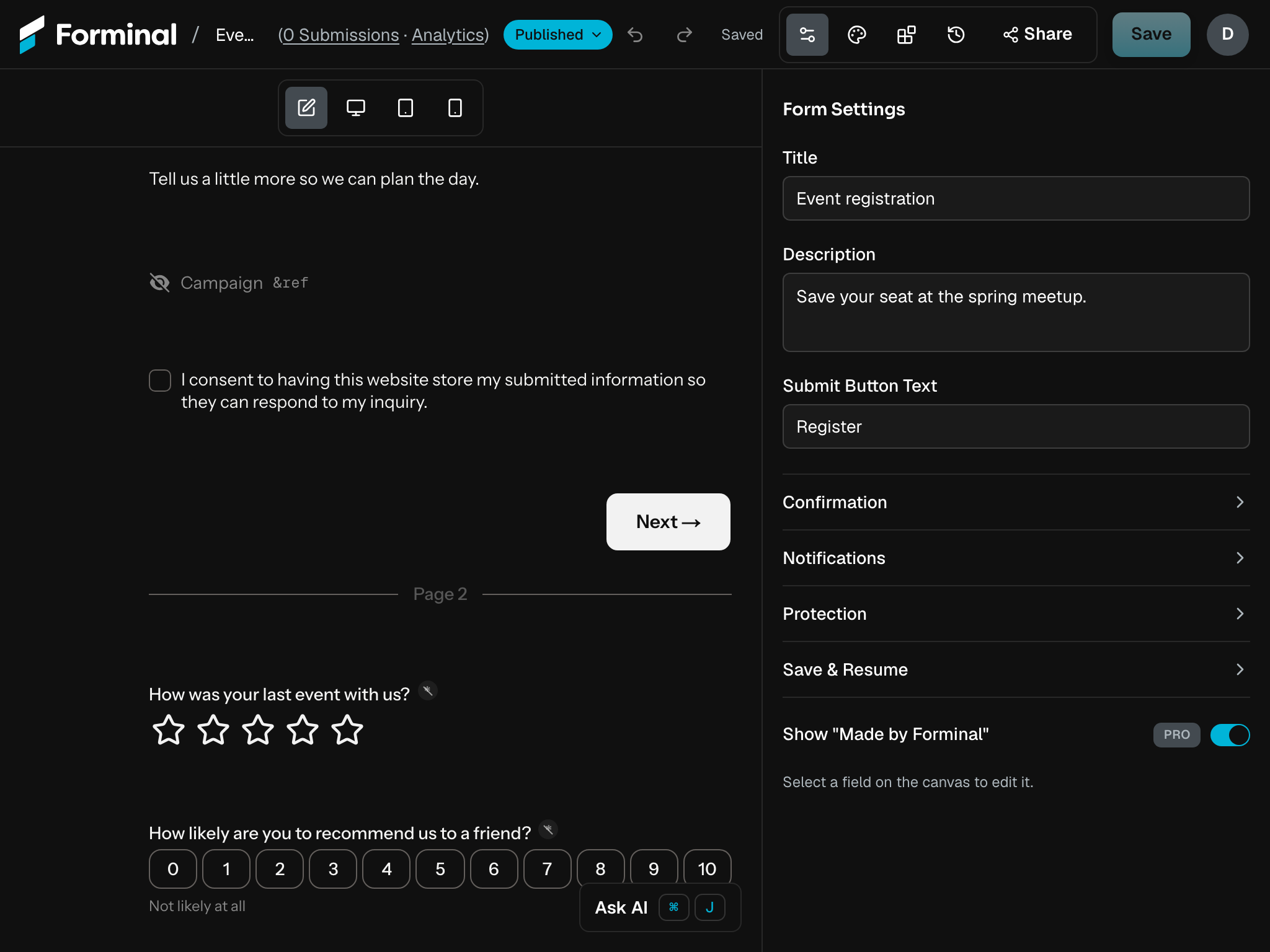
Once a form has a break, the canvas also shows a card at the top for page 1 and a set of buttons at the bottom for the last page.
Settings
Select a page break to see these in the settings panel:
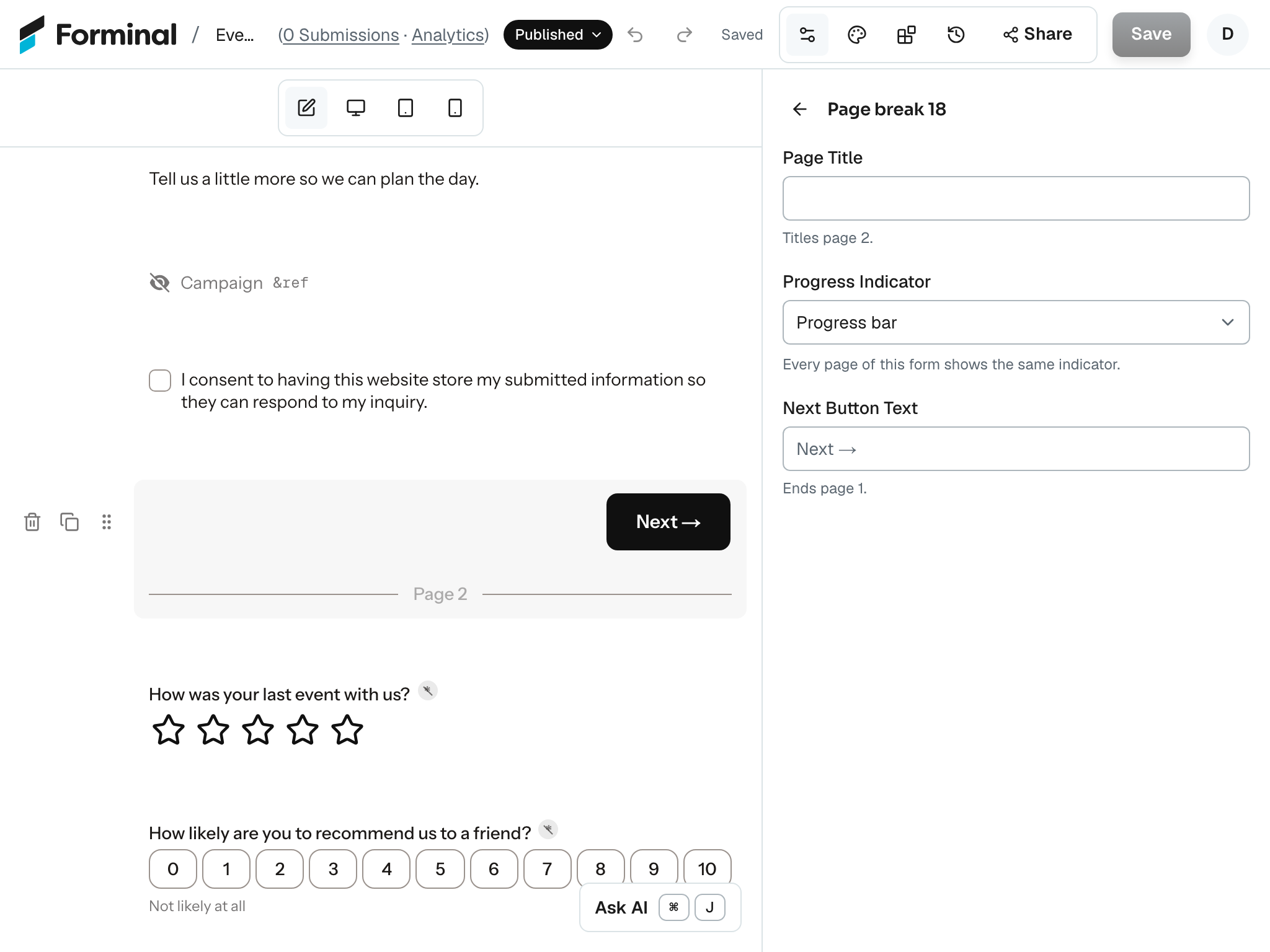
- Page Title: the title of the page this break starts. You can pipe in an earlier answer with
@. - Progress Indicator: Progress bar, Pages or None. It’s one setting for the whole form, so changing it here changes every page.
- Next Button Text: the button that ends the page above. Left blank, it reads “Next →”.
- Previous Button Text: the back button on the page above. Left blank, it reads “← Previous”. The first break doesn’t have one, because page 1 has nowhere to go back to.
Select the page 1 card to set Page Title for the first page, and the last-page buttons to set its Previous Button Text and the Submit Button Text. Button labels can be up to 50 characters, and page titles up to 200.
What people see
With Progress bar, each page shows its title above a bar and a percentage. With Pages, it shows text such as “Page 2 of 4: Work history”. With None, there’s no counter and no page titles. Next checks the fields on the current page before moving on, and the form scrolls back to the top of the new page. Going back keeps every answer.
Smart Logic works across pages. A page where every field is hidden is skipped and left out of the count. If logic reveals a required field on a page someone already passed, the form takes them back there when they try to submit.
How answers show in submissions
Pages don’t change your submissions. Each submission is one row with every answer, in the CSV export and in notification emails too, and the page breaks themselves never appear.
Good to know
A Payment field has to be on the last page, so you can’t add a break after it. You can’t turn another field into a page break from the Type menu, or turn a break into a field.
Frequently asked questions
Does a page break change how answers look in submissions?
No. Each submission is still one row with every answer, in the submissions table, the CSV export and notification emails. The breaks themselves never appear there.
Can I put a page break after a Payment field?
No. A Payment field has to be on the last page, so the builder won’t let you add a break after it.
Can I hide the progress bar between pages?
Set Progress Indicator to None in any page break’s settings. It’s one setting for the whole form, and with None the page titles are hidden too.
Do answers stay filled in when someone goes back a page?
They do. Previous keeps every answer, and the form scrolls back to the top of the page.
Can I turn an existing field into a page break?
No. The Type menu can’t change a field into a page break or a break into a field. Add a new break from Add Field, under Layout, and move it where you need it.