Content is a block of formatted text, with images and icons if you want them, that you place between fields to explain what comes next. It isn’t a question and doesn’t collect an answer.
Examples
- A short summary of the terms just above a consent checkbox, with a link to the full version.
- A heading that splits a long survey into topics.
- A list of what to bring to an event, with a small icon at the start of each line.
- “Thanks, @Name. Now a few questions about your order”, with the person’s name piped in from an earlier field.
Add it to a form
- In the builder, point between two fields and select Add Field. On an empty form, select Start from Scratch.
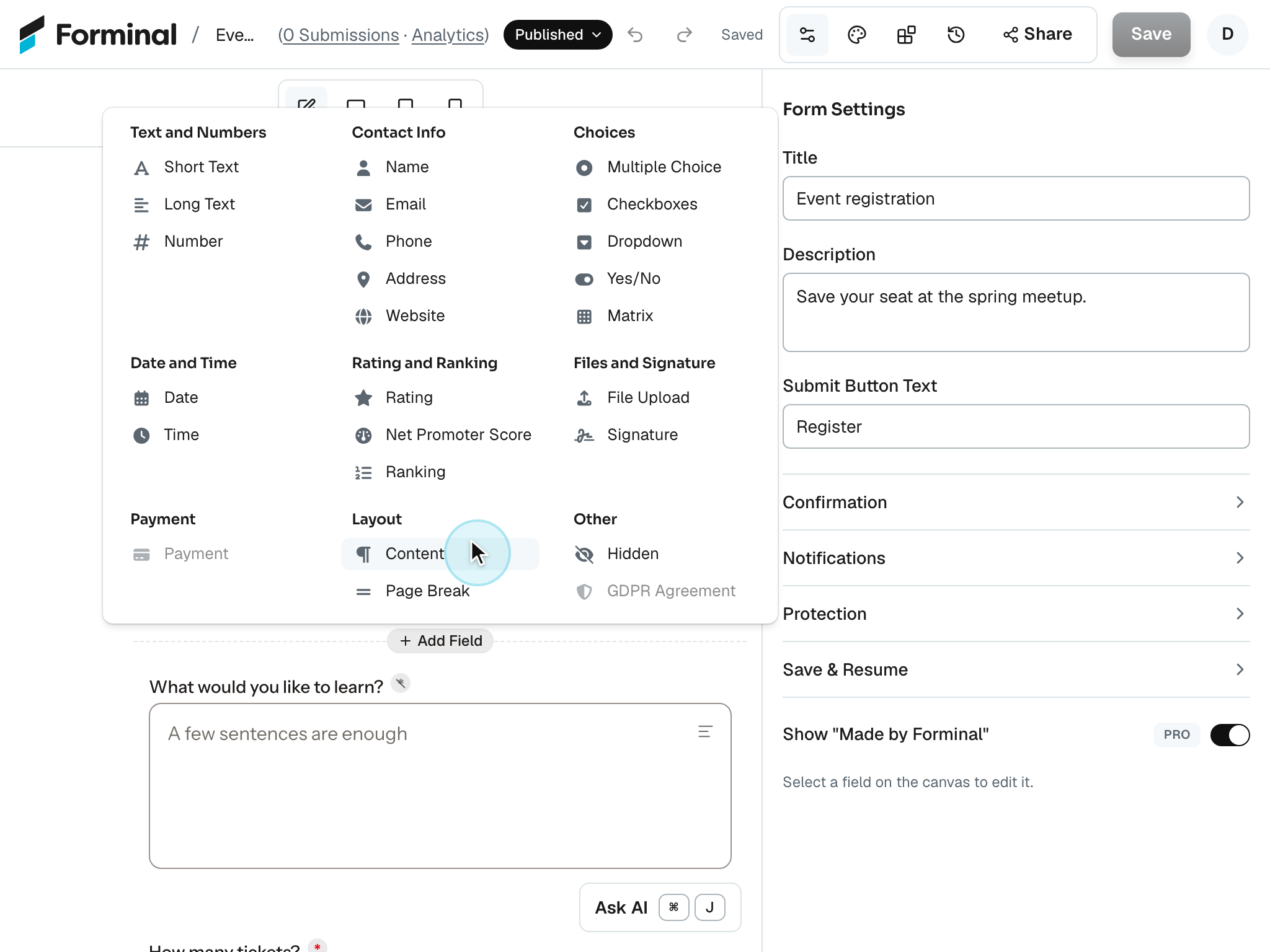
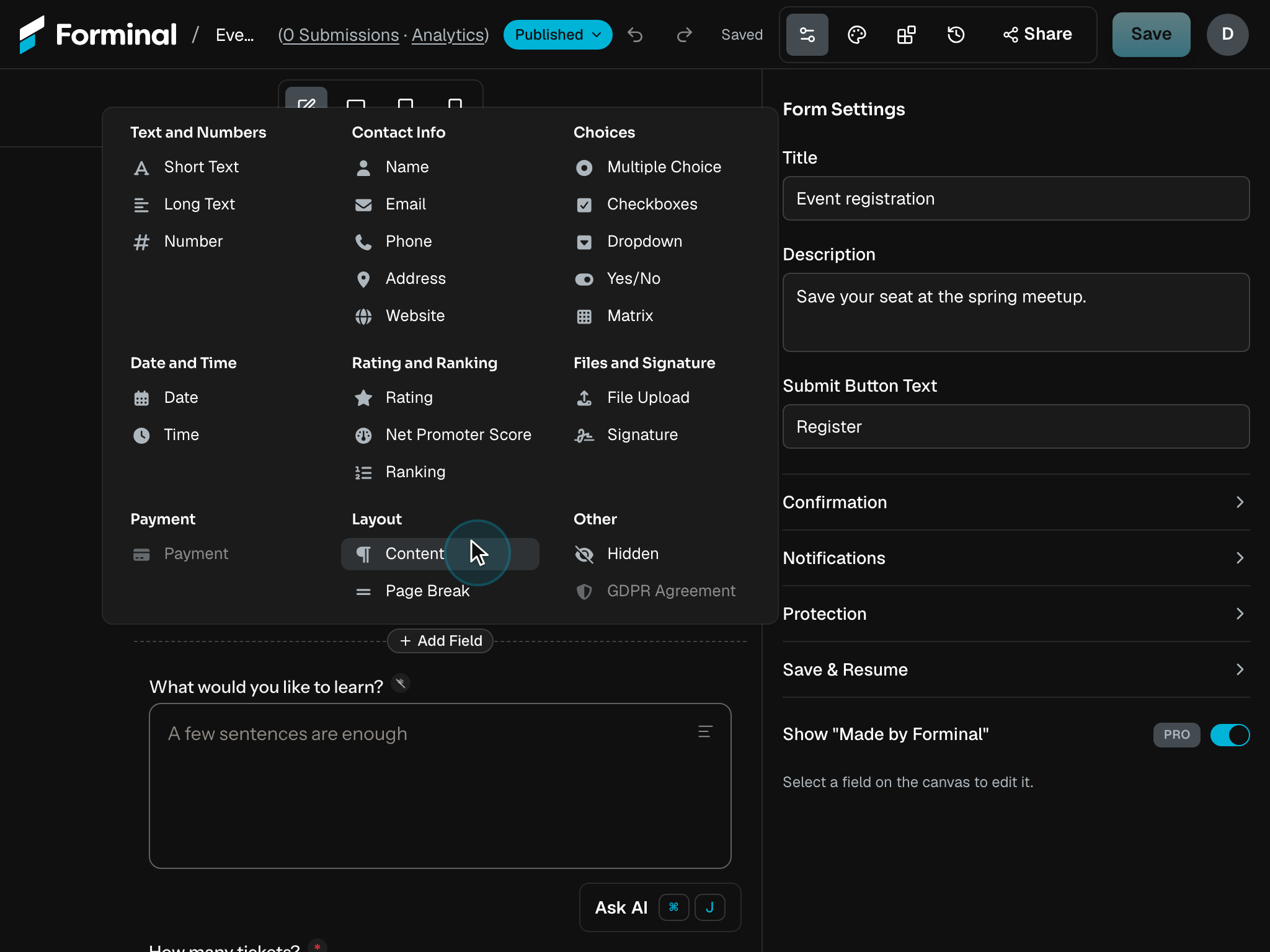
- Under Layout, select Content.
- Click into the block on the canvas, where it says “Write something”, and type.
- Use the formatting bar that appears above the text to style it.
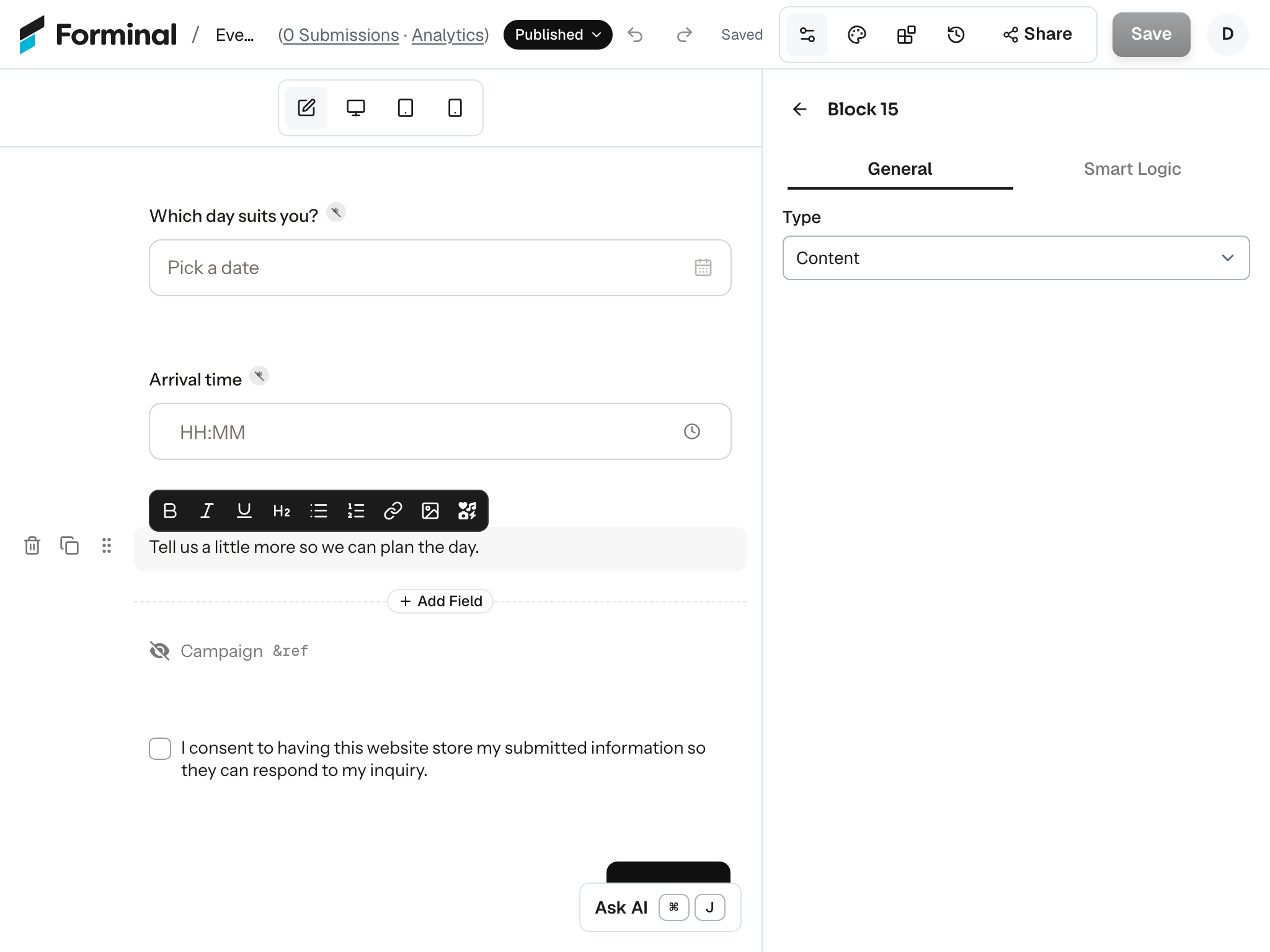
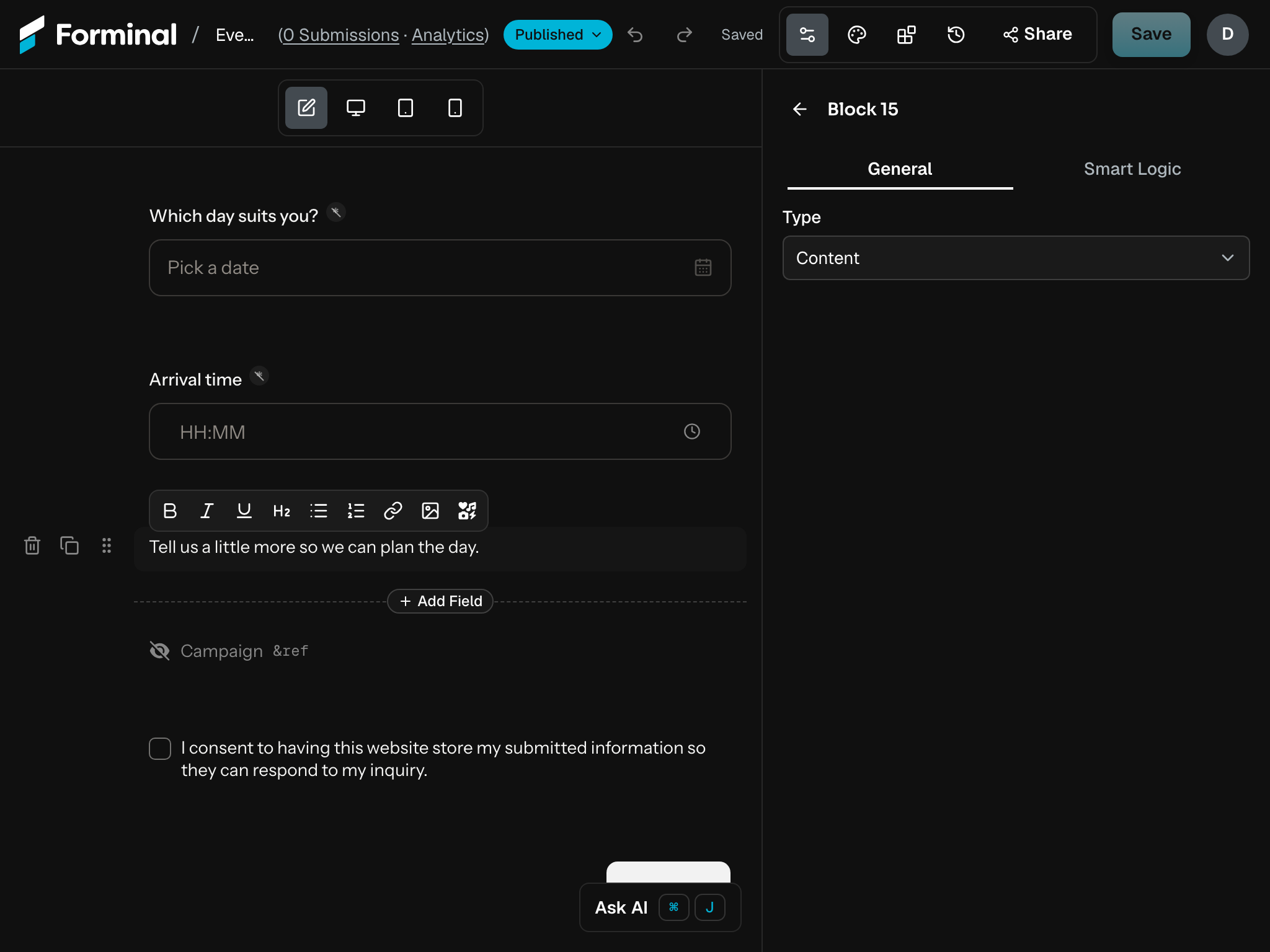
You write a Content block right on the canvas. It has no label, description or Required switch. The settings panel only has the Type menu and the Smart Logic tab.
Formatting
- Bold, Italic, Underline and Heading.
- Bullet list and Numbered list.
- Link: select some text, choose Link and paste the address. An address without https:// gets it added. Web and email (mailto:) links work, and on the form they open in a new tab.
- Image: opens your media library. Choose a picture you added before, or add a PNG, JPEG, GIF or WebP with Upload, then select Use. The image keeps the Alt text you gave it in the library, which screen readers read out. Select the image to align it with Align left, Align center or Align right, set its width and height in pixels (up to 4000, or auto), or swap it with Replace from media library.
- Icon: adds an icon at the caret, as described below.
- Answers: type
@to pipe in an answer from a field that comes earlier in the form. It fills in as people answer.
Add icons to the text
An icon sits inside a line of text, like a word. You can put one in a paragraph, a heading or a list item.
- Click in the text where the icon should go.
- Select Icon at the end of the formatting bar.
- Type in Search icons to find one by name or by a related word, then select it. The icon goes in at the caret.
It’s the same picker that Icon and Image Choices uses, with all 2,020 icons in Font Awesome Free.
Change an icon
Select an icon in the text, and the formatting bar shows its tools instead:
- Replace icon opens the picker so you can choose a different one.
- Align to text top, Align to text middle and Align to text bottom set where the icon sits on its line. Bottom is the default and rests the icon on the line like a letter. Middle centers a large icon on smaller text.
- Size takes a size in pixels, up to 256. Leave it empty for auto, and the icon matches the size of the text around it.
- Color sets the icon’s color. Until you pick one, the icon takes the color of its text. Use the text color puts it back.
What people see
The text, images and icons appear in place, in your form’s theme, between the fields around them. With Smart Logic, you can show a Content block only when an earlier answer matches, for example a note that appears only for people who chose “Business”. A Content block never shows up in the submissions table, the CSV export or notification emails, because there’s no answer to store.
Icons show on the form’s own page, in embeds and on Submission Pages. The page carries the icons it uses, so a visitor’s browser doesn’t fetch them from another site. With Custom CSS, a Pro feature, you can style every icon in your Content blocks through the form-content-icon class.
To show a video, map or calendar from a link, see Embed Anything.
Good to know
An image can be up to 2 MB, or 5 MB on Business, and counts toward your media library’s storage. A form made without an account holds up to 30 images and 15 MB of them. One Content block can hold about 20 KB of text and formatting. Content can’t be a Smart Logic condition for other fields, since it has no answer.
Icons are free on every plan. The Icon tool is only in Content blocks and in the Content parts of Submission Pages, a Business feature. The confirmation message and notification emails don’t have it. Screen readers skip icons, so keep anything people need to know in the words.
The AI Assistant can’t add icons to a Content block, and rewriting the block’s text removes the icons in it. Its instructions tell it to warn you first, and you can add the icons back in the builder.
Frequently asked questions
Do Content blocks show up in submissions or exports?
No. A Content block has no answer to store, so it never appears in the submissions table, the CSV export or notification emails.
Can I show a Content block only to some people?
Open the block’s Smart Logic tab and add a rule, for example to show a note only to people who chose Business. It doesn’t work the other way round: a Content block can’t be a condition for other fields, because it has no answer.
How big can images in a Content block be?
Each image can be a PNG, JPEG, GIF or WebP of up to 2 MB, or 5 MB on Business, and counts toward your media library’s storage. A form made without an account holds up to 30 images and 15 MB of them.
Can I put a video or a map in a Content block?
Paste a link from a supported service into an empty line of the block, or choose one you saved before in your media library with the Image button. Embed Anything lists the services that work.
Can a Content block greet people by name?
Type @ in the block and pick an earlier field, such as Name. The answer fills in while people fill in the form. See Answer Piping for where else this works.
Can I add icons to a Content block?
Yes, on every plan. Click where the icon should go, select Icon in the formatting bar and pick one of the 2,020 Font Awesome Free icons. Icons work in paragraphs, headings and list items.
Can I change an icon’s size or color?
Select the icon in the text. Its tools set a size in pixels up to 256, a color and whether it lines up with the top, middle or bottom of the text. With no size or color of its own, an icon follows the text around it.