A calculation fills in a field from a formula you type, so people don’t enter the value themselves. Use it for an order total, a quote, a score or a line of text built from other answers. The value updates while people fill in the form.
Examples
- An order total with tax:
(@Price * @Quantity) * 1.20, charged through a Payment field. - A quote where each plan in a dropdown has an amount, so “Team plan” counts as 20 per seat:
@Plan · Amount * @Seats. - A shipping cost that depends on the country picked, written with
if,elseifandelse. - A Hidden field that holds a full name joined from first and last name, or the number of days between two dates, written with
days().
Set it up
- Open the Advanced tab of a Short Text, Long Text, Number or Hidden field and turn on Enable Calculation.
- Type your formula in the Formula box. Type
@to pick a field, or select Insert Field. The field shows as a chip with its label. - Use the operator buttons (+, –, *, /, %, brackets) to add an operator at the cursor. Select a part of the formula and a bracket button wraps it. Expand editor, at the end of the toolbar, widens the box.
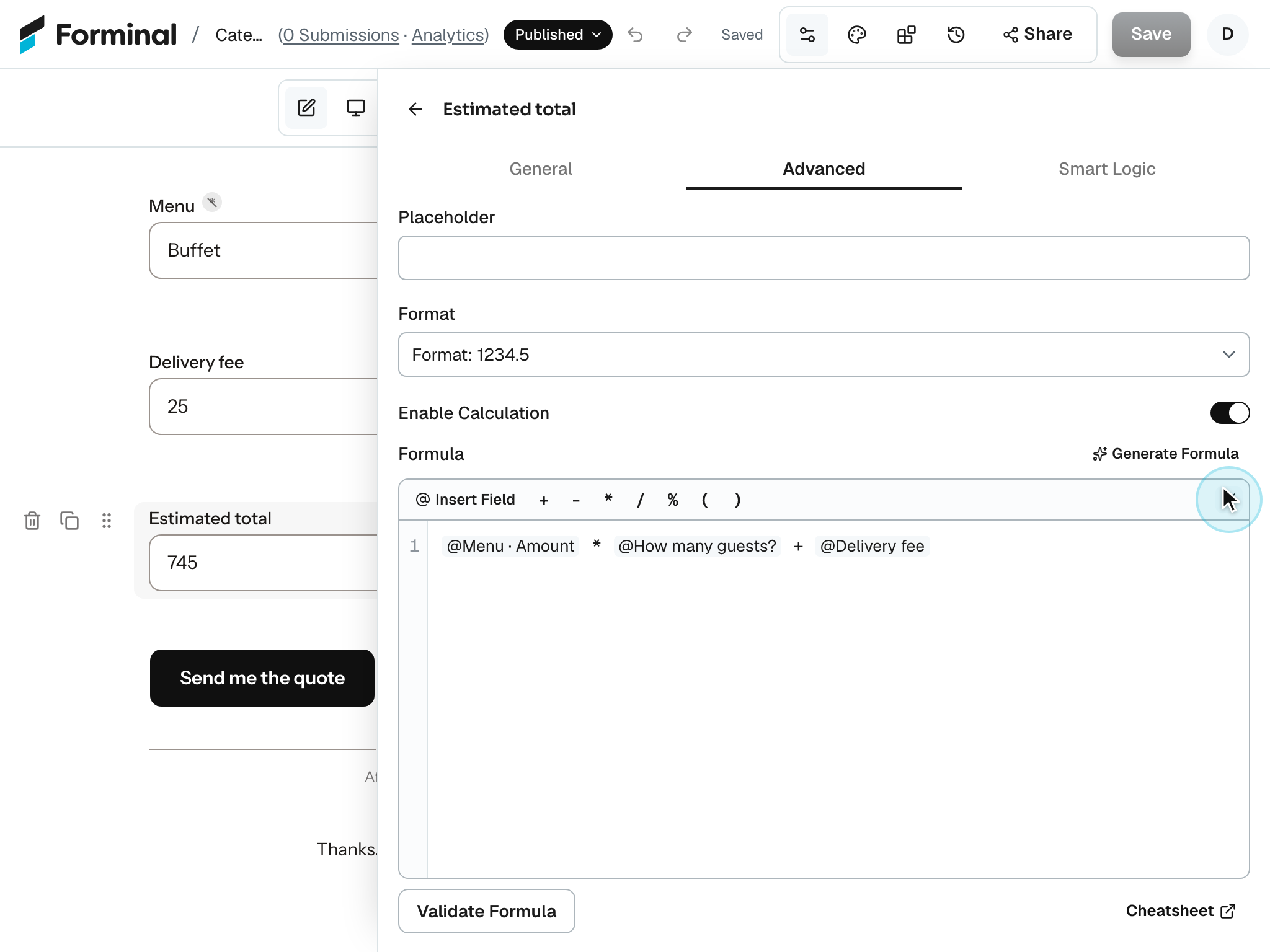
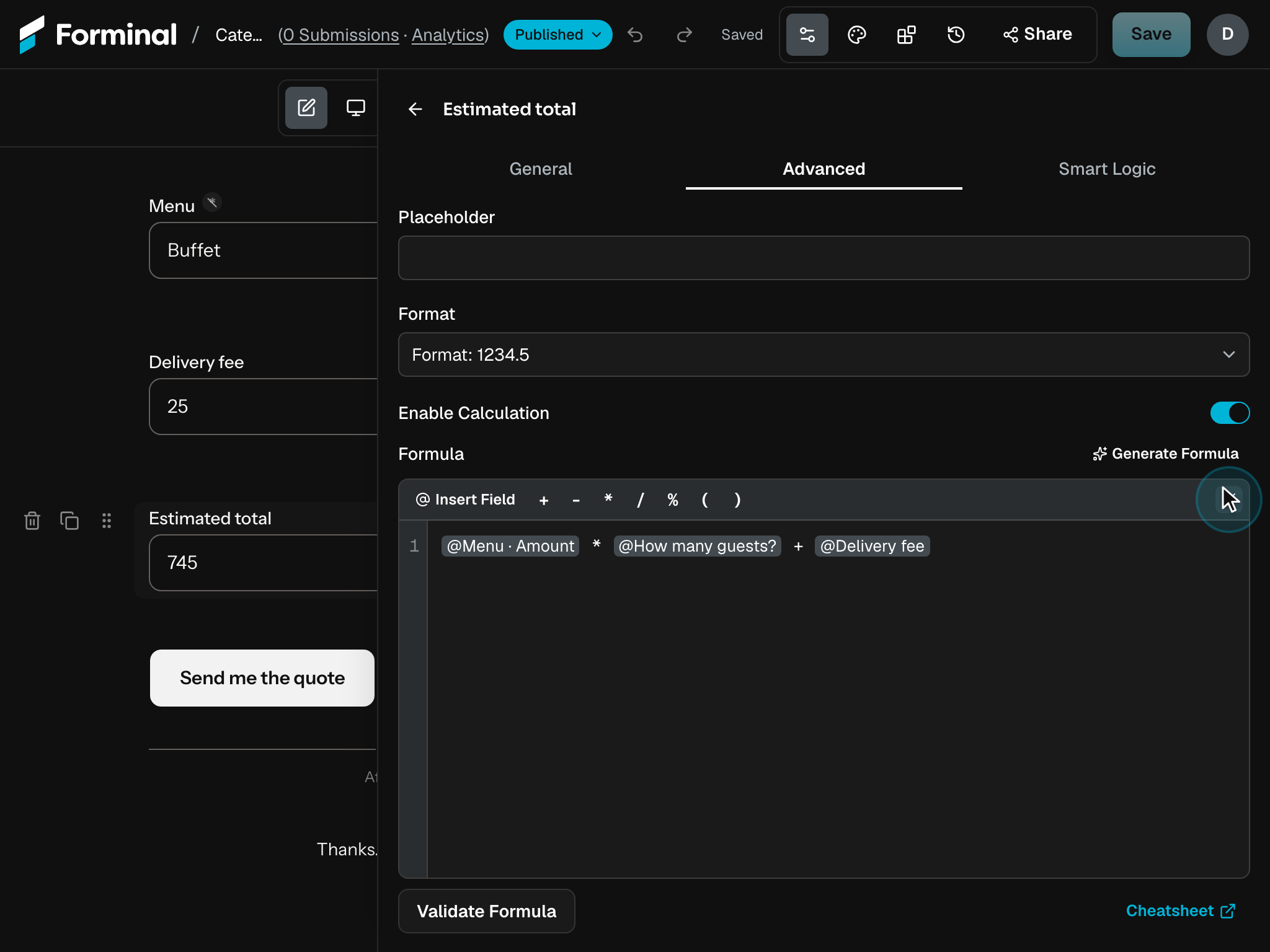
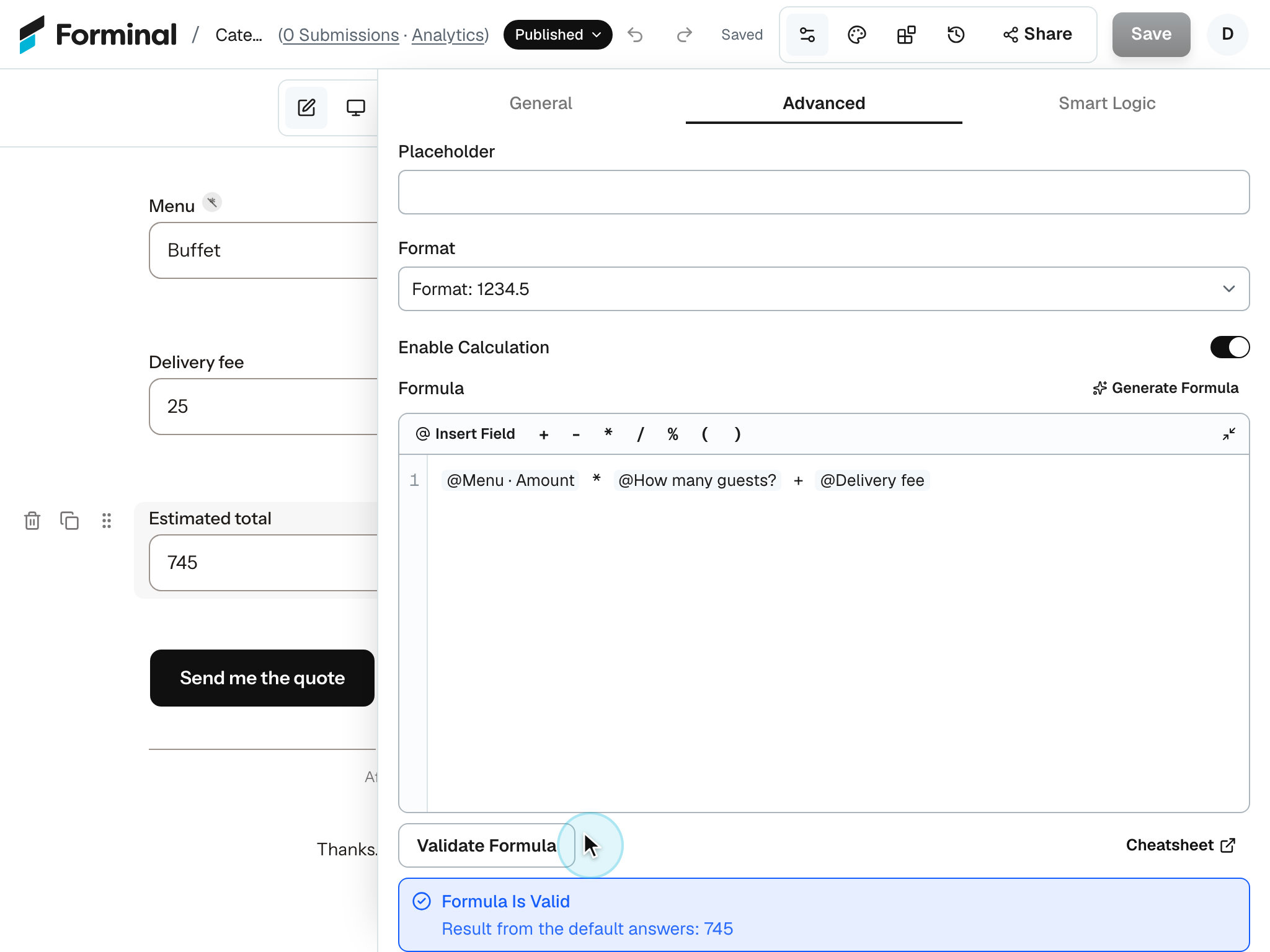
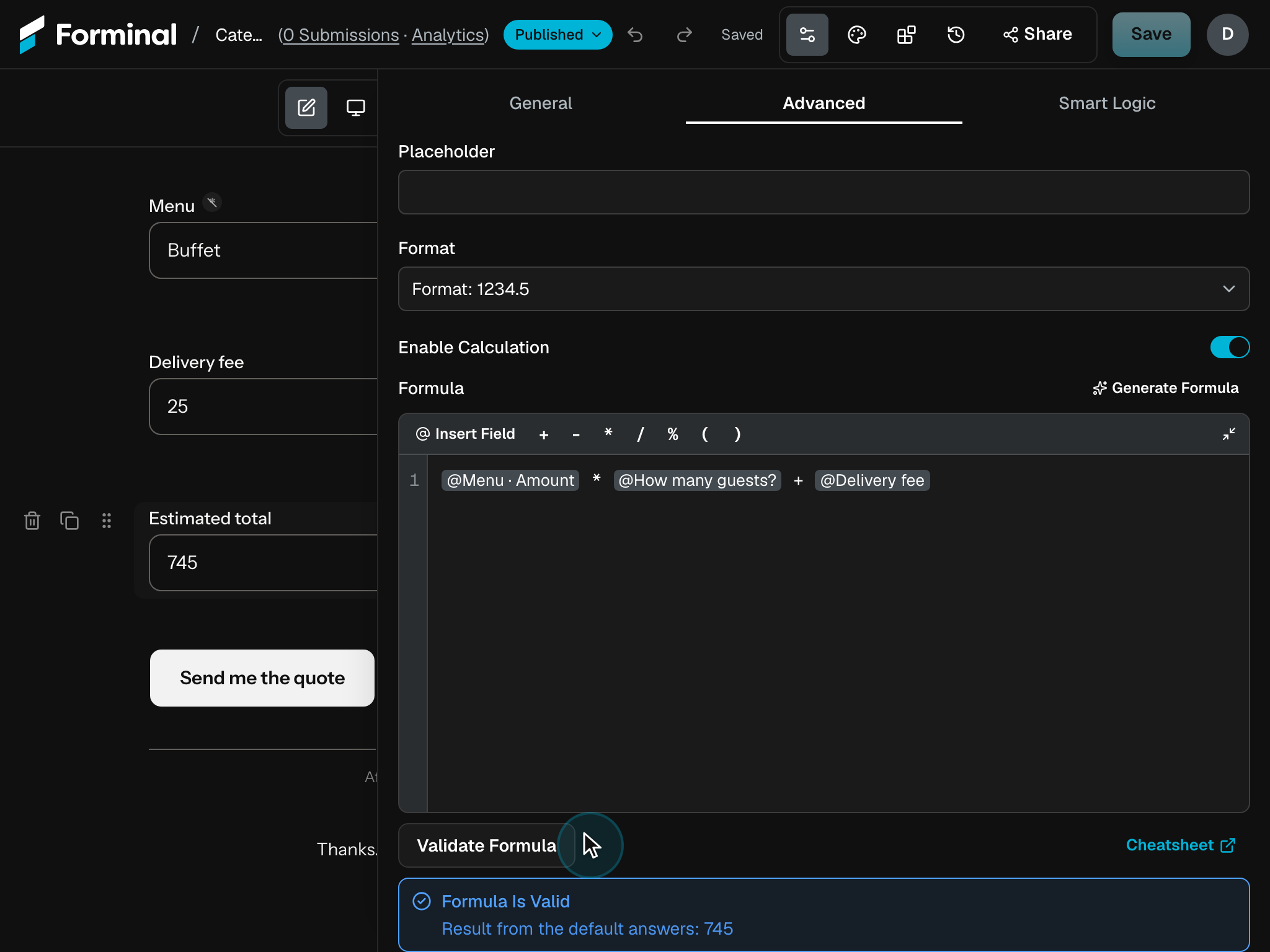
- Select Validate Formula. A valid formula shows “Formula Is Valid” and “Result from the default answers”, which works the formula out from each field’s default answer so you can check the math first.
- If the form is still a draft, select Publish.
The Cheatsheet link under the box opens the Formula Cheatsheet, which lists every operator, function and field value you can use.
Let the assistant write it
Select Generate Formula next to the Formula label to open the builder chat for that field. The chat shows “Writing the formula for” and the field name, so a request such as “add 20% tax” goes to the right field. If Validate Formula finds problems, the message lists them with a Fix with AI button that opens the chat with the formula and the problems already in it. The assistant only stores a formula that validates.
What a formula can read
Typing @ offers every field a formula can read: text fields, numbers, ratings, choice fields, name, address, date, time, Hidden fields and other calculated fields. It leaves out Ranking, File Upload, Signature, Payment, Content, Page Break and the field the formula belongs to.
- Number, Rating and Net Promoter Score give the number.
- Yes/No gives 1 when ticked and 0 when not.
- Choice fields give the label of the chosen option.
@Plan · Amountgives that option’s amount. - Name and Address give the whole text, and each part, such as
@Name · First. - A field that Smart Logic hides counts as empty, and so does a field on a later page until it is answered.
The cheatsheet has the full list. Fields can read other calculated fields, as long as two don’t calculate from each other.
Option amounts
A choice field needs an amount on each option before a formula can read the field’s amount. Turn on Option Amounts on the field’s Advanced tab to show an amount box next to each option. Inserting a field’s amount from the picker turns the toggle on for you. A Payment field that charges the field also keeps it on, and so does a formula that reads its amount. Turning it off while nothing needs it clears the amounts.
What each field type becomes
- Number: the result is read as a number and shown in the field’s own format. Default Answer, Min Number, Max Number and Required are hidden while the field is calculated. Format, Prefix and Suffix stay.
- Short Text and Long Text: the result is text. A number prints plainly, up to 12 decimals. Long Text keeps line breaks. Default Answer and Required are hidden.
- Hidden: the formula replaces any value from the form’s link. Parameter Name stays, with a hint that the link’s value is ignored.
A calculated field is read-only on the published form, and the canvas marks it with a calculation indicator.
What people see
On the published form the result changes as people answer, and they can’t type in it. Smart Logic can show or hide other fields based on the result, for example a discount note when the total is greater than 100. Conditional confirmations can read it too, so a quiz can thank high and low scorers differently.
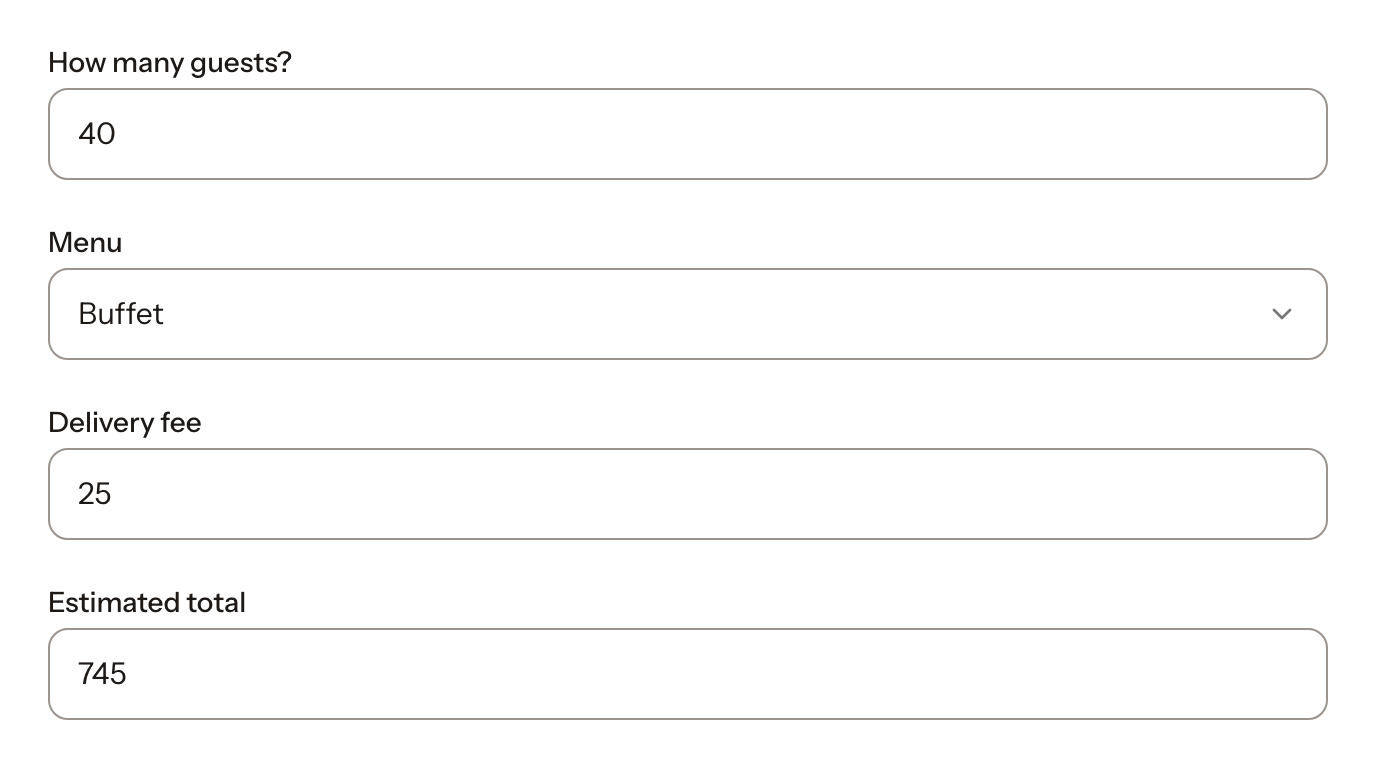

When the form is sent, the server works every calculated field out again from the submitted answers and ignores what the browser sent. Nobody can lower a calculated price by editing the page in the browser’s developer tools, which is why a calculated field can be the amount a Payment field charges through Stripe. Two functions are the exception: rand() and now() show a preview in the browser, and the stored value is the server’s.
How answers show in submissions
The result is saved like any other answer. It appears in the submissions table, the CSV export, submission PDFs and notification emails, and it goes to Google Sheets, Zapier, Make and webhooks.
Publishing
You can save a form with an unfinished formula, but you can’t publish it. The publish step stops with “Fix the formula in” the field’s name, “before publishing”, and the first problem. Each problem names its line, for example “Unexpected ) on line 2” or “Function sum is not allowed on line 1”.
If you delete a field a formula uses, the formula keeps its place and shows a red Deleted field chip, and publishing is blocked until you fix it. On a form that is already published, Save is blocked the same way, so the live form keeps its last working version until you fix the formula.
Good to know
- A formula can be up to 10,000 characters long.
- If a formula can’t be worked out, for example because of a division by zero, the field stays empty. People don’t see an error. Validate Formula tells you why.
- Operators follow normal math order, so
2 + 3 * 4is 14. - A blank number counts as 0 in a sum and in comparisons.
Calculations are available on every plan. Showing or hiding fields based on the result, and conditional confirmations, use Smart Logic, so they’re available on the same plans as Smart Logic.
Frequently asked questions
Which fields can hold a calculation?
Short Text, Long Text, Number and Hidden fields. Turn on Enable Calculation on the field’s Advanced tab.
Can I charge a calculated total through Stripe?
A Payment field can charge a calculated field. When the form is sent, the server works the total out again from the answers and ignores what the browser sent, so nobody can lower the price by editing the page.
Do calculations need a paid plan?
No, calculations are on every plan. Showing fields or confirmations based on the result uses Smart Logic, which every plan includes too.
What happens if a formula divides by zero?
The field stays empty and people don’t see an error. Select Validate Formula in the builder to see why.
Can the AI assistant write the formula for me?
Select Generate Formula next to the Formula label and describe what you want, such as add 20% tax. The assistant only stores a formula that validates.
Do calculated results reach my integrations?
Yes. The result is saved like any other answer, so it shows in the submissions table, the CSV export, PDFs and notification emails, and goes to Google Sheets, Zapier, Make and webhooks.